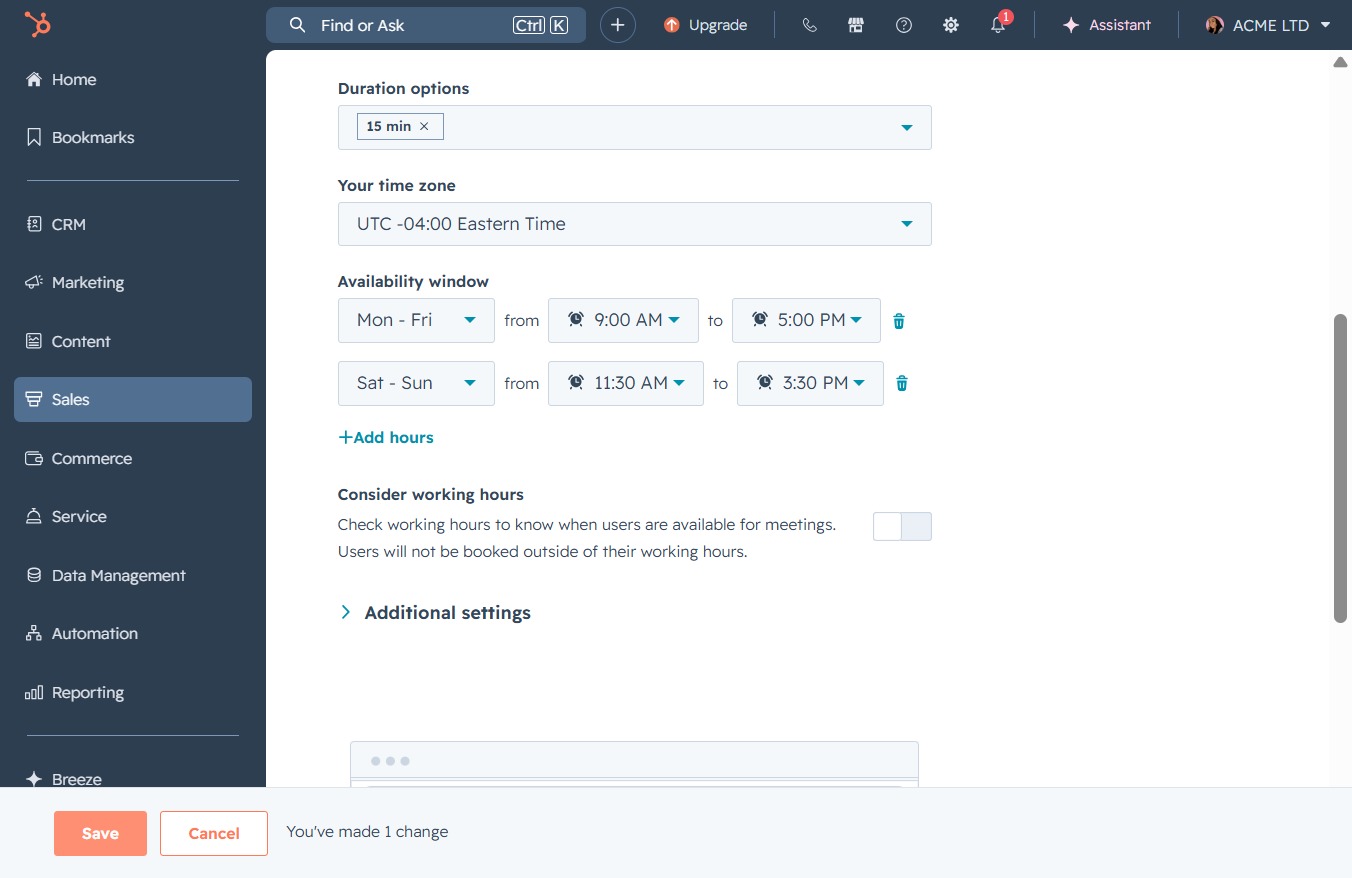
Click the Edit option
This action allows you to modify the details of the selected meeting, such as its name, organizer, and duration.
Loading screenshot…
100%
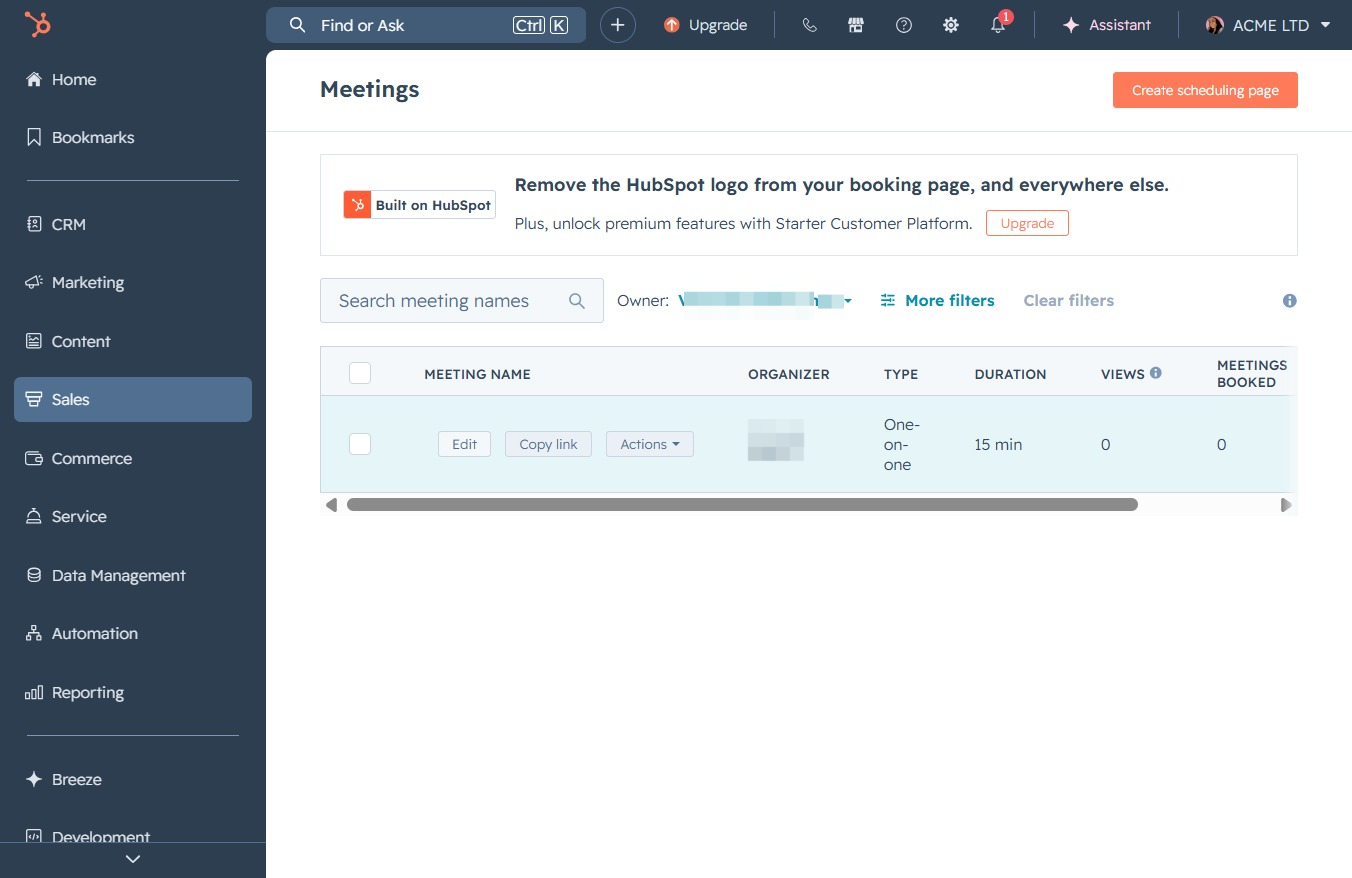
Modify your meeting availability hours in the Scheduling tab to reflect your working days and times, ensuring users can book appointments during your specified hours.
 viktoria
Modify your meeting availability hours in the Scheduling tab to reflect your working days and times, ensuring users can book appointments during your specified hours.
This action allows you to modify the details of the selected meeting, such as its name, organizer, and duration.
Switch to the Scheduling section to manage your meeting times and availability for the 15-minute meeting.

This action allows you to extend the availability window by adding additional hours for scheduling meetings. After clicking, you will be prompted to specify the new hours you'd like to include.
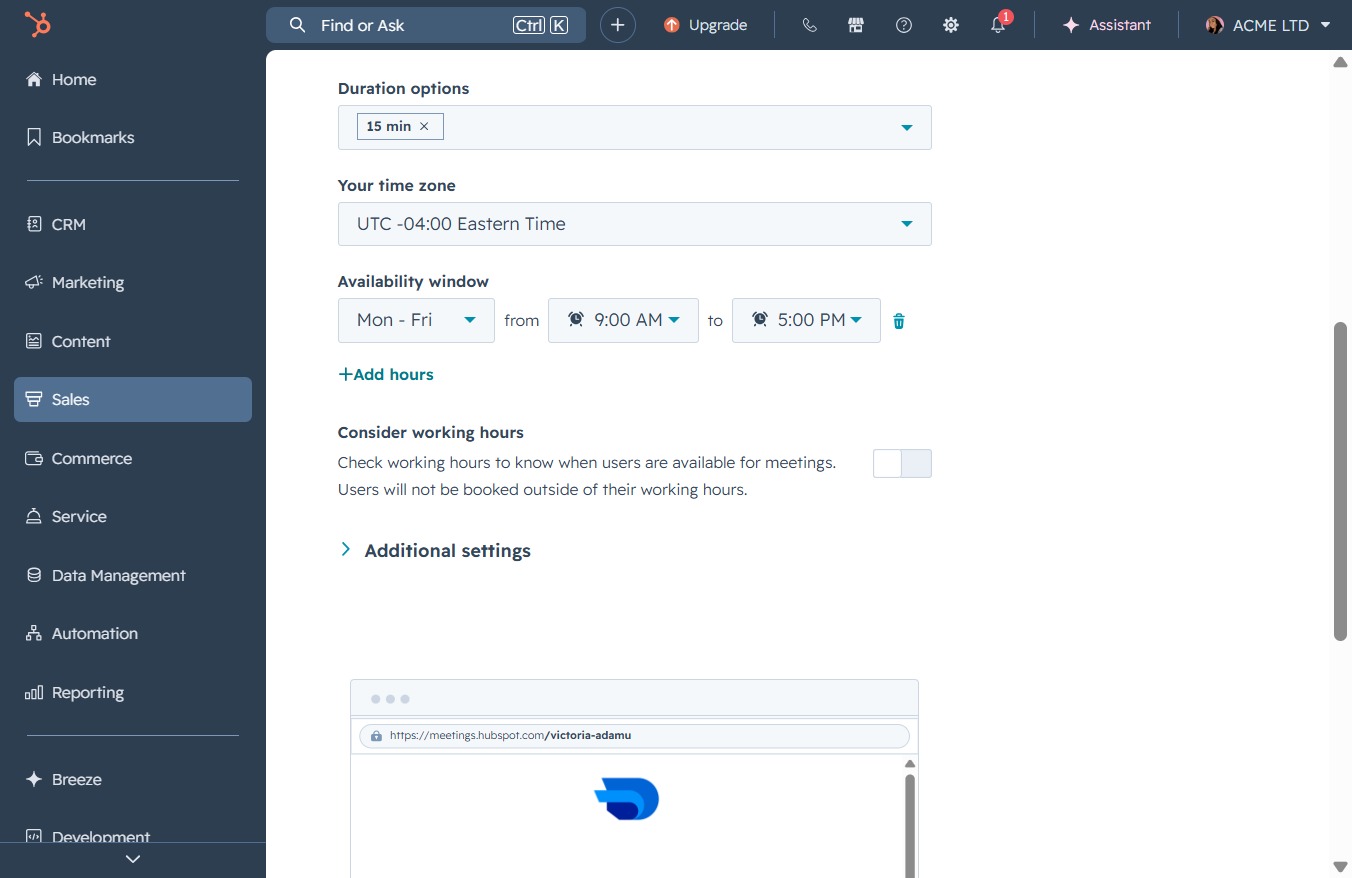
This action allows you to set the available times for scheduling meetings, specifying your working hours as 'Mon - Fri'.
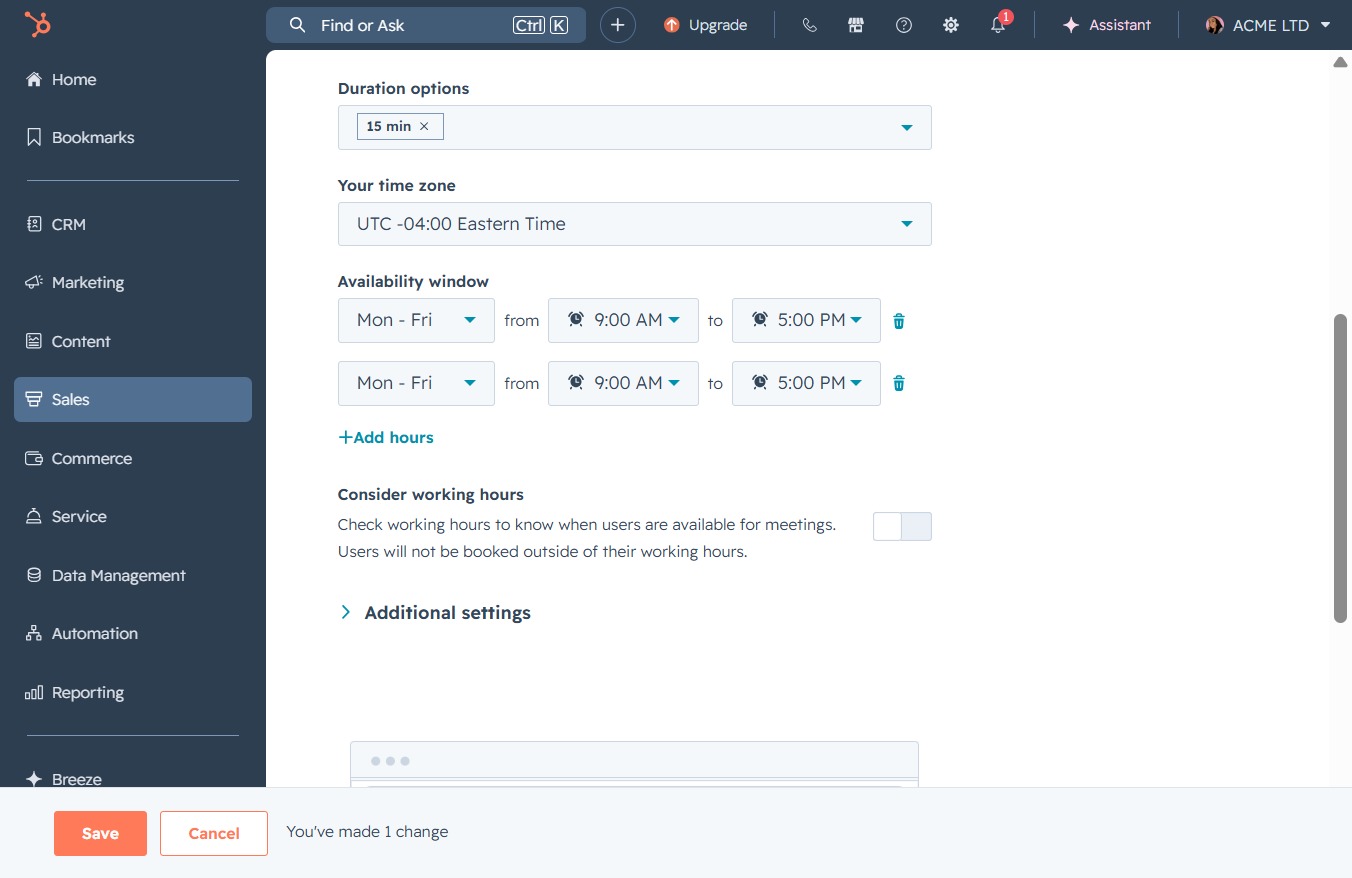
Selecting the 'Sat - Sun' option modifies your availability window to include Saturdays and Sundays for scheduling meetings.

Selecting the 9:00 AM time slot updates the meeting availability for that time. Ensure this time fits within your designated working hours for scheduling.
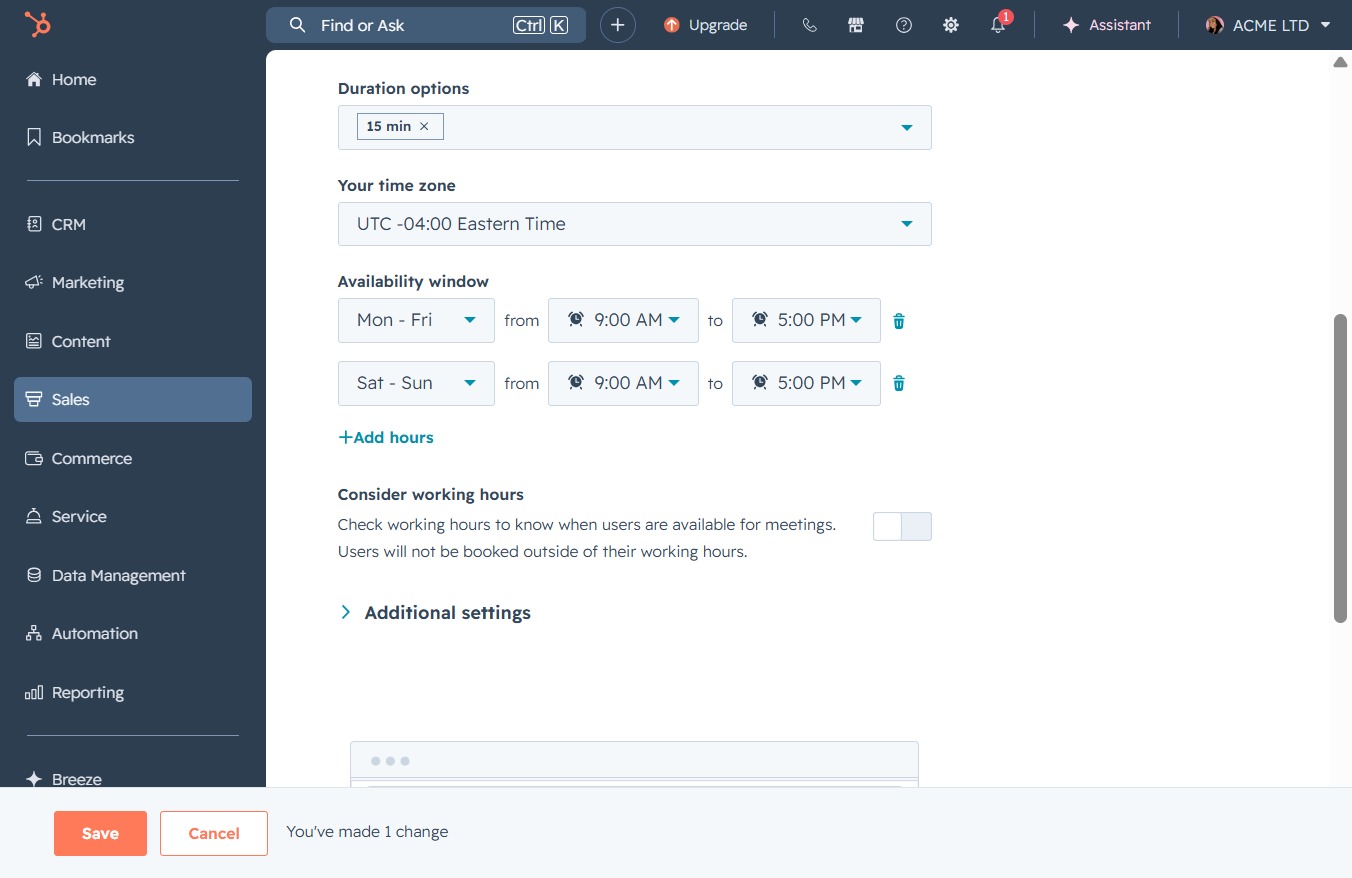
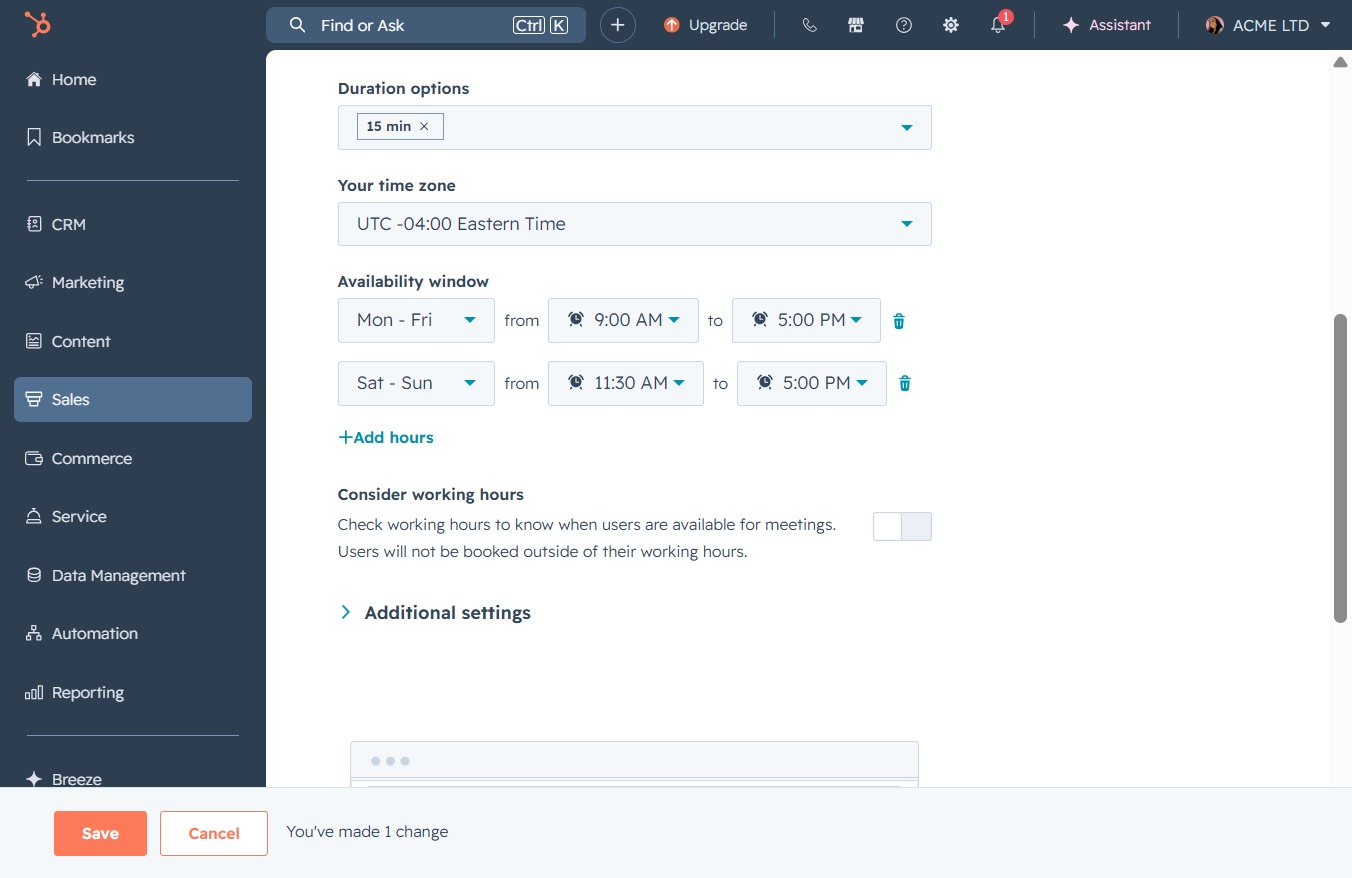
Selecting the 11:30 AM time slot will set this as an available meeting time in your scheduling settings. This adjustment helps users book appointments during your specified working hours.

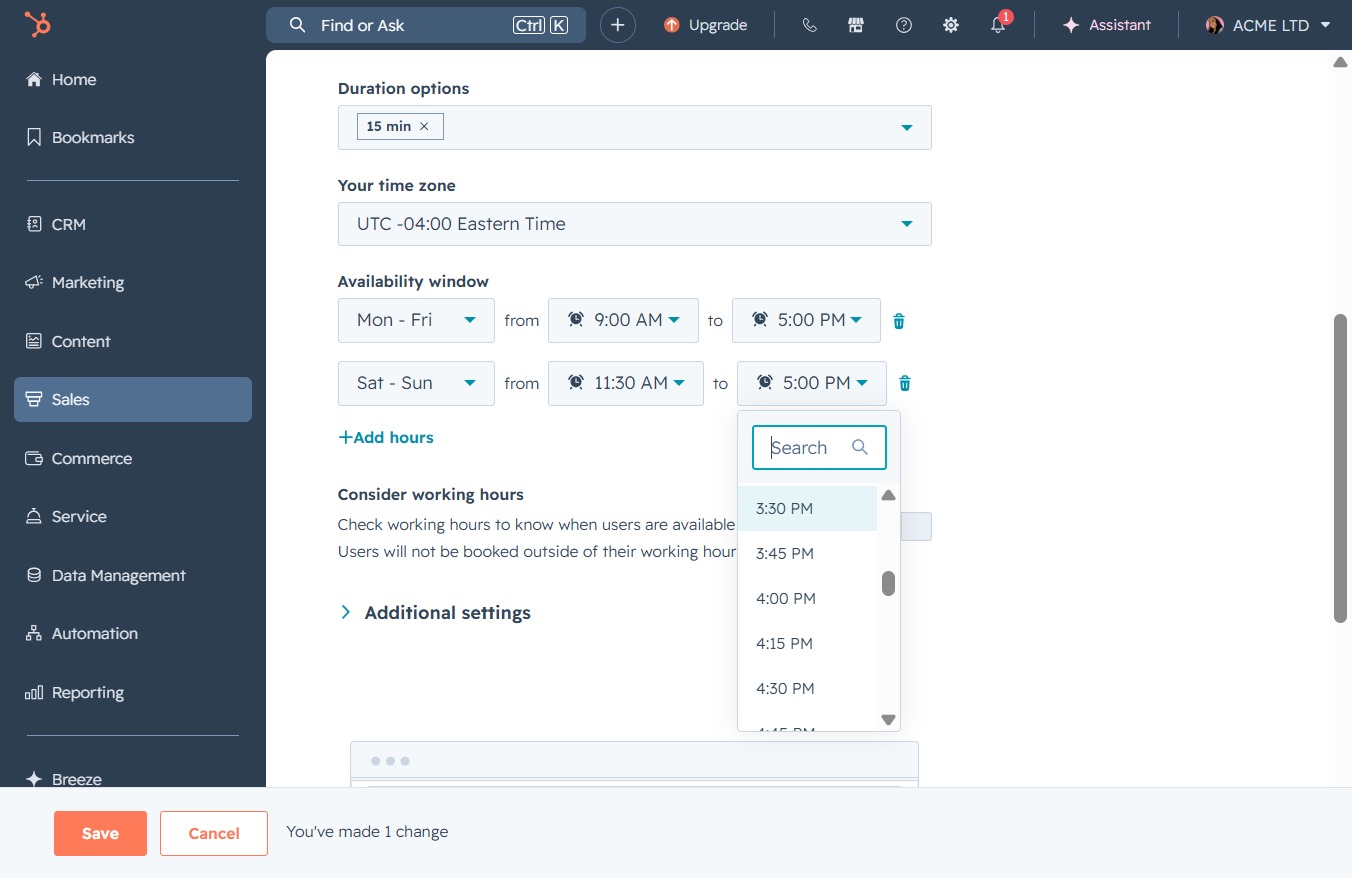
Selecting the 5:00 PM time updates the meeting availability window for the specified days. This ensures that users can schedule meetings during the selected time slot.
Select the 3:30 PM option to indicate availability for scheduling. This will allow users to book meetings during this specified time.
Clicking the Save button will store your changes to the meeting settings, including duration options and availability windows.