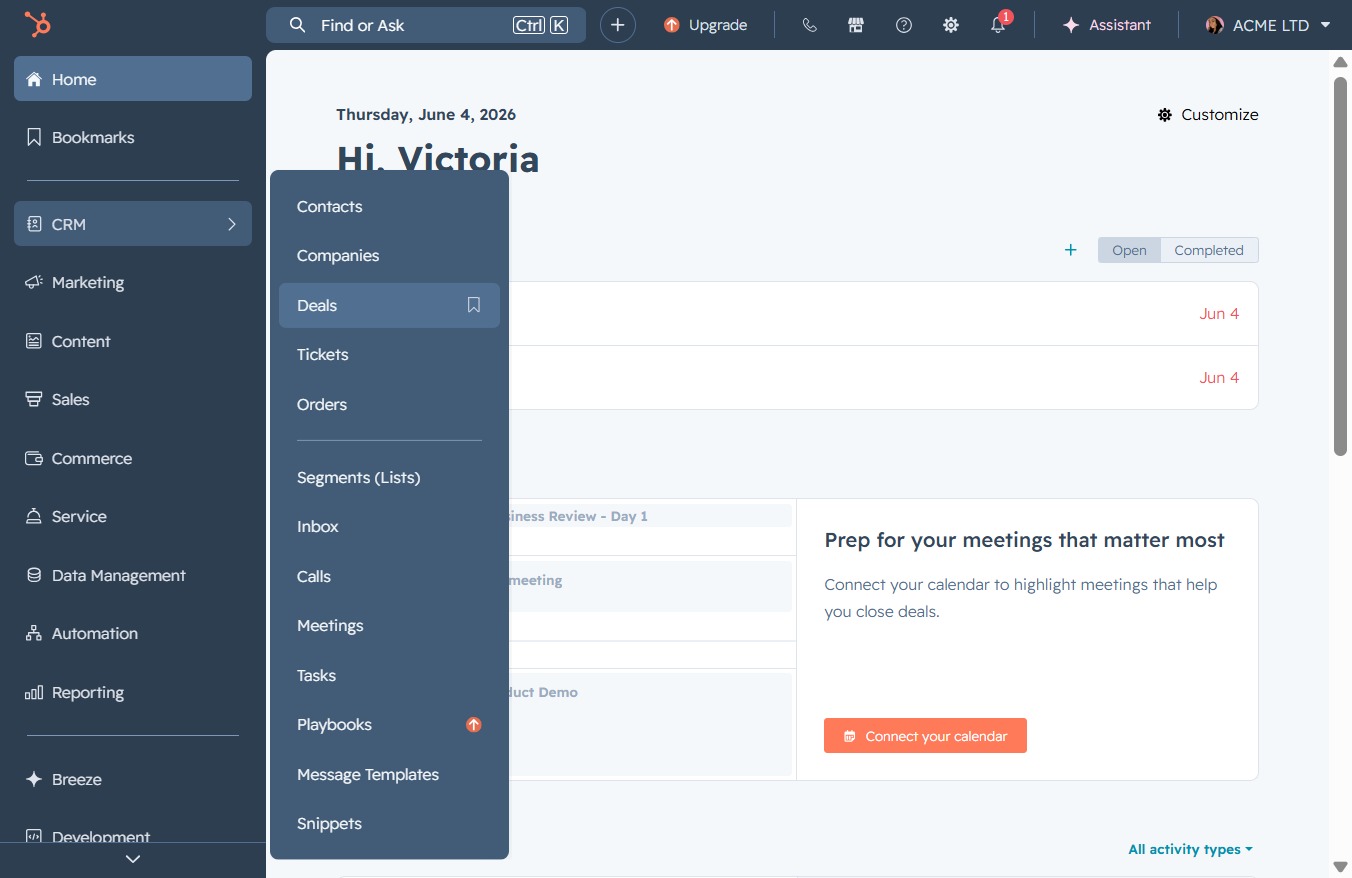
Click the CRM icon
Selecting the CRM icon will navigate you to the Customer Relationship Management section, where you can manage client interactions and track sales activities.

Loading screenshot…
100%
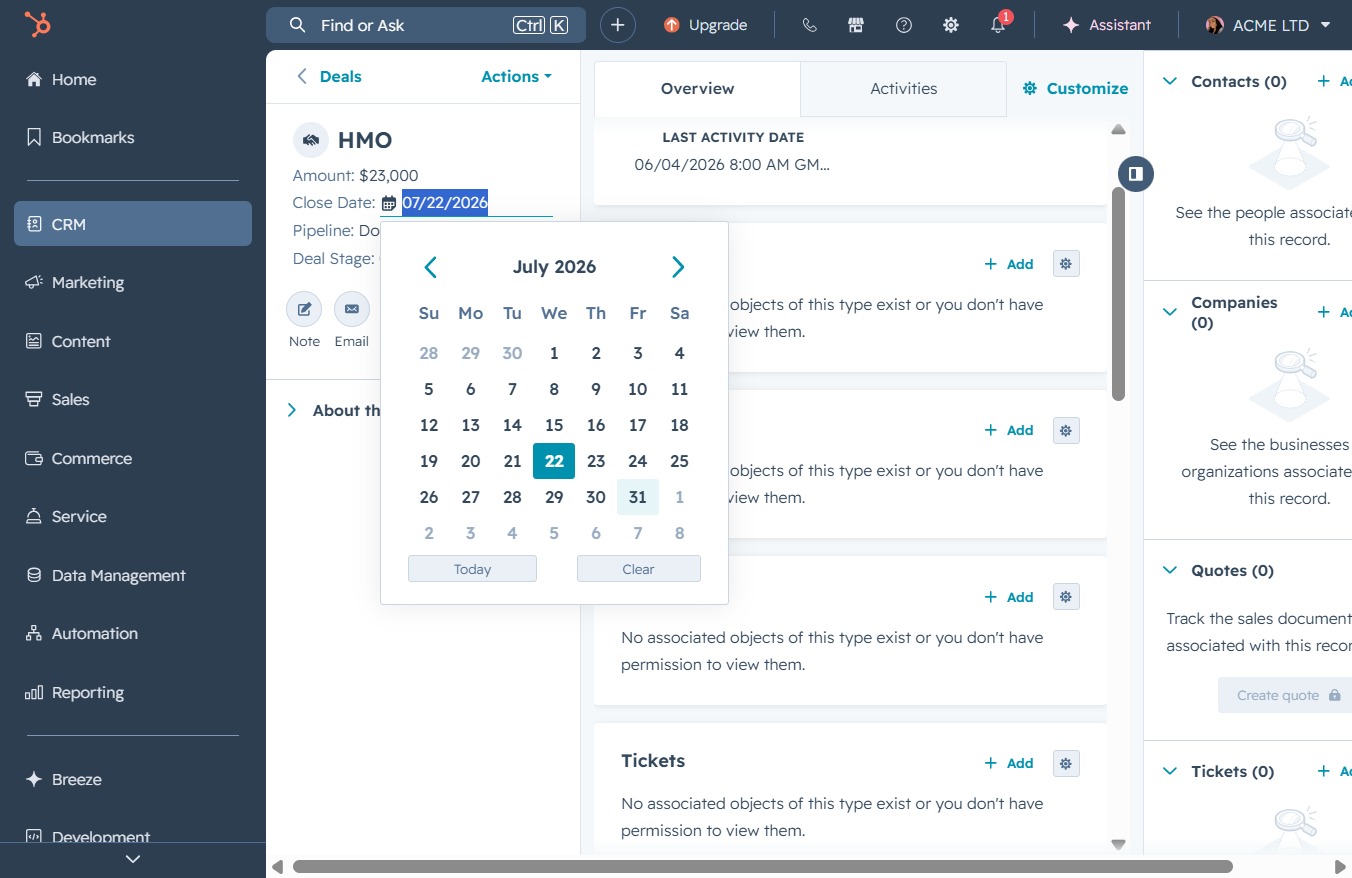
Set the deal value and expected close date in your CRM by navigating to the Deals section, entering the deal details, and selecting a relevant date for tracking purposes.
 viktoria
Set the deal value and expected close date in your CRM by navigating to the Deals section, entering the deal details, and selecting a relevant date for tracking purposes.
Selecting the CRM icon will navigate you to the Customer Relationship Management section, where you can manage client interactions and track sales activities.
This will open the Deals section, where you can manage and track your ongoing deals and sales opportunities.
This action selects the HMO deal from the deals list, allowing you to view its details and manage its status.
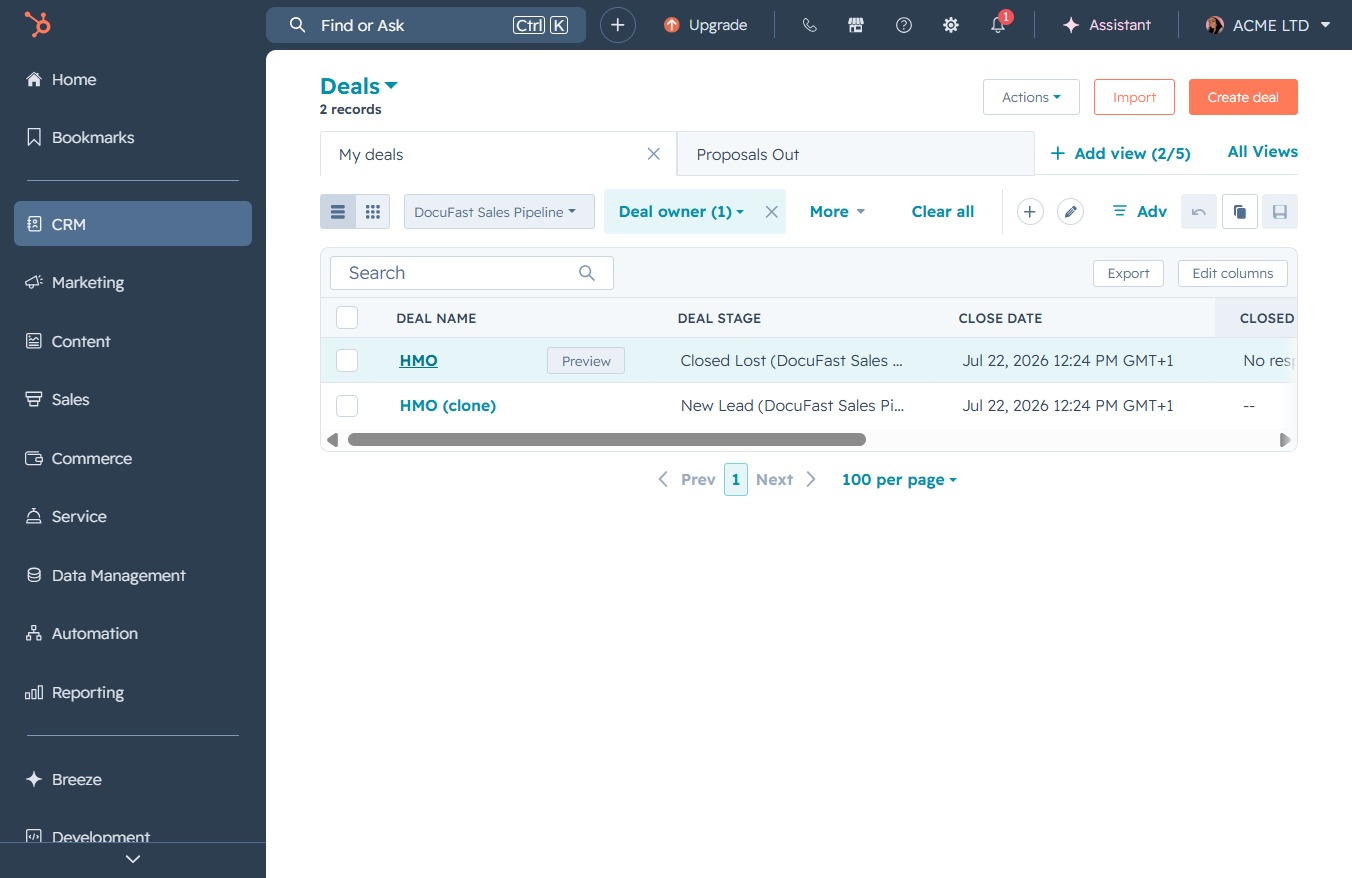
Clicking this link will provide you with additional information about the selected deal, including associated contacts, companies, and any relevant actions.

This action opens a detailed view of the selected deal, showing in-depth information and associated items for further review.

Type the name of the deal in the 'Deal Name' field and the corresponding amount in the 'Amount' field to define this specific deal in the system.
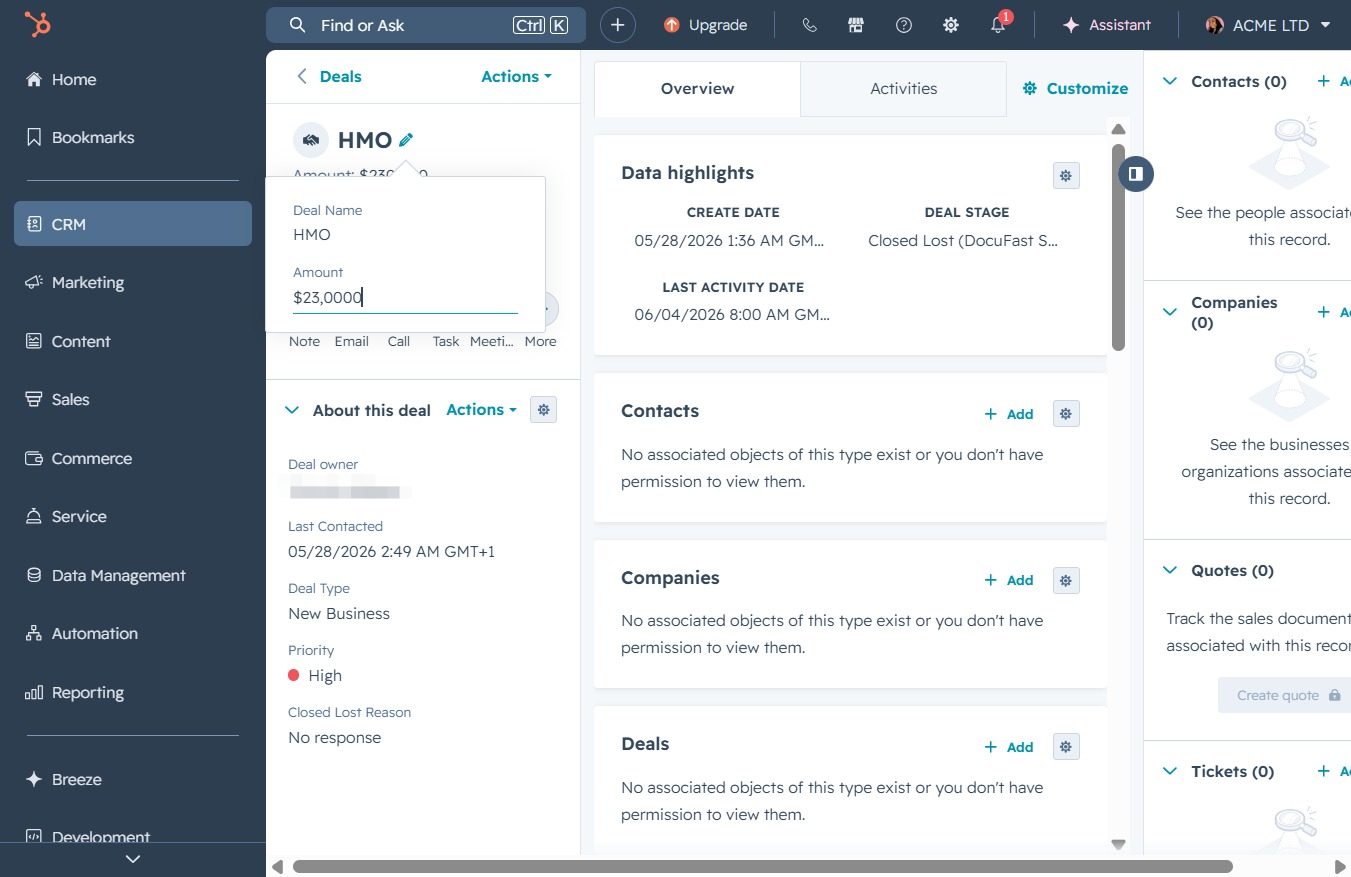
Clicking this link allows you to add associated contacts, companies, deals, or tickets to the current deal overview in your CRM system.

This selects the date '31' in the calendar for your record. The selected date will be used for scheduling or filtering activities related to the deal.