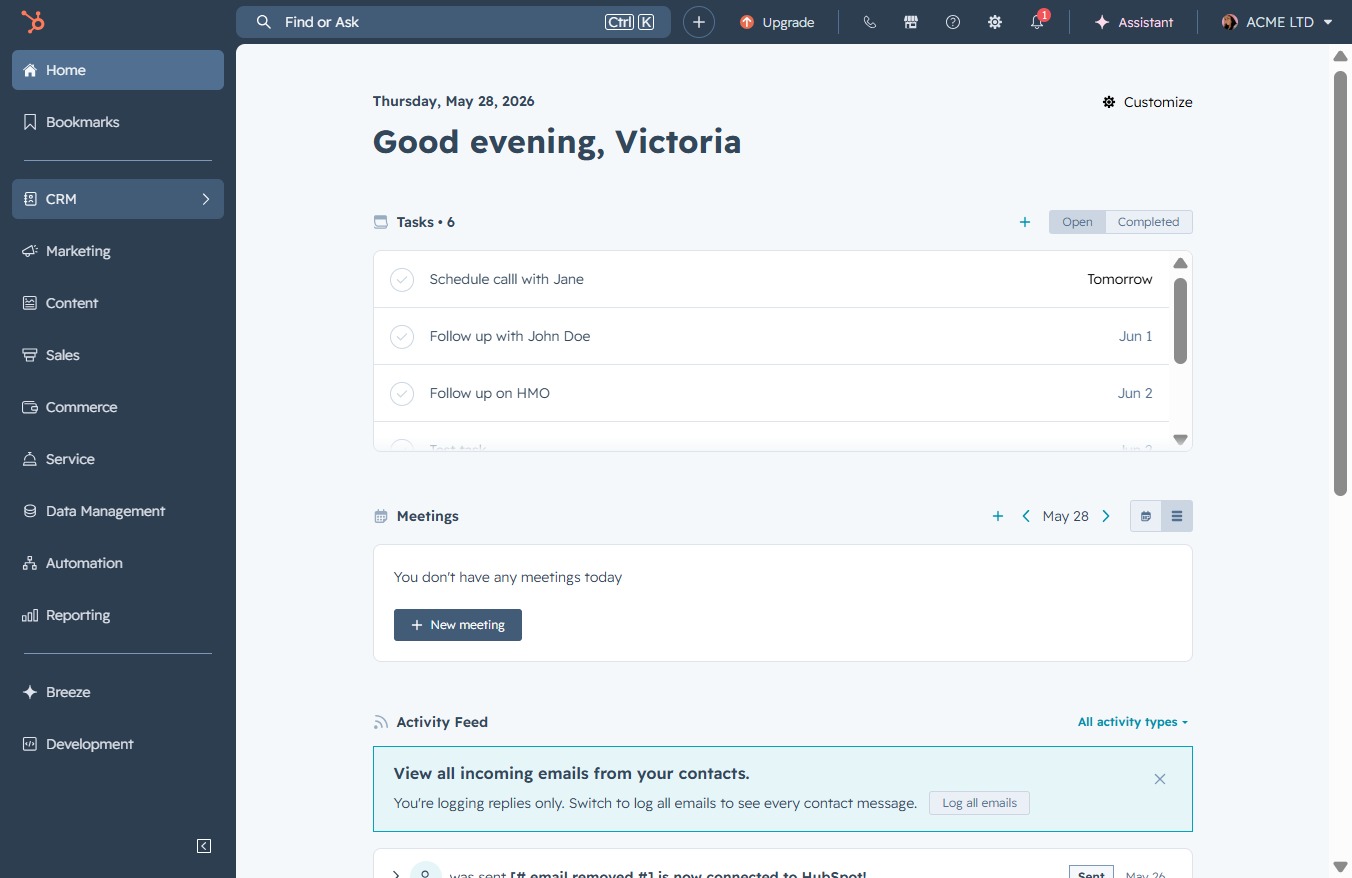
Click the CRM icon
Selecting the CRM icon opens the Customer Relationship Management section, allowing you to manage contacts, deals, and interactions with clients.
Loading screenshot…
100%
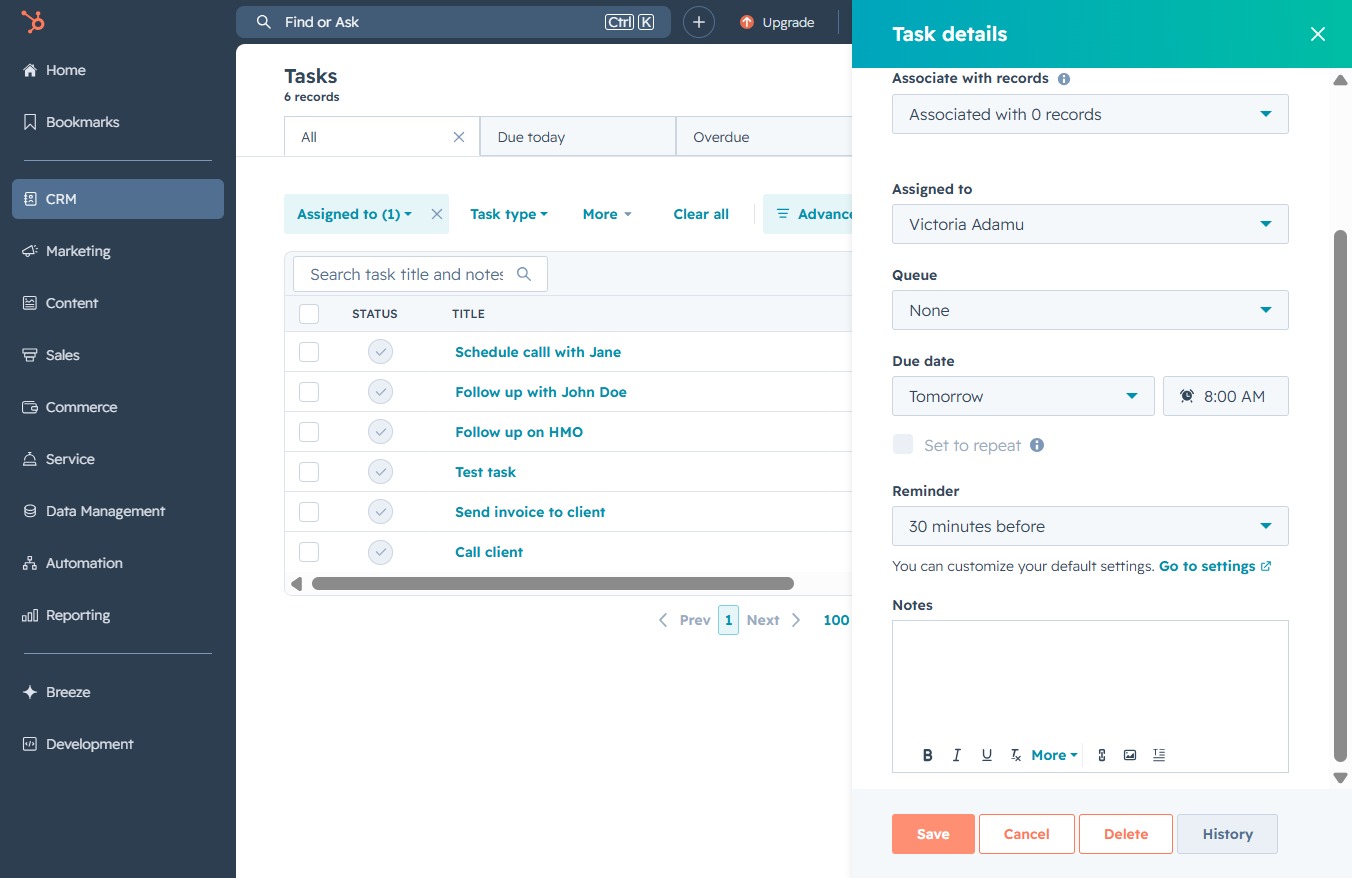
Set a task reminder in the CRM to receive notifications before deadlines, allowing you to efficiently manage your time and stay organized with your tasks and priorities.
 viktoria
Set a task reminder in the CRM to receive notifications before deadlines, allowing you to efficiently manage your time and stay organized with your tasks and priorities.
Selecting the CRM icon opens the Customer Relationship Management section, allowing you to manage contacts, deals, and interactions with clients.
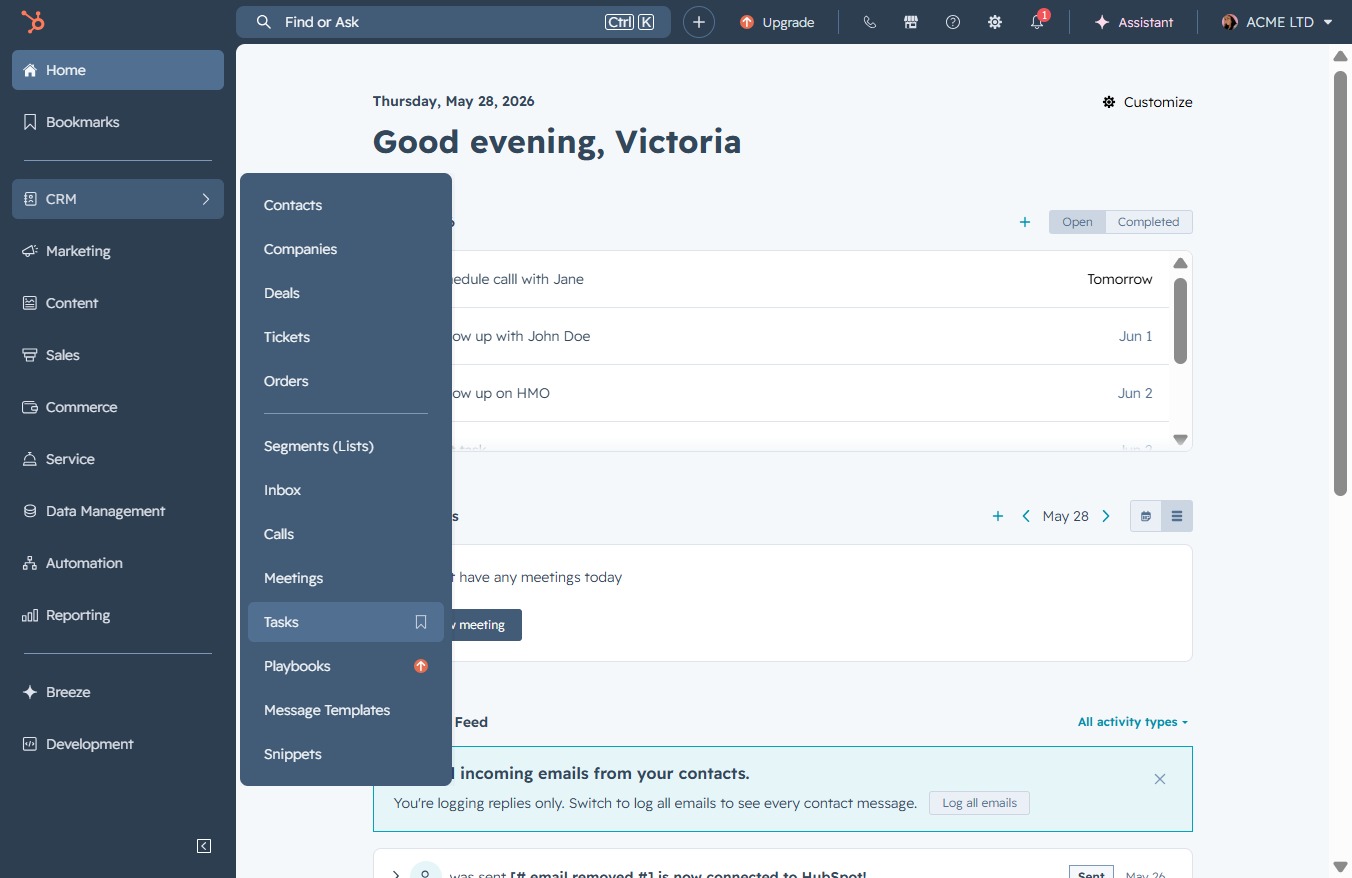
Clicking the Tasks link will take you to the Tasks section, where you can view, manage, and create your task lists and reminders.
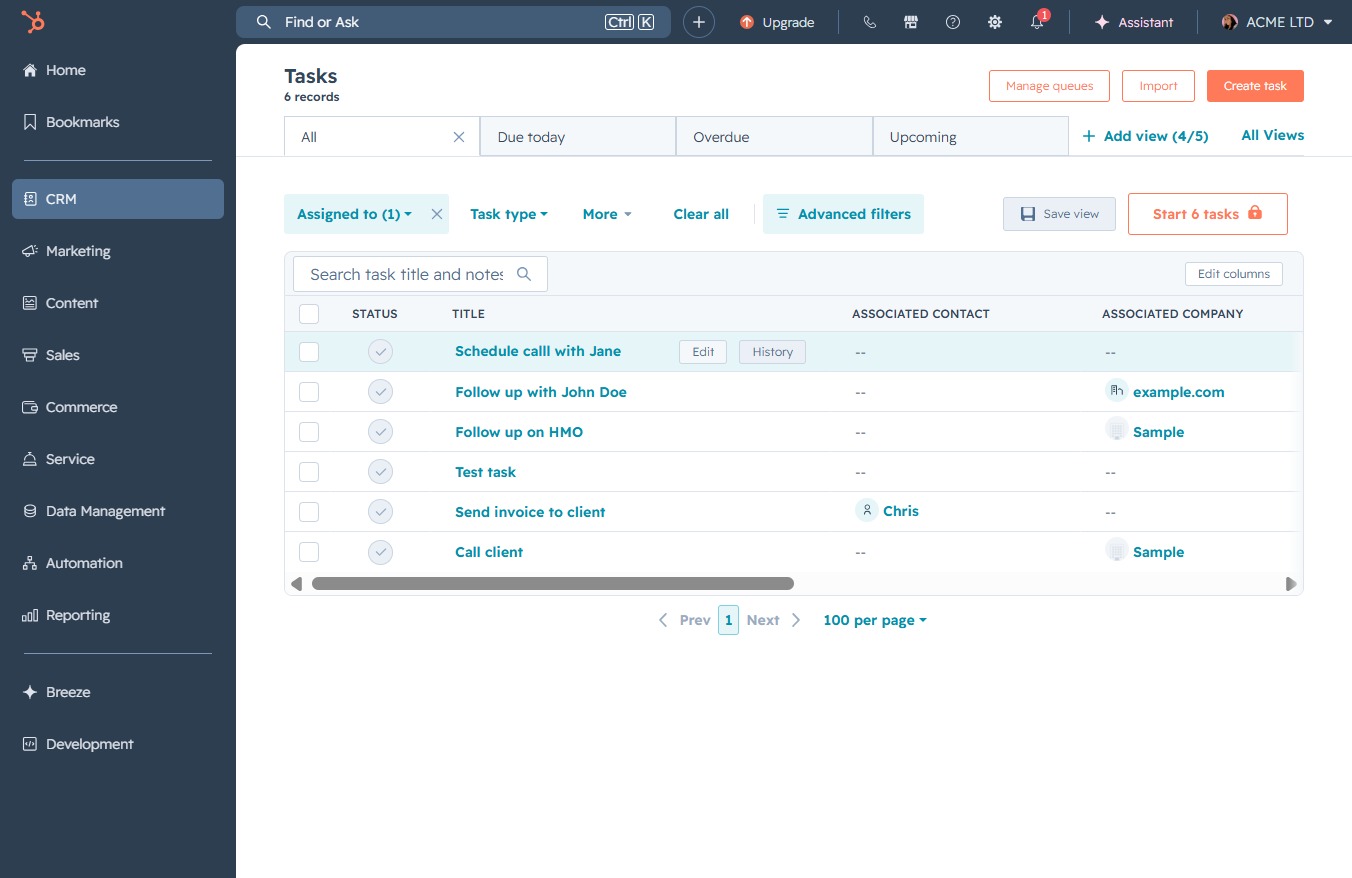
This action allows you to modify the selected task's details in the Tasks section. You can update information such as the title, associated contact, and due date.
Selecting 'No reminder' will set the task reminder to off, meaning you will not receive any notifications for this task.
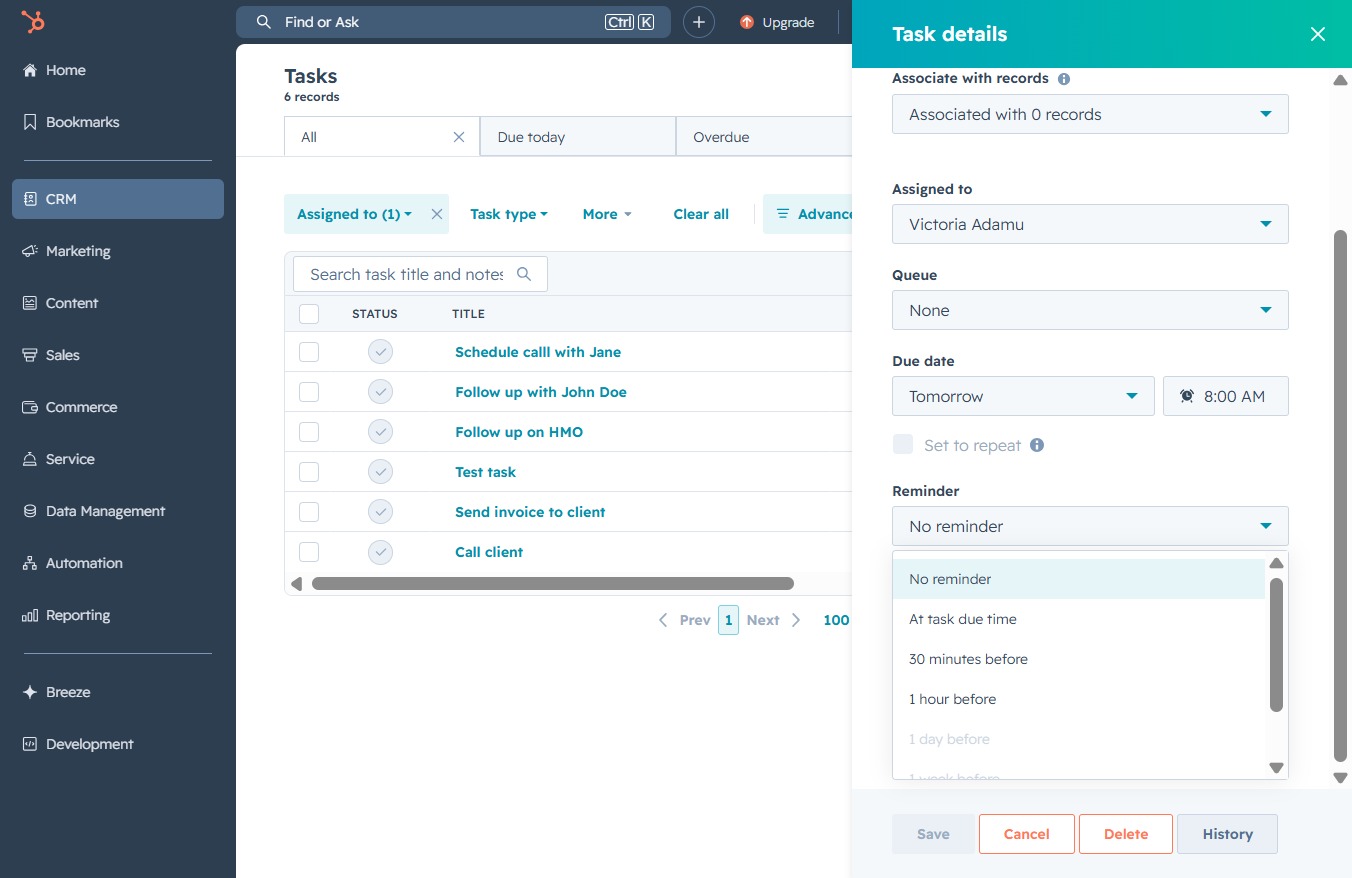
Selecting '30 minutes before' will set a reminder for the task to notify you half an hour prior to its due time. This helps ensure you stay on track and manage your time effectively.
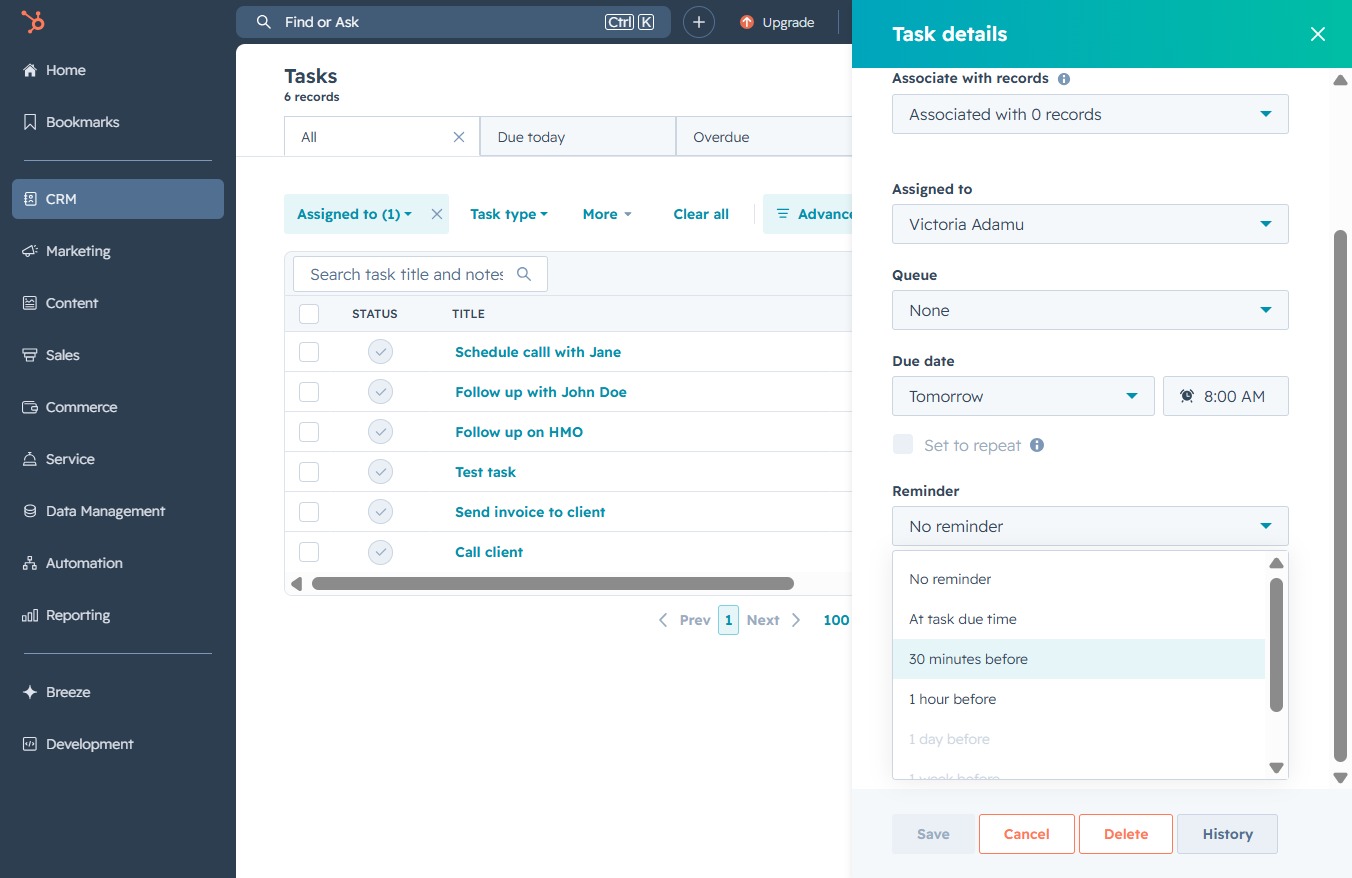
Clicking the 'Save' button will store the details entered in the task settings, ensuring that the changes made are recorded and the task is updated in your task list.