Click here to view more options
Clicking this link will reveal additional settings or features relevant to your current context in Gmail, enhancing your management capabilities.
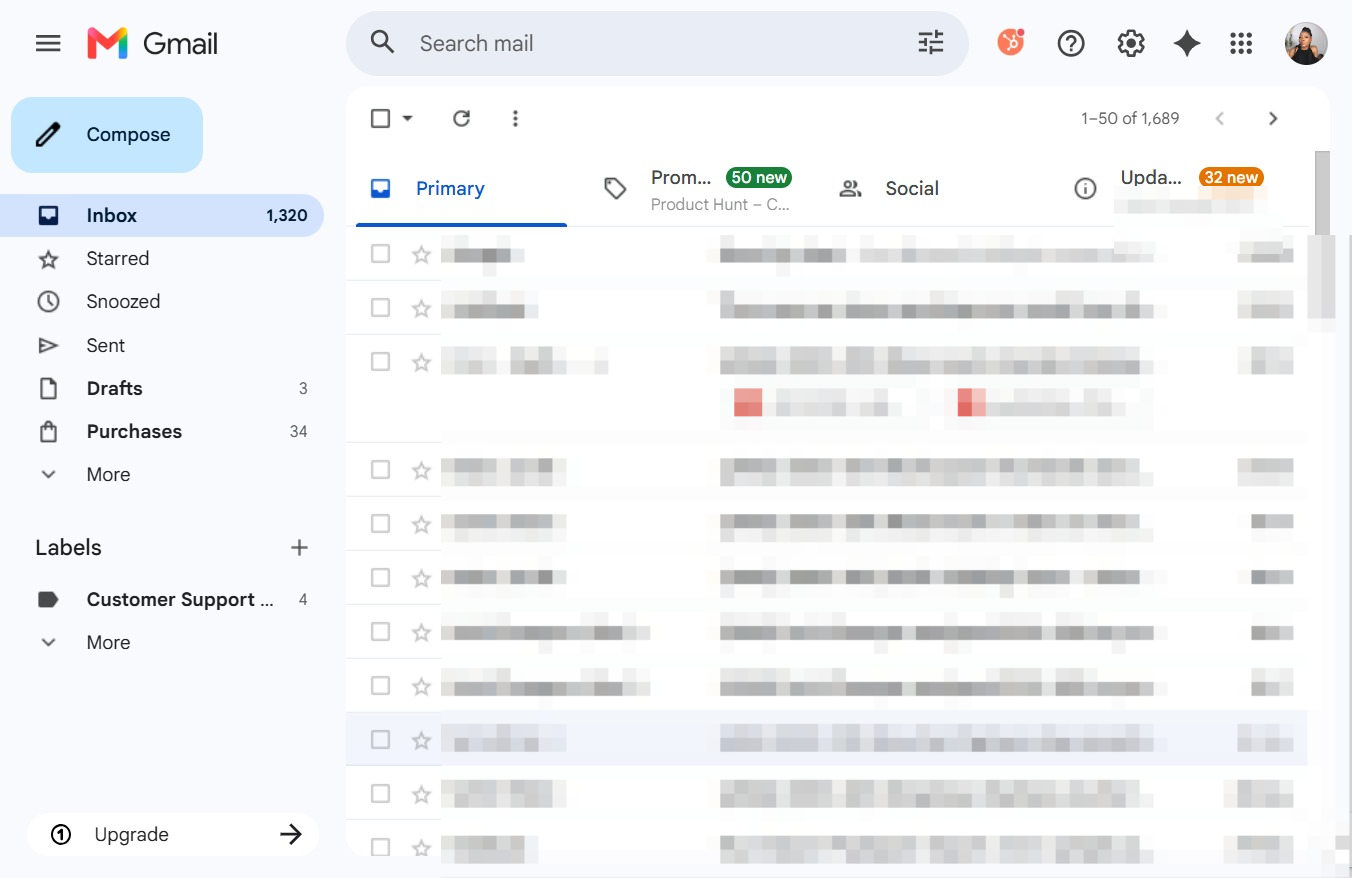
Loading screenshot…
100%
Send a tracked email using the HubSpot Sales extension in Gmail to manage recipient information and enhance your email communication within your CRM workflows.
 viktoria
Send a tracked email using the HubSpot Sales extension in Gmail to manage recipient information and enhance your email communication within your CRM workflows.
Clicking this link will reveal additional settings or features relevant to your current context in Gmail, enhancing your management capabilities.
Activating the HubSpot Sales extension will enable your sales tools and CRM features within your Gmail inbox, enhancing your workflow and productivity.

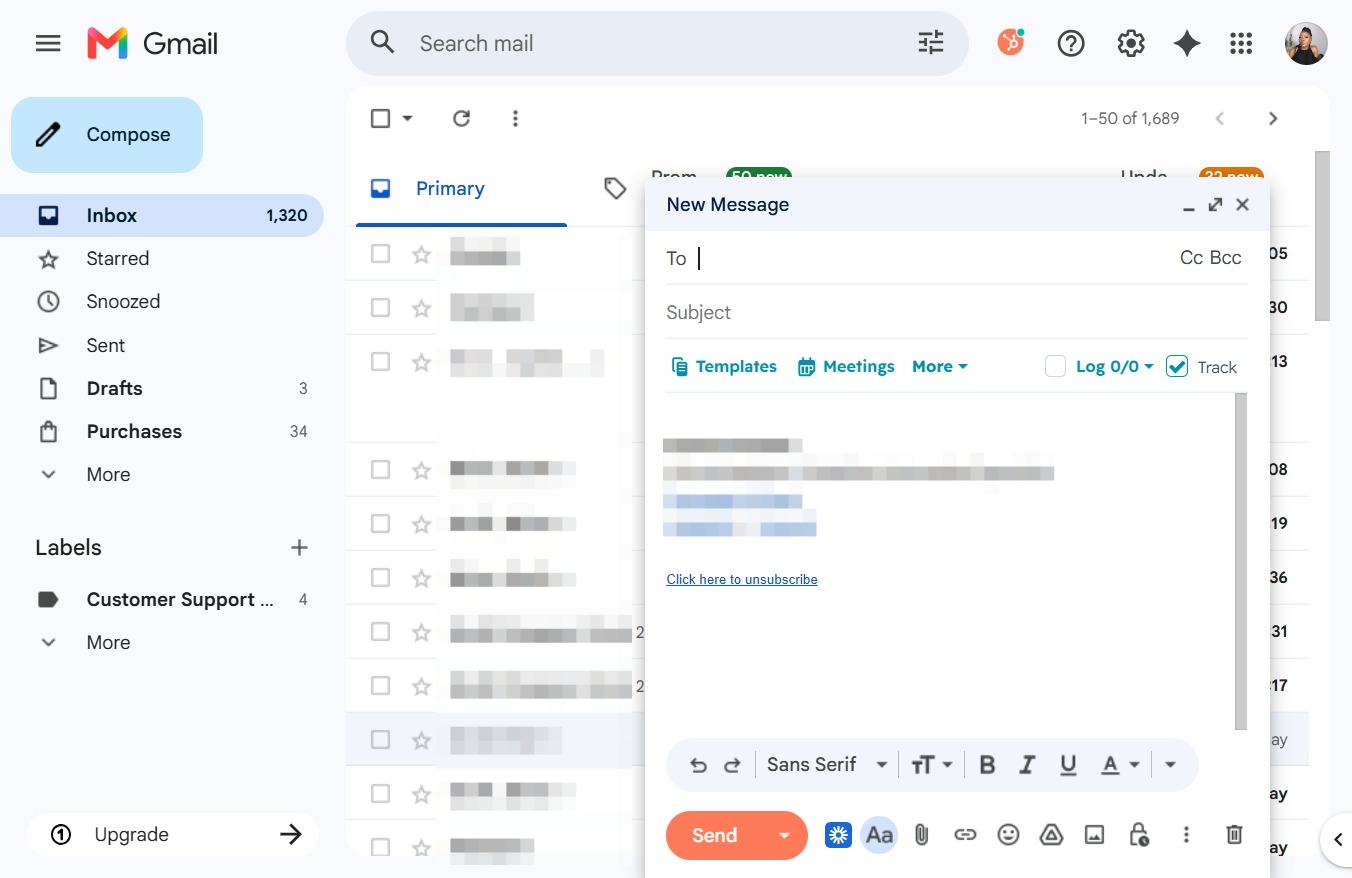
This action opens a new message window where you can create and send an email.

Clicking this field allows you to enter the email addresses of the recipients for your message. You can add multiple addresses separated by commas for sending to multiple recipients.
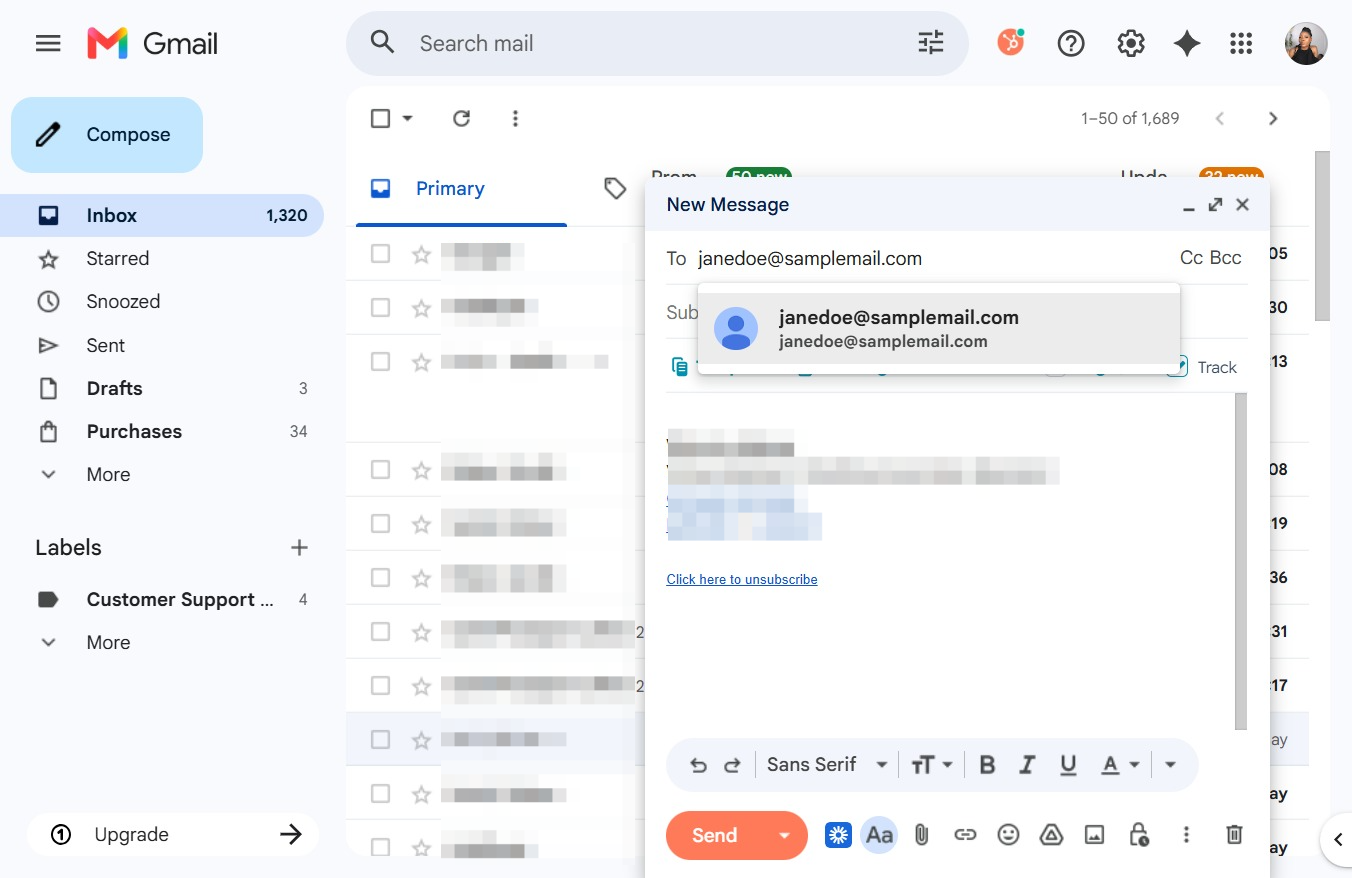
In the 'To' field of the New Message window, type the email address of the person you wish to contact. This will ensure the email is directed to the correct recipient.
After clicking the Subject field, you can enter the subject line for your email draft. This will allow the recipient to understand the main topic of your message.
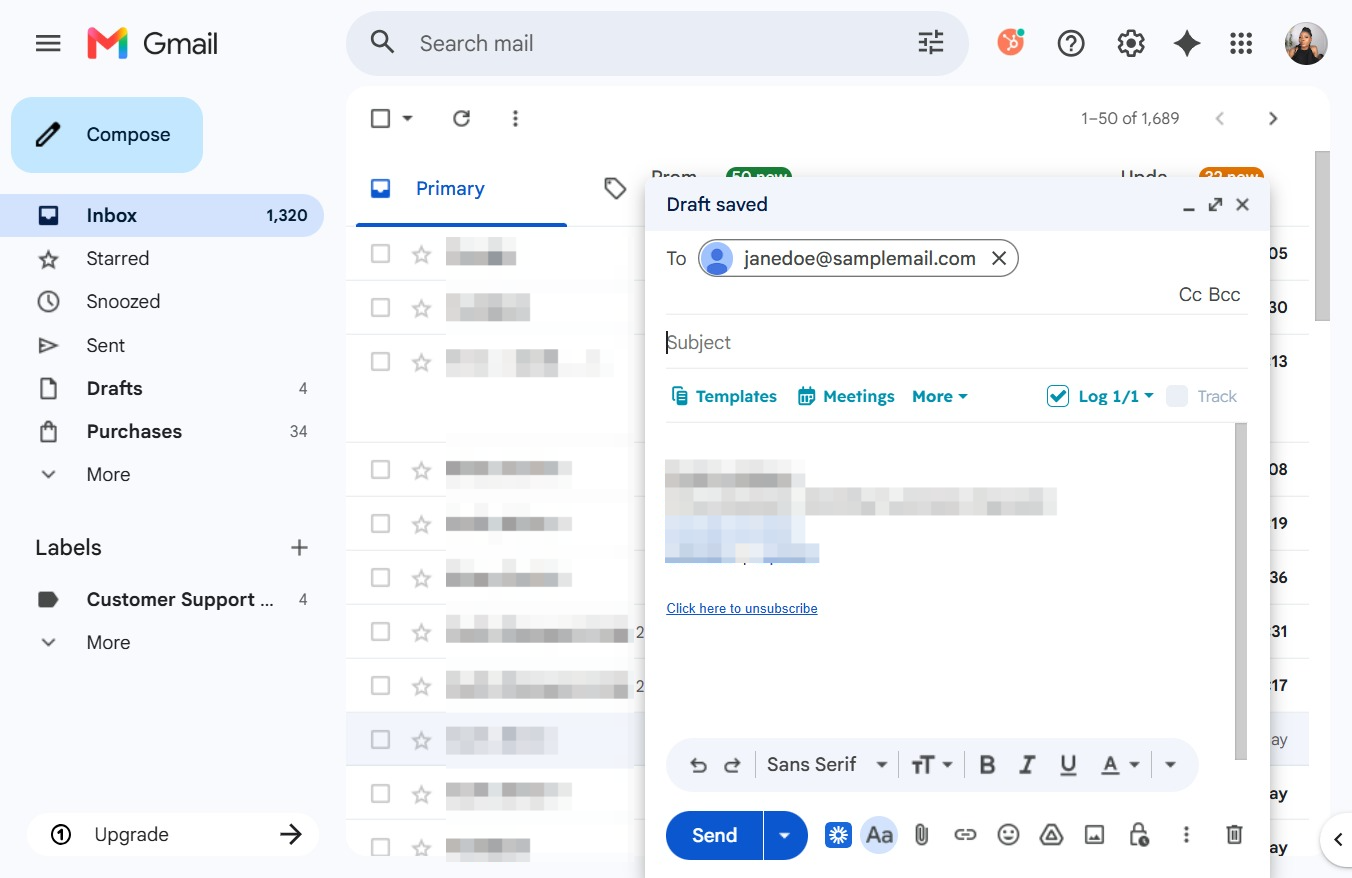
Clicking the email address will open the recipient's HubSpot contact profile, allowing you to view and update their information as needed.

Clicking the email address opens the recipient's contact profile, allowing you to update and manage their information.
