Geteilte Anleitung

How to schedule emails to send later

Learn how to schedule emails to send at a later date with this step-by-step guide.

victoriaworkflowsvictoriaworkflows
·14 Schritte·68 Aufrufe·Veröffentlicht

Learn how to schedule emails to send at a later date with this step-by-step guide. Follow the simple instructions to set the perfect timing for your messages, ensuring they reach the recipient exactly when you want them to.
Step-by-step Guide14 Schritte
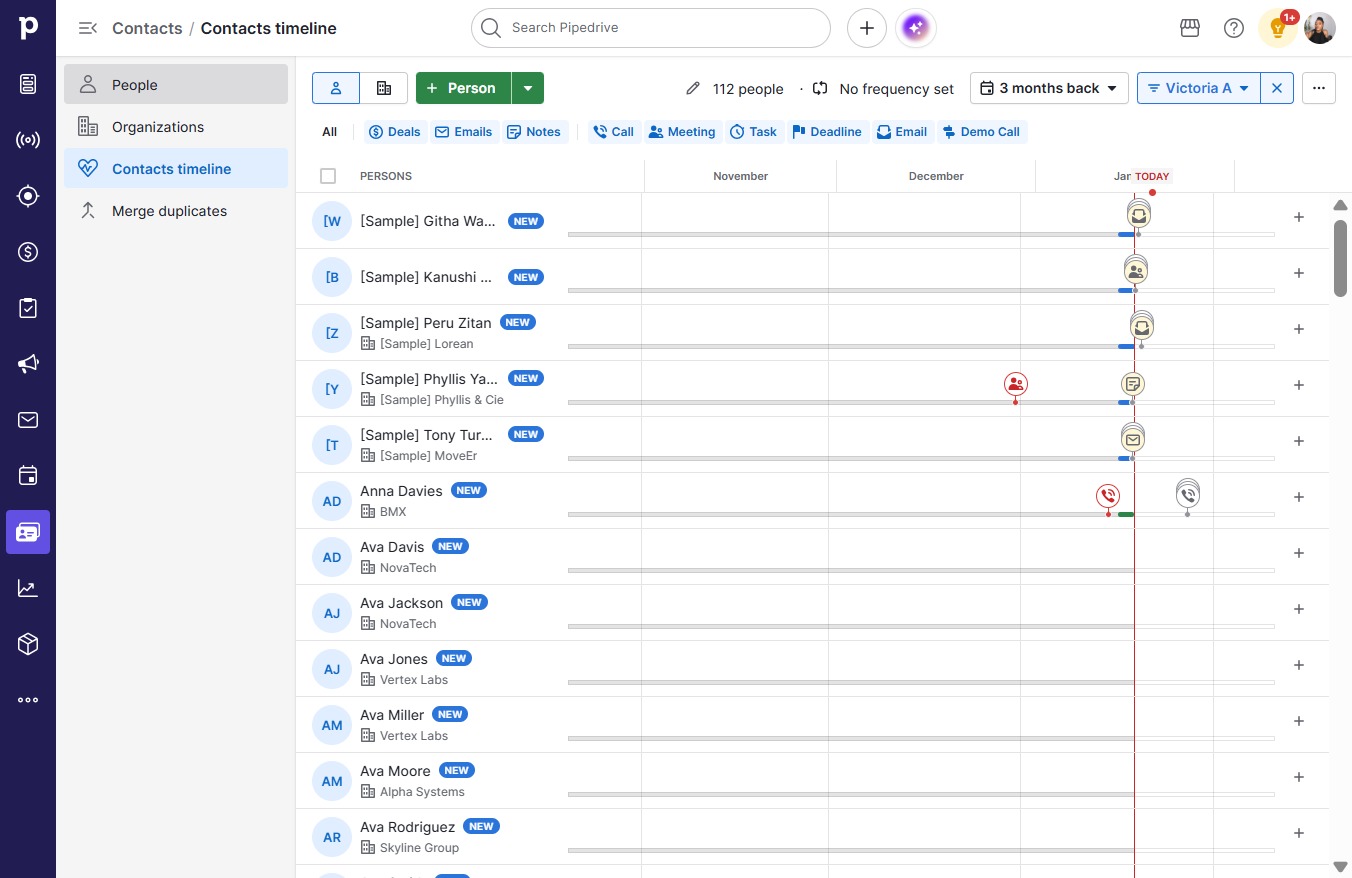
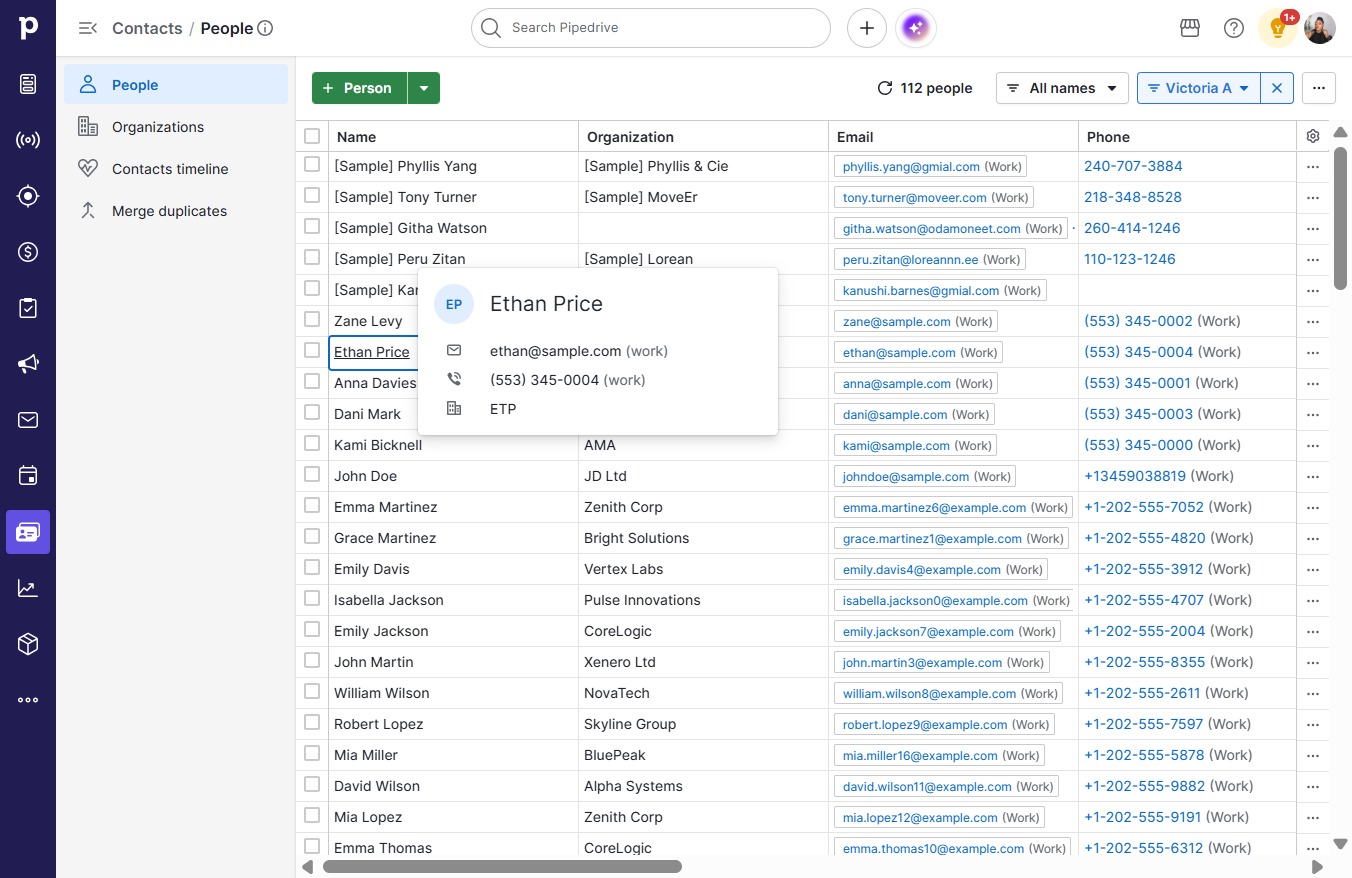
  1. Click People

    Click People
    Loading screenshot…
    100%
  2. Click Ethan Price

    Click Ethan Price
    Loading screenshot…
    100%
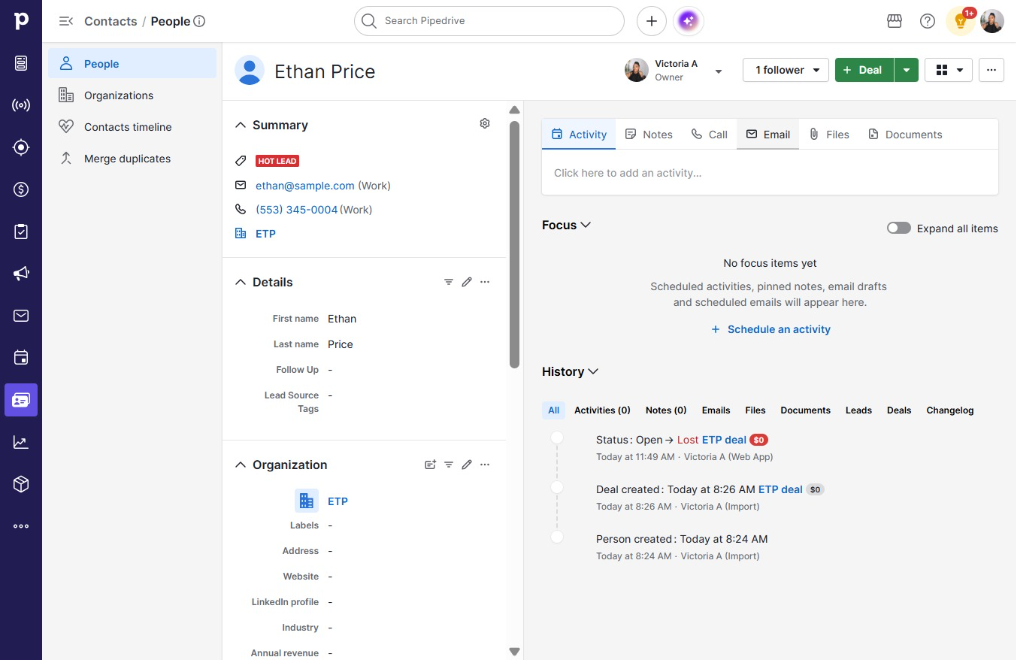
  3. Click Email

    Click Email
    Loading screenshot…
    100%
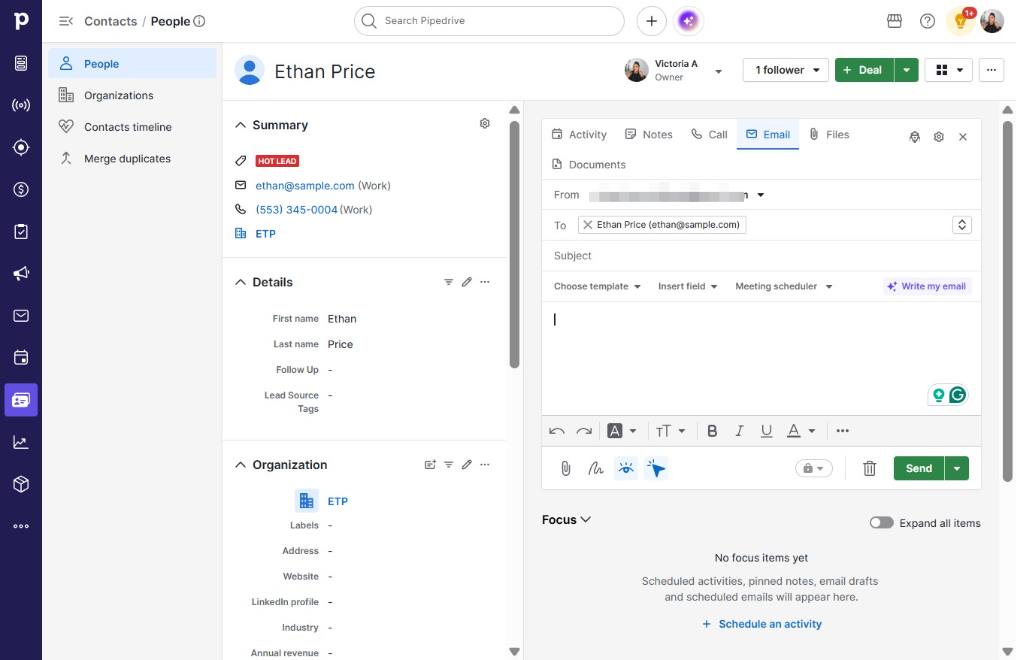
  4. Click Subject

    Click Subject
    Loading screenshot…
    100%
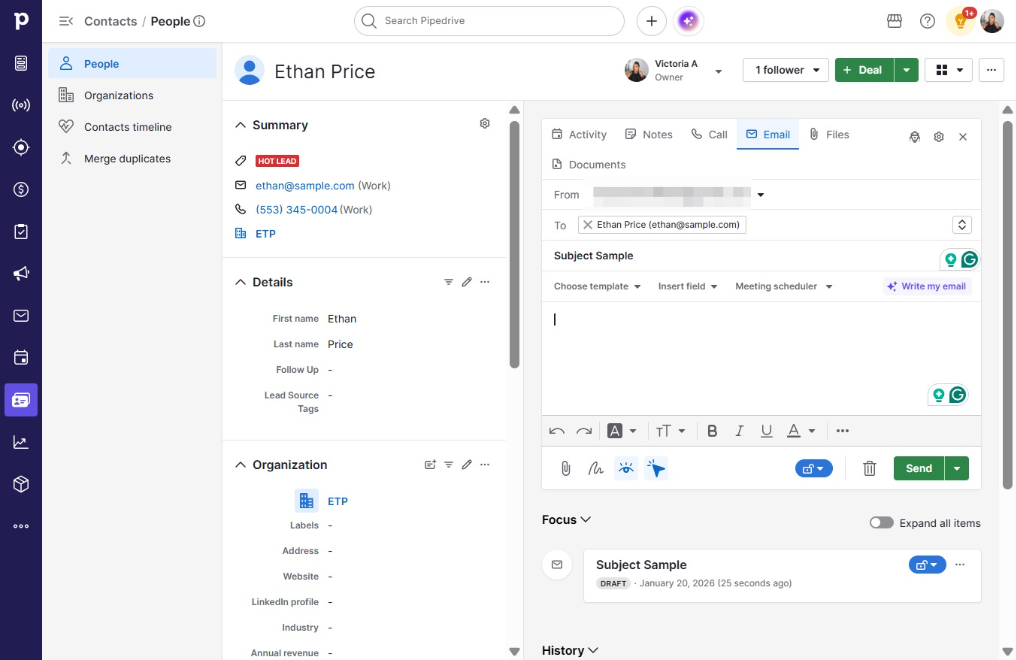
  5. Click on "Click here."

    Click on "Click here."
    Loading screenshot…
    100%
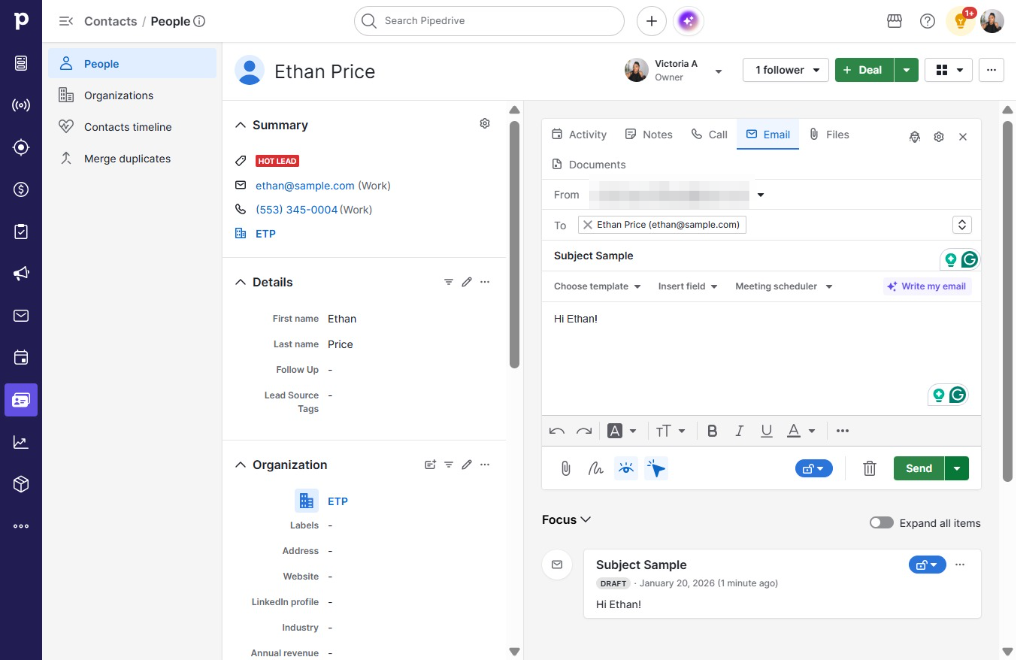
  6. Type "Hi Ethan!"

  7. Click on "Click here."

    Click on "Click here."
    Loading screenshot…
    100%
  8. Click Send later…

    Click Send later…
    Loading screenshot…
    100%
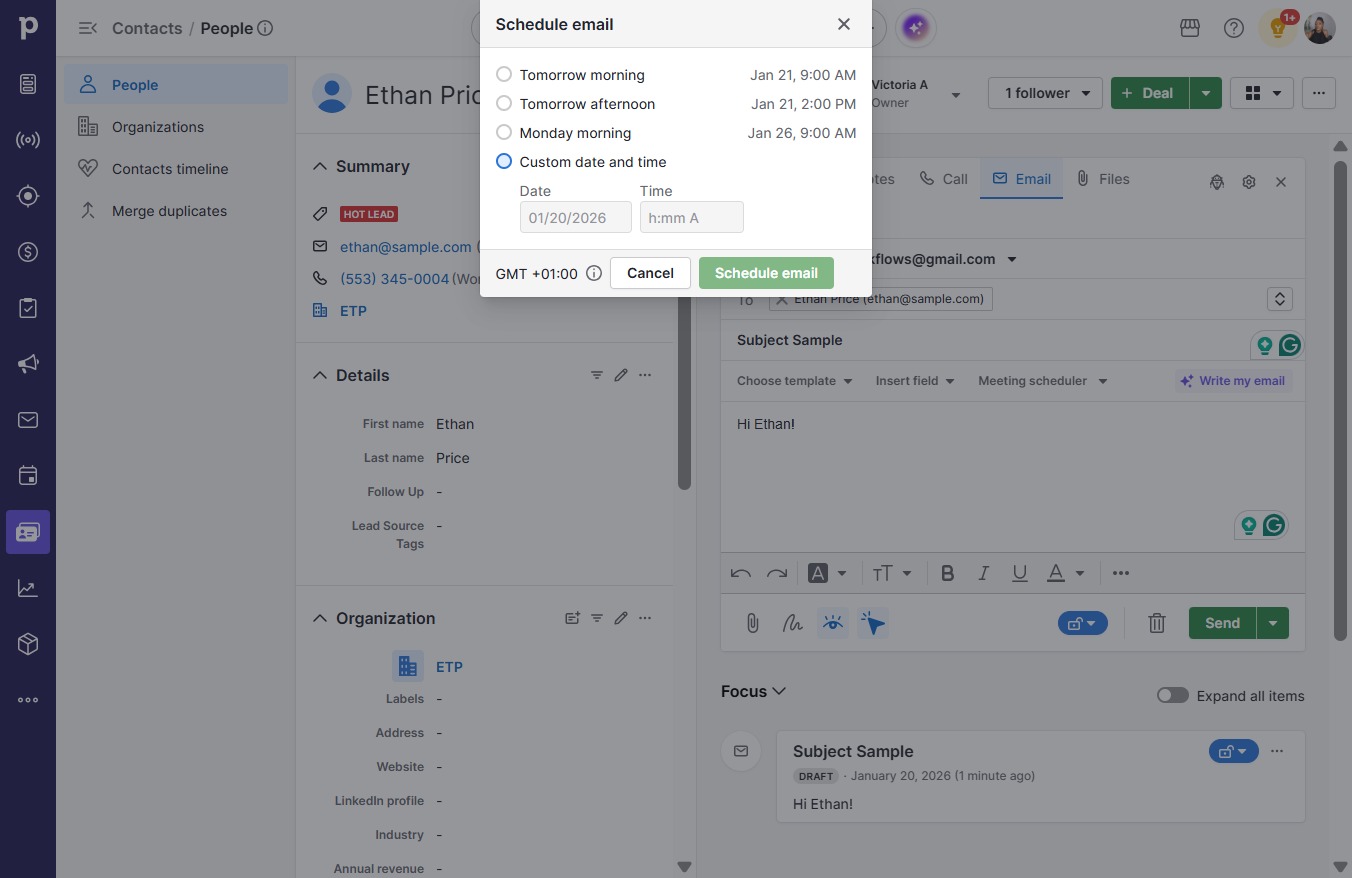
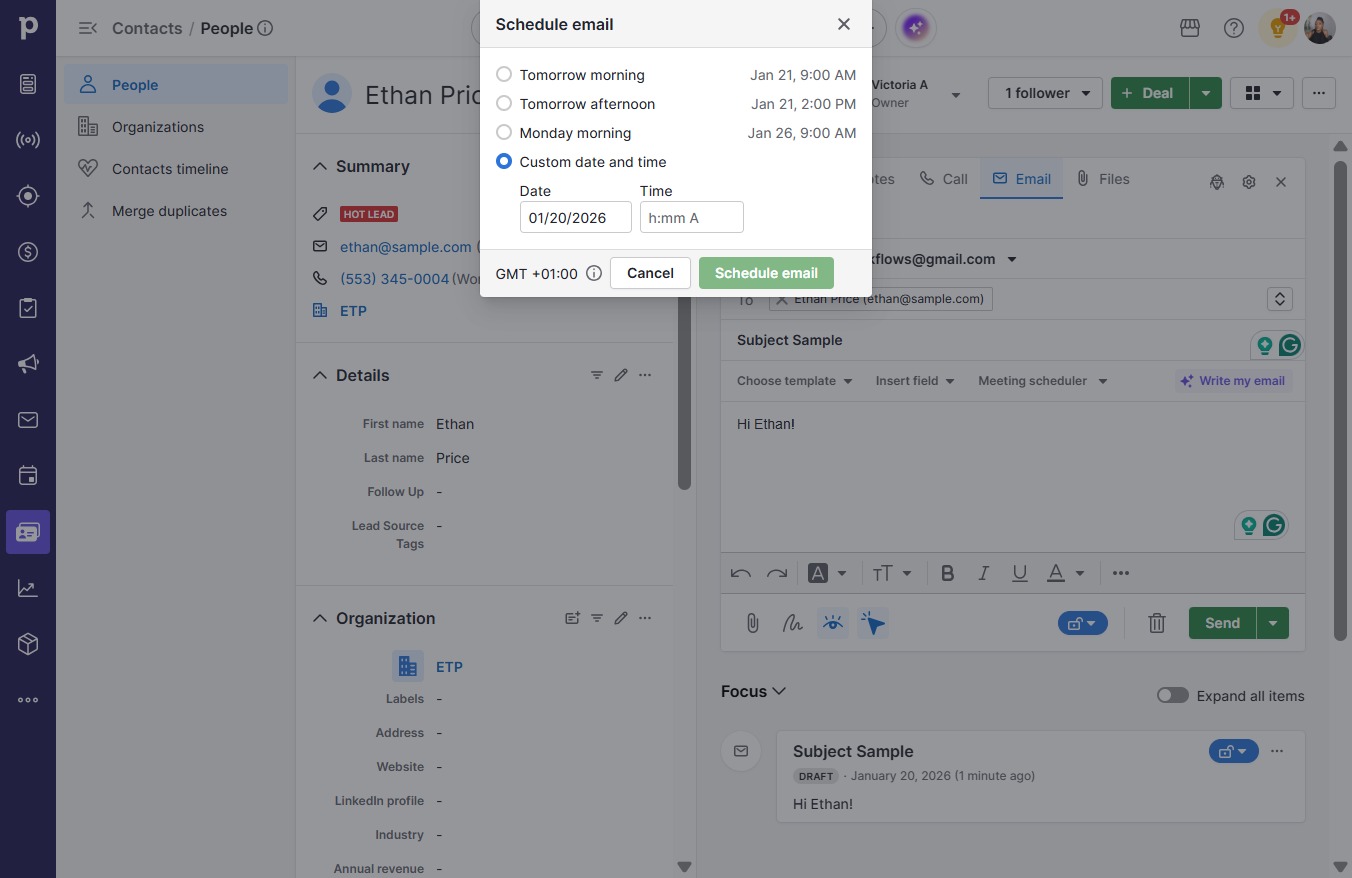
  9. Click Custom date and time

    Click Custom date and time
    Loading screenshot…
    100%
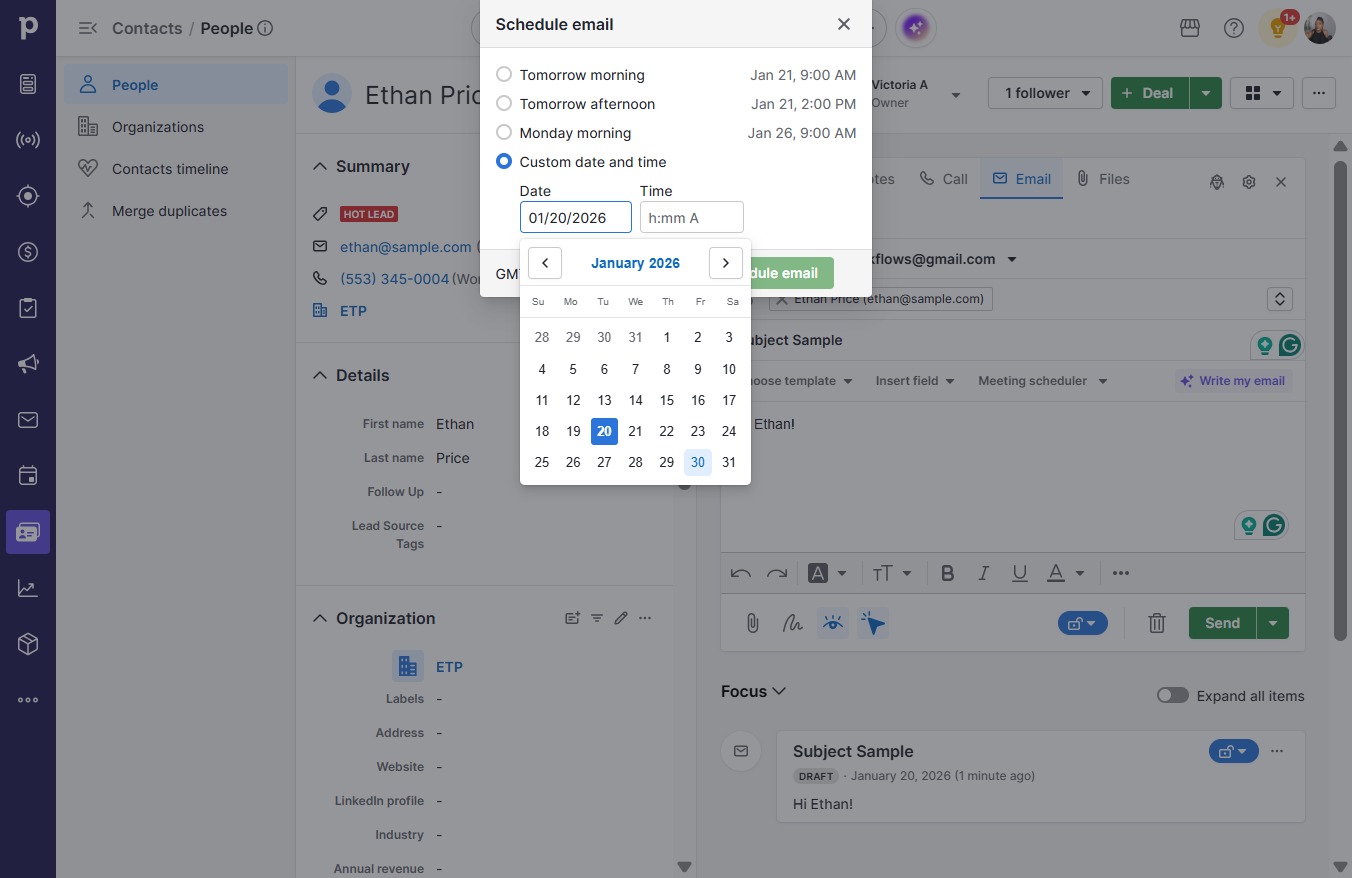
  10. Click on "Click here."

    Click on "Click here."
    Loading screenshot…
    100%
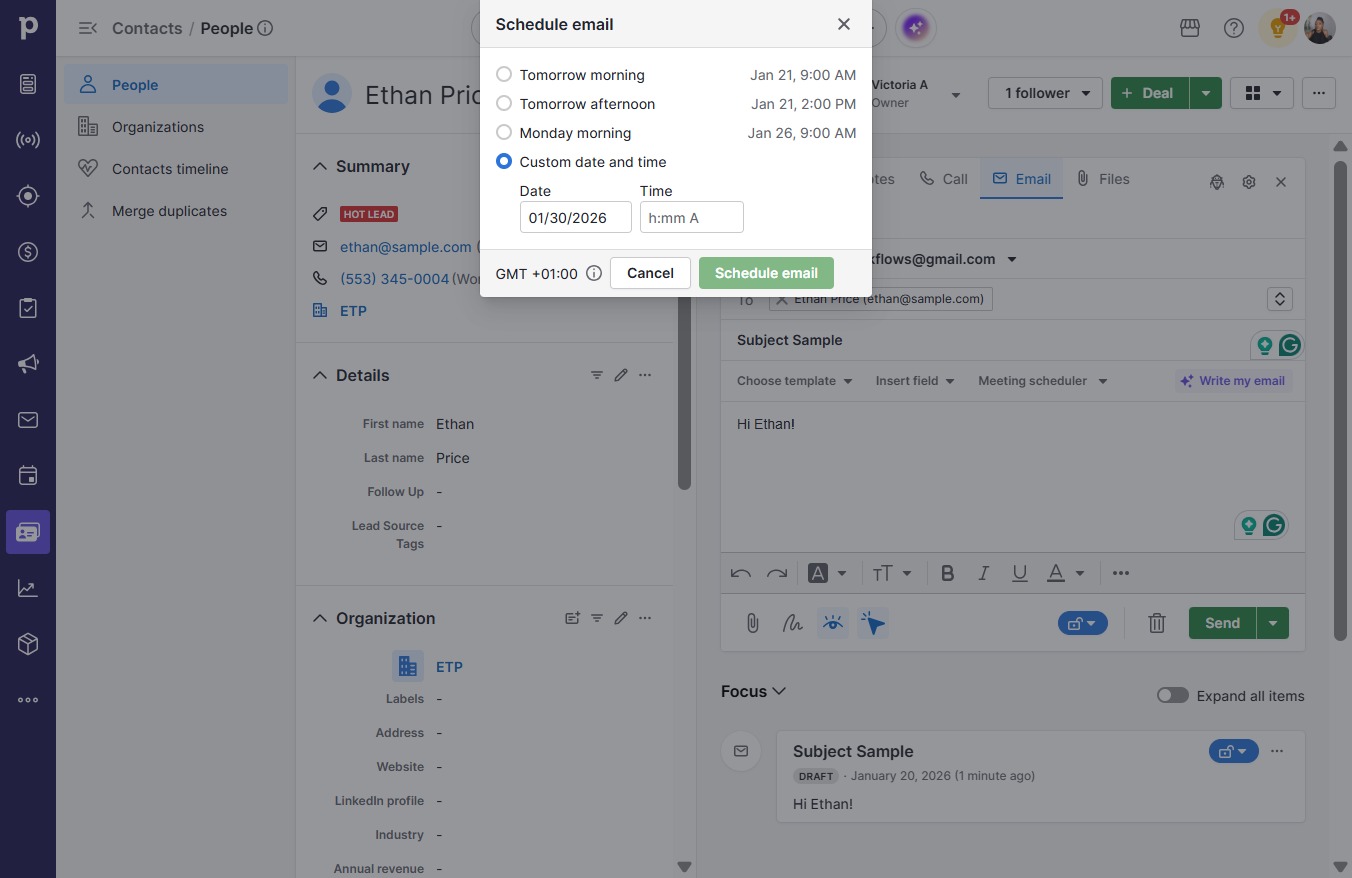
  11. Click day-30

    Click day-30
    Loading screenshot…
    100%
  12. Click on "Click here."

    Click on "Click here."
    Loading screenshot…
    100%
  13. Click 6:00 PM

    Click 6:00 PM
    Loading screenshot…
    100%
  14. Click Schedule email

    Click Schedule email
    Loading screenshot…
    100%