Geteilte Anleitung

How to schedule a meeting

Learn how to efficiently schedule a meeting by following our step-by-step guide.

victoriaworkflowsvictoriaworkflows
·12 Schritte·39 Aufrufe·Veröffentlicht

Learn how to efficiently schedule a meeting by following our step-by-step guide. This video walks you through the process, from selecting the Meet option to setting the date, time, and attendees, ensuring you can easily coordinate a 1:1 meeting with anyone.

Step-by-step Guide12 Schritte
  1. Click Meet

    Click Meet
    Loading screenshot…
    100%
  2. Click Schedule a meeting

    Click Schedule a meeting
    Loading screenshot…
    100%
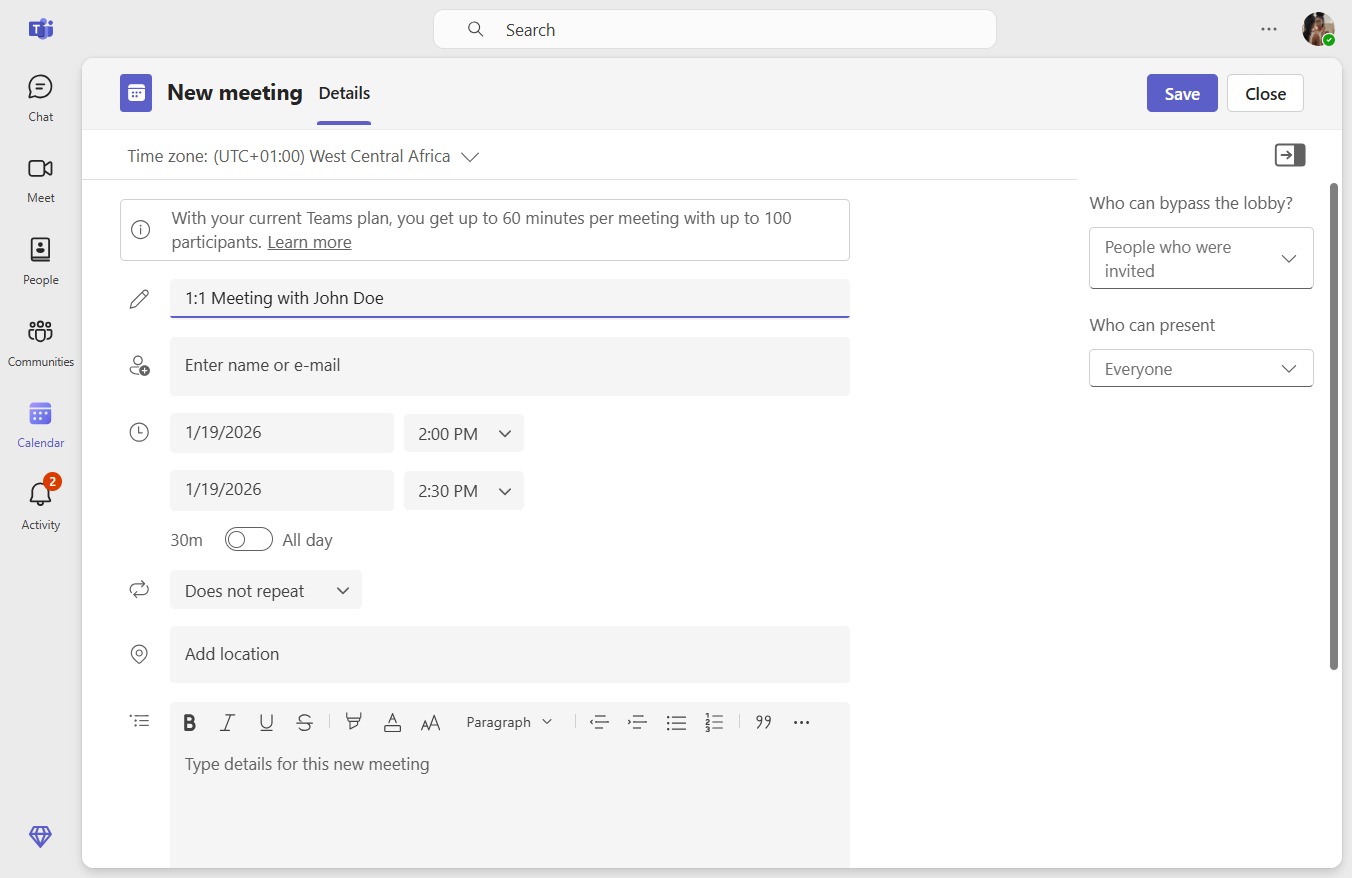
  3. Type "1:1 Meeting with John Doe" in Add title

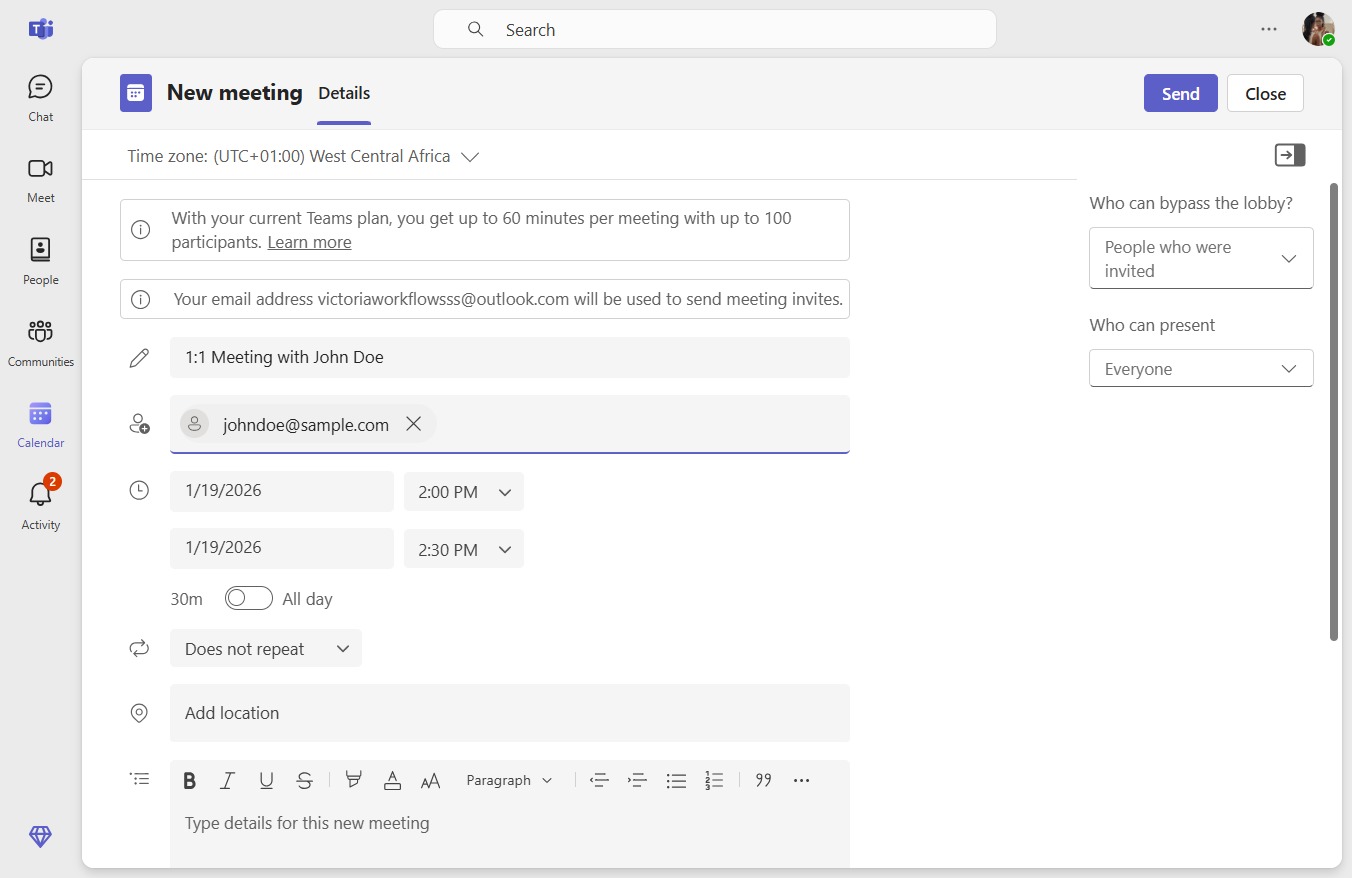
  4. Click Add required attendees

    Click Add required attendees
    Loading screenshot…
    100%
  5. Click johndoe@sample.com

    Click johndoe@sample.com
    Loading screenshot…
    100%
  6. Click Start date

    Click Start date
    Loading screenshot…
    100%
  7. Click 24

    Click 24
    Loading screenshot…
    100%
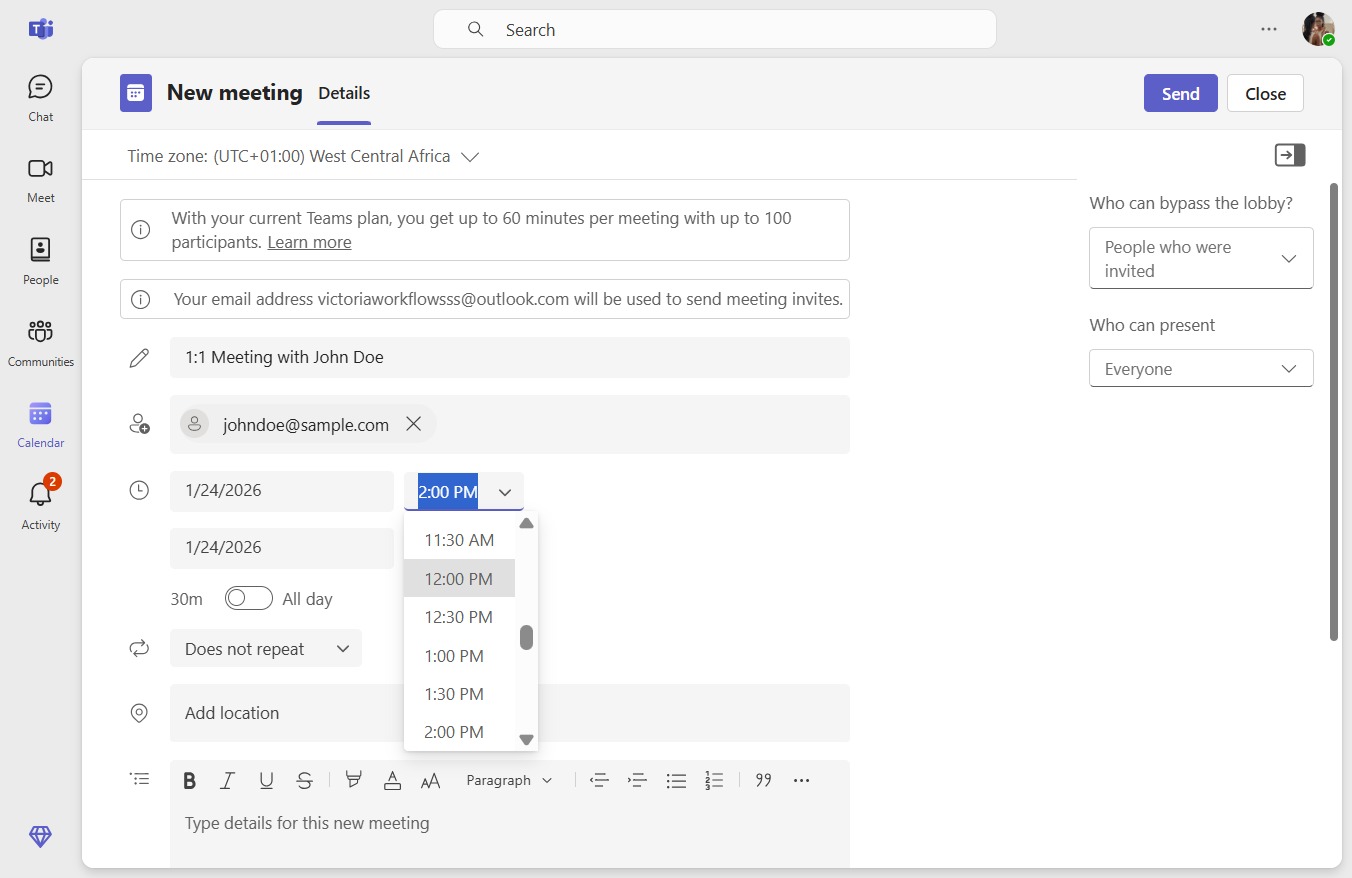
  8. Click Start time

    Click Start time
    Loading screenshot…
    100%
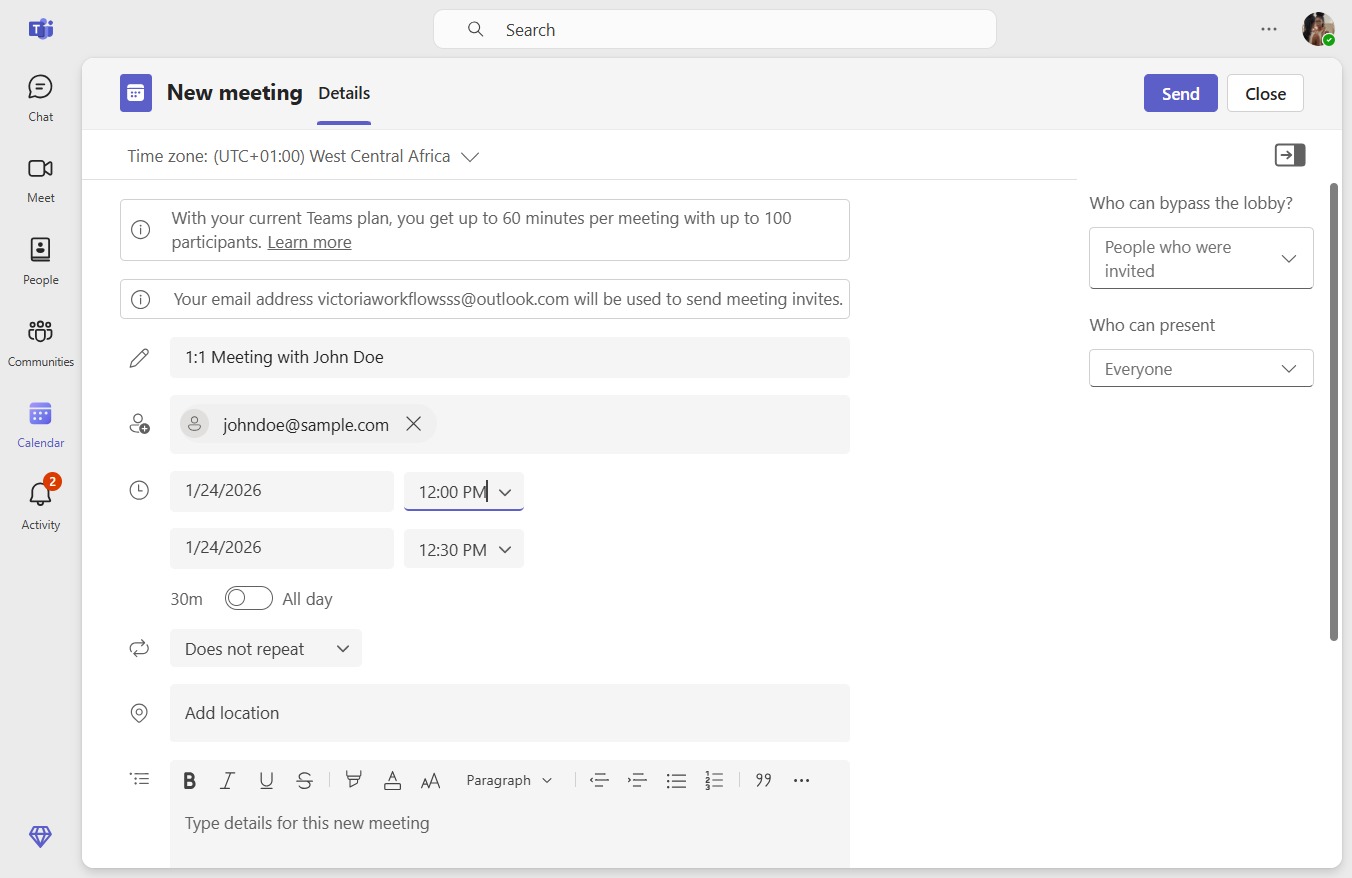
  9. Click 12:00 PM

    Click 12:00 PM
    Loading screenshot…
    100%
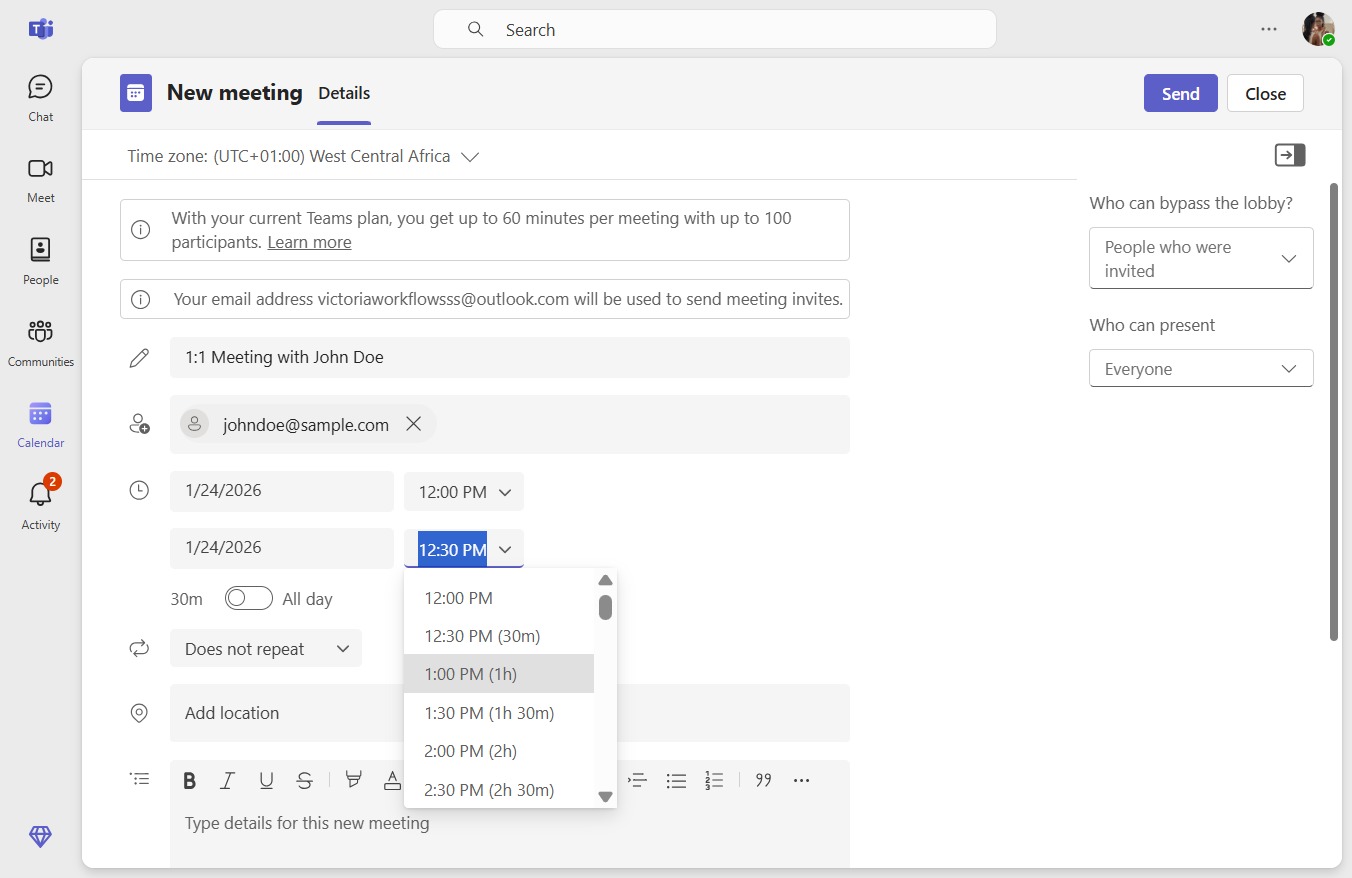
  10. Click End time

    Click End time
    Loading screenshot…
    100%
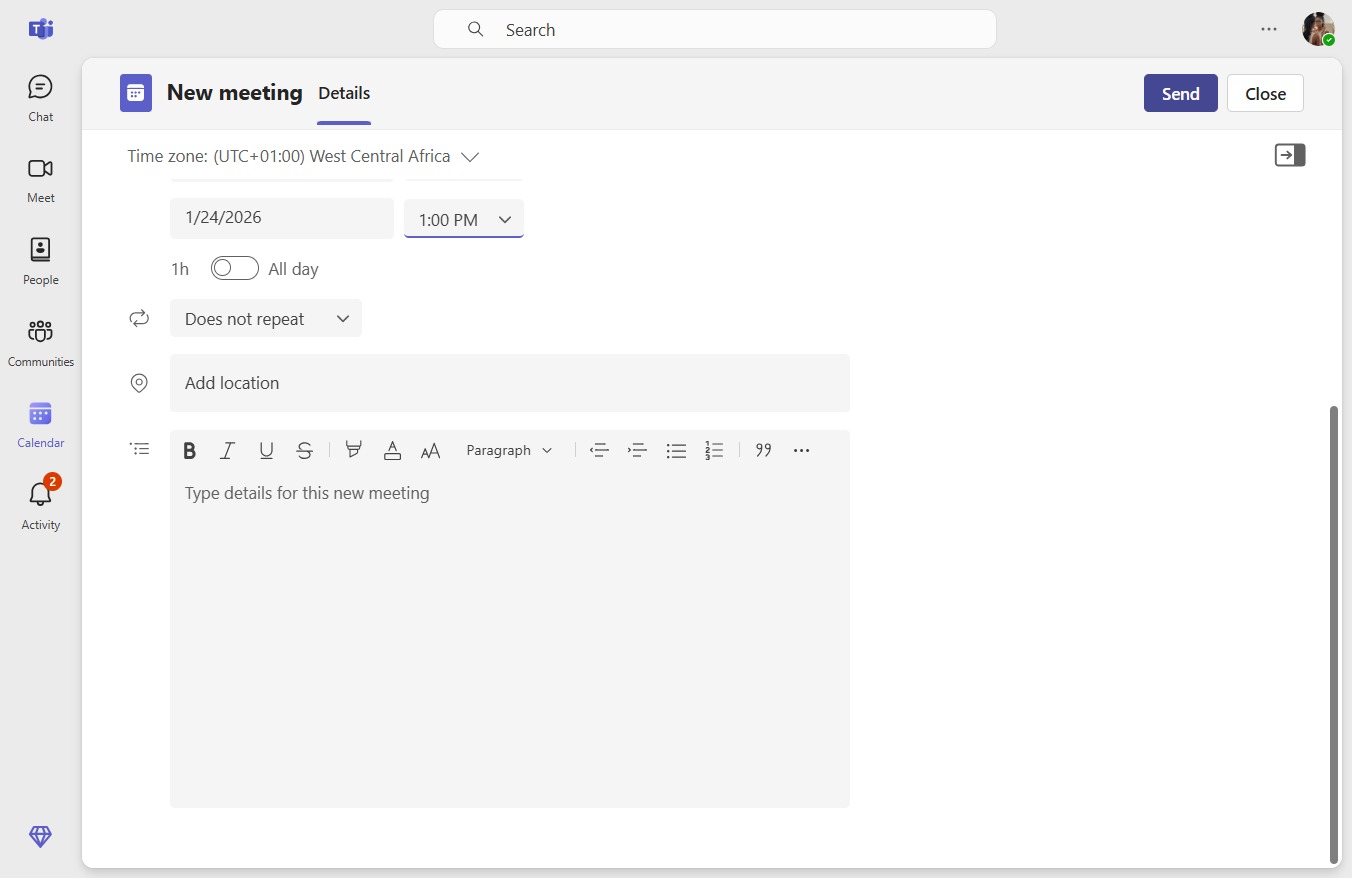
  11. Click 1:00 PM (1h)

    Click 1:00 PM (1h)
    Loading screenshot…
    100%
  12. Click Send

    Click Send
    Loading screenshot…
    100%