Click the Private option
Selecting the 'Private' option will restrict access to this task, ensuring that only designated team members can view or edit the details.
Loading screenshot…
100%
Learn how to save a project as a template with this step-by-step guide, which covers restricting access, creating a reusable template from your current project setup, and…
 viktoria
Learn how to save a project as a template with this step-by-step guide, which covers restricting access, creating a reusable template from your current project setup, and adjusting team collaboration settings. Follow these instructions to streamline future project setups and enhance team efficiency.
Selecting the 'Private' option will restrict access to this task, ensuring that only designated team members can view or edit the details.
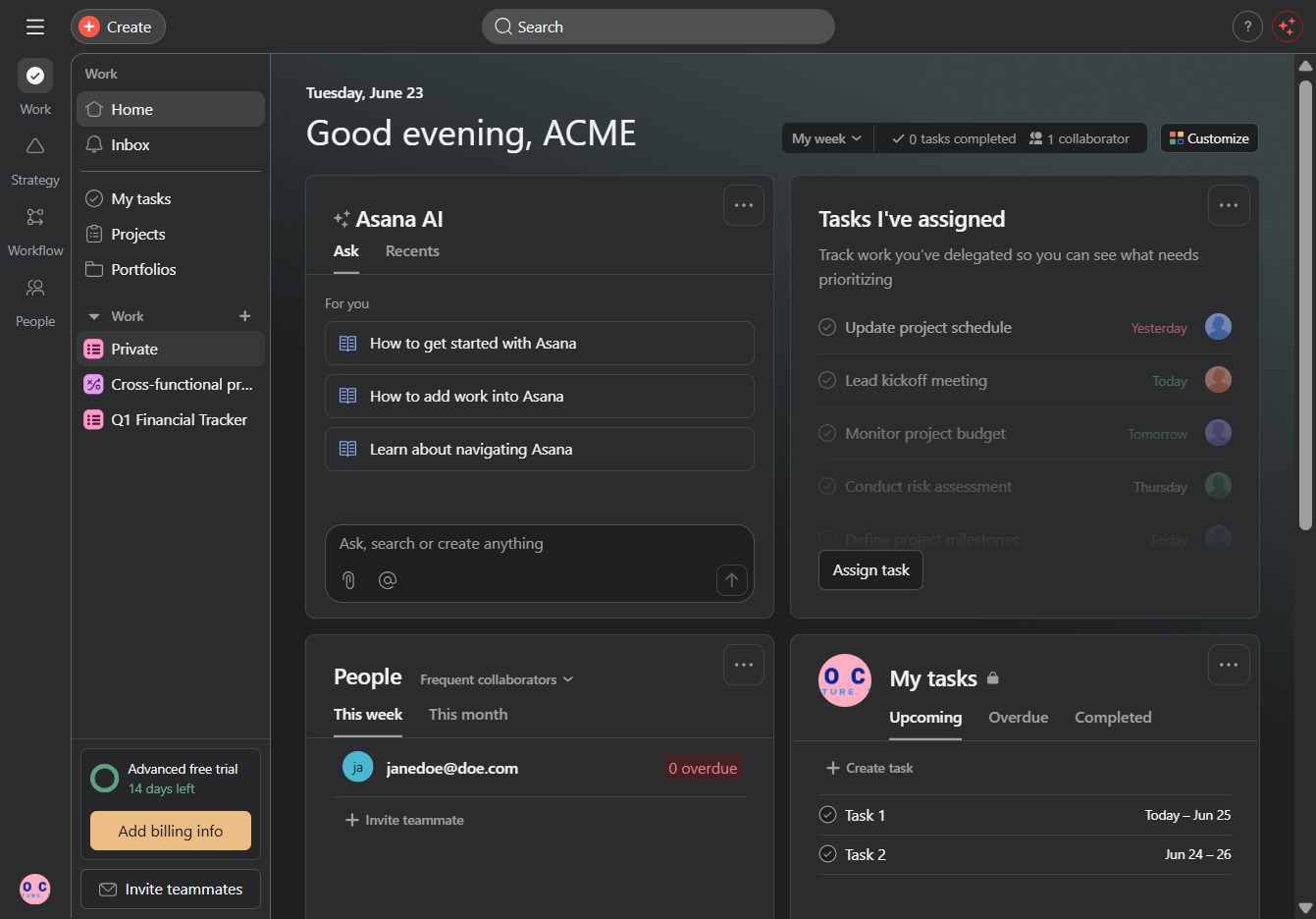
This action will direct you to the designated section or feature within the UI, allowing you to access additional options or information.

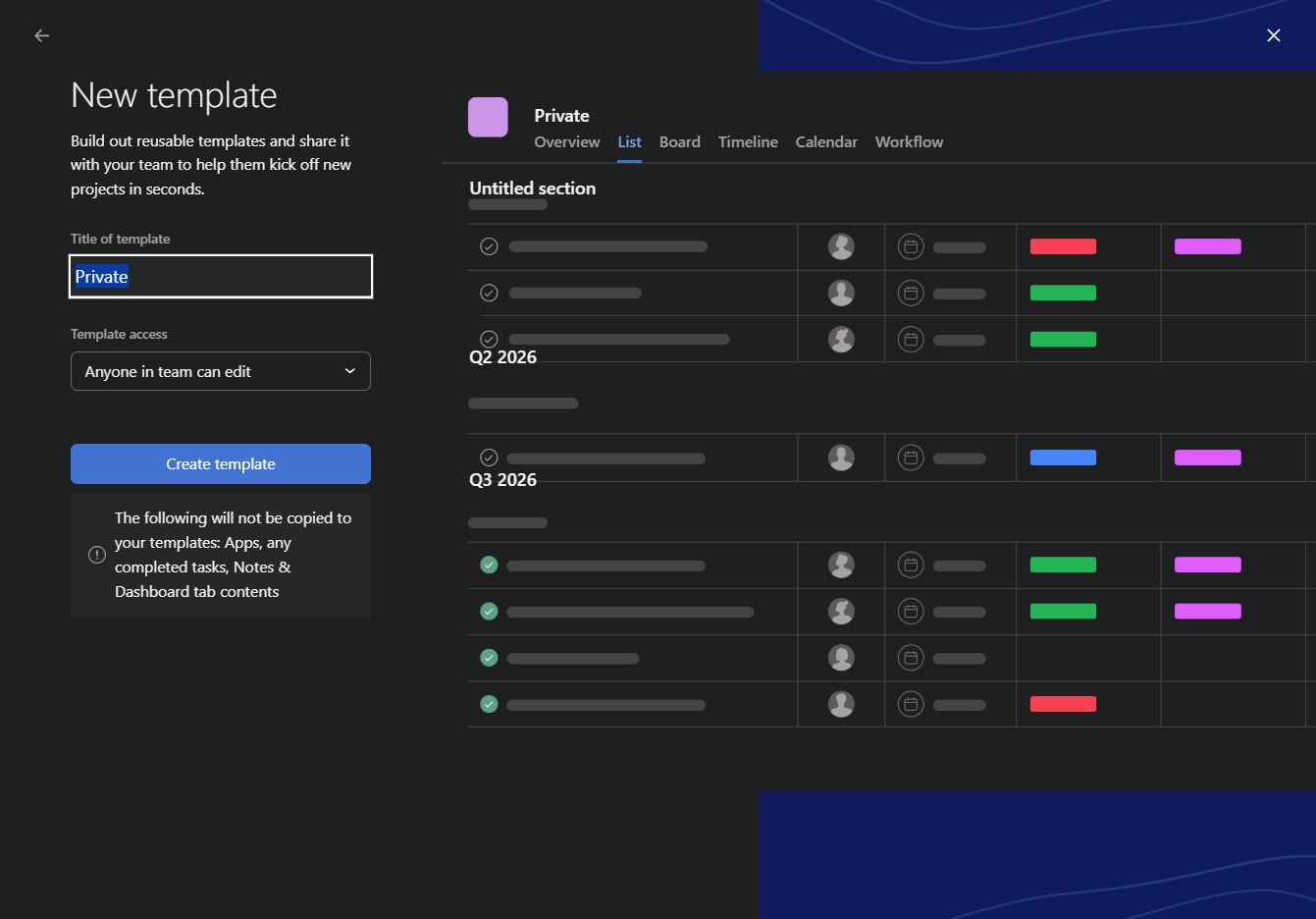
This action allows you to create a template from the current project setup, enabling reuse for future projects. Once saved, the template can be accessed for quickly setting up similar projects.

Select the 'Anyone in team can edit' option to allow team members to modify the template. This setting helps facilitate collaboration by granting editing permissions to all team members.
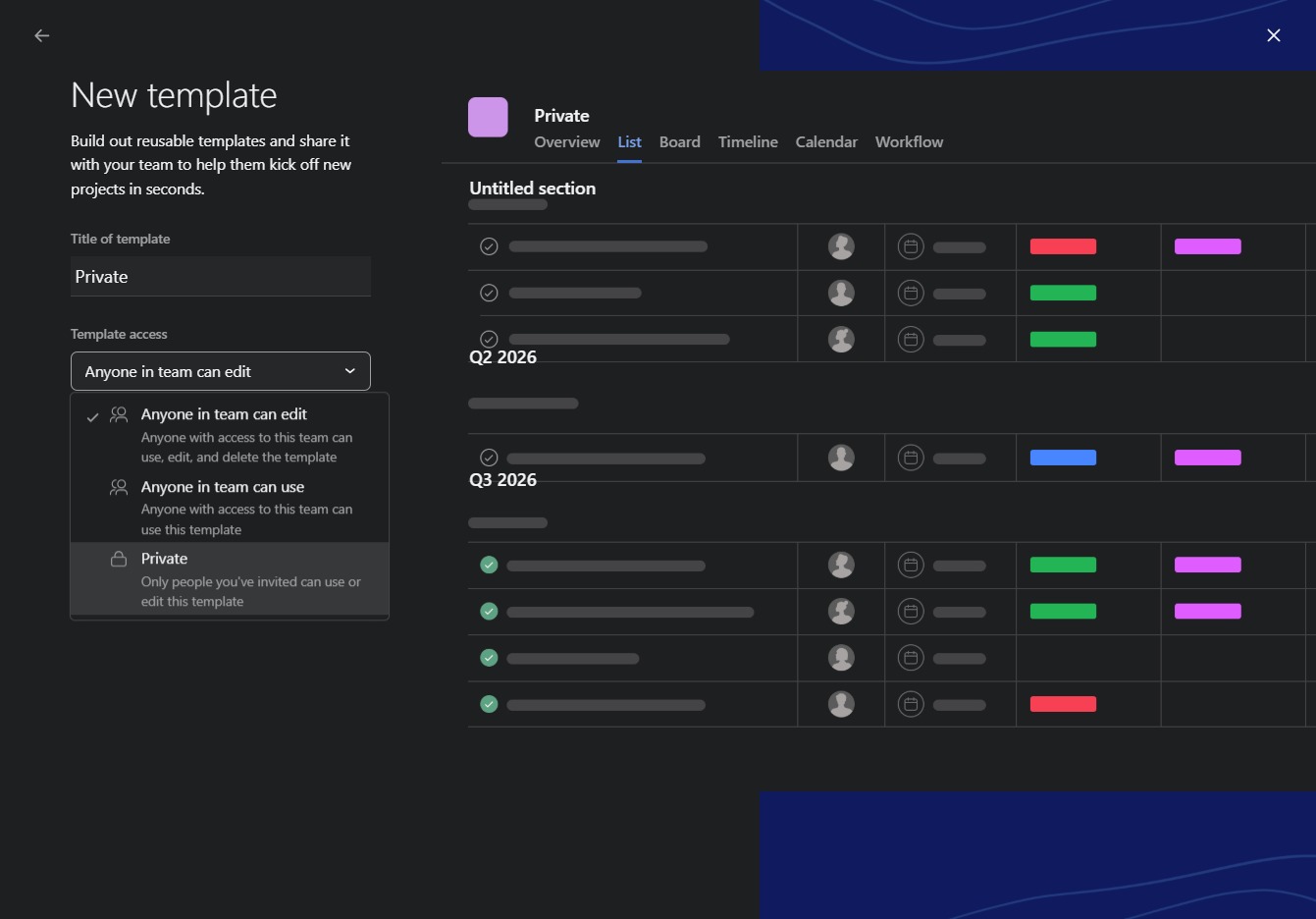
This action sets the template access to private, restricting visibility and editing to only the assigned team members. Ensure only selected users can view or edit the corresponding project template.
This action will finalize your input and generate a new template based on the current settings. Make sure to review all details before proceeding to ensure the template meets your project requirements.

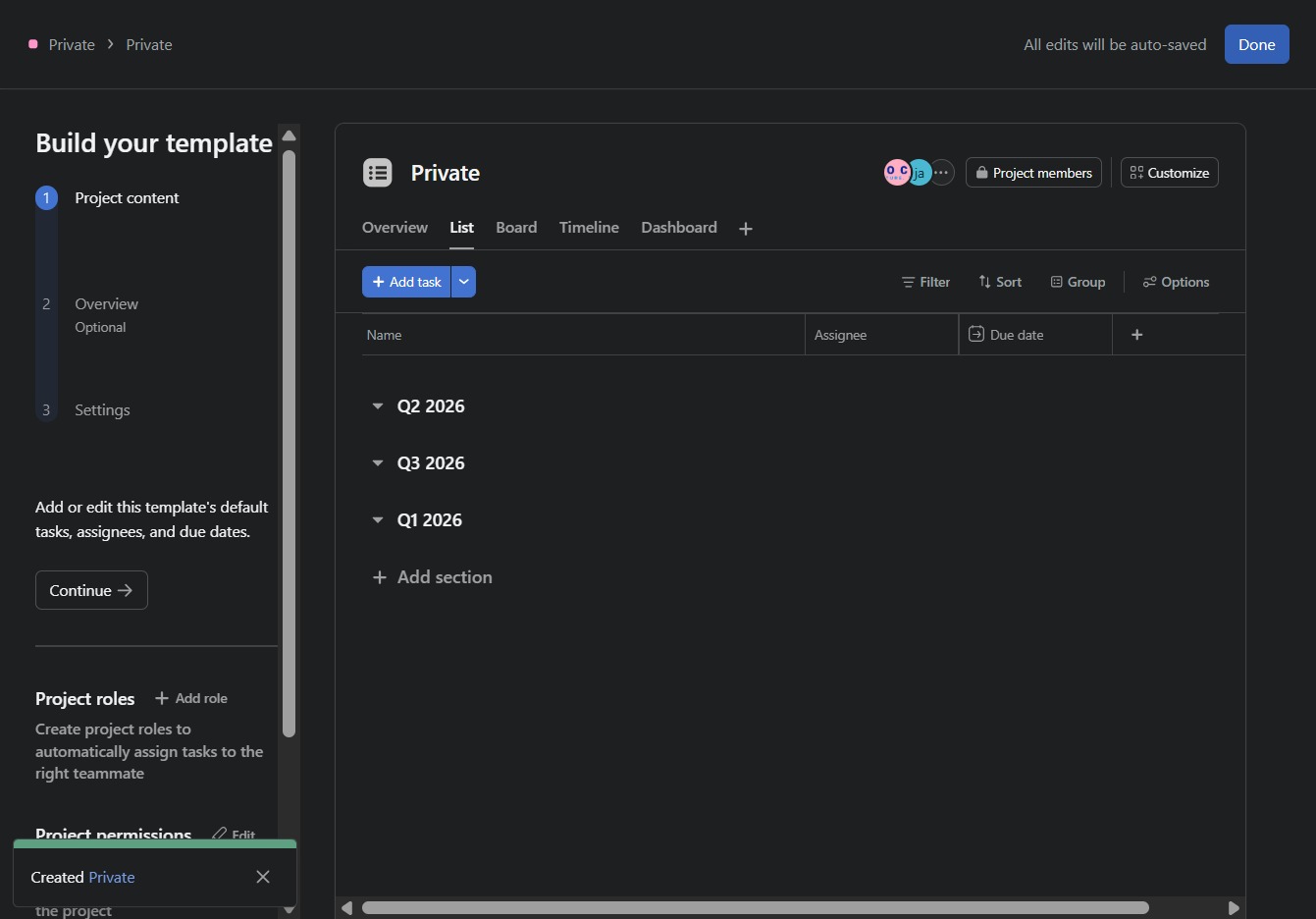
This action will save all your changes and exit the current project template setup. Ensure you have completed your edits before clicking to confirm your progress.