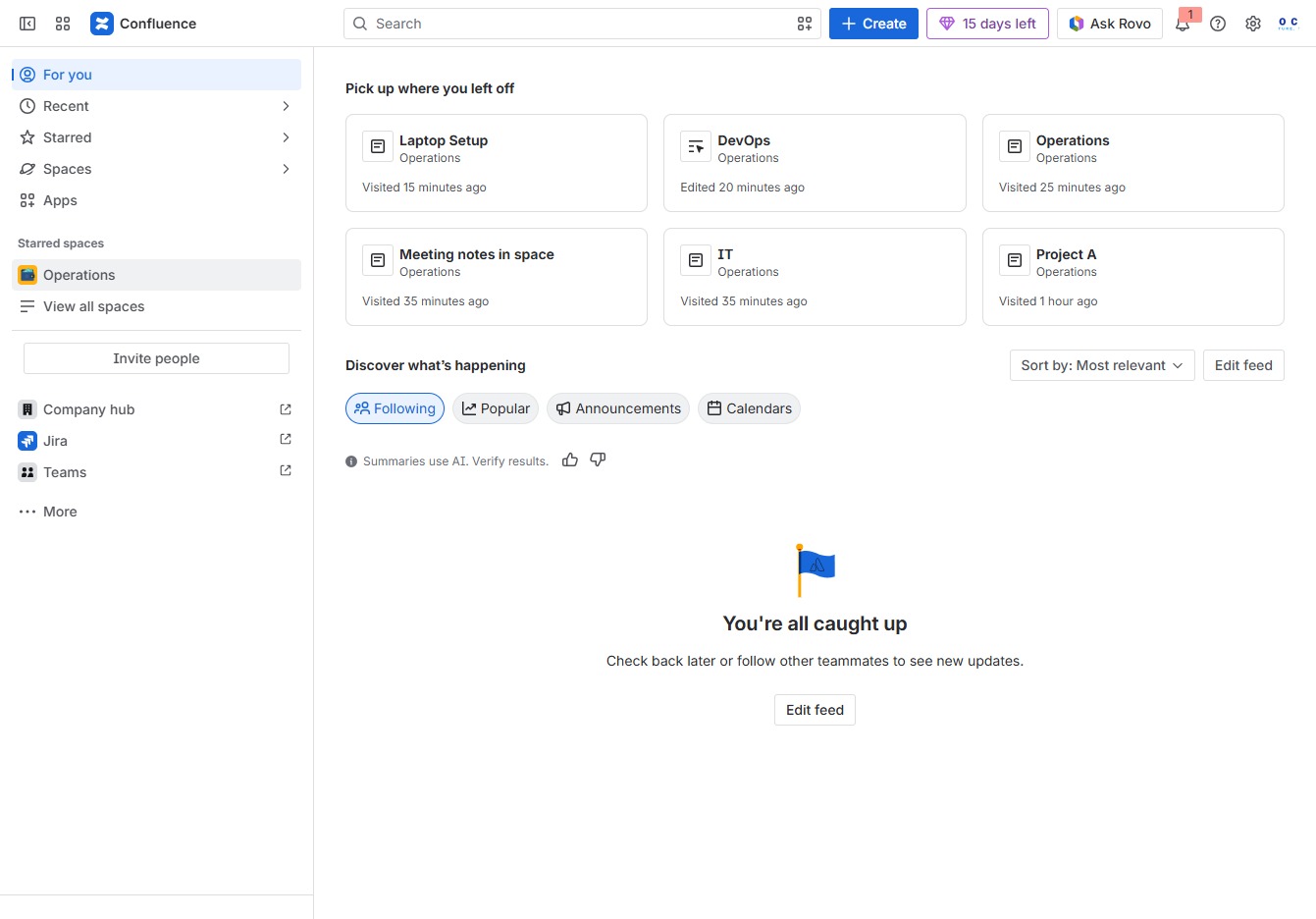
Click the Operations section
This action opens the Operations dashboard where you can view and manage ongoing tasks and workflows related to your operational processes.
Loading screenshot…
100%
This how-to guide provides step-by-step instructions for reviewing page changes in your Operations dashboard.
 viktoria
This how-to guide provides step-by-step instructions for reviewing page changes in your Operations dashboard. Learn how to navigate through various links to view document histories, restore previous versions, and access additional management options to keep your IT-related content organized and up-to-date.
This action opens the Operations dashboard where you can view and manage ongoing tasks and workflows related to your operational processes.
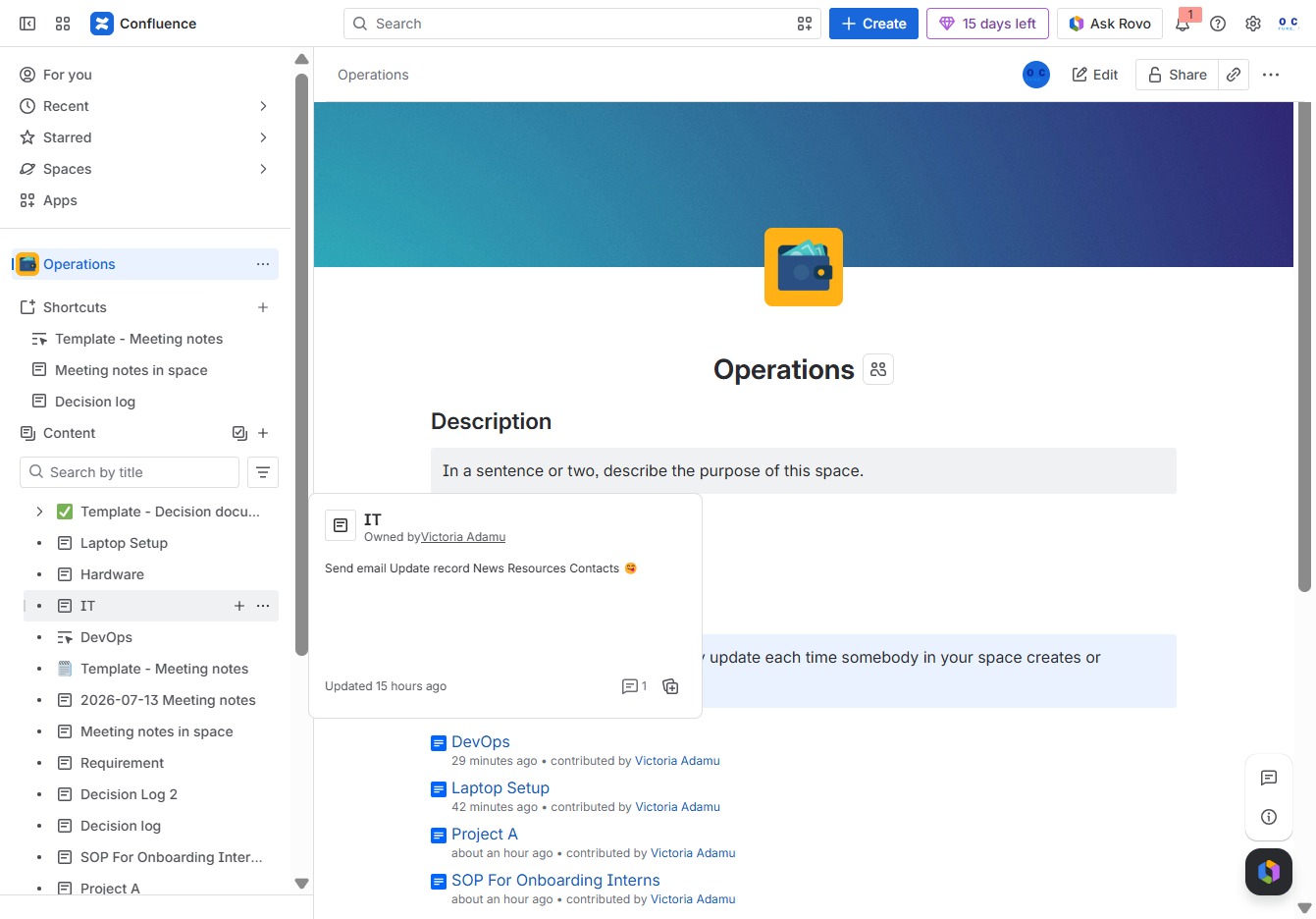
This action allows you to add new related content under the current IT section, facilitating better organization of materials linked to IT operations.
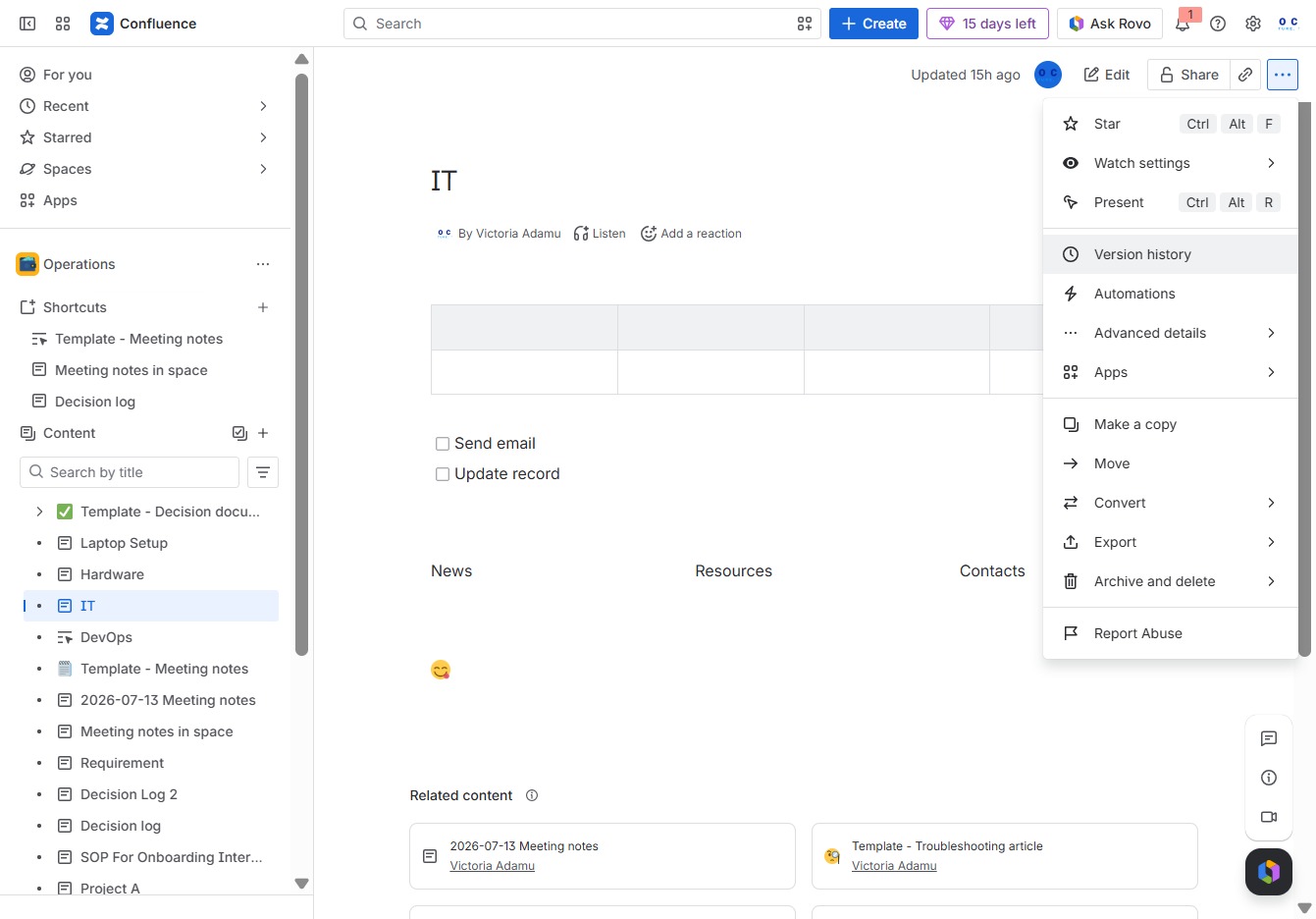
This will open a dropdown that provides additional options for managing your current document or task, allowing you to access features not displayed directly on the interface.

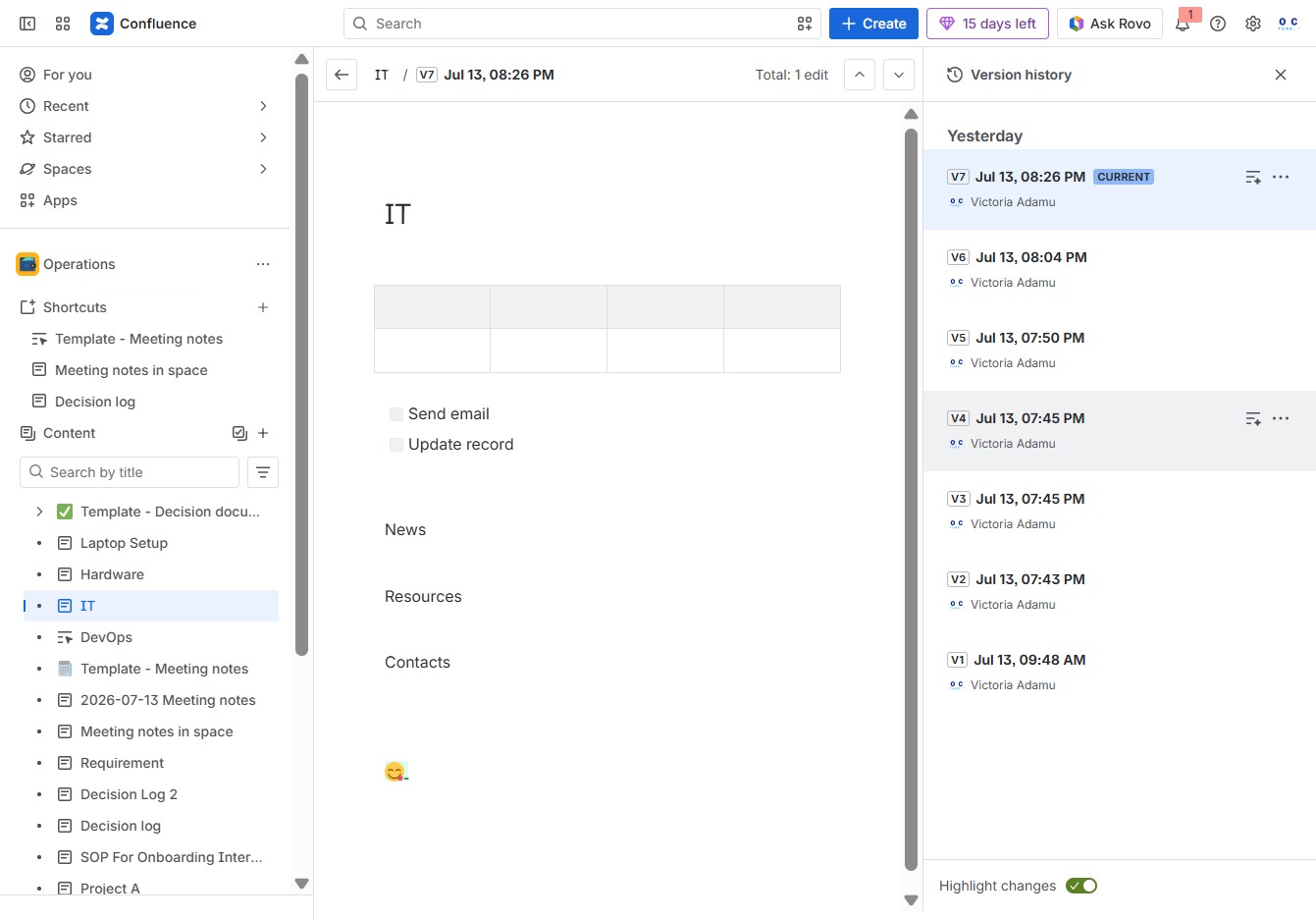
This will open a panel displaying the changes made to the document, allowing you to view previous versions and restore any necessary changes.
Selecting 'More actions' will reveal additional options for managing the document, allowing you to perform operations like sending emails or updating records.
Clicking the More actions menu provides additional options related to the document, allowing you to manage your content effectively.
