This how-to guide provides step-by-step instructions on restoring deleted pages in Confluence.
viktoria
·8 steps·42 views·Published
This how-to guide provides step-by-step instructions on restoring deleted pages in Confluence. Learn how to navigate the administration settings, manage space permissions, and effectively recover lost content from the Trash section to ensure your workspace remains intact.
Step-by-step Guide8 steps
1
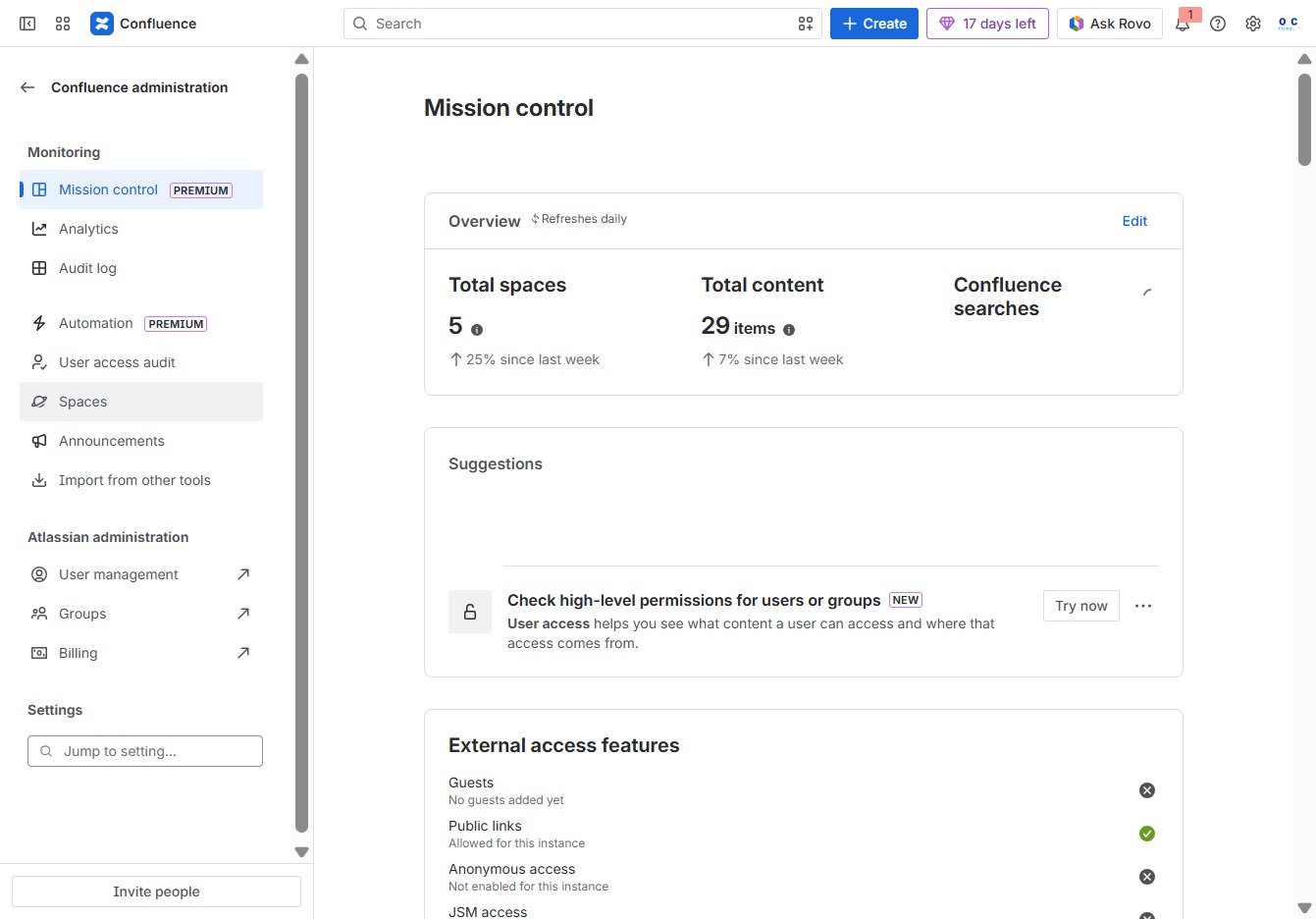
Click the Confluence Administration link
Selecting this link will take you to the administration settings where you can manage user permissions, configure spaces, and set up instance-wide functions for your Confluence environment.
Loading screenshot…
100%
2
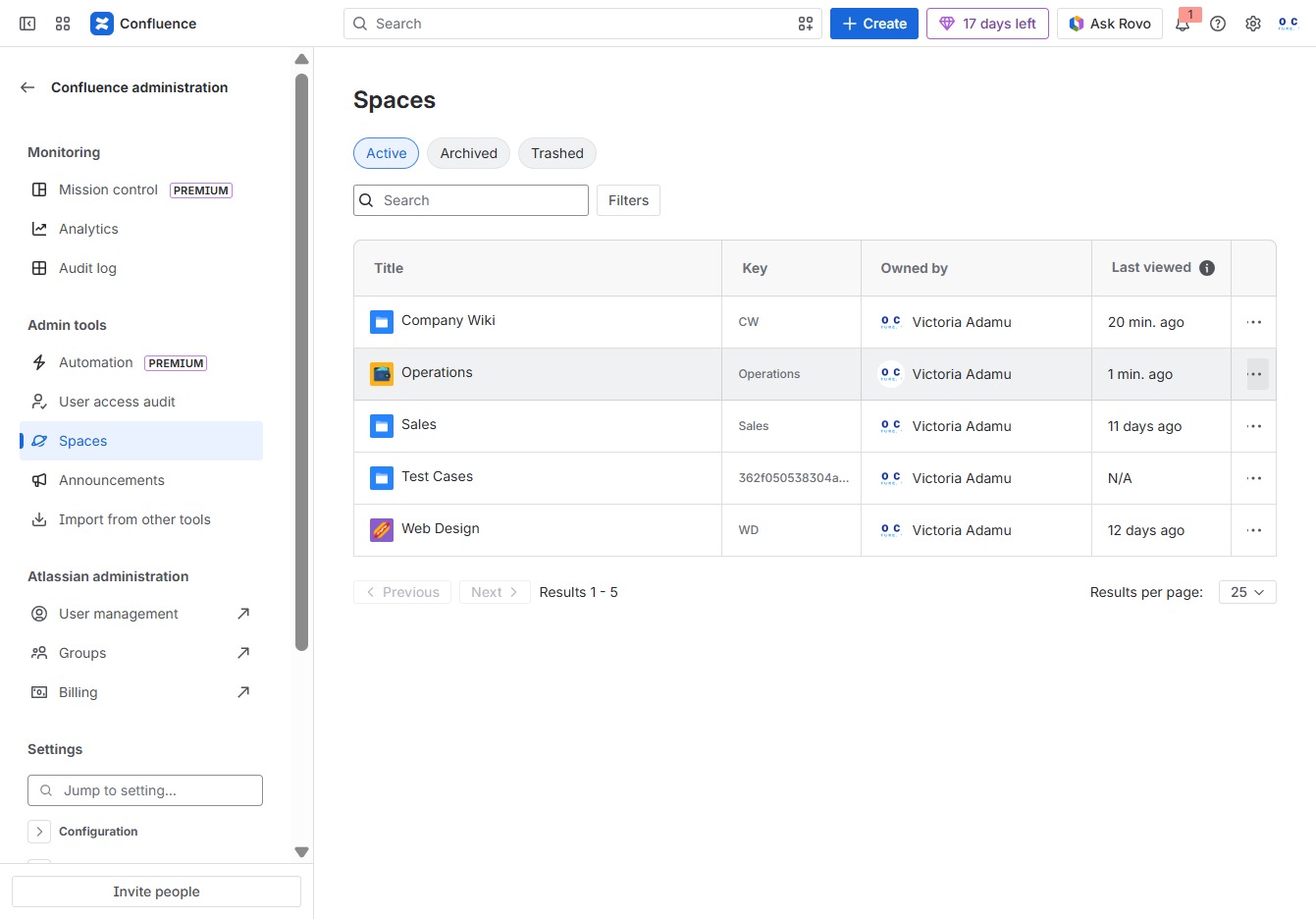
Click the Spaces option
This action will display the list of all spaces available within your Confluence workspace. You can manage settings and access permissions for each space from here.
Loading screenshot…
100%
3
Click the Quick Actions menu
Selecting the 'Quick Actions' menu allows you to access various quick functions related to managing your spaces, improving your workflow.
Loading screenshot…
100%
4
Click the Space settings option
This will open the configuration options for managing the selected space, allowing you to adjust settings such as permissions, theme, and other features.
Loading screenshot…
100%
5
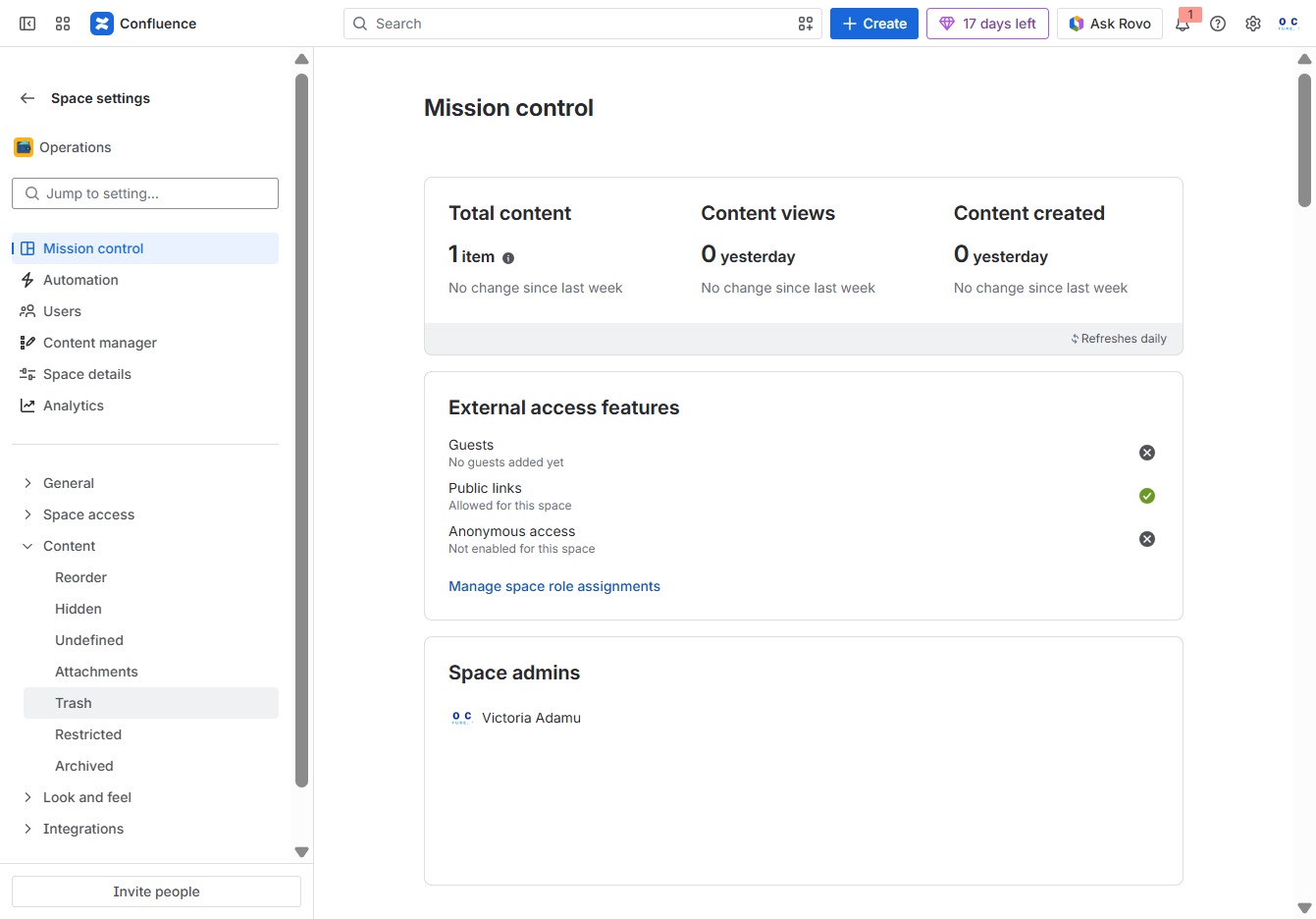
Click the Content section
Clicking the 'Content' section allows you to view and manage the items within your space, including details on total content, content views, and created items.
Loading screenshot…
100%
6
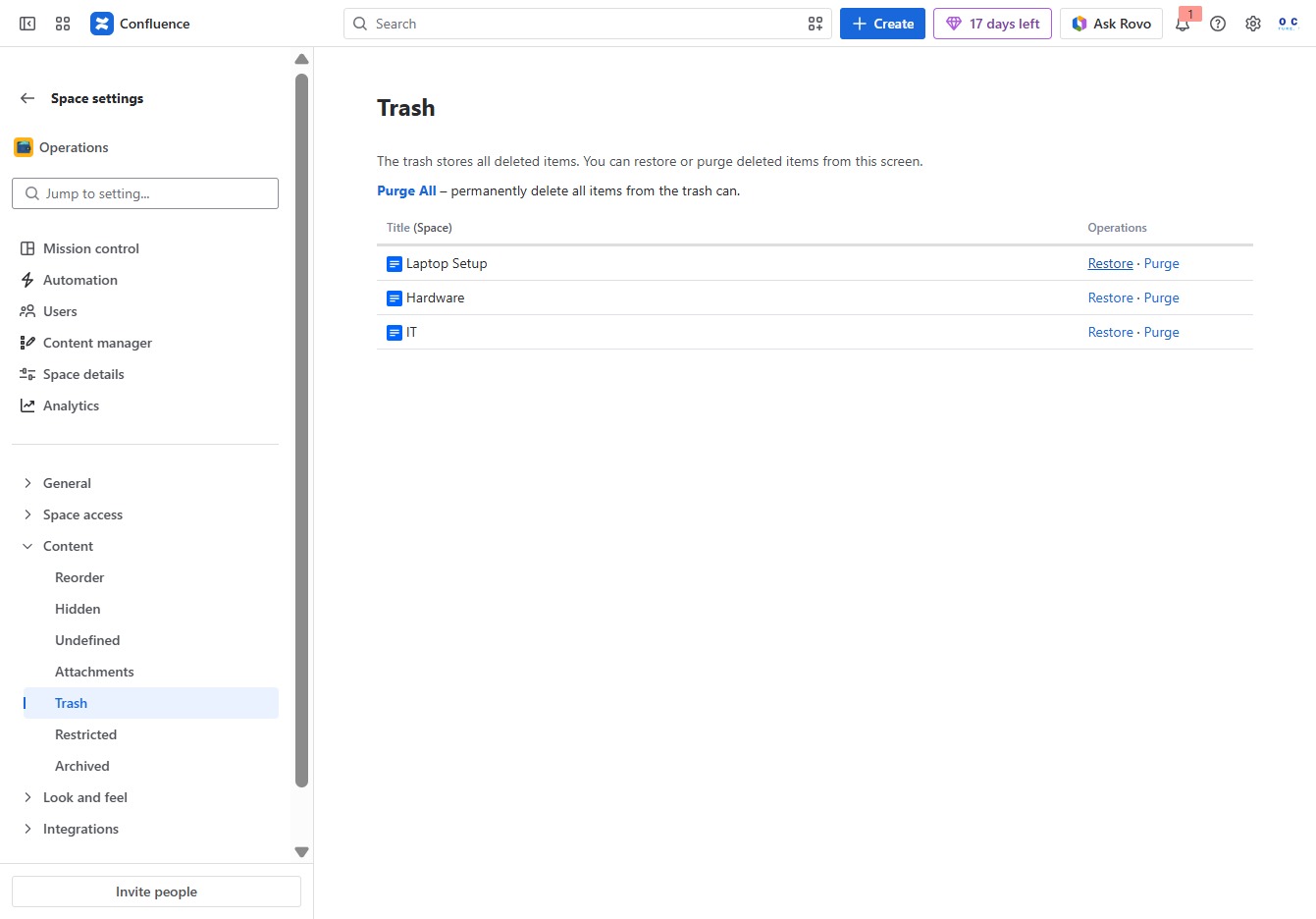
Click the Trash button
Clicking the Trash button will delete the selected attachments or content. Be cautious, as deleted items cannot be restored.
Loading screenshot…
100%
7
Click the Restore Laptop Setup link
This action will restore the deleted Laptop Setup item back to its original state within the system. You can manage other deleted items in the Trash section.
Loading screenshot…
100%
8
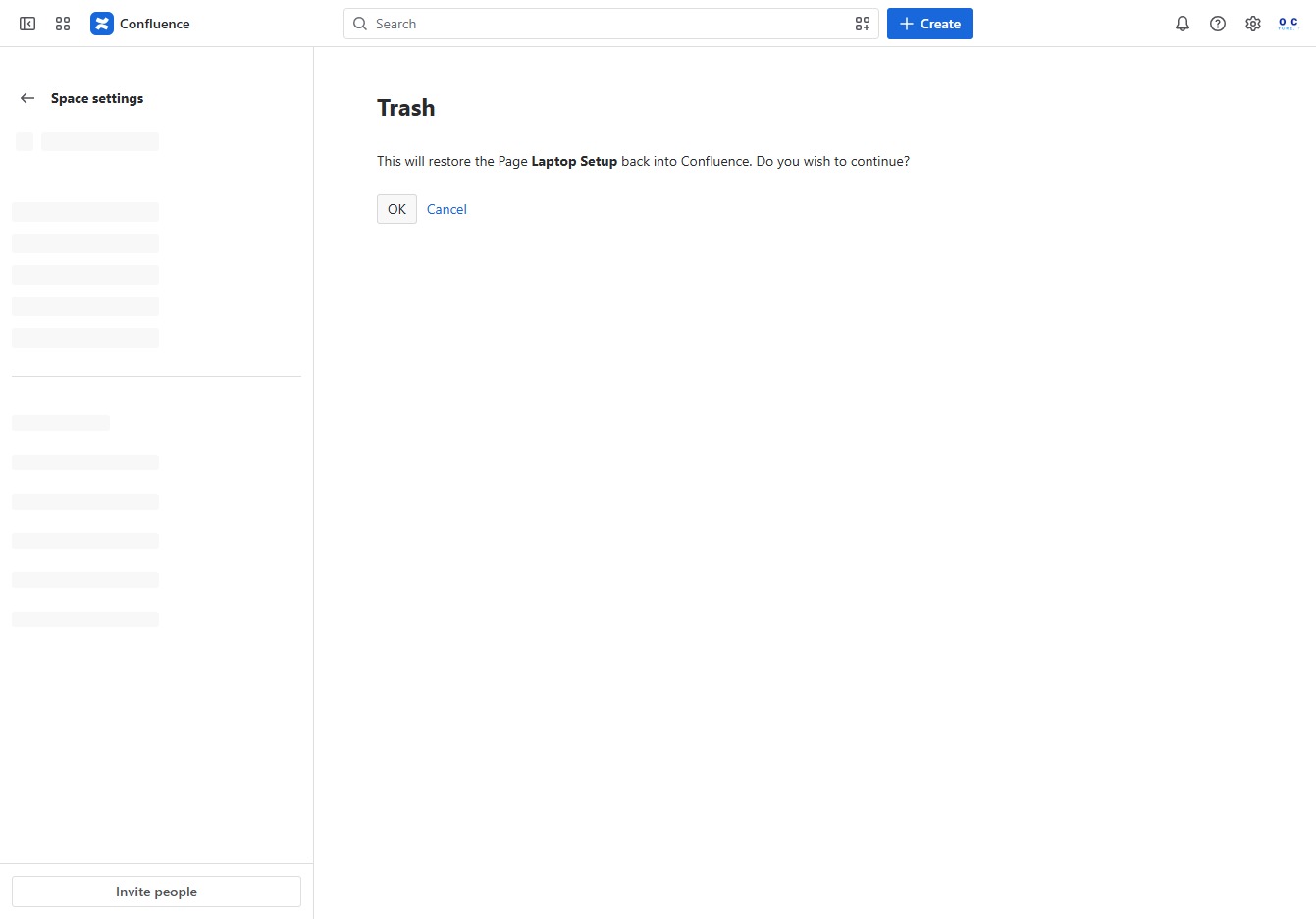
Click the OK button to restore settings
This action will restore the Page Layout Setup back into Confluence. Confirm your choice by clicking OK.