Click the Operations section
This action will take you to the Operations area, where you can manage and view ongoing tasks and processes relevant to your projects.

Loading screenshot…
100%
In this how-to guide, you'll learn to efficiently resolve comments within your project management system.
 viktoria
In this how-to guide, you'll learn to efficiently resolve comments within your project management system. The steps include navigating to the Operations area and Laptop Setup section, selecting device settings, and marking comment threads as resolved to streamline ongoing discussions.
This action will take you to the Operations area, where you can manage and view ongoing tasks and processes relevant to your projects.
This action will take you to the Laptop Setup section, where you can configure your laptop settings and preferences for optimal performance.

This will allow you to select the specific device settings or information relevant to your setup process.

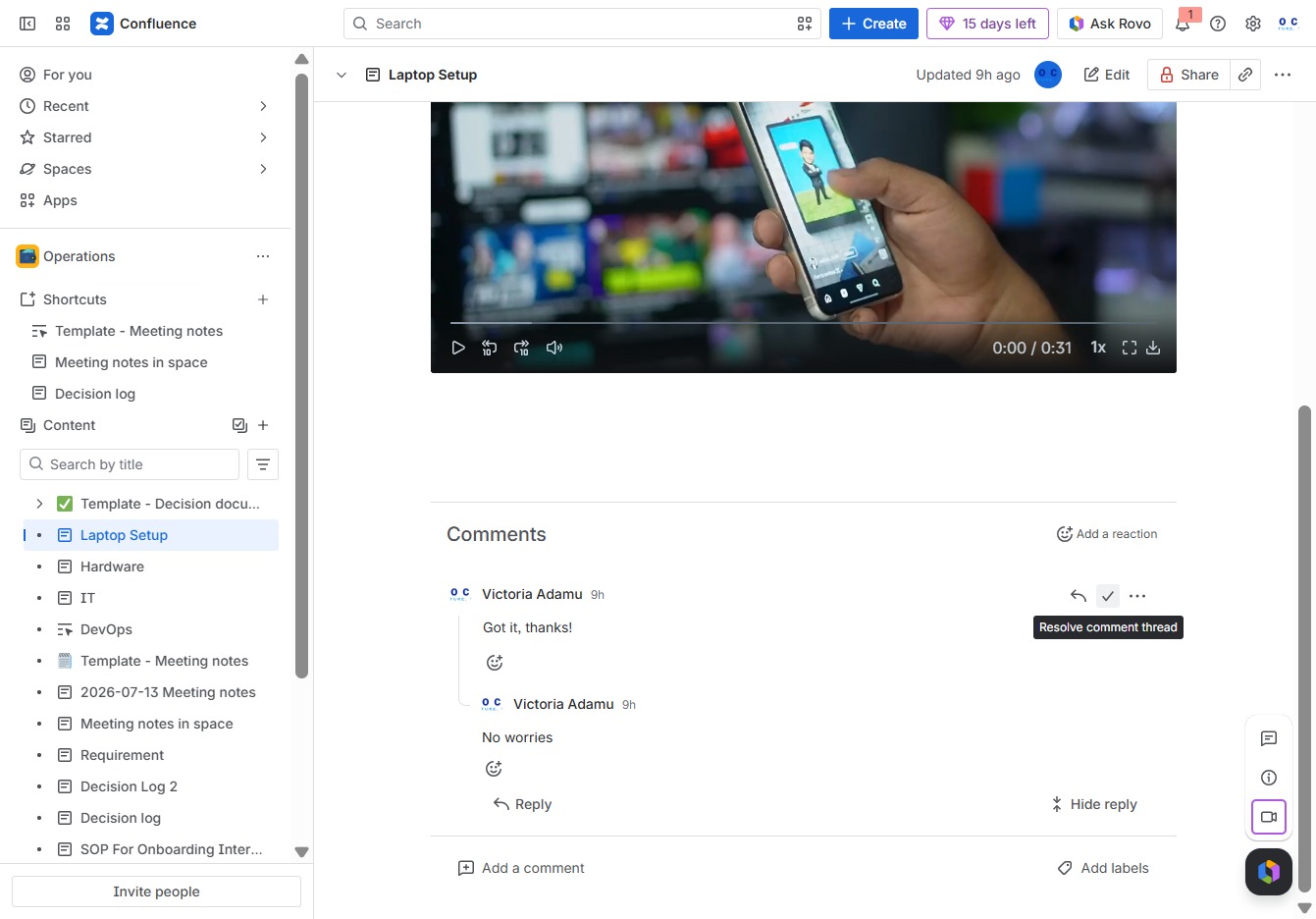
By clicking 'Resolve comment thread', you will mark this discussion as resolved, removing it from the active comment list in the document.

This action will mark the comment thread as resolved, removing it from the active discussions and indicating that the issues have been addressed.