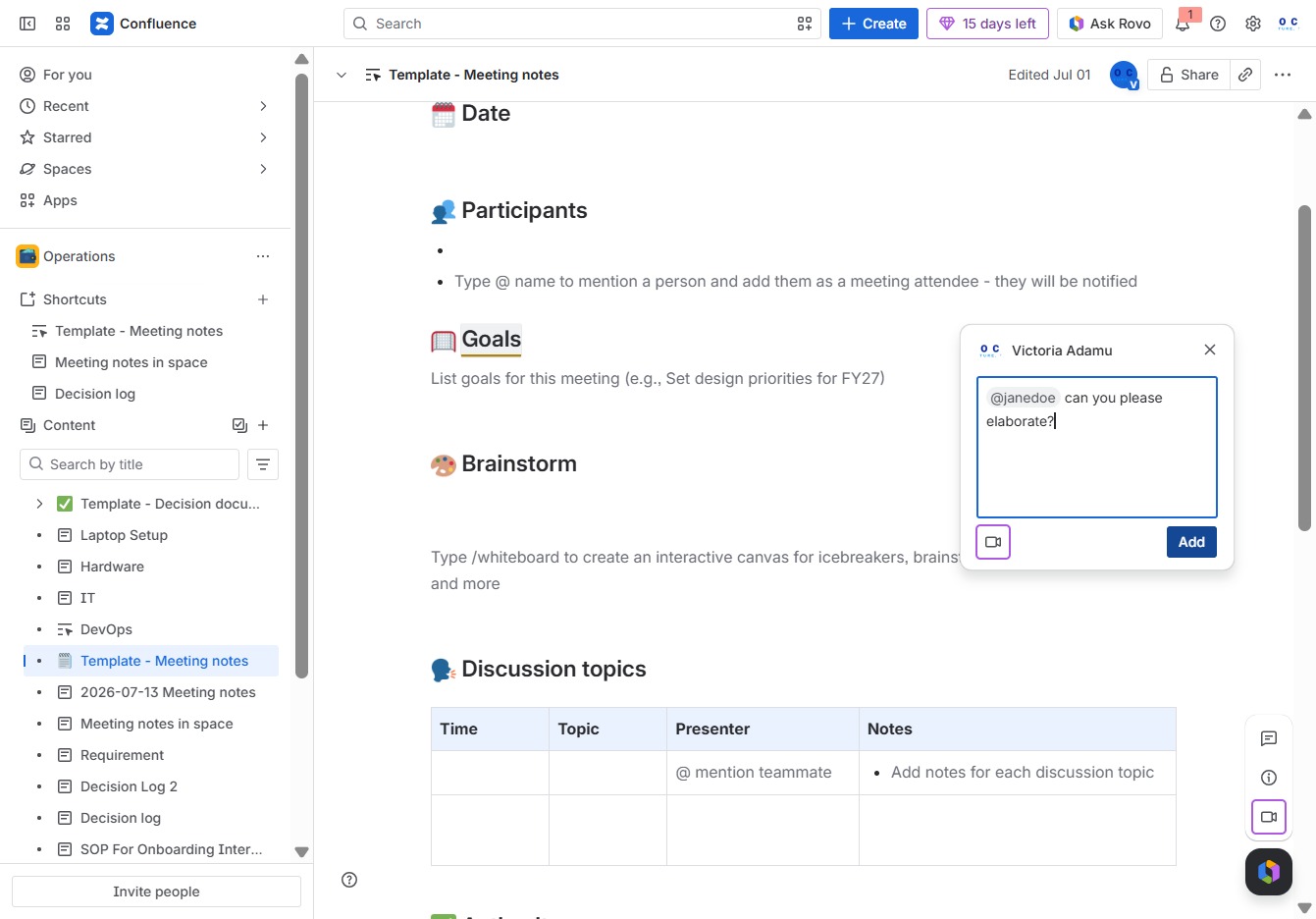
Click the Operations section
This action will open the Operations module, allowing you to manage ongoing tasks and workflows related to operations.

Loading screenshot…
100%
This how-to guide provides step-by-step instructions for effectively requesting feedback during meetings, from navigating the Operations module to annotating meeting notes and…
 viktoria
This how-to guide provides step-by-step instructions for effectively requesting feedback during meetings, from navigating the Operations module to annotating meeting notes and mentioning participants. Learn how to streamline communication and enhance collaboration with automated title suggestions and real-time notifications.
This action will open the Operations module, allowing you to manage ongoing tasks and workflows related to operations.
This will open the Meeting Notes Template, allowing you to create and manage child content specific to your meeting notes.

Click the 'Suggest title' button to generate a title based on the meeting notes you've entered. This feature helps in automatically creating a concise title that summarizes the key topics of your notes.
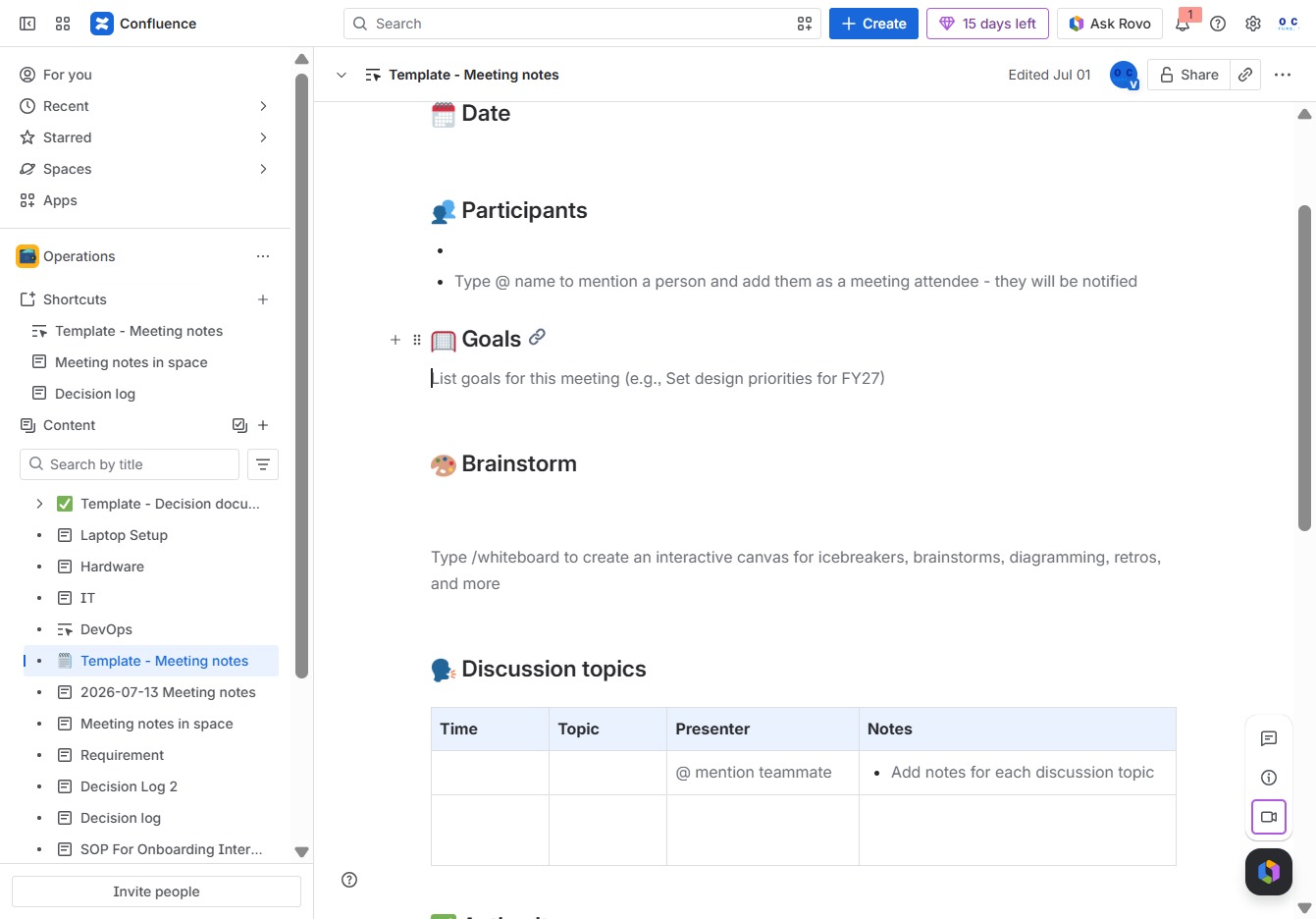
This action allows you to prompt the system to propose a title for the meeting notes based on the content you've entered. It helps streamline the document creation process by suggesting relevant titles.

Clicking the Comment button allows you to add annotations or feedback on the meeting notes, enhancing collaboration among participants.
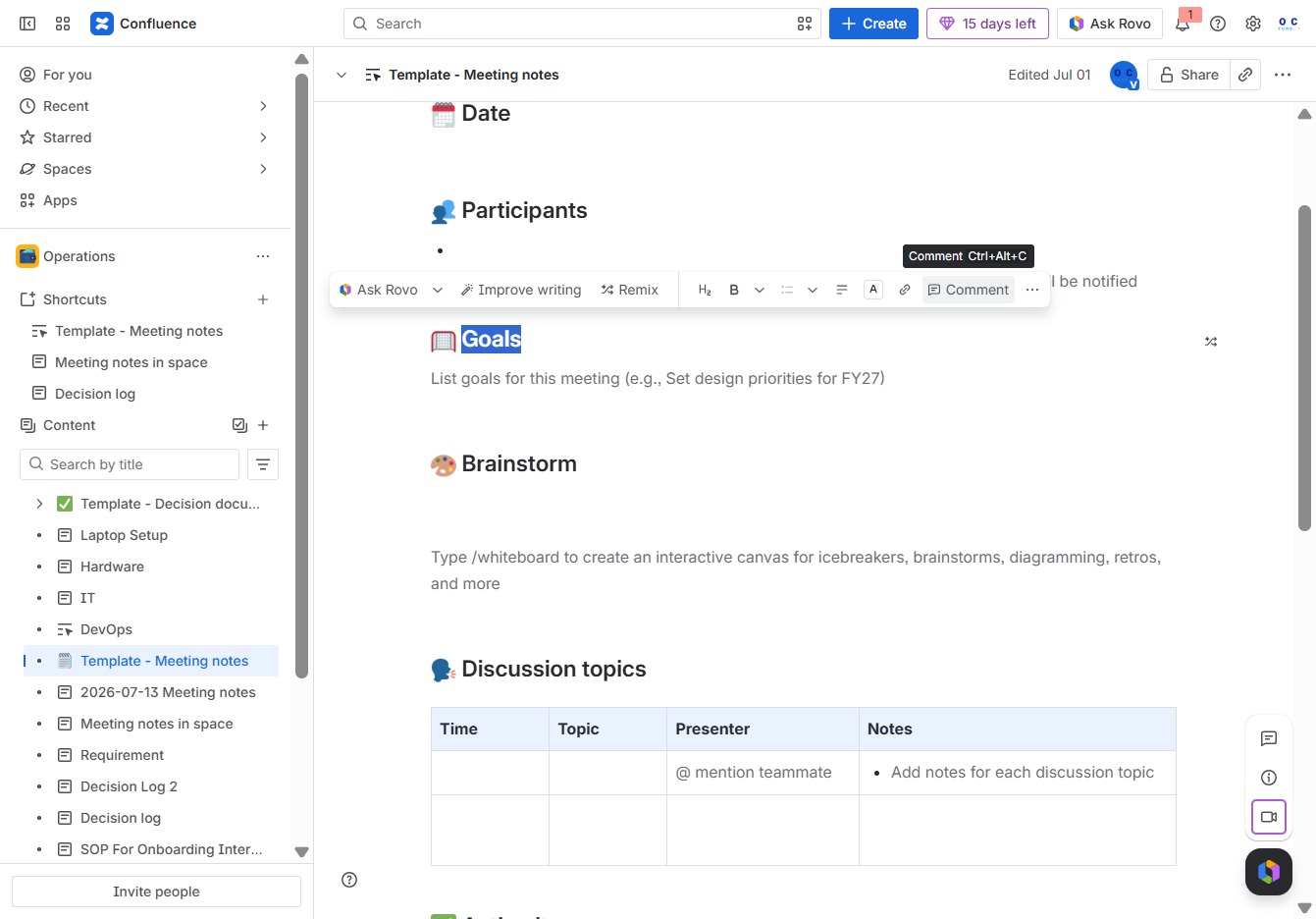
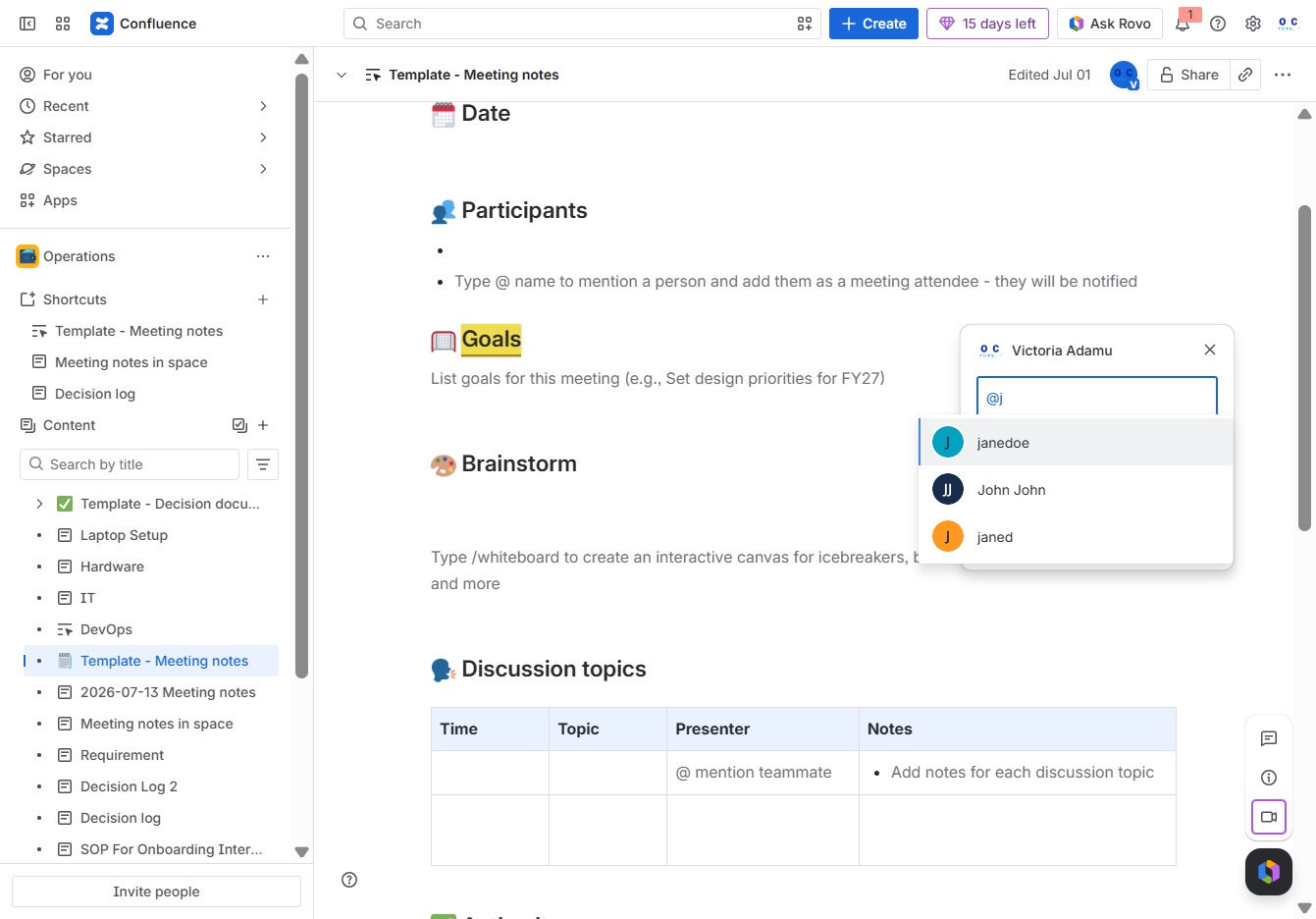
Entering '@' in the Ak editor will trigger an autocomplete menu, allowing you to mention individuals or other elements relevant to your meeting notes.
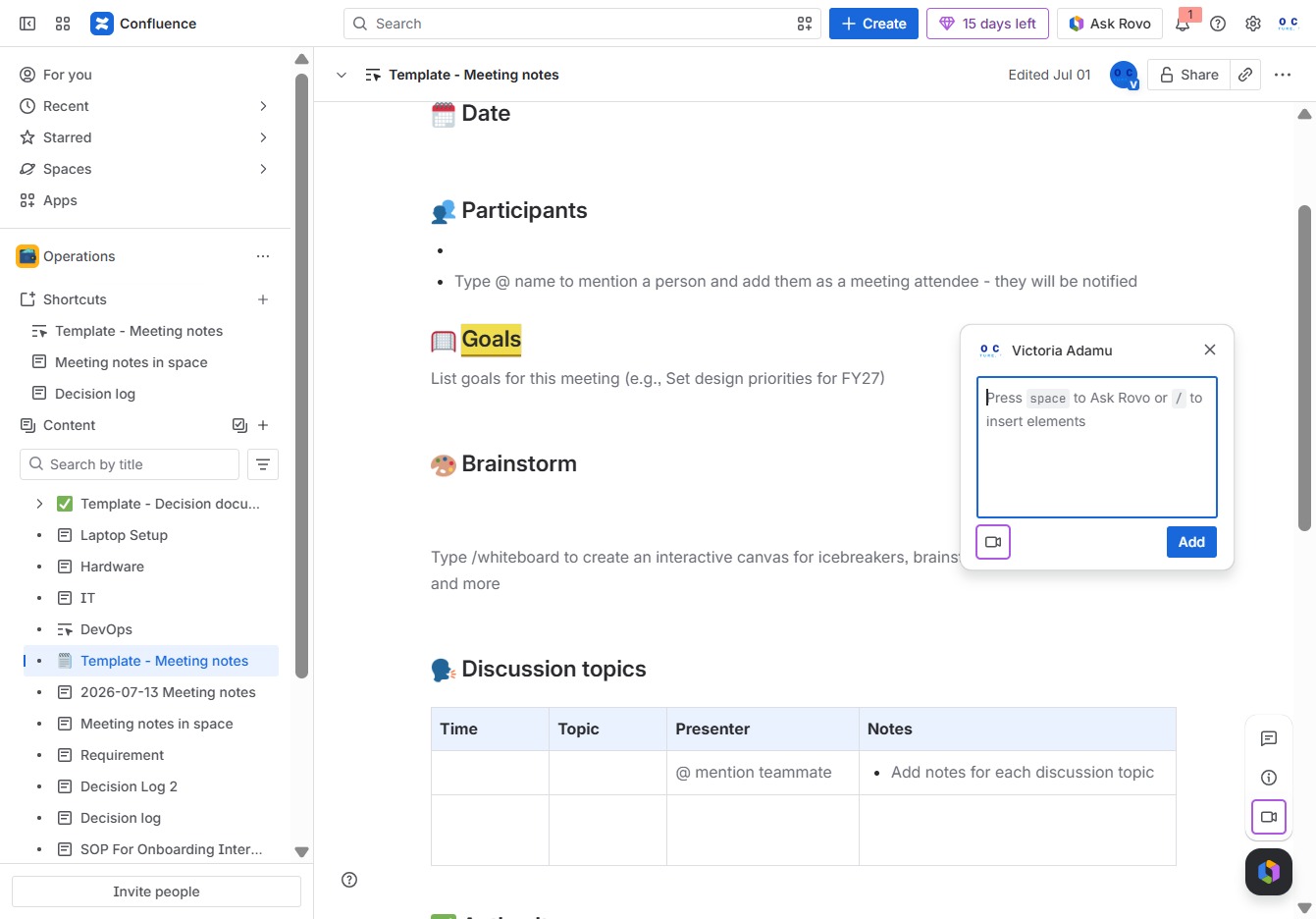
By typing 'j', you can mention a participant in this meeting, which will notify them of their inclusion in the discussion.

This will mention 'janedoe' in the meeting notes and notify them about the meeting.
In the Ak editor textarea, type your message to @janedoe, requesting further elaboration. This will notify the mentioned user to respond to your query.
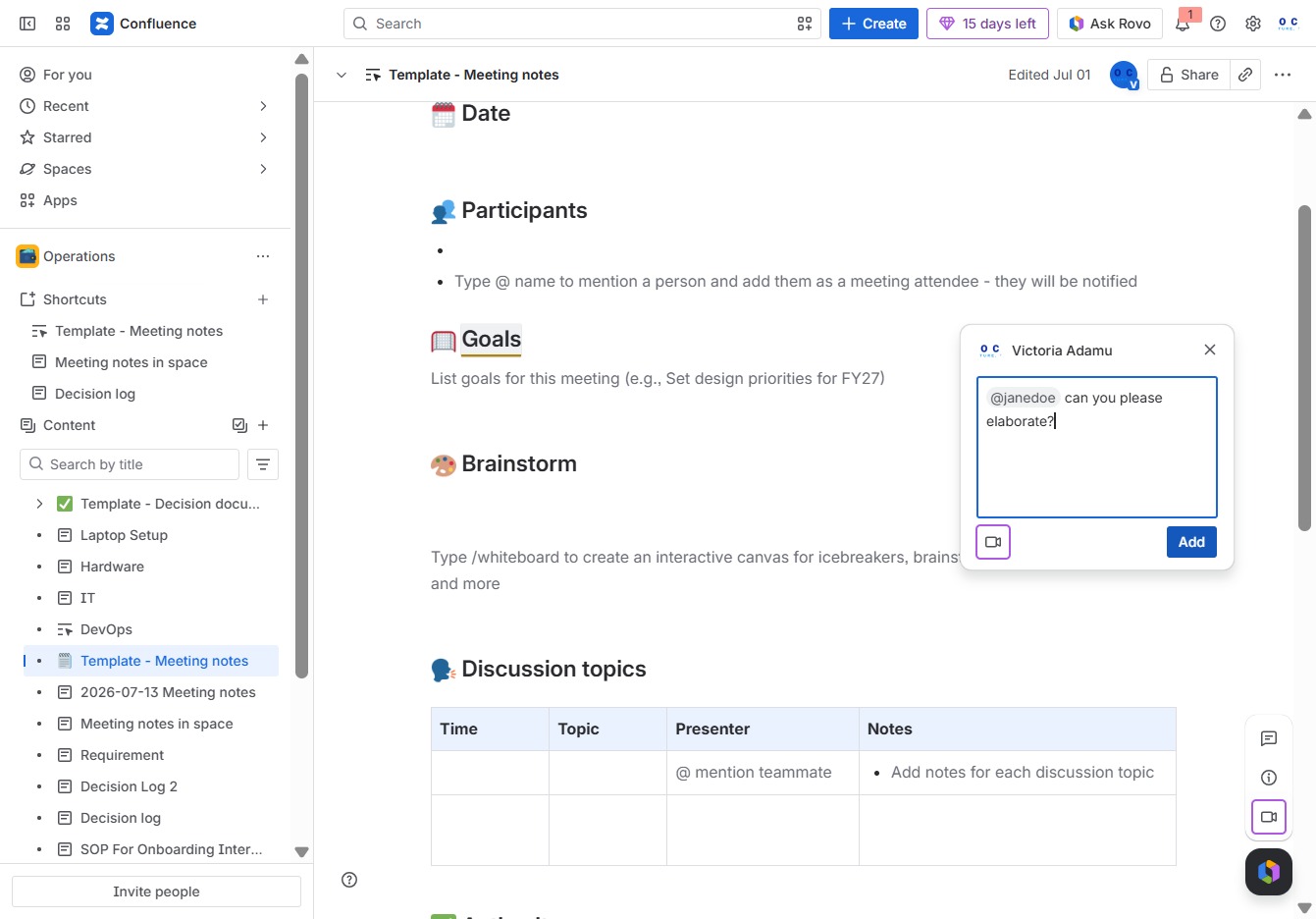
Clicking the 'Add' button will include the mentioned person in the meeting notes, notifying them of their attendance.