Geteilte Anleitung

How to provide feedback on Teams

Learn how to effectively provide feedback on Microsoft Teams with this simple step-by-step guide.

victoriaworkflowsvictoriaworkflows
·9 Schritte·41 Aufrufe·Veröffentlicht

Learn how to effectively provide feedback on Microsoft Teams with this simple step-by-step guide. From accessing the feedback tool to submitting your compliment, follow our instructions to share your thoughts on the platform easily and efficiently.

Step-by-step Guide9 Schritte
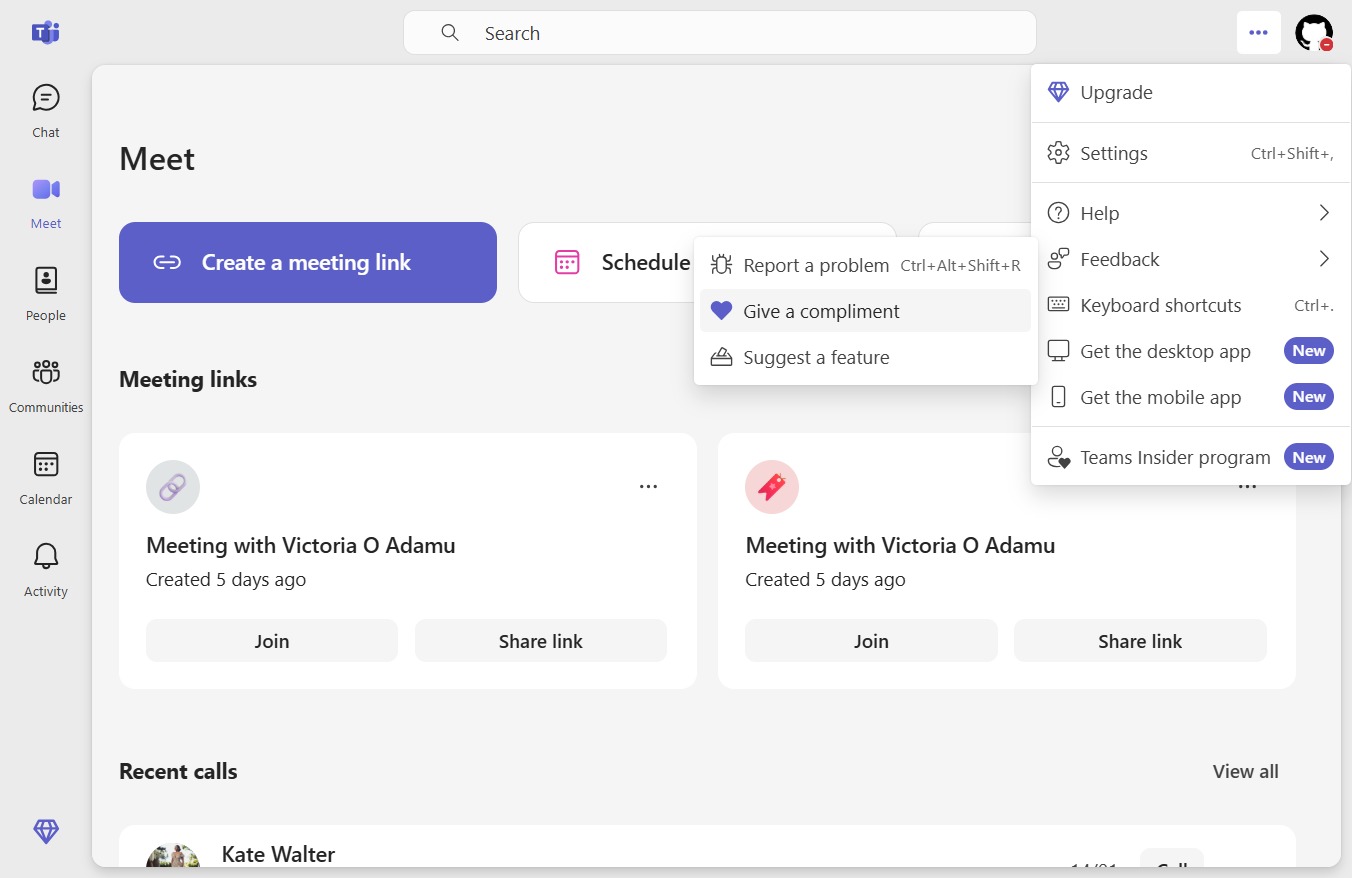
  1. Click Settings and more

    Click Settings and more
    Loading screenshot…
    100%
  2. Click Feedback

    Click Feedback
    Loading screenshot…
    100%
  3. Click Give a compliment

    Click Give a compliment
    Loading screenshot…
    100%
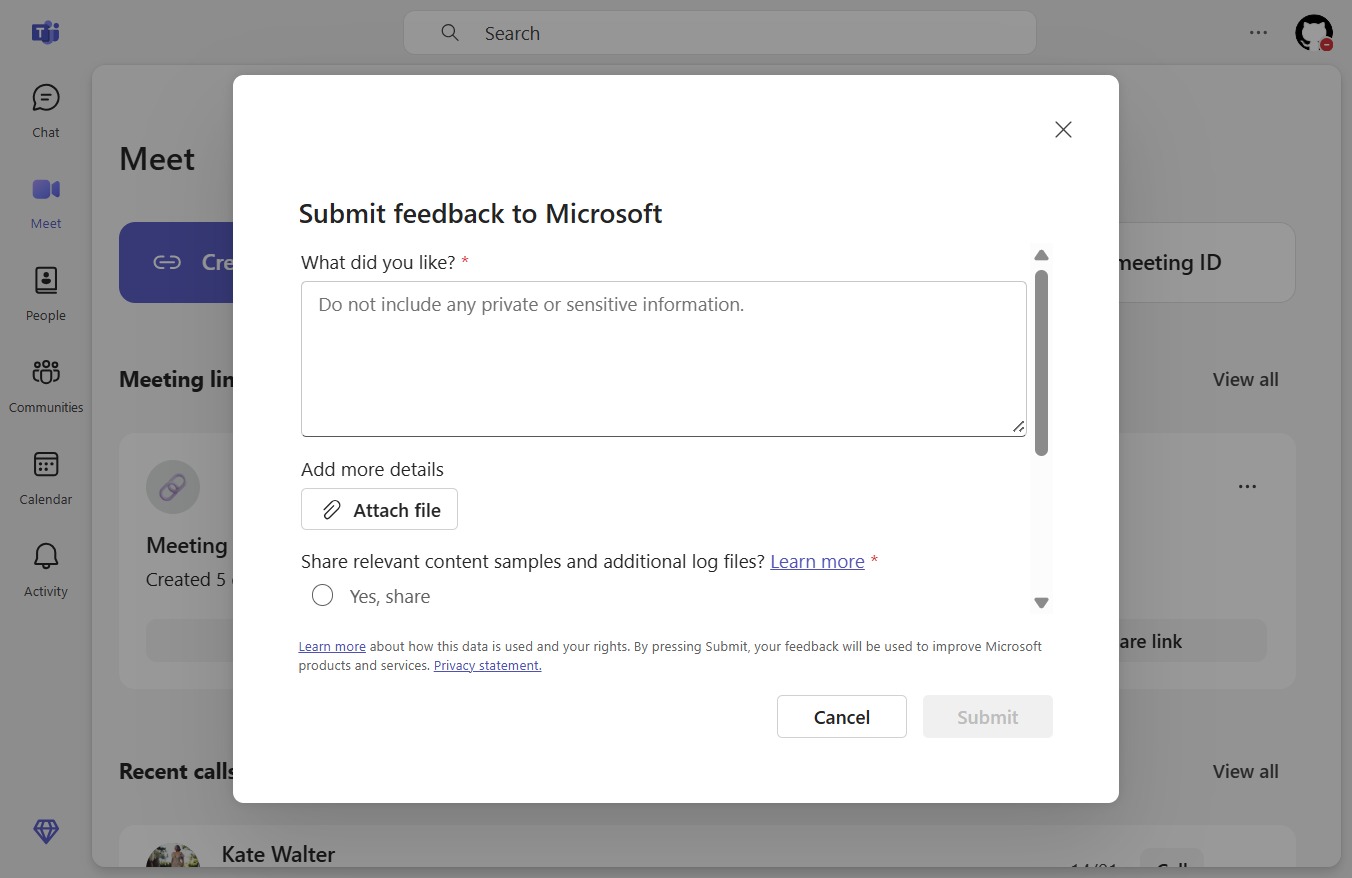
  4. Click on "Click here."

    Click on "Click here."
    Loading screenshot…
    100%
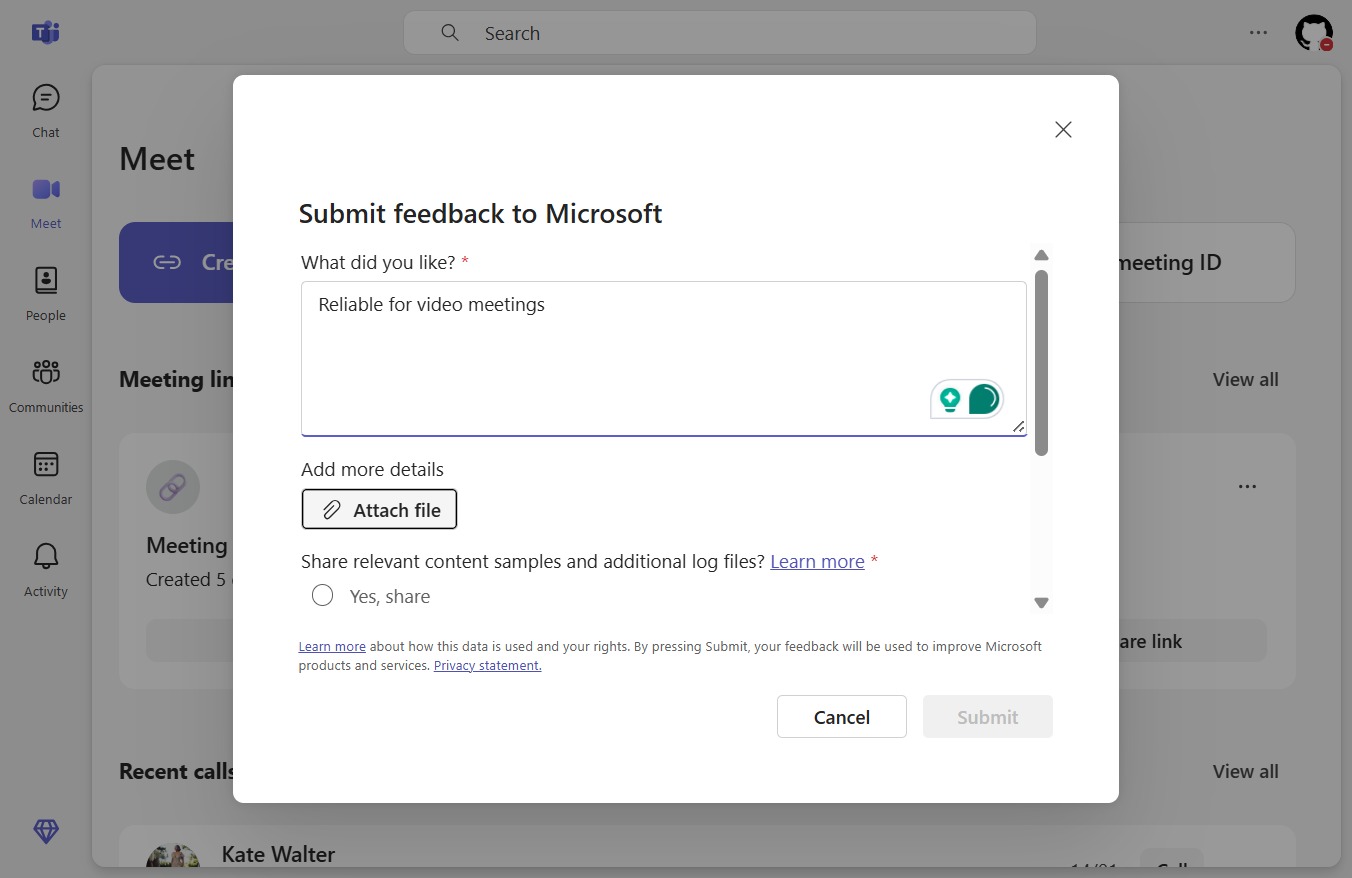
  5. Type "Reliable for video meetings" in What did you like?*

  6. Click Attach file

    Click Attach file
    Loading screenshot…
    100%
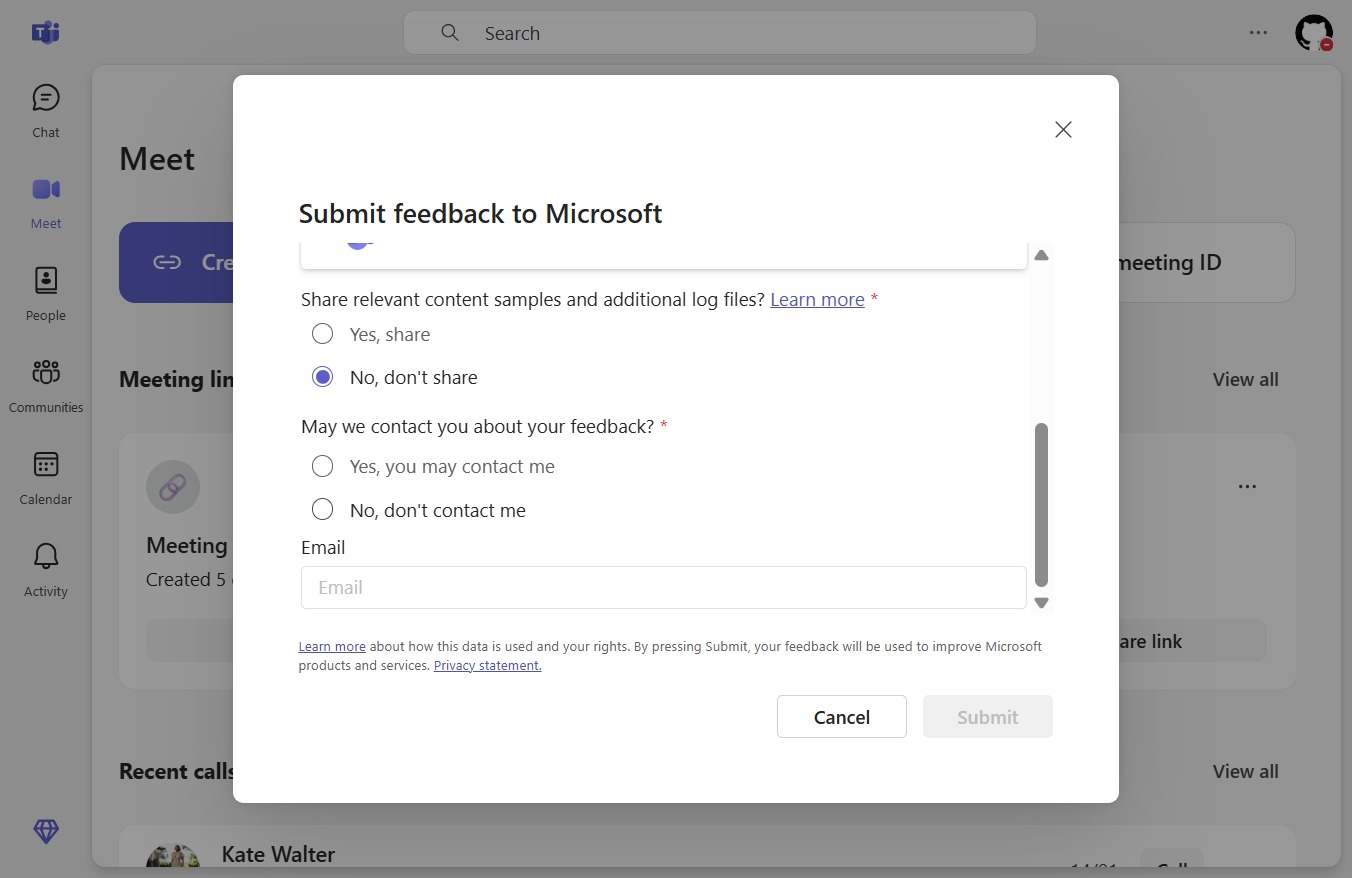
  7. Click on "Click here."

    Click on "Click here."
    Loading screenshot…
    100%
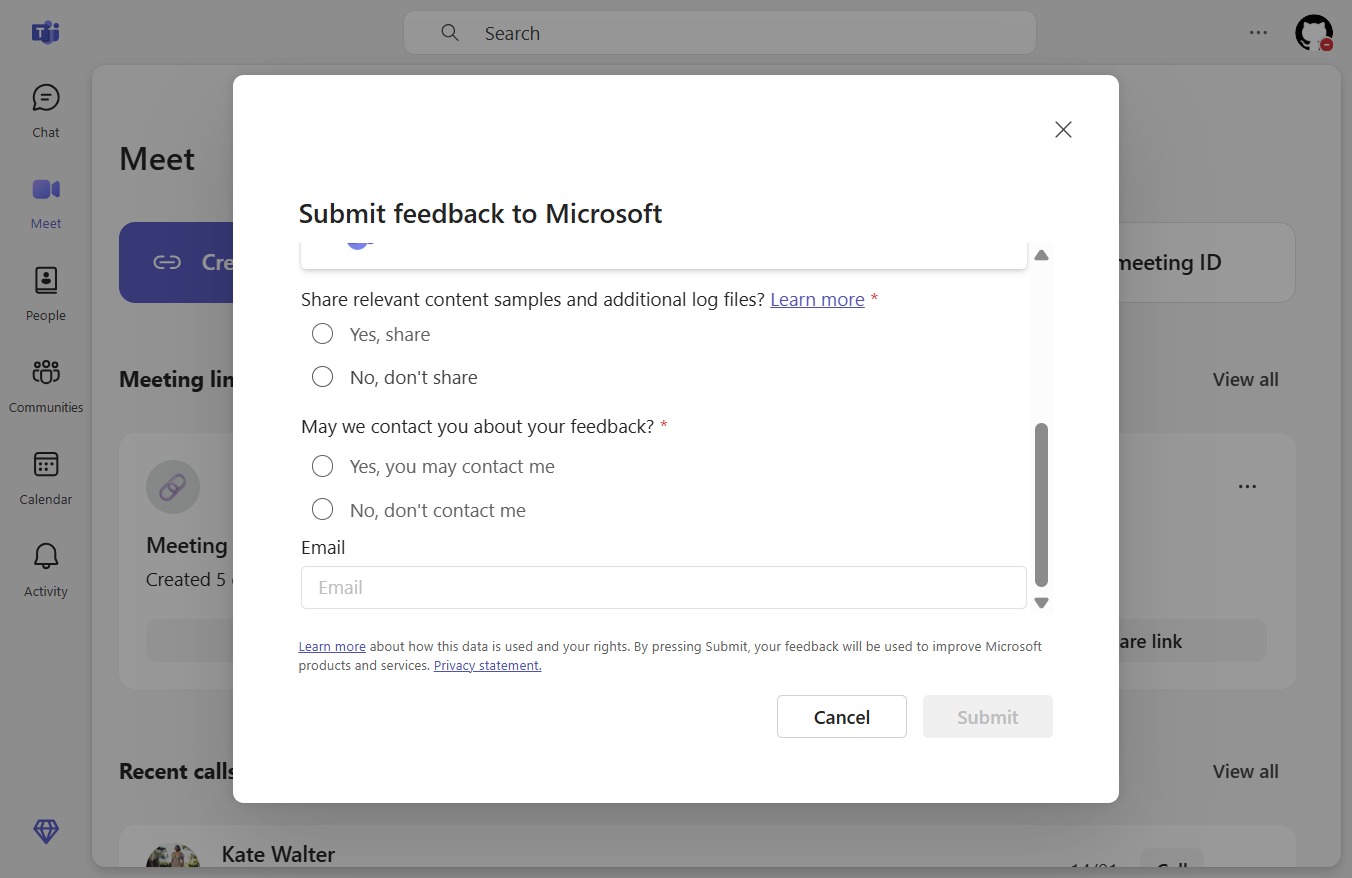
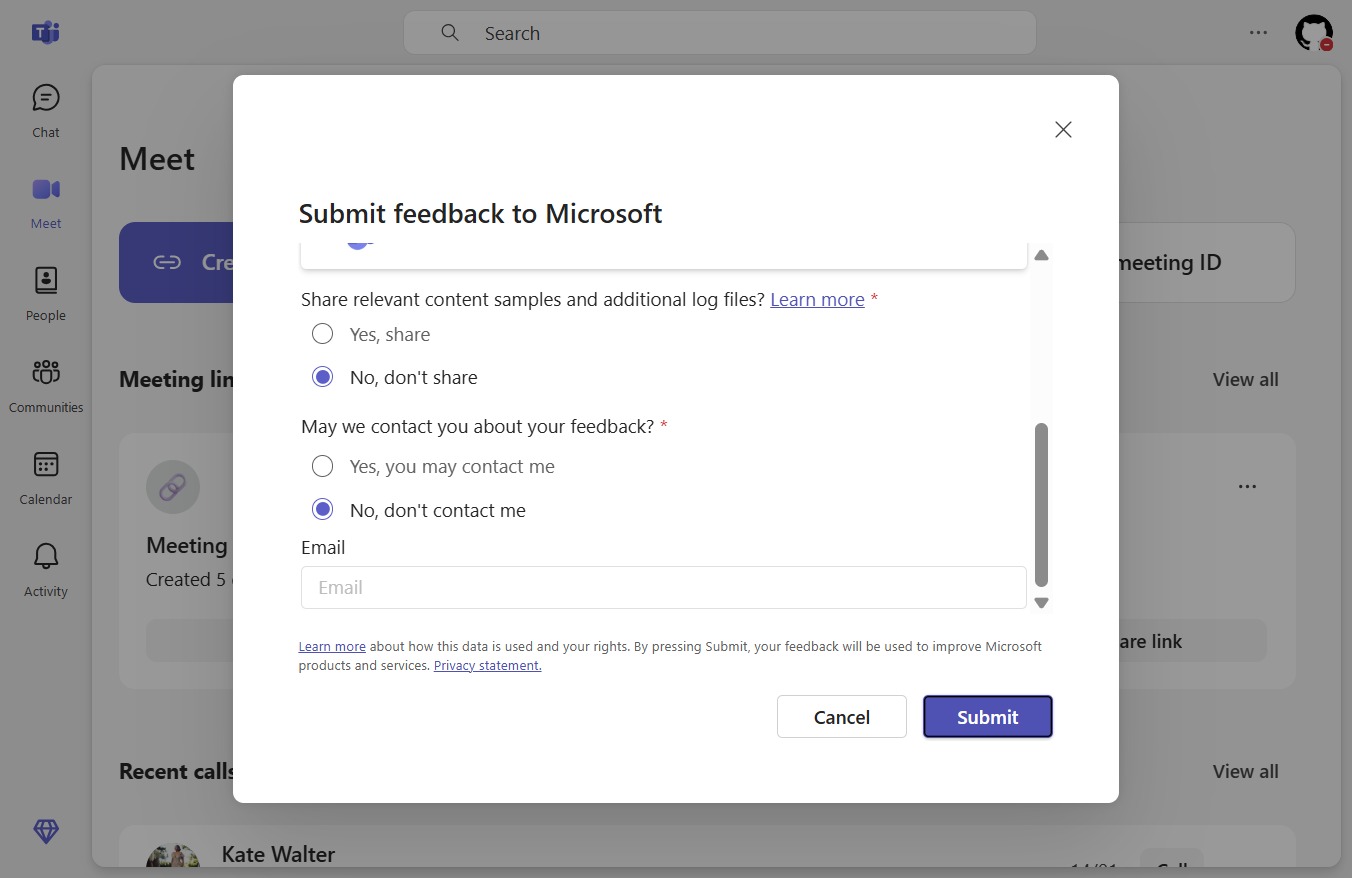
  8. Click No, don't contact me

    Click No, don't contact me
    Loading screenshot…
    100%
  9. Click Submit

    Click Submit
    Loading screenshot…
    100%