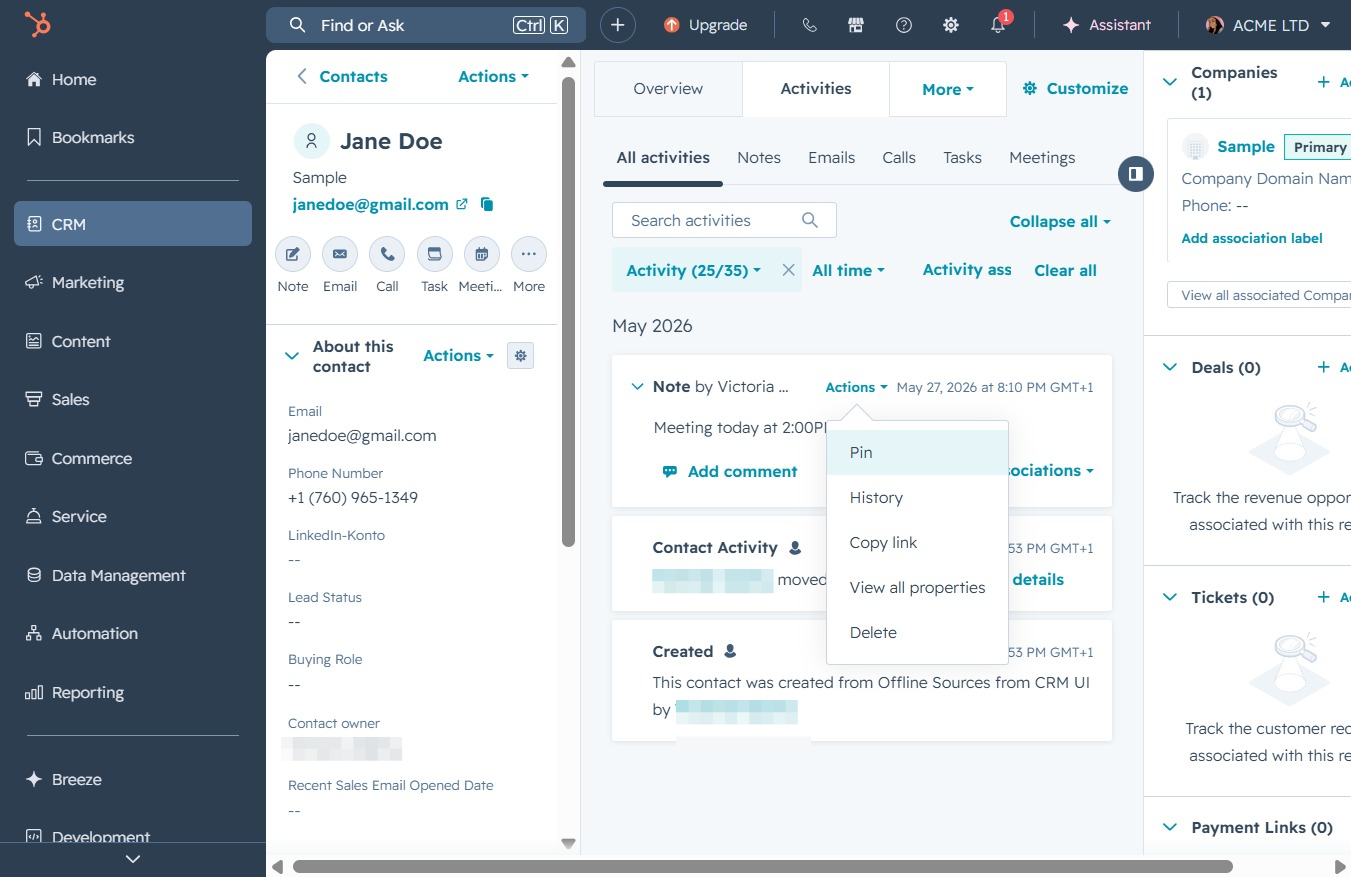
Click the CRM link
This action will navigate you to the Customer Relationship Management section, where you can manage contacts, leads, and sales activities effectively.
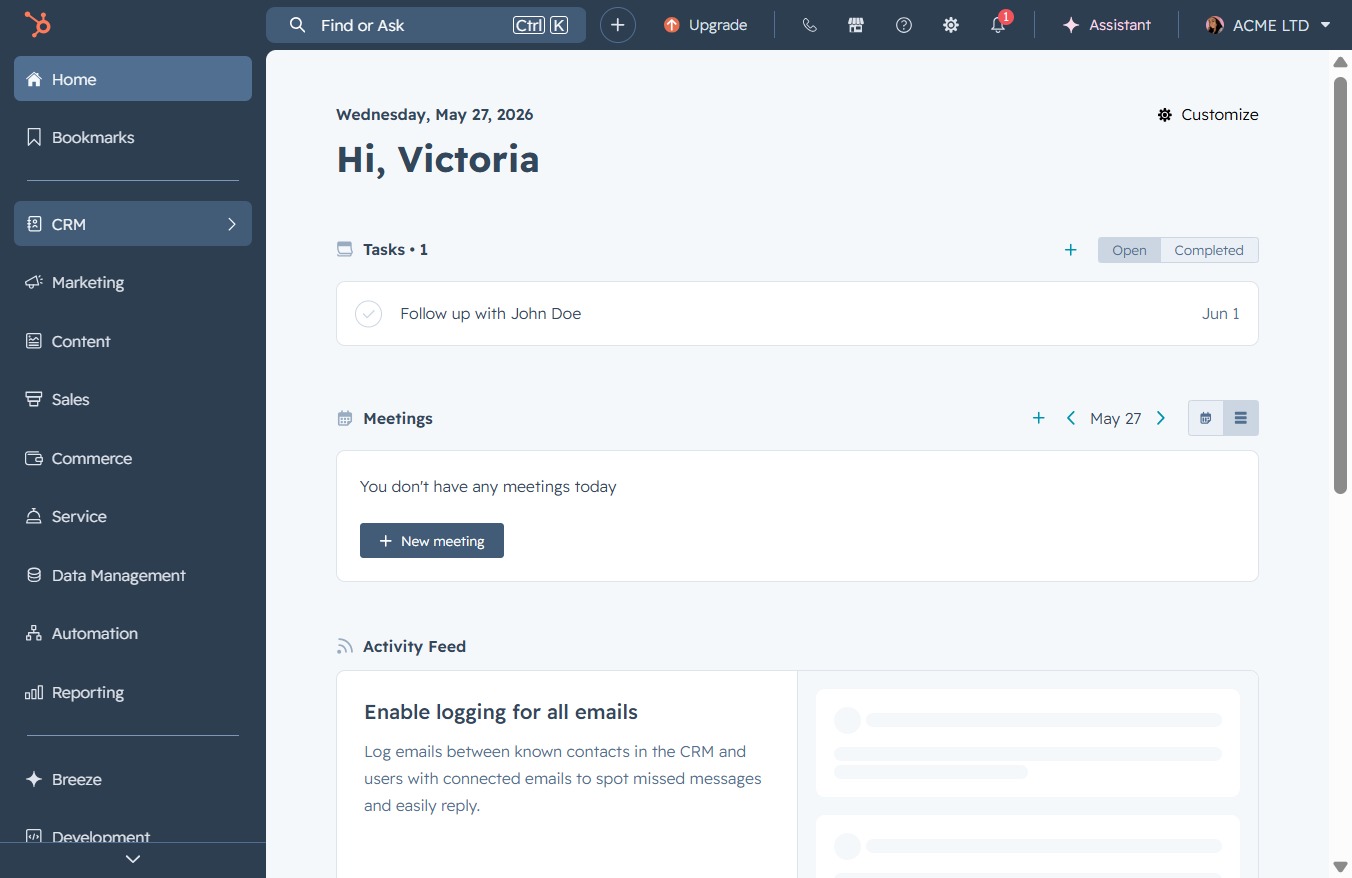
Loading screenshot…
100%
Pinning a note to a contact in your CRM allows you to easily access important information related to that contact, enhancing your ability to manage relationships effectively.
 viktoria
Pinning a note to a contact in your CRM allows you to easily access important information related to that contact, enhancing your ability to manage relationships effectively.
This action will navigate you to the Customer Relationship Management section, where you can manage contacts, leads, and sales activities effectively.
Clicking on the 'Contacts' link opens the Contacts section, where you can manage your contacts and related activities within the CRM tool.
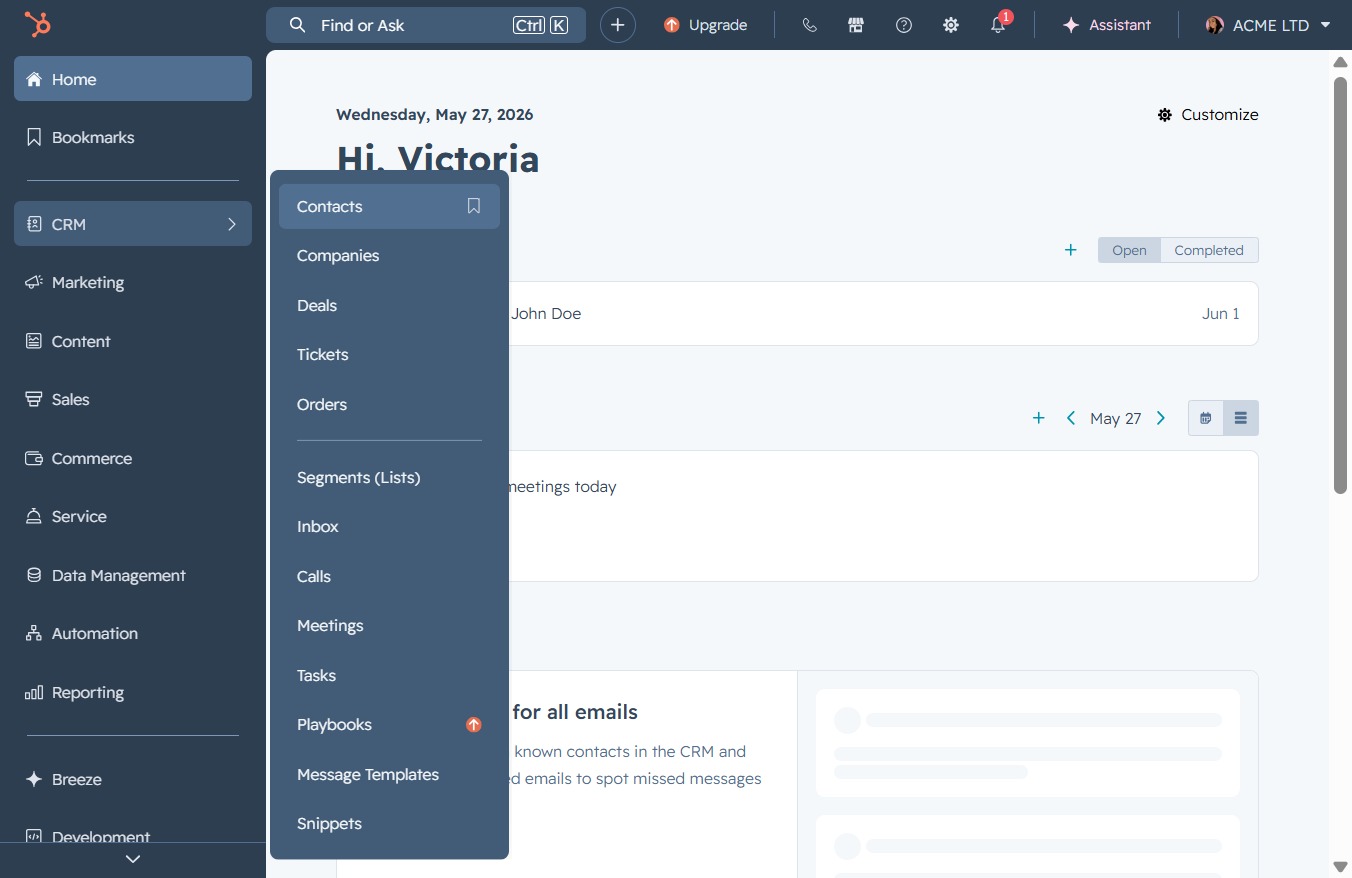
Clicking on Jane Doe's name will open her detailed contact profile, allowing you to view and edit her information such as email address and phone number.
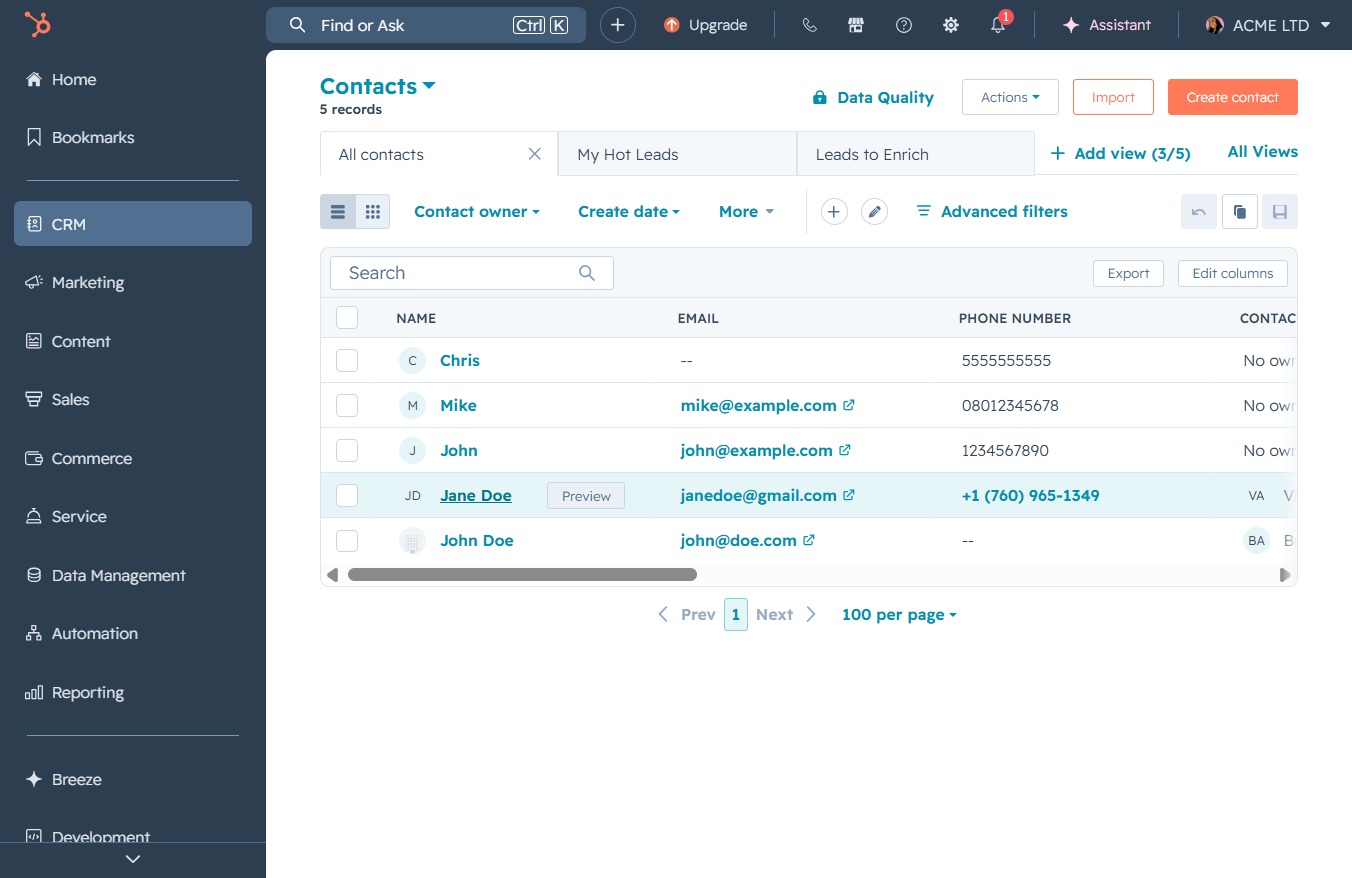
This action opens the detailed view of the note added by Victoria Adamu, allowing you to read and interact with its content.
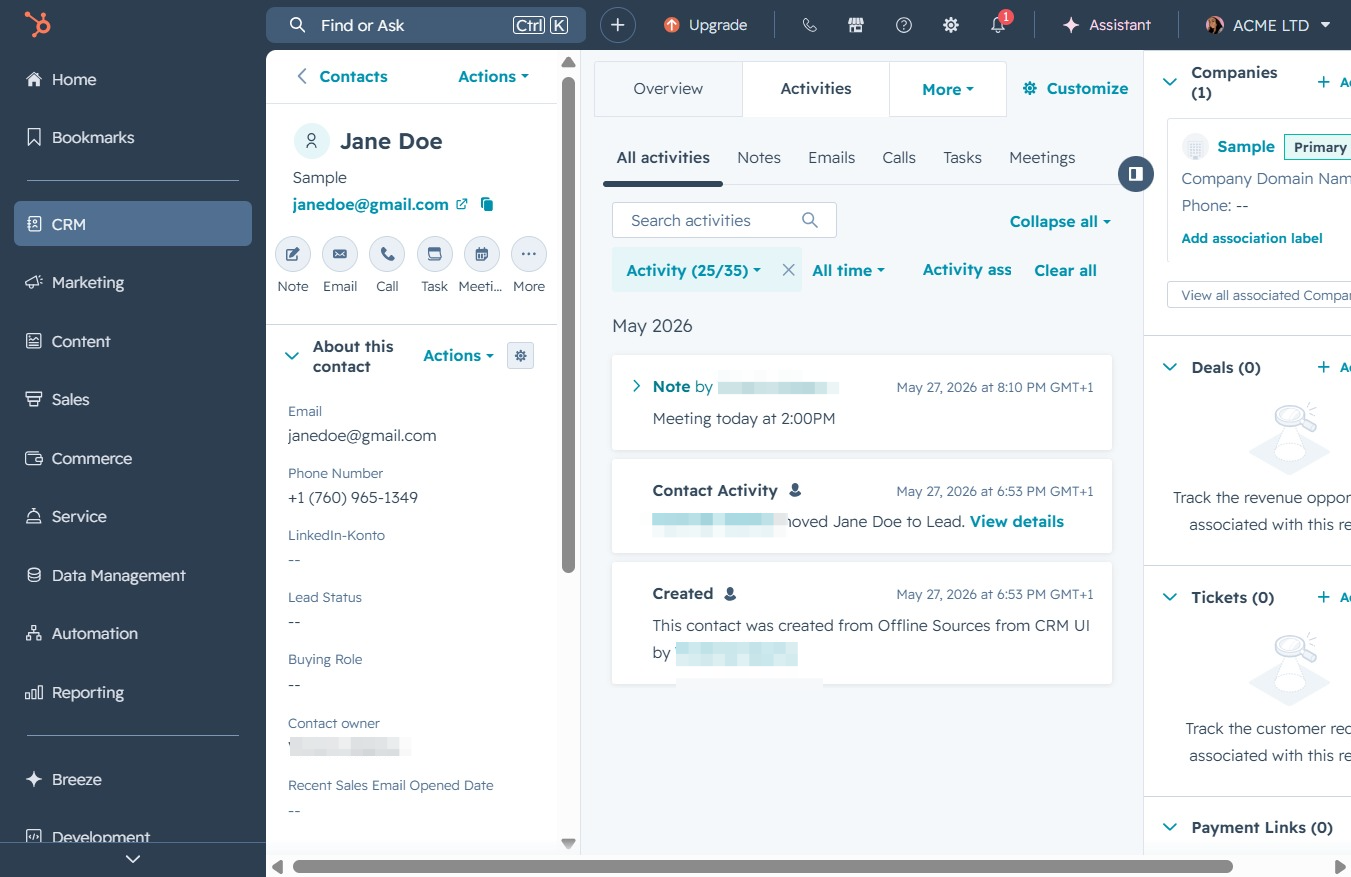
Clicking the Actions button allows you to access various options related to the selected contact, such as creating tasks or sending emails.
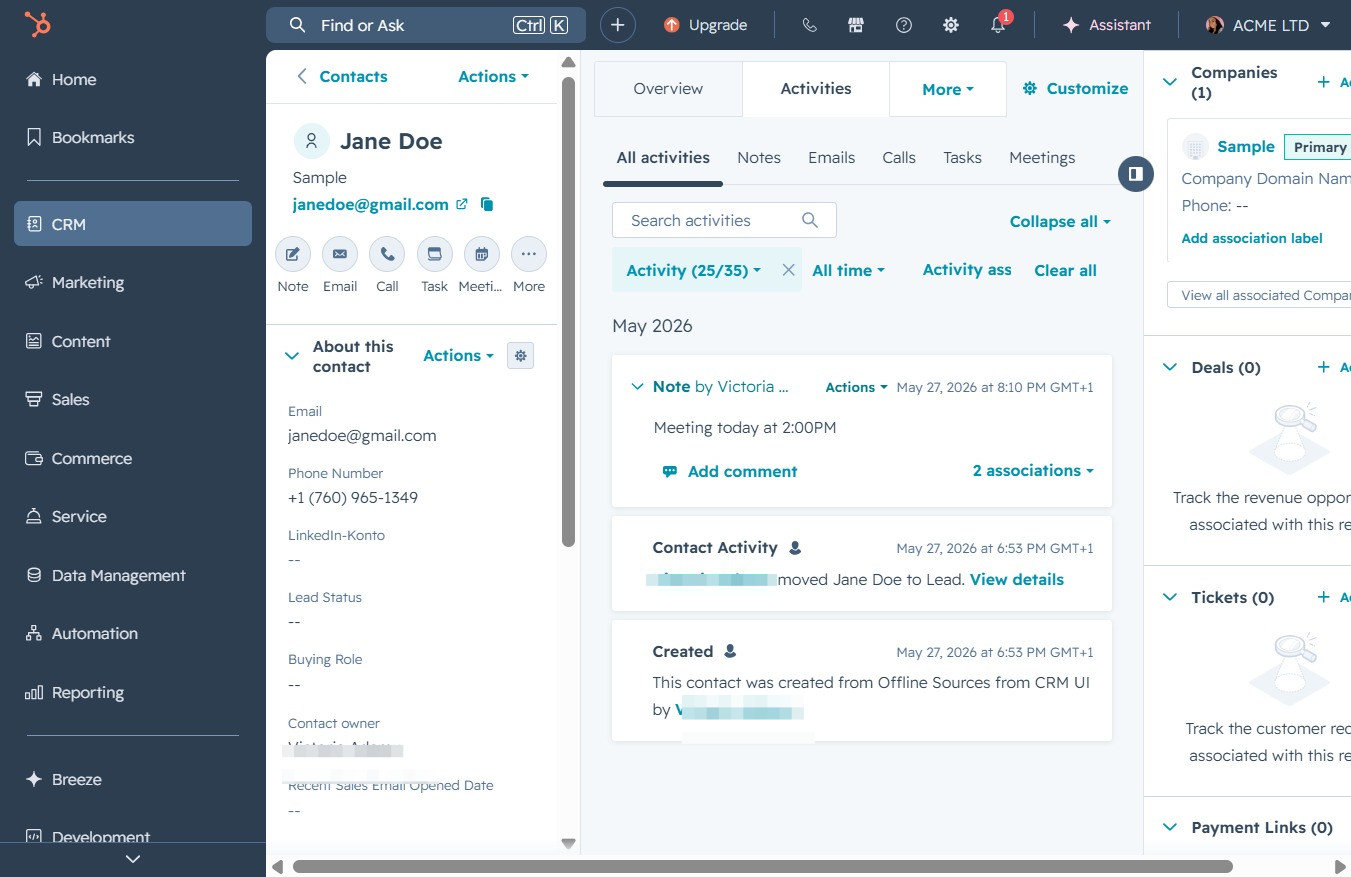
Clicking the Pin icon will keep the selected contact or activity pinned for easy access, ensuring that it remains visible in your workspace for quick reference.