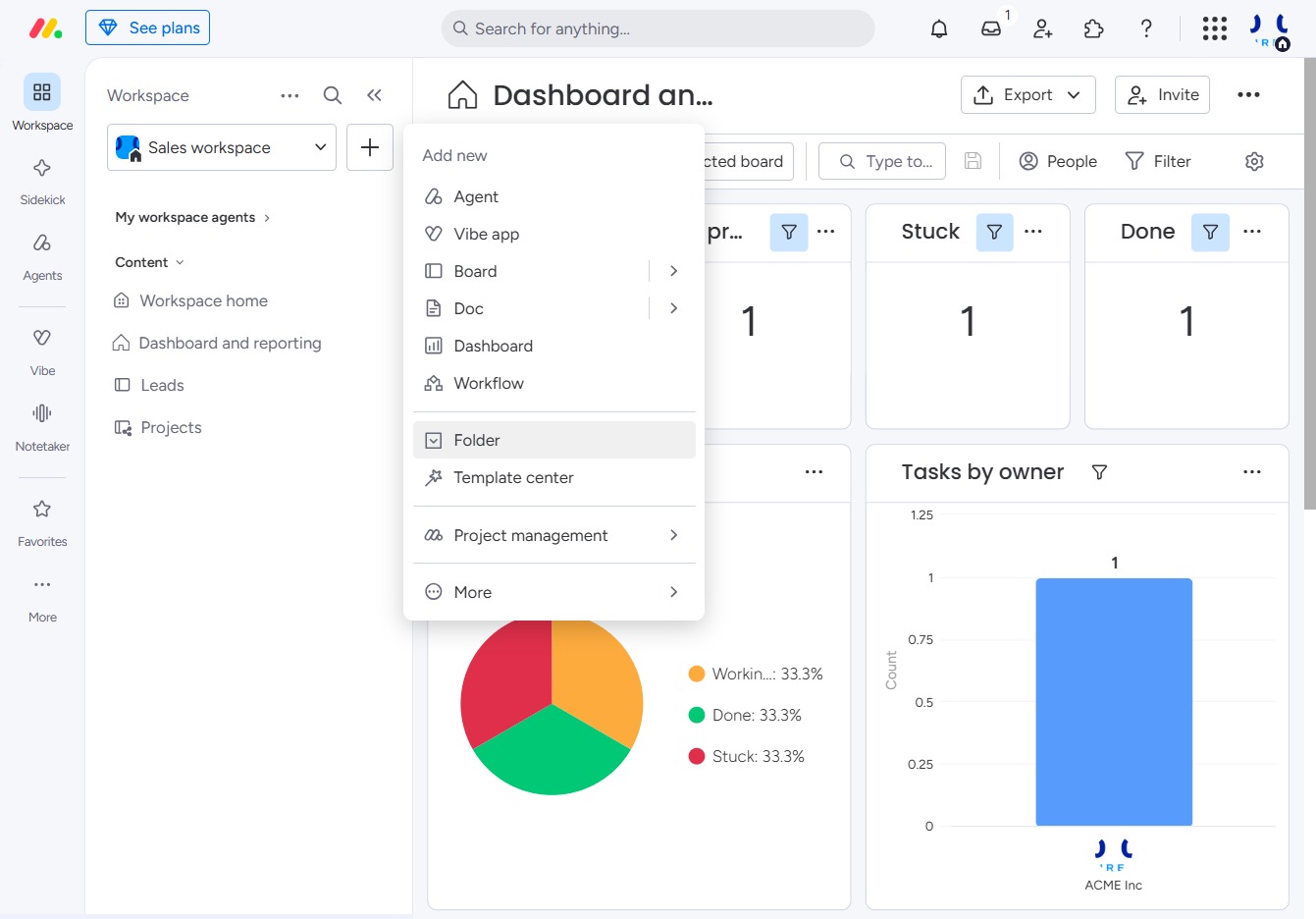
Click the Add item to workspace button
Clicking this button allows you to add new items or tasks to your workspace, enhancing your project management capabilities.

Loading screenshot…
100%
In this guide, you'll learn how to effectively organize your boards into folders using the AgentVibe app.
 viktoria
In this guide, you'll learn how to effectively organize your boards into folders using the AgentVibe app. By following the steps, you'll be able to create new folders, filter your tasks, manage your workspace settings, and streamline your project management for improved efficiency.
Clicking this button allows you to add new items or tasks to your workspace, enhancing your project management capabilities.
This action opens a dropdown menu where you can create new items such as agents, boards, and folders within the AgentVibe app.
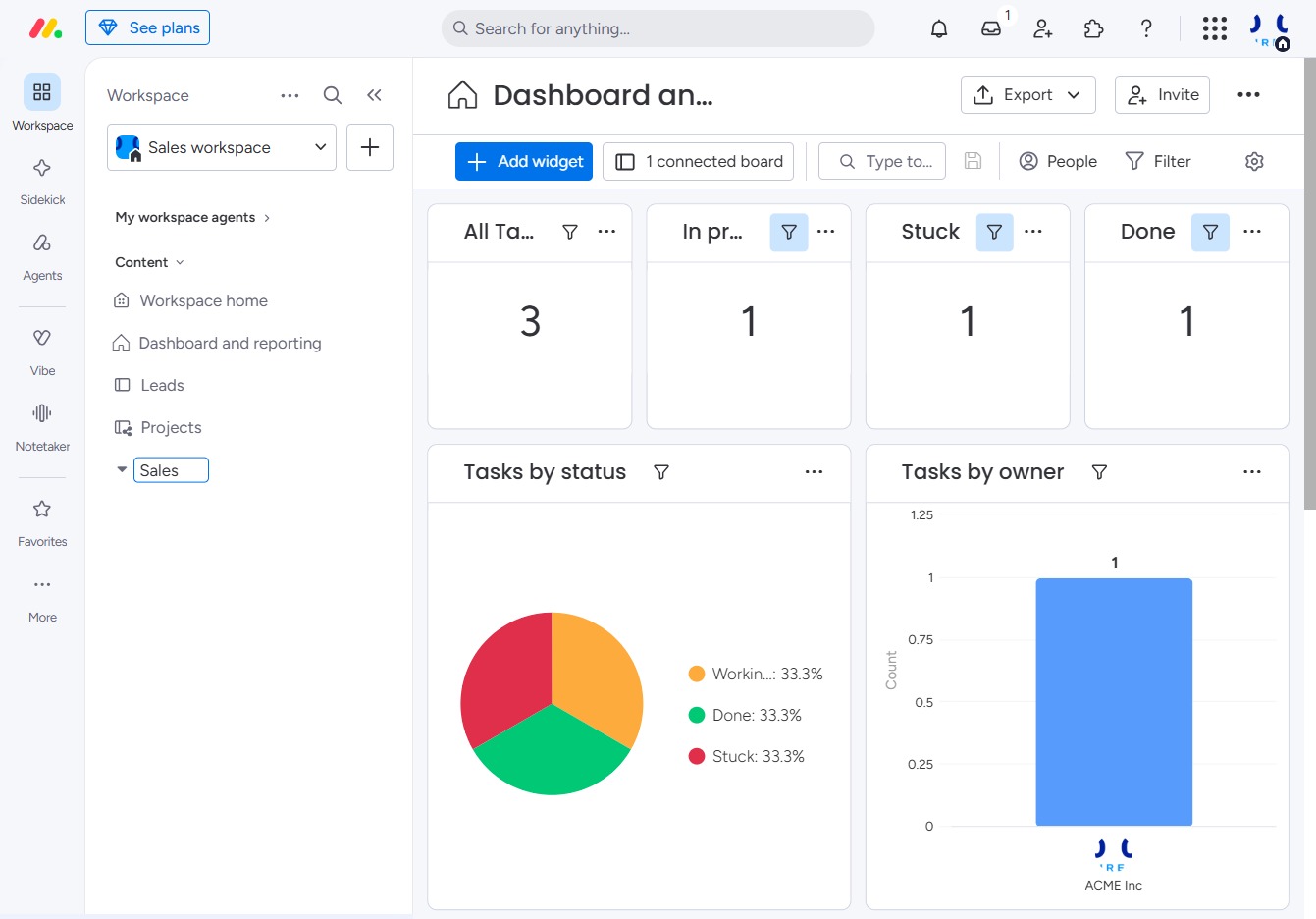
Enter 'Sales' in the search input to filter and view relevant data associated with sales tasks and statistics on the dashboard.
Clicking this link will take you to the management features of your workspace, allowing you to customize settings and view detailed reports.
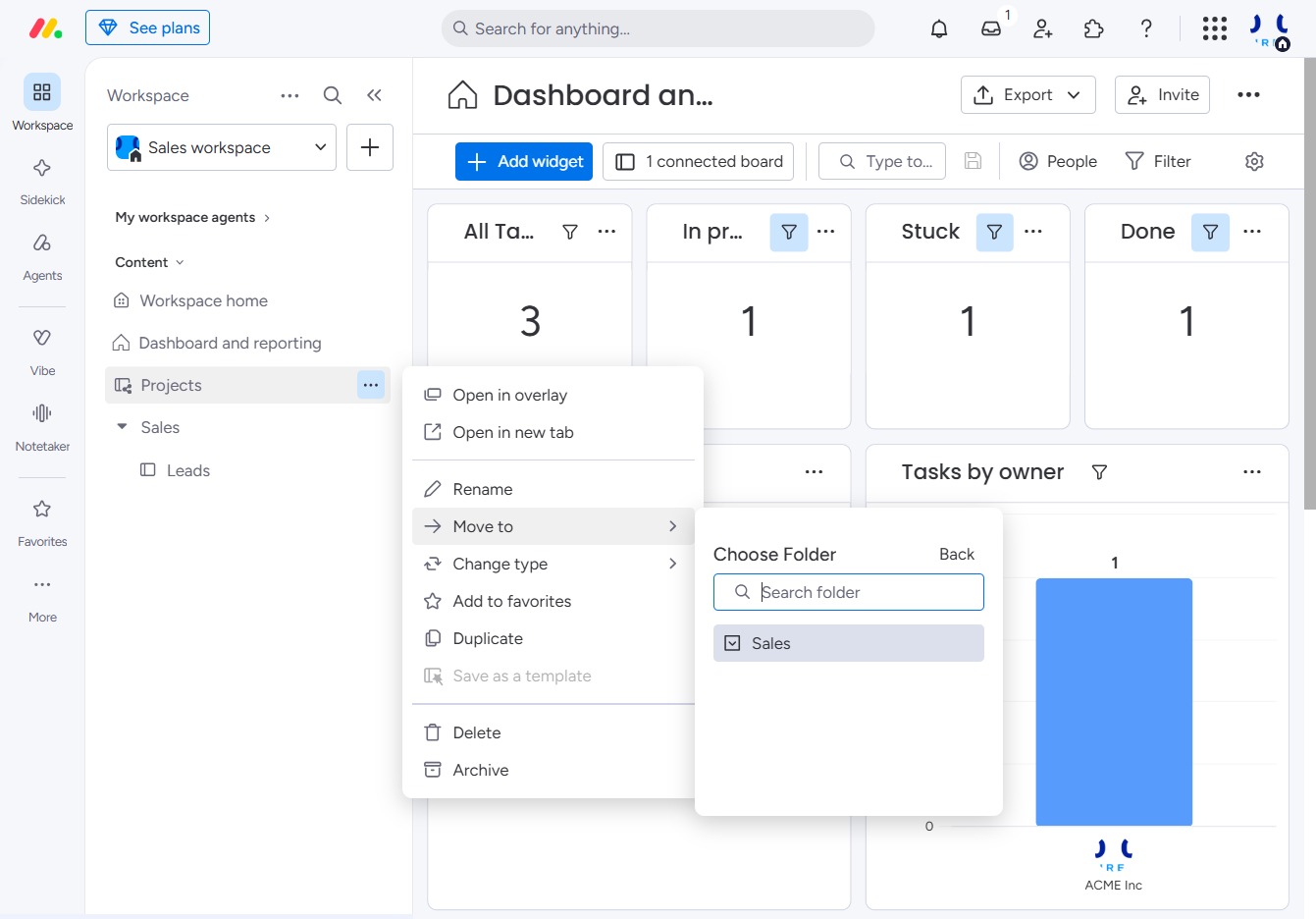
This allows you to choose where to relocate the selected item, with options like moving to a folder, workspace, or template.
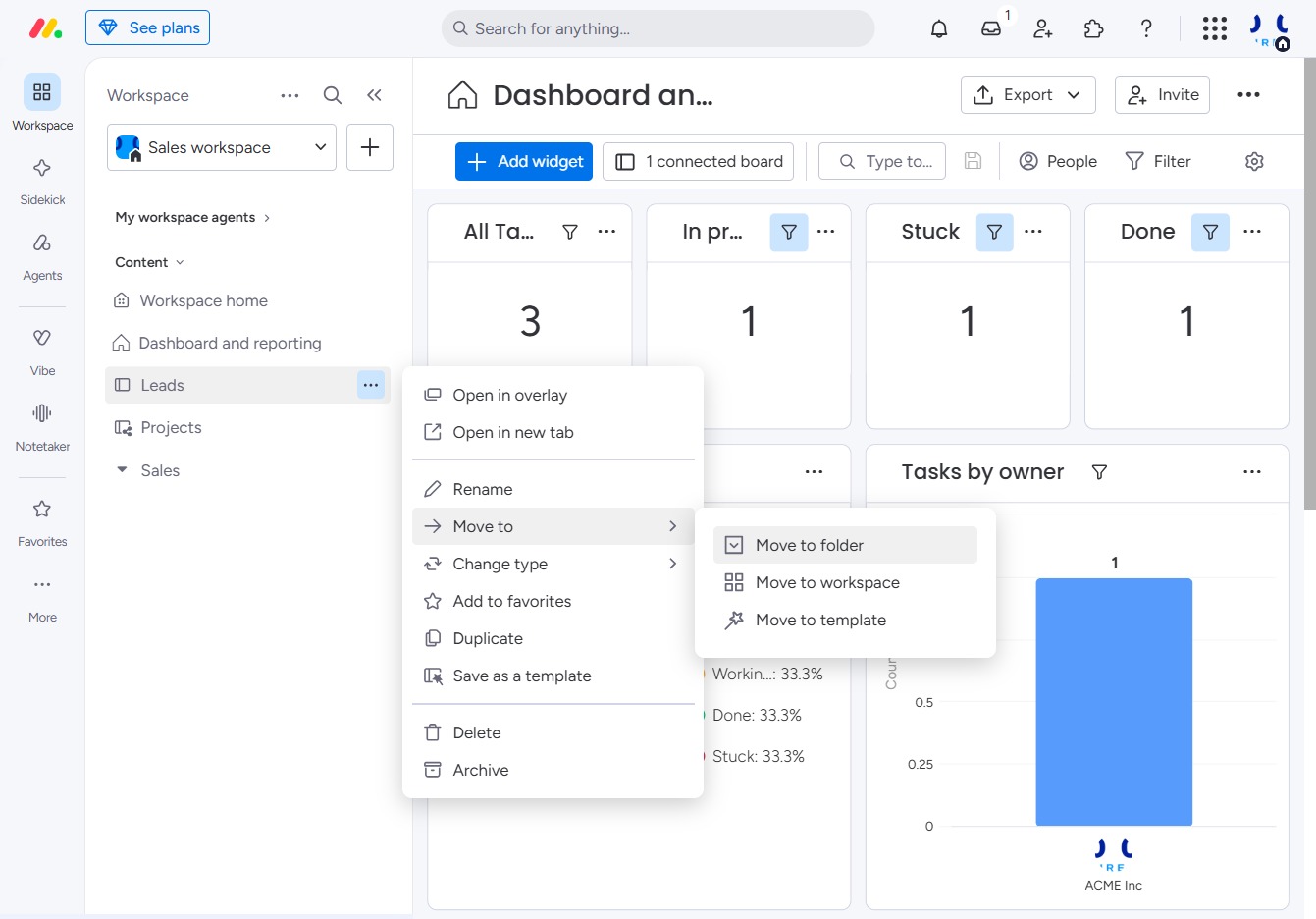
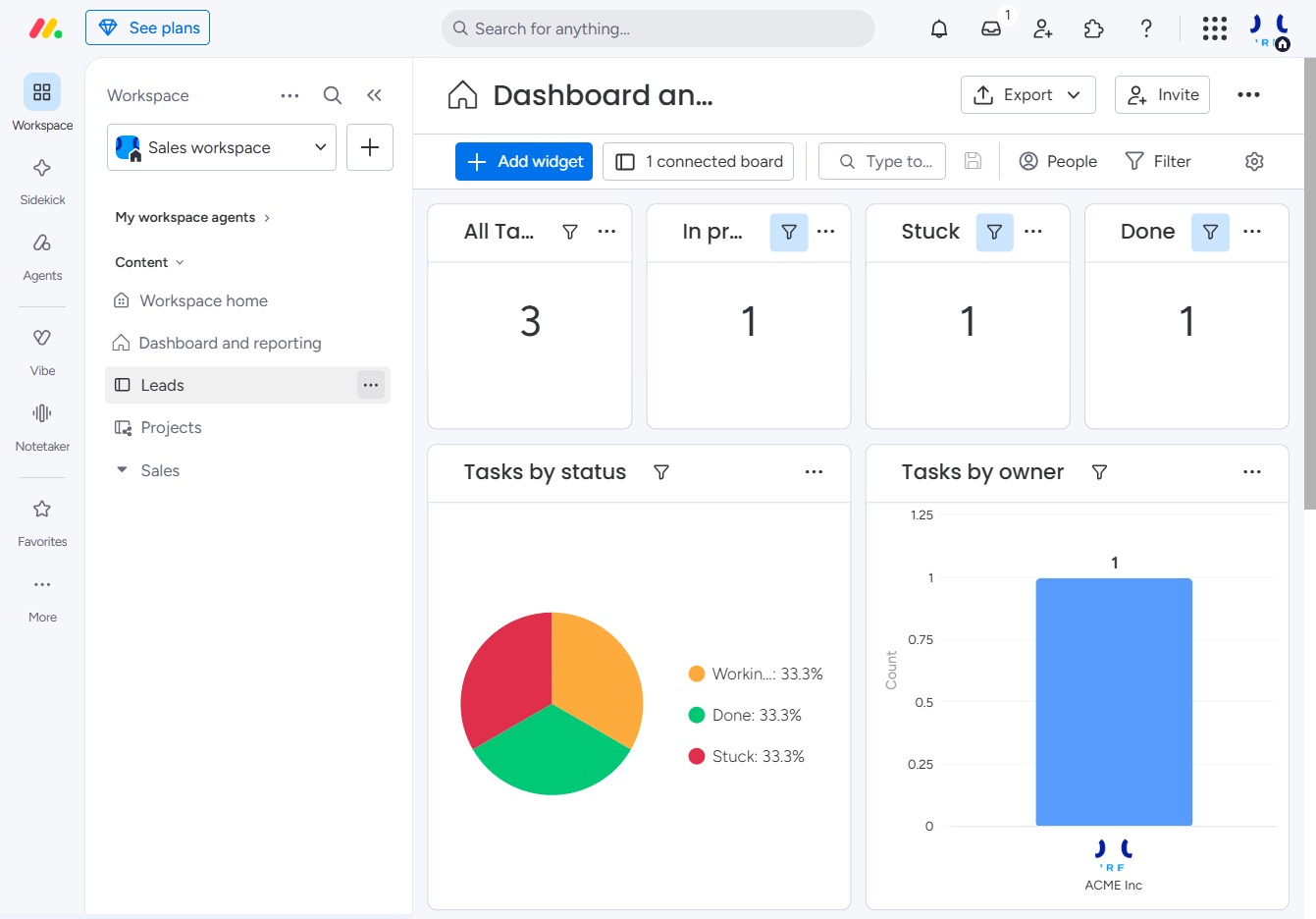
By clicking on the Sales section, you'll access the Sales dashboard, where you can view and manage your sales activities and reports.
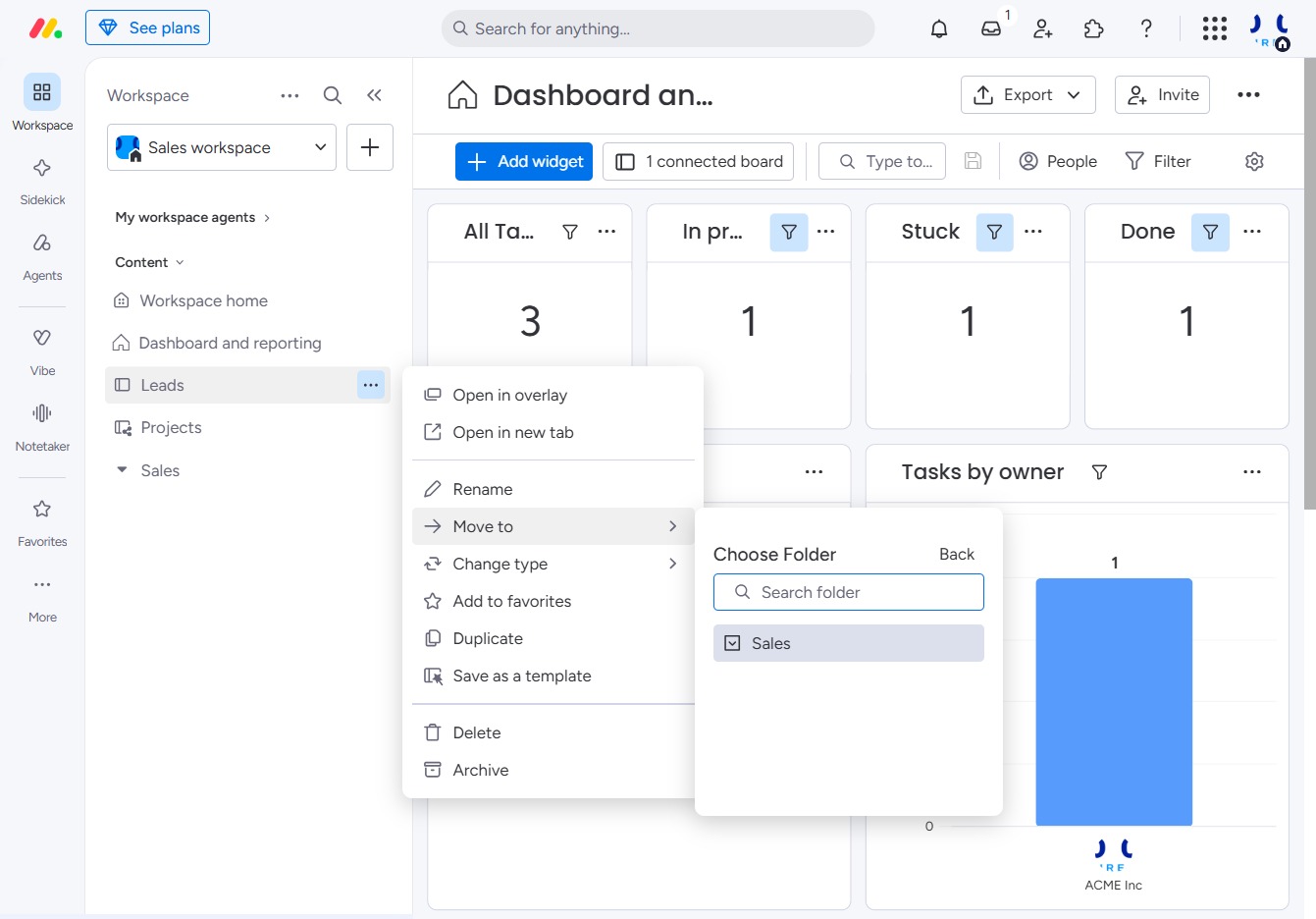
By clicking the 'Click here' button, you will initiate the desired action related to the current task or widget displayed on your dashboard.

Select the 'Move to' option to access additional choices for relocating tasks. You can choose to move the task to a folder, workspace, or template.
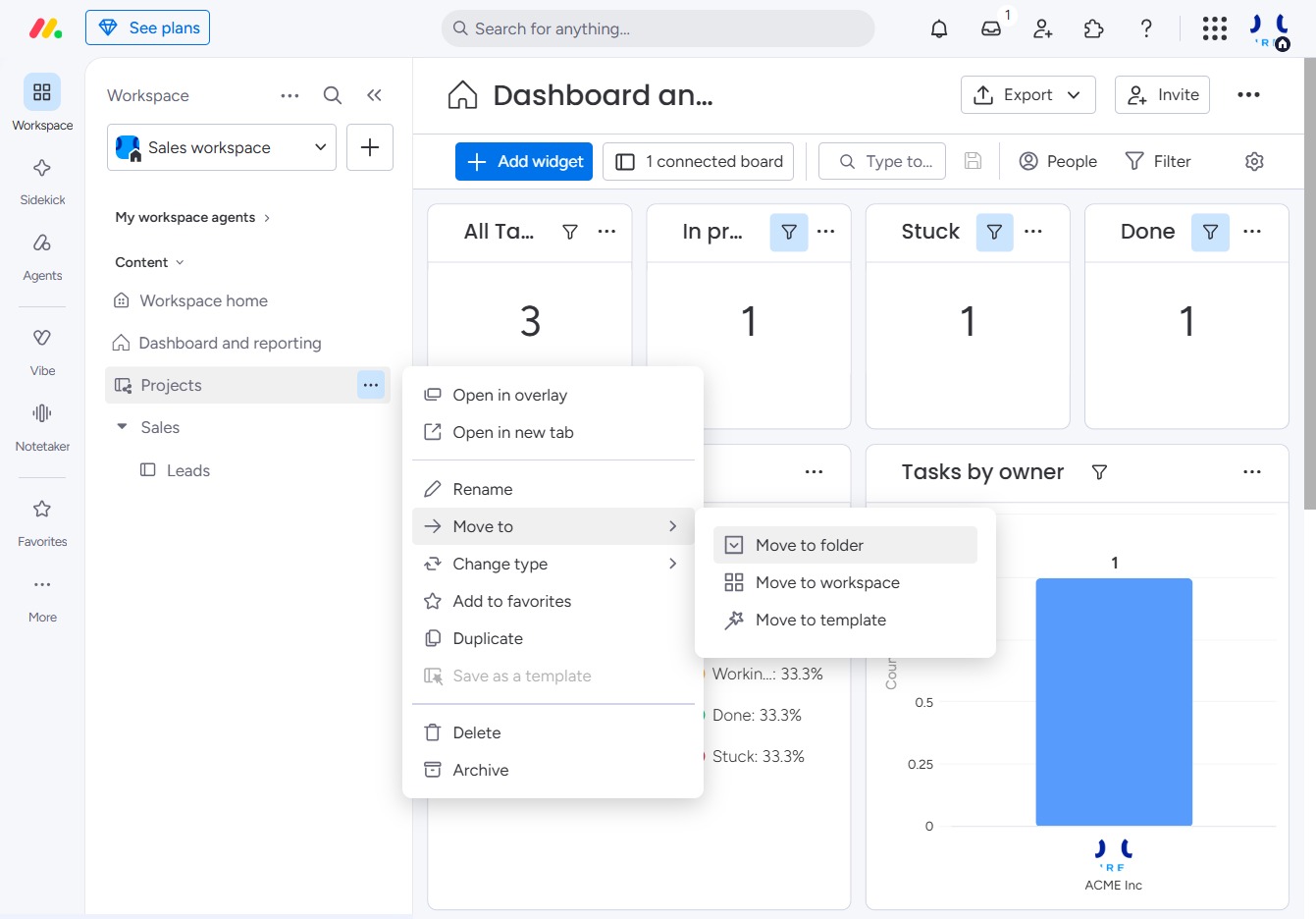
Clicking on the Sales section will direct you to the sales-related tasks and reports, allowing you to manage leads and track your sales performance.