Shared guide

How to organize and rename channels

In this concise how-to guide, learn the step-by-step process for organizing and renaming your channels effectively.

victoriaworkflowsvictoriaworkflows
·8 steps·49 views·Published

In this concise how-to guide, learn the step-by-step process for organizing and renaming your channels effectively. Follow along as we navigate through deleting an existing channel and creating a new one with a custom name, ensuring your channel list remains tidy and relevant.

Step-by-step Guide8 steps
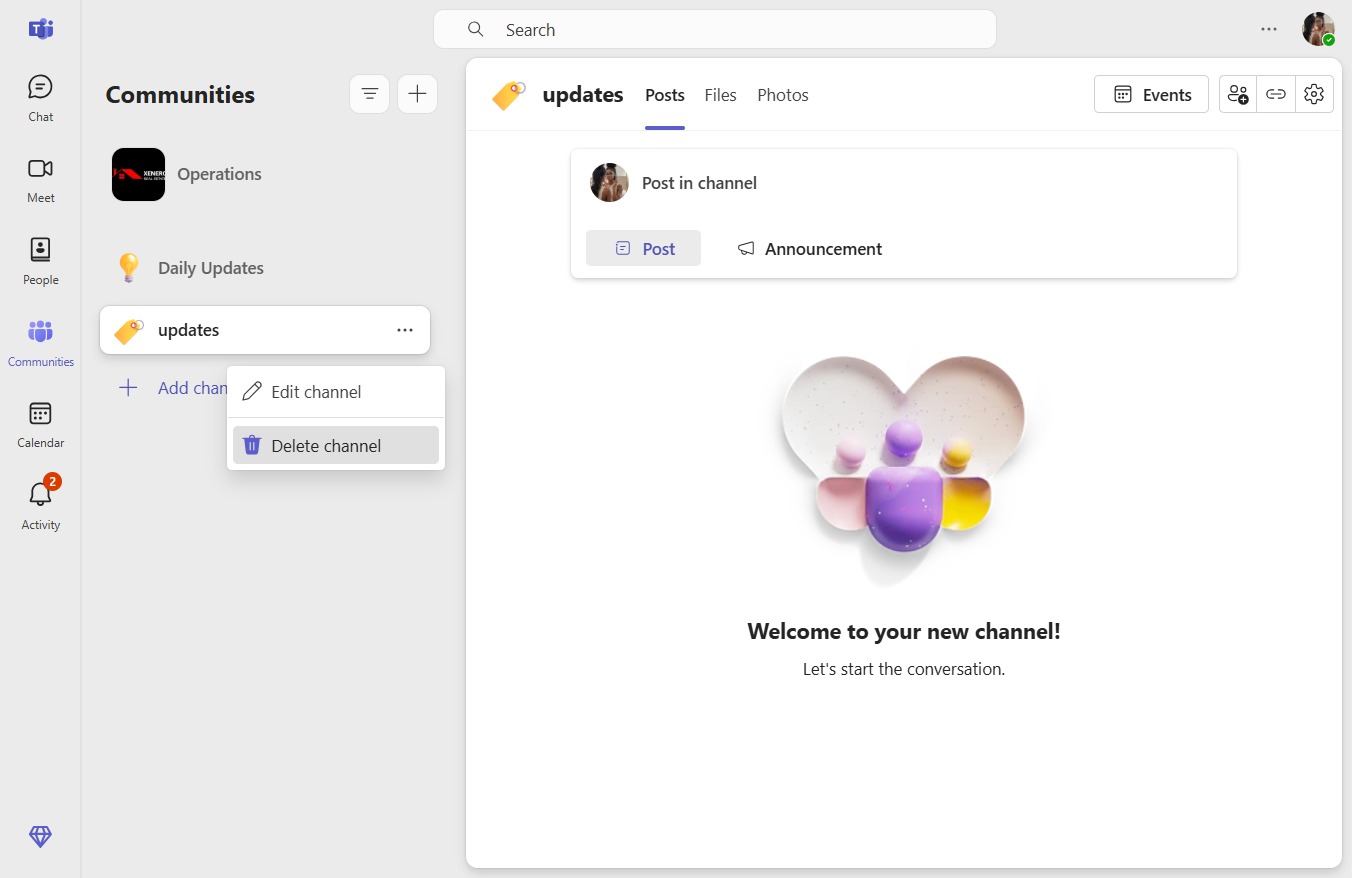
  1. Click on "Click here"
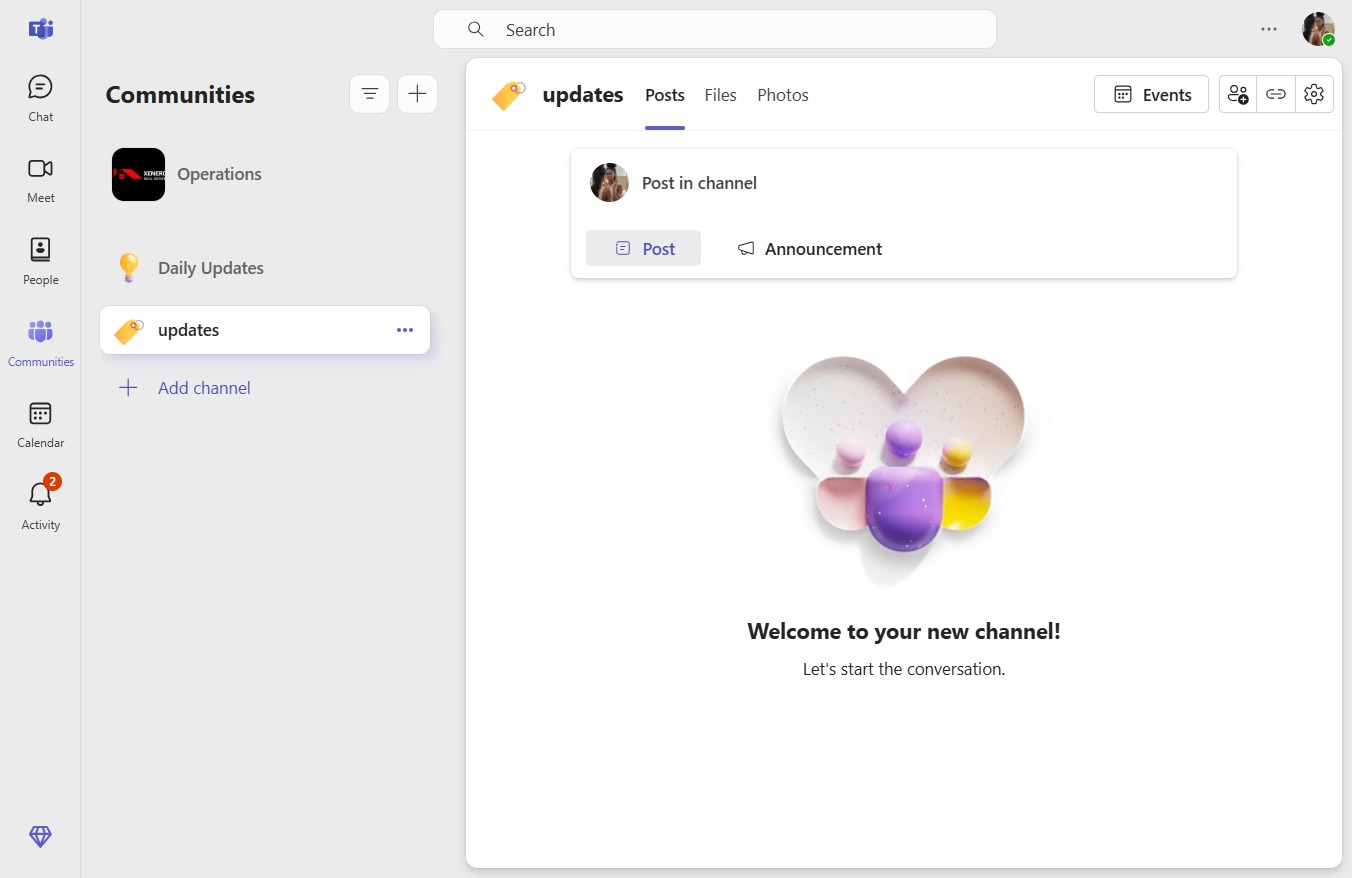
    Click on "Click here"
    Loading screenshot…
    100%
  2. Click Delete channel

    Click Delete channel
    Loading screenshot…
    100%
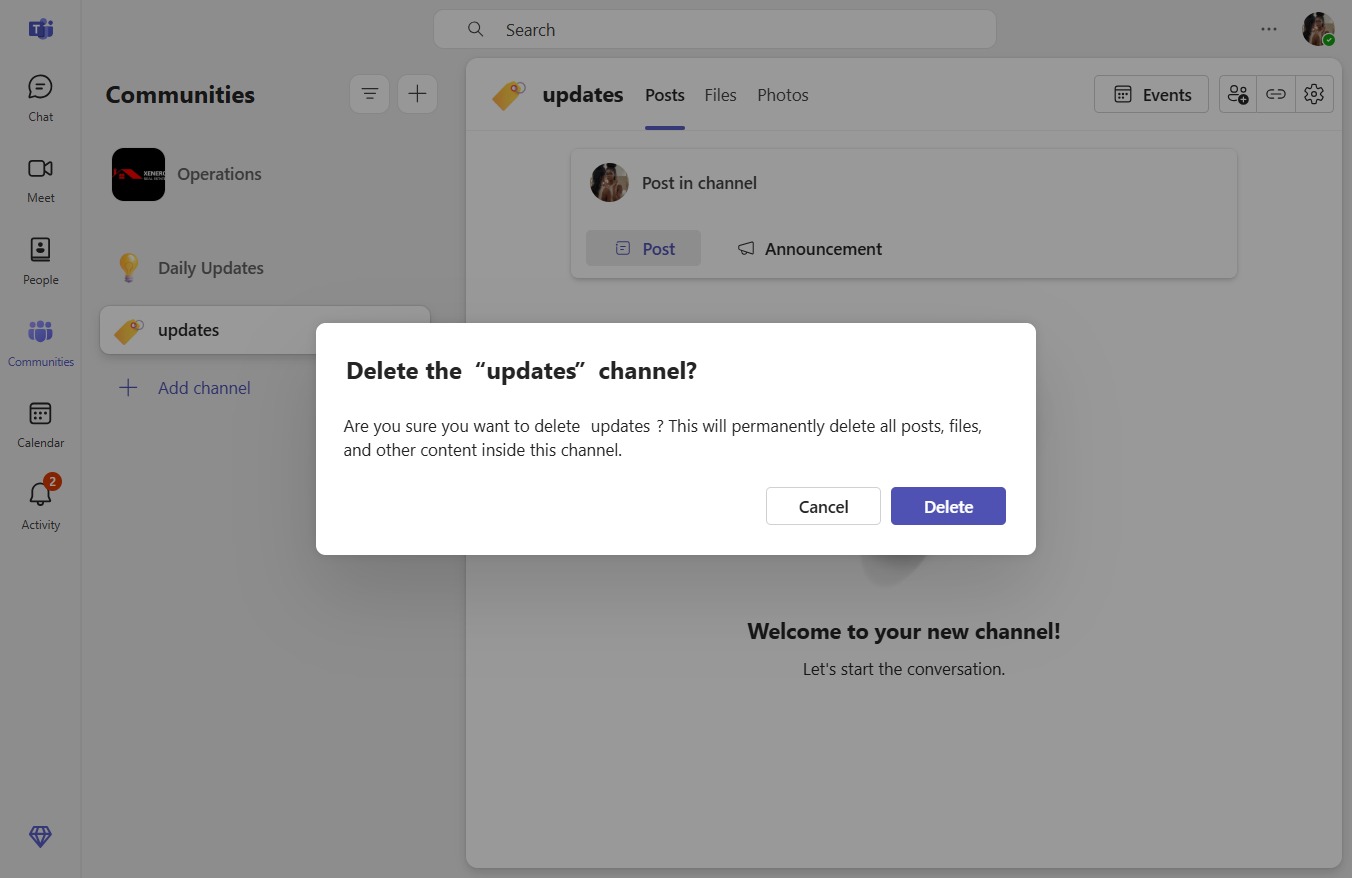
  3. Click Delete

    Click Delete
    Loading screenshot…
    100%
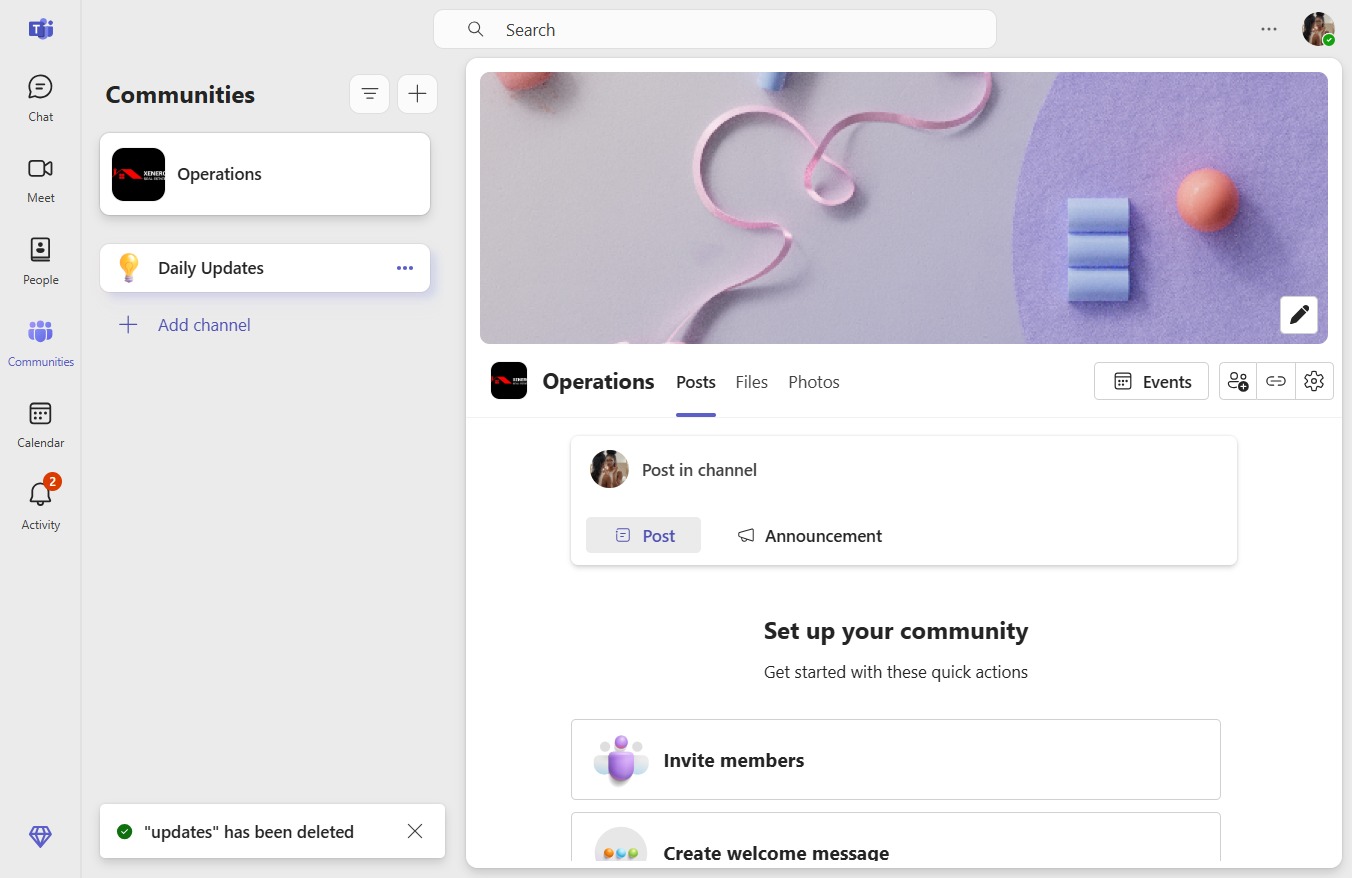
  4. Click on "Click here."

    Click on "Click here."
    Loading screenshot…
    100%
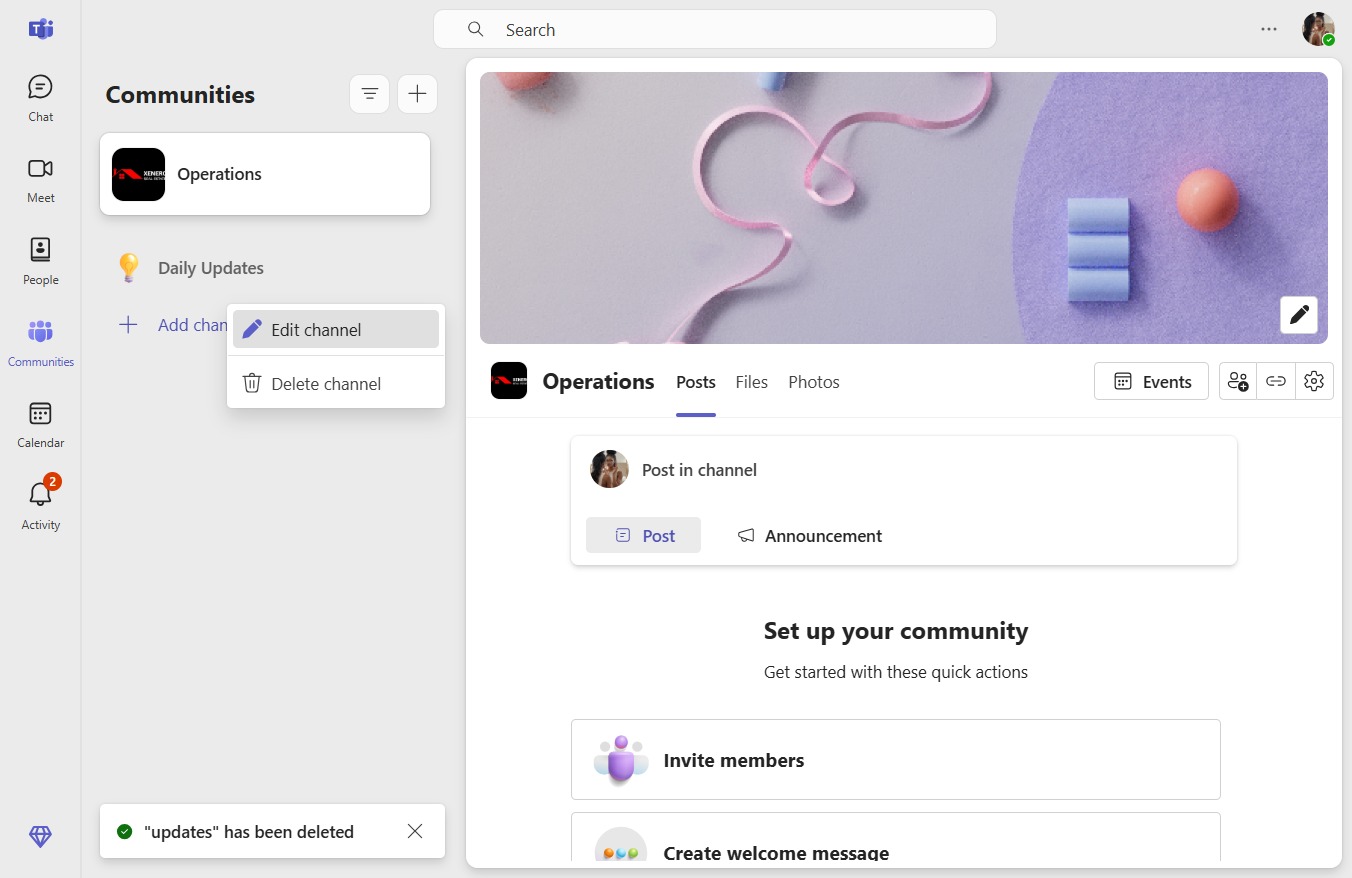
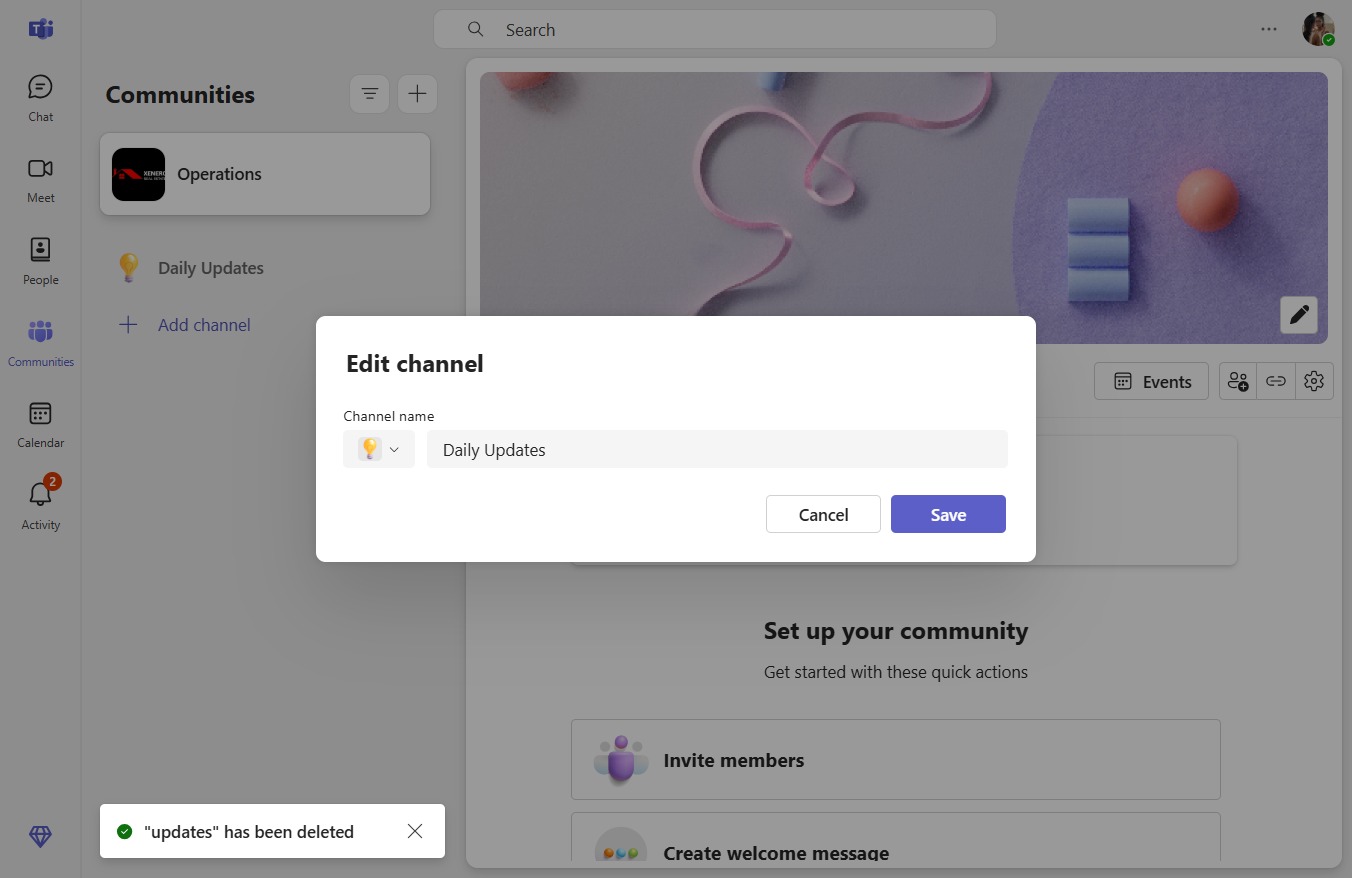
  5. Click Edit channel

    Click Edit channel
    Loading screenshot…
    100%
  6. Click on "Click here."

    Click on "Click here."
    Loading screenshot…
    100%
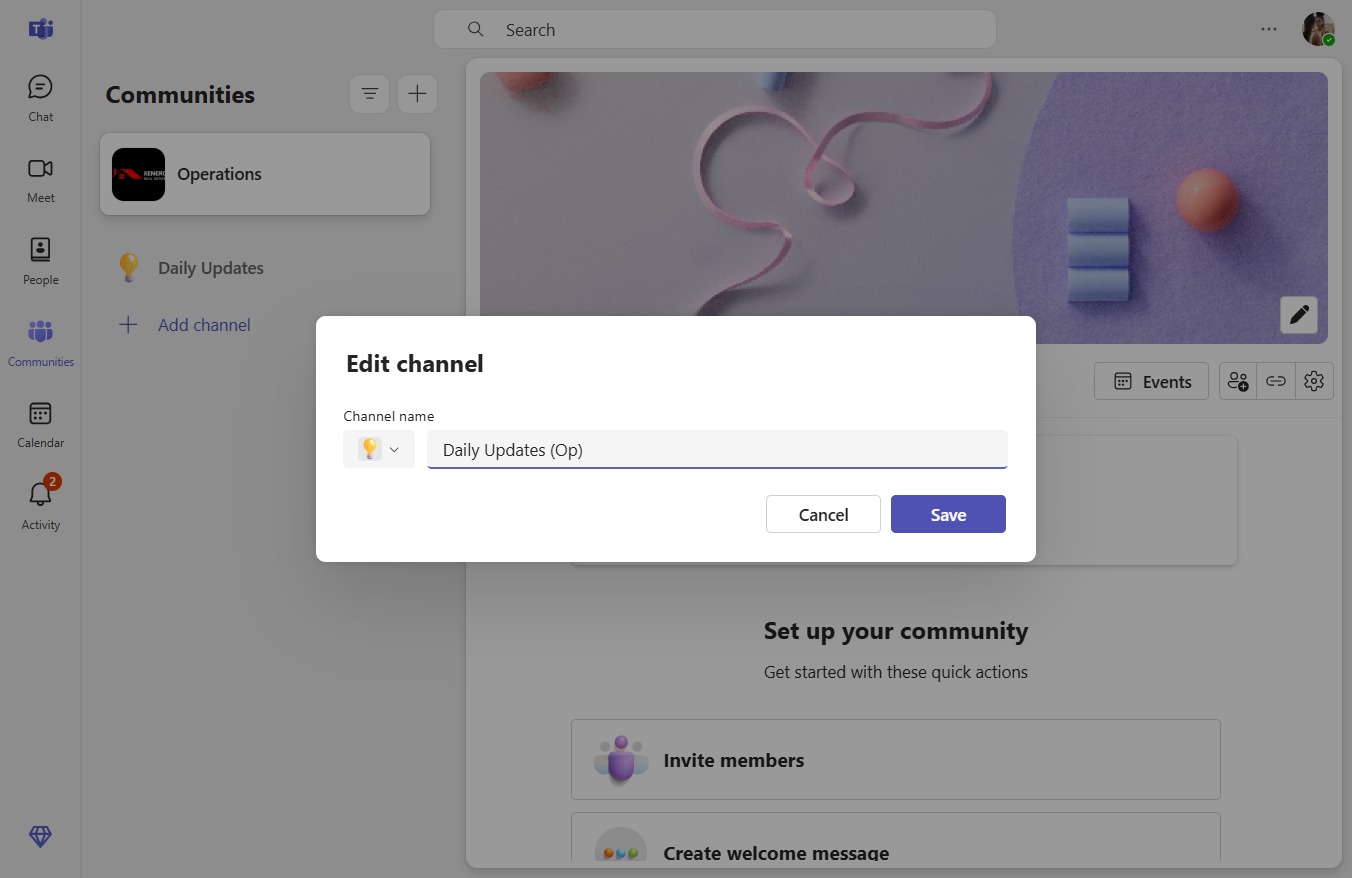
  7. Type "Daily Updates (Op)" in Give your channel a name

  8. Click Save

    Click Save
    Loading screenshot…
    100%