Click here to connect your calendar
This action allows you to link your calendar, enabling the app to highlight important meetings that help you manage your tasks effectively.

Loading screenshot…
100%
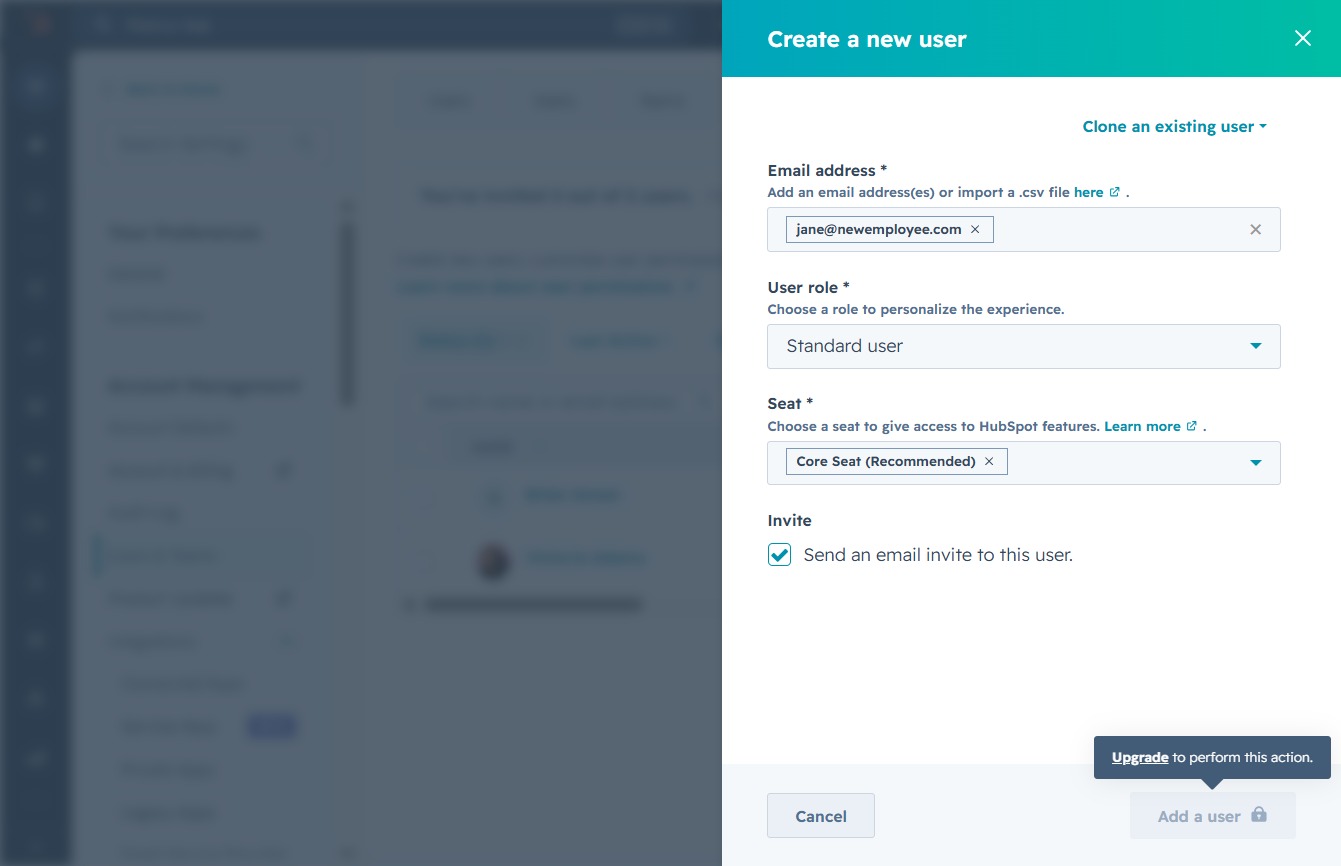
Create a new user in HubSpot by entering their email and selecting a role, enabling access and permissions tailored for effective collaboration within your account.
 viktoria
Create a new user in HubSpot by entering their email and selecting a role, enabling access and permissions tailored for effective collaboration within your account.
This action allows you to link your calendar, enabling the app to highlight important meetings that help you manage your tasks effectively.
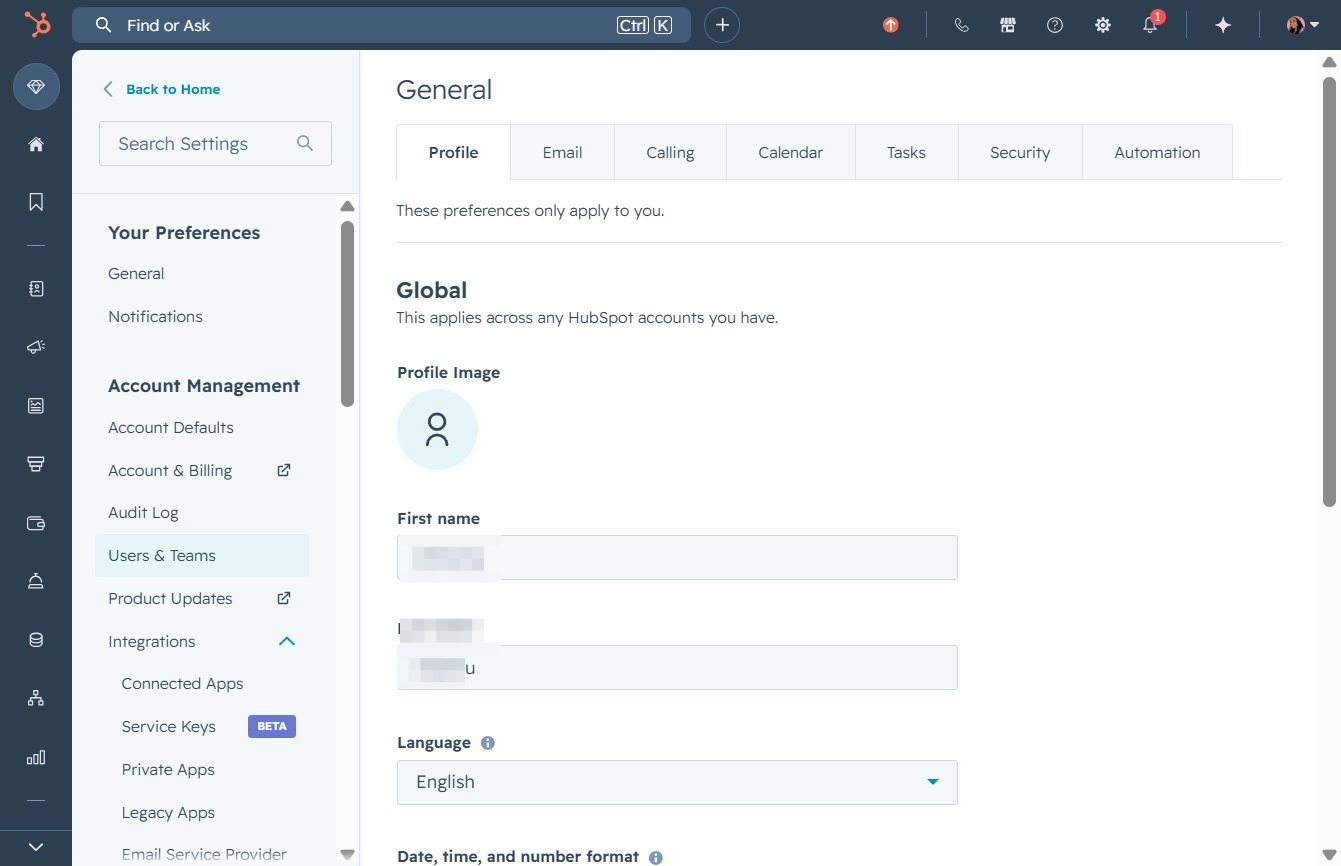
Selecting 'Users & Teams' opens the user management settings, allowing you to view and manage user profiles and team permissions within your HubSpot account.
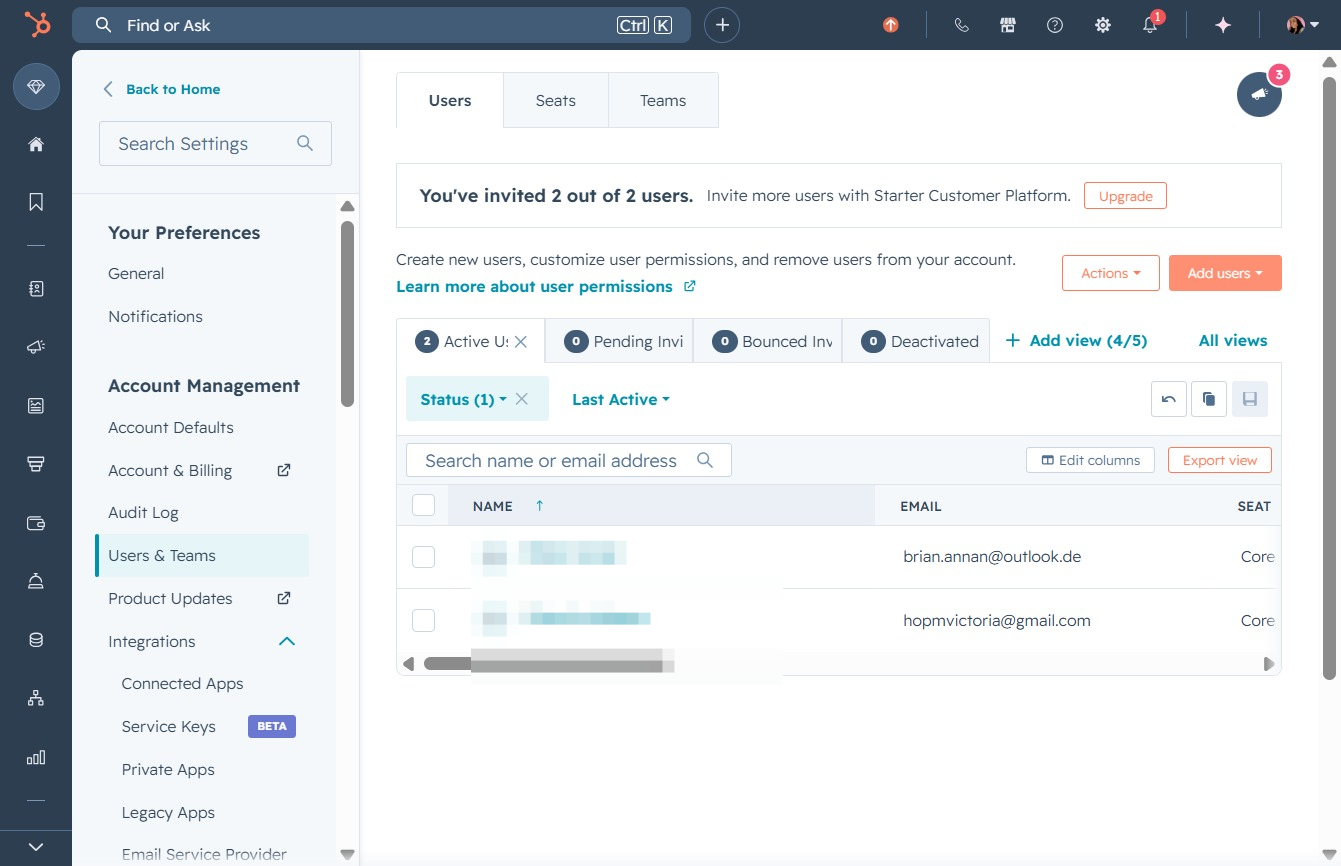
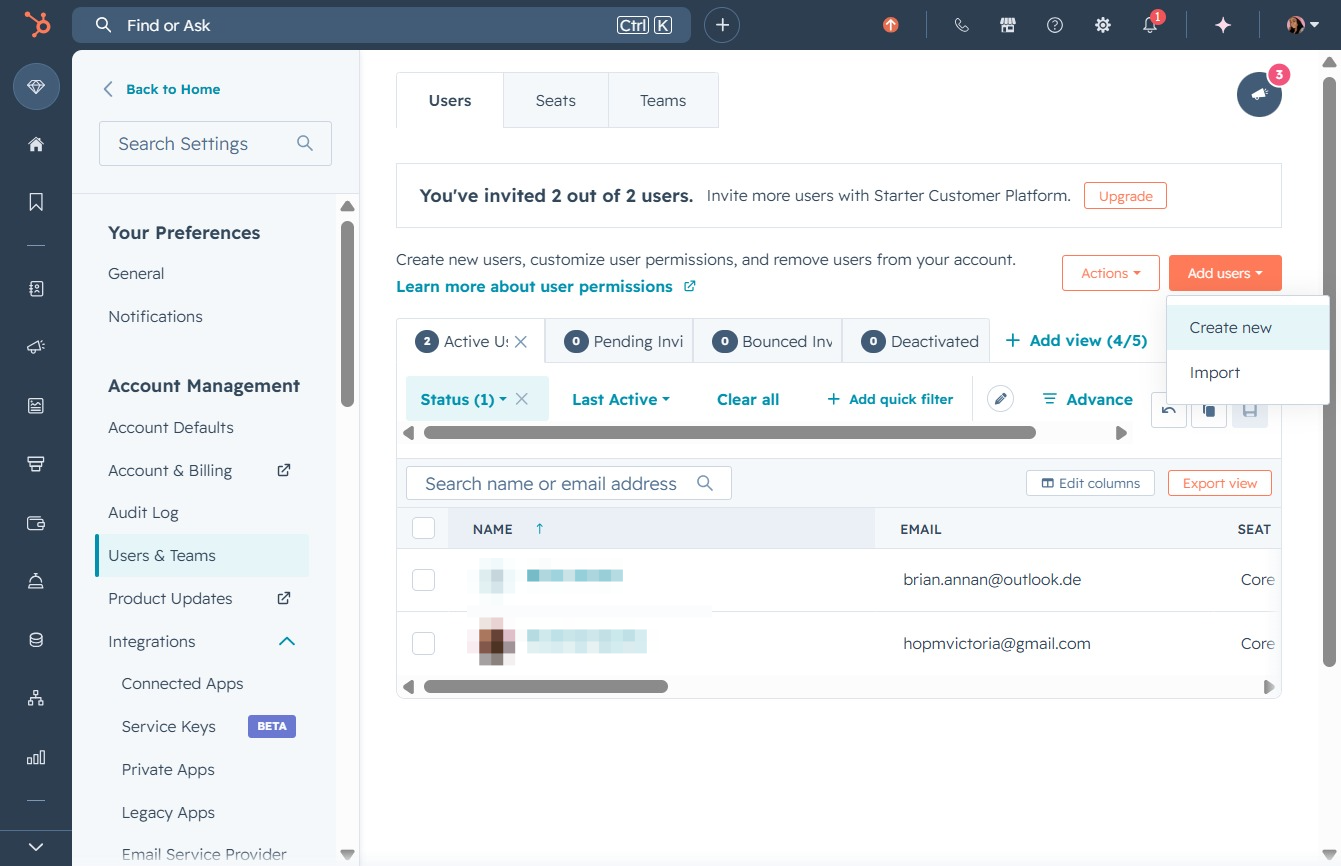
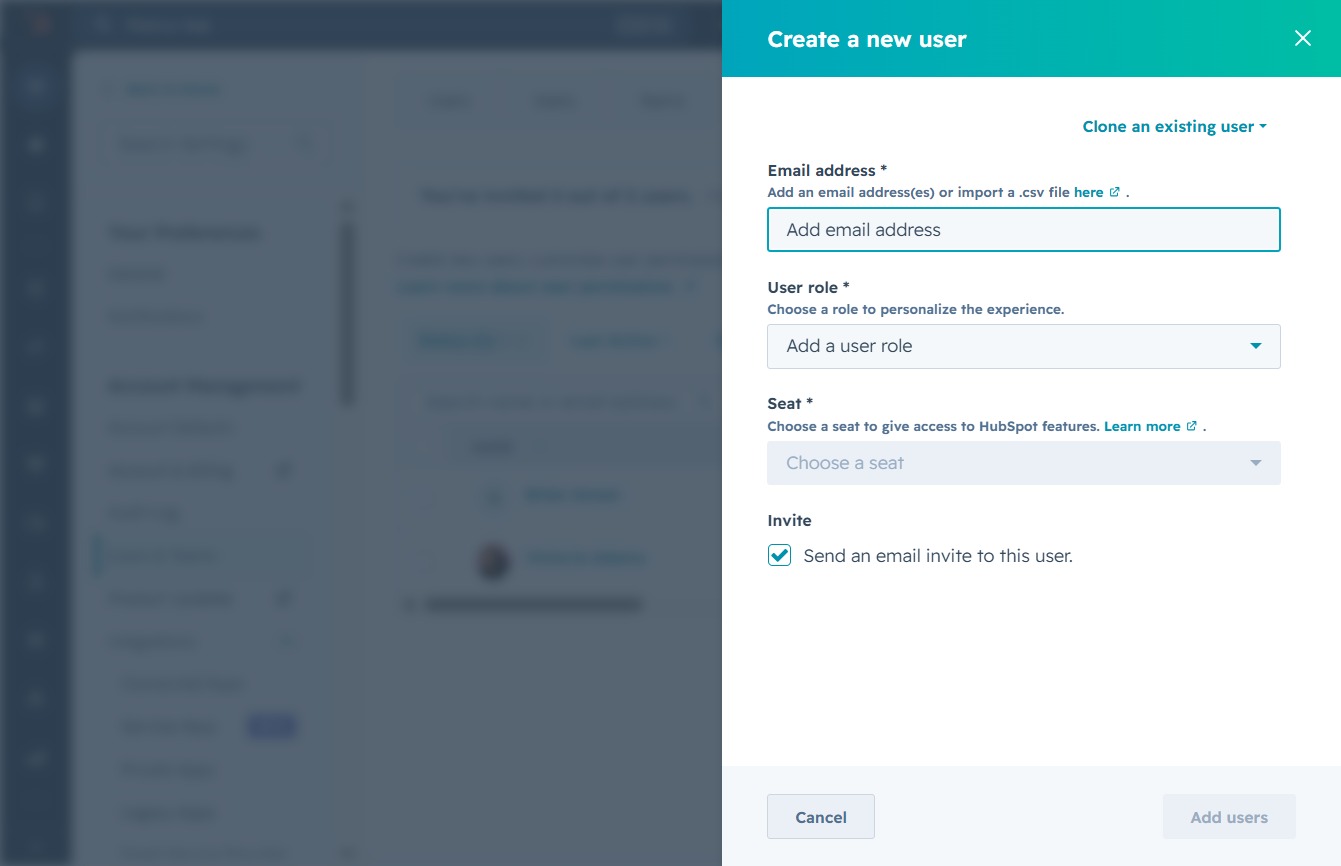
This action opens a form that allows you to create a new user account within the platform. You'll be able to specify user details and permissions during this process.
Clicking this field allows you to enter the email address of the new user you wish to create. Ensure you provide a valid email to facilitate further actions such as sending an invitation.
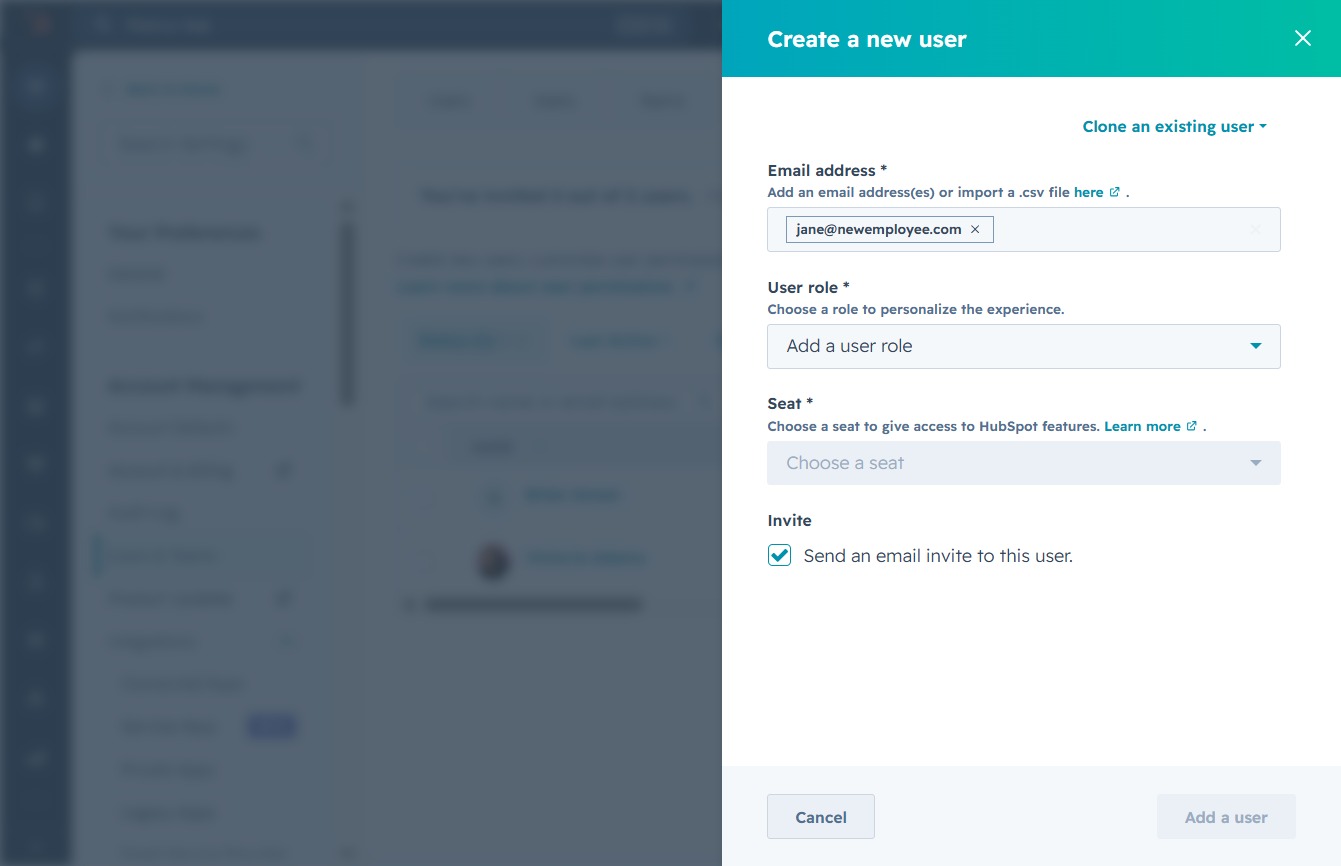
Enter "jane@newemployee.com" in the Email address field to associate this user with their account. This information is essential for sending invites and managing user access in the system.

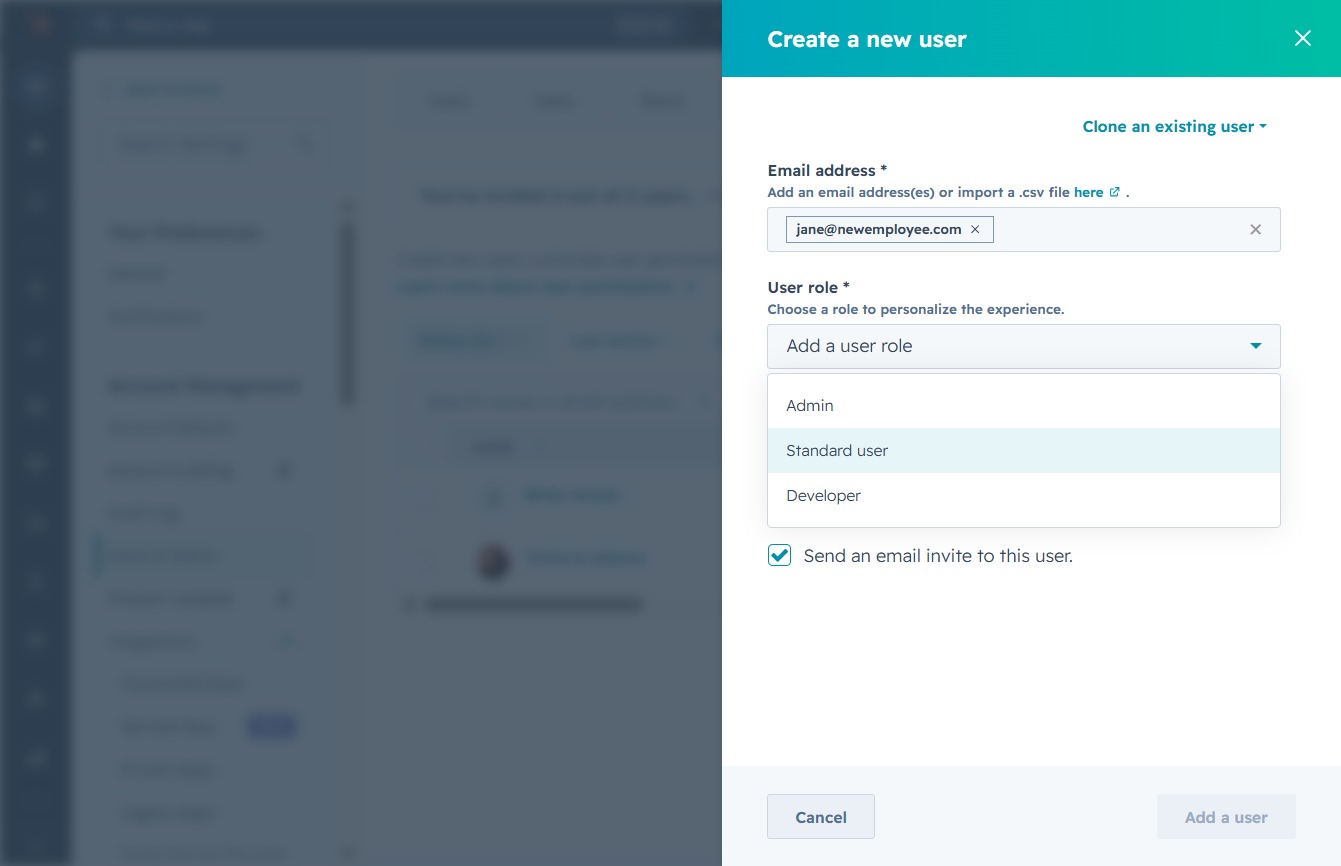
This action allows you to select a specific user role that will define the permissions and access level for the new user. Choose an appropriate role to tailor the user's experience in HubSpot.
Choose 'Standard user' from the user role dropdown to assign this access level to the new user. This role will determine the permissions and functionality available to the user within the application.
This will allow you to create a new user by entering their email address, assigning a user role, and selecting a seat in HubSpot. If checked, an invitation will be sent to the new user.