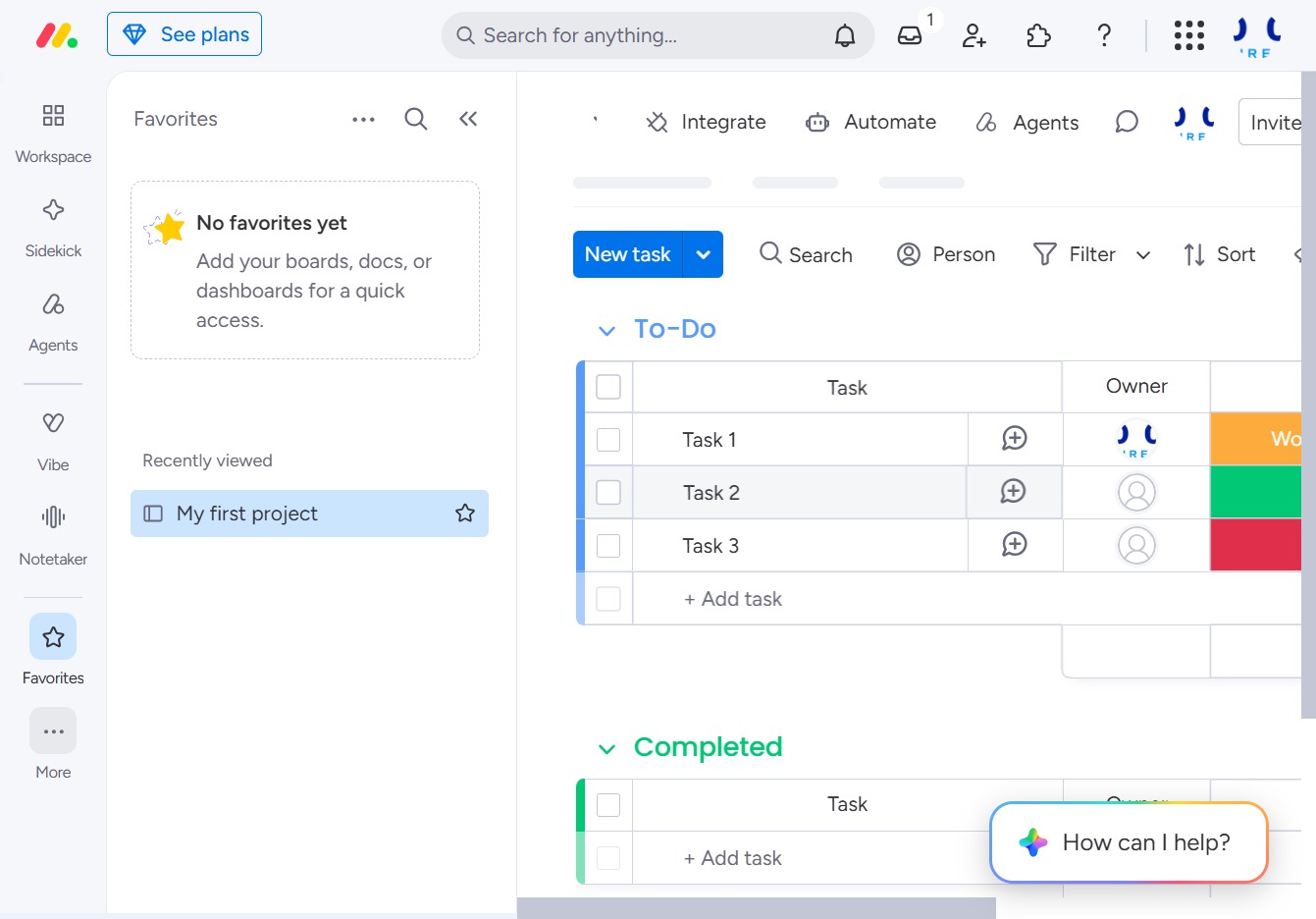
Click the Help icon
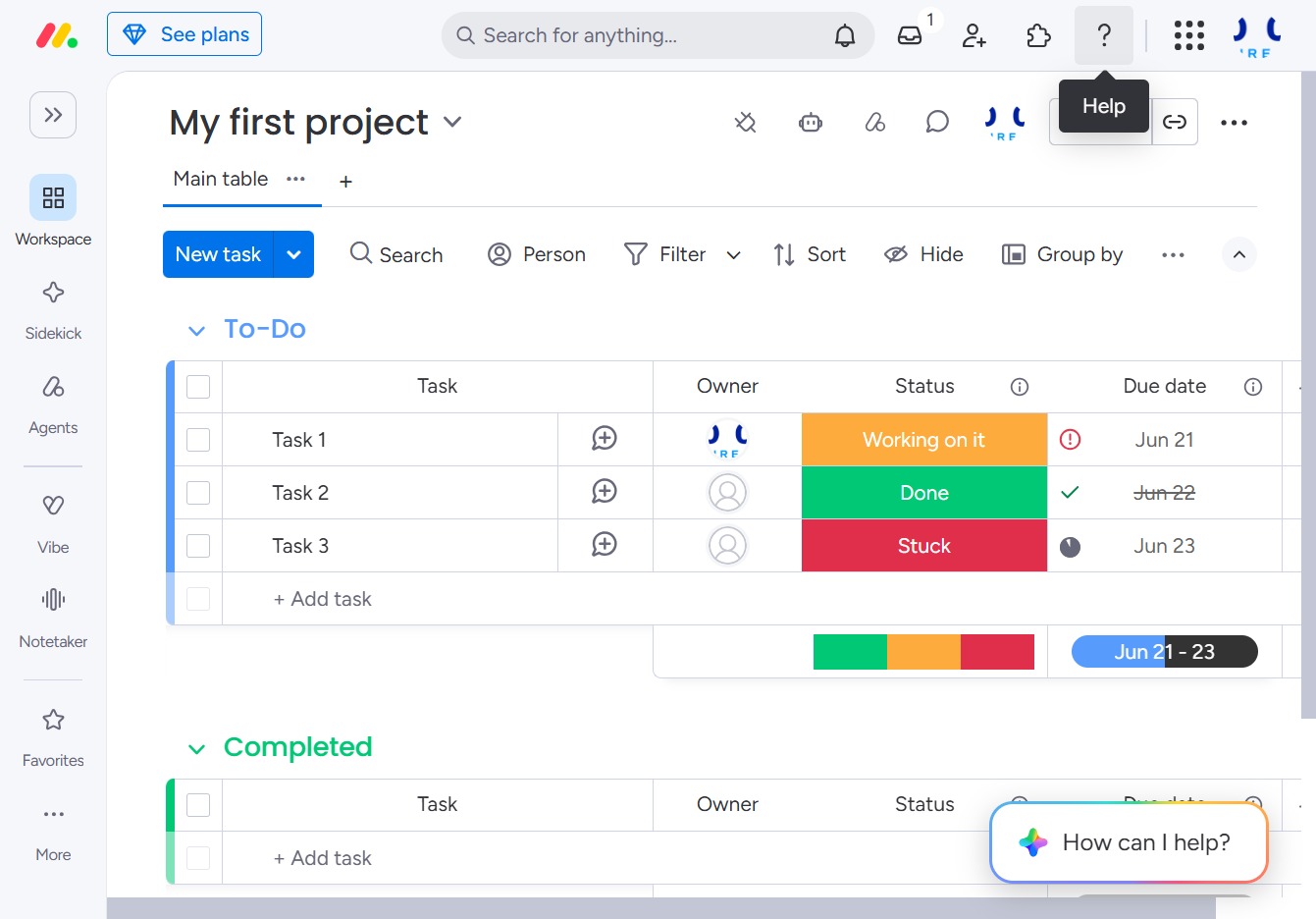
Clicking the Help icon opens a support panel, offering assistance and resources to help you navigate and utilize the features within your project.
Loading screenshot…
100%
Learn how to effectively navigate the Monday.com interface with this comprehensive guide, covering essential features like accessing support, adding team members, utilizing the…
 viktoria
Learn how to effectively navigate the Monday.com interface with this comprehensive guide, covering essential features like accessing support, adding team members, utilizing the AI hub, and refreshing your project feed. Follow our step-by-step instructions to enhance your project management experience and streamline collaboration with your team.
Clicking the Help icon opens a support panel, offering assistance and resources to help you navigate and utilize the features within your project.
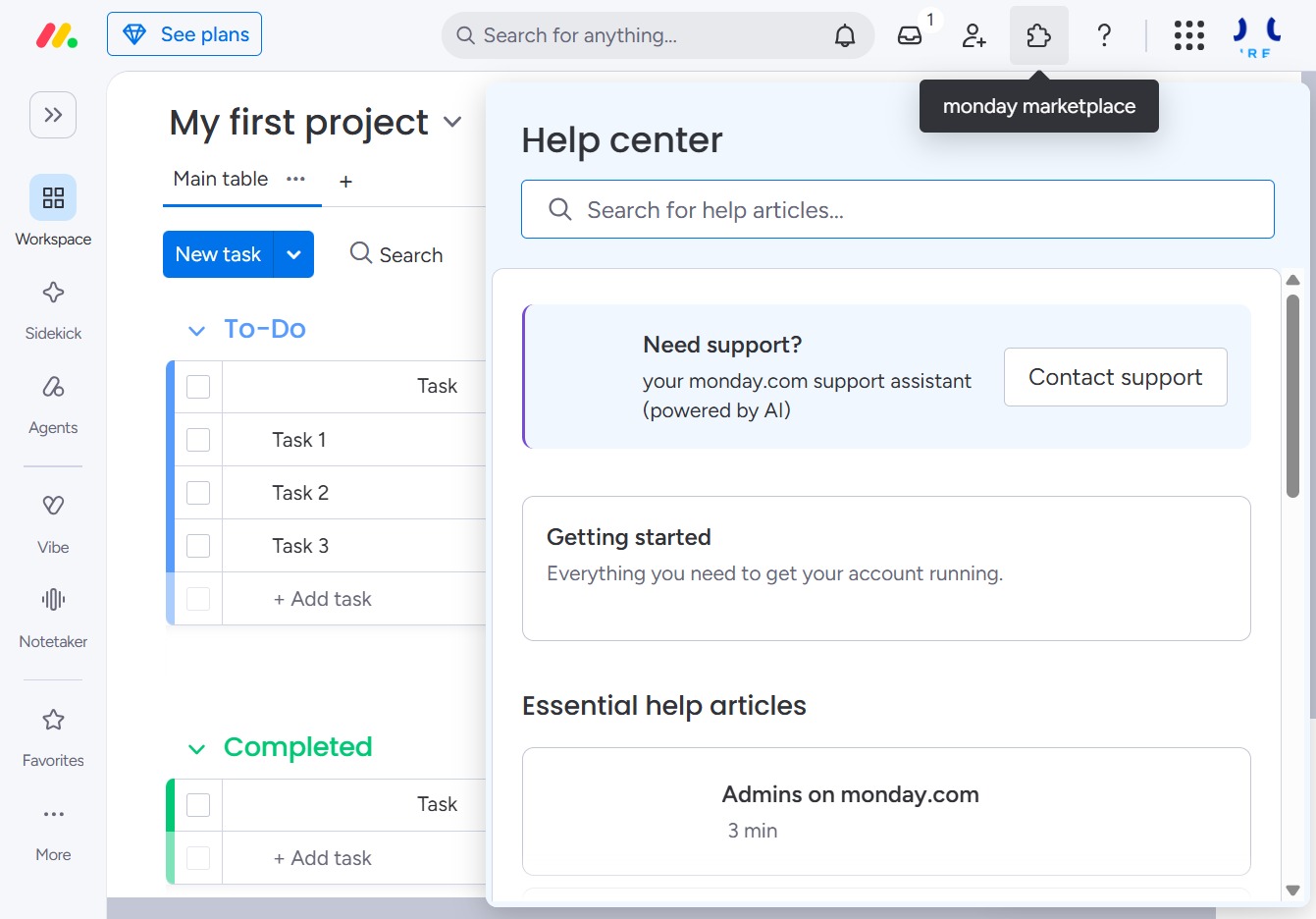
By clicking this link, you will access additional support resources or guidance related to your current task.
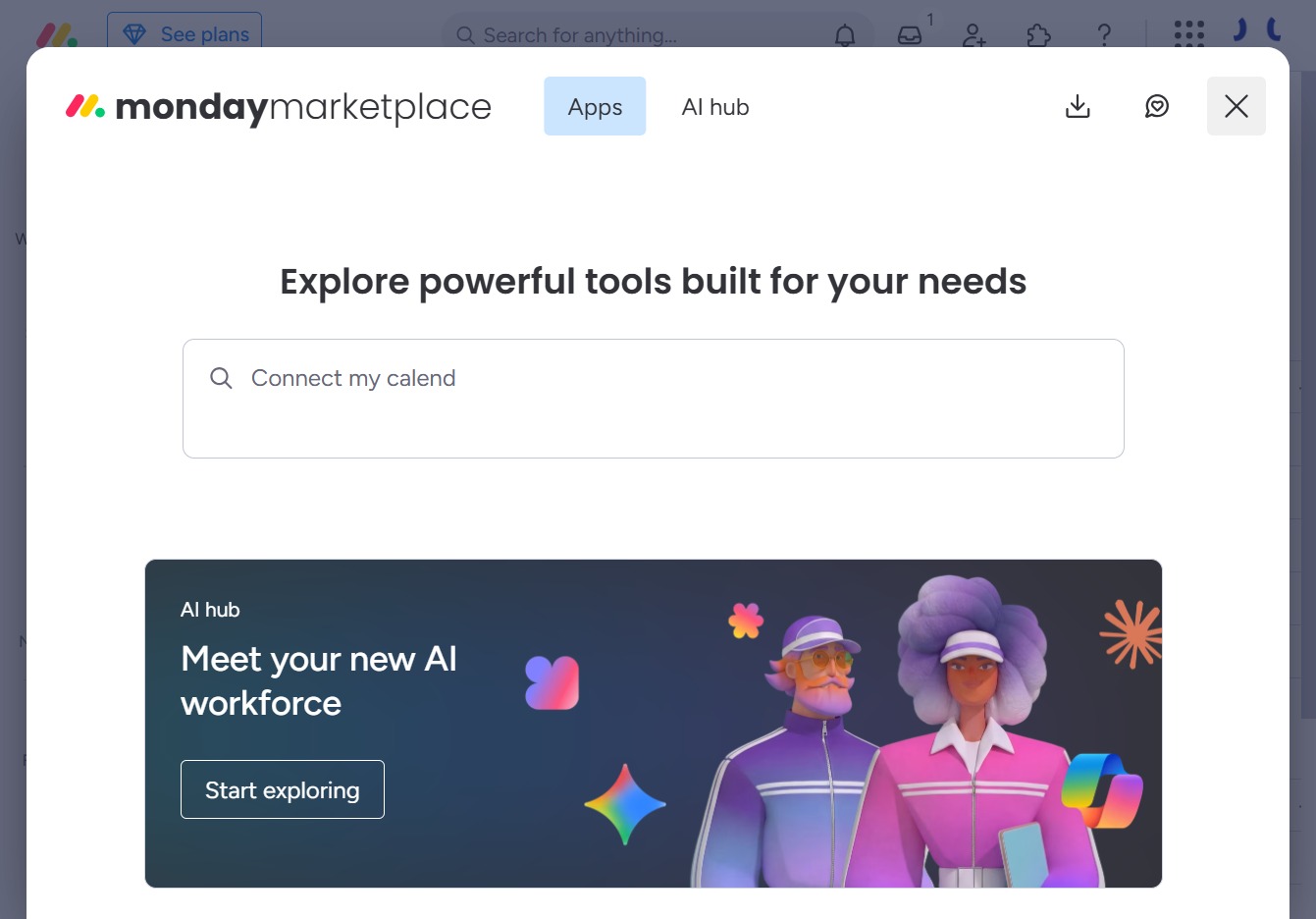
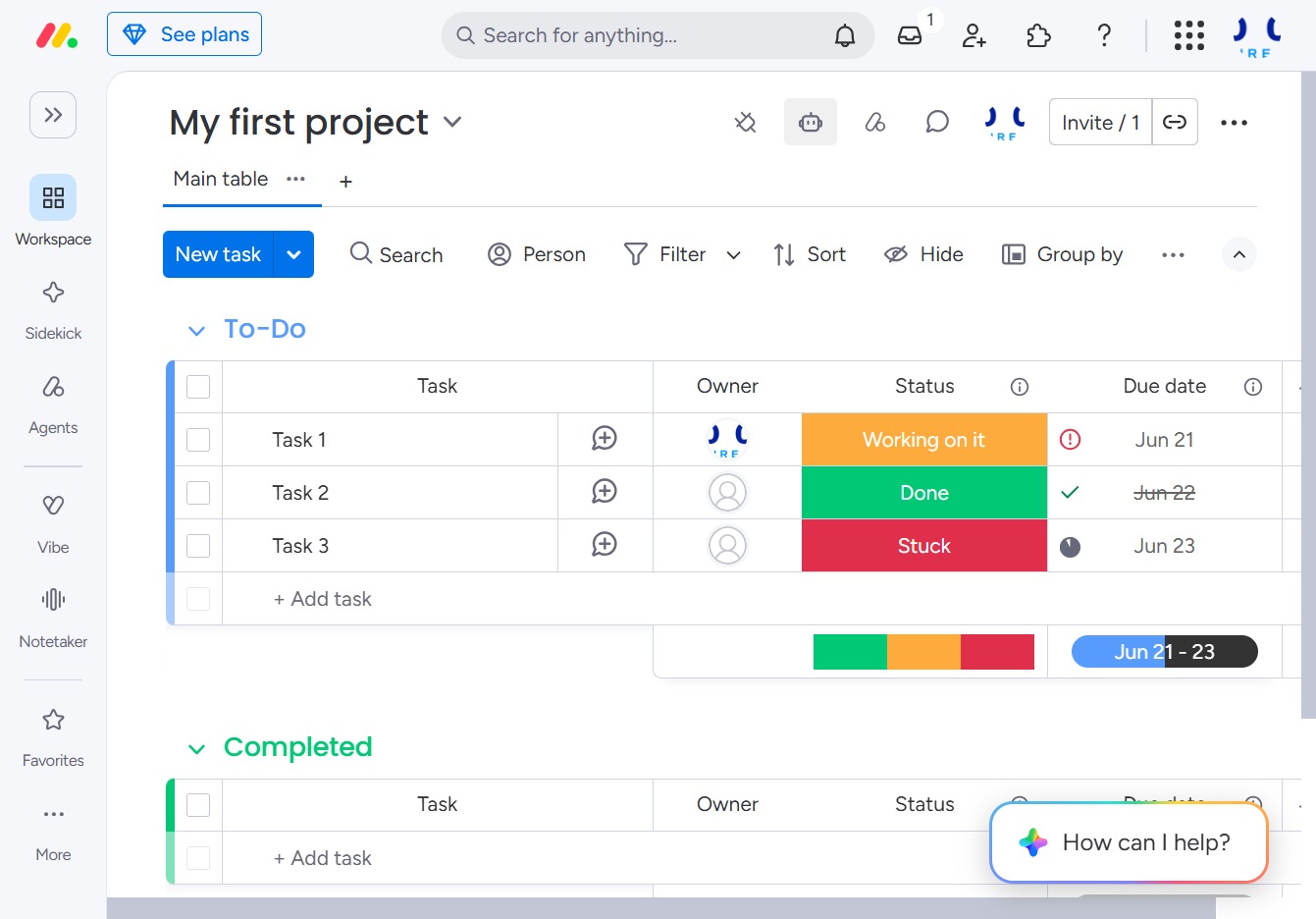
Clicking this link initiates an action related to exploring the AI hub features or options within the monday.com platform.
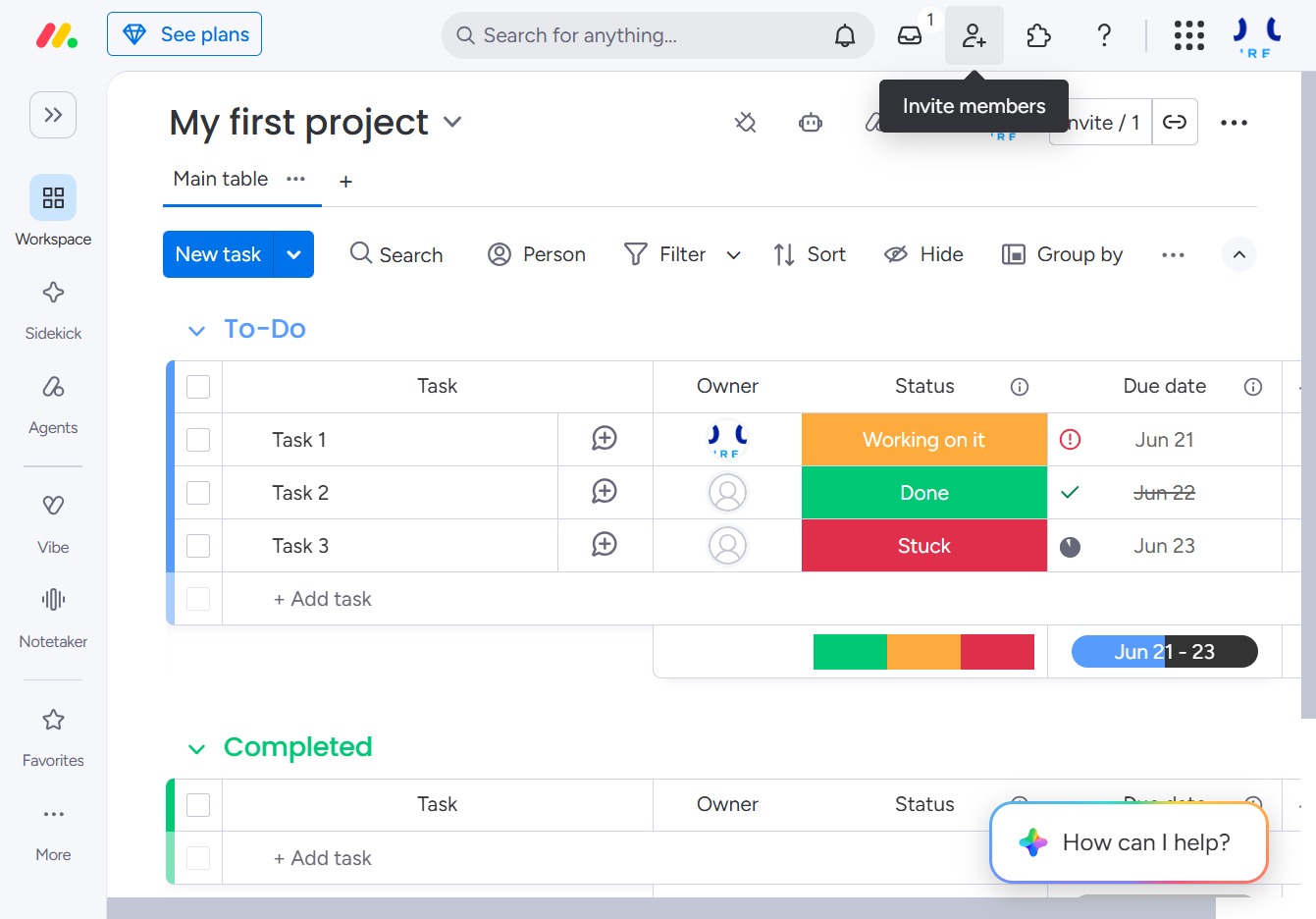
Clicking this button opens a dialog where you can add team members to your project, allowing them to collaborate and contribute.
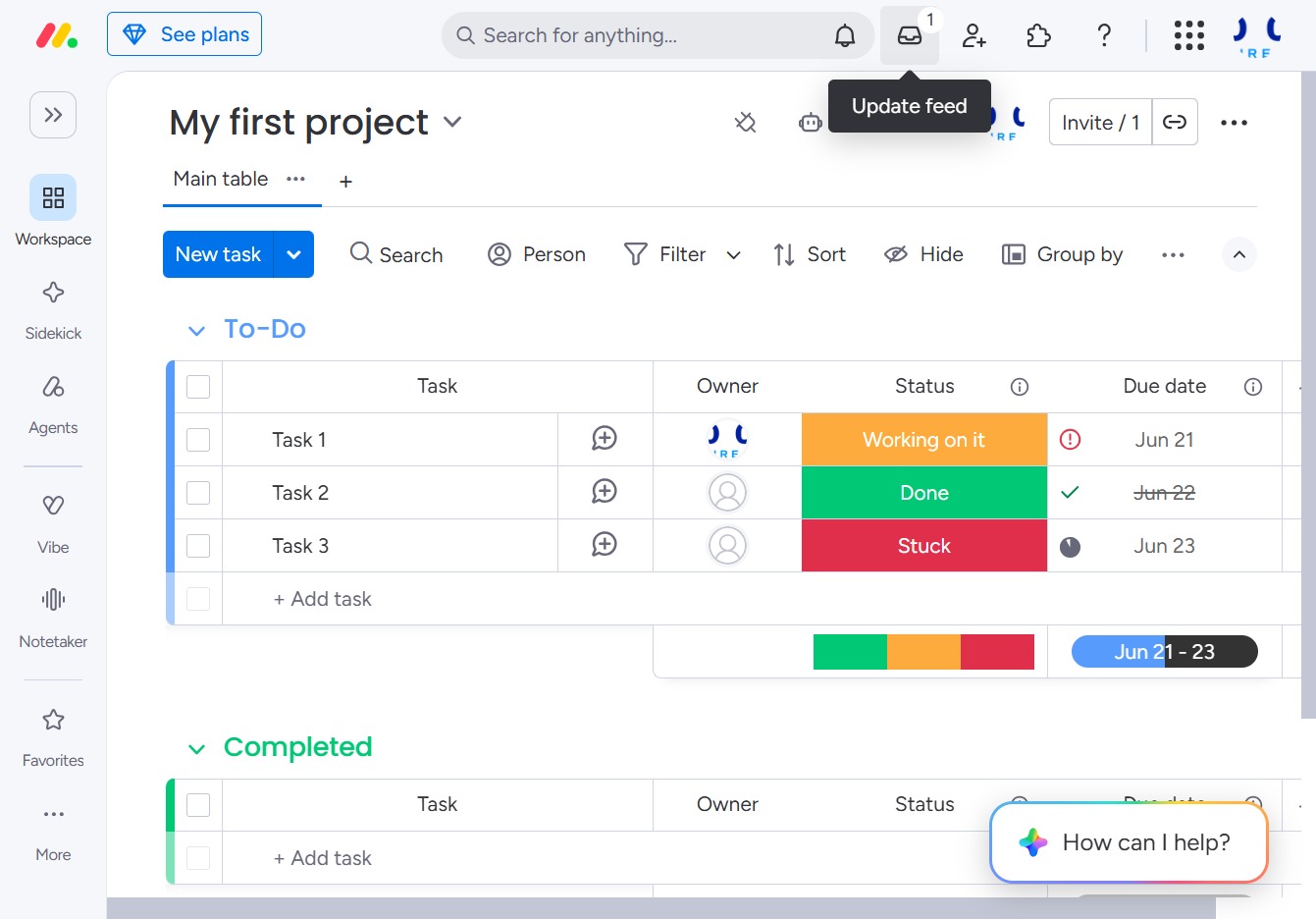
Clicking this button refreshes the project feed, displaying the latest updates and changes made to the tasks in your project.
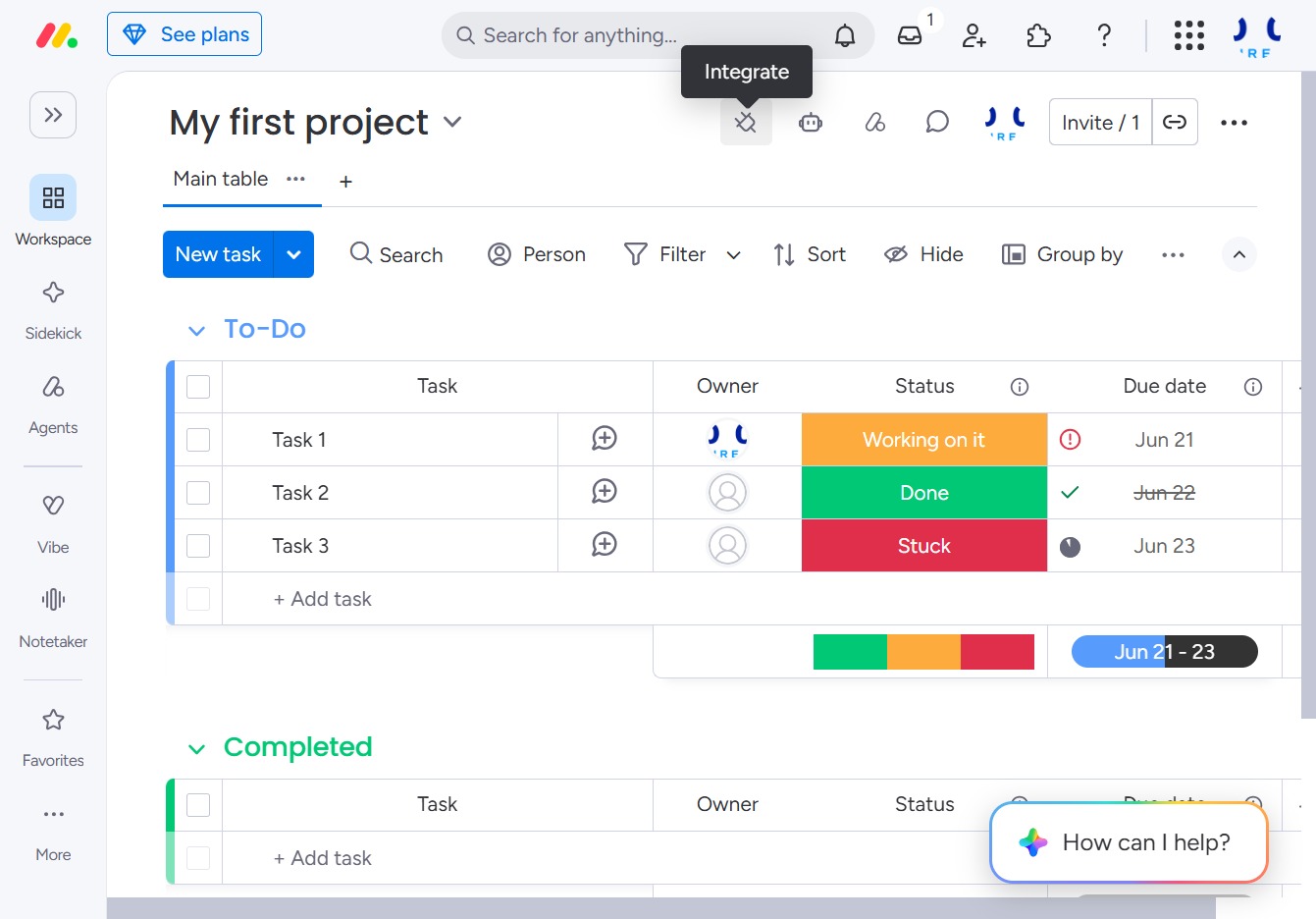
Clicking this button will prompt integration options for connecting with other tools or services to enhance your project management experience.
This will initiate the associated action or feature related to your current project tasks, allowing you to proceed with the next steps efficiently.
Clicking here will redirect you to the Agents section, where you can manage your team's agent settings and assignments.
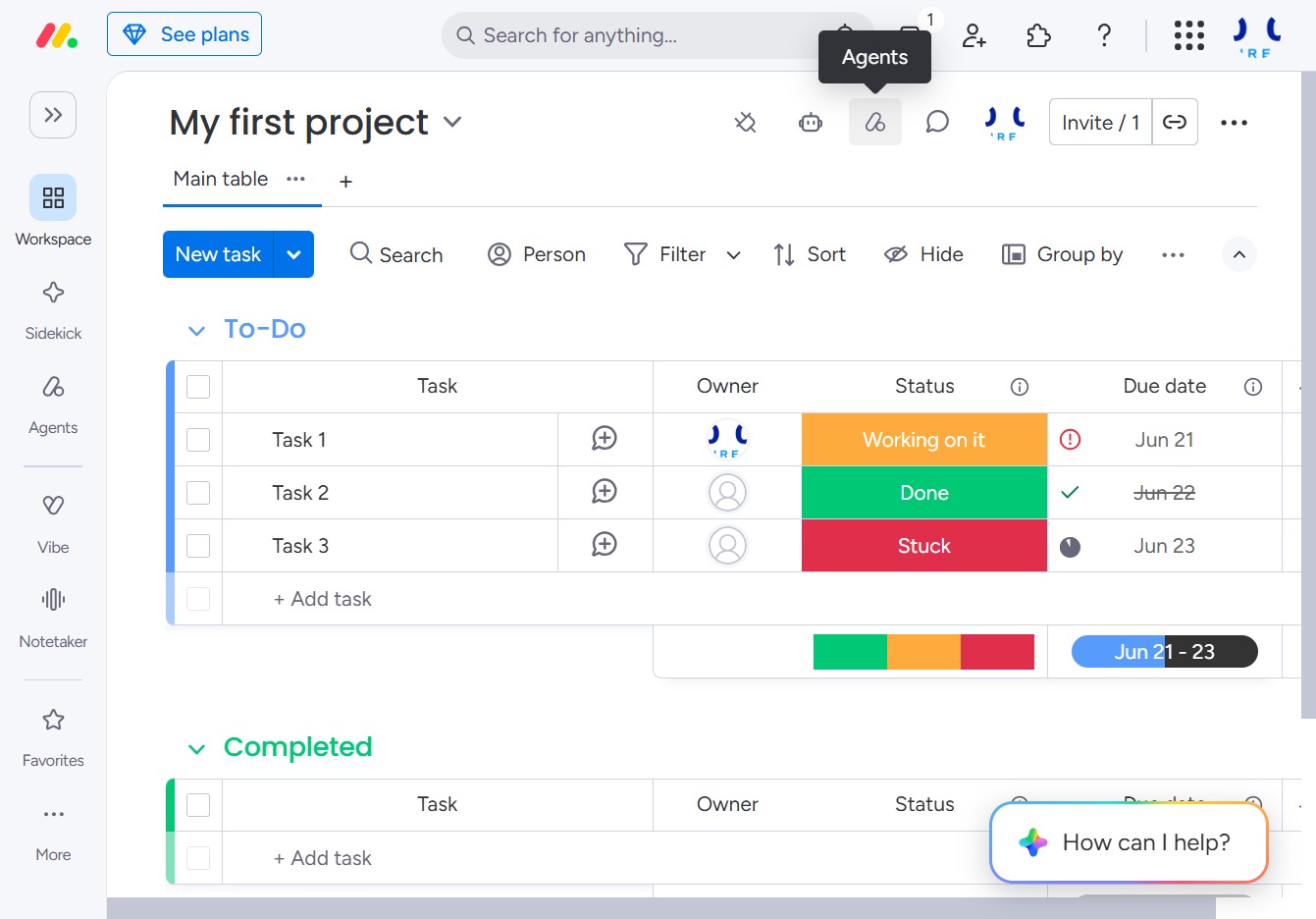
Initiate a conversation about the project with your team members. This feature allows you to engage in discussions related to tasks and project updates.
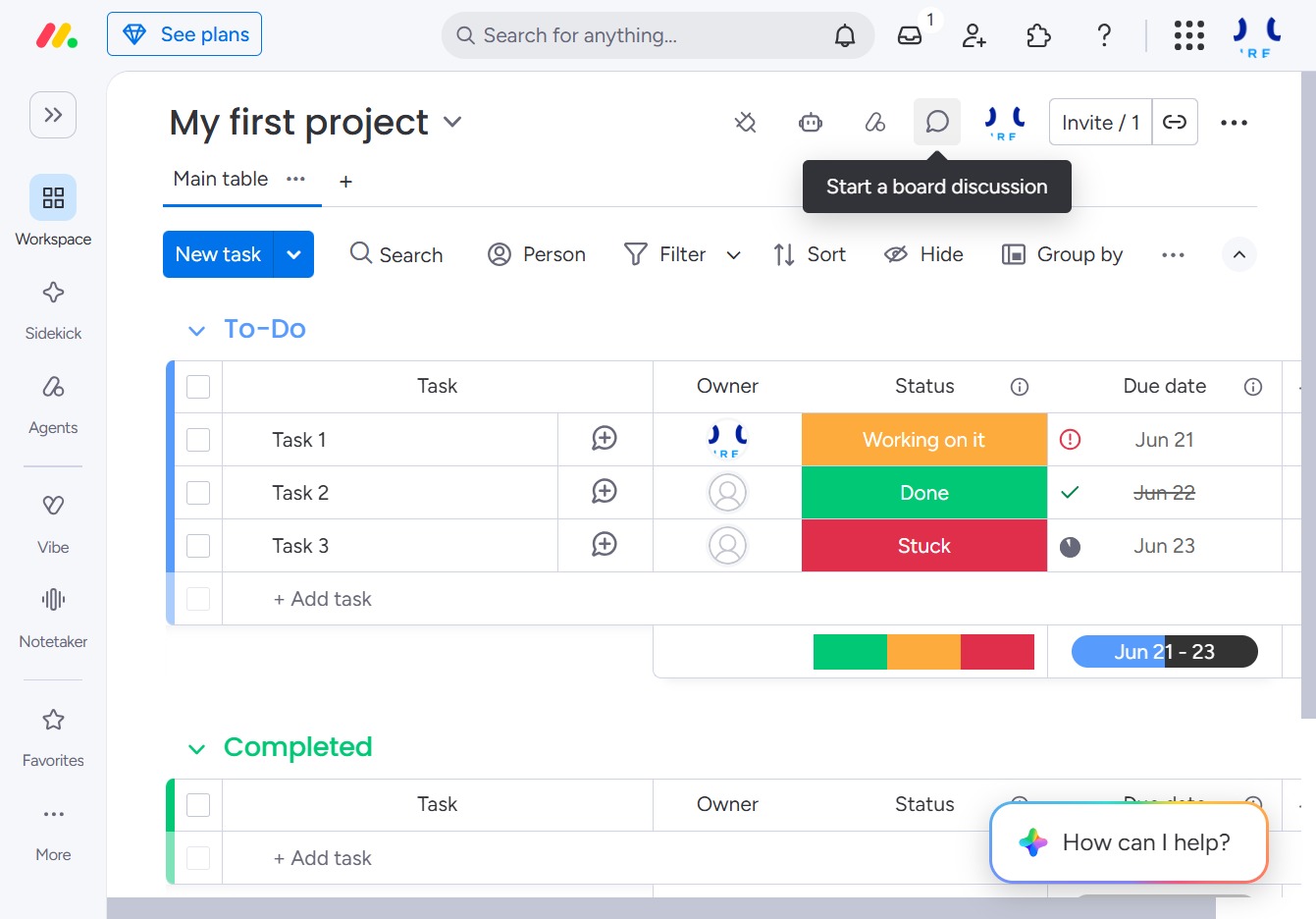
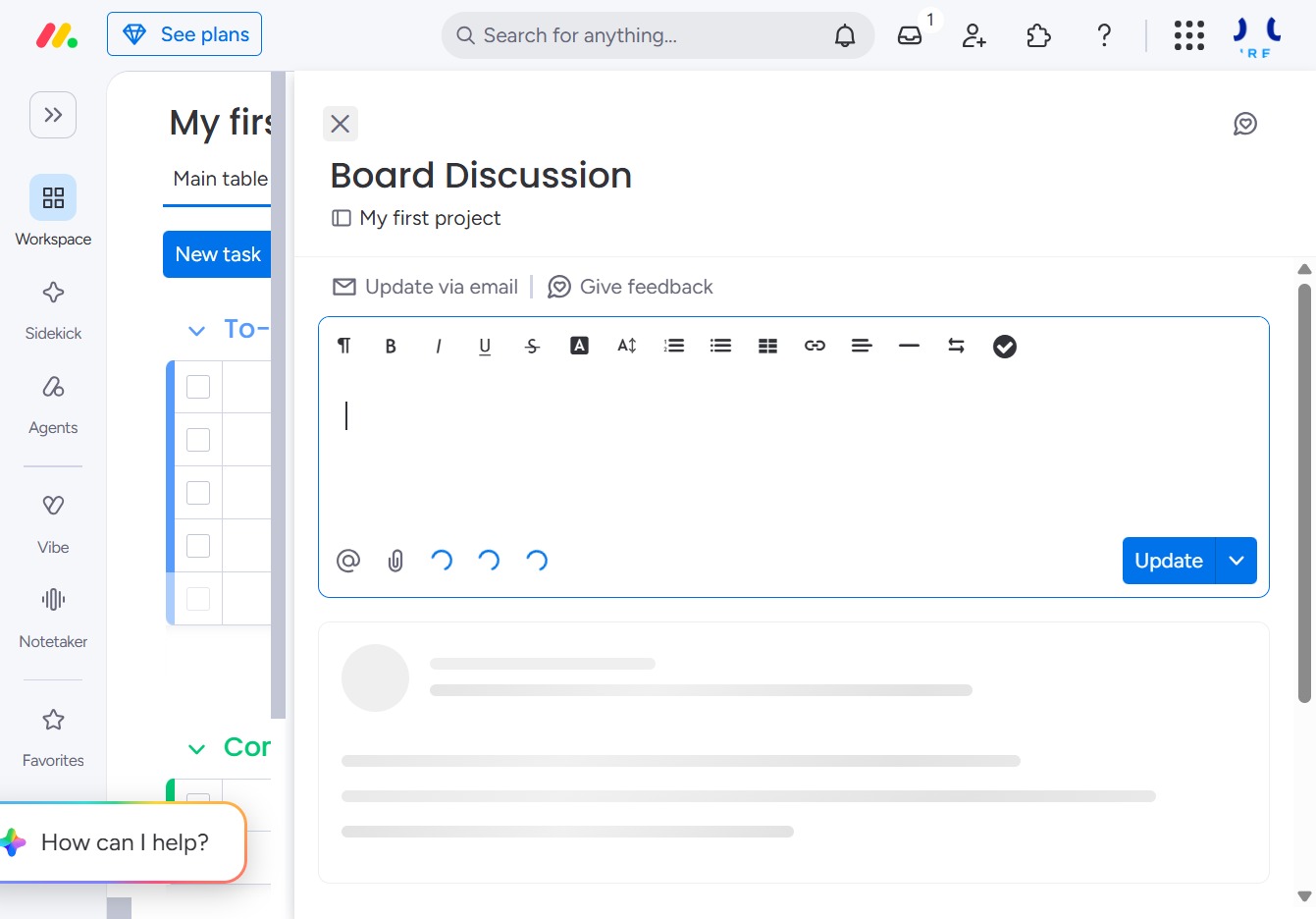
By clicking 'Click here', you can quickly start adding your thoughts or updates to the Board Discussion section of your project.
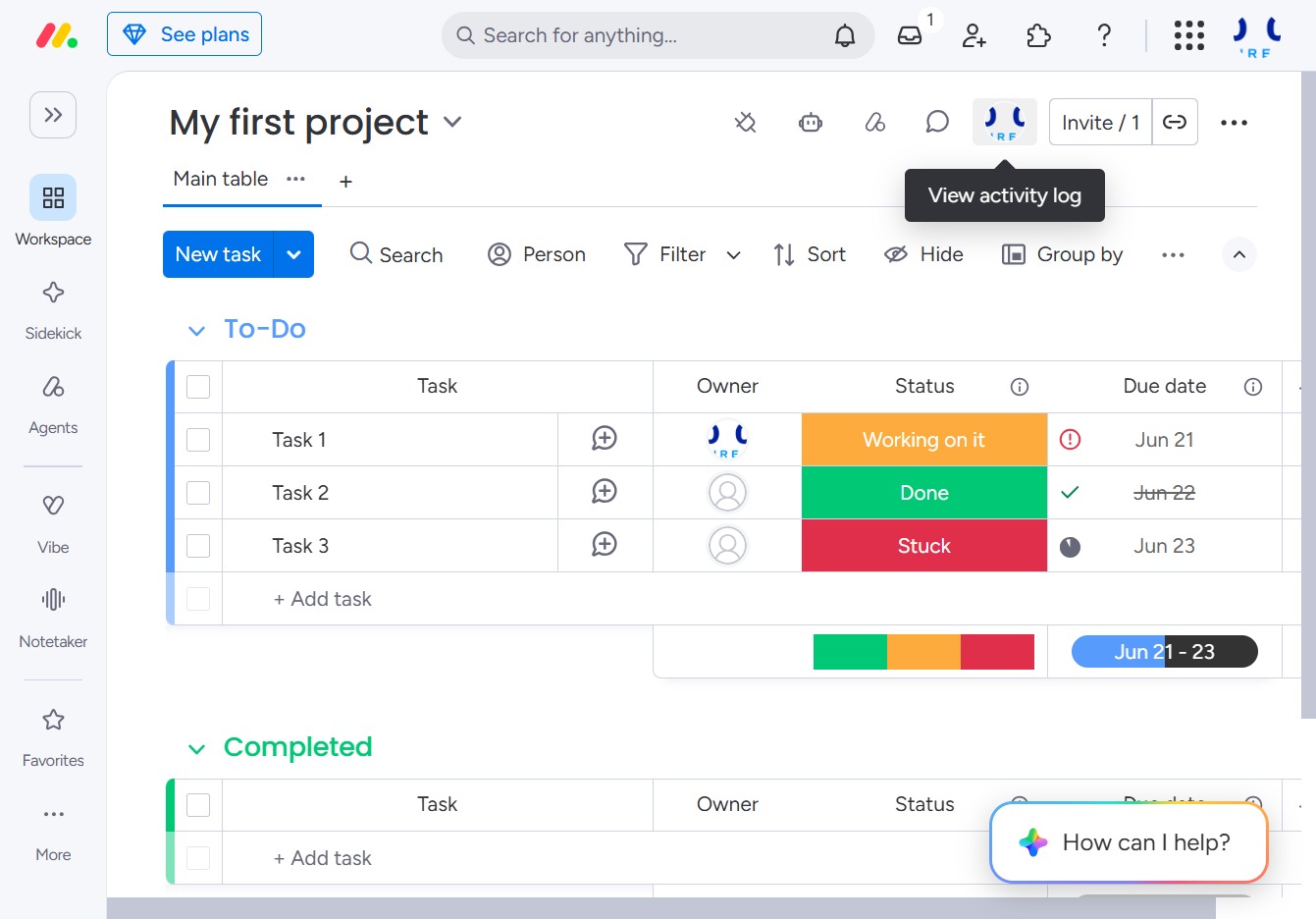
Clicking the ACME Inc logo will navigate you to the main dashboard, allowing you to access project overviews and key functionalities more easily.
Clicking the Sidekick option will activate the side panel, providing you with helpful tools and resources tailored to enhance your project management experience.
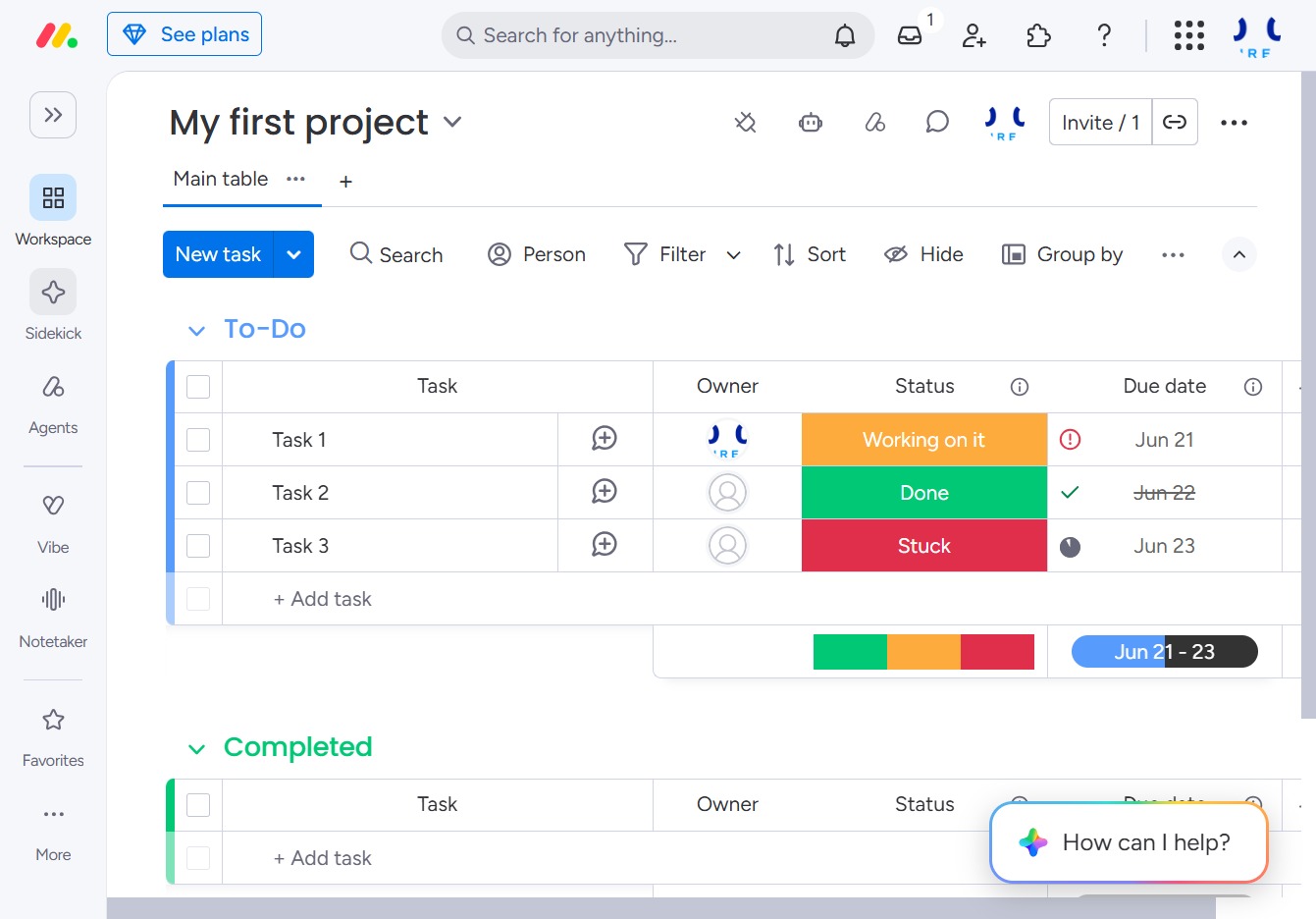
This action opens the Agents area where you can manage and view your AI agents and their functionalities.
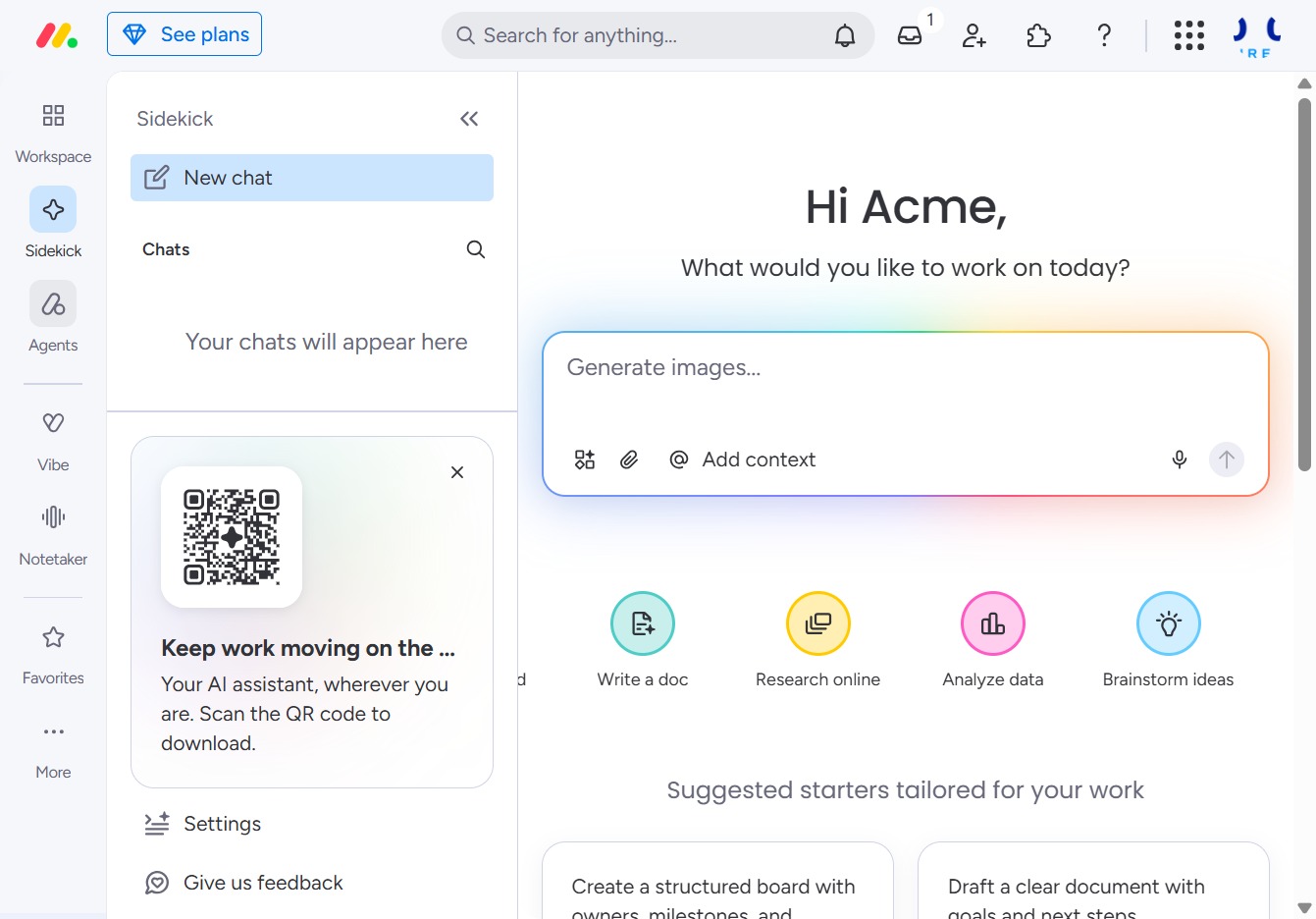
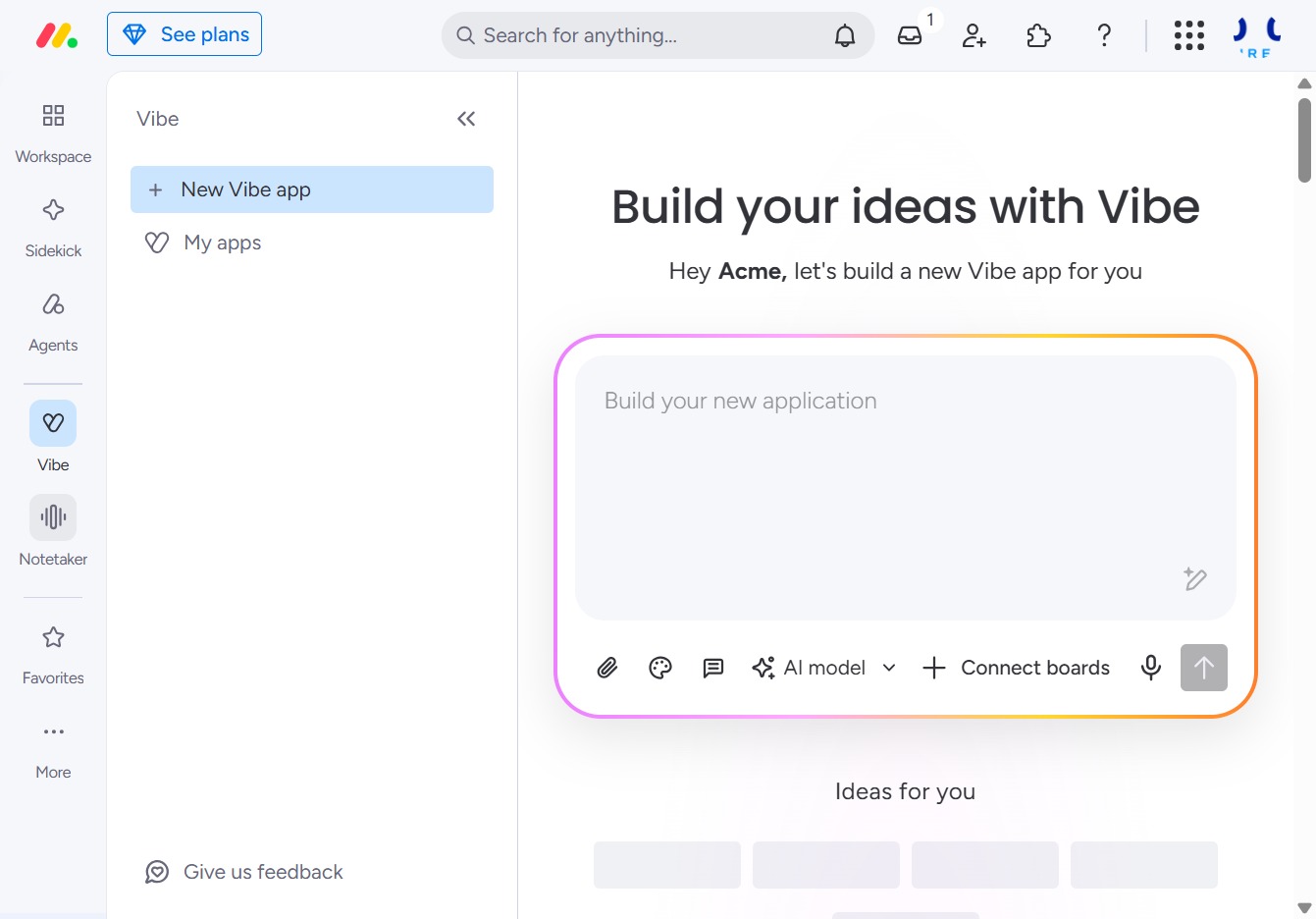
This action opens the Vibe section, which allows you to explore and manage your workflows and interactions related to team dynamics.
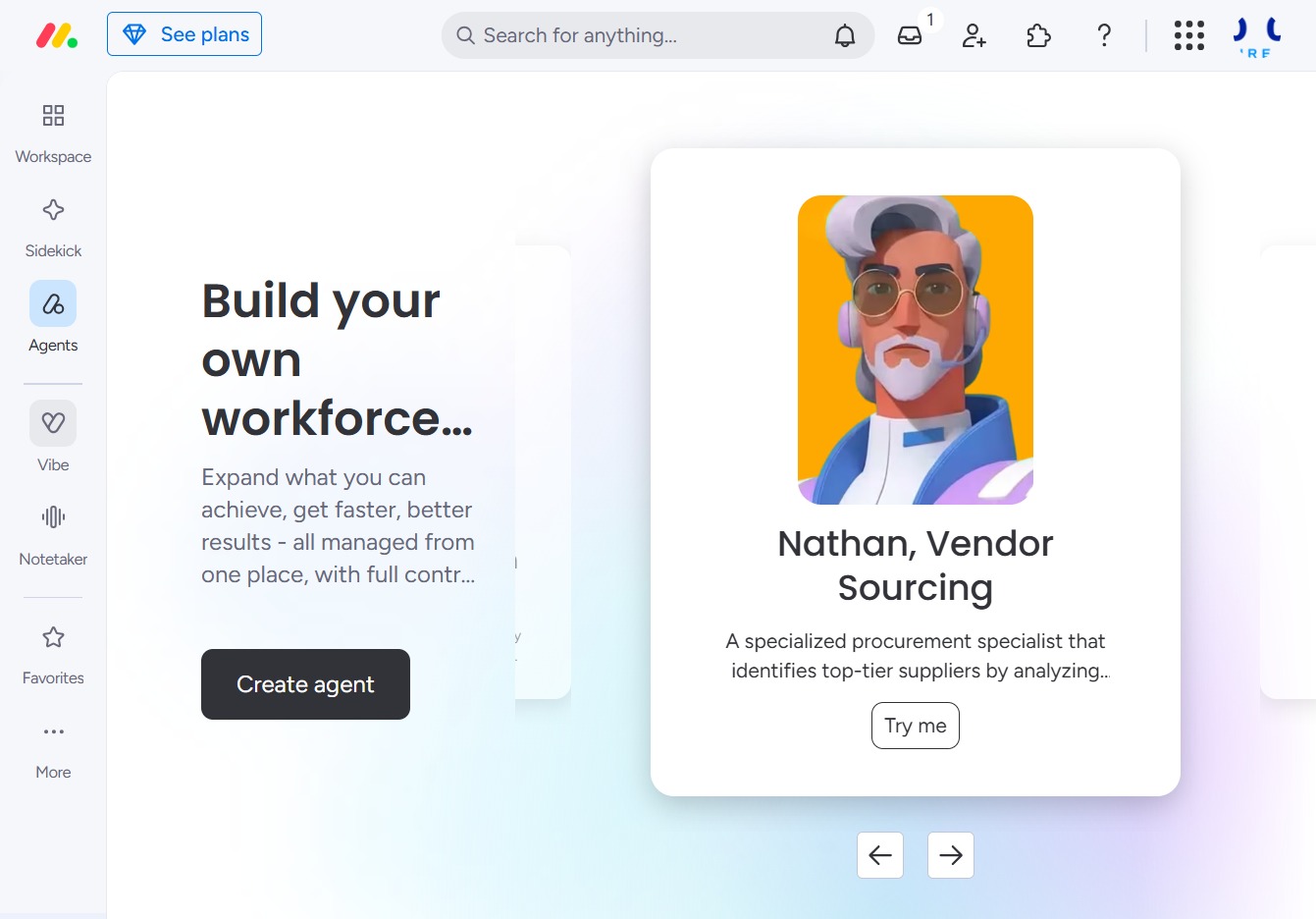
Selecting the Vibe icon opens the section where you can manage your team's mood and collaboration metrics.
This action opens the Notetaker feature, allowing you to jot down notes and ideas while building your new application.
Selecting the Favorites icon allows you to quickly access your favorite items or frequently used features.
Clicking the 'More' button reveals additional options related to your tasks or projects, allowing you to access further functionalities.