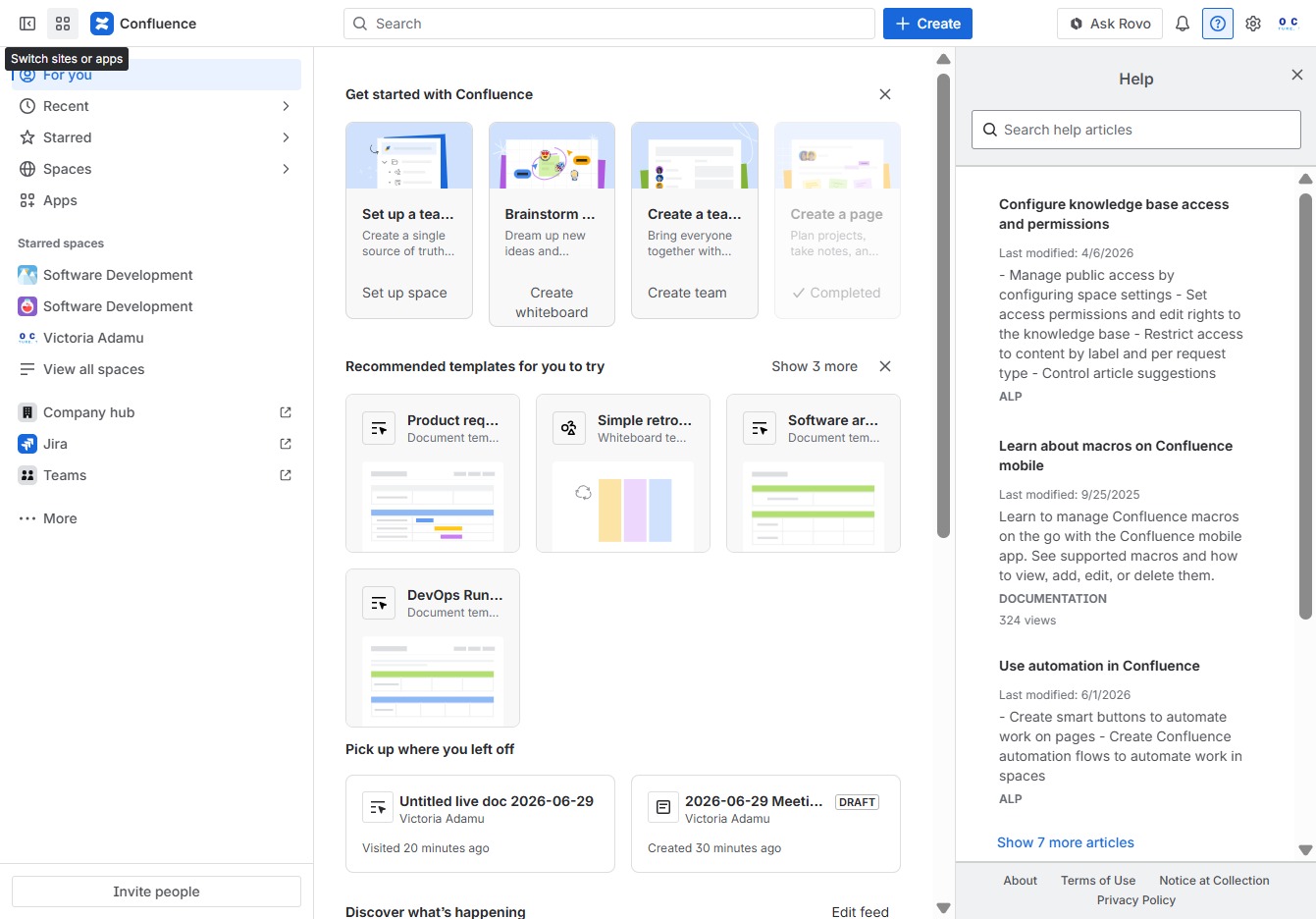
Click the Recent section
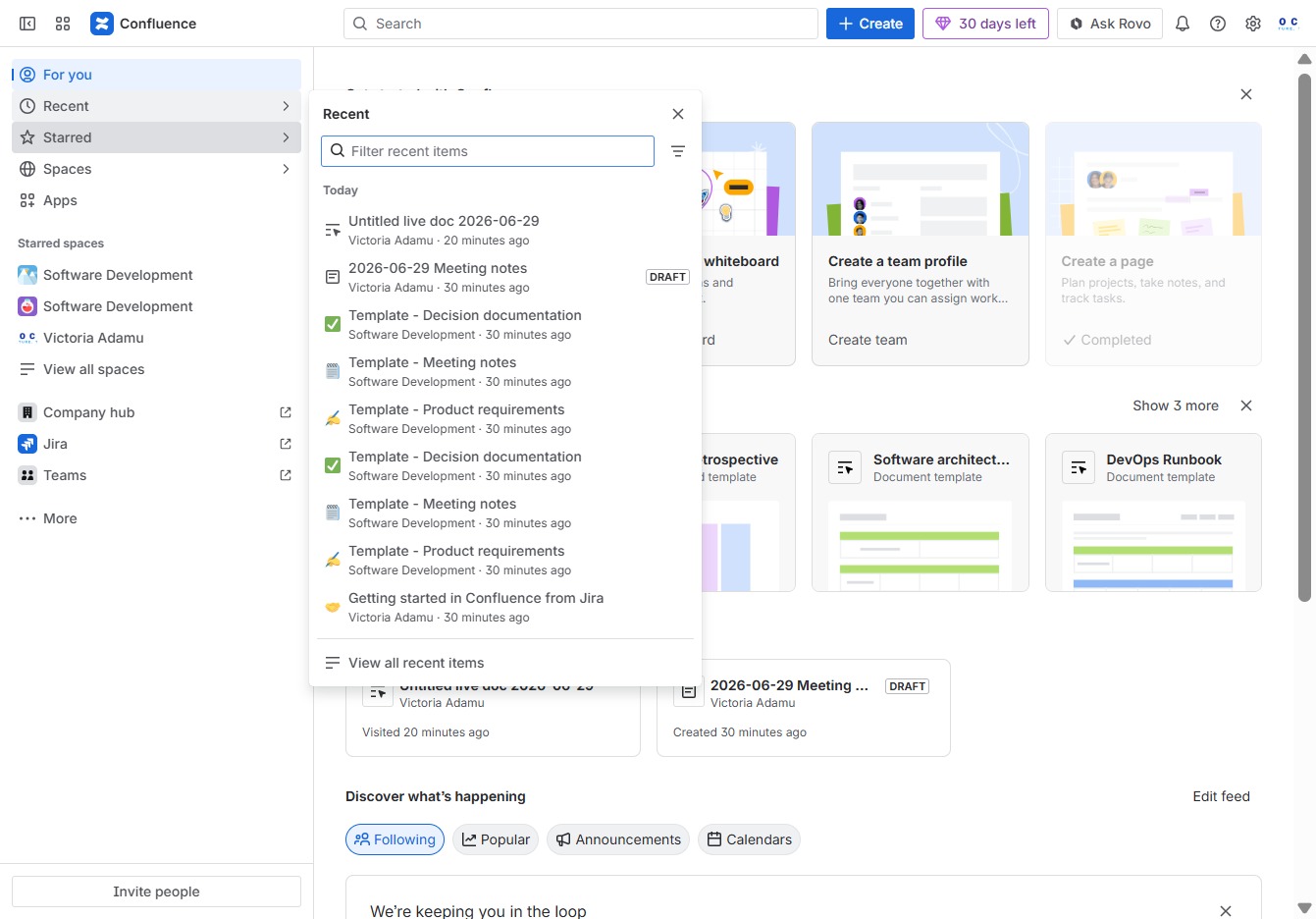
Clicking the 'Recent' section will display your most recently accessed pages and documents in Confluence, allowing you to quickly navigate back to your prior work.
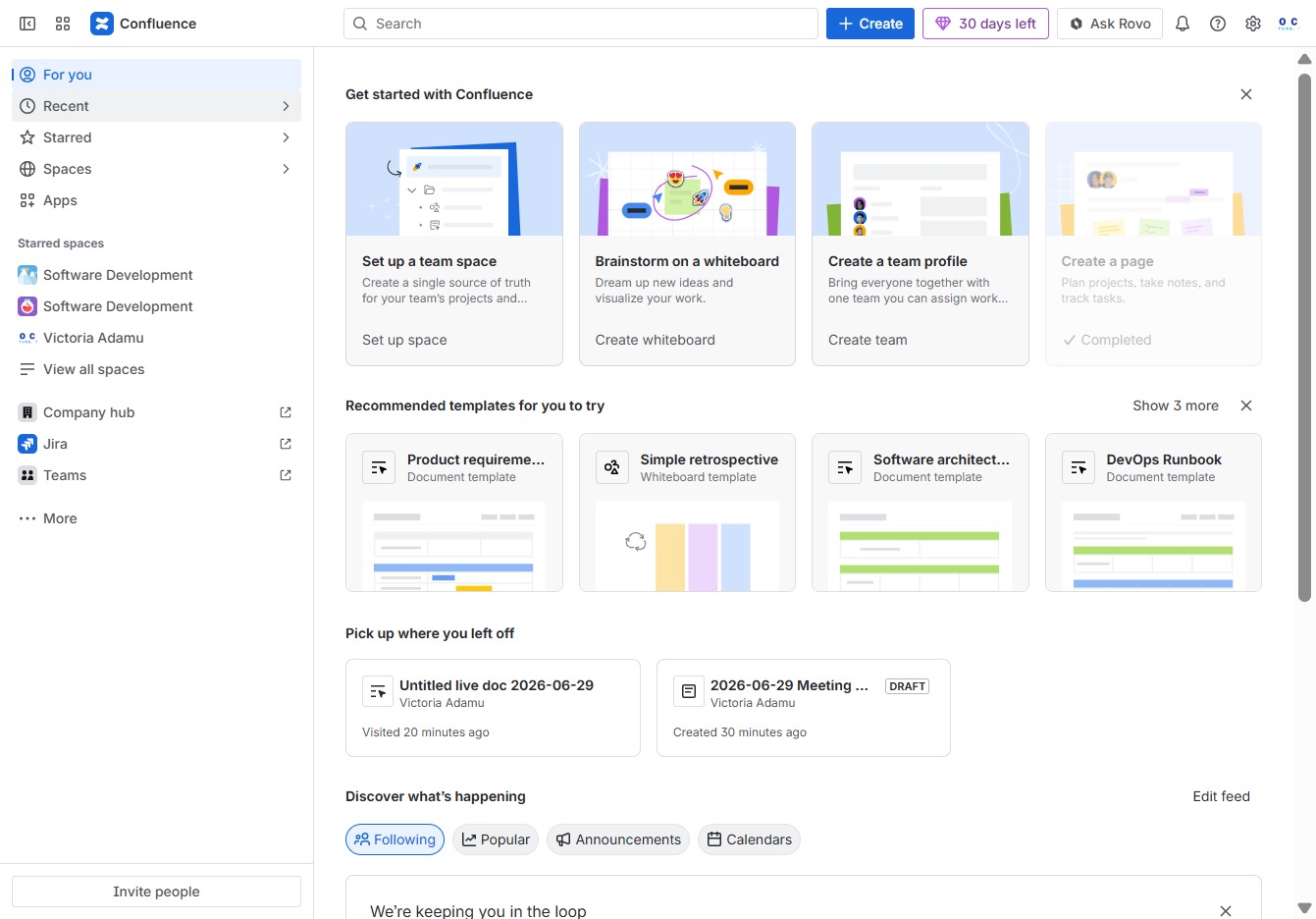
Loading screenshot…
100%
In this how-to guide, you'll learn to effectively navigate the Confluence interface by accessing recent pages, customizing your sidebar, managing spaces, and using key features…
 viktoria
In this how-to guide, you'll learn to effectively navigate the Confluence interface by accessing recent pages, customizing your sidebar, managing spaces, and using key features like notifications and administration settings. Master these steps to enhance your productivity and streamline your collaboration within Confluence.
Clicking the 'Recent' section will display your most recently accessed pages and documents in Confluence, allowing you to quickly navigate back to your prior work.
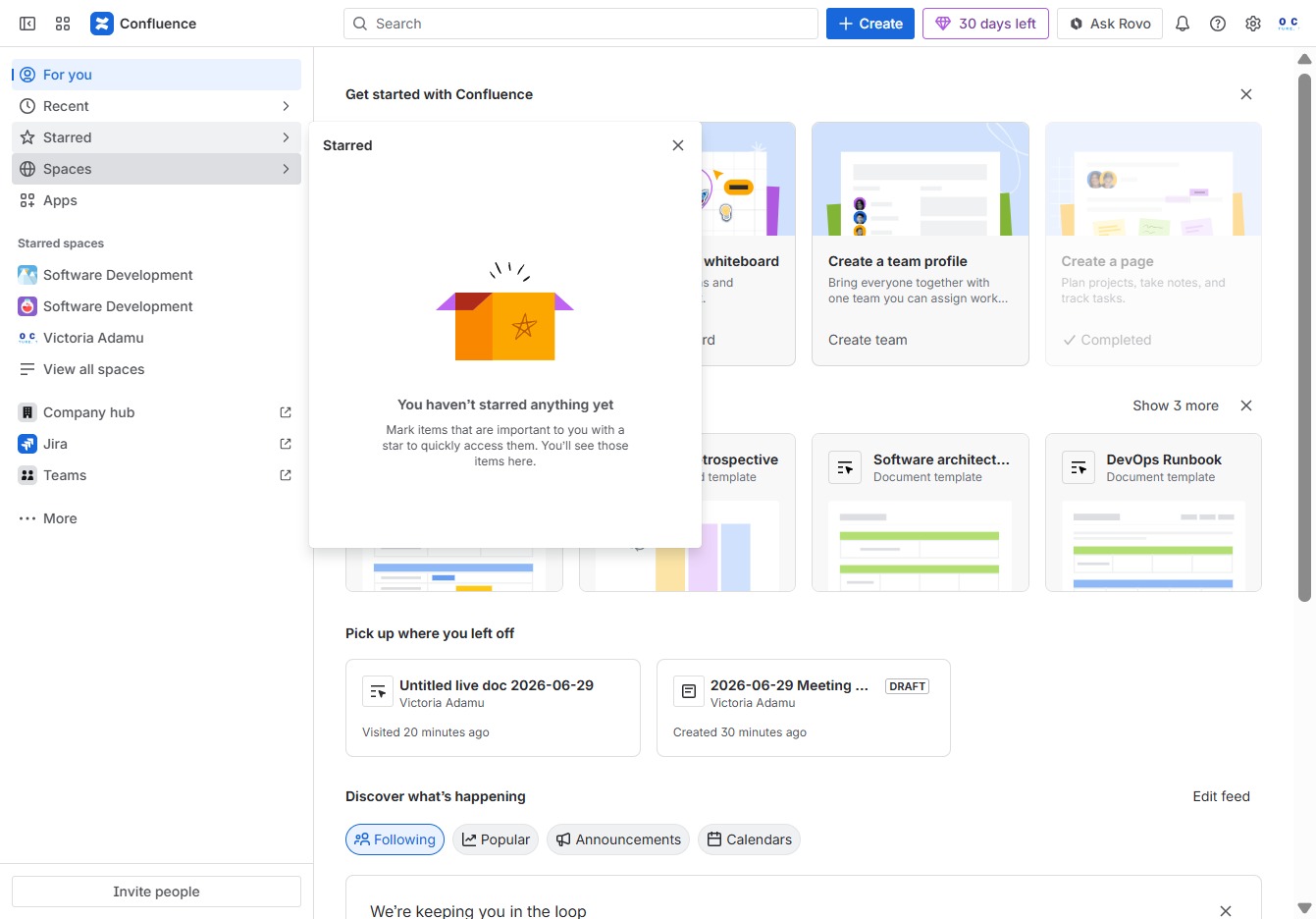
This will show you all the items you have marked as important, allowing for quick access to your favorite documents and pages in Confluence.
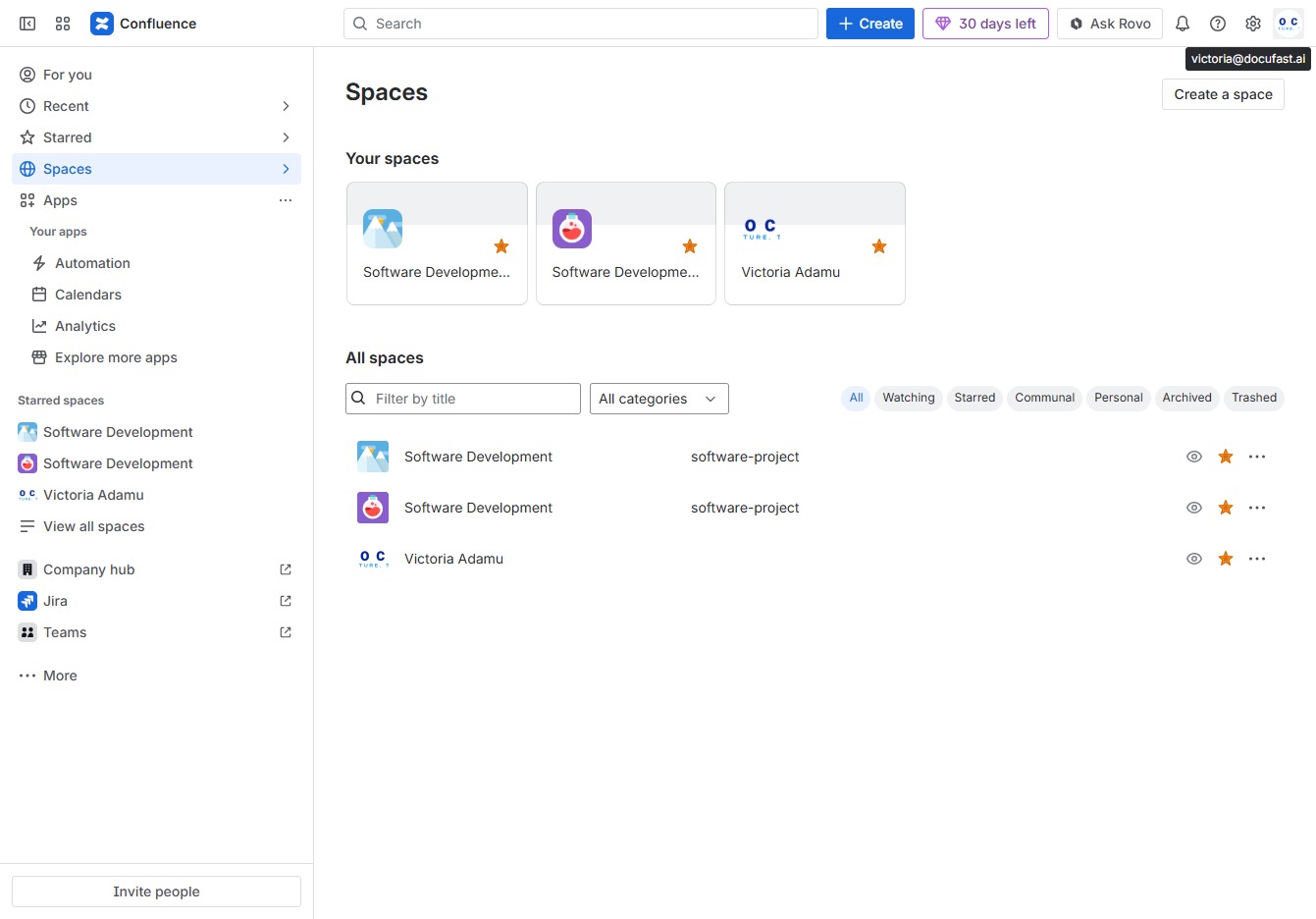
Clicking on 'Spaces' allows you to access different collaborative areas within Confluence, where you can create and manage content specific to teams or projects.
This will take you to the Apps page where you can manage and customize your installed applications.
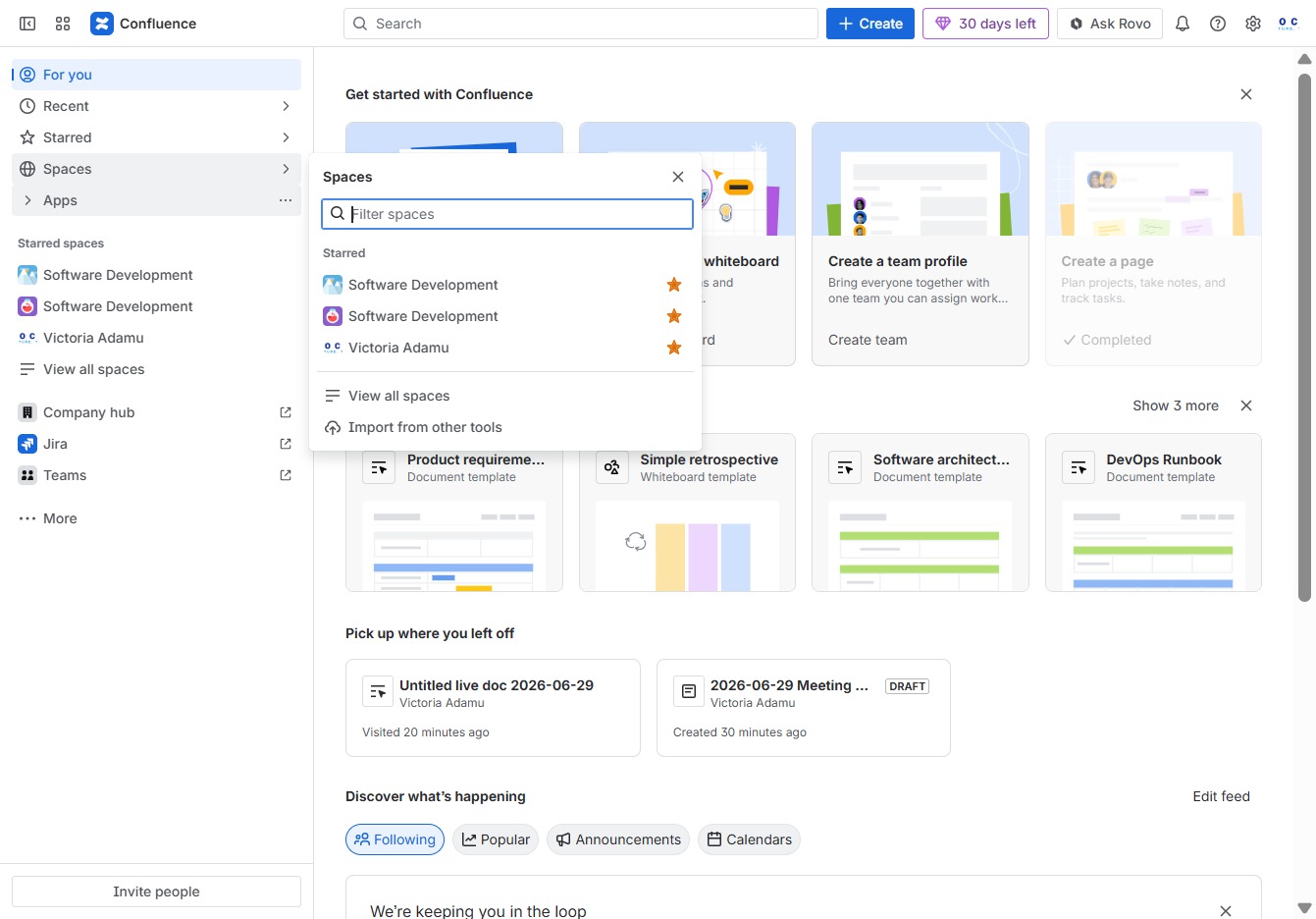
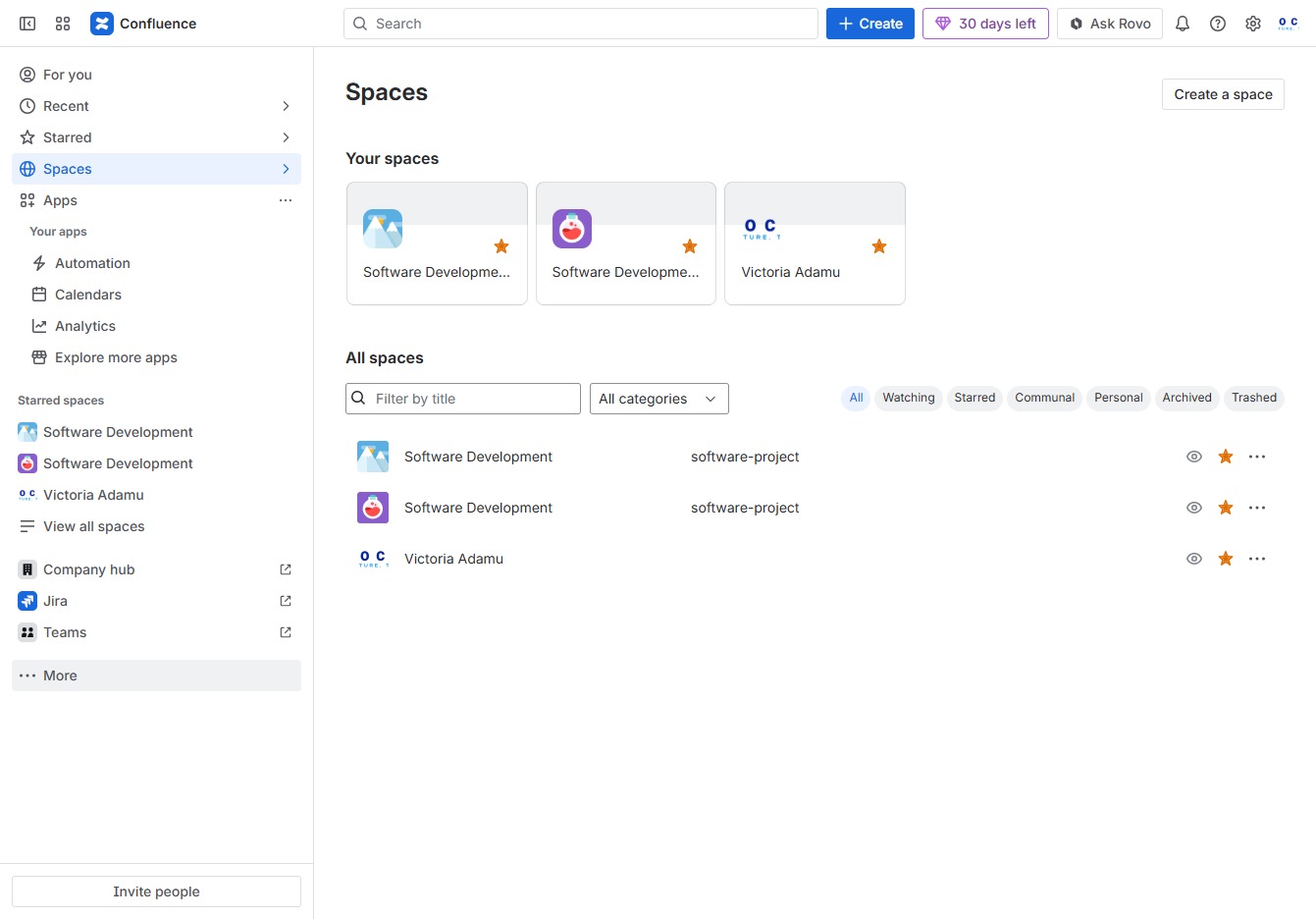
This action will take you to a list of all available spaces within Confluence, allowing you to browse and manage your team's workspaces effectively.
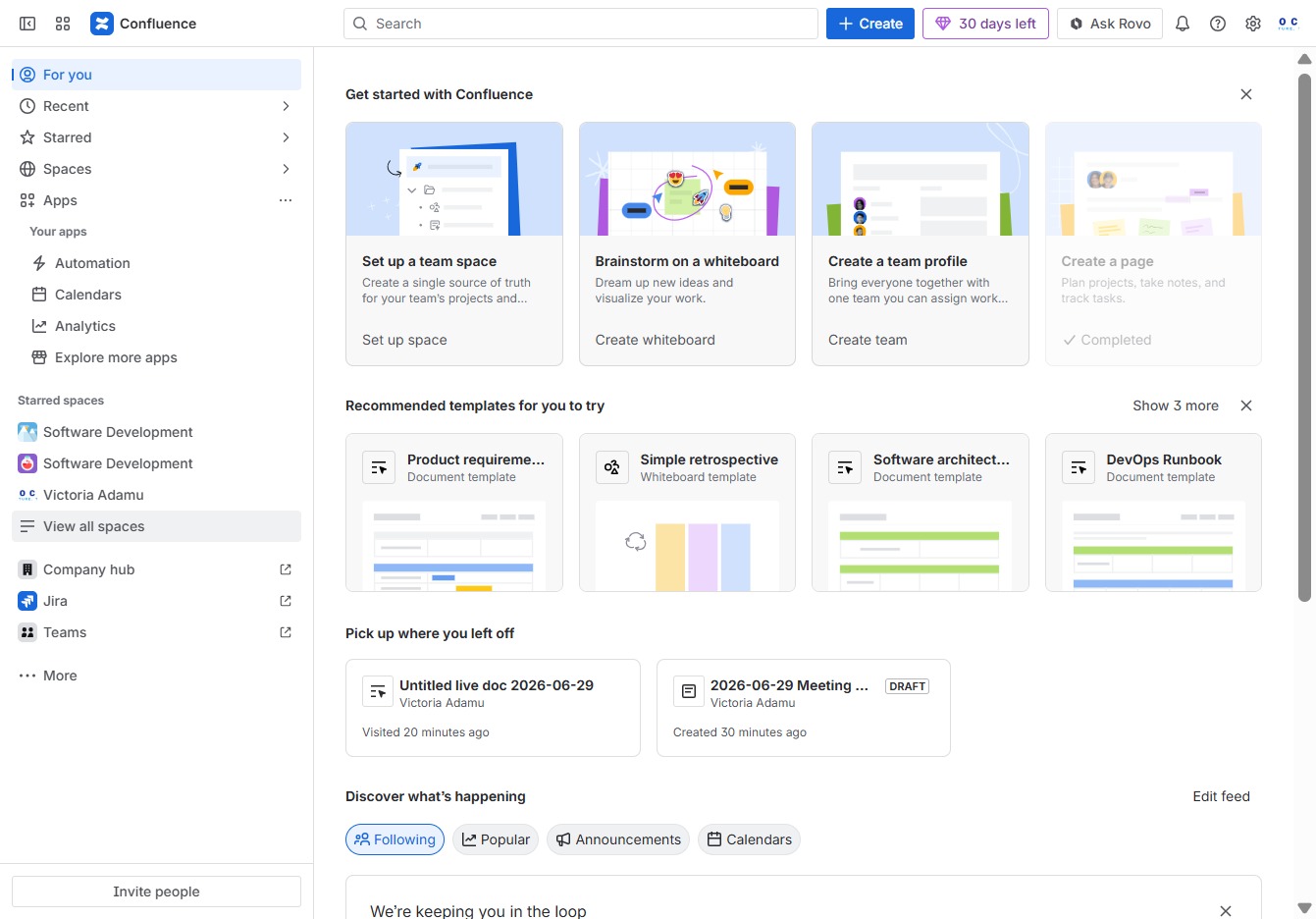
Clicking 'More' will expand additional options related to the spaces, allowing you to manage or view further details about your existing spaces.
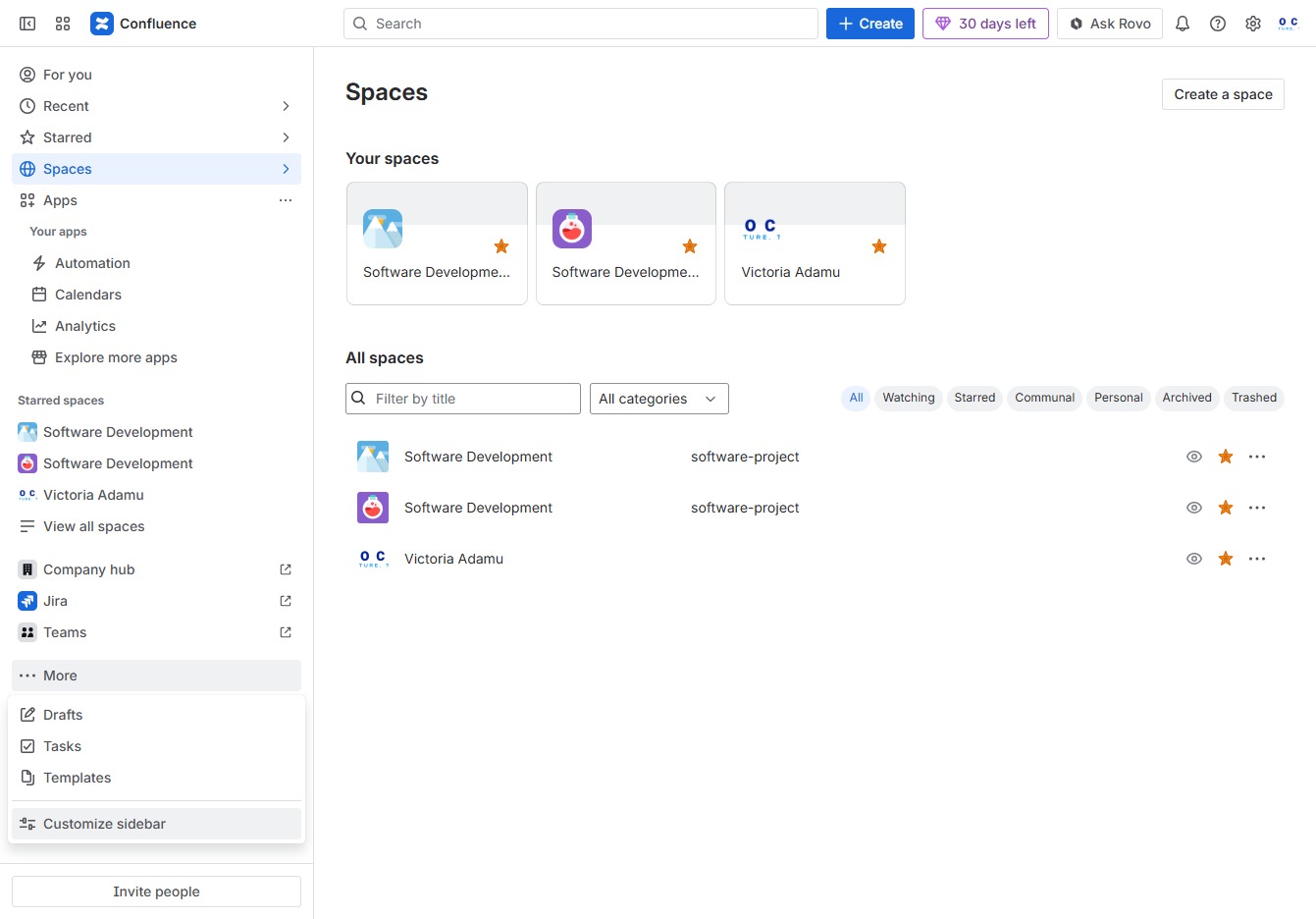
Clicking on 'Customize sidebar' allows you to adjust the visibility and order of your spaces, helping you organize your workspace more efficiently.
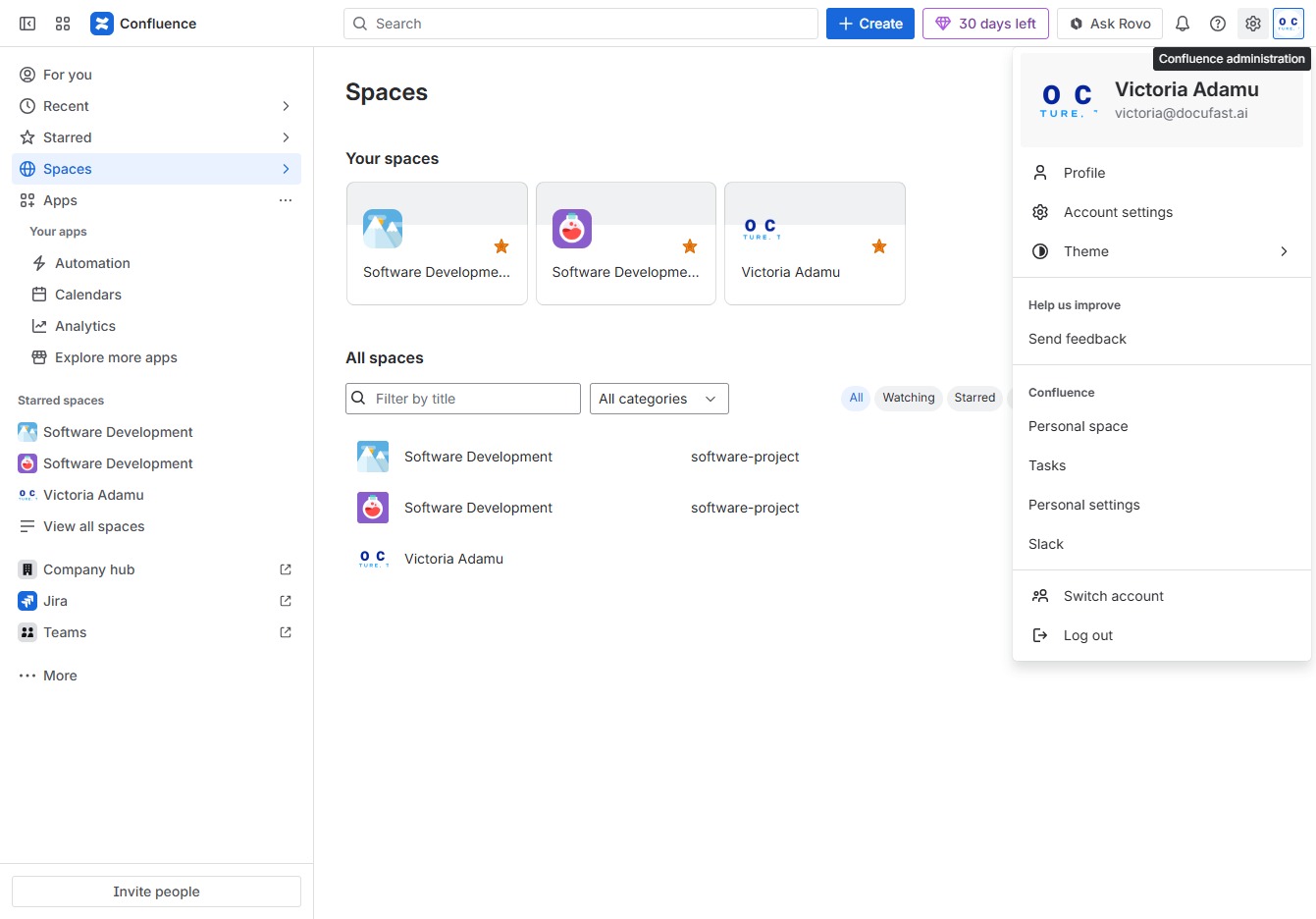
Clicking this image will direct you to the profile or settings associated with the user account 'victoria@docufast.ai', where you can manage account preferences or view user details.
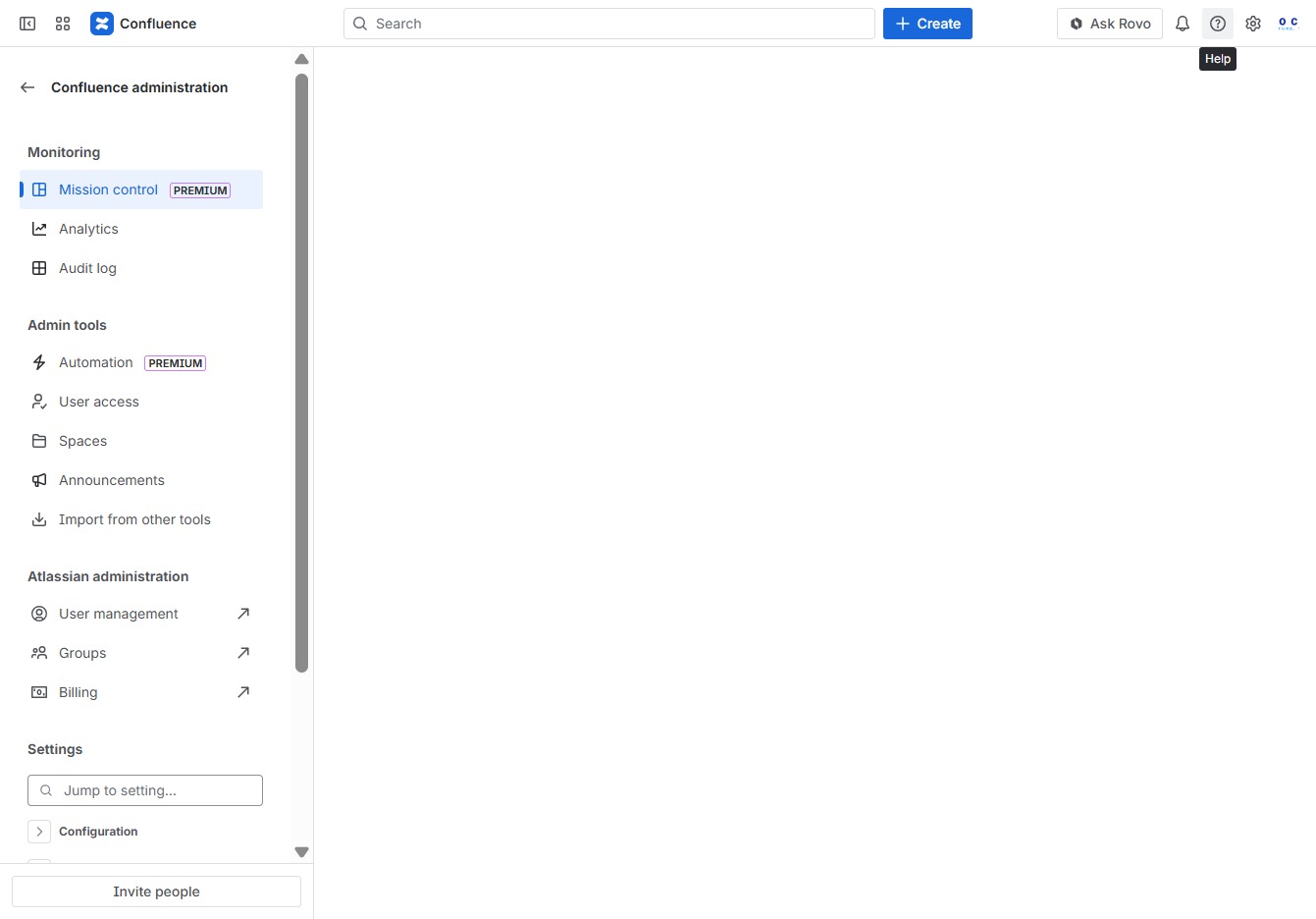
This action will take you to the Confluence administration settings where you can manage site configurations, user permissions, and other administrative tasks.
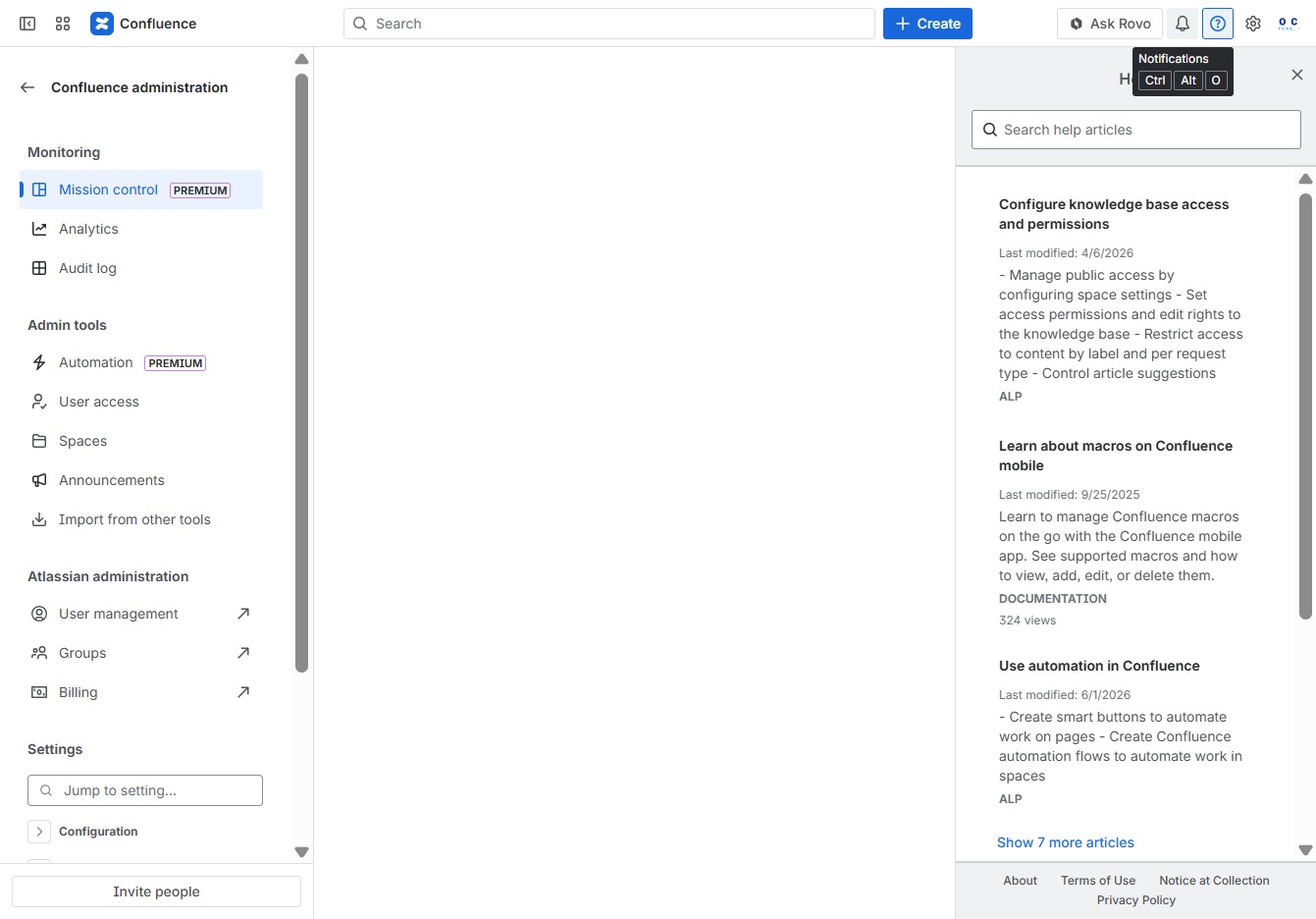
This will open the Help section where you can find resources, guides, and support for navigating Confluence and addressing any issues you may encounter.
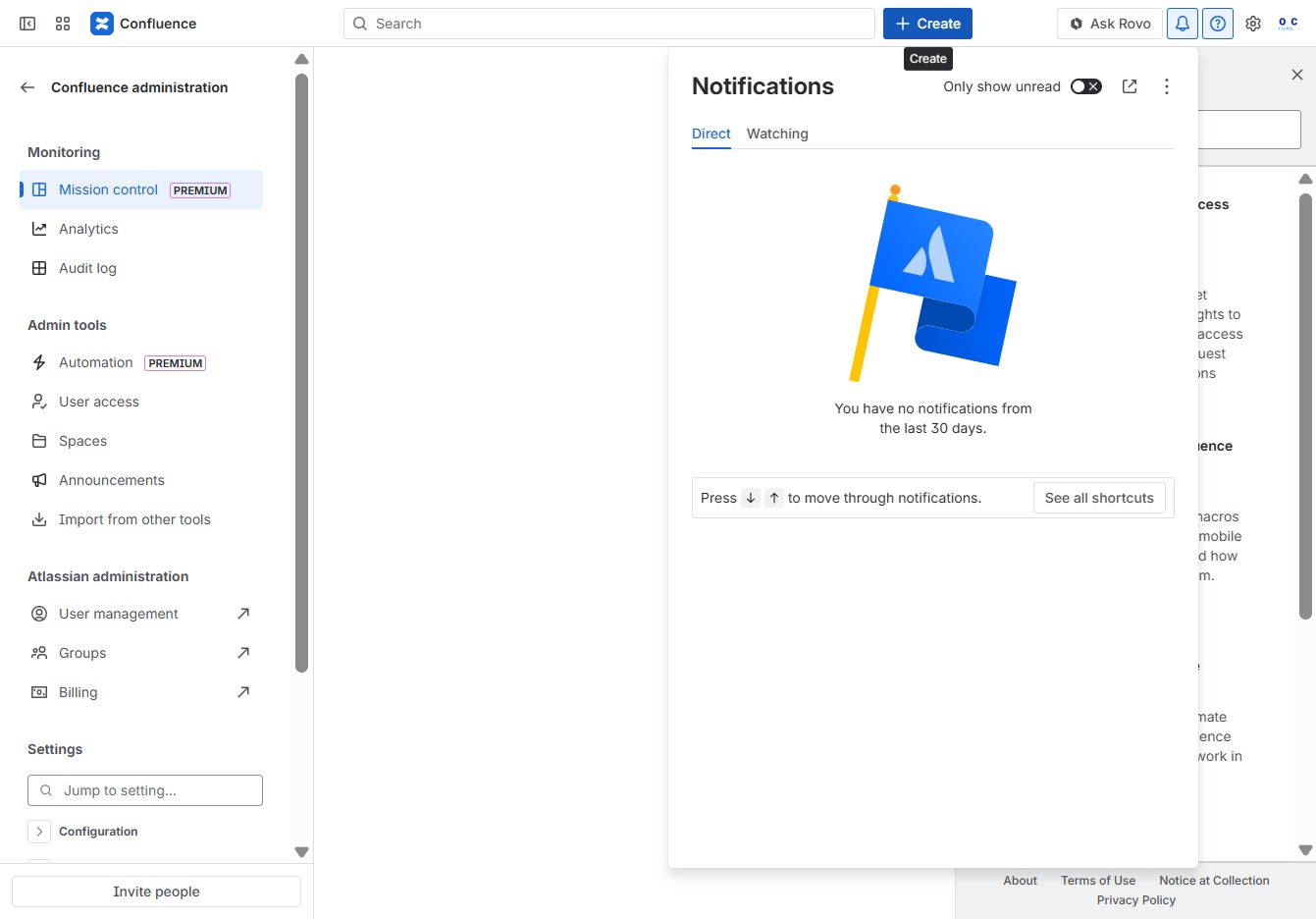
Clicking the Notifications button opens a panel displaying recent activity and updates related to your Confluence workspace, allowing you to stay informed about changes and interactions.
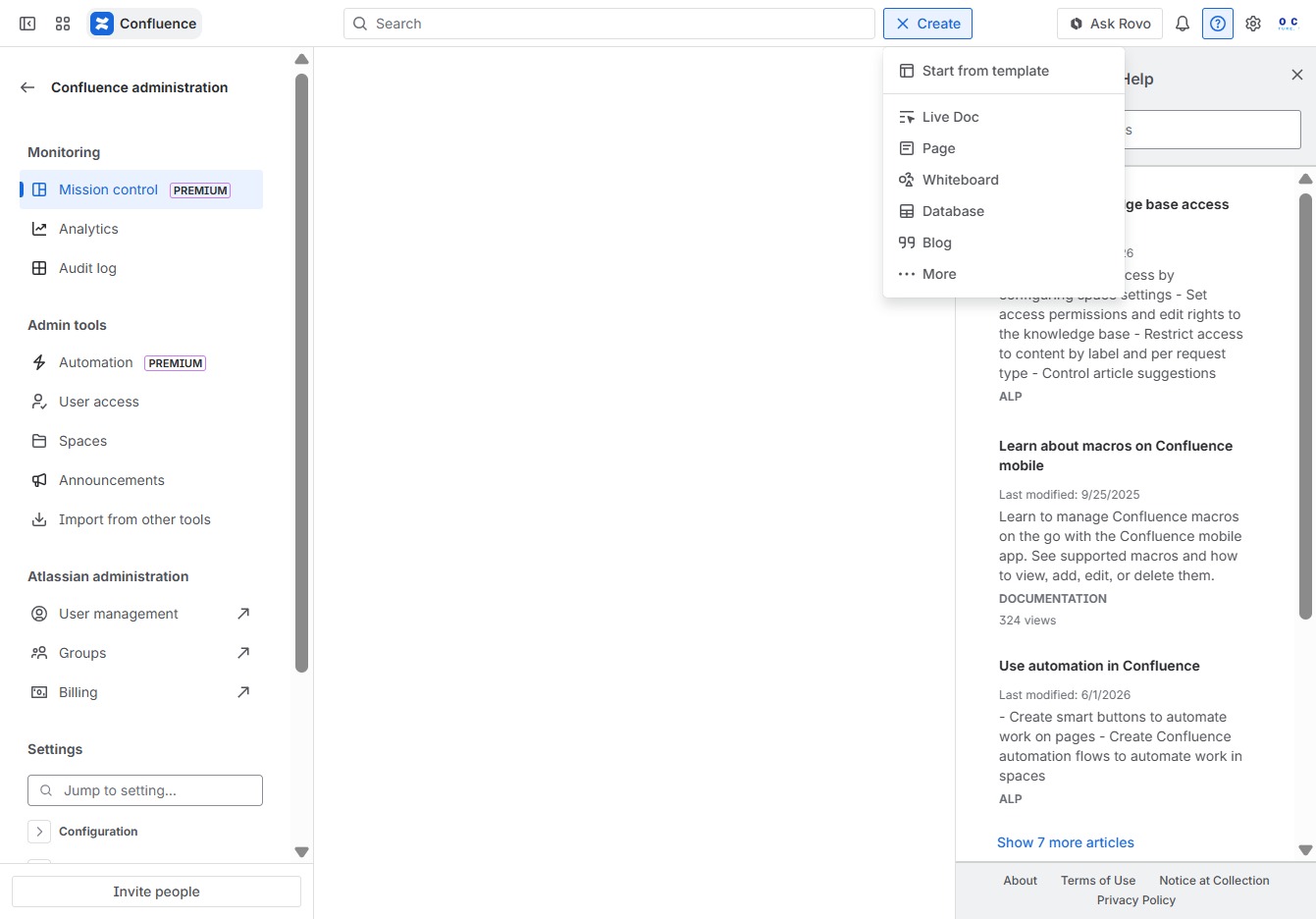
This action opens a dialog where you can begin creating new content such as pages, blog posts, or other resources in Confluence.
Clicking the 'Confluence' link opens the main Confluence workspace where you can access various features like creating pages, managing templates, and navigating through different spaces.
This action enables you to toggle between different sites or applications within Confluence, allowing for efficient navigation and management of your spaces.