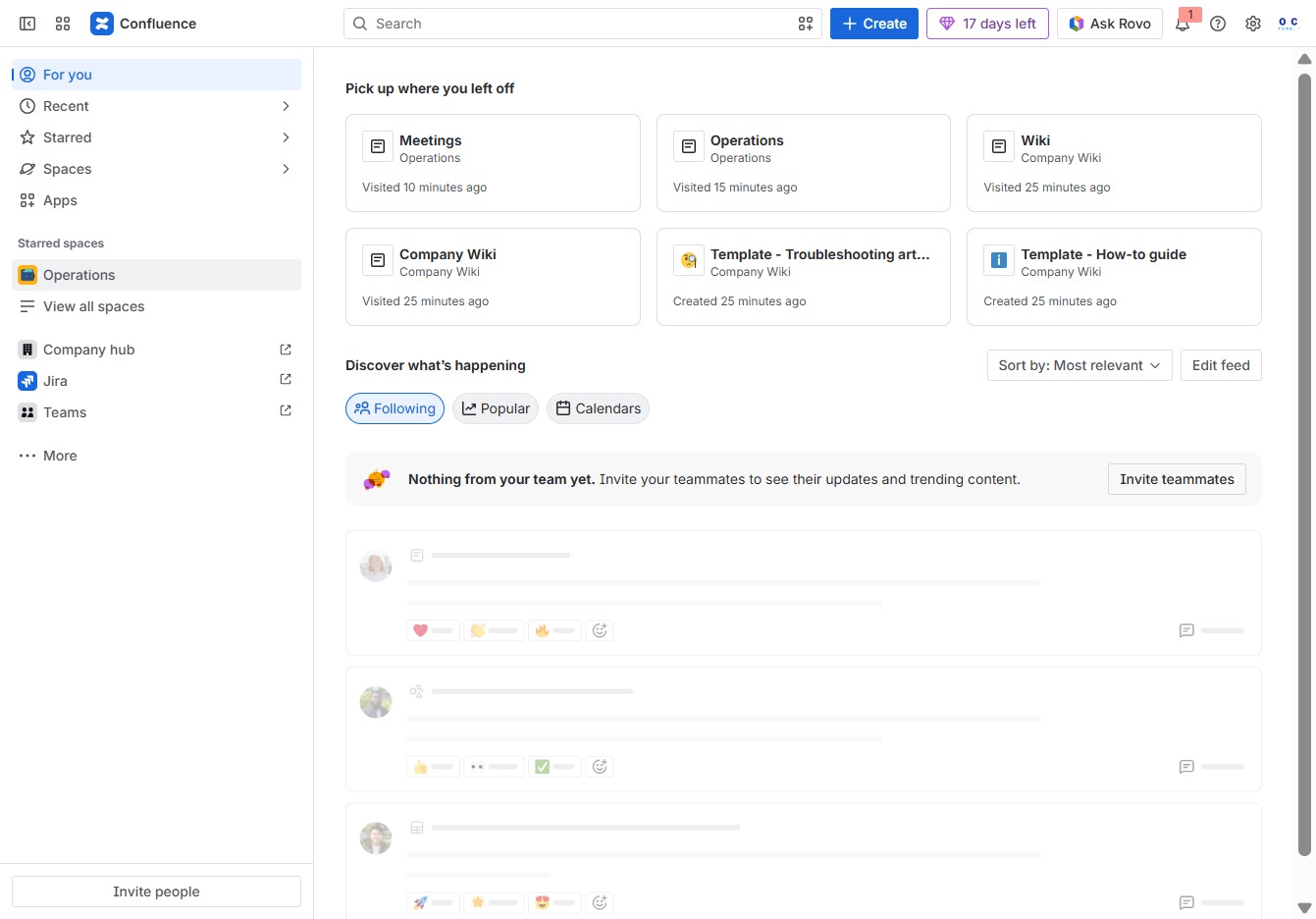
Click the Operations section
This will open the Operations area where you can manage and oversee various operational tasks and updates.
Loading screenshot…
100%
This how-to guide demonstrates the process of moving pages within a Confluence space, helping you efficiently organize your content.
 viktoria
This how-to guide demonstrates the process of moving pages within a Confluence space, helping you efficiently organize your content. Learn to navigate the Operations area, select new parent pages, and utilize the drag-and-drop feature for a streamlined relocation of your meeting-related documents and templates.
This will open the Operations area where you can manage and oversee various operational tasks and updates.
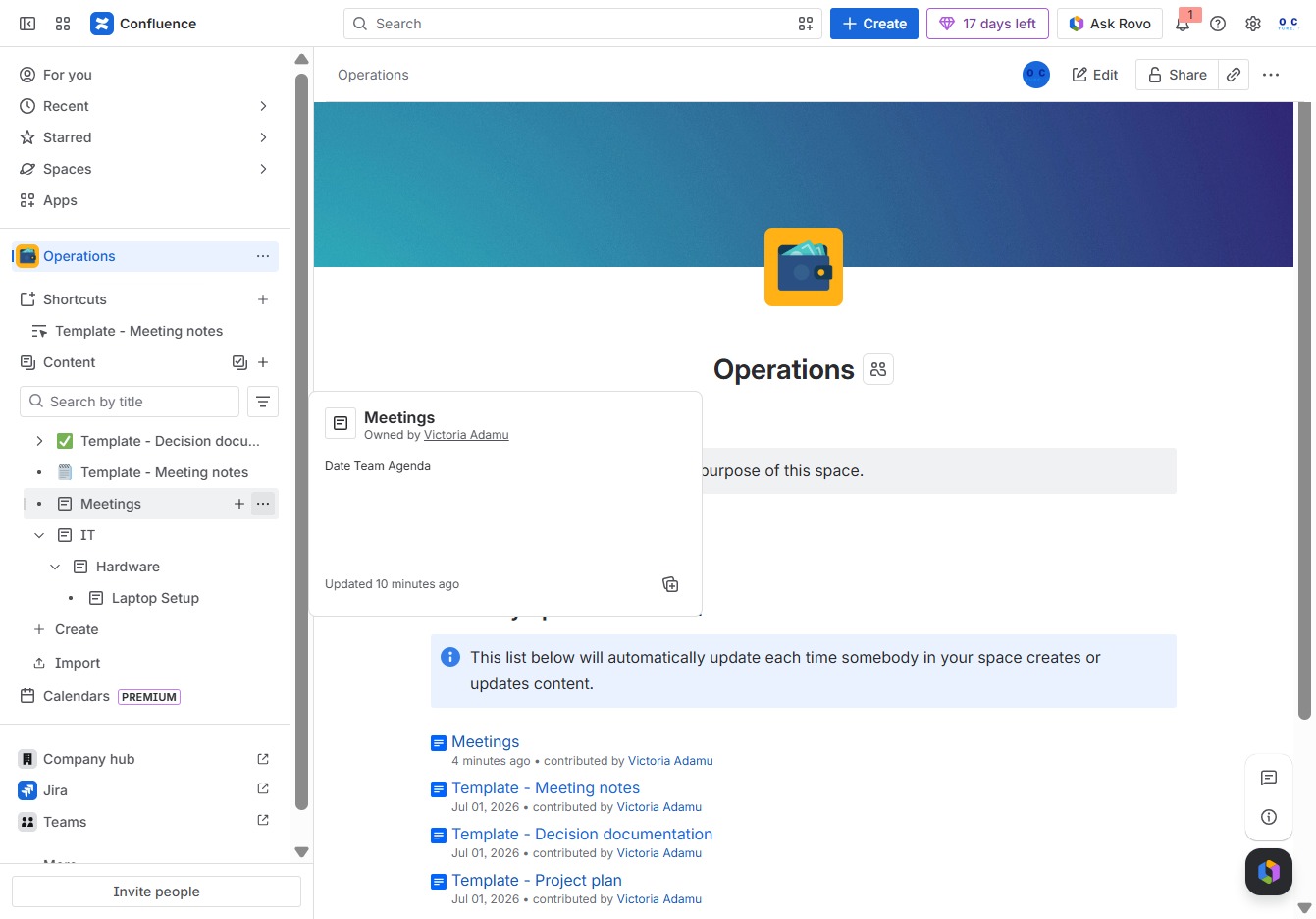
This action opens a menu with additional options related to Meetings, allowing you to manage your meeting-related content within the space.
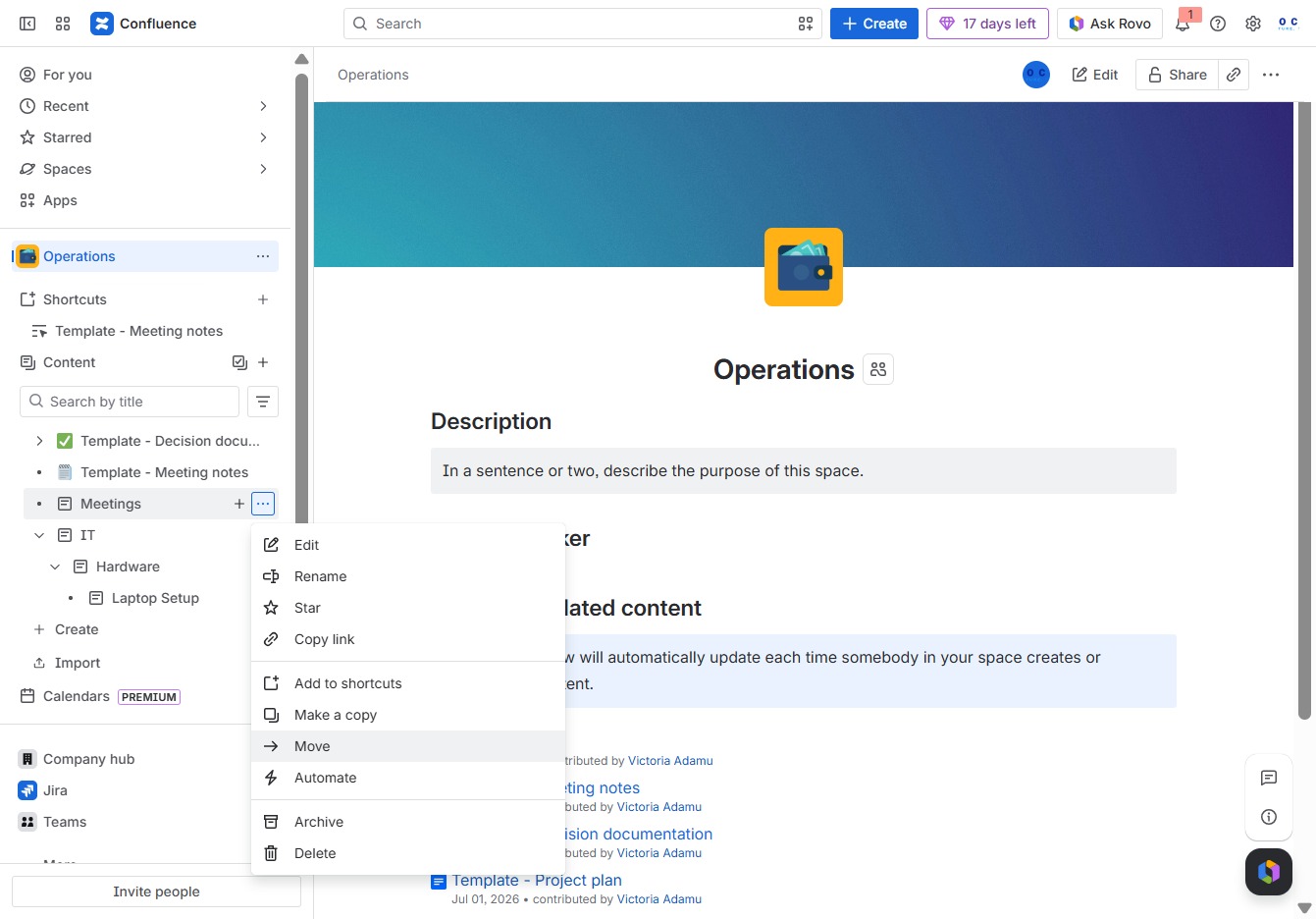
Selecting the 'Move' option allows you to change the location of the current page within the Confluence space hierarchy. You will be prompted to choose a new parent page for relocation.
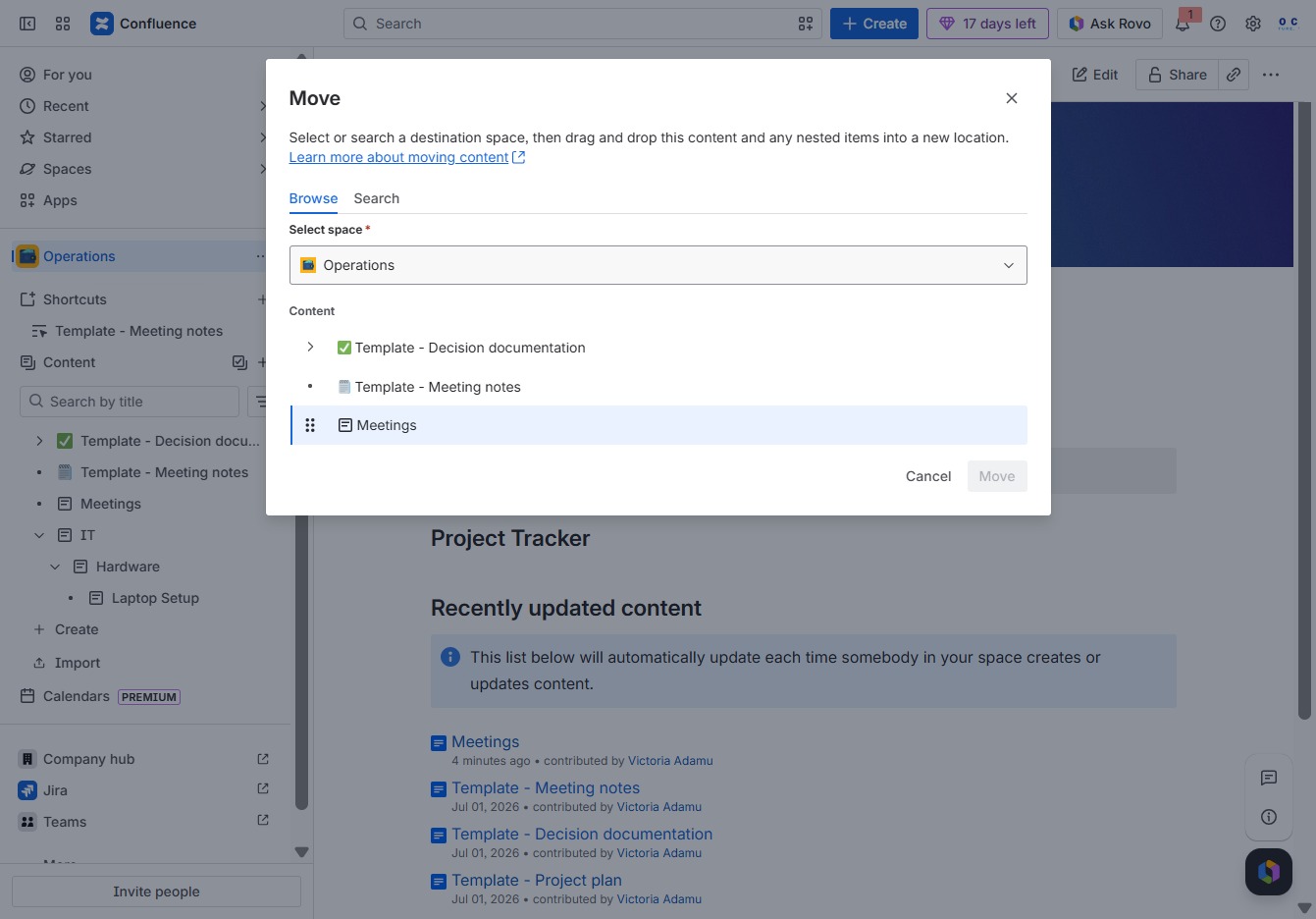
Click on the 'Operations' space to choose it as the destination for moving your selected content, including templates for Decision documentation and Meeting notes.
Selecting the 'Company Wiki' option will designate it as the new destination for your content during the move process.

This action designates the selected item to be moved under the 'Wiki' section in your content hierarchy, allowing for better organization within the Company Wiki.
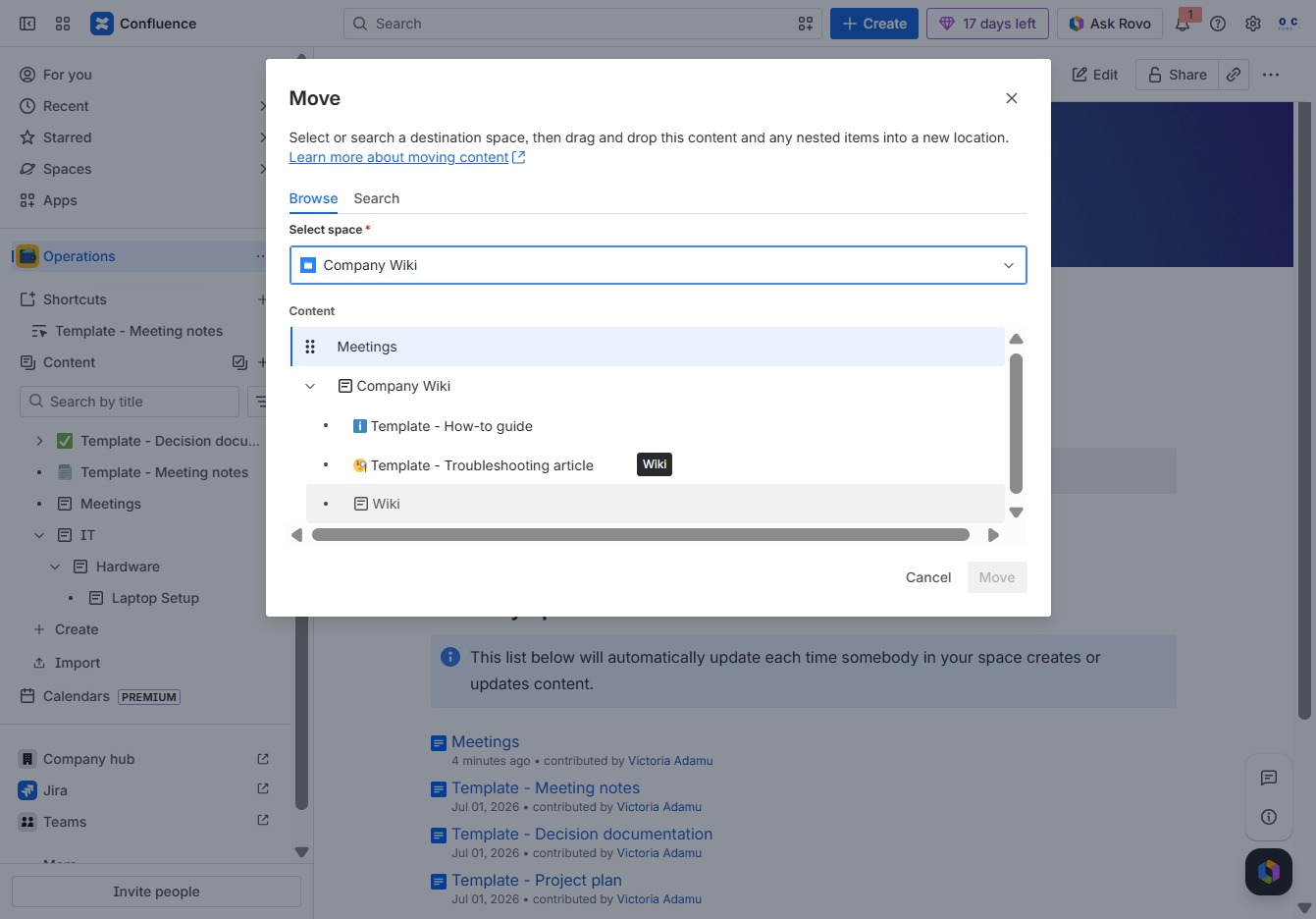
Selecting the 'Move' option opens a dialog where you can choose a destination space to relocate your content. From here, you can drag and drop items or select specific articles to move into a new location.
