Click here to add a new task
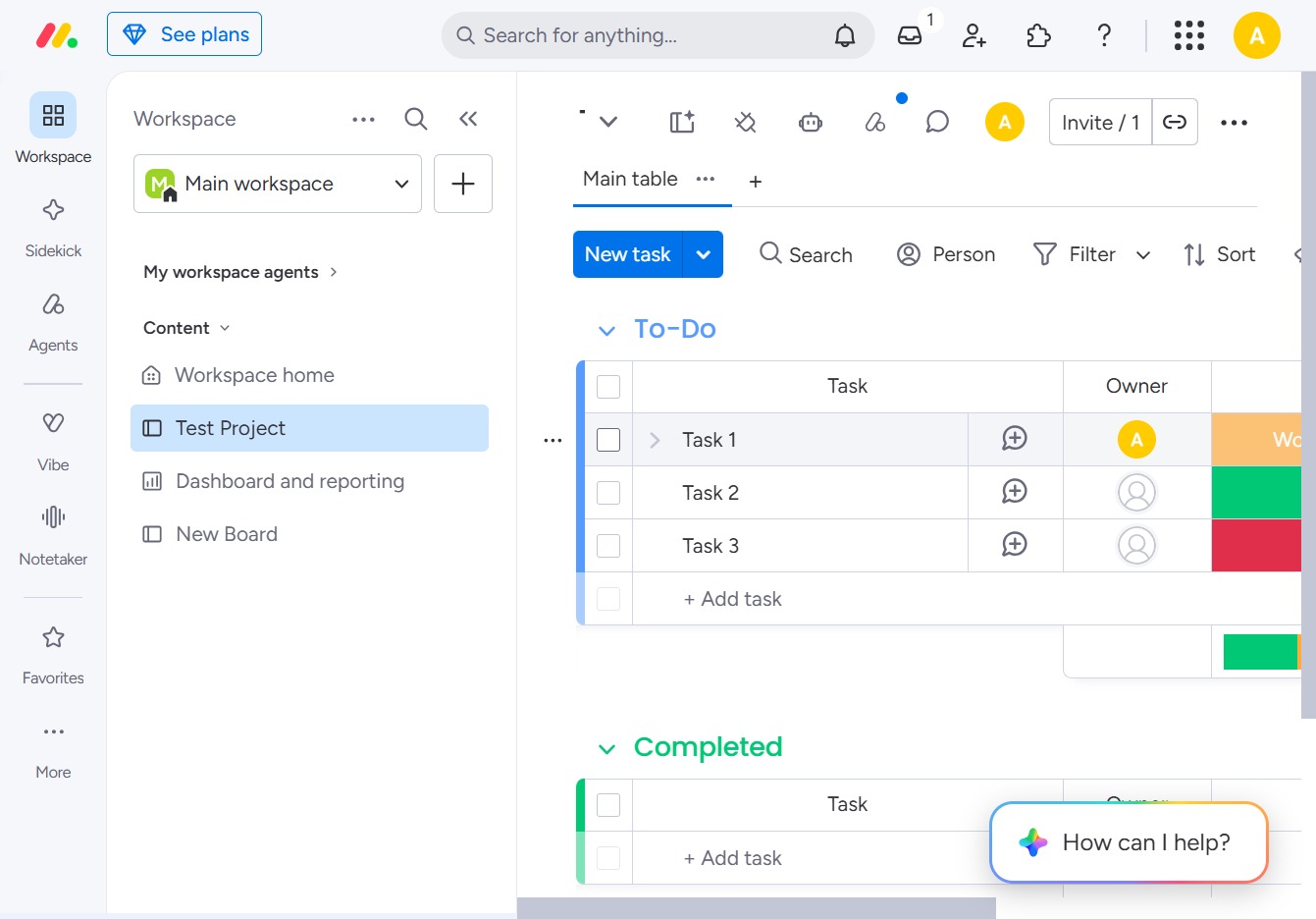
By clicking this option, you will initiate the process to create and add a new task to your 'To-Do' list within the selected project.
Loading screenshot…
100%
In this how-to guide, you will learn the step-by-step process of moving items between boards in your project management system.
 viktoria
In this how-to guide, you will learn the step-by-step process of moving items between boards in your project management system. The tutorial covers creating new boards, updating tasks, and transferring items seamlessly to enhance your workflow efficiency.
By clicking this option, you will initiate the process to create and add a new task to your 'To-Do' list within the selected project.
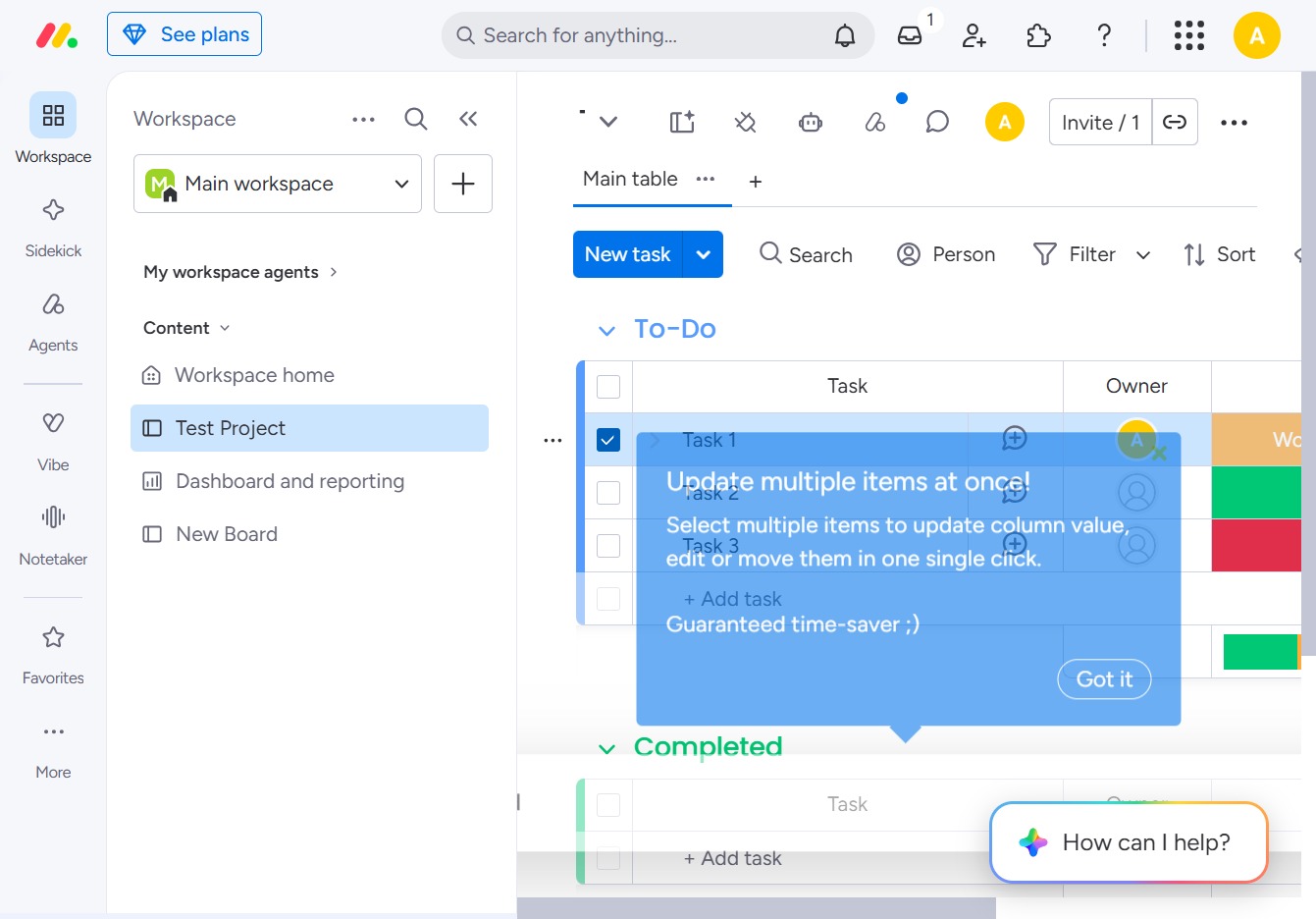
Clicking this link allows you to update multiple items at once in your project. This feature streamlines editing by enabling you to adjust column values or move items in a single action.
Click this area to access options for managing your tasks within the Test Project. This may include adding new tasks or modifying existing ones.
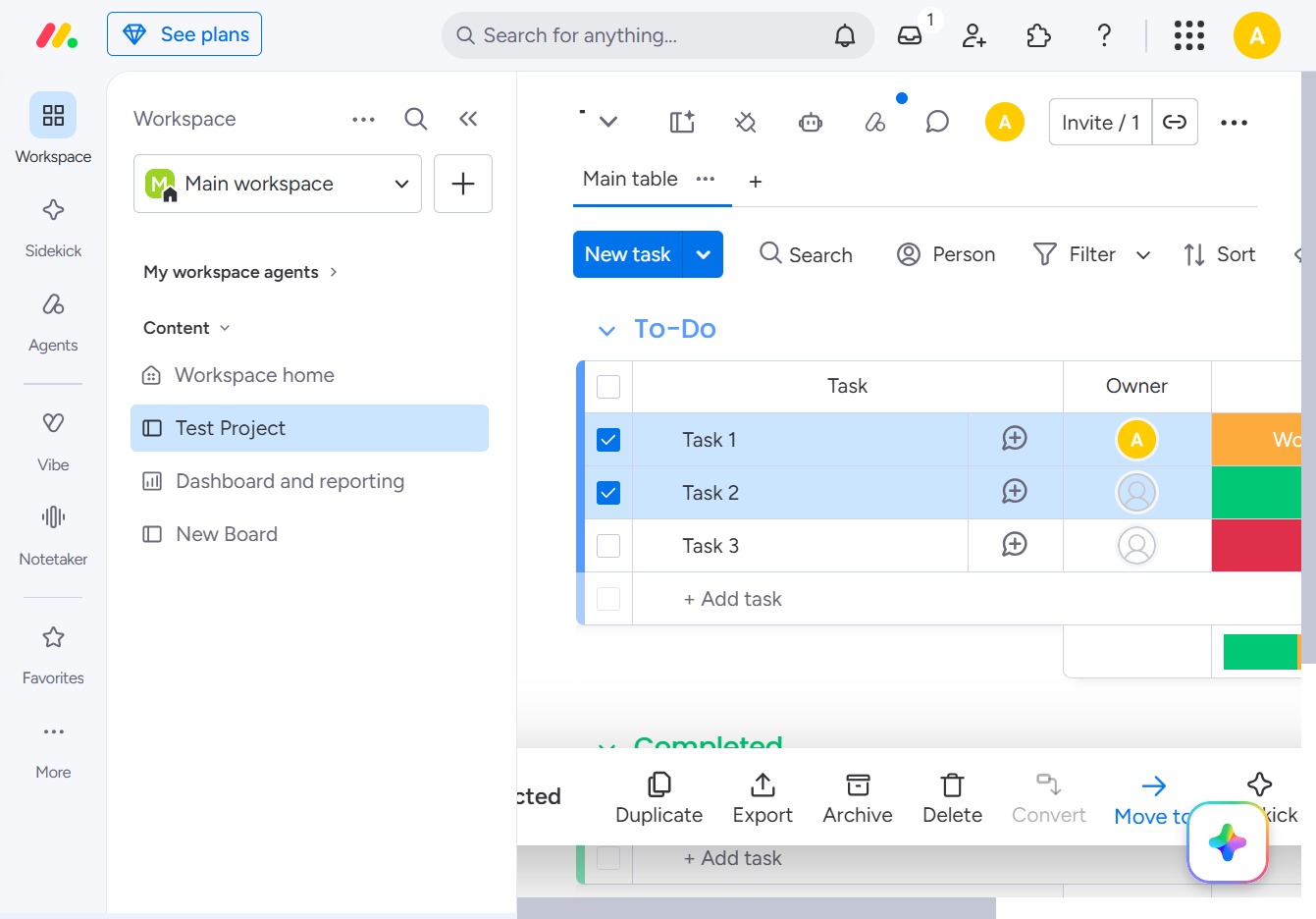
Selecting 'Move to board' allows you to transfer the selected task directly to a designated board, streamlining your project management workflow.

This will create a new board where you can organize tasks specifically for your project. Once clicked, you will be able to name and customize this board according to your needs.
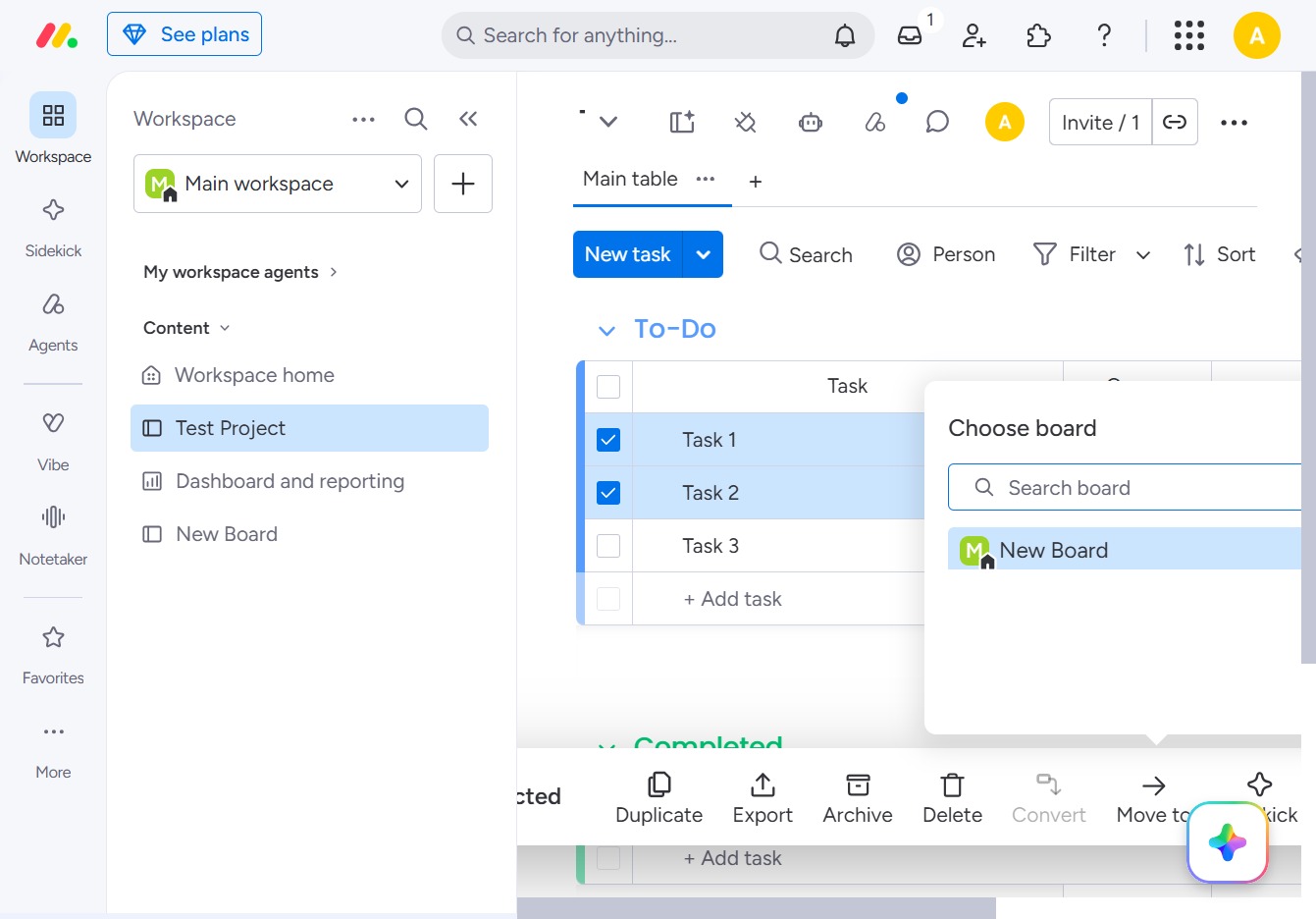
Selecting the 'Group Title' will initiate the process of creating a new board in your project, allowing you to organize tasks and manage workflows more effectively.
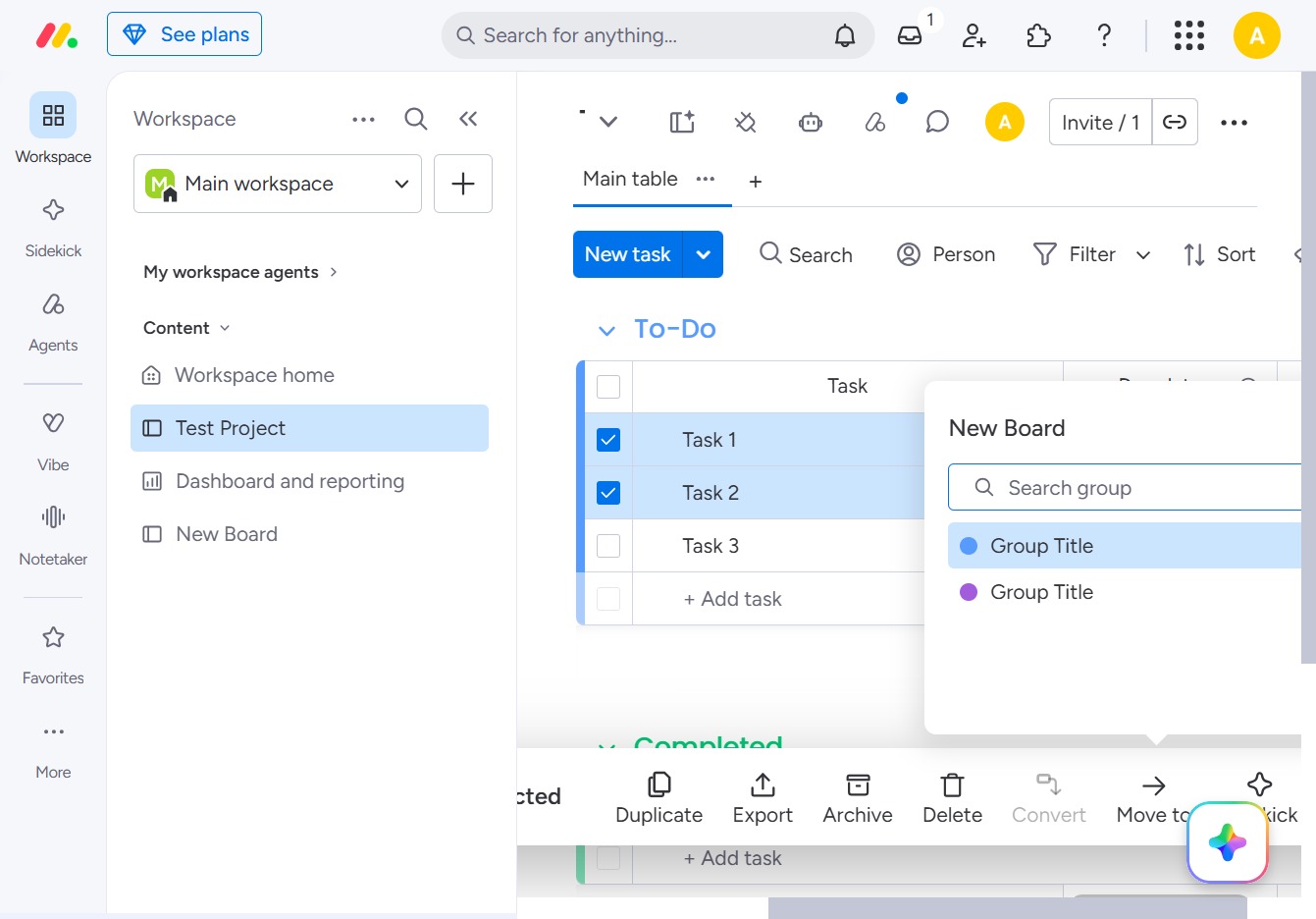
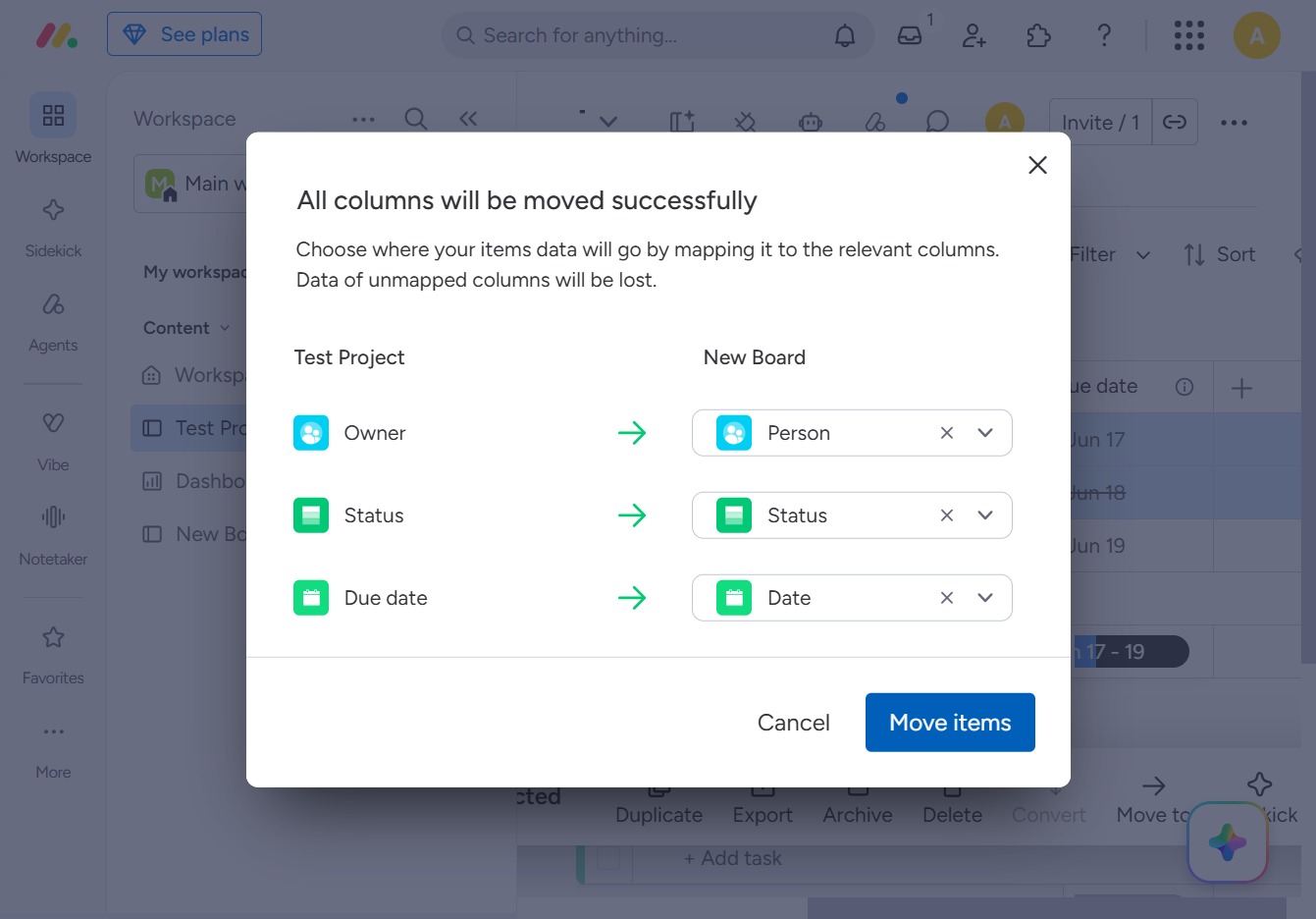
This action initiates the process of transferring items from the current board to a new board, ensuring all corresponding data columns are correctly mapped.