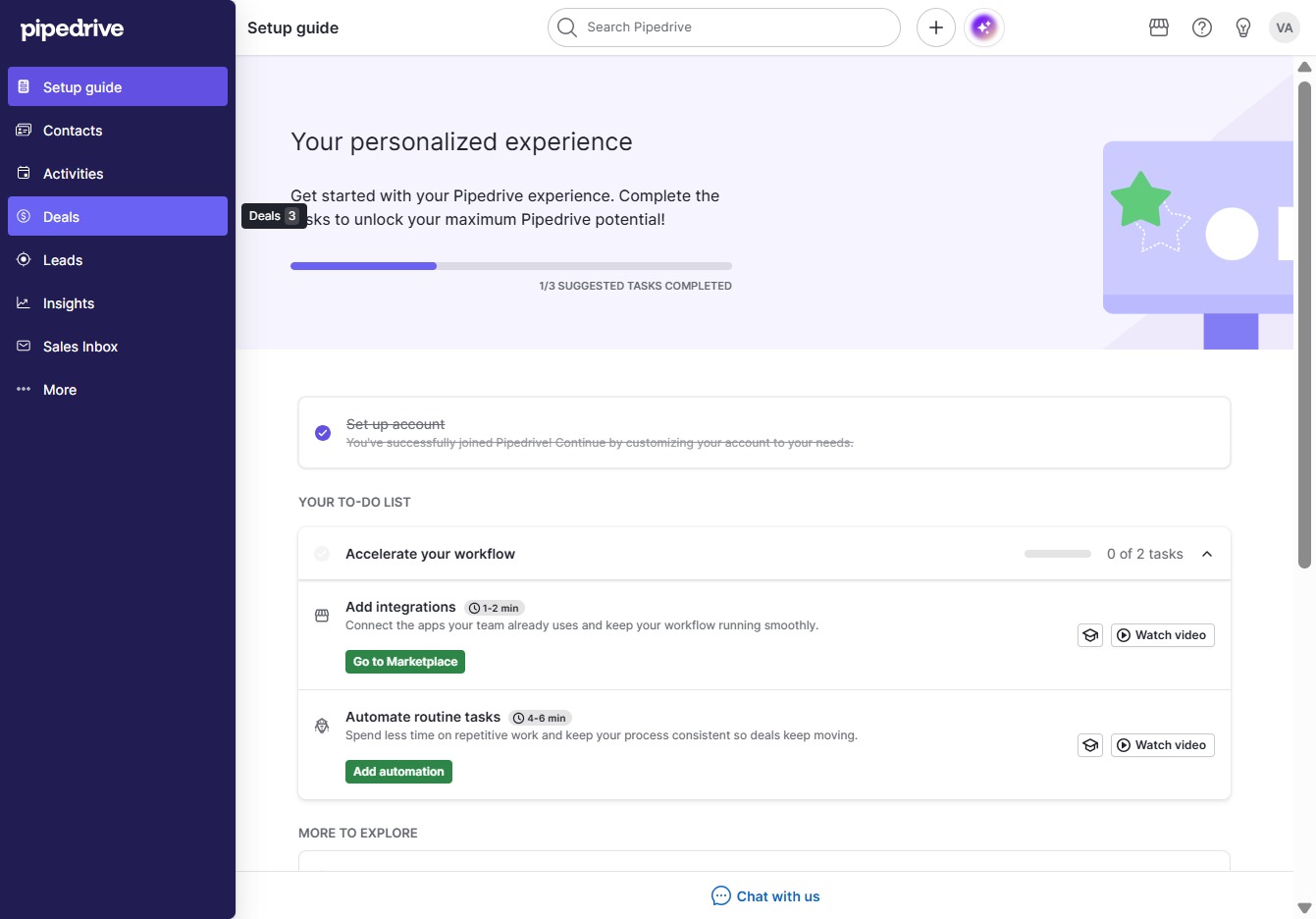
Click the Deals section
Selecting the 'Deals' section will navigate you to the area where you can manage and track your sales opportunities within Pipedrive.
Loading screenshot…
100%
In this how-to guide, you'll learn how to effectively move deals through different stages in your sales pipeline using Pipedrive.
 viktoria
In this how-to guide, you'll learn how to effectively move deals through different stages in your sales pipeline using Pipedrive. Follow the outlined steps to navigate the setup, manage deal details, and update statuses to ensure your sales opportunities are on track.
Selecting the 'Deals' section will navigate you to the area where you can manage and track your sales opportunities within Pipedrive.
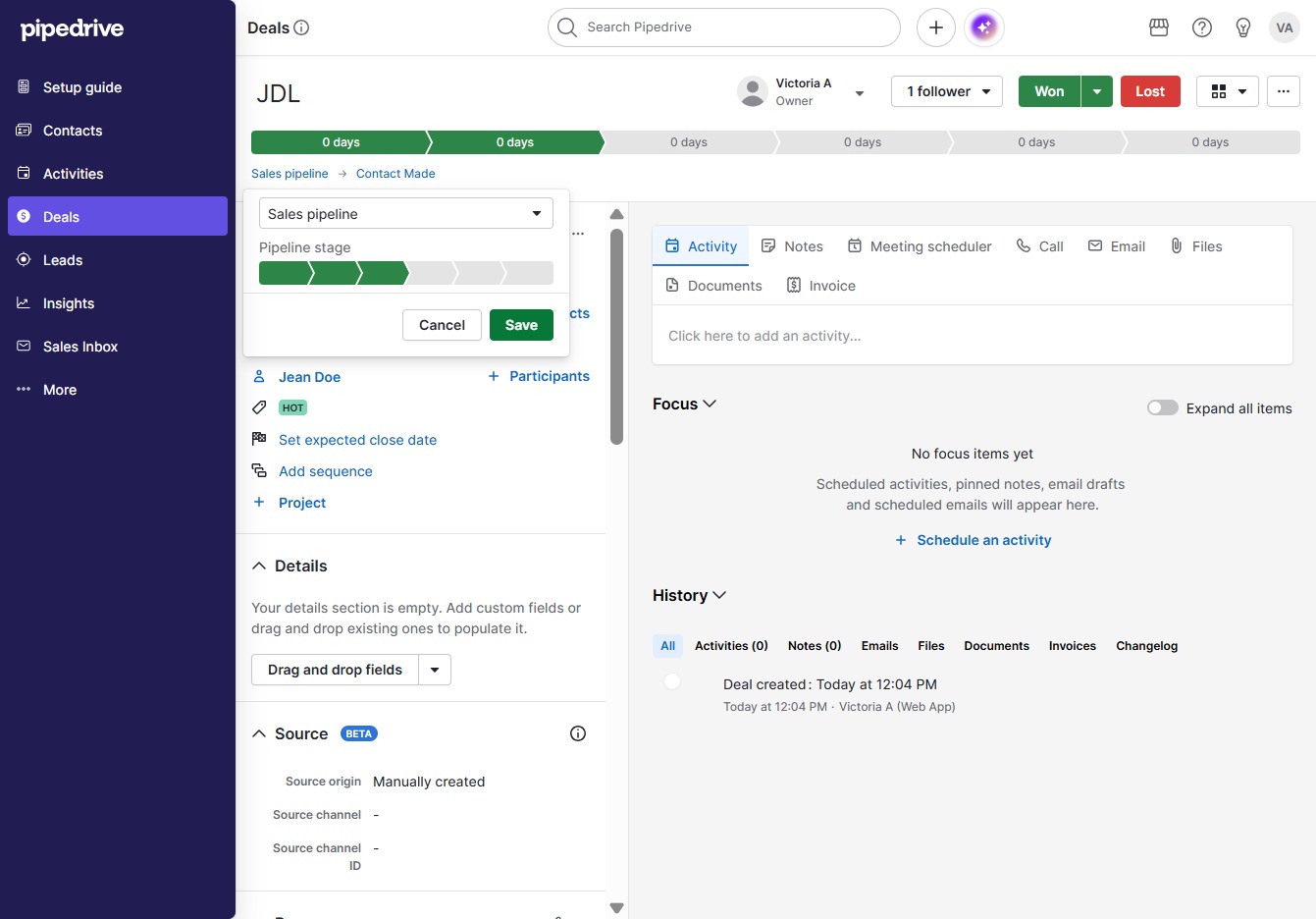
This action opens the details for the selected deal associated with Jean Doe in the 'Contact Made' stage of your sales pipeline.

This action will take you to the details of the 'Contact Made' stage within your sales pipeline, allowing you to view and manage related activities and interactions associated with this deal.

This action marks the deal as 'Qualified', indicating that it has met the necessary criteria in your sales pipeline. Once clicked, the status of the deal will update accordingly.

This action saves the current details of the deal, including any updates made to the fields or settings in the Sales pipeline section.