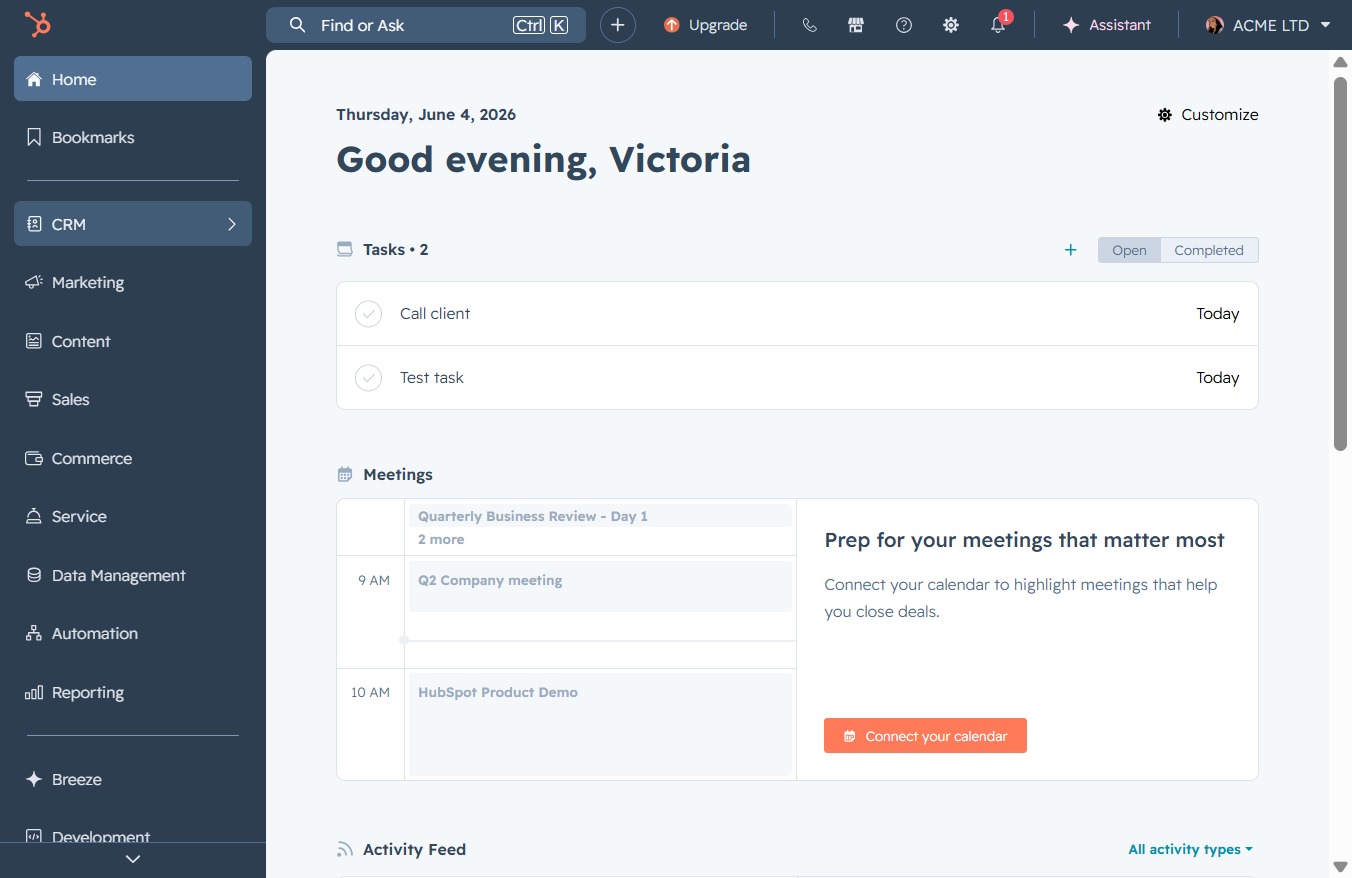
Click the CRM icon
This action opens the Customer Relationship Management (CRM) interface, allowing you to manage contacts, tasks, and interactions related to your clients.
Loading screenshot…
100%
Combine duplicate company records in your CRM by selecting the relevant entries, choosing the appropriate record to merge, and consolidating data for better management.
 viktoria
Combine duplicate company records in your CRM by selecting the relevant entries, choosing the appropriate record to merge, and consolidating data for better management.
This action opens the Customer Relationship Management (CRM) interface, allowing you to manage contacts, tasks, and interactions related to your clients.
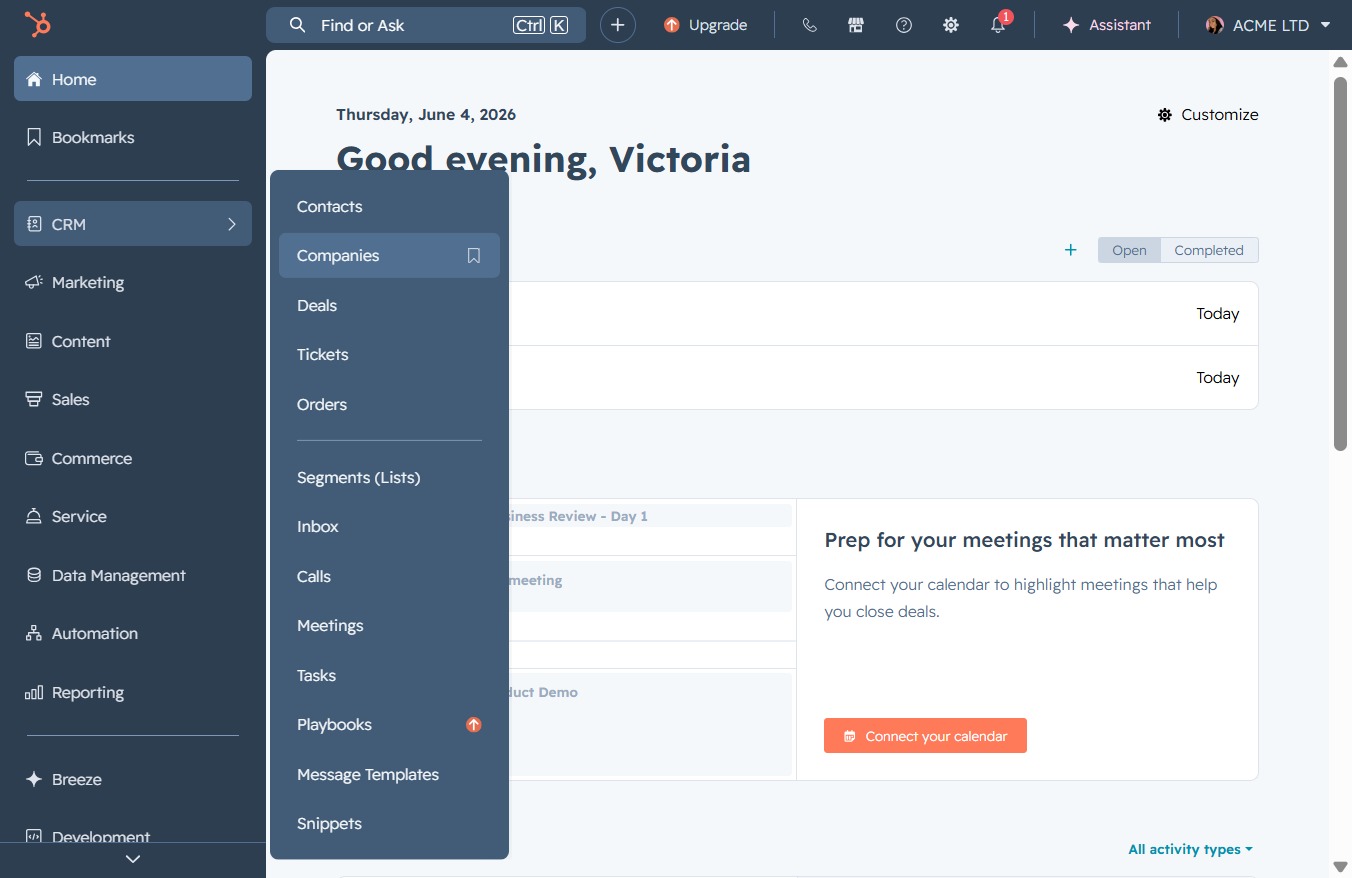
This will open the Companies section, allowing you to view and manage your company contacts within the CRM.
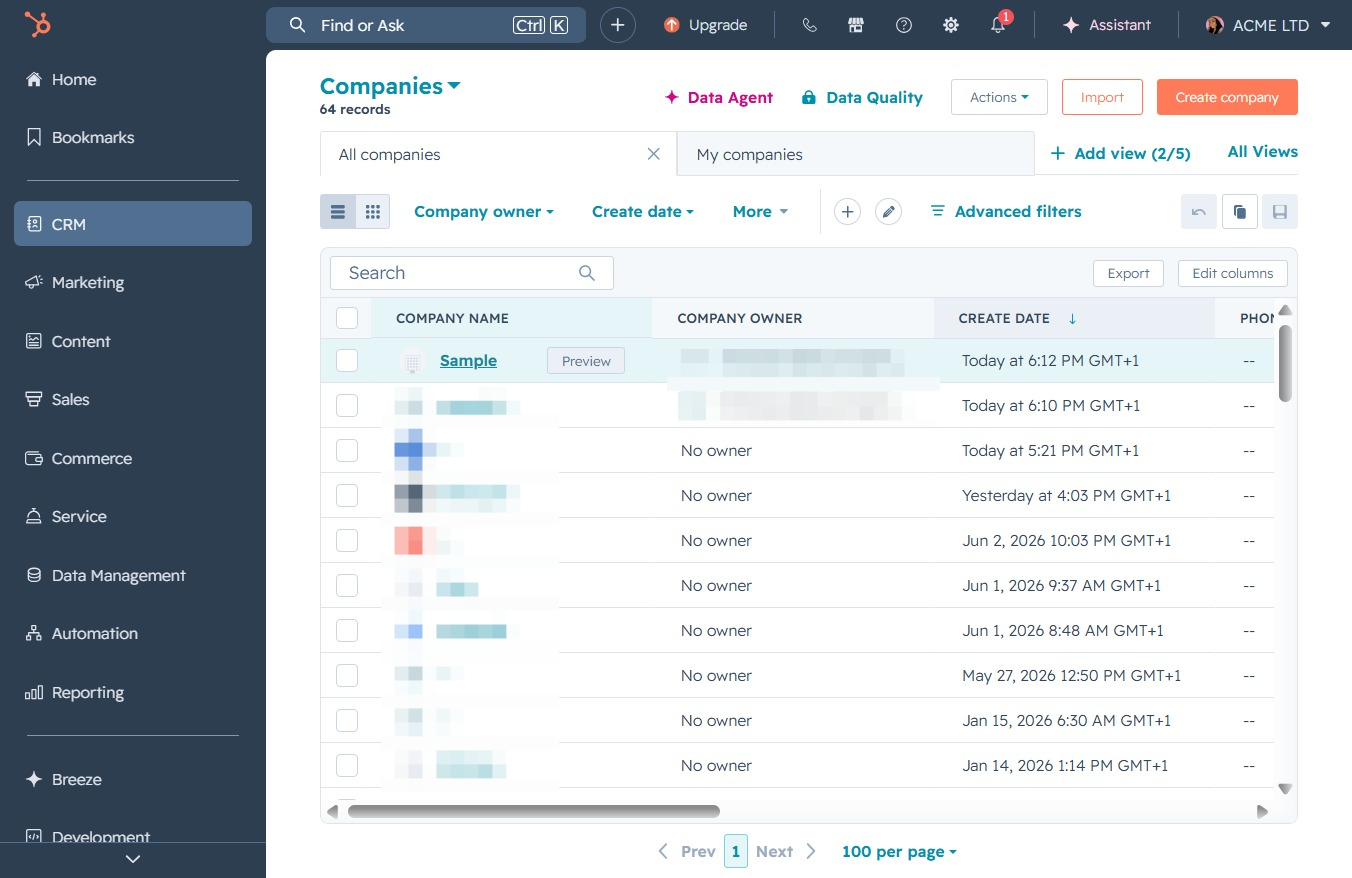
Clicking the 'Sample' entry in the Companies list allows you to view and edit detailed information about this company. This includes modifying attributes such as the company owner and additional contact details.
Selecting the 'Actions' menu allows you to access various options related to managing the company profile, such as editing details or initiating workflows.
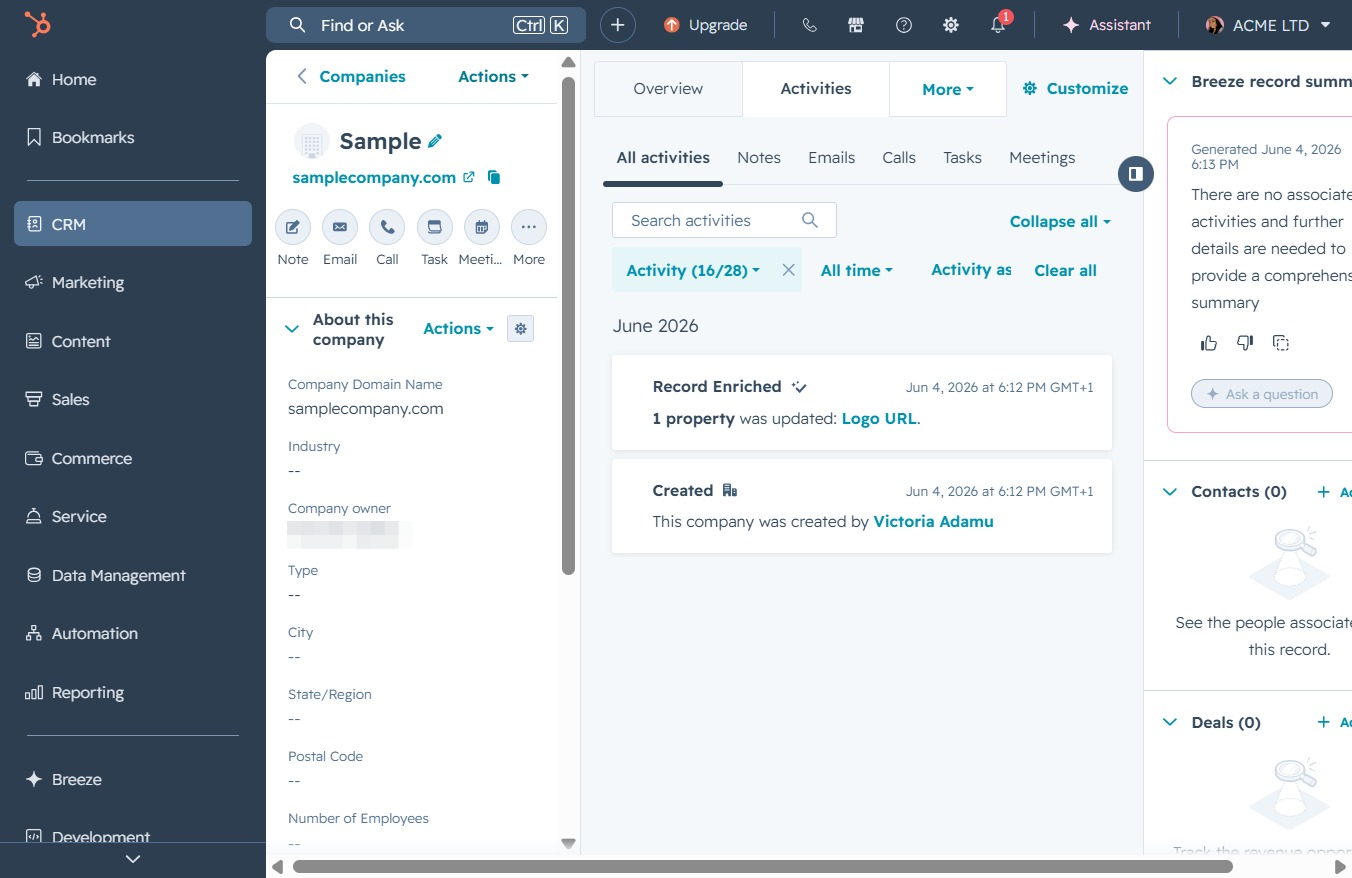
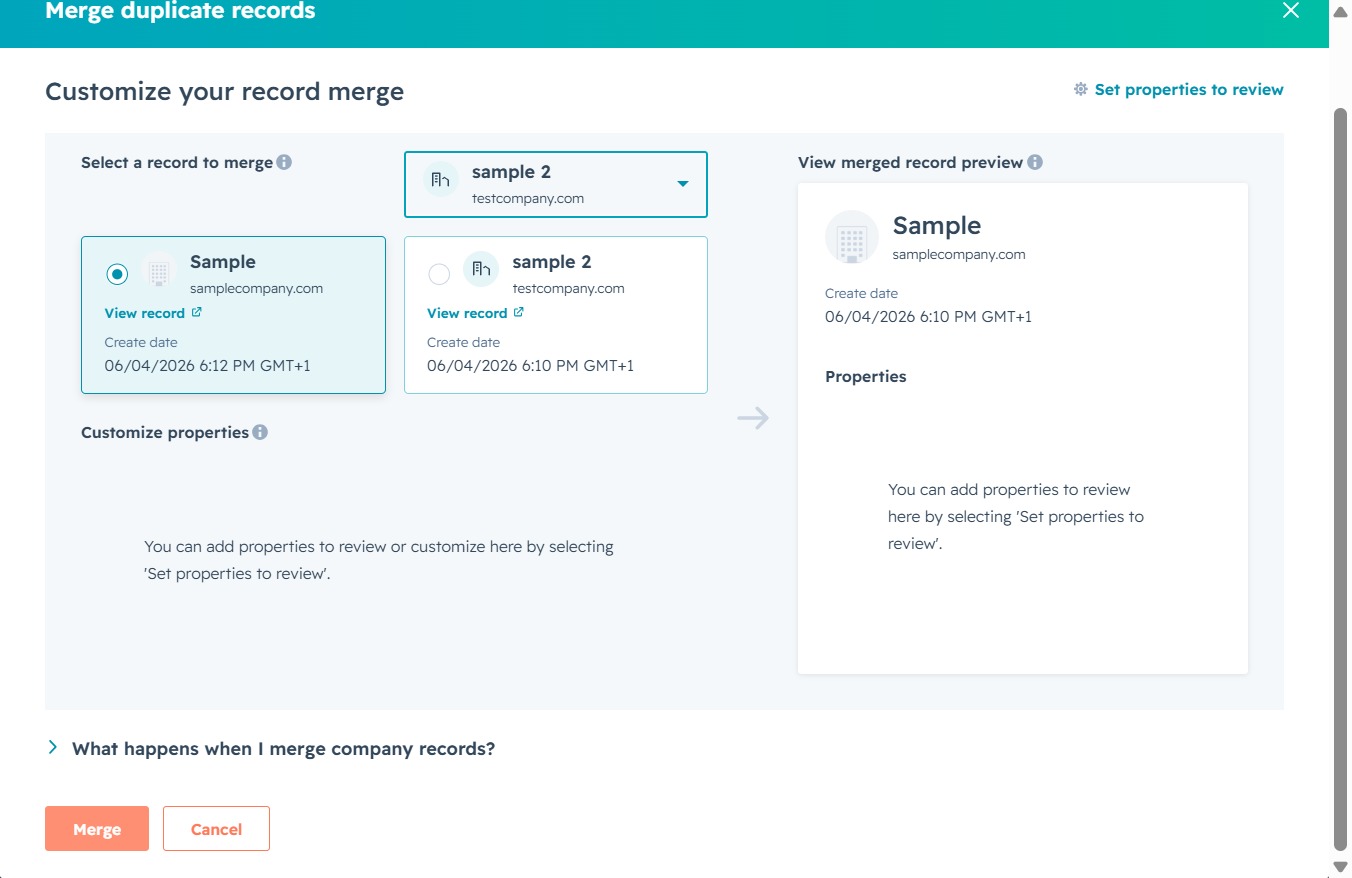
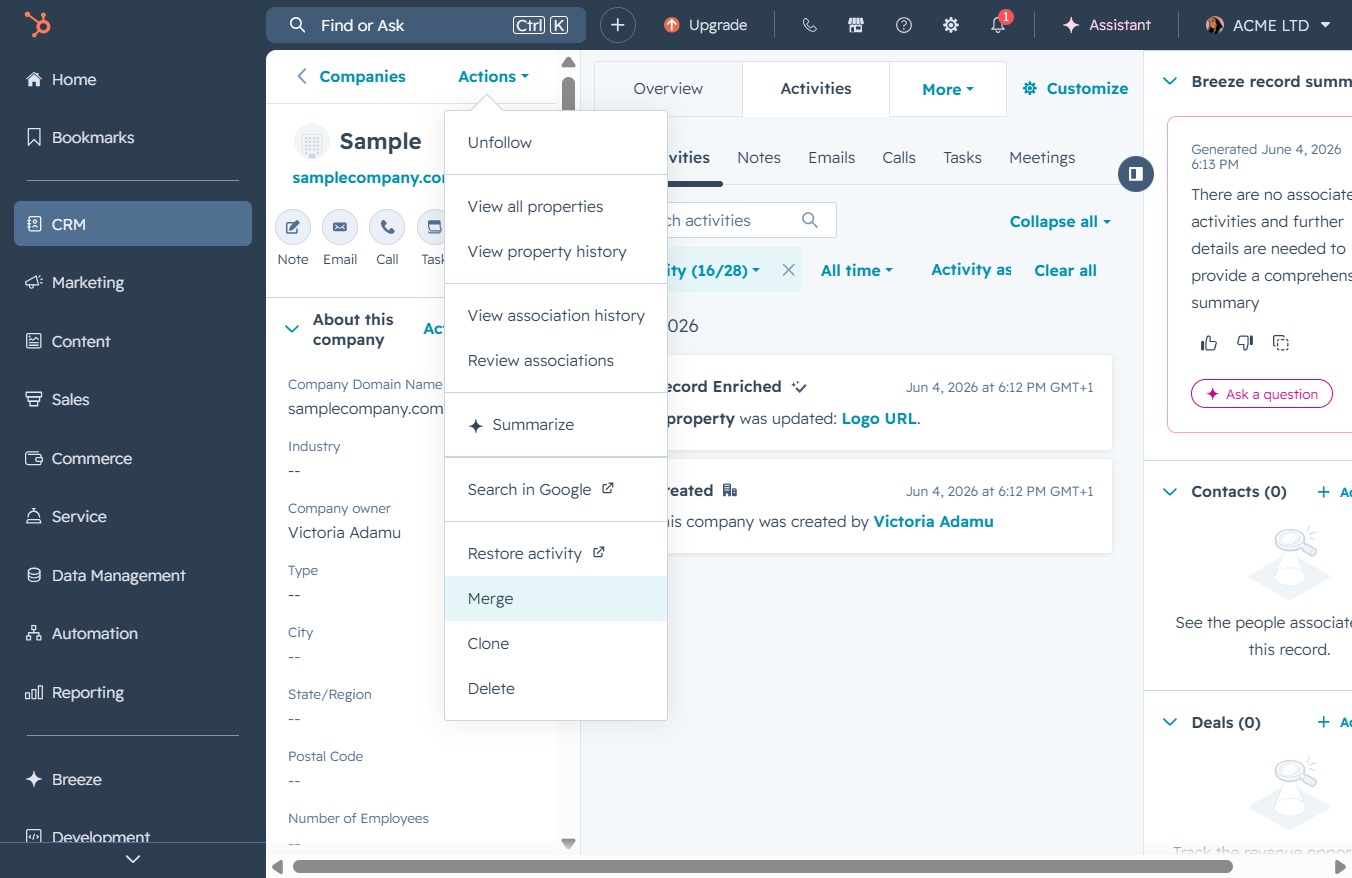
This action combines selected records into a single entry, streamlining your data management and reducing duplicates within the CRM system.
Clicking this dropdown allows you to choose a specific record to merge with the selected record, helping you manage duplicate entries effectively.
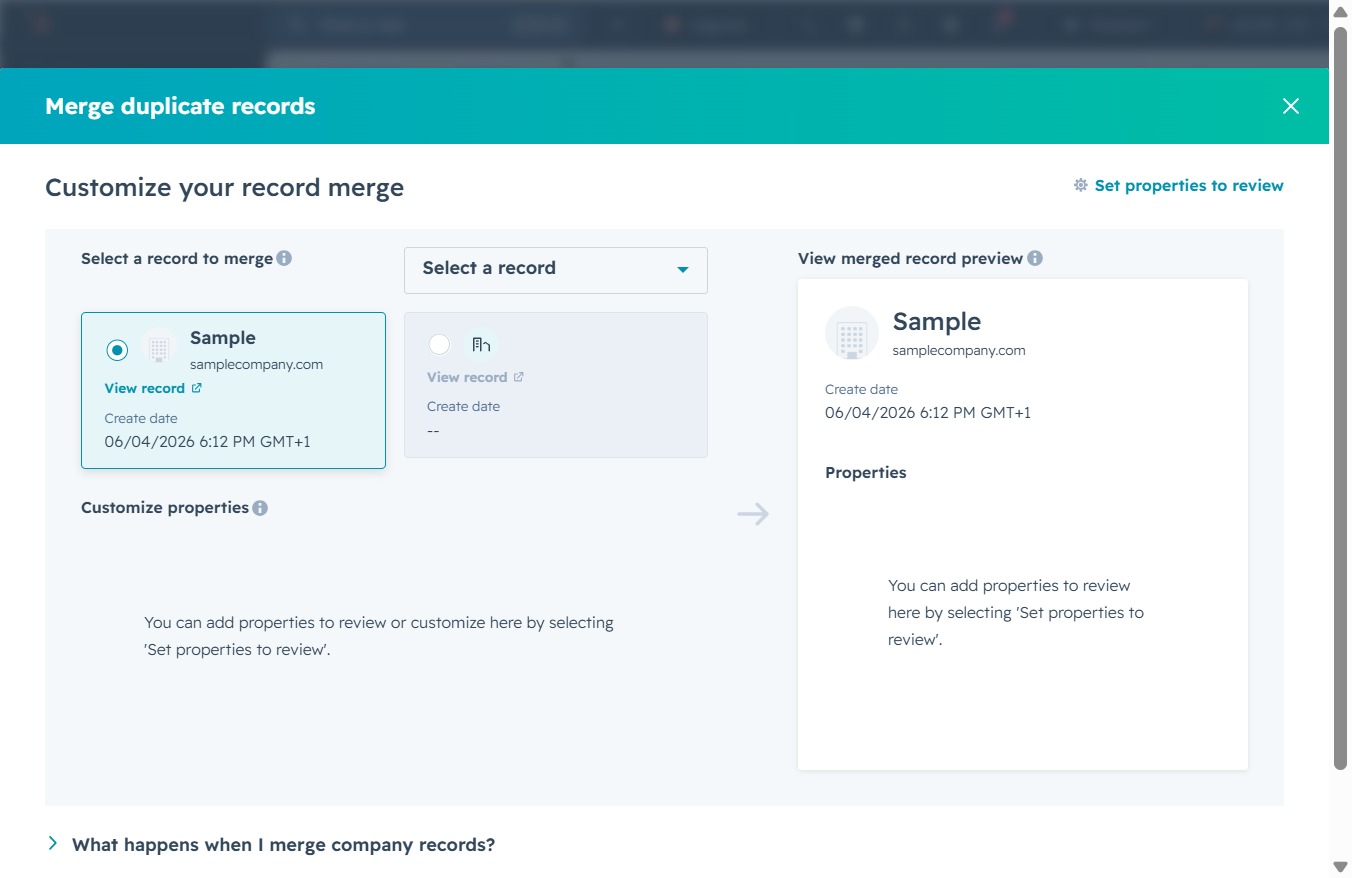
After clicking, you can choose a record to merge with the selected entry. This will help you customize your record merge by selecting the appropriate duplicate.
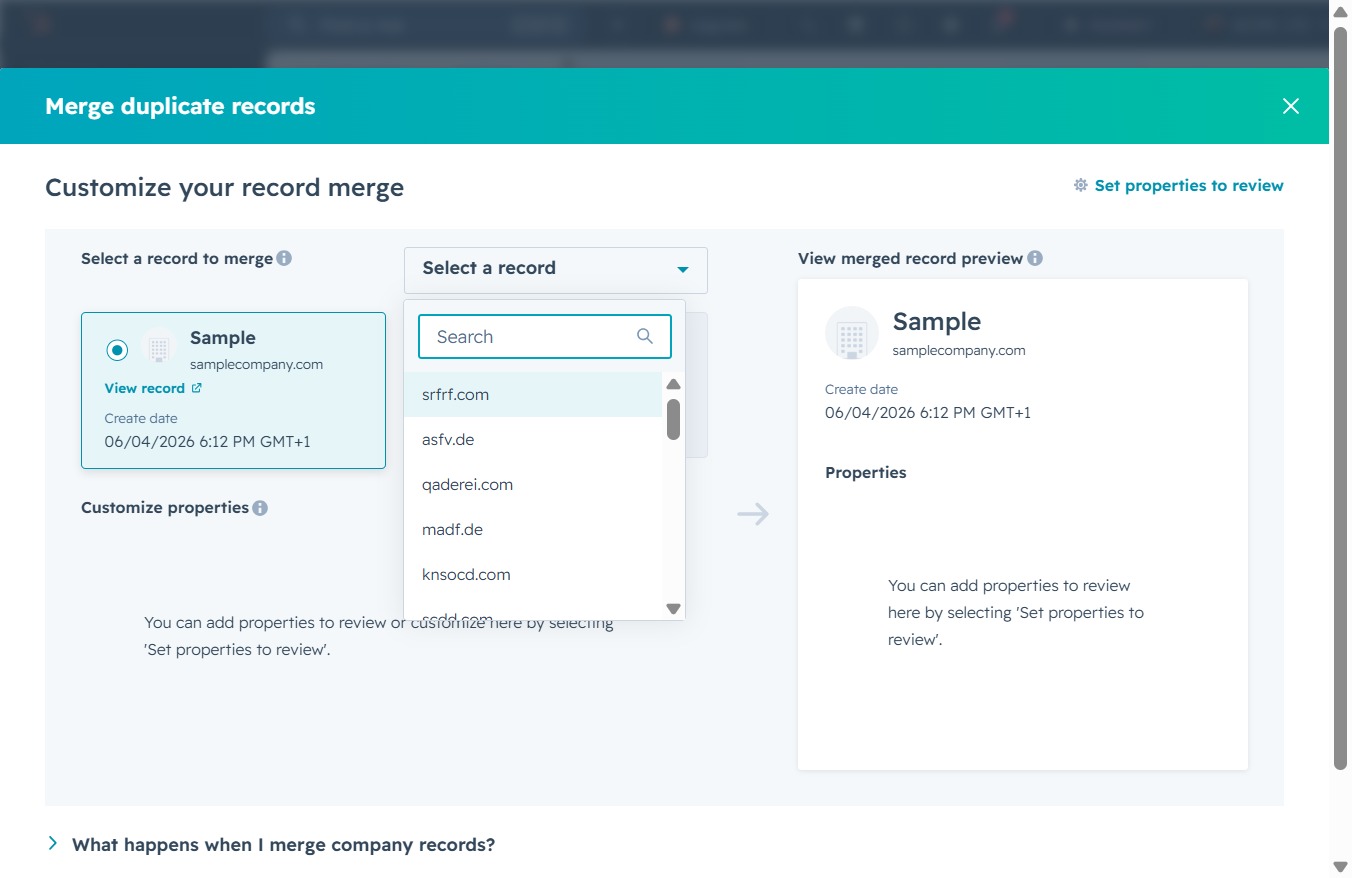
Enter 'sample' in the search field to find and select the relevant record for merging. This will filter the options displayed based on your input.
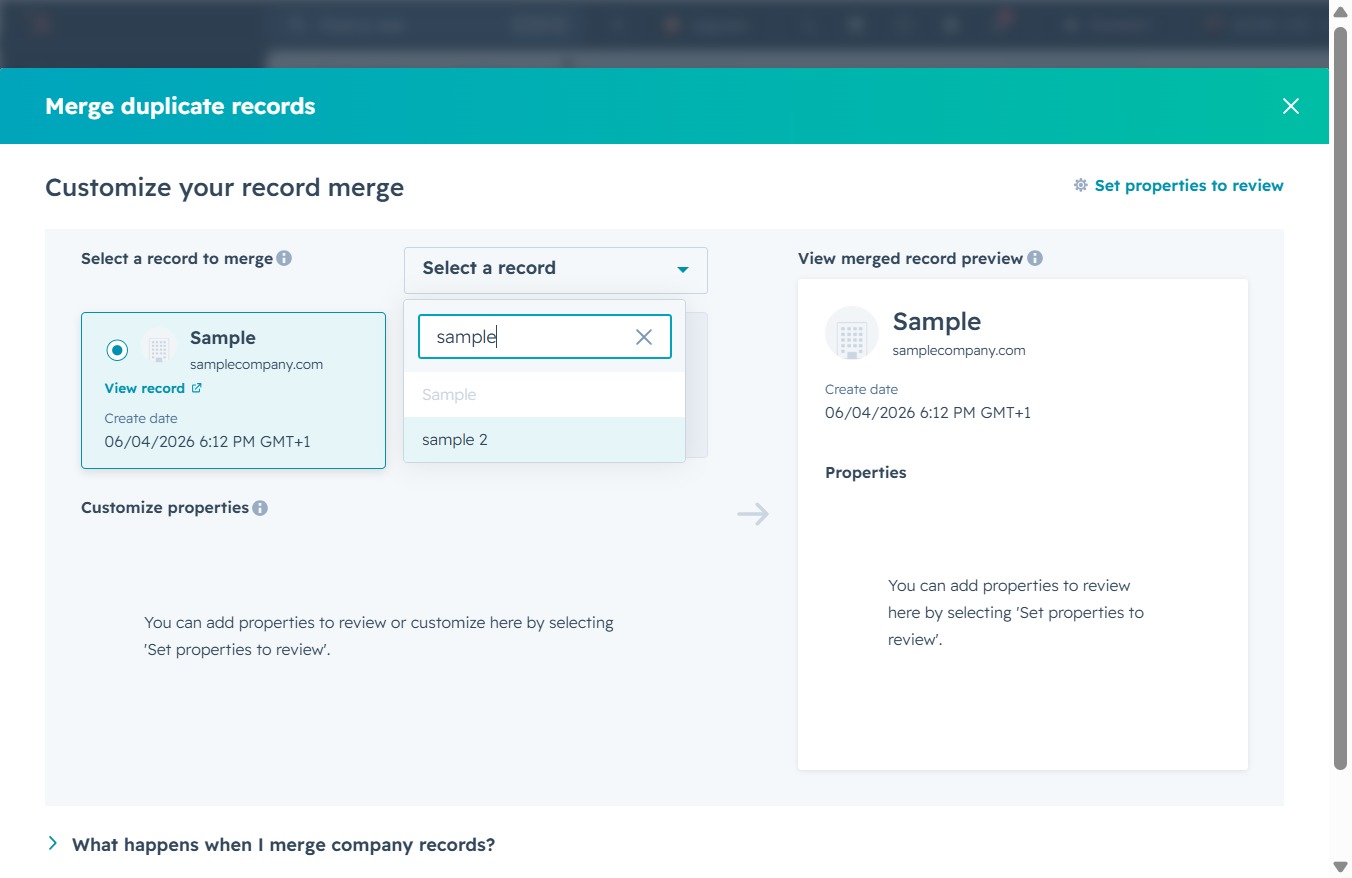
Selecting 'sample 2' will display the associated record details, allowing you to review and merge duplicate company records.
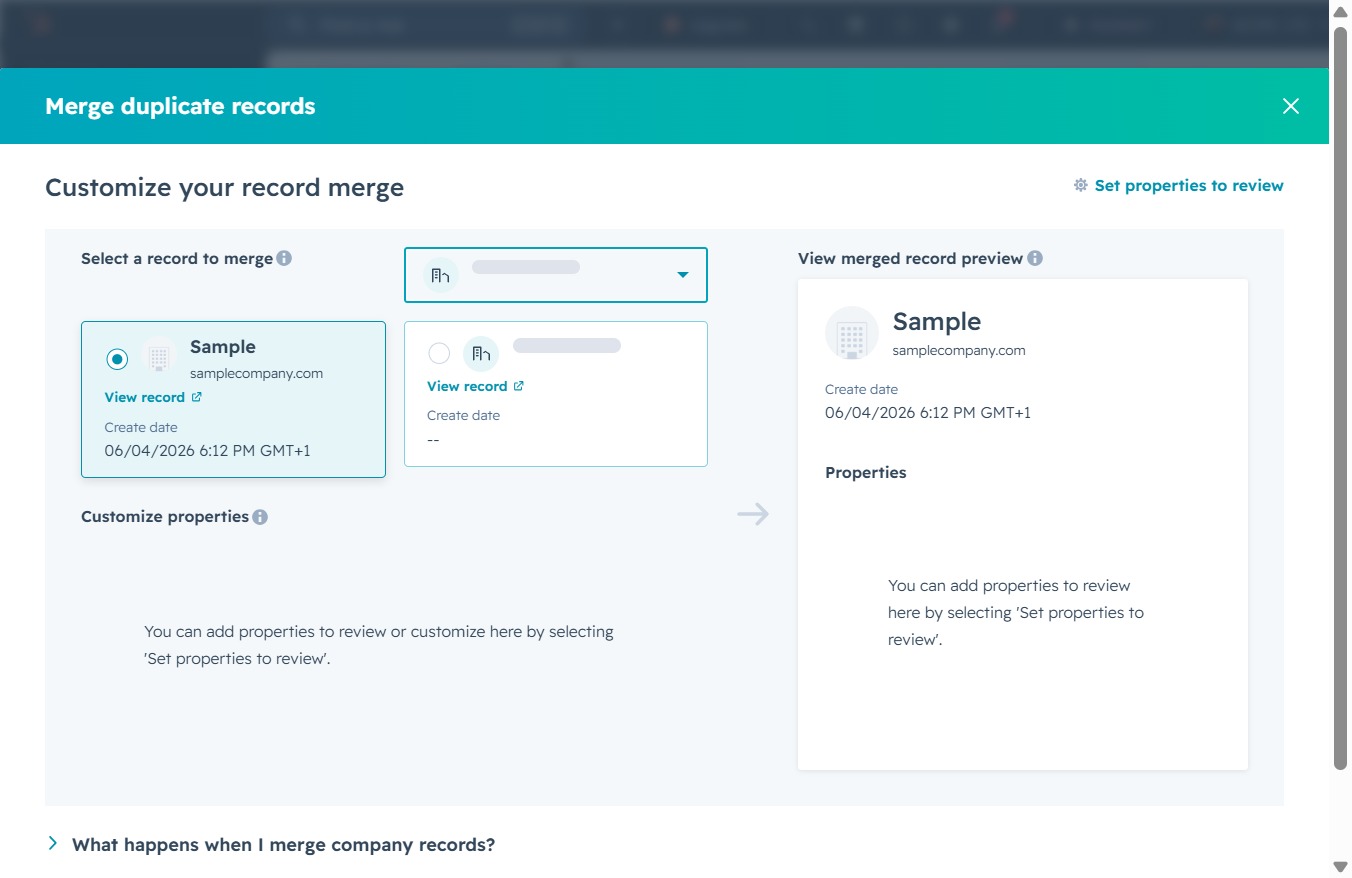
Clicking the Merge button will initiate the process of combining the selected records, ensuring that duplicates are managed and relevant data is consolidated in your system.