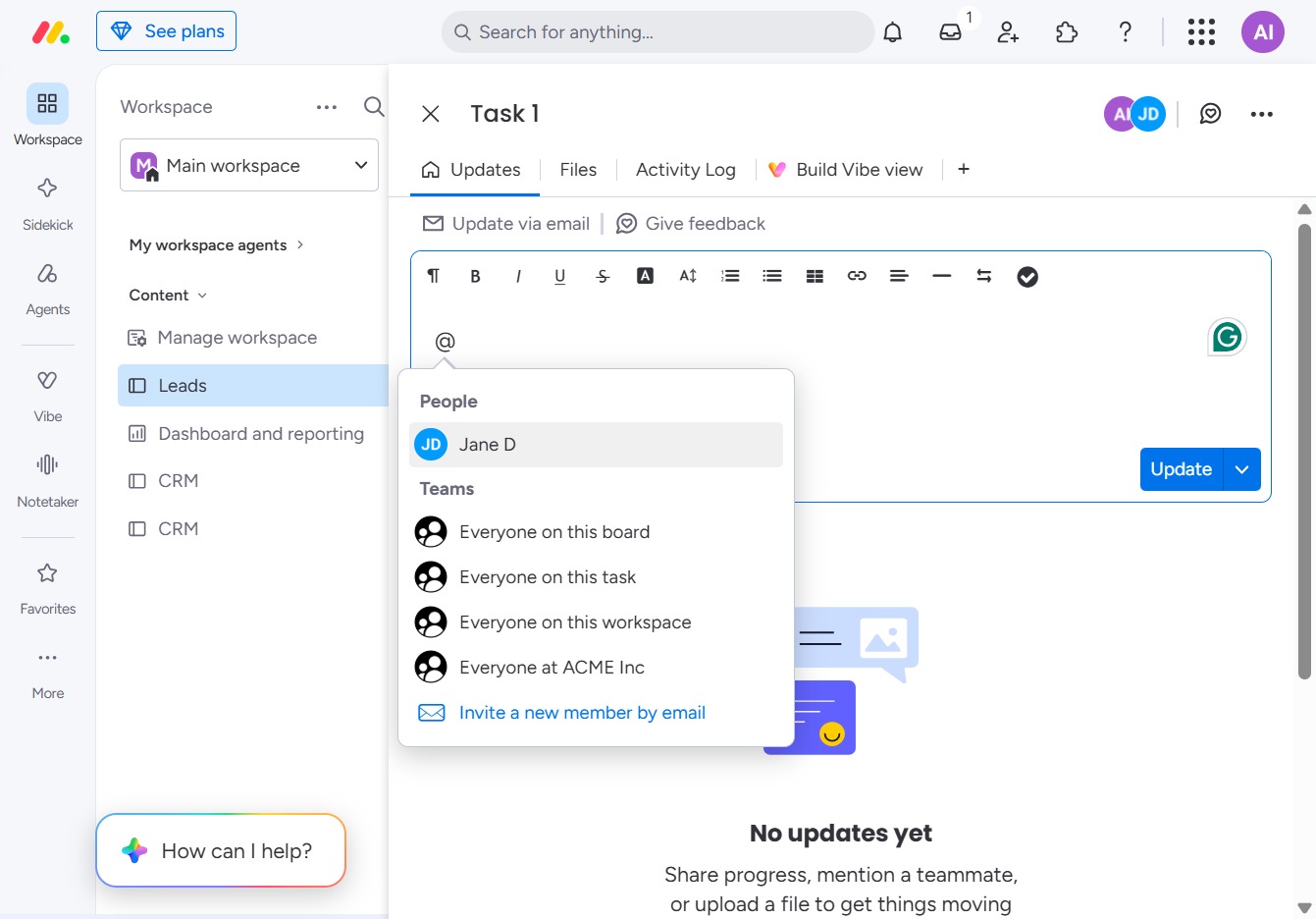
Click the BoardLeads section
Selecting the 'BoardLeads' section will open a detailed view of leads and associated data within your workspace, allowing for effective management and analysis.
Loading screenshot…
100%
In this how-to guide, you'll learn the steps to effectively mention and tag team members within your project management workspace.
 viktoria
In this how-to guide, you'll learn the steps to effectively mention and tag team members within your project management workspace. Follow the detailed navigation and tagging process to ensure your teammates stay informed and involved in task updates.
Selecting the 'BoardLeads' section will open a detailed view of leads and associated data within your workspace, allowing for effective management and analysis.
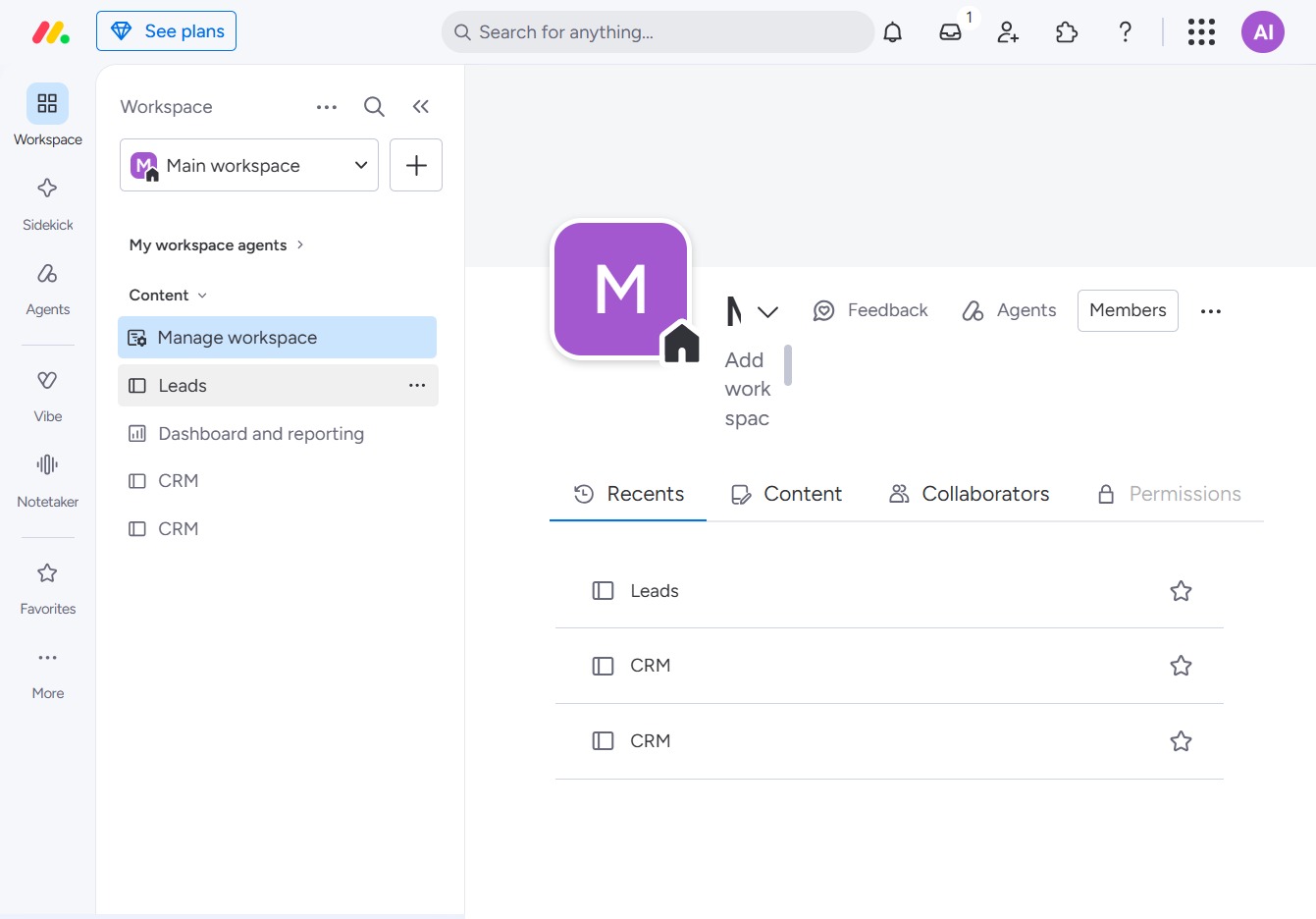
Clicking this link will navigate you to the detailed view of the selected task, allowing you to access more information and manage its progress.

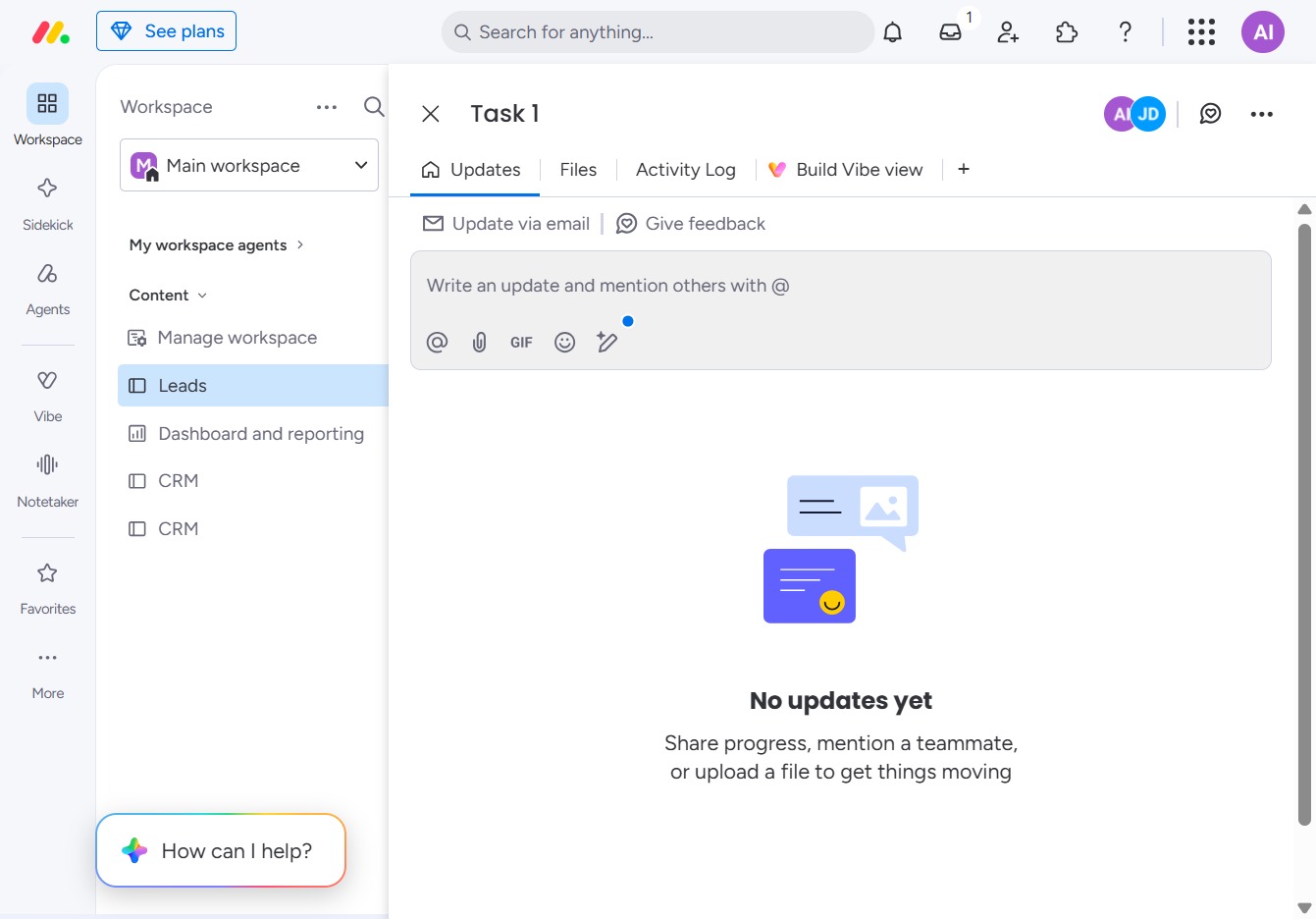
Begin writing an update by clicking in the input field to mention others using the '@' symbol, allowing for easy tagging of teammates.
This action allows you to tag a teammate in your task update. Once clicked, a list of team members will appear for you to select from.
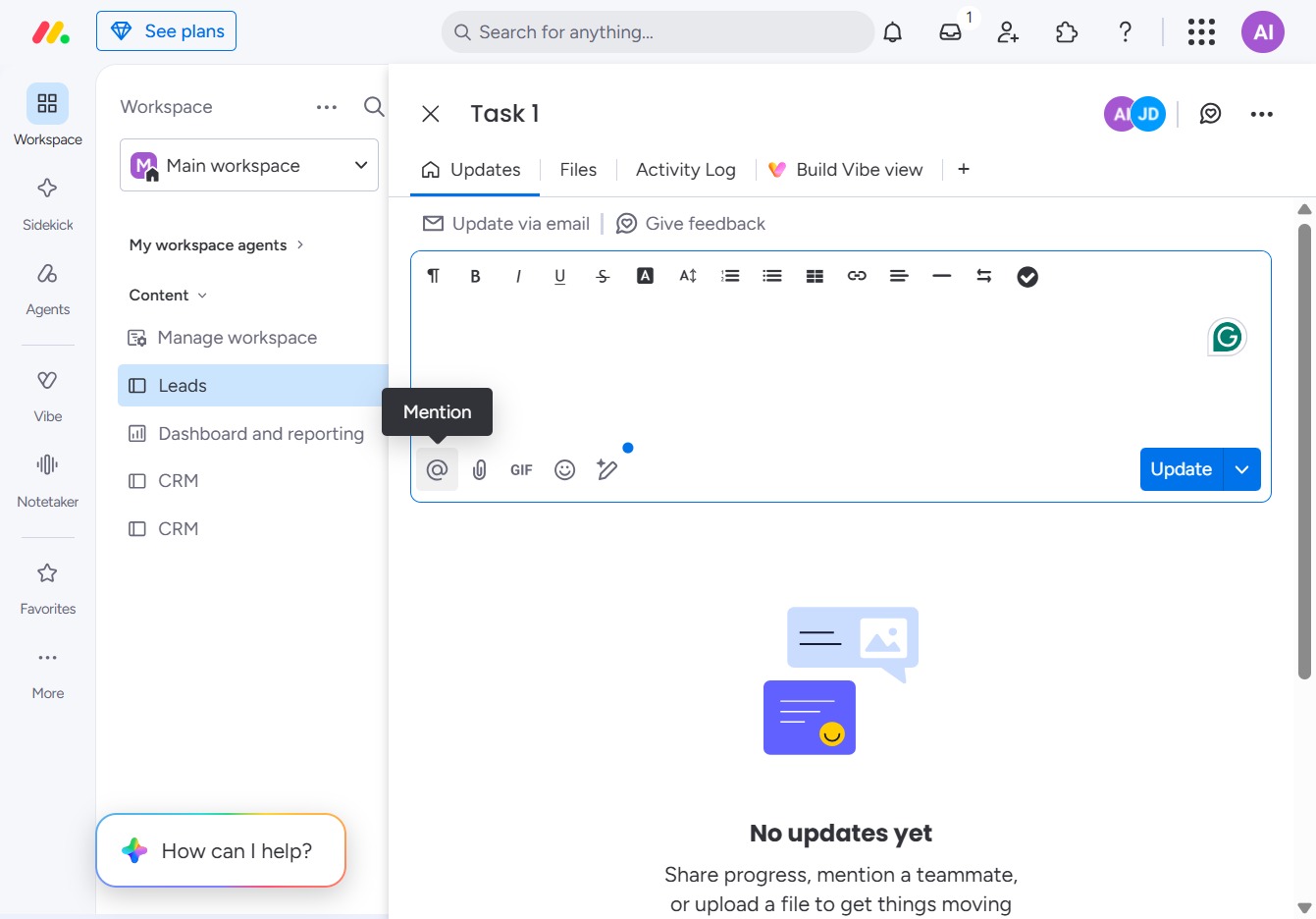
By clicking on 'Jane D', you will assign the task to this user and ensure they receive notifications about any updates related to this task.