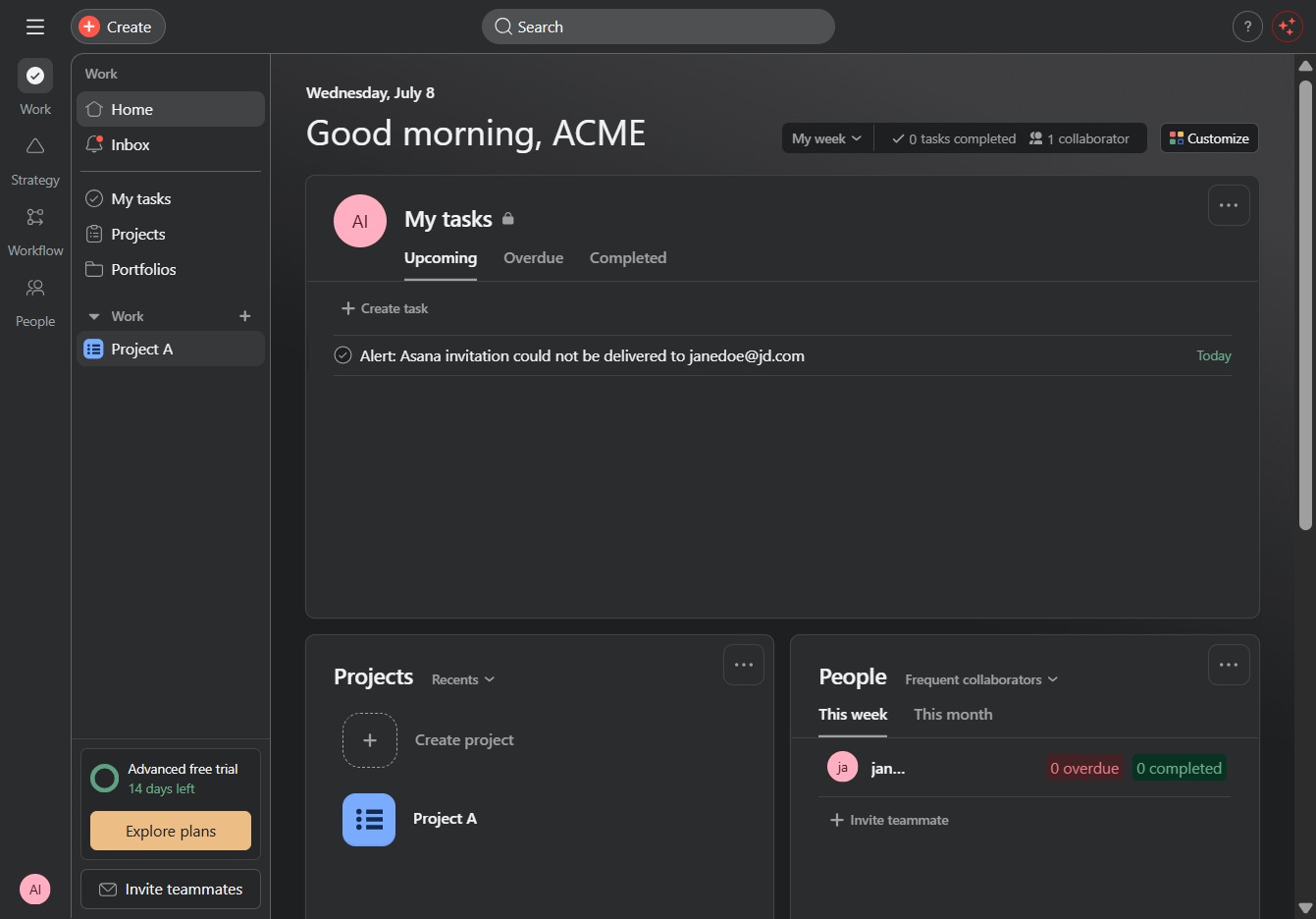
Click the Project A link
Clicking on the Project A link will take you to the project's detailed view, where you can manage tasks, view updates, and collaborate with team members.
Loading screenshot…
100%
This how-to guide demonstrates the process of marking tasks as complete in your project management tool.
 viktoria
This how-to guide demonstrates the process of marking tasks as complete in your project management tool. Follow the steps to navigate through your project's details, input task information, and mark tasks finished to streamline your workflow.
Clicking on the Project A link will take you to the project's detailed view, where you can manage tasks, view updates, and collaborate with team members.
This action will allow you to input new task details within the selected project. After clicking, a prompt will appear for you to enter task information.
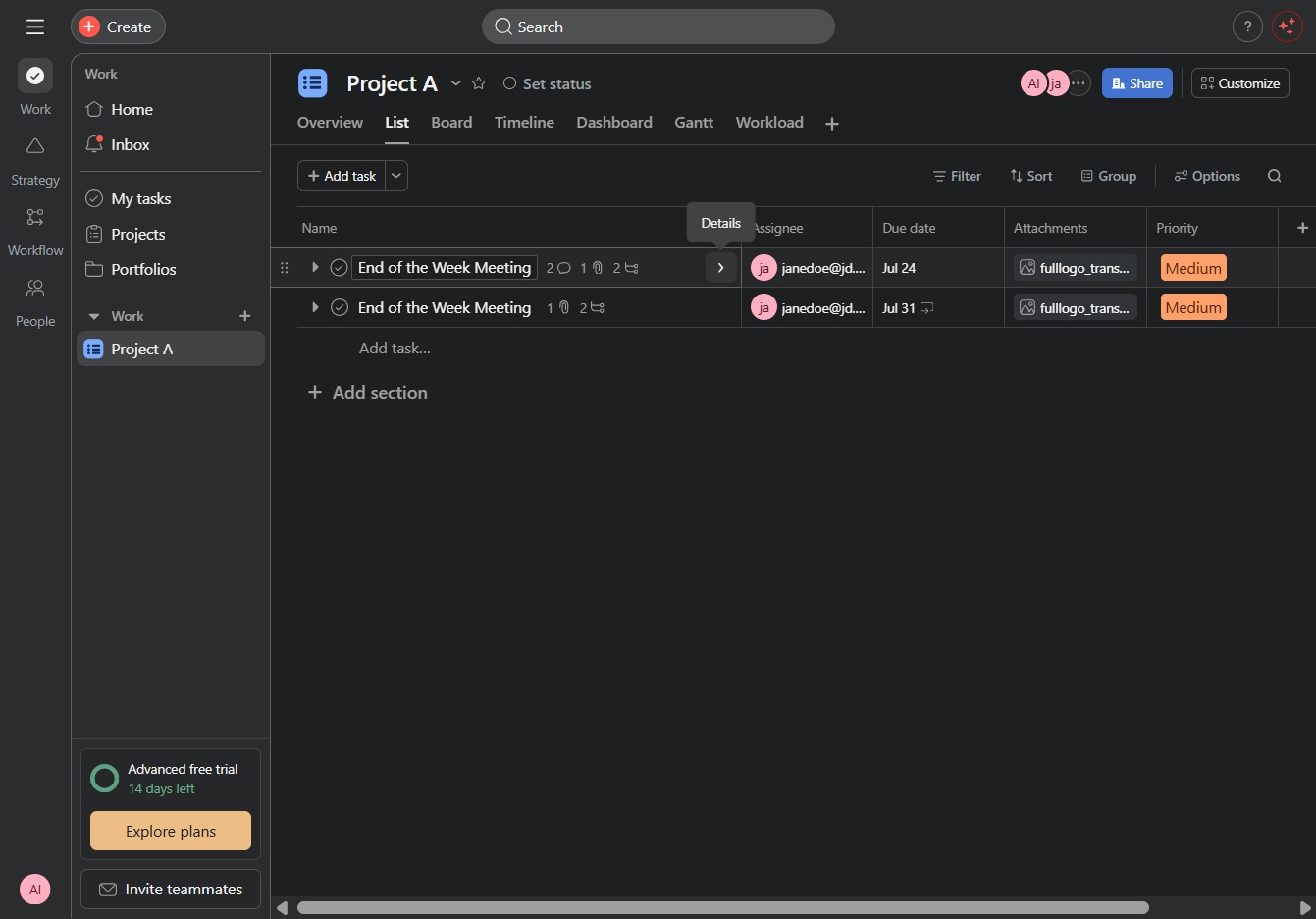
This action will indicate that the task 'End of the Week Meeting' has been completed. The task will then be marked as finished and removed from the active list.
