Click the email address victoria@docufast.ai
Clicking on the email address opens a new draft in your default email client, allowing you to quickly send a message to the specified address.
Loading screenshot…
100%
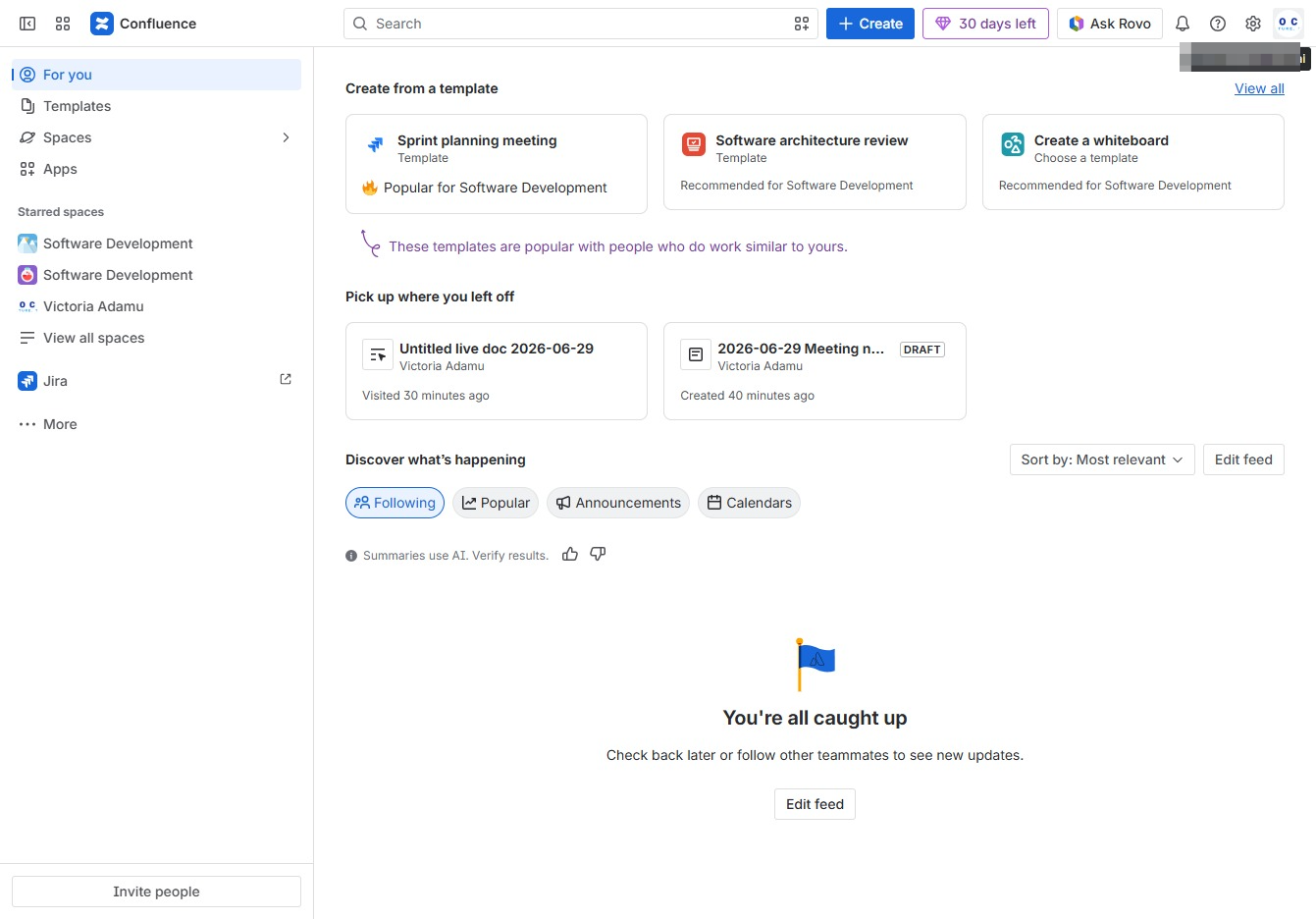
In this how-to guide, learn to manage your user profile effectively by accessing your profile settings, uploading a cover image, and updating role information.
 viktoria
In this how-to guide, learn to manage your user profile effectively by accessing your profile settings, uploading a cover image, and updating role information. Follow the straightforward steps to enhance your account representation and ensure all details are current for an optimized user experience.
Clicking on the email address opens a new draft in your default email client, allowing you to quickly send a message to the specified address.
Selecting the 'Profile' option opens your personal profile settings, where you can view and edit your account information and preferences.

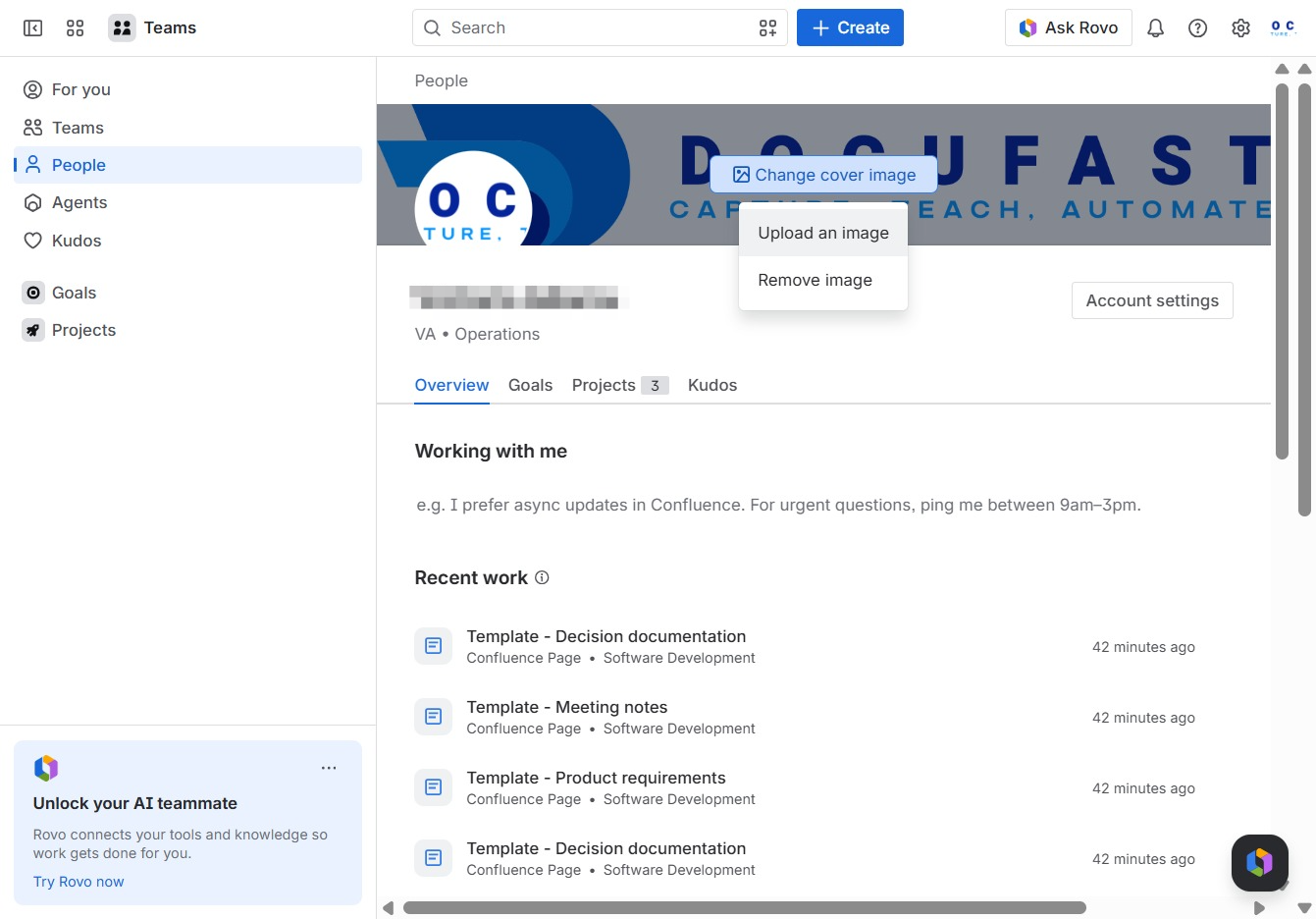
This action allows you to upload a new cover image for your profile, enhancing your visual representation on the platform.

After clicking, a file browser will open, allowing you to select an image from your device to upload. This action enables you to update your profile or cover image.
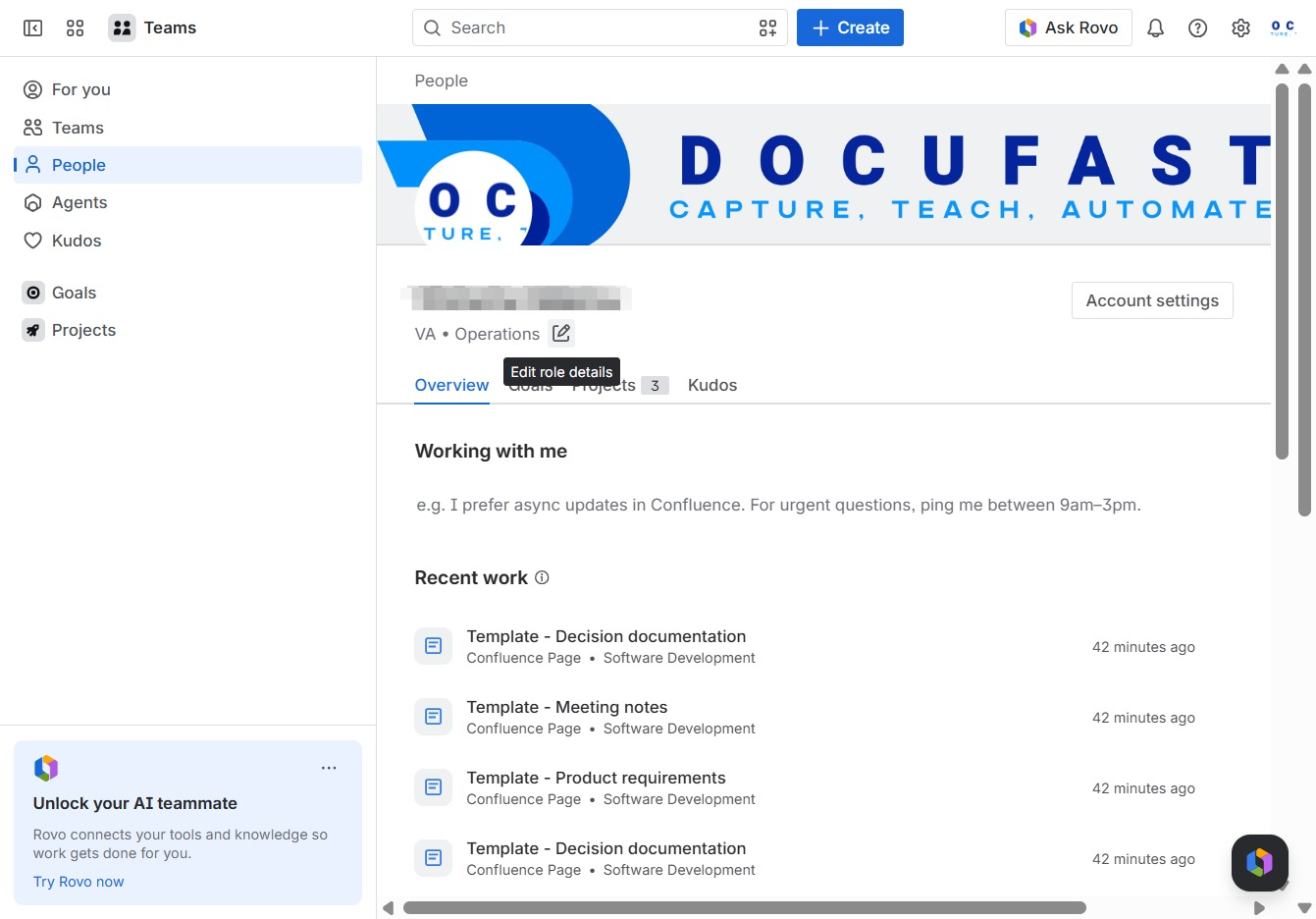
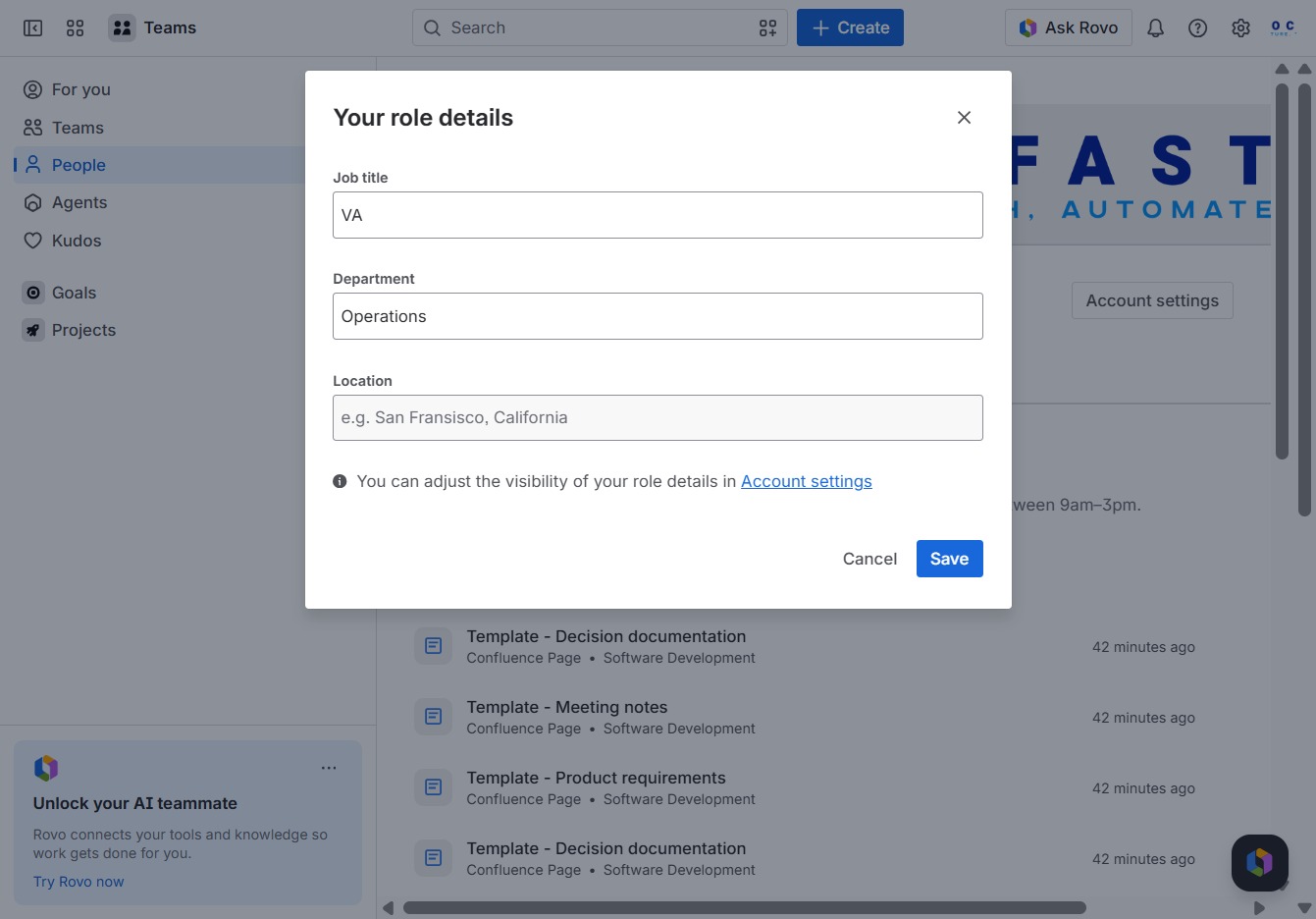
This will open the settings menu where you can update the role information of the selected user. Make necessary changes to ensure accurate role representation and permissions.
By clicking Save, your job title, department, and location will be updated in the system. Ensure all information is accurate before proceeding.
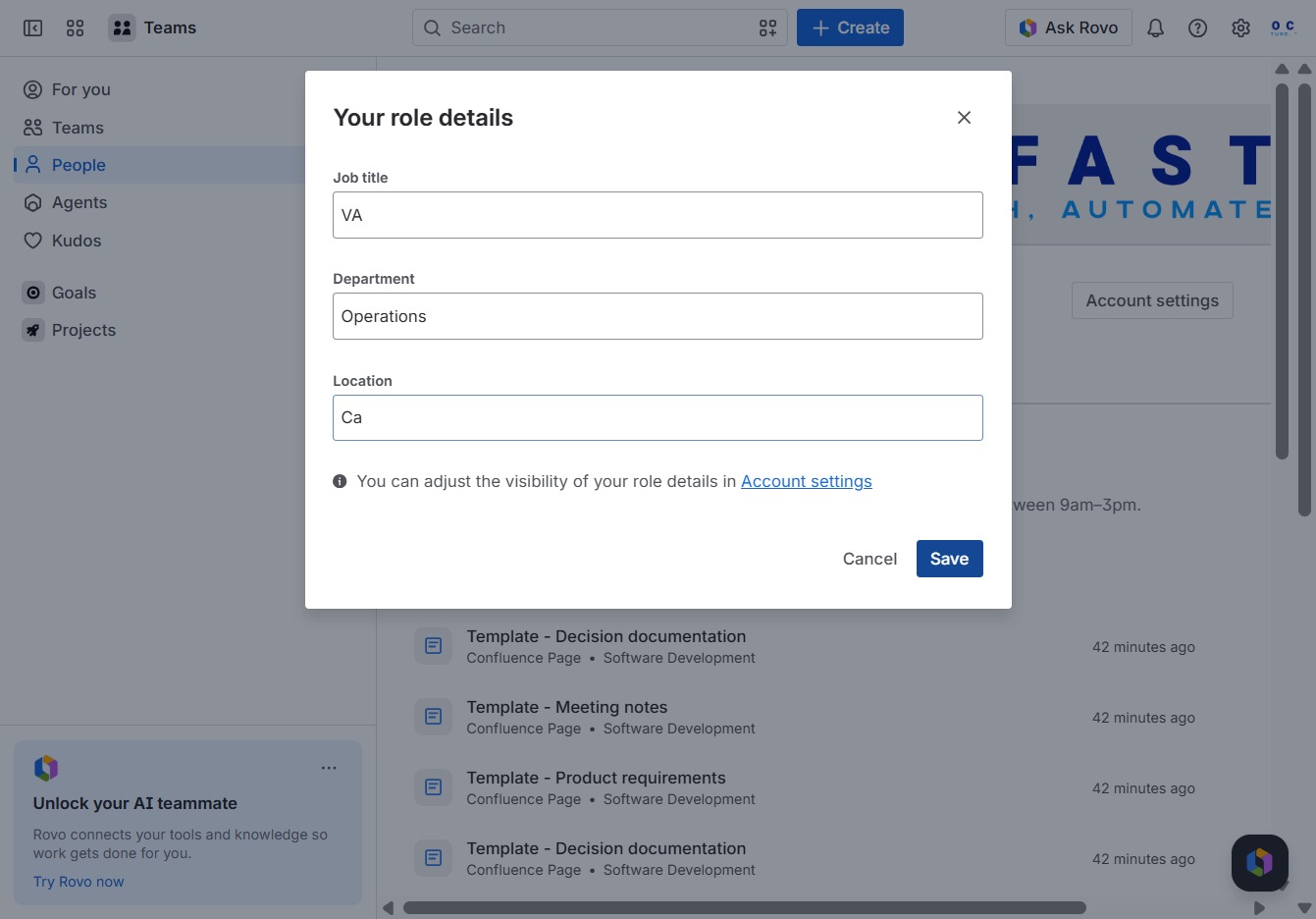
Enter 'Ca' in the Location field to specify your geographic area. This detail will help personalize your account settings and improve relevant suggestions.
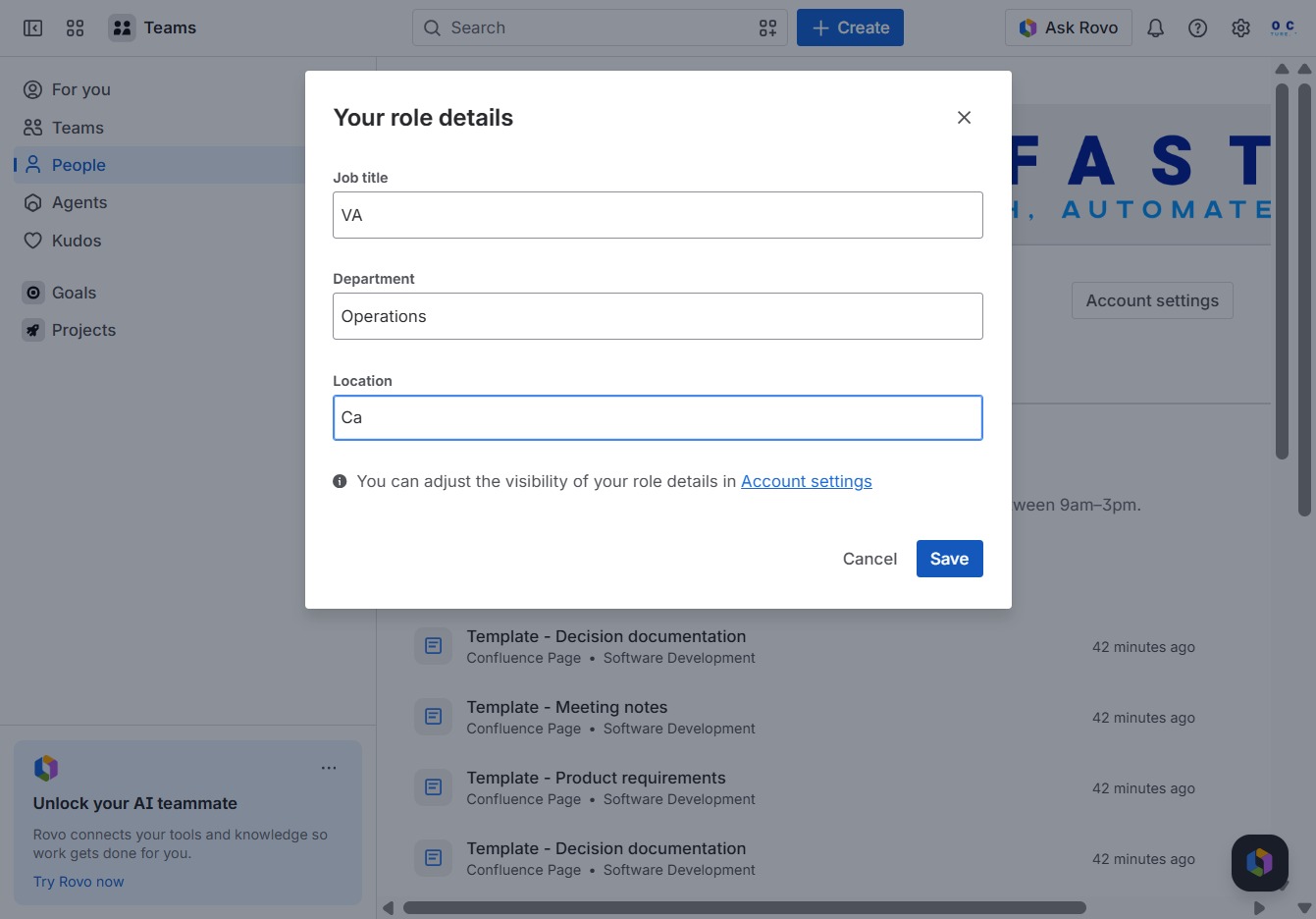
This action saves the changes made to your role details, including your job title, department, and location. Ensure all fields are filled in correctly before clicking to avoid losing any data.