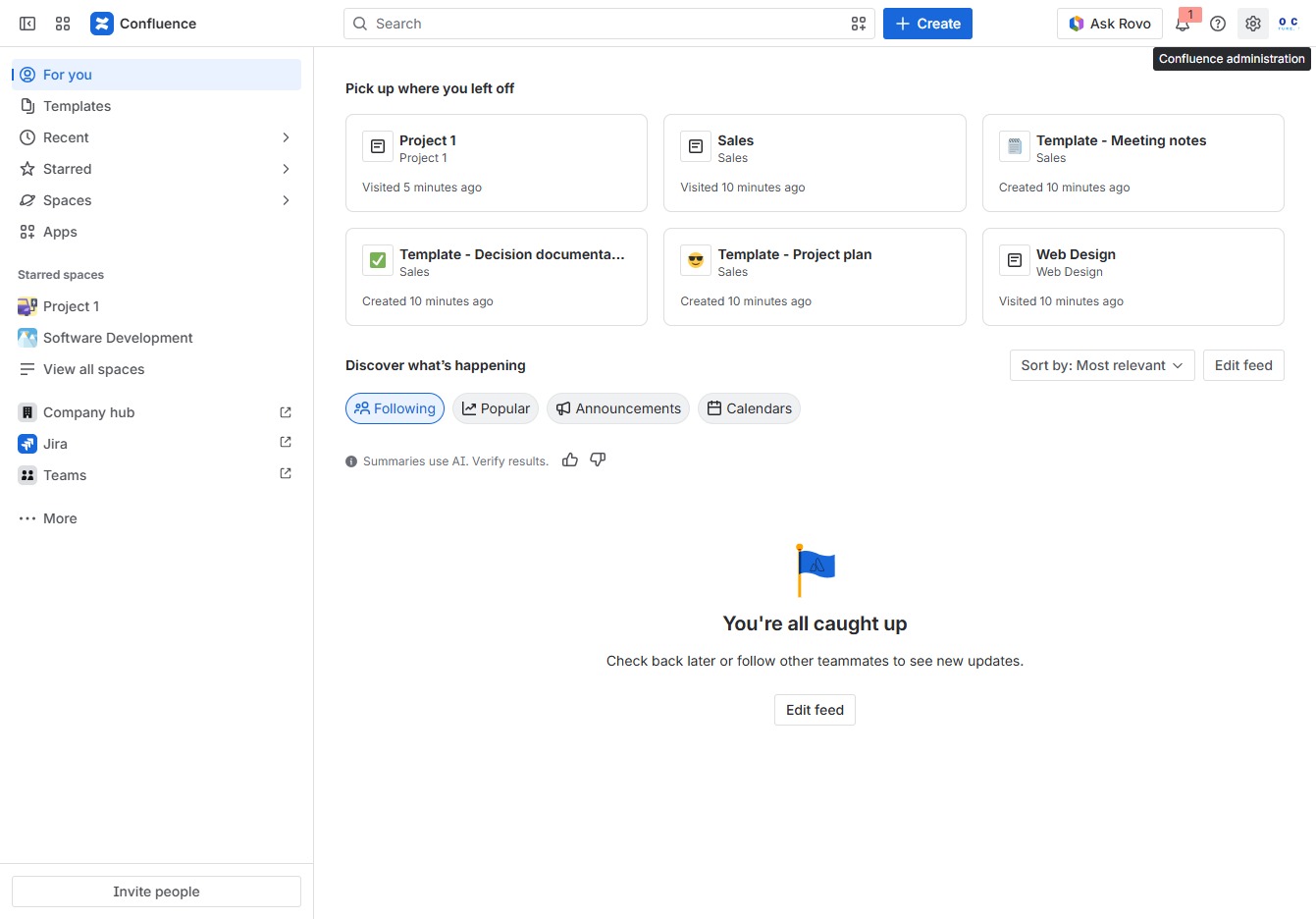
Click the Confluence administration link
This action takes you to the administration settings for managing Confluence, where you can configure user permissions, spaces, and other administrative features.
Loading screenshot…
100%
In this guide, learn how to manage space permissions in Confluence effectively.
 viktoria
In this guide, learn how to manage space permissions in Confluence effectively. By following straightforward steps, you'll navigate various administrative settings to configure user roles, including assigning the Collaborator role, which enables users to view, comment, and edit content within your spaces.
This action takes you to the administration settings for managing Confluence, where you can configure user permissions, spaces, and other administrative features.
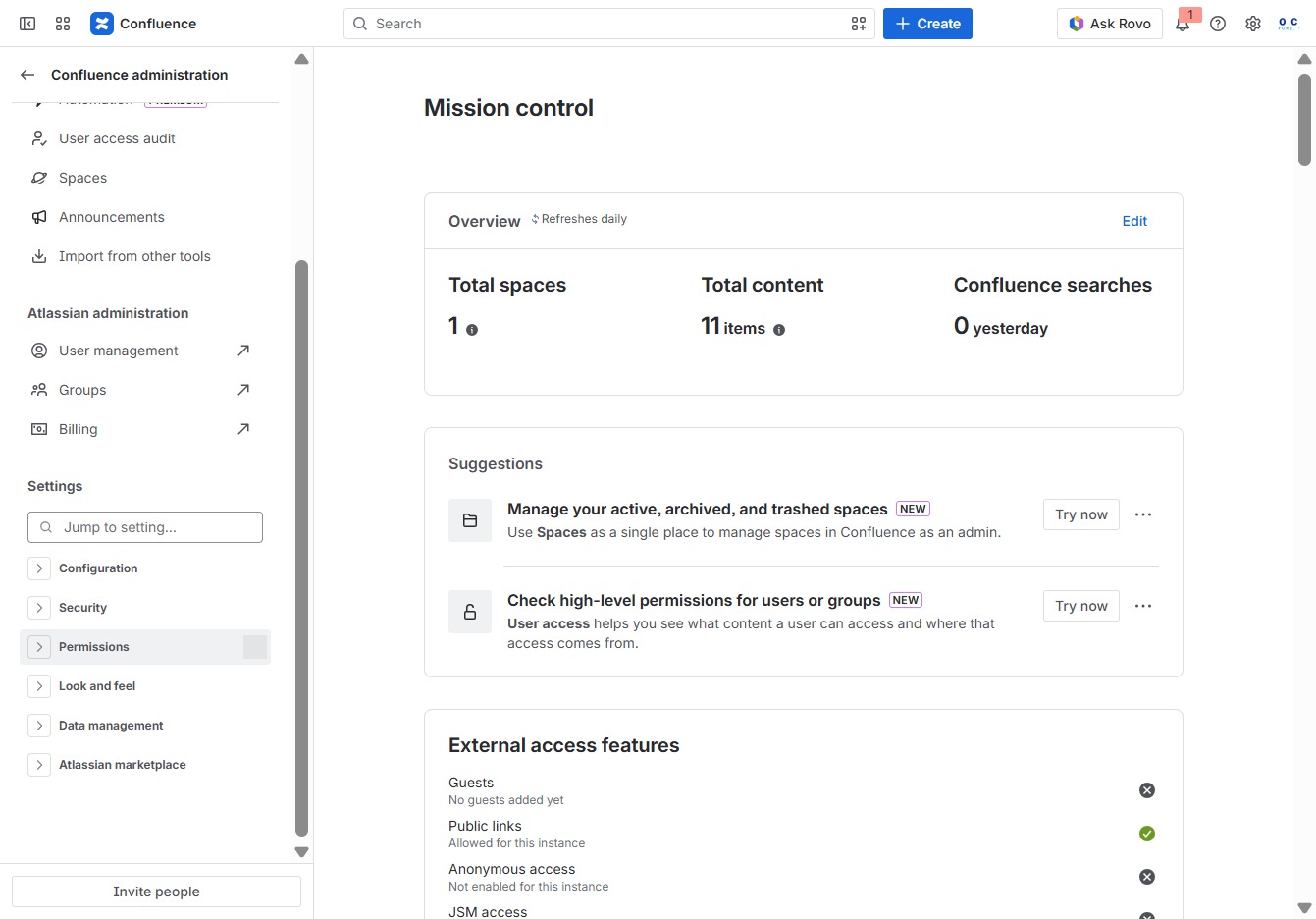
This will display the user access settings where you can manage permissions for users or groups within Confluence.
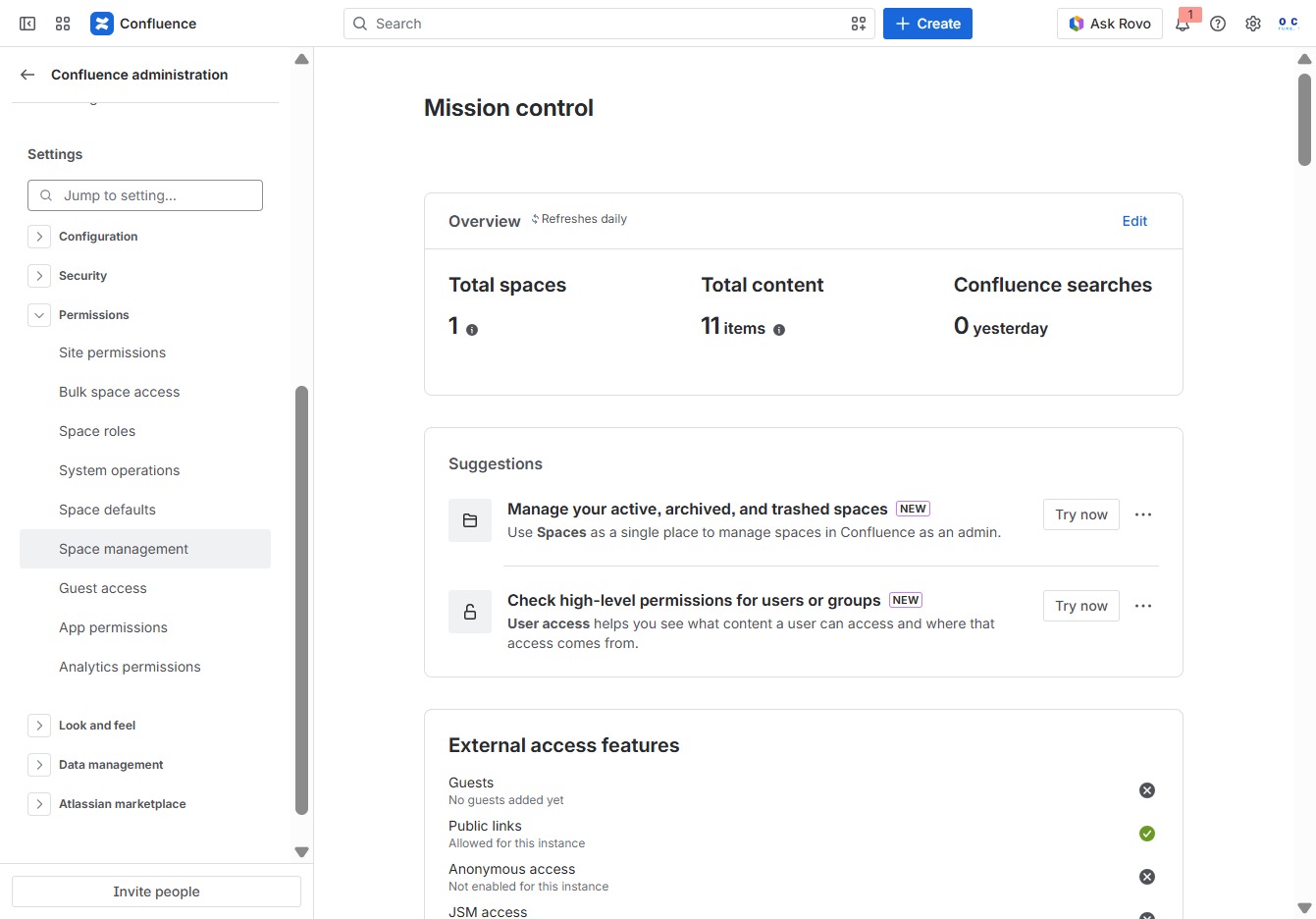
This will direct you to the Space Management settings where you can manage active, archived, and trashed spaces in Confluence.
This action opens the access management settings for the selected space, allowing you to configure user permissions and roles.
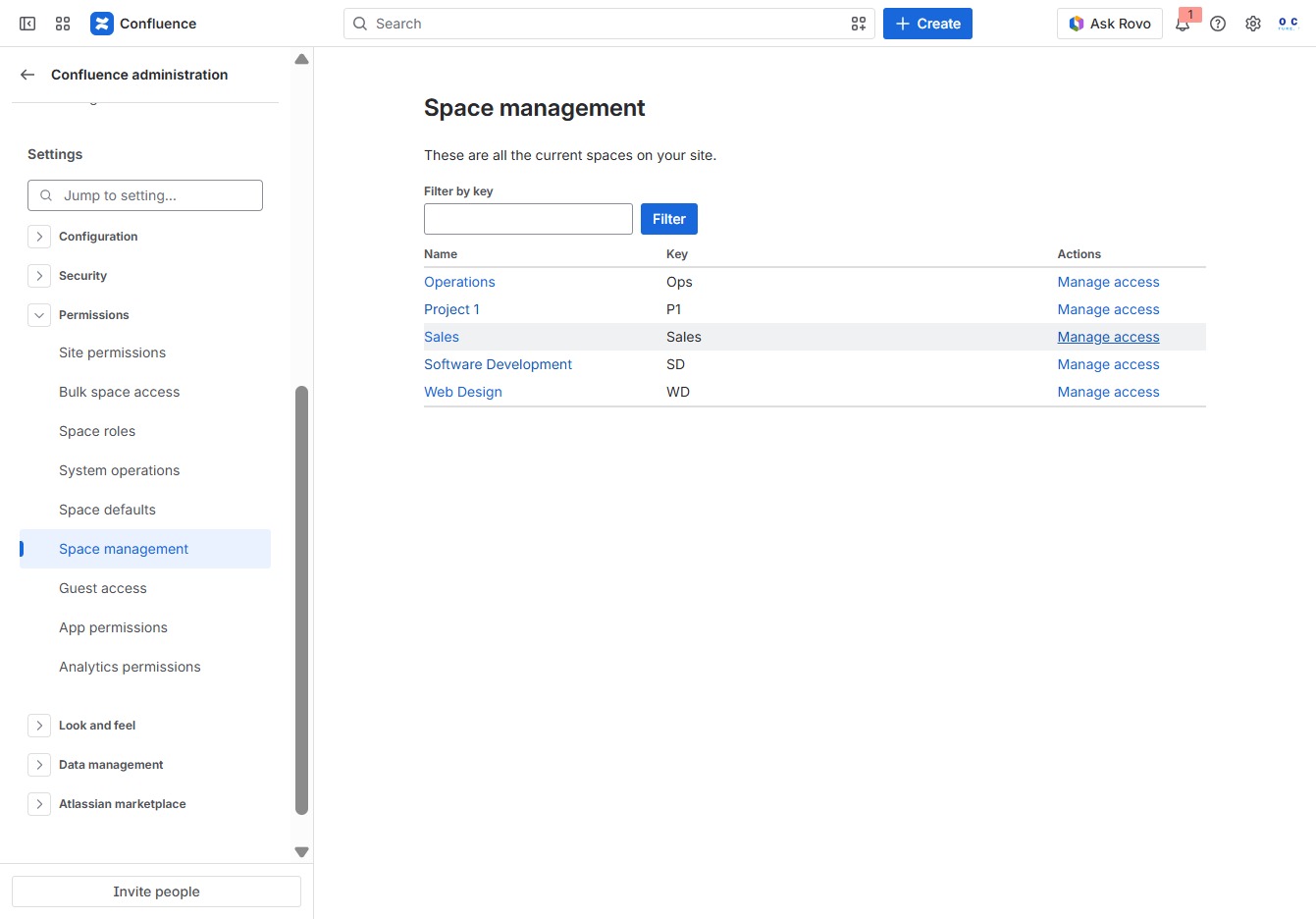
This will expand or activate the selected feature, allowing you to access more options related to user management in your Confluence space.
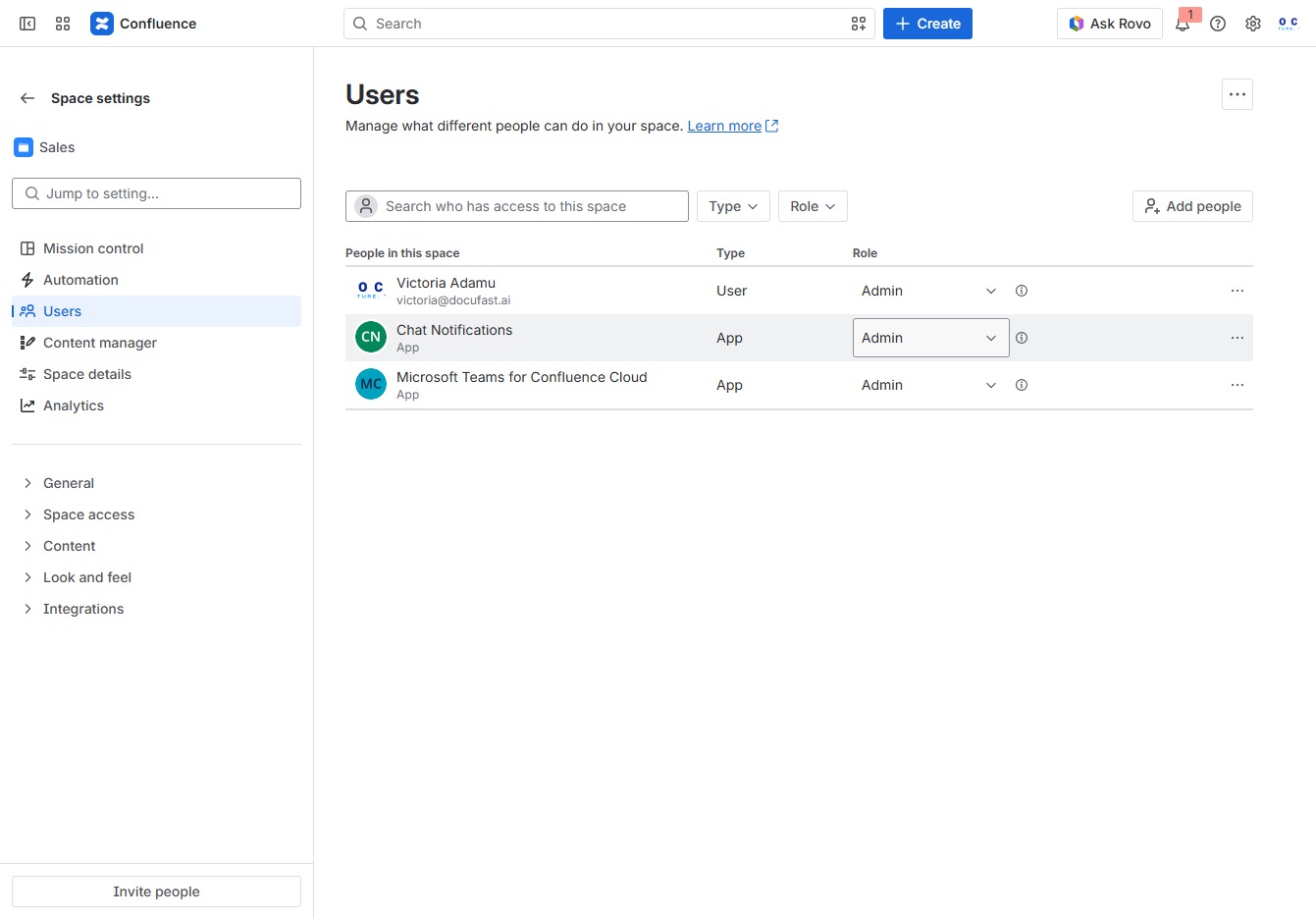
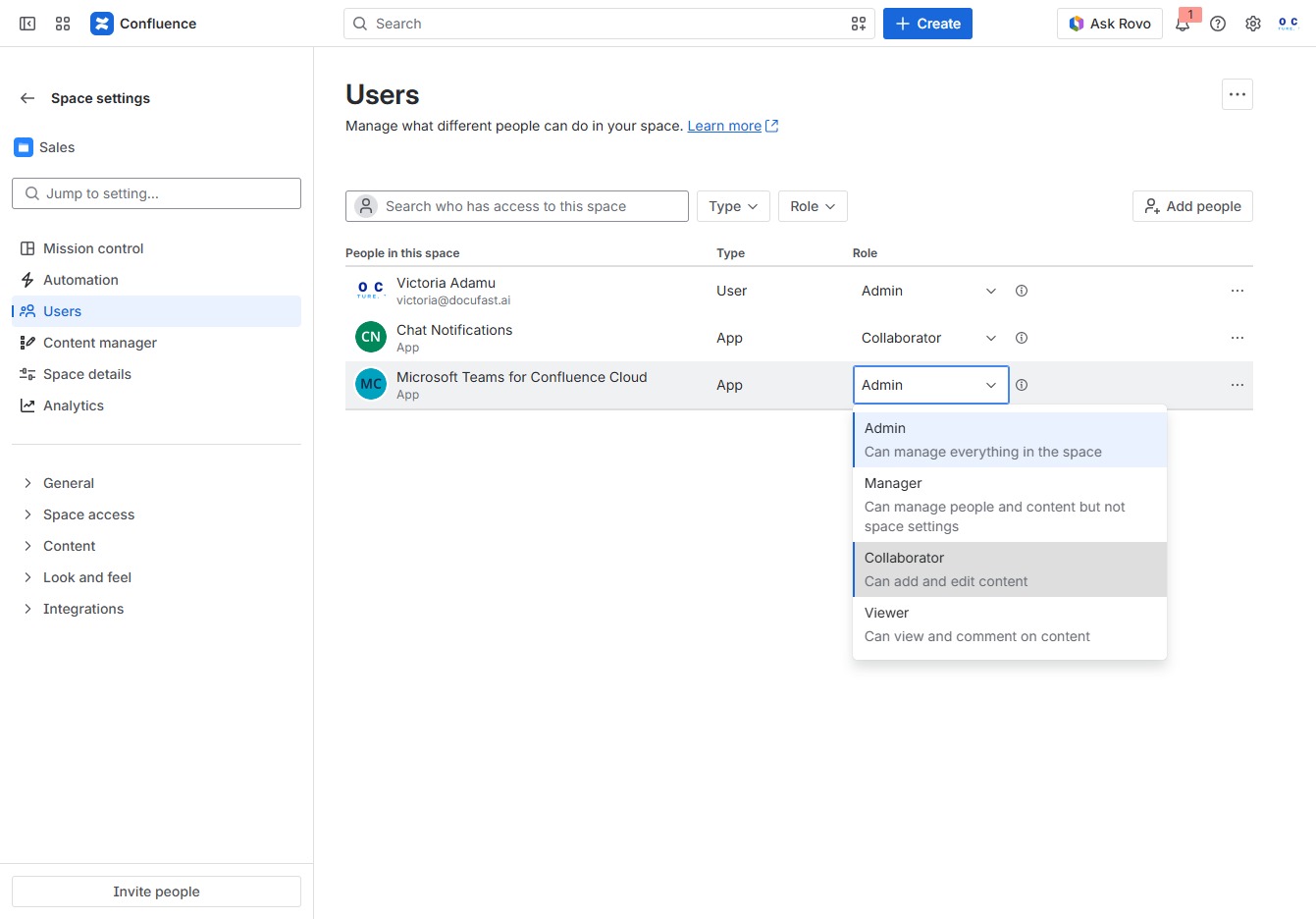
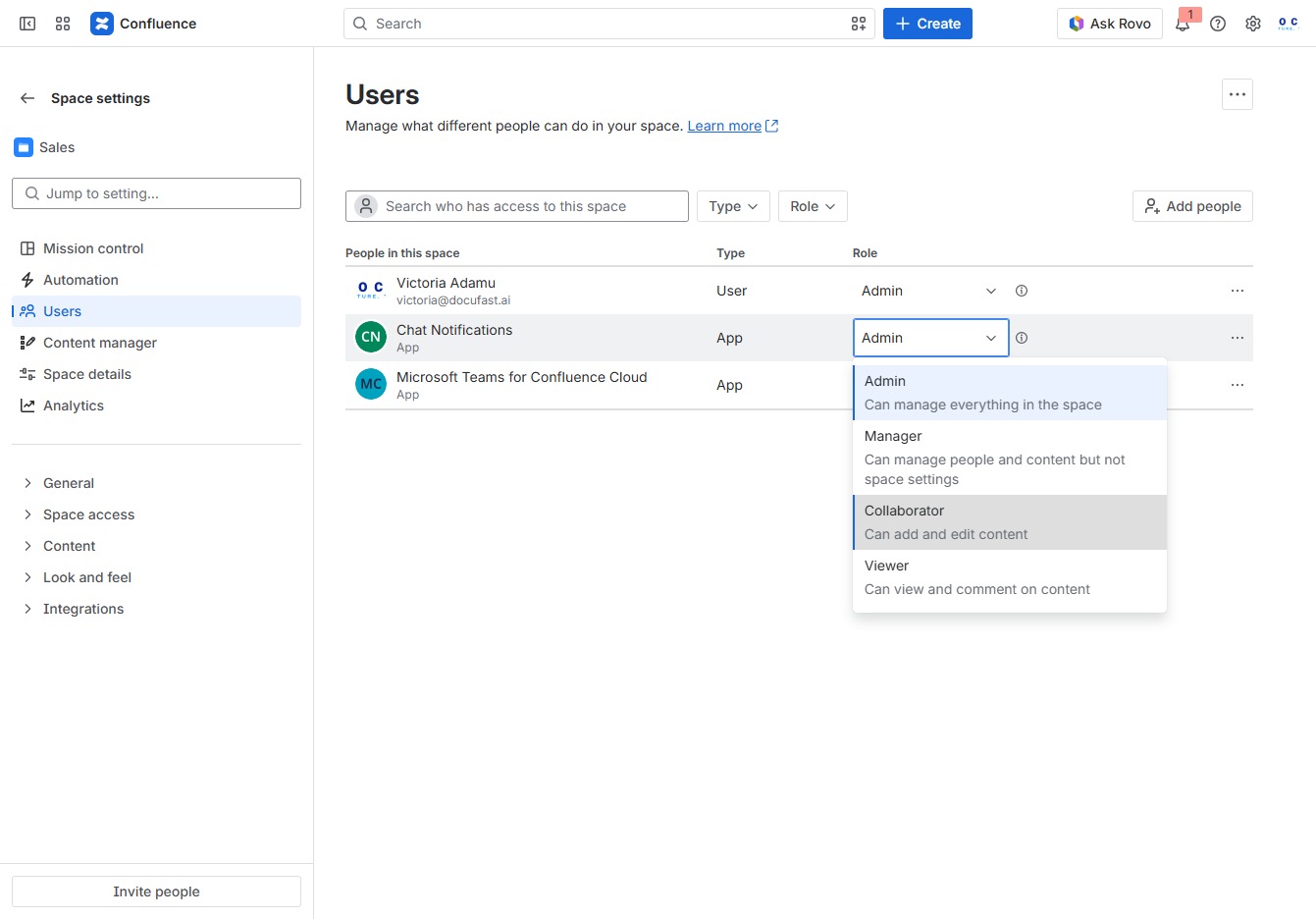
Select the 'Collaborator' role from the dropdown menu to assign this permission level, allowing users to view and comment on content in your space.
This action will direct you to the area where you can manage user access and permissions for your Confluence space.
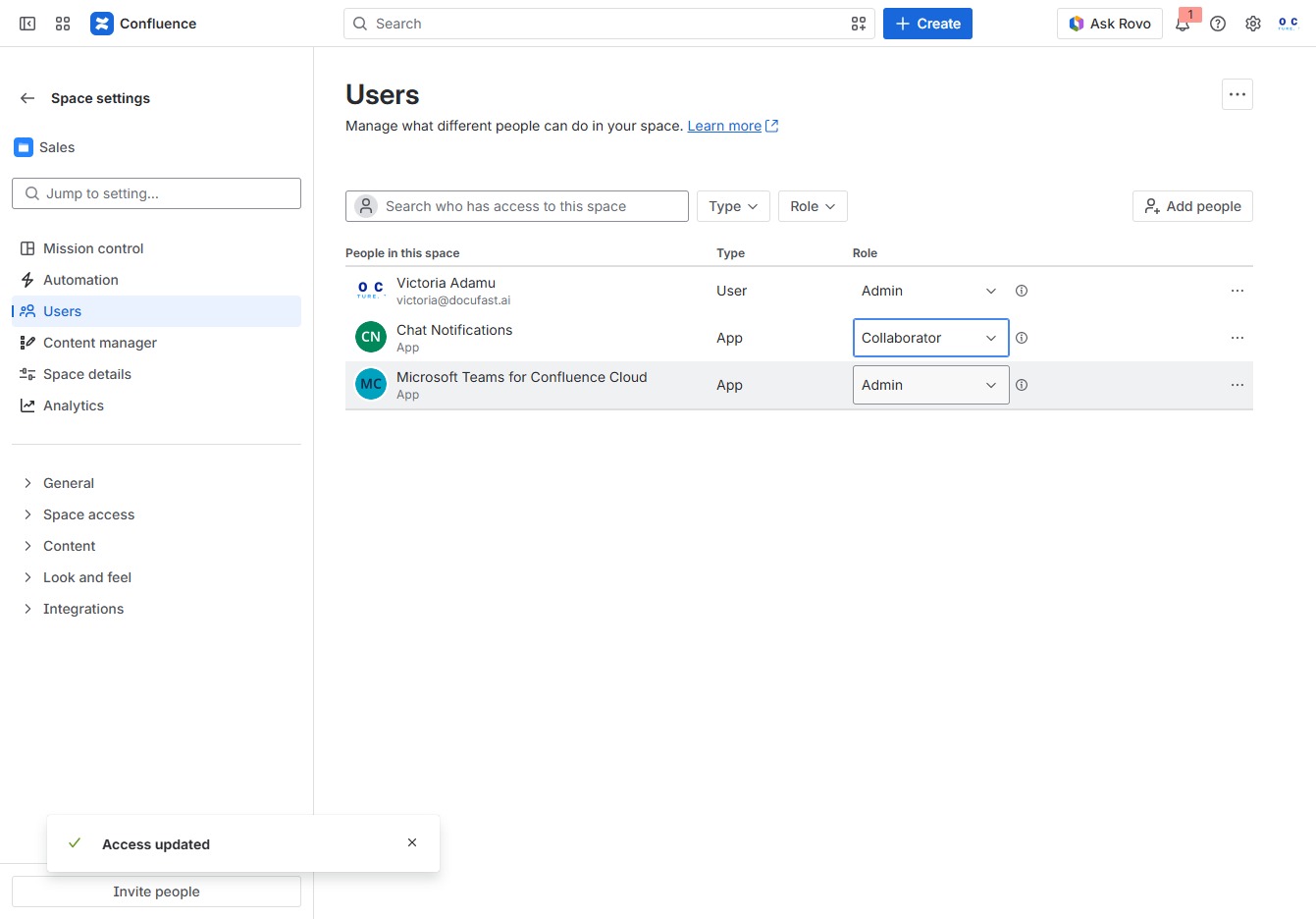
Selecting the 'Collaborator' role allows the user to manage and edit content within the specified space in Confluence. This role is crucial for individuals who need to contribute to the project without having full administrative privileges.