Click the Q3 2026, Portfolio link
After clicking this link, you will be directed to the portfolio details specific to Q3 2026, where you can view and manage related projects and tasks.

Loading screenshot…
100%
Learn how to efficiently manage project portfolios with this step-by-step guide.
 viktoria
Learn how to efficiently manage project portfolios with this step-by-step guide. You'll discover how to view, add, customize, and update projects for your Q3 2026 portfolio, ensuring seamless collaboration and effective tracking throughout your project's lifecycle.
After clicking this link, you will be directed to the portfolio details specific to Q3 2026, where you can view and manage related projects and tasks.
This action allows you to add a new project or task to the Q3 2026 portfolio. Enter the project's name and details in the prompted fields.

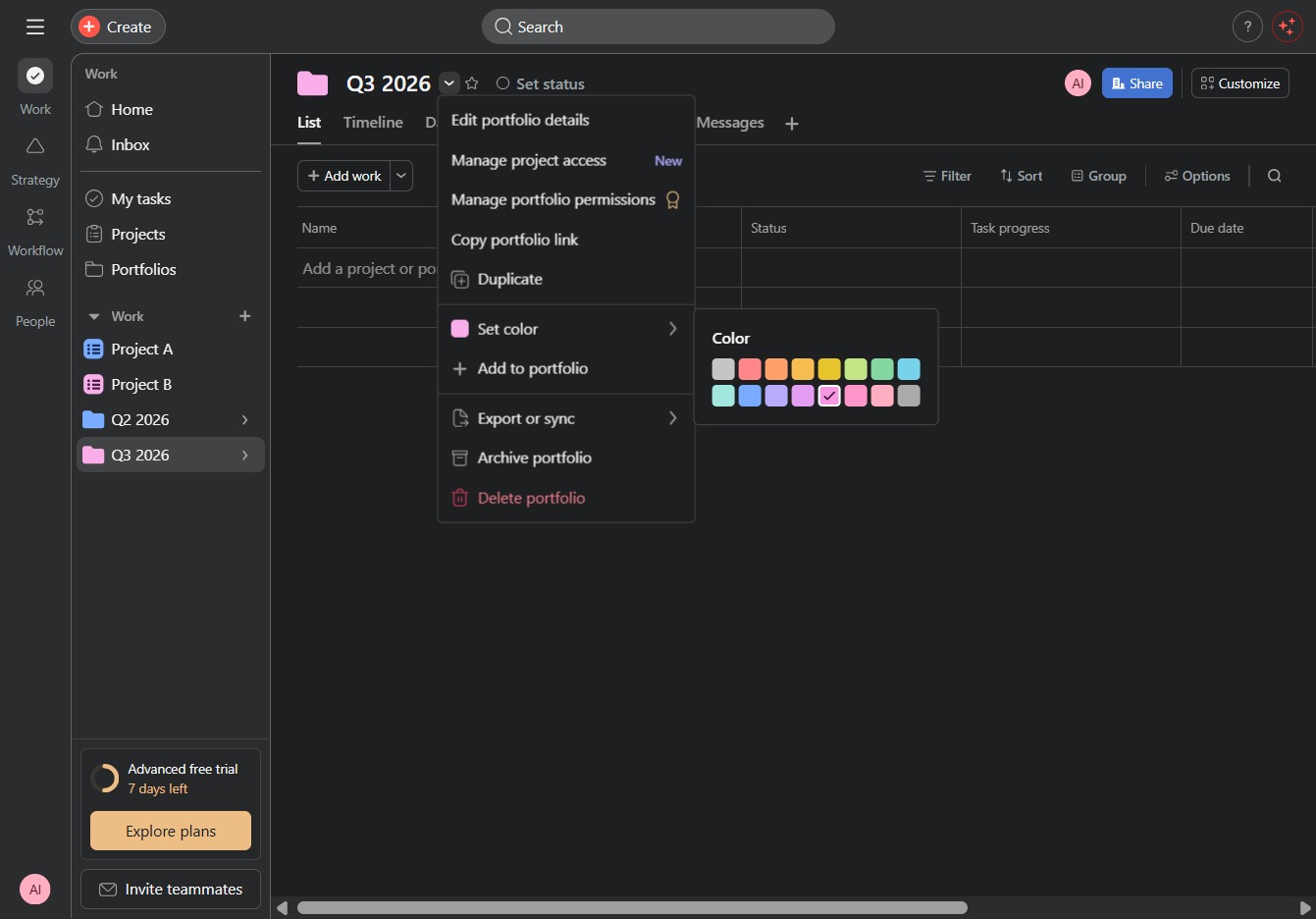
This action allows you to choose a color representation for the selected portfolio. The color assigned will help visually organize and identify your projects more effectively.

Selecting the 'Set color' option allows you to choose a color for the project, helping to visually categorize and organize your portfolios.
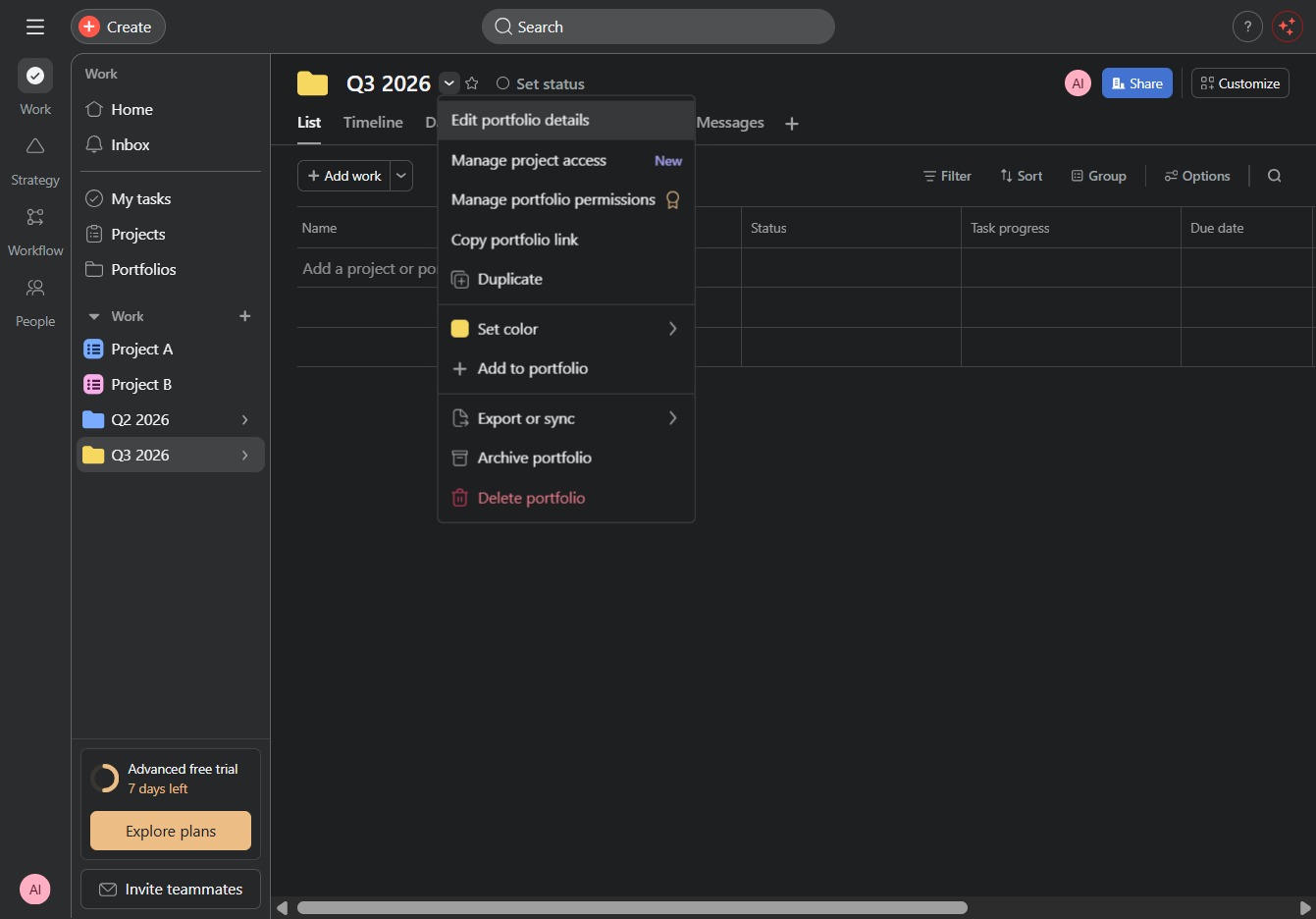
This action allows you to modify the information associated with your selected portfolio, including its name, description, and configurations.
After clicking this area, you can enter a detailed description for the portfolio Q1 2026, providing more context and information.

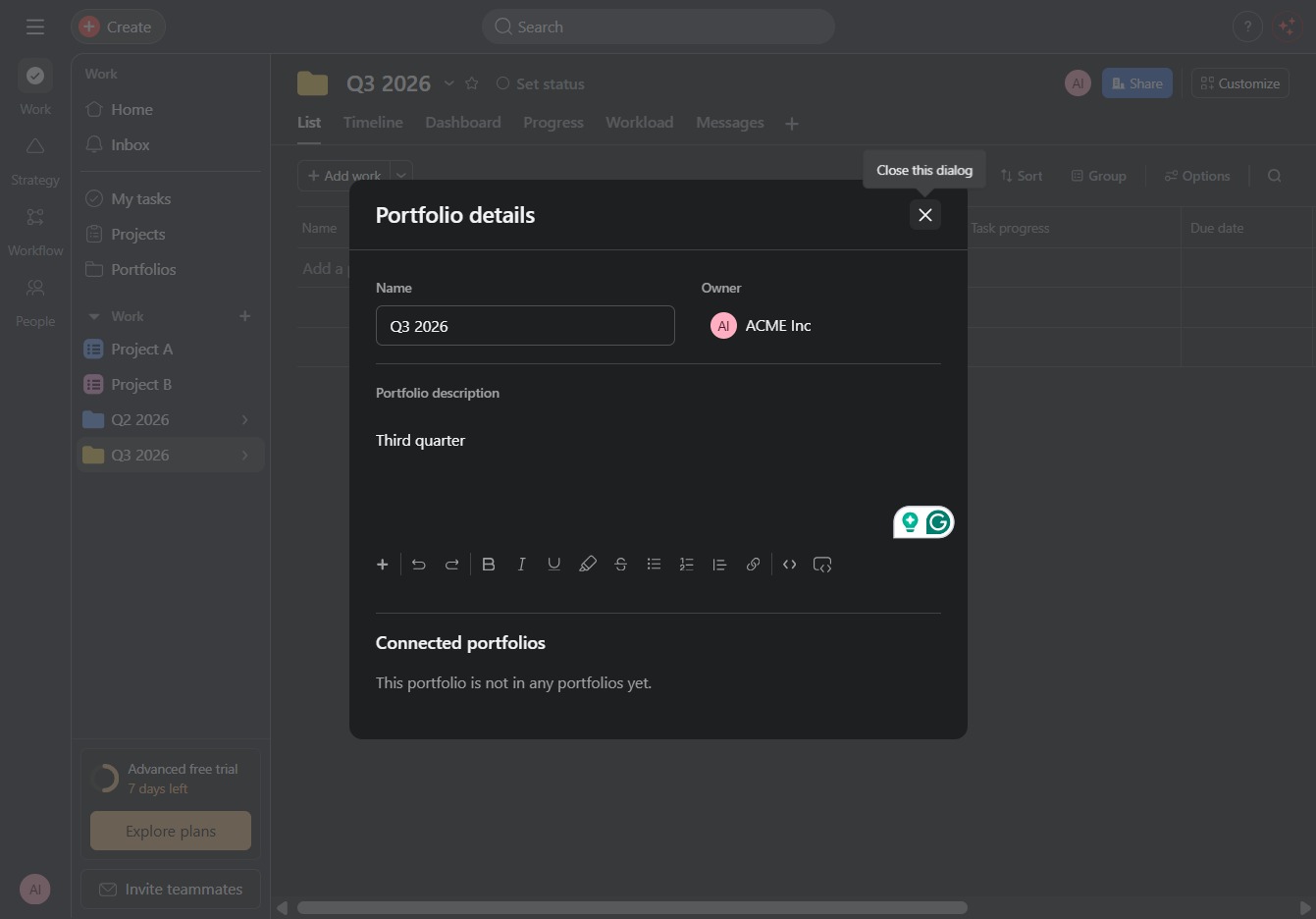
Enter 'Third quarter' in the Portfolio description field to specify the details of this portfolio. This information will help clarify the context of the portfolio for future reference.
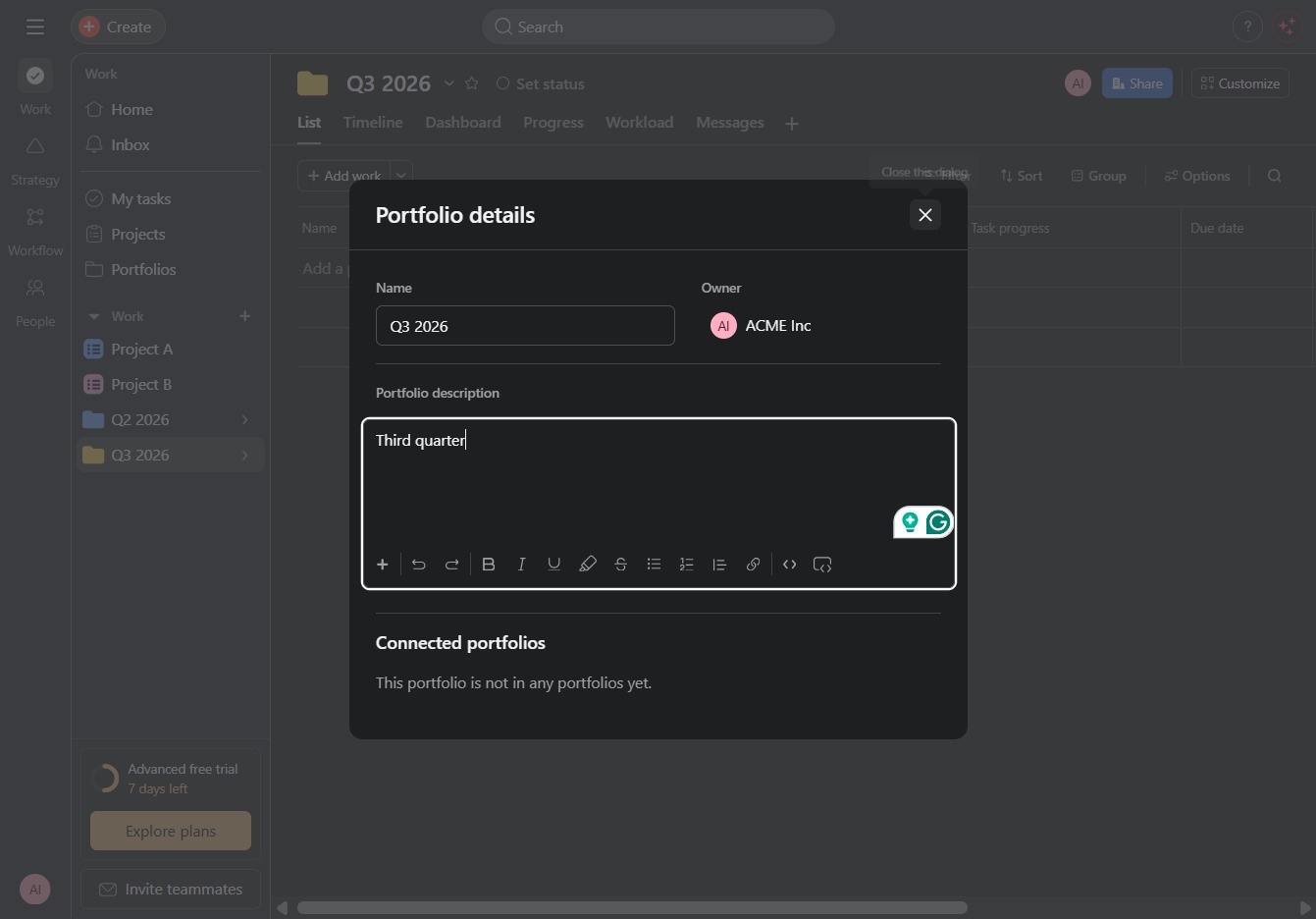
This action will close the Portfolio details dialog, returning you to the previous view or interface without saving any changes made.
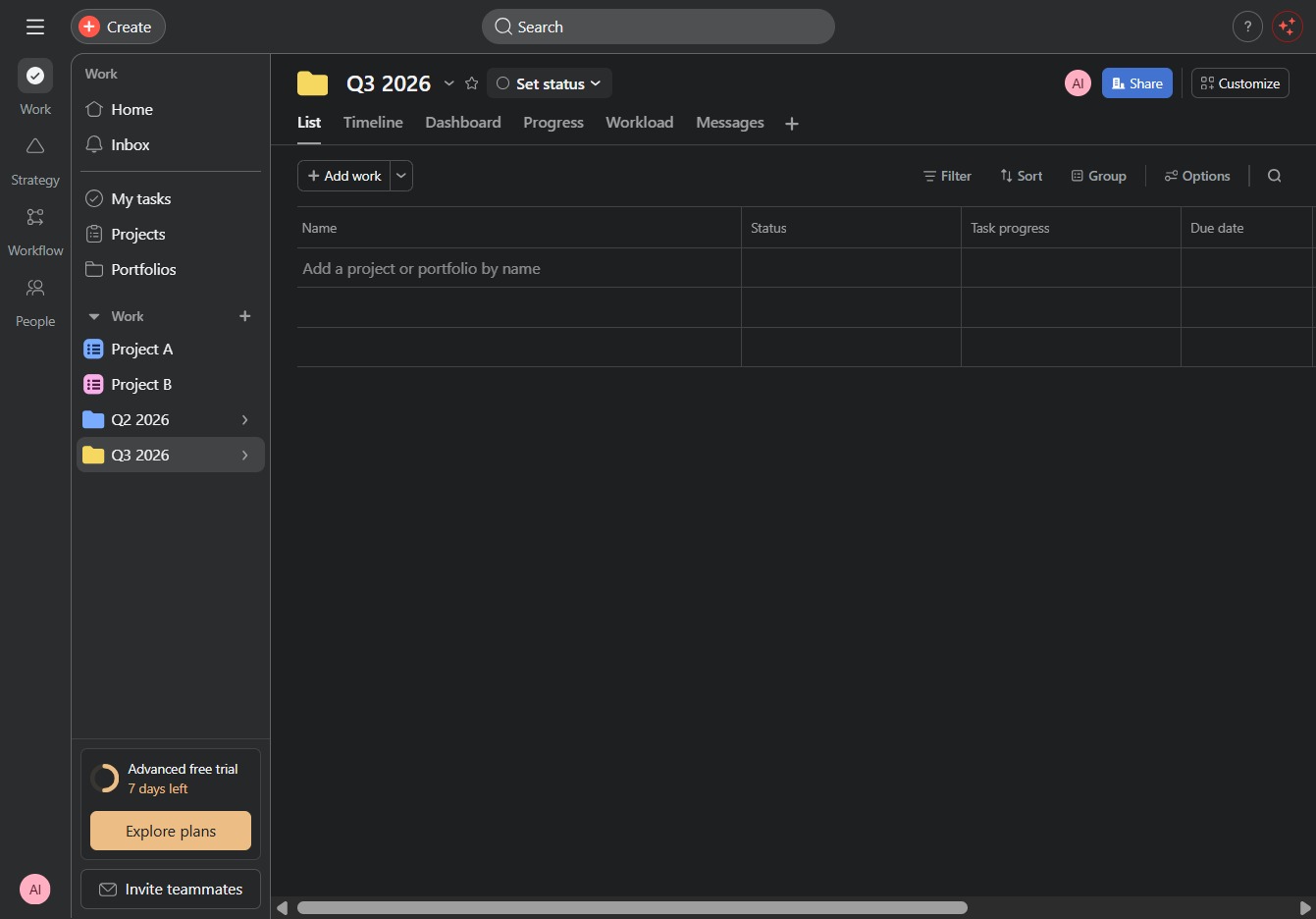
Clicking this button allows you to change the current status of your project within the Q3 2026 portfolio. This helps keep your project tracking updated in the 'List' view.
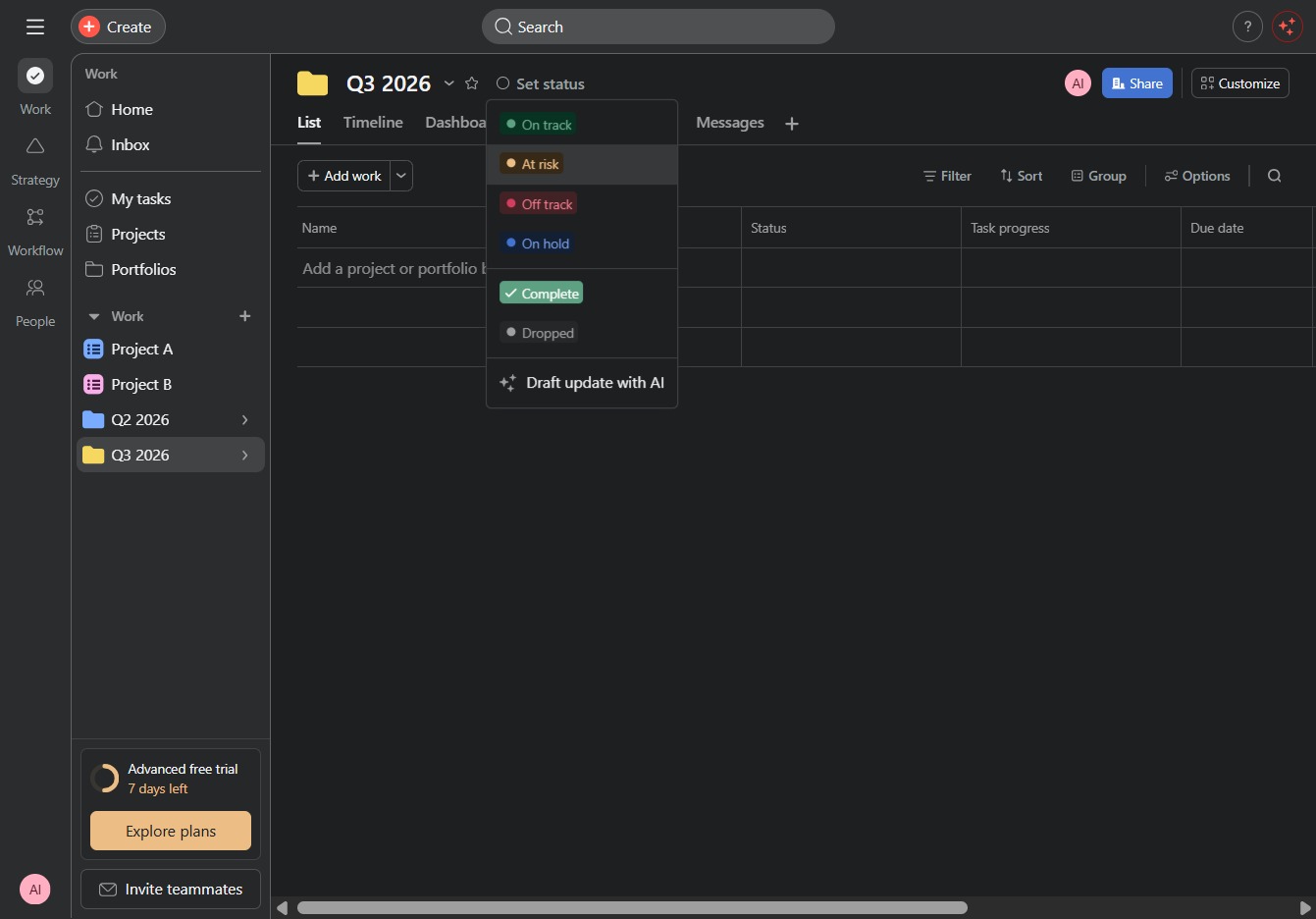
Selecting the 'At risk' status will categorize the task or project as being in a potentially problematic state, prompting necessary attention or intervention from team members.
Enter "Q3 2026 - July 16" in the specified field to set the date for your status update. This will organize your update within the relevant quarterly timeline.
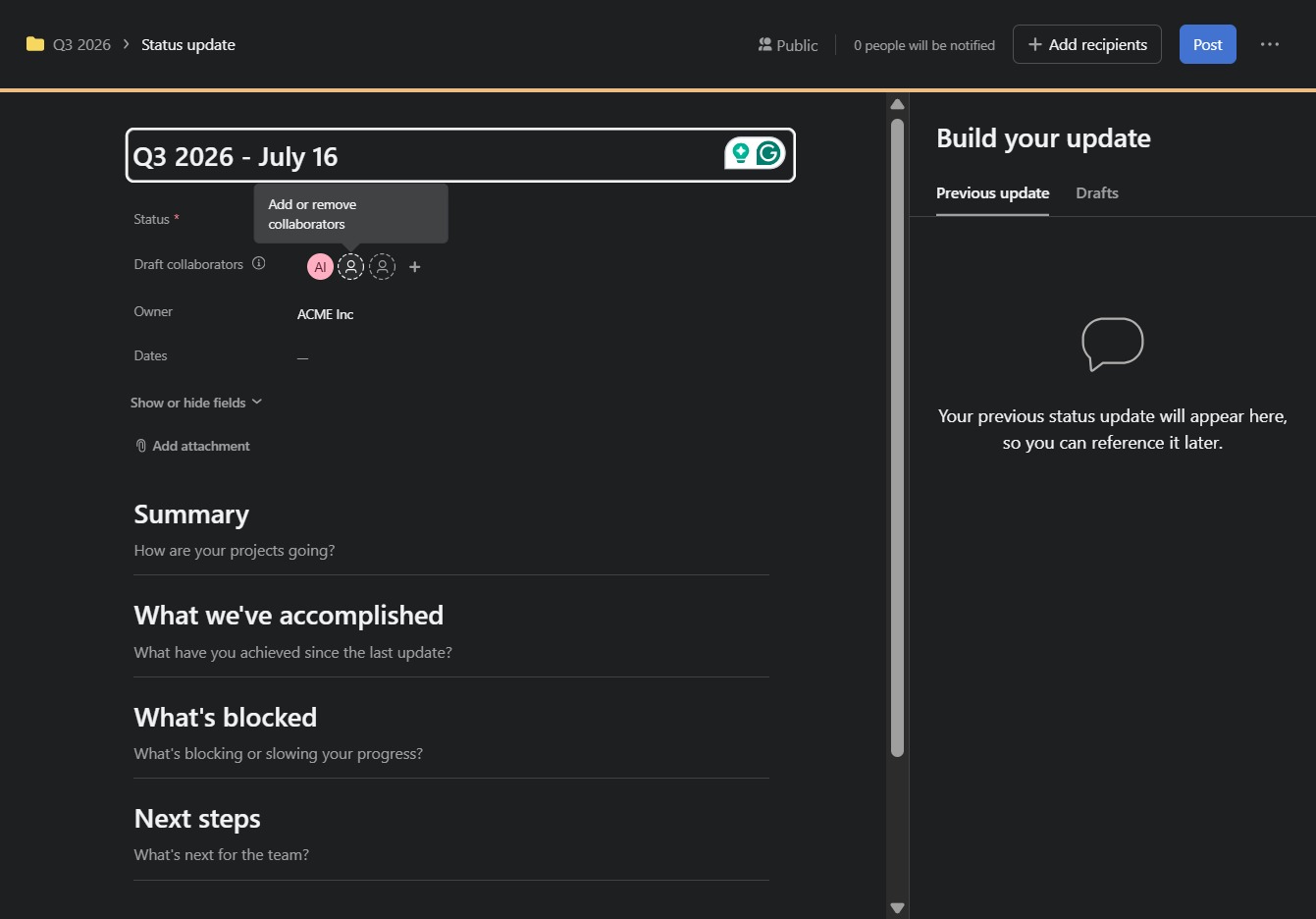
This action allows you to manage collaborators for the current status update, enabling you to add or remove team members involved in the project.

Enter 'ja' in the input field labeled Lui 11355 to specify the required response. This action allows you to progress to the next step in the status update process.

This action will display additional options or information related to the Limited access member's permissions within the collaboration settings.
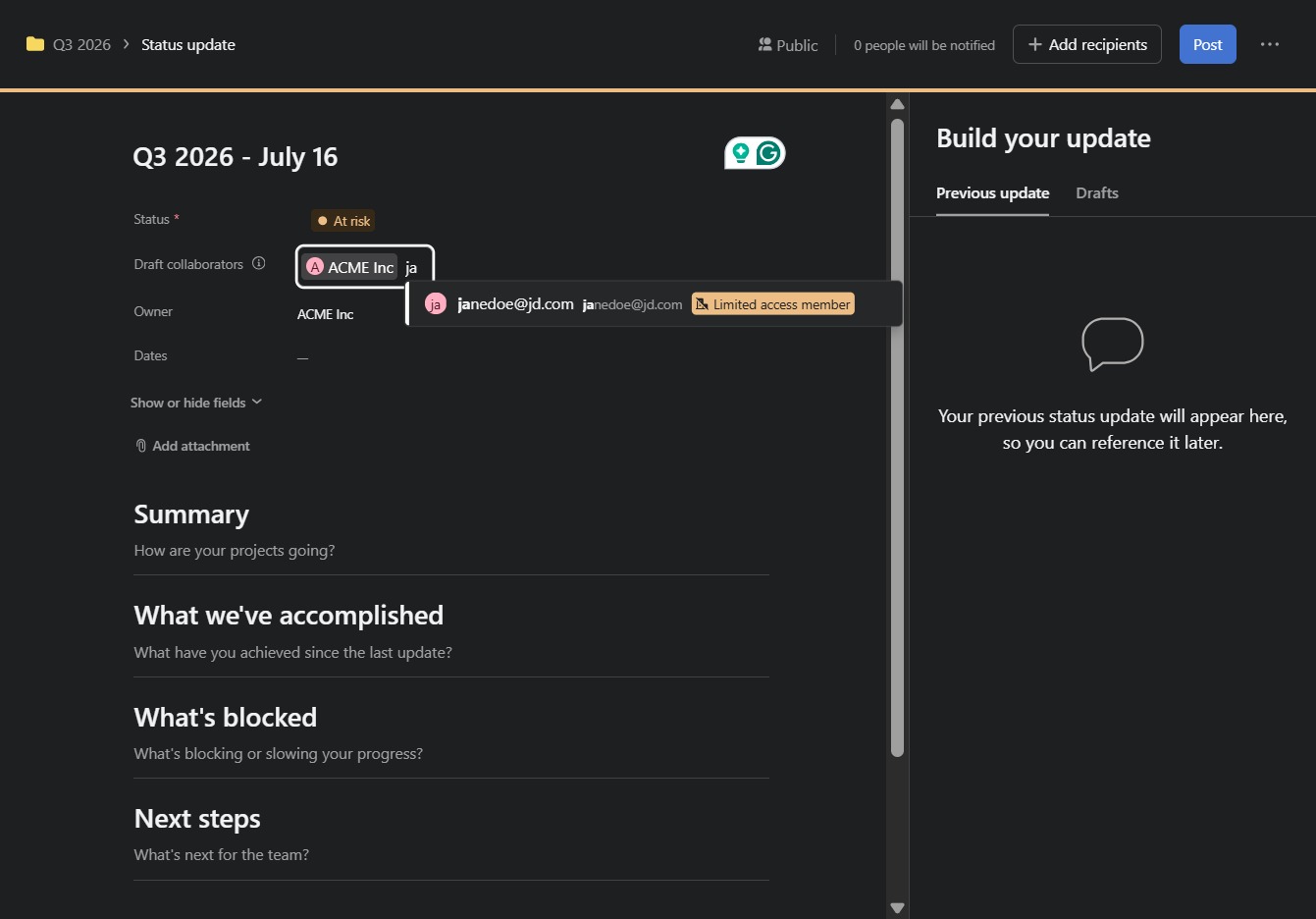
This action submits your status update for review and sharing with collaborators. Ensure all sections are complete before clicking to post your update.
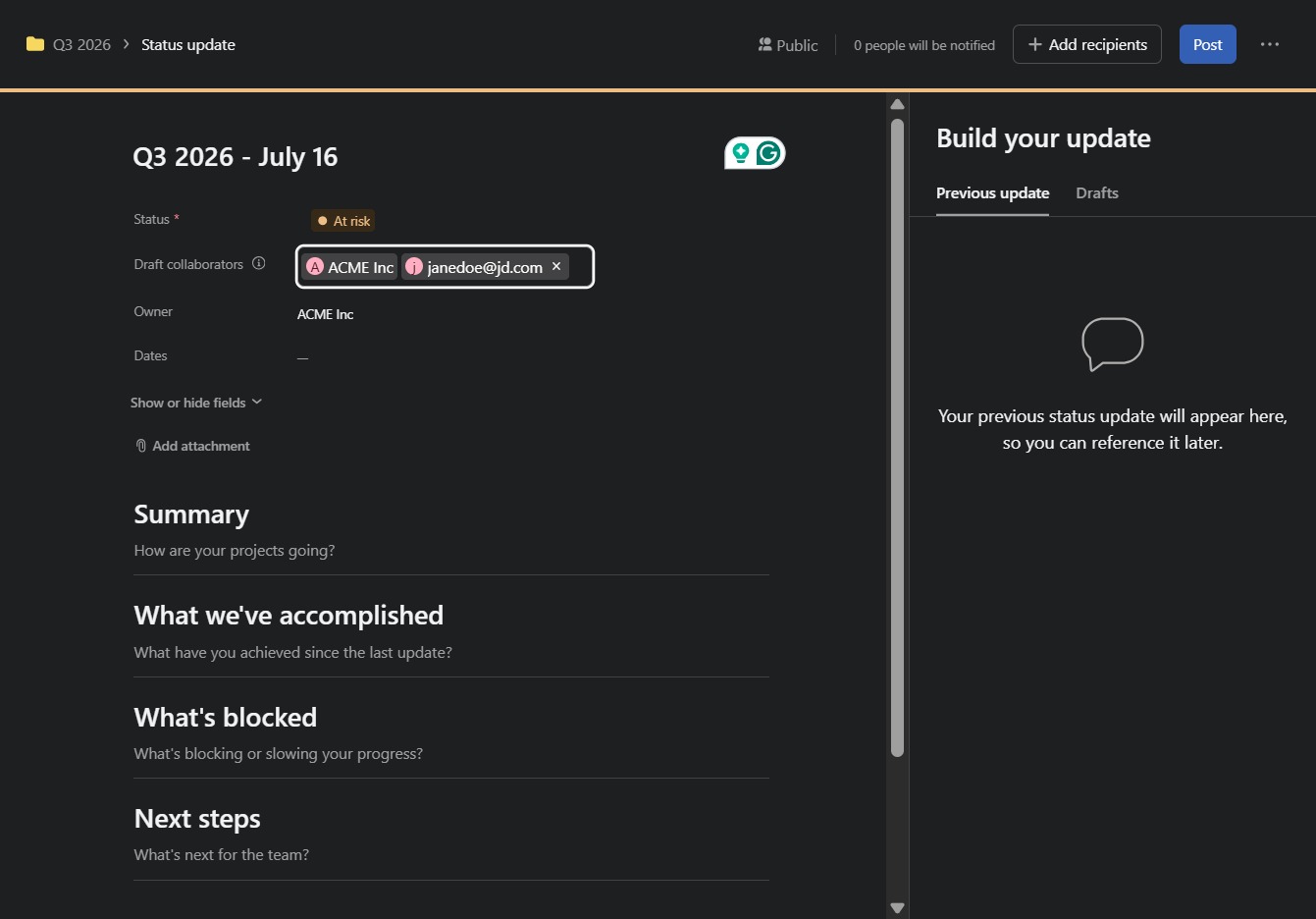
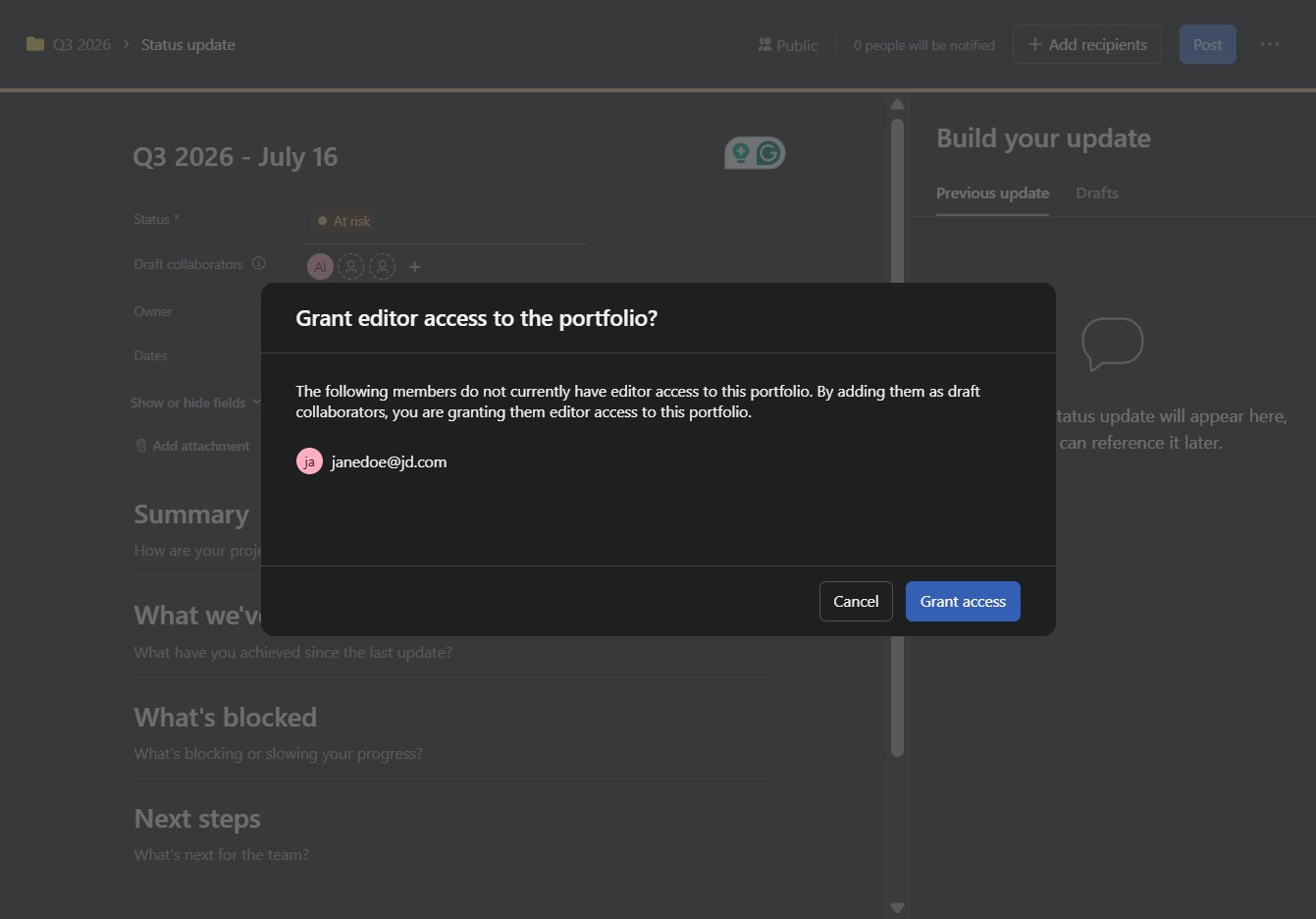
By clicking 'Grant access', you will enable the selected members to have editor access to the portfolio, allowing them to collaborate on updates.