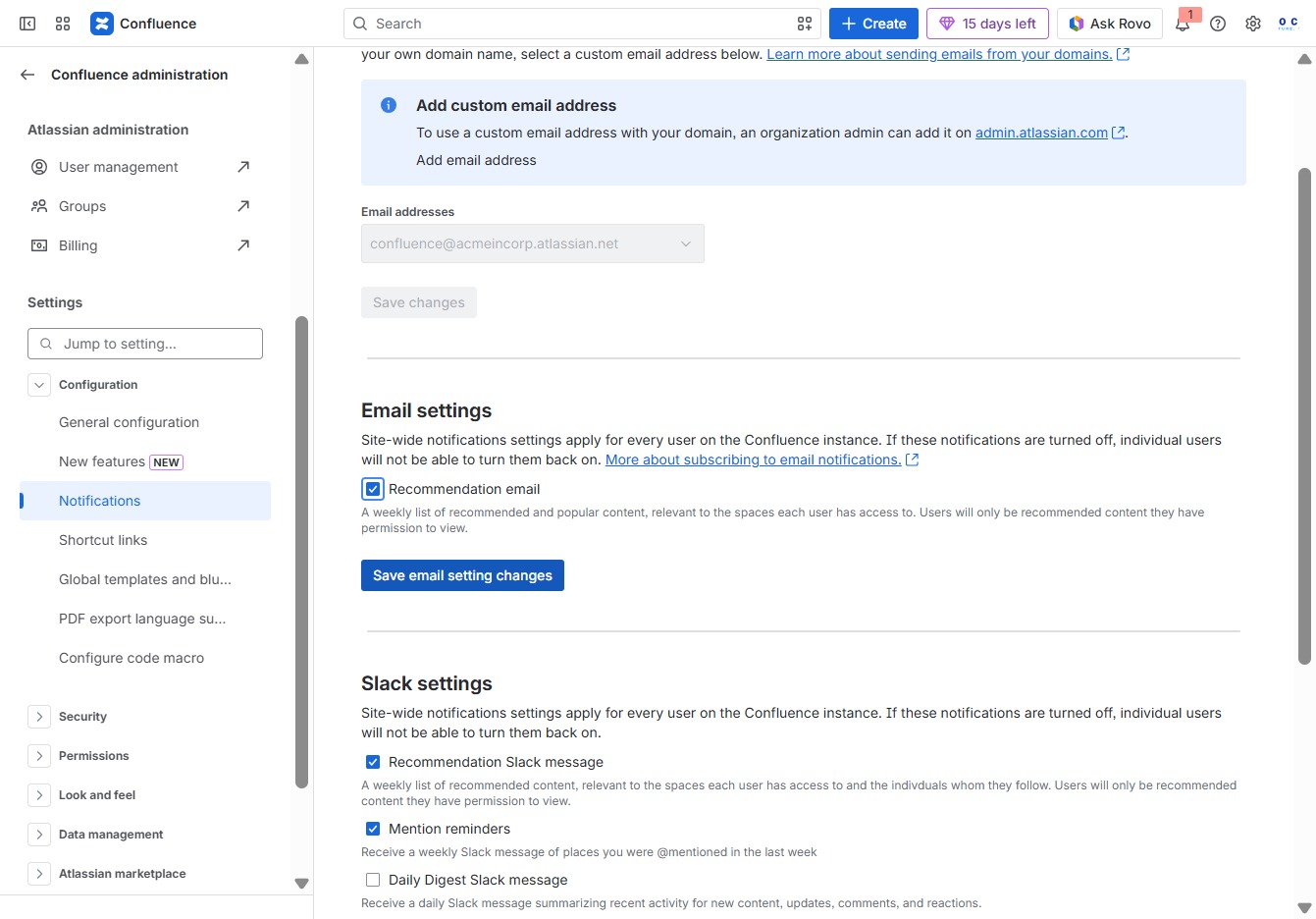
Click the Confluence administration link
This action will take you to the Confluence administration section where you can manage application settings and configurations.
Loading screenshot…
100%
In this guide, you'll learn how to effectively manage notifications in Confluence by navigating through the application settings to adjust alert preferences and enable…
 viktoria
In this guide, you'll learn how to effectively manage notifications in Confluence by navigating through the application settings to adjust alert preferences and enable recommendation emails for users. Follow the steps to customize your notification settings and ensure optimal communication within your team.
This action will take you to the Confluence administration section where you can manage application settings and configurations.
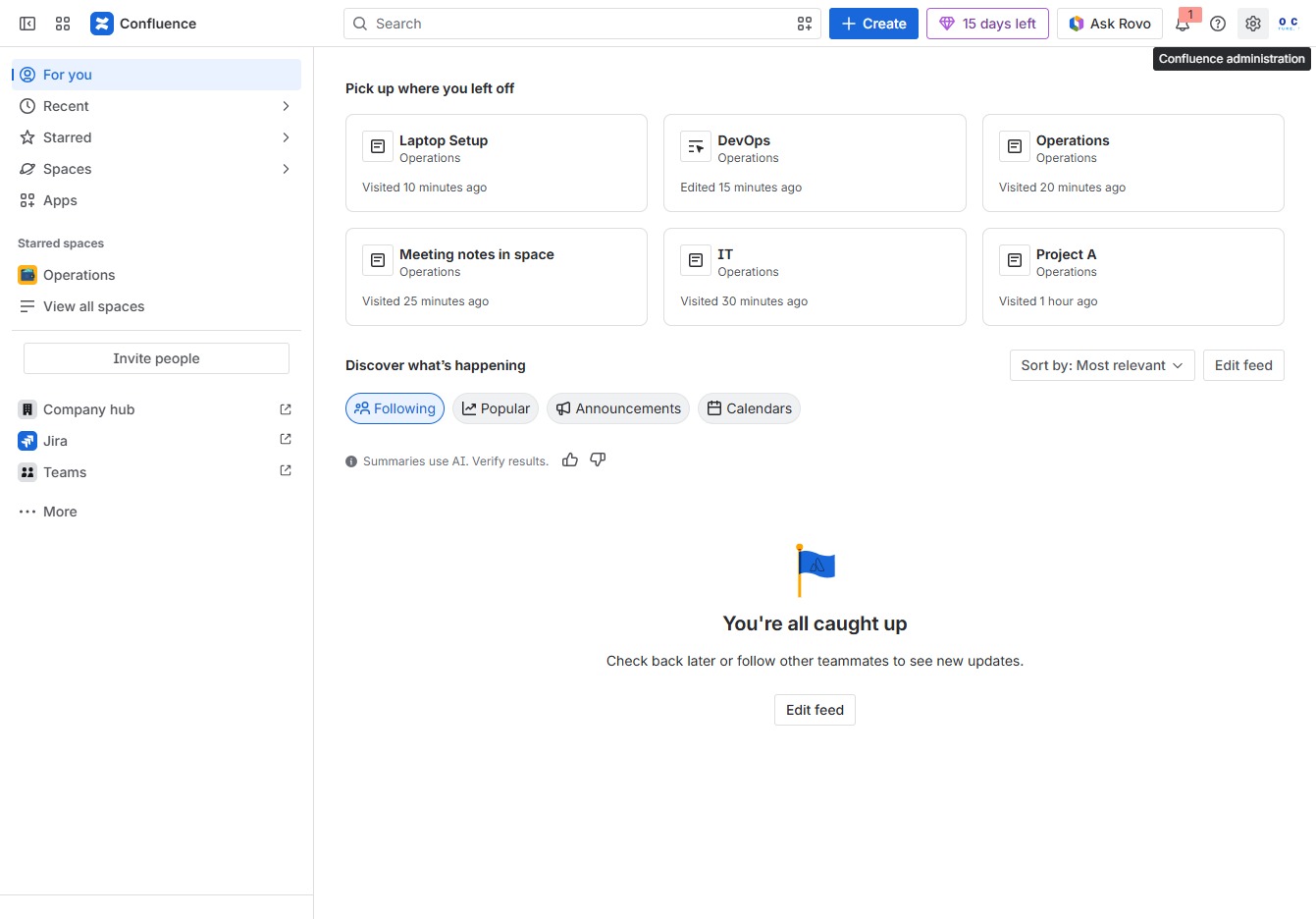
This will take you to the settings related to your notifications in Confluence, allowing you to manage alert preferences and other related settings.
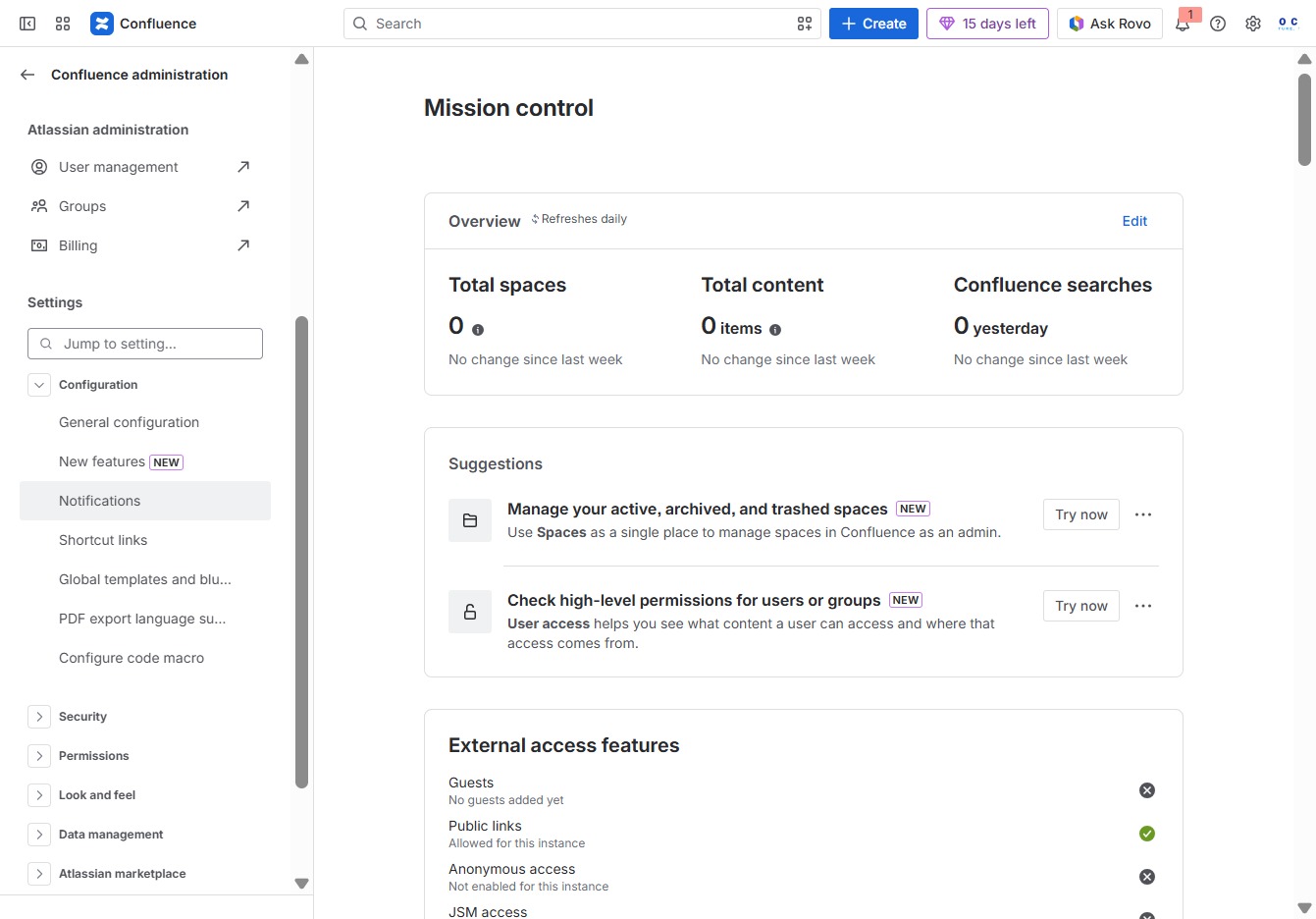
By selecting the Recommendation email checkbox, you enable notifications for recommendation emails to be sent to users on your Confluence instance.
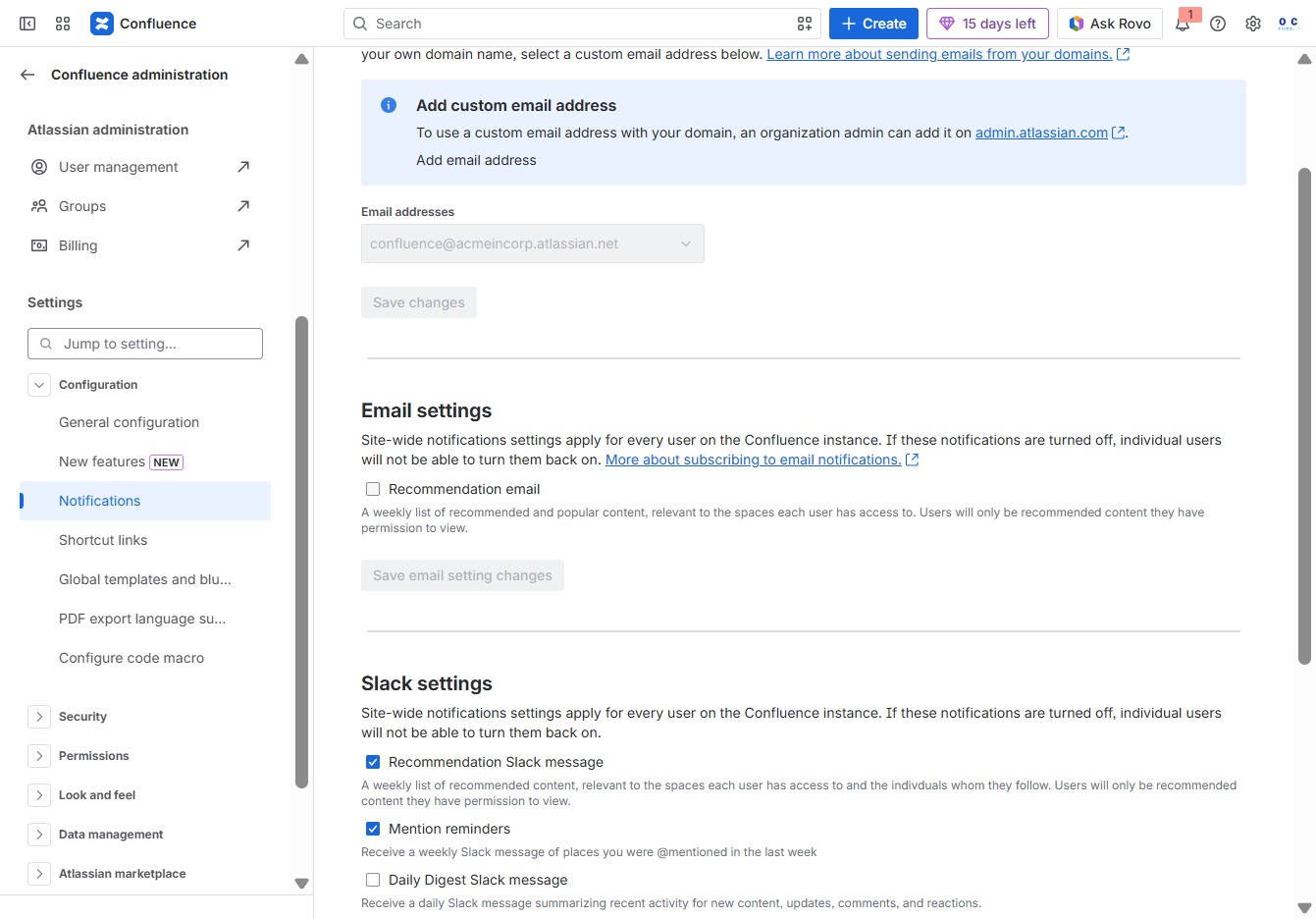
This action saves any modifications made to the email settings in your Confluence instance, ensuring that updated configurations take effect for notifications.