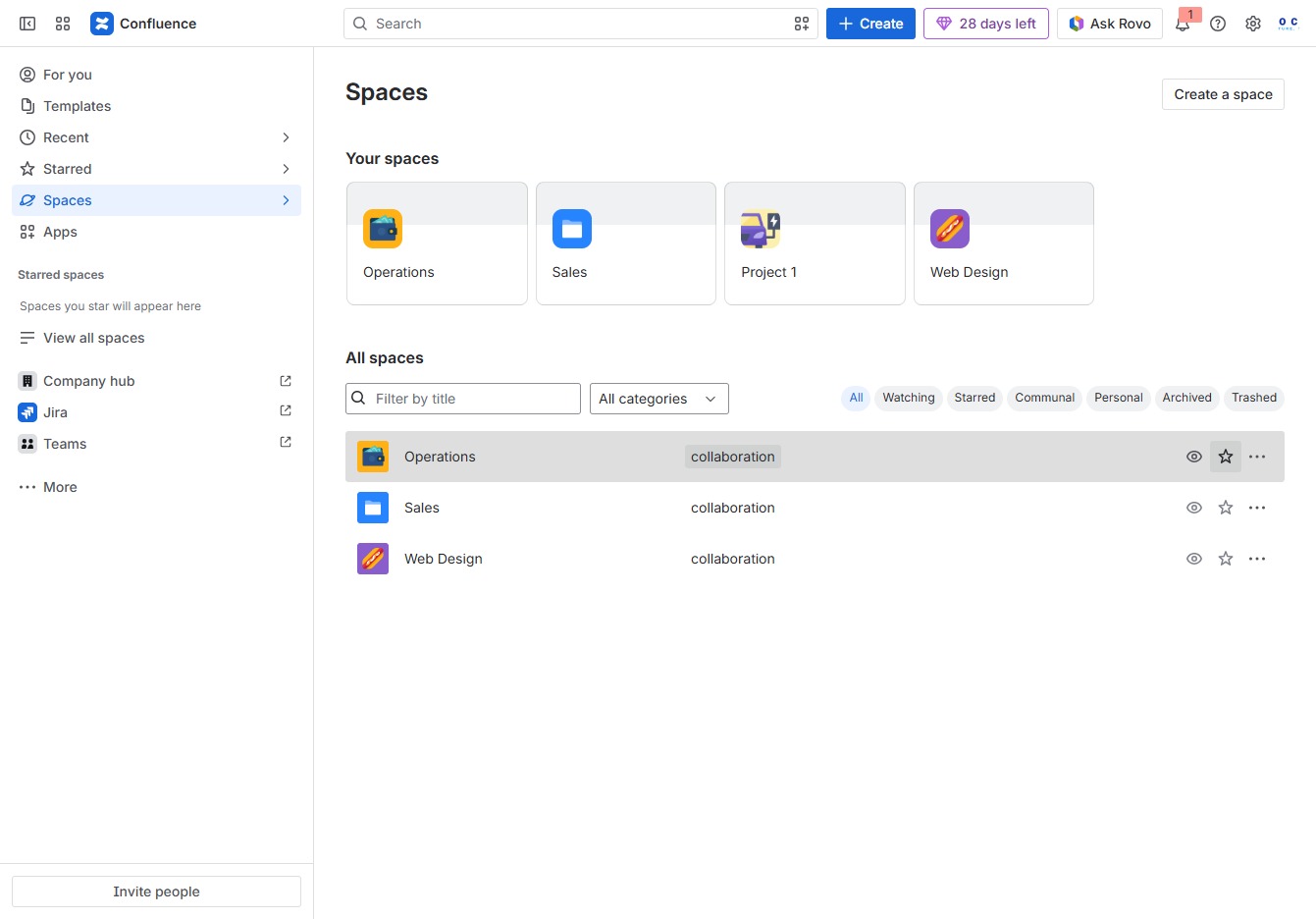
Click the Spaces section
This action opens the Spaces panel, allowing you to view and manage different spaces within your Confluence environment.

Loading screenshot…
100%
Learn how to effectively manage multiple spaces in Confluence with this comprehensive guide.
 viktoria
Learn how to effectively manage multiple spaces in Confluence with this comprehensive guide. From navigating the Spaces panel to adjusting settings and enabling notifications, this tutorial covers essential steps to streamline your project management and enhance collaboration within your teams.
This action opens the Spaces panel, allowing you to view and manage different spaces within your Confluence environment.
This action will display a comprehensive list of all spaces available in your Confluence environment, allowing you to navigate to different project areas easily.

Selecting this link will present additional options related to your spaces, allowing you to manage or explore different features within the Confluence platform.
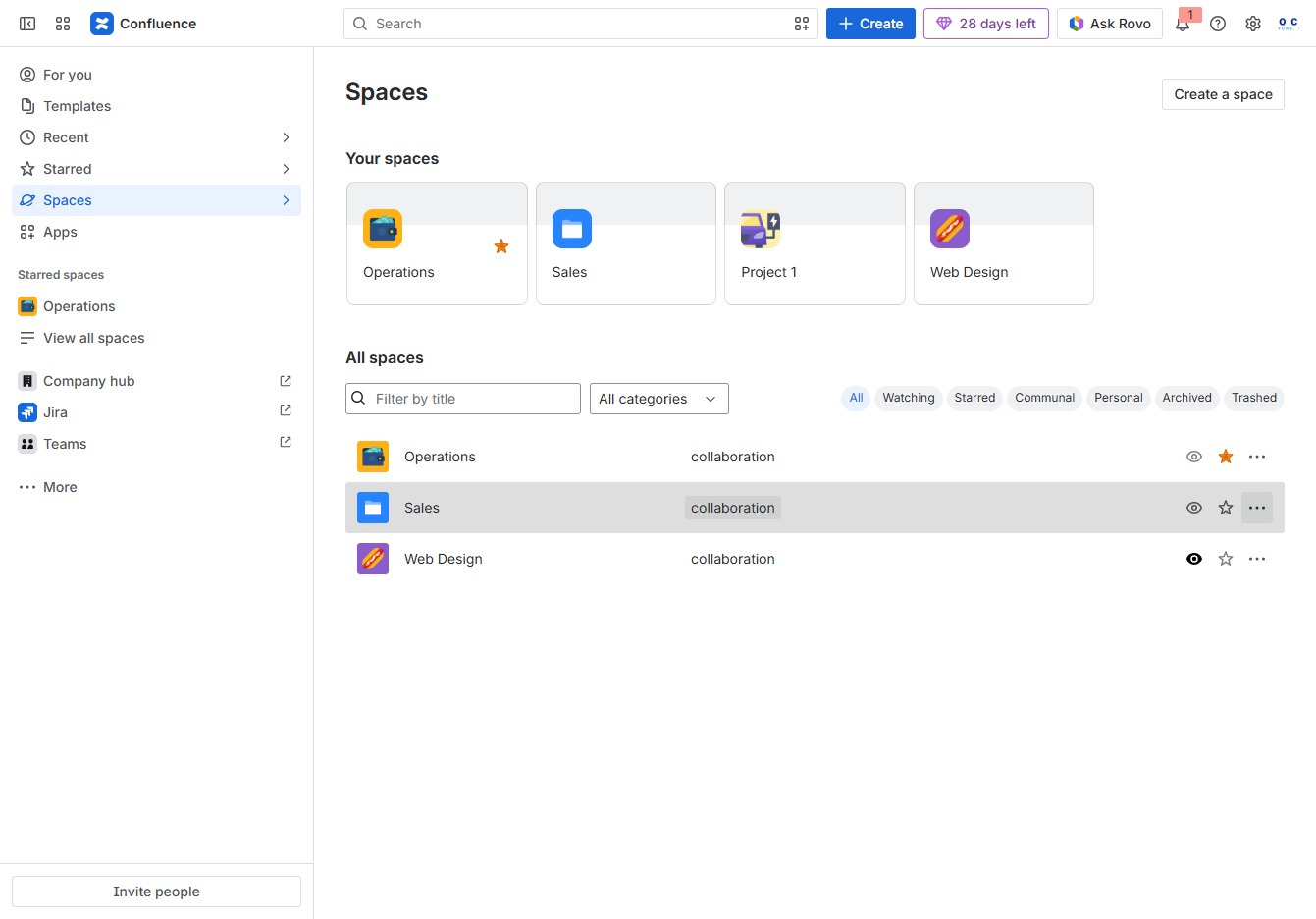
Clicking this will enable notifications for the Web Design space, keeping you updated on new activity and changes.

Clicking this link will take you to a detailed view of the selected space, where you can manage content and settings specific to that space.
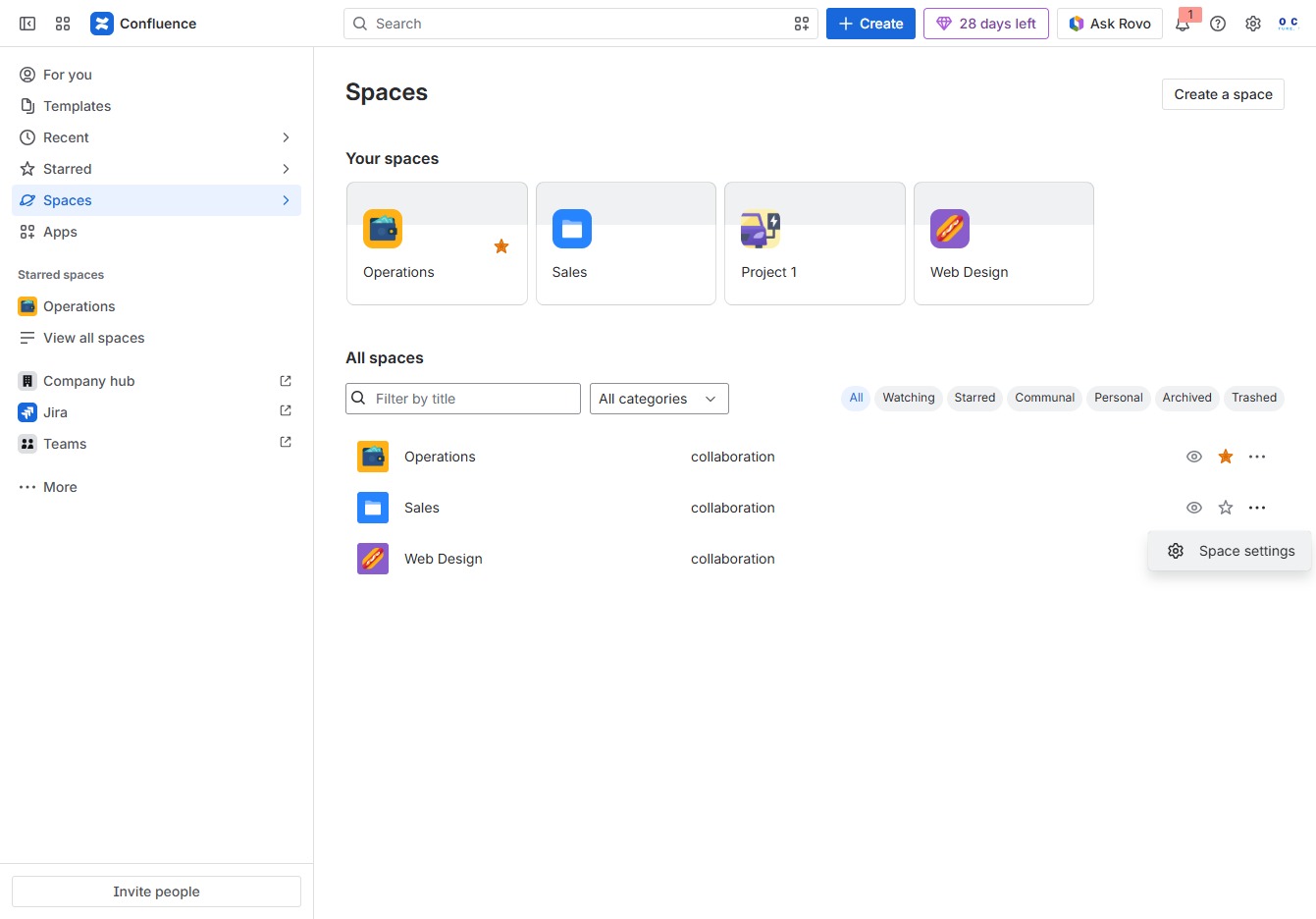
This opens the configuration options for managing the selected space's settings, including permissions and features.
This will take you to the General settings for managing space access, content management, and integration options.

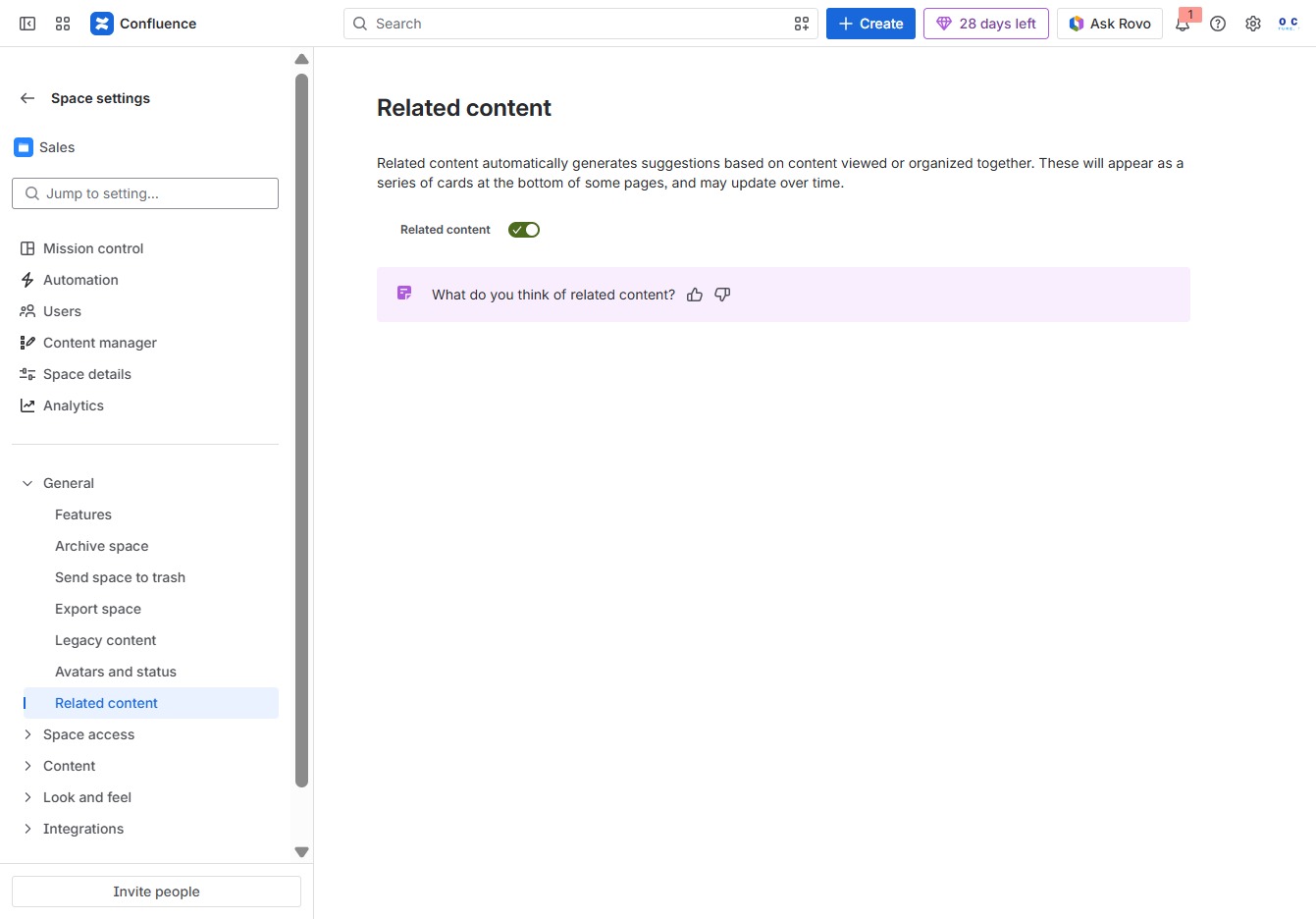
This action will display additional relevant resources and information related to the current settings, enhancing your understanding of security metrics.
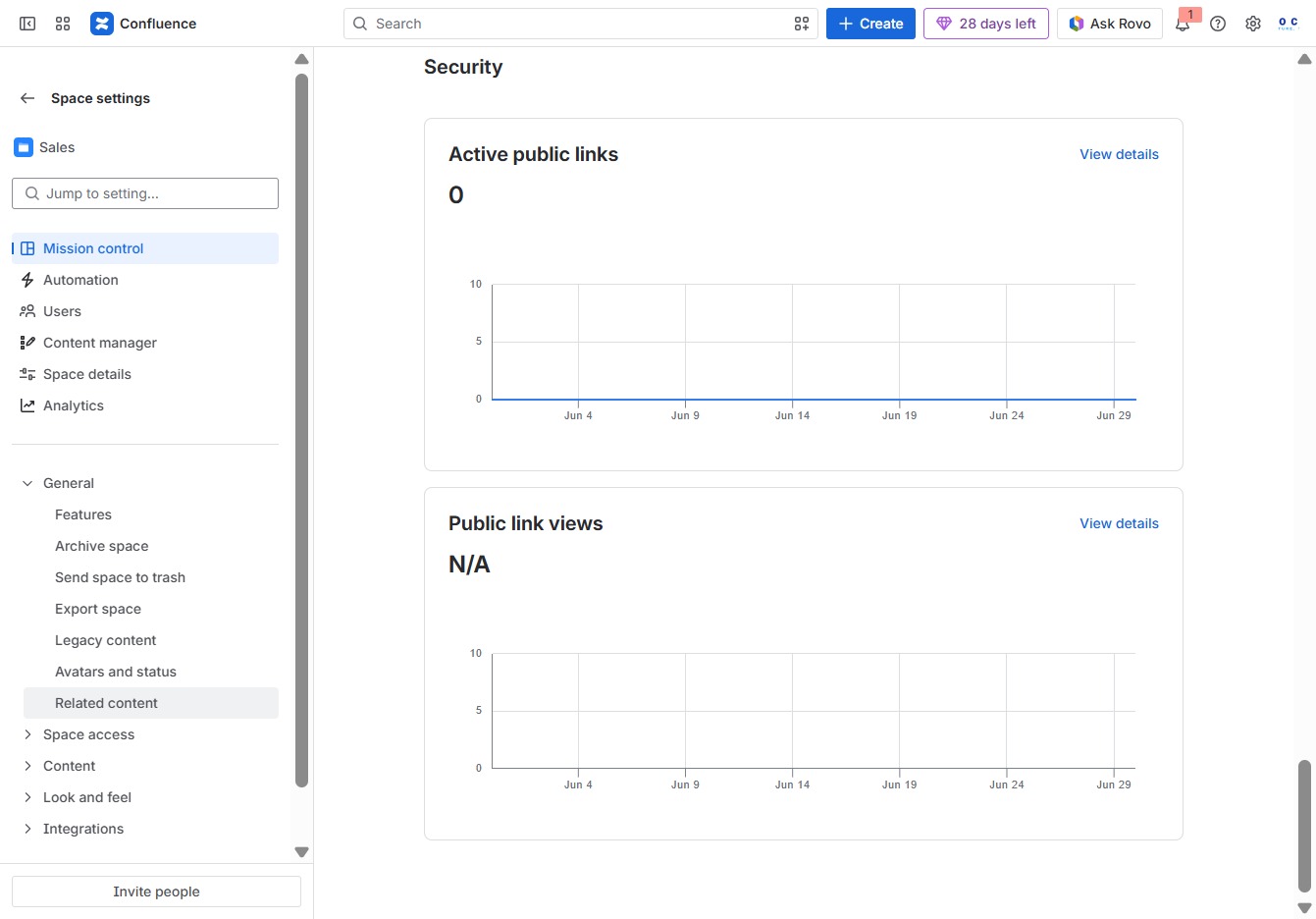
Clicking this link allows you to submit your thoughts on the related content feature, which helps gather input for improving content suggestions.