Click here to perform an action
Clicking this link will trigger the associated action for the selected item in your task list or activities.
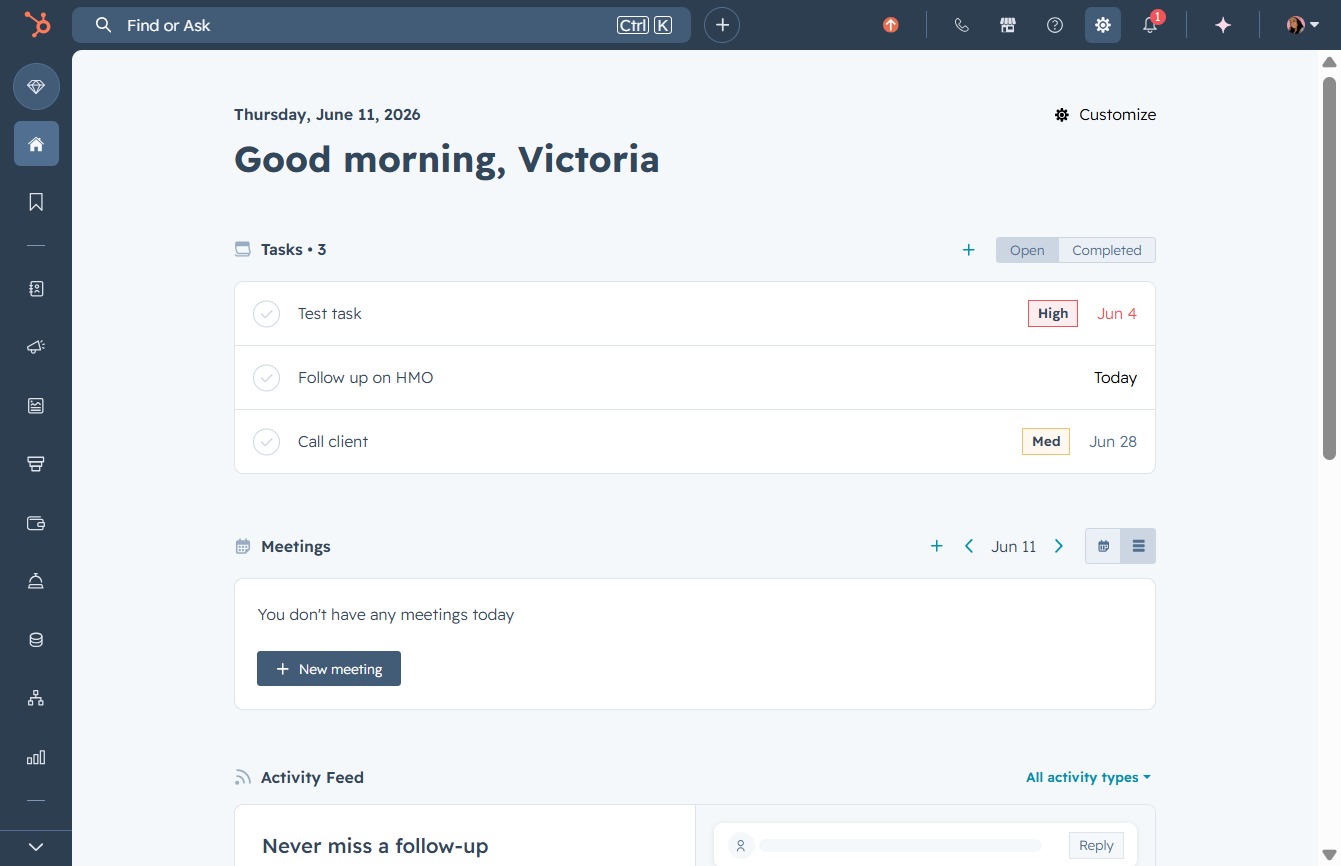
Loading screenshot…
100%
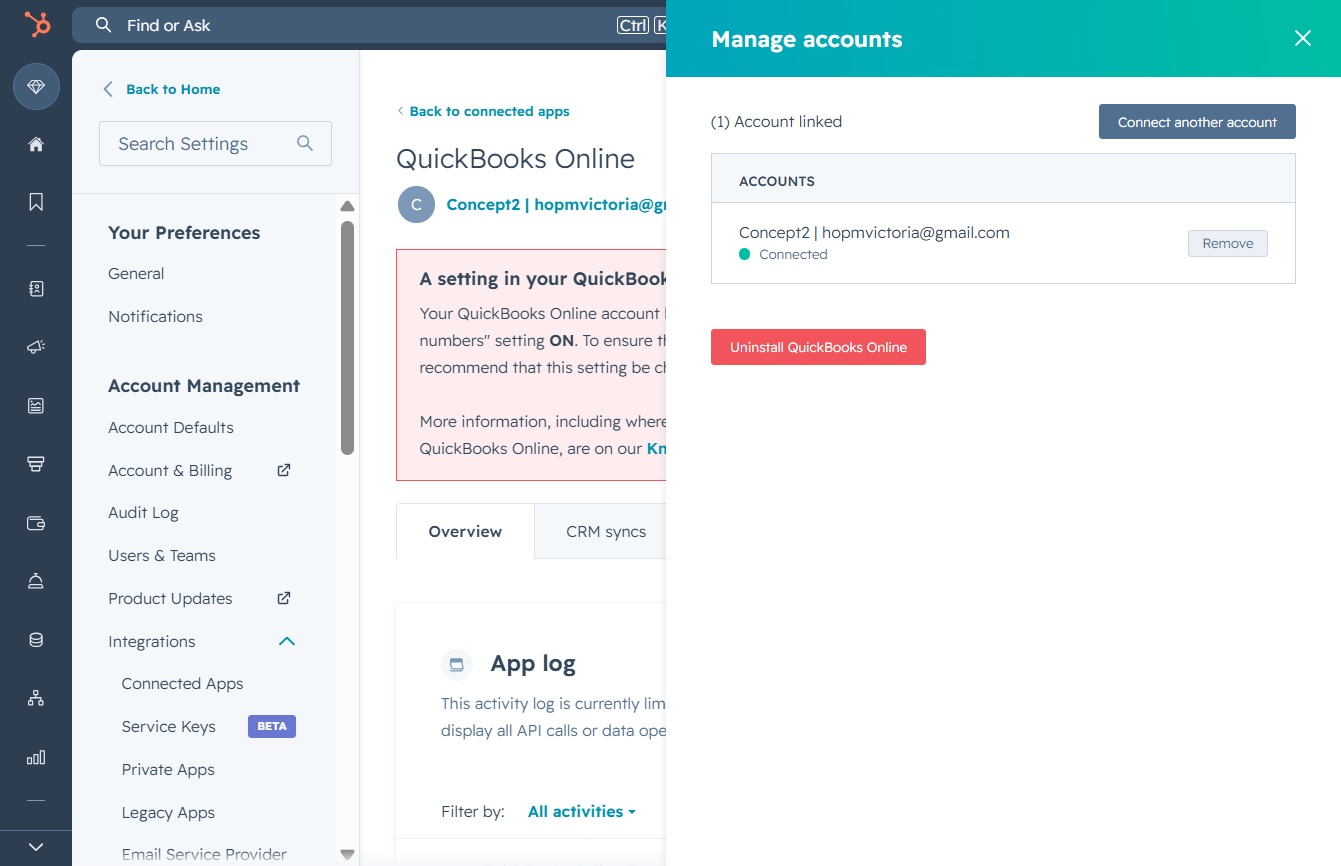
Link an additional account to QuickBooks Online through the Integrations tab in HubSpot to streamline your workflow and enhance account management options.
 viktoria
Link an additional account to QuickBooks Online through the Integrations tab in HubSpot to streamline your workflow and enhance account management options.
Clicking this link will trigger the associated action for the selected item in your task list or activities.
Clicking the Integrations tab allows you to manage and connect various applications to your HubSpot account, enhancing your workflow and productivity.
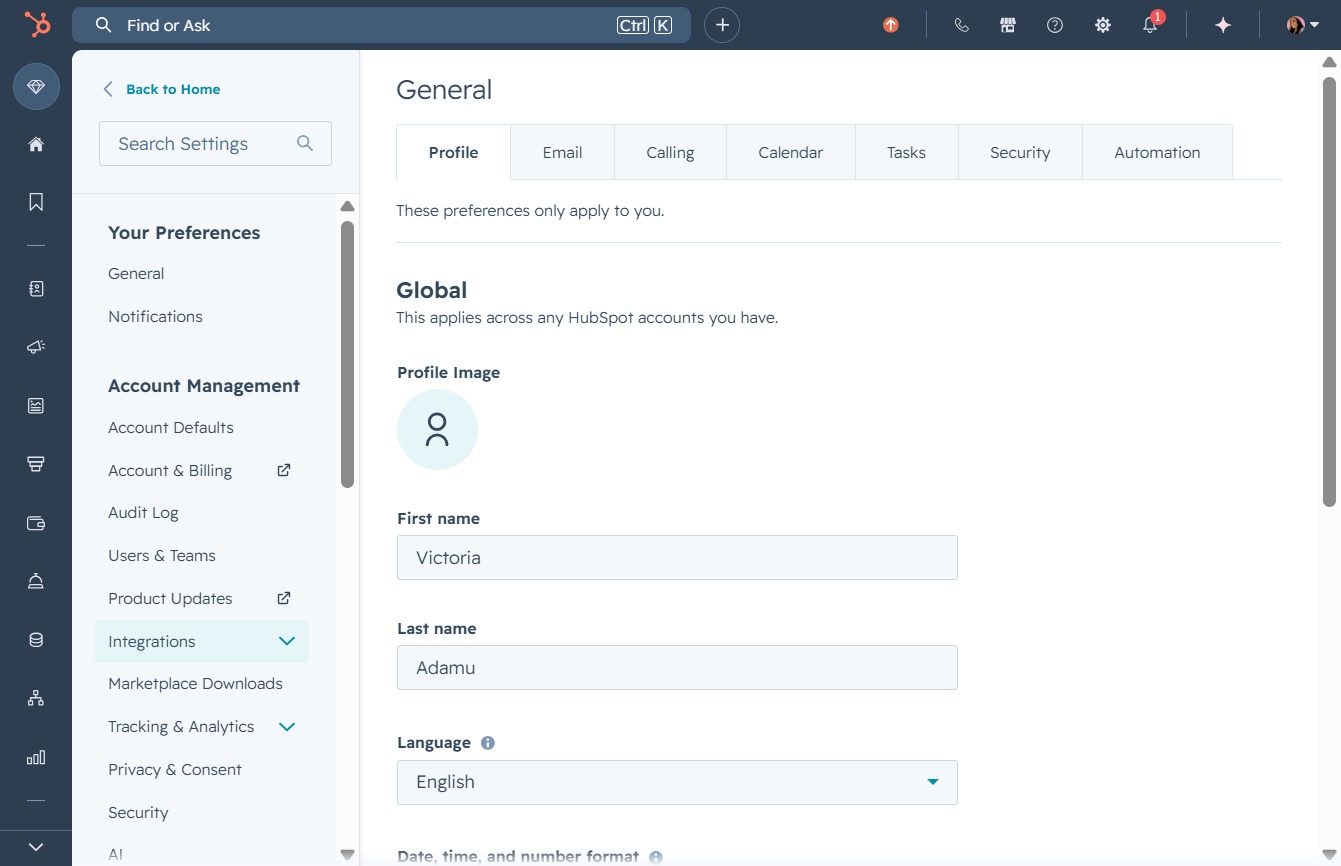
This action will take you to the Connected Apps section, where you can manage and configure the applications integrated with your HubSpot account.
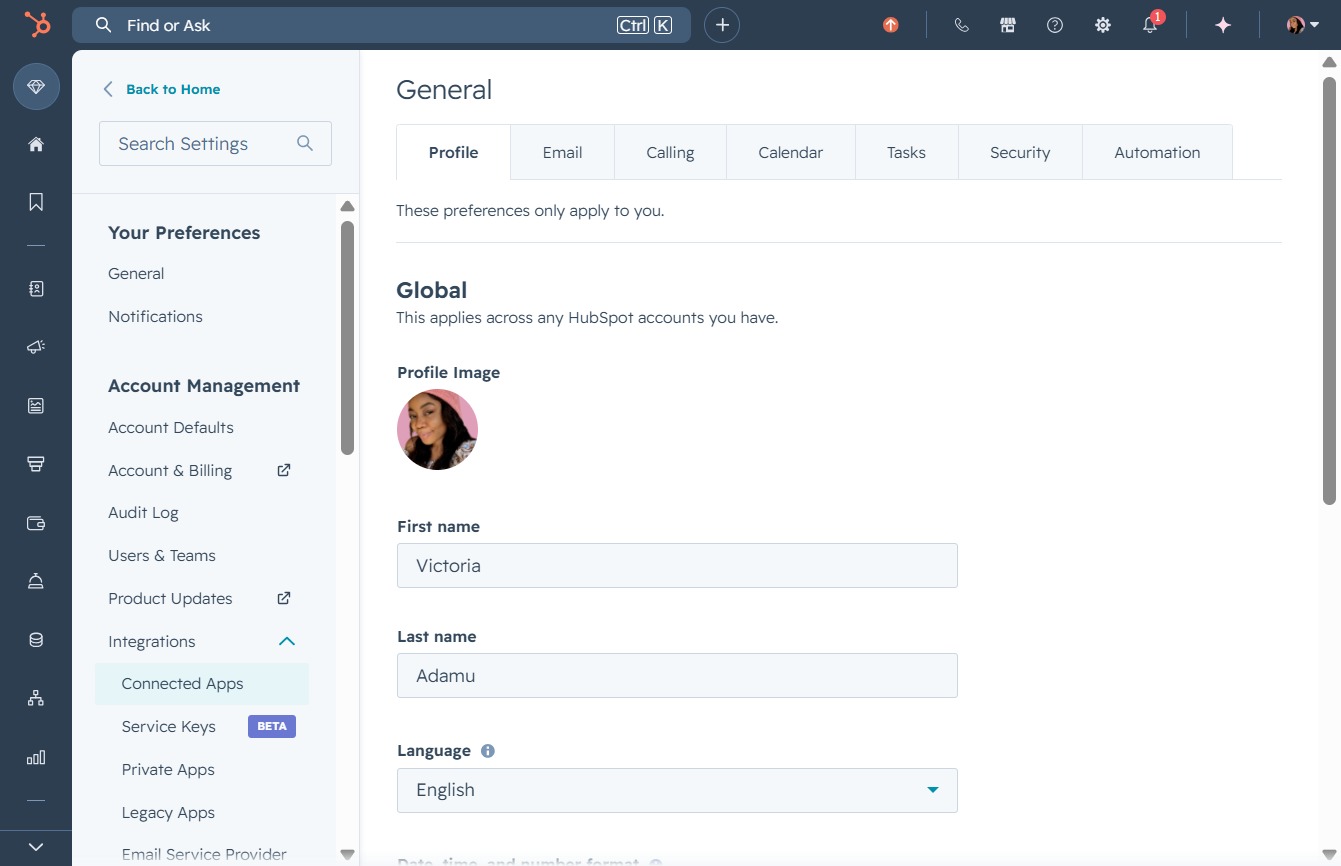
Clicking on 'QuickBooks Online' opens the integration settings where you can manage your connection and access various features related to your QuickBooks account.

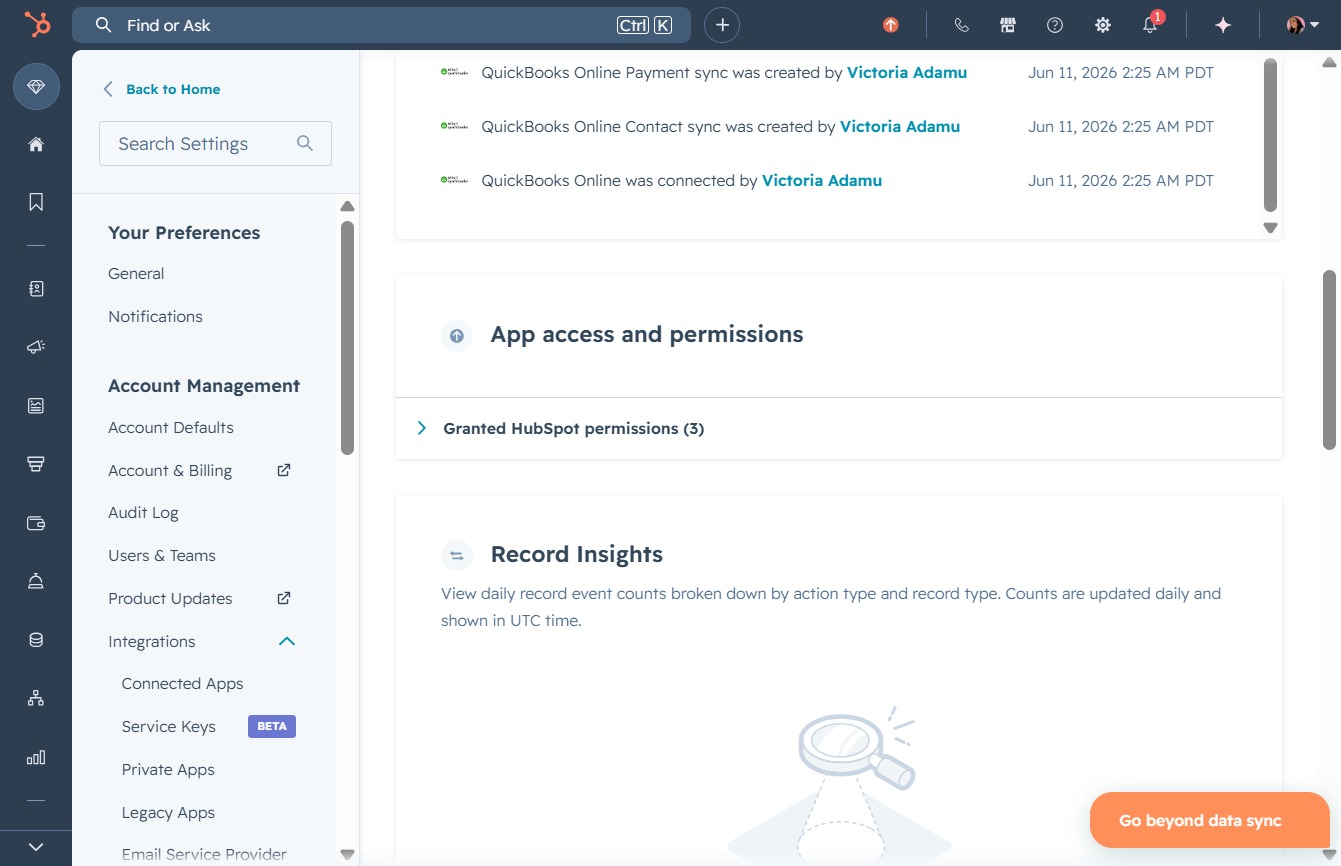
By clicking this option, you will view the details of the permissions that have been granted to HubSpot, helping you manage integrations and access settings.
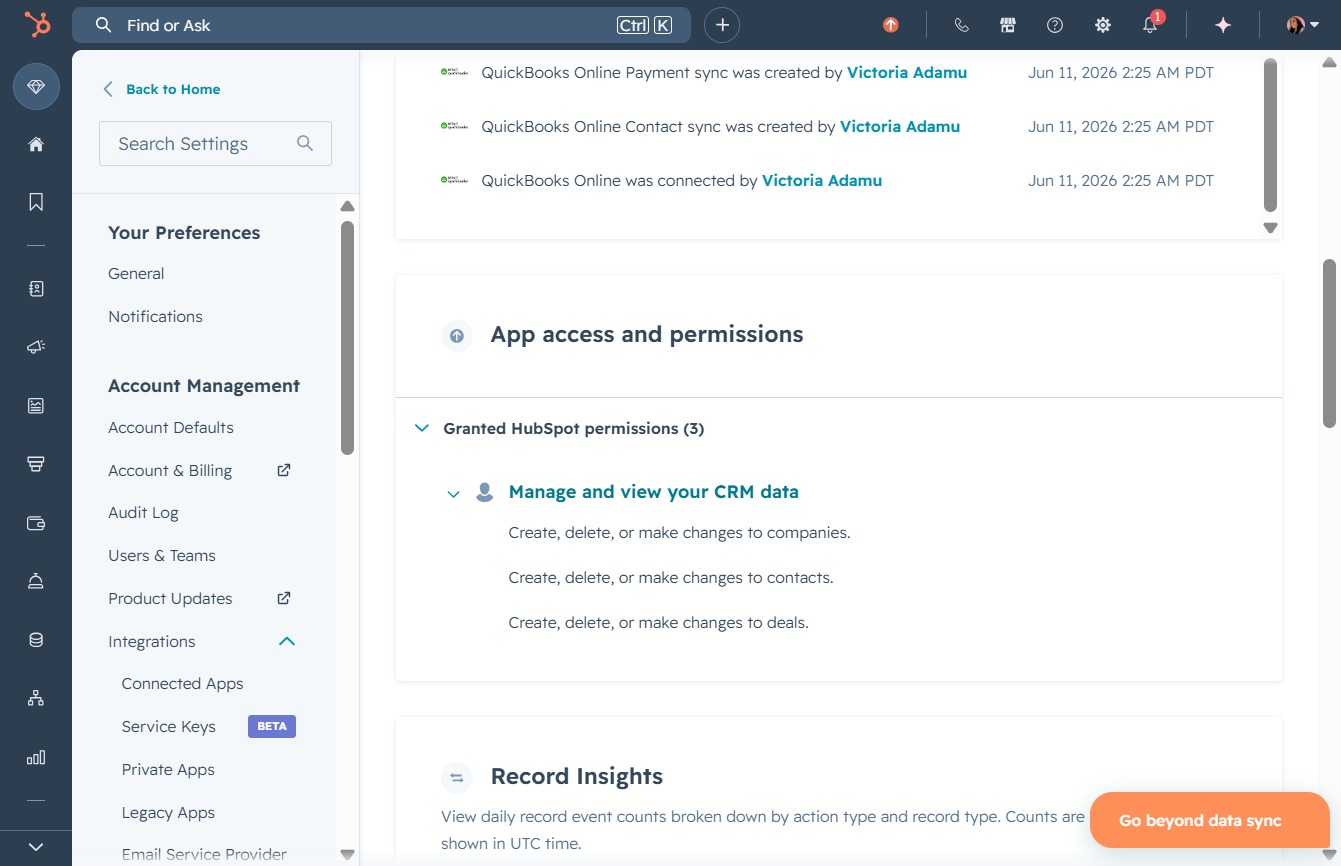
This action allows you to access options to create, delete, or modify changes to your CRM contacts and companies.
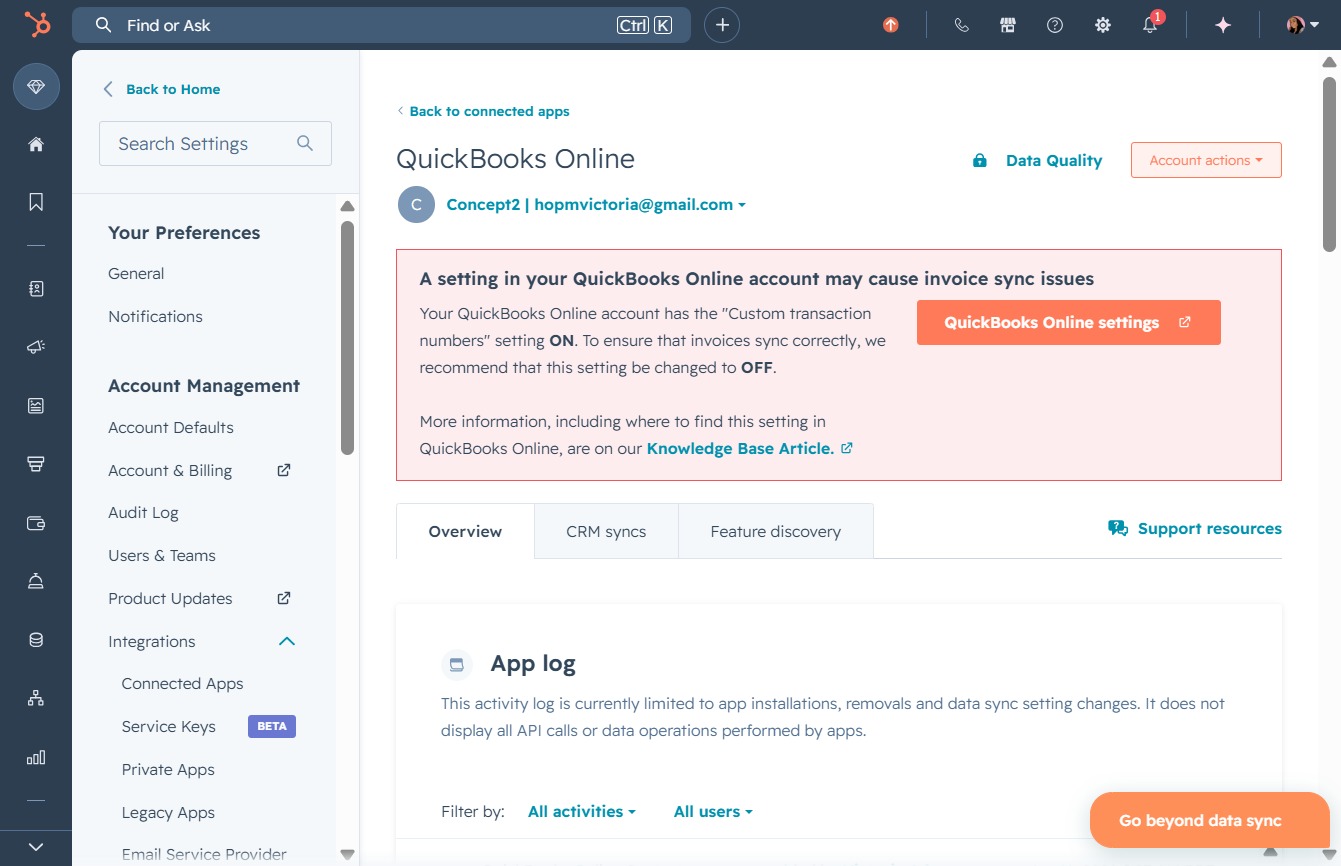
Clicking the 'Account actions' button opens a menu that allows you to manage various settings and actions related to your account.
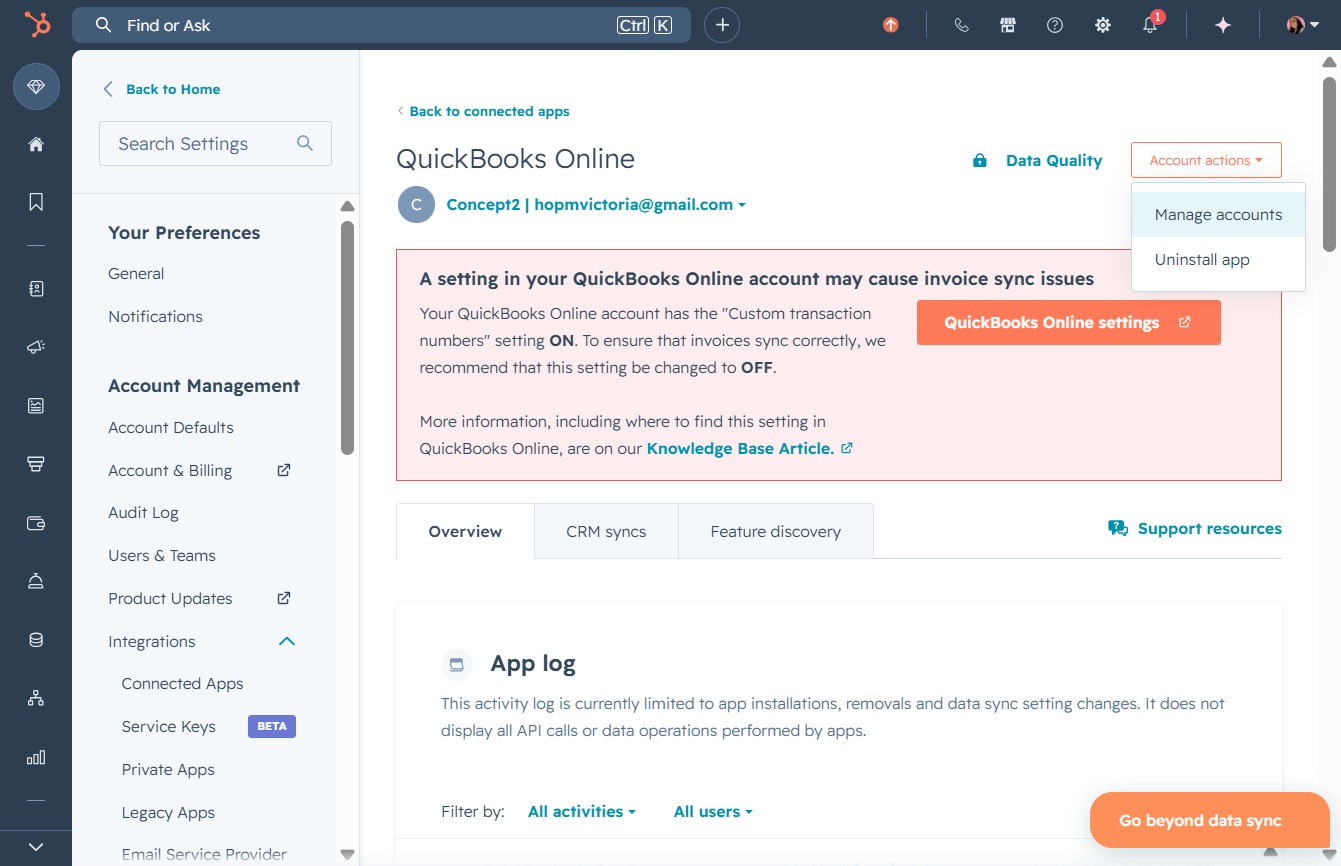
Clicking the 'Manage accounts' link allows you to view and modify your account settings, including linking or disconnecting other accounts associated with QuickBooks Online.
By clicking this link, you will initiate the process to link an additional account to your QuickBooks Online setup, allowing for better integration and management of multiple accounts.