Click the Confluence Administration link
This action opens the Confluence administration settings, where you can manage user permissions, configurations, and other administrative tasks.

Loading screenshot…
100%
This how-to guide walks you through managing guest access in Confluence, detailing steps to configure permissions, invite new users, and set specific roles.
 viktoria
This how-to guide walks you through managing guest access in Confluence, detailing steps to configure permissions, invite new users, and set specific roles. Learn how to grant limited access to users without full accounts, ensuring secure collaboration within your organization.
This action opens the Confluence administration settings, where you can manage user permissions, configurations, and other administrative tasks.
Selecting the Guest access option allows you to manage permissions for users who can access spaces without a full account. You'll be able to configure settings related to anonymous access and external features.

This action allows you to invite new guests to access your Confluence space. You can specify guest permissions and manage their access directly from the guest access settings.
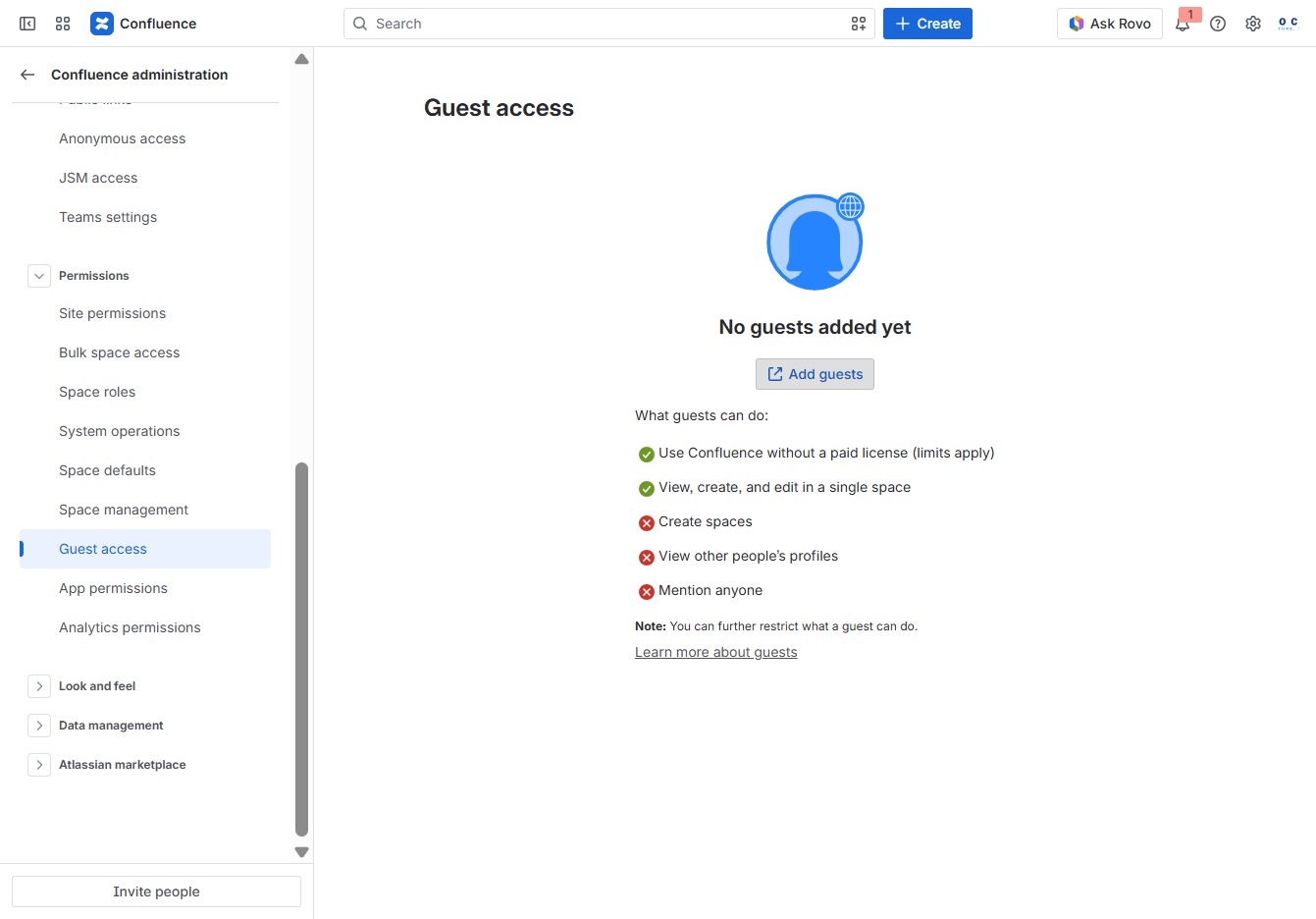
This action opens a dialog to add new users to your account. You can enter their email addresses and set their roles for access within your organization.
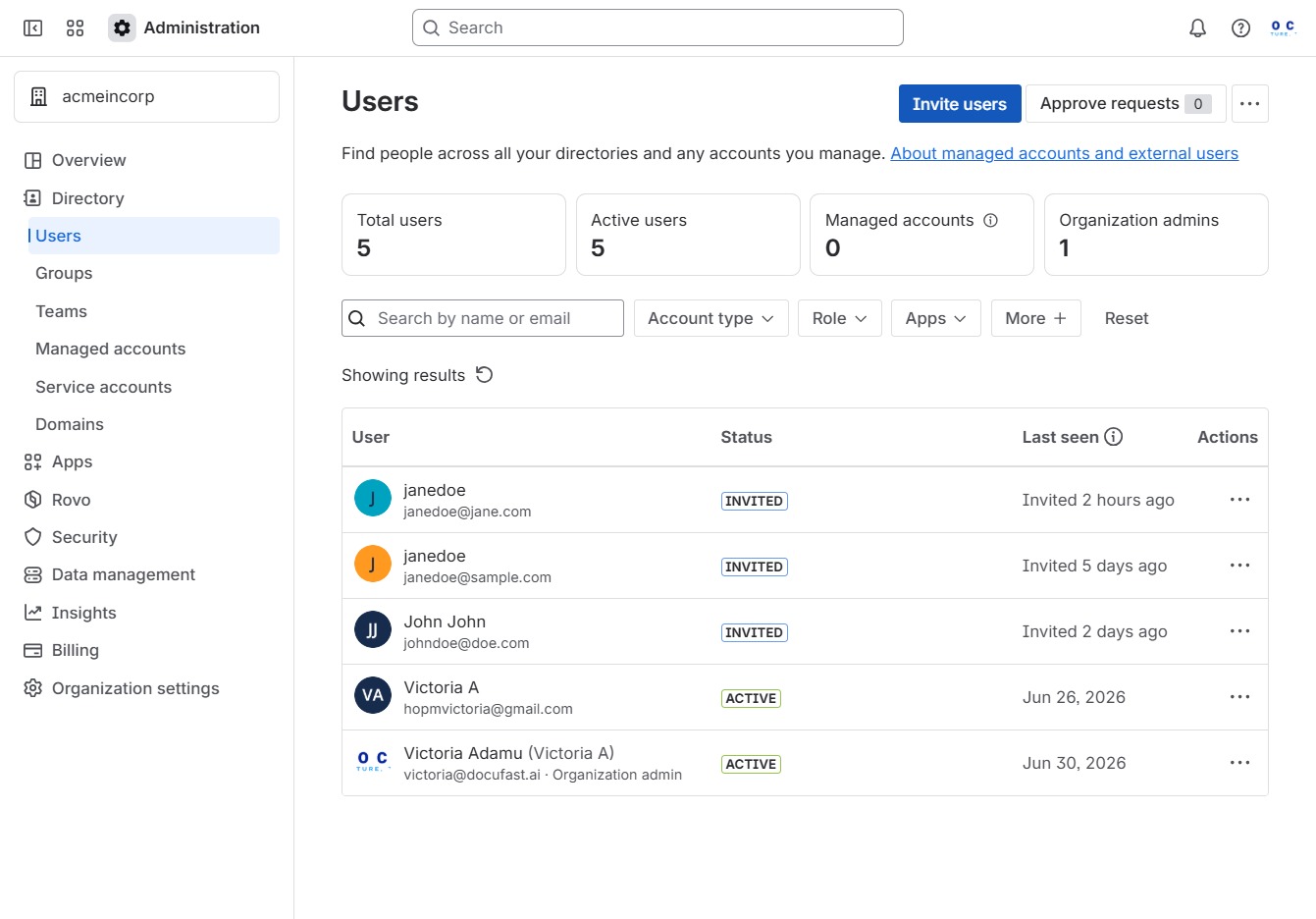
Clicking this link will allow you to access the invitation feature, where you can add new users to collaborate on various apps within your organization.

Enter 'janed@doe.com' in the Email addresses field to invite a new user to your organization. This step is necessary for sending invitations to the specified email.

By clicking the User role dropdown next to Confluence, you can select different user roles available for this application, allowing for specific access levels.

By selecting the Guest role, you ensure the user can only access one assigned space within the app without admin permissions. This role is ideal for providing limited access to specific users.

This will send an invitation to the selected users to access the specified applications. Ensure all details are correct before sending the invite.
