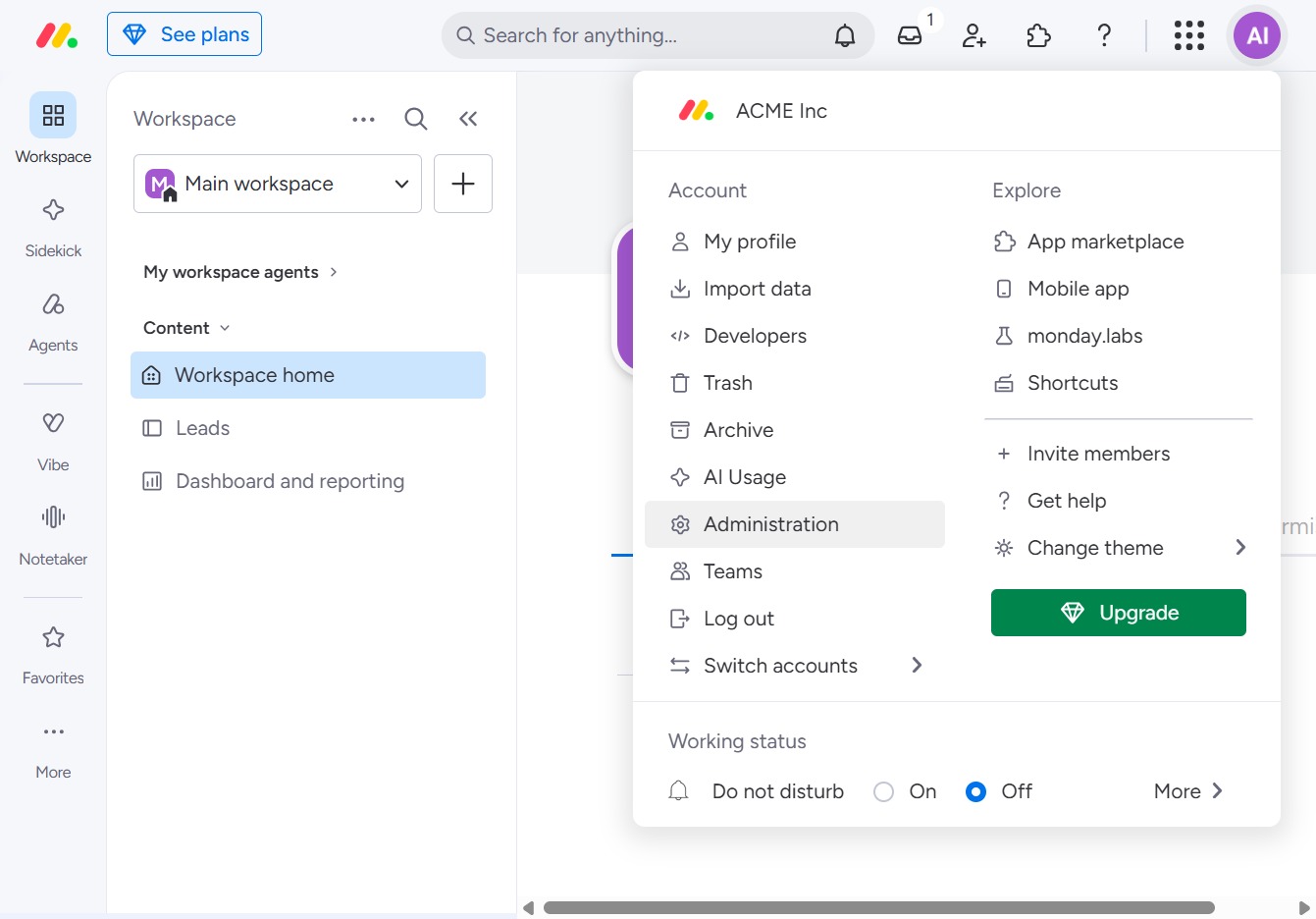
Click the ACME Inc logo
Clicking the ACME Inc logo will redirect you to the main overview of your workspace, displaying all relevant content and recent activities.

Loading screenshot…
100%
In this how-to guide, you'll learn to manage board ownership effectively within your workspace.
 viktoria
In this how-to guide, you'll learn to manage board ownership effectively within your workspace. The steps outline how to navigate to the administration settings, adjust user roles, and assign new owners to specific boards, ensuring smooth collaboration and control over your organization's board management.
Clicking the ACME Inc logo will redirect you to the main overview of your workspace, displaying all relevant content and recent activities.
This will take you to the administration settings, where you can manage users, roles, and permissions within your workspace.
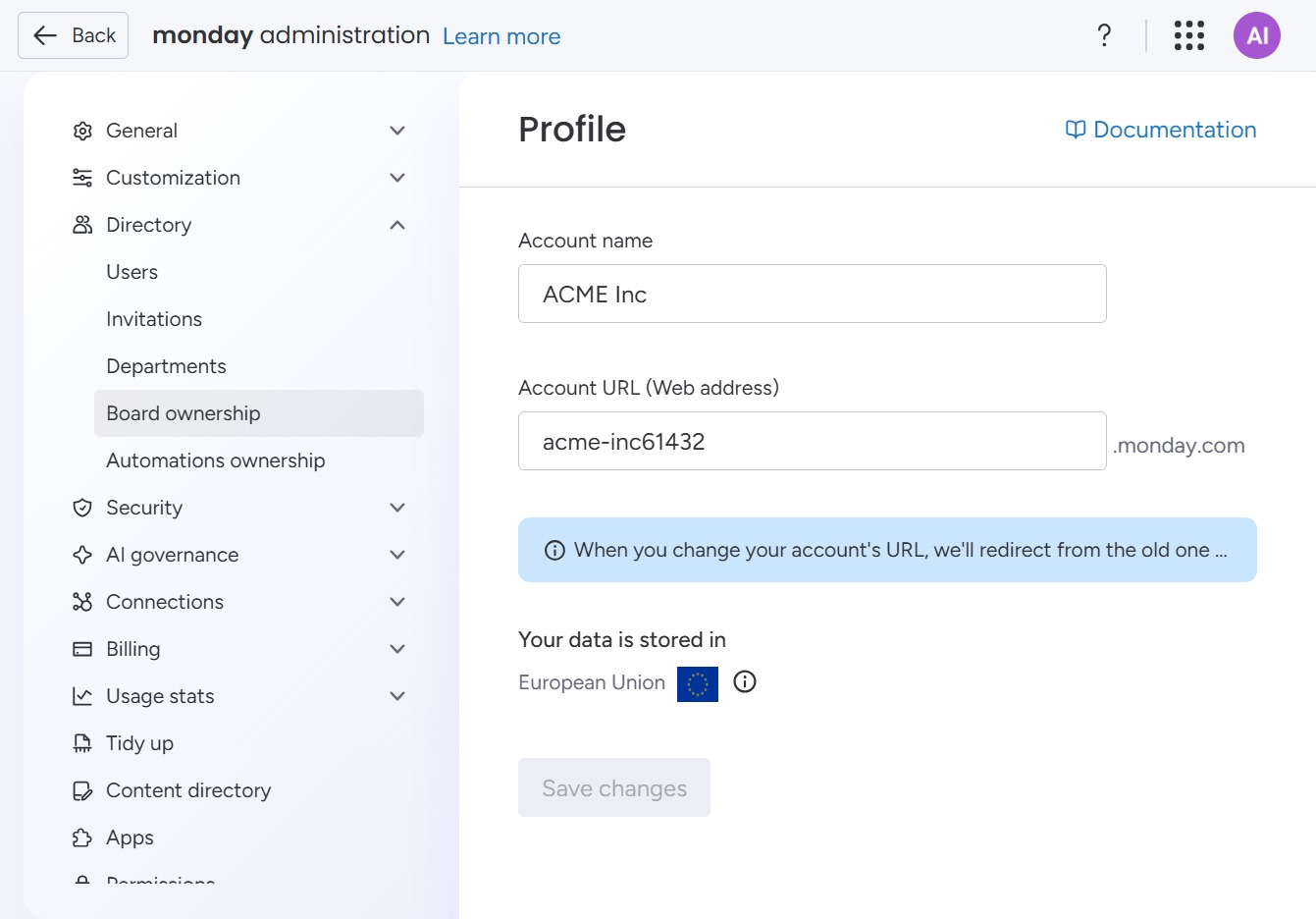
This action opens the Directory settings where you can manage account information and user access. Here, you can view and edit details related to your organization's directory.

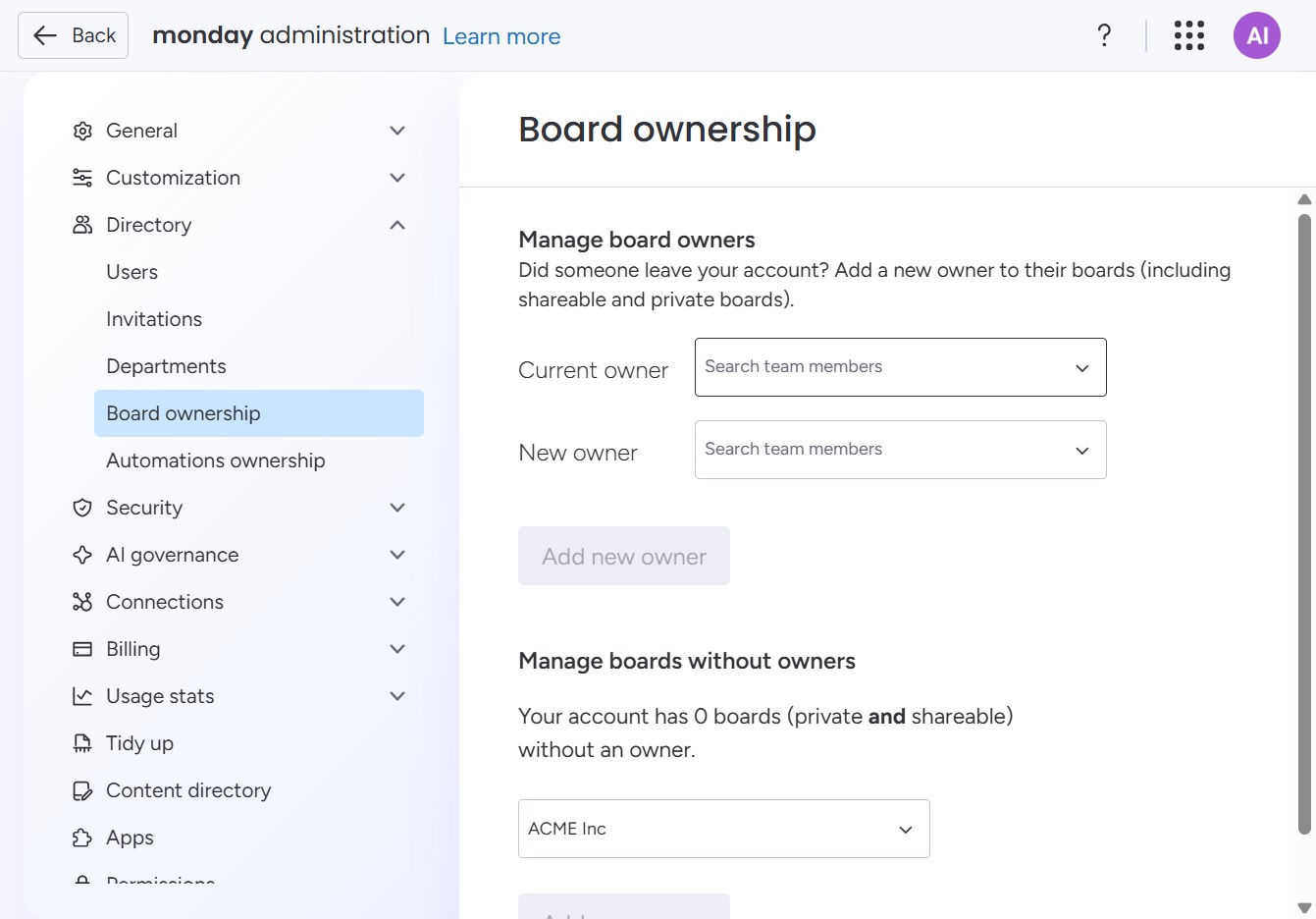
Selecting the Board Ownership section allows you to manage the ownership settings for your boards within your account. Here, you can adjust permissions and roles associated with board management.
Clicking this button allows you to assign a new owner to the selected board, facilitating the management of board ownership within your team.
Selecting Jane D from the dropdown will assign her as the new owner of the board, enabling her to manage its settings and permissions.
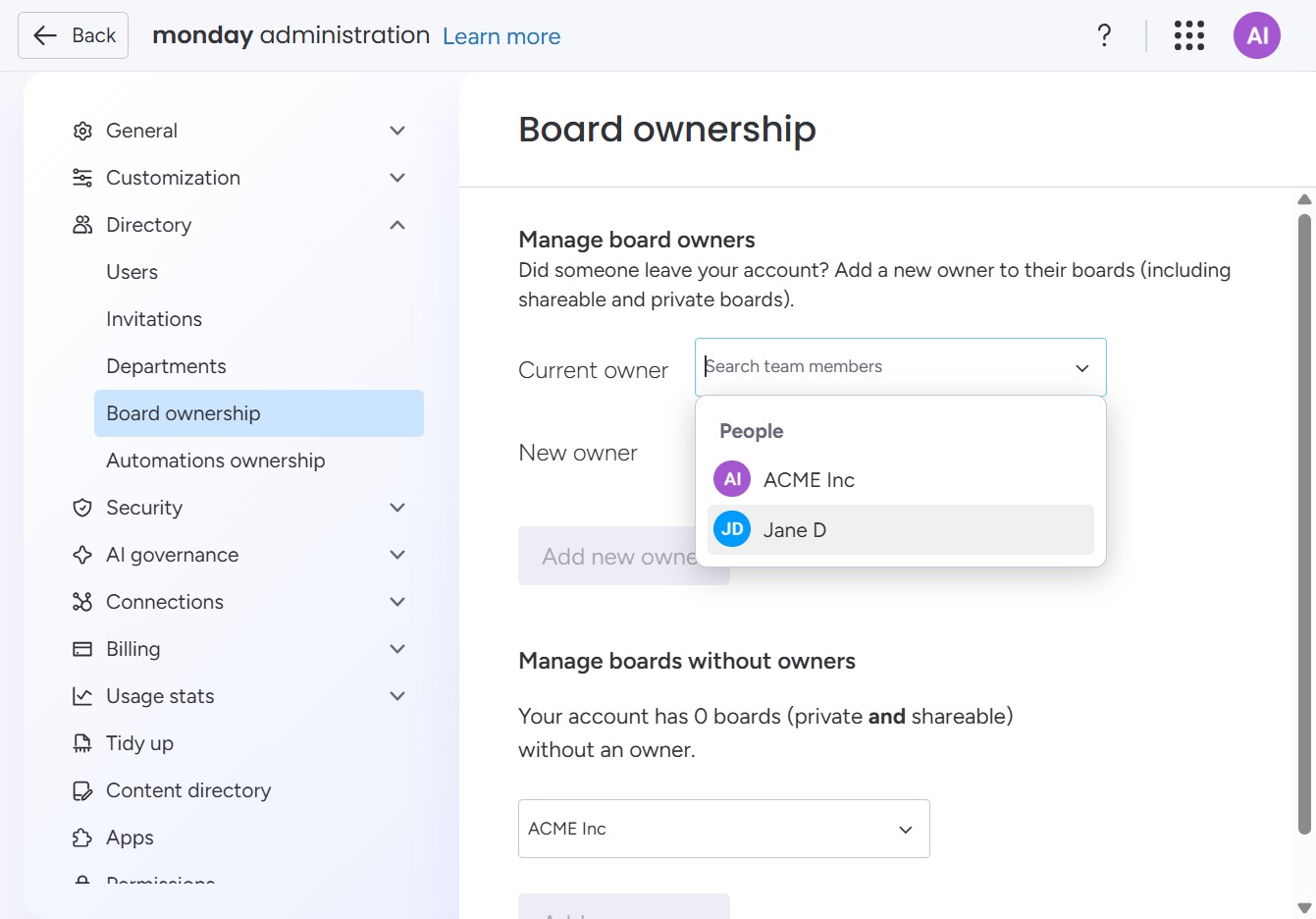
This action allows you to designate a new owner for the selected board, managing board ownership effectively.
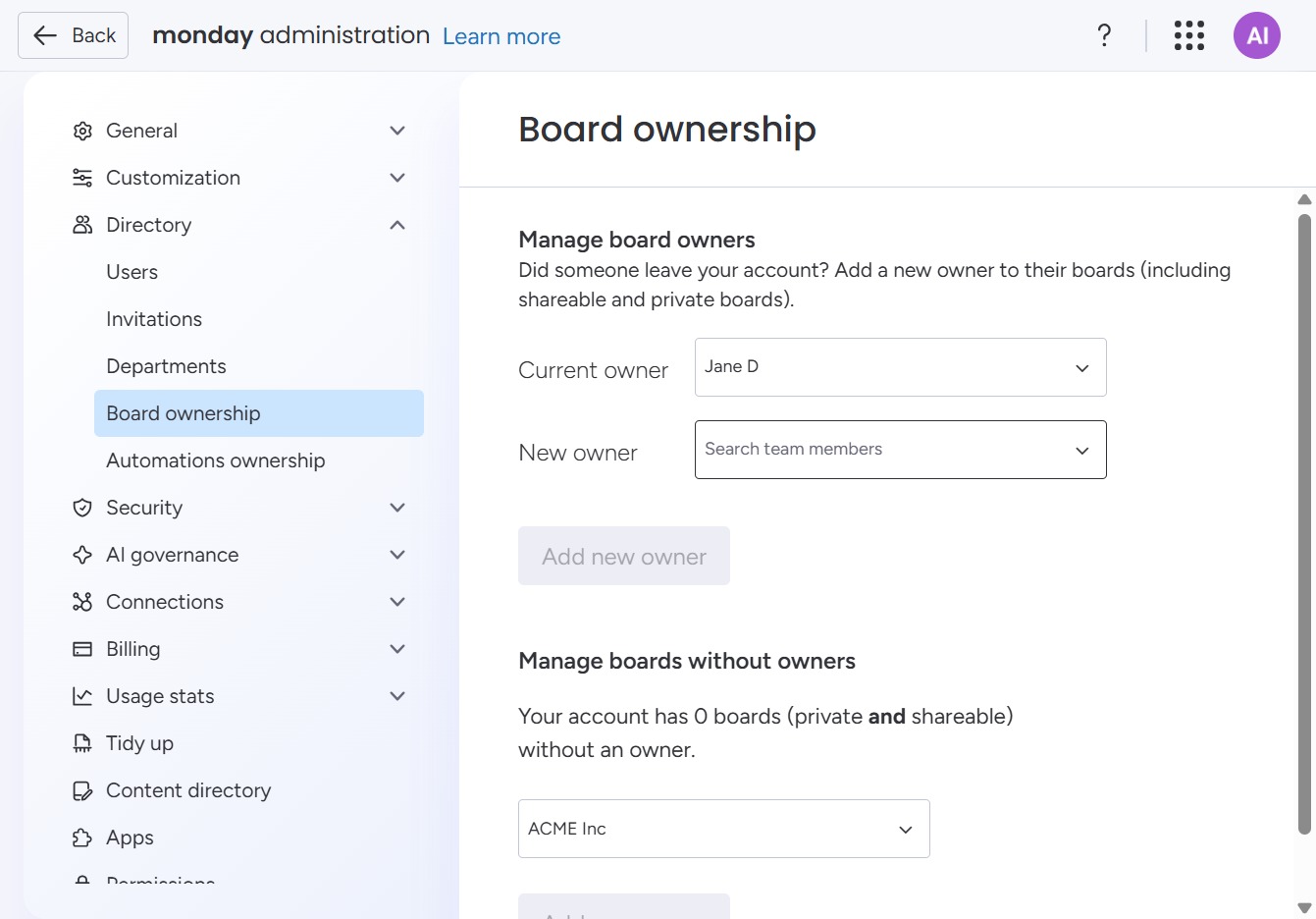
Selecting 'ACME Inc' adds this organization as a new owner for the specified boards. This action allows you to manage board ownership effectively within your account.

This action allows you to add a new owner to the selected board, facilitating management of shareable and private boards.

This action will grant ACME Inc. ownership of all boards owned by Jane D, enabling shared access to features and resources.

Clicking the 'Got it' button closes the notification confirming that you have successfully added an owner to the board. This allows you to proceed with other tasks within the monday.com administration interface.
