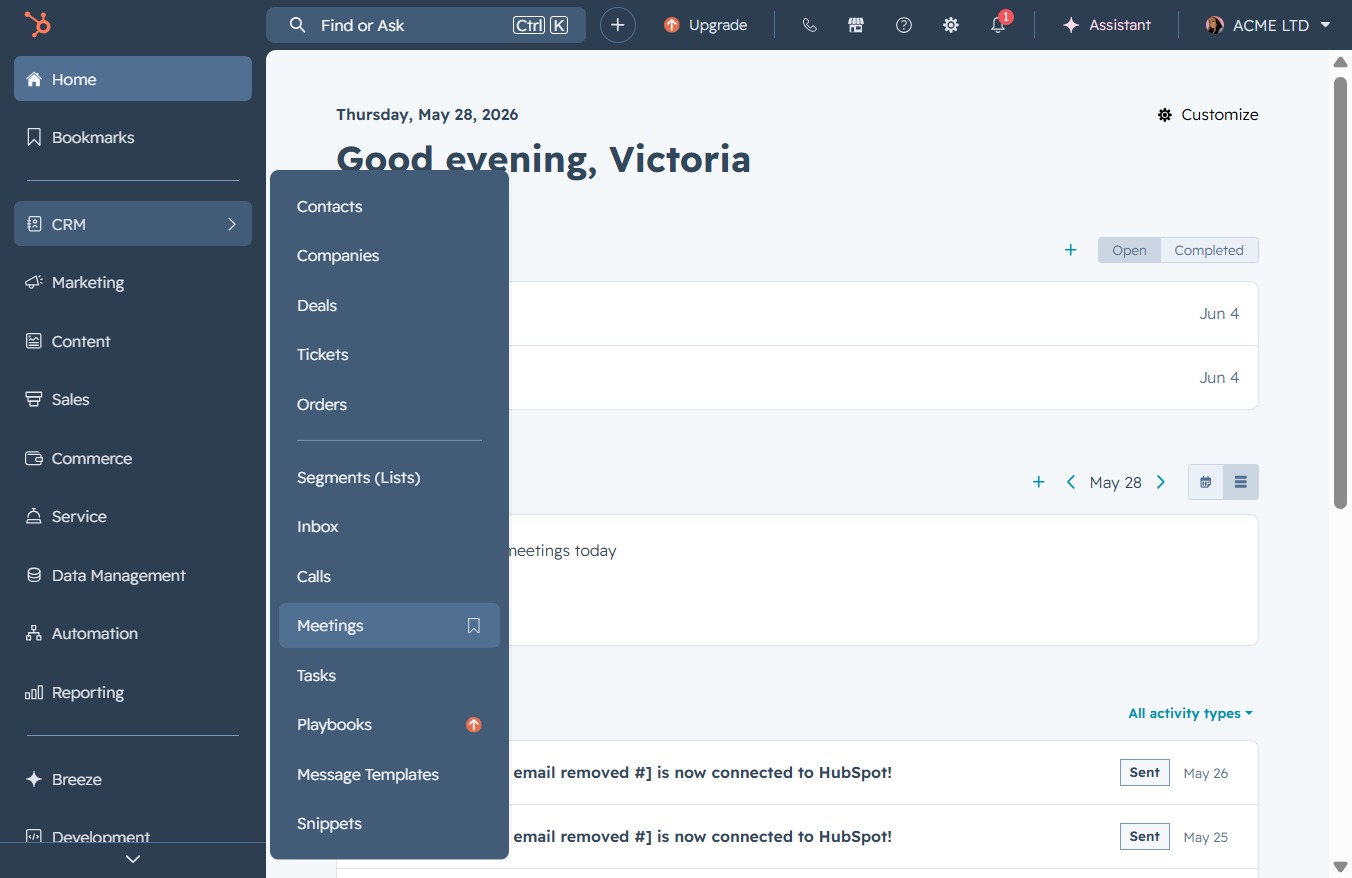
Click the CRM link
This action takes you to the Customer Relationship Management section where you can manage all customer interactions, data, and tasks.

Loading screenshot…
100%
Log meeting outcomes in the CRM by selecting your preferred columns in the Meetings section, updating meeting statuses, and effectively managing upcoming meeting details.
 viktoria
Log meeting outcomes in the CRM by selecting your preferred columns in the Meetings section, updating meeting statuses, and effectively managing upcoming meeting details.
This action takes you to the Customer Relationship Management section where you can manage all customer interactions, data, and tasks.
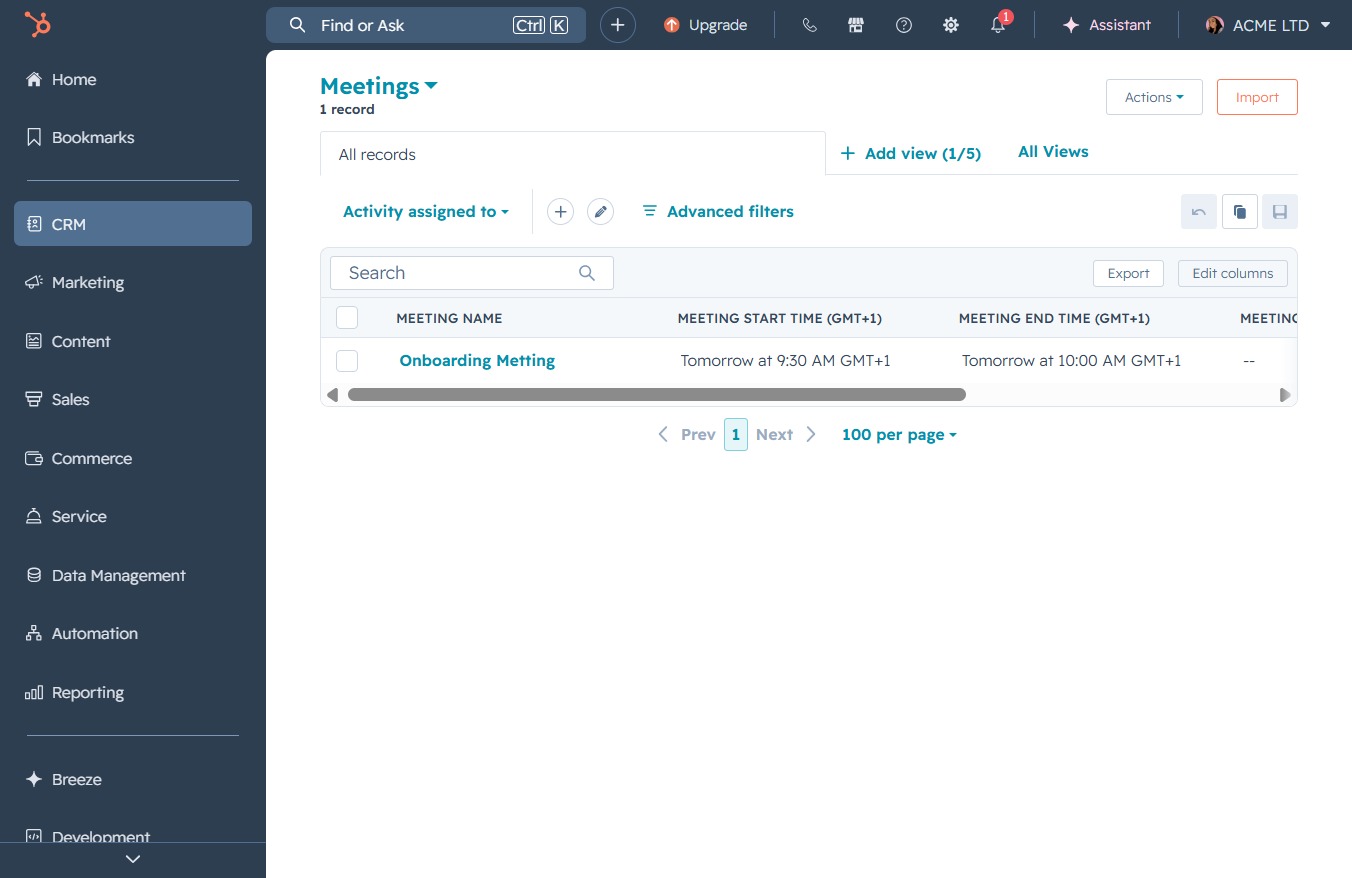
Clicking the Meetings section opens a list of scheduled meetings, providing an overview of upcoming events and allowing you to manage your calendar effectively.
This will open a panel allowing you to customize the visibility of different columns in your Meetings view, enabling efficient data management.
Clicking Apply will save your selected columns and update the view to reflect these choices. This allows you to customize the columns displayed in your meeting records based on your preferences.

Input 'outcome' in the search box to filter and view relevant meeting outcome options. This helps customize the displayed columns to enhance your data visibility.
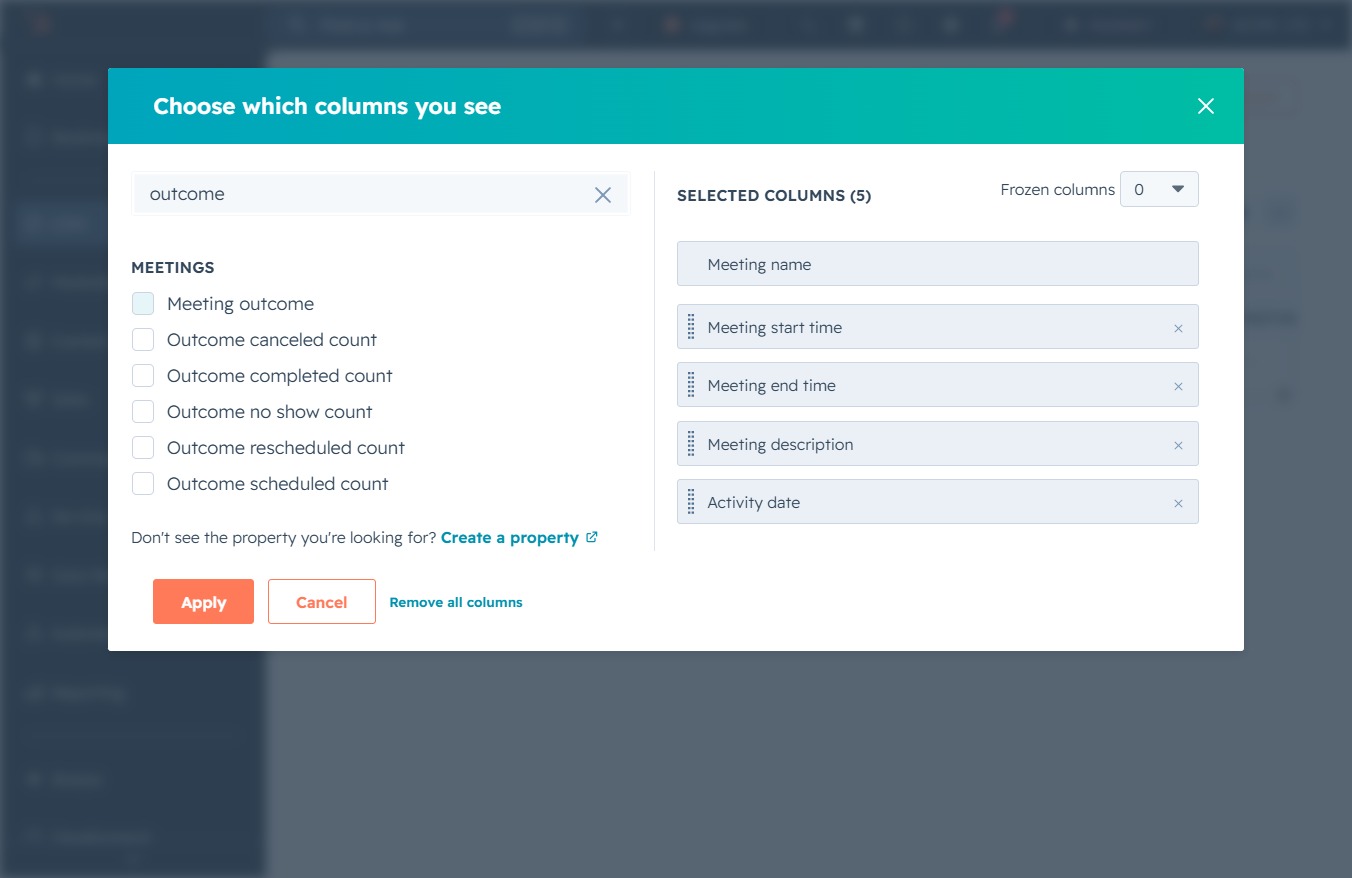
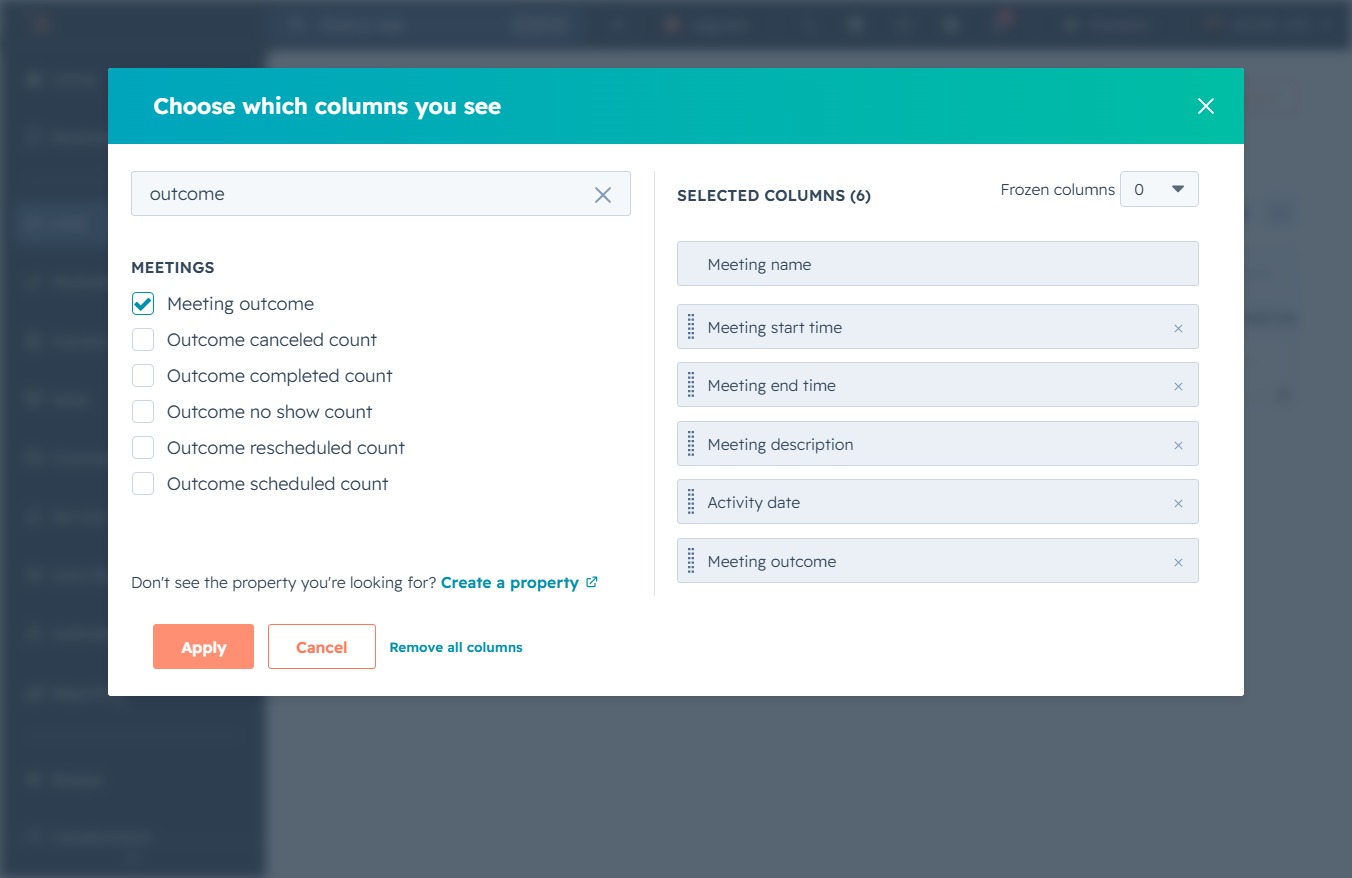
Clicking this option allows you to customize which meeting outcome columns are displayed in your view. After selecting your preferred columns, proceed by clicking the 'Apply' button to save the changes.

This action finalizes your column selections for the meetings display, updating the view to reflect your chosen settings.
By clicking the 'Scheduled' status, you can view or modify the details of the upcoming meeting in the CRM's Meetings section.
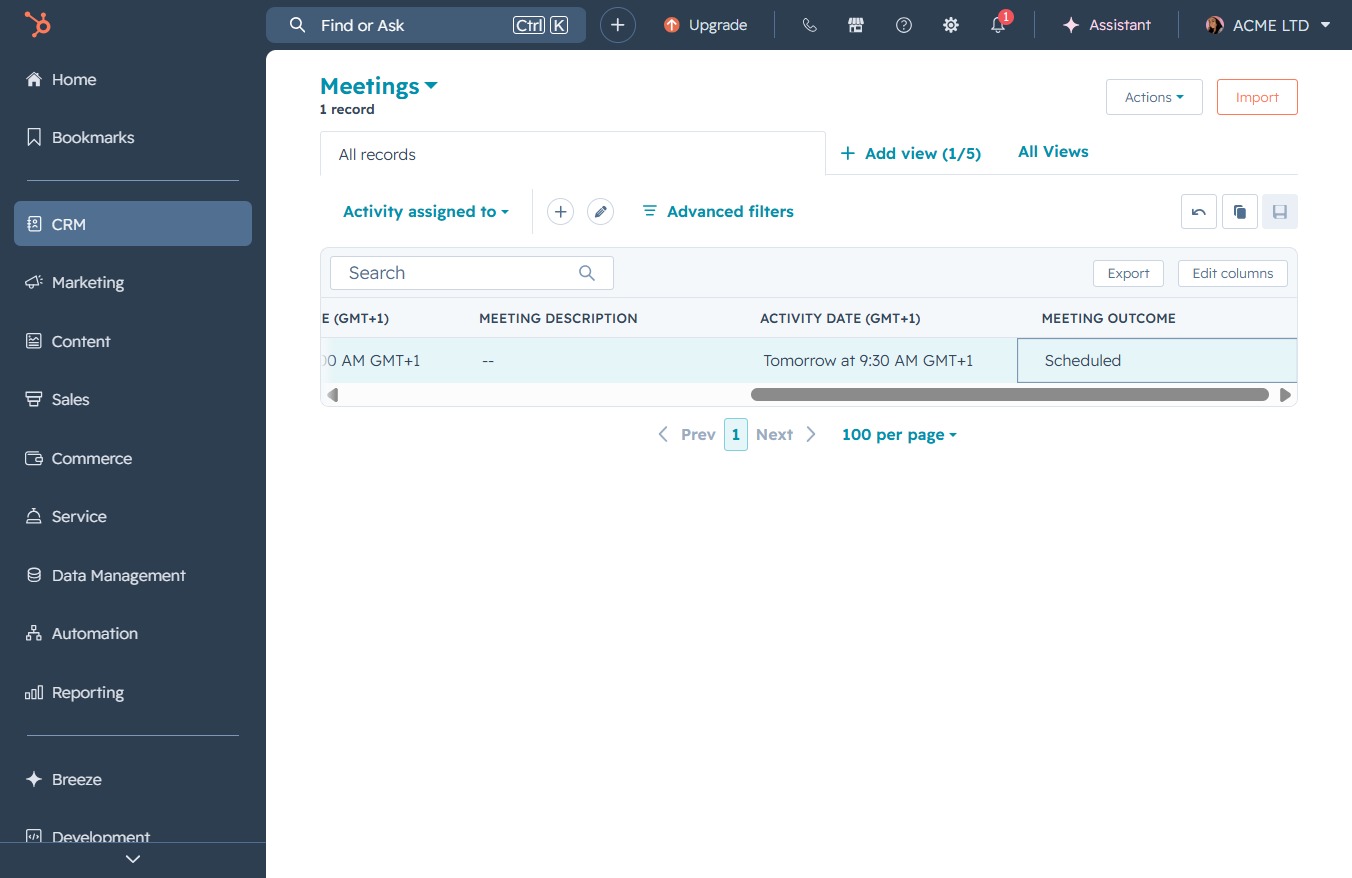
Select 'Completed' from the meeting outcome dropdown to update the status of the meeting. This action helps in tracking the progress of your scheduled meetings.
