Geteilte Anleitung

How to link files in chat/channel

Learn how to efficiently link files in your chat or channel by following a simple step-by-step guide.

victoriaworkflowsvictoriaworkflows
·16 Schritte·47 Aufrufe·Veröffentlicht

Learn how to efficiently link files in your chat or channel by following a simple step-by-step guide. This tutorial covers everything from copying the file link to posting it with a subject, ensuring you can share important documents seamlessly with your team.

Step-by-step Guide16 Schritte
  1. Click on "Click here."
    Click on "Click here."
    Loading screenshot…
    100%
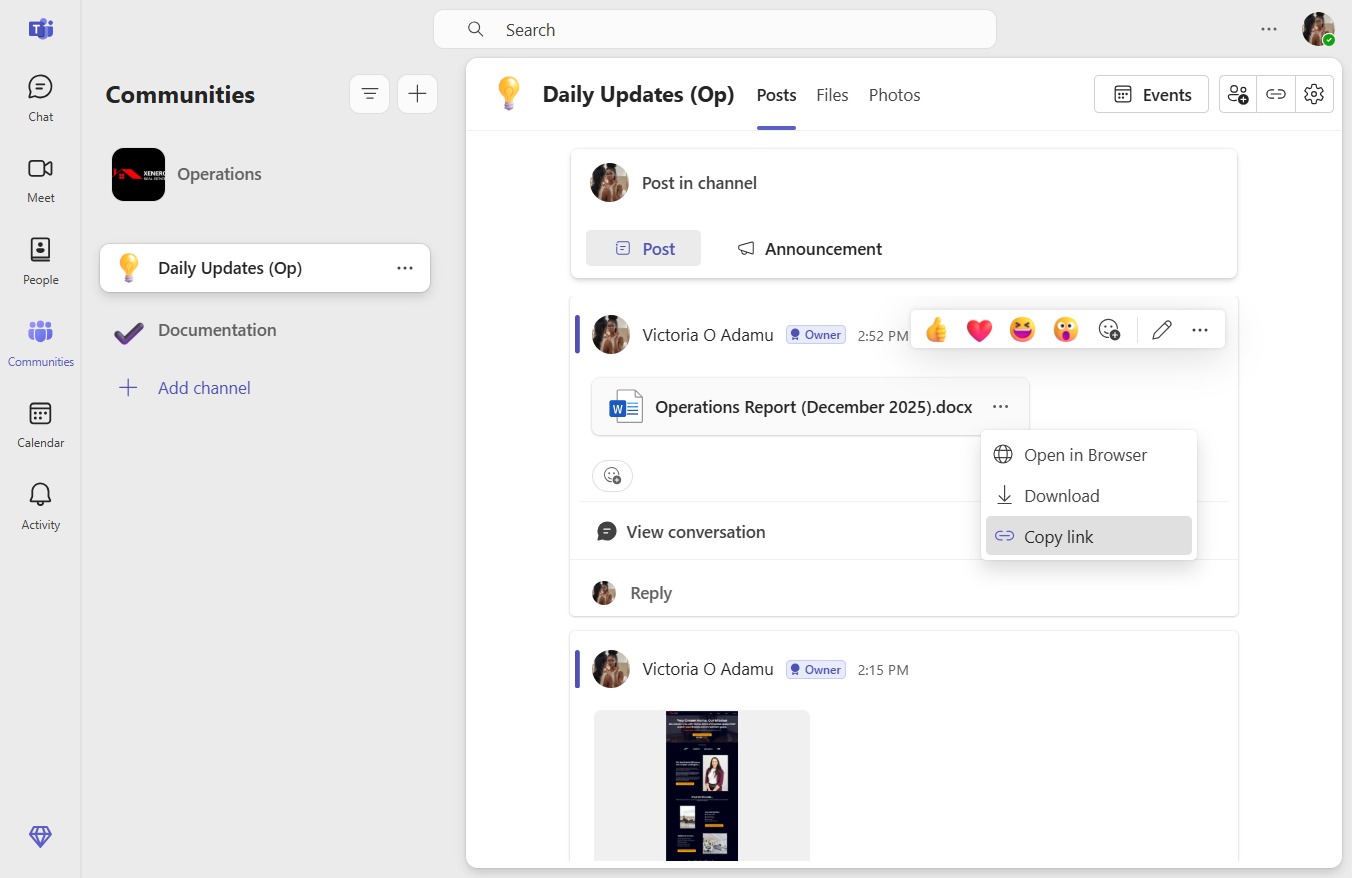
  2. Click Copy link

    Click Copy link
    Loading screenshot…
    100%
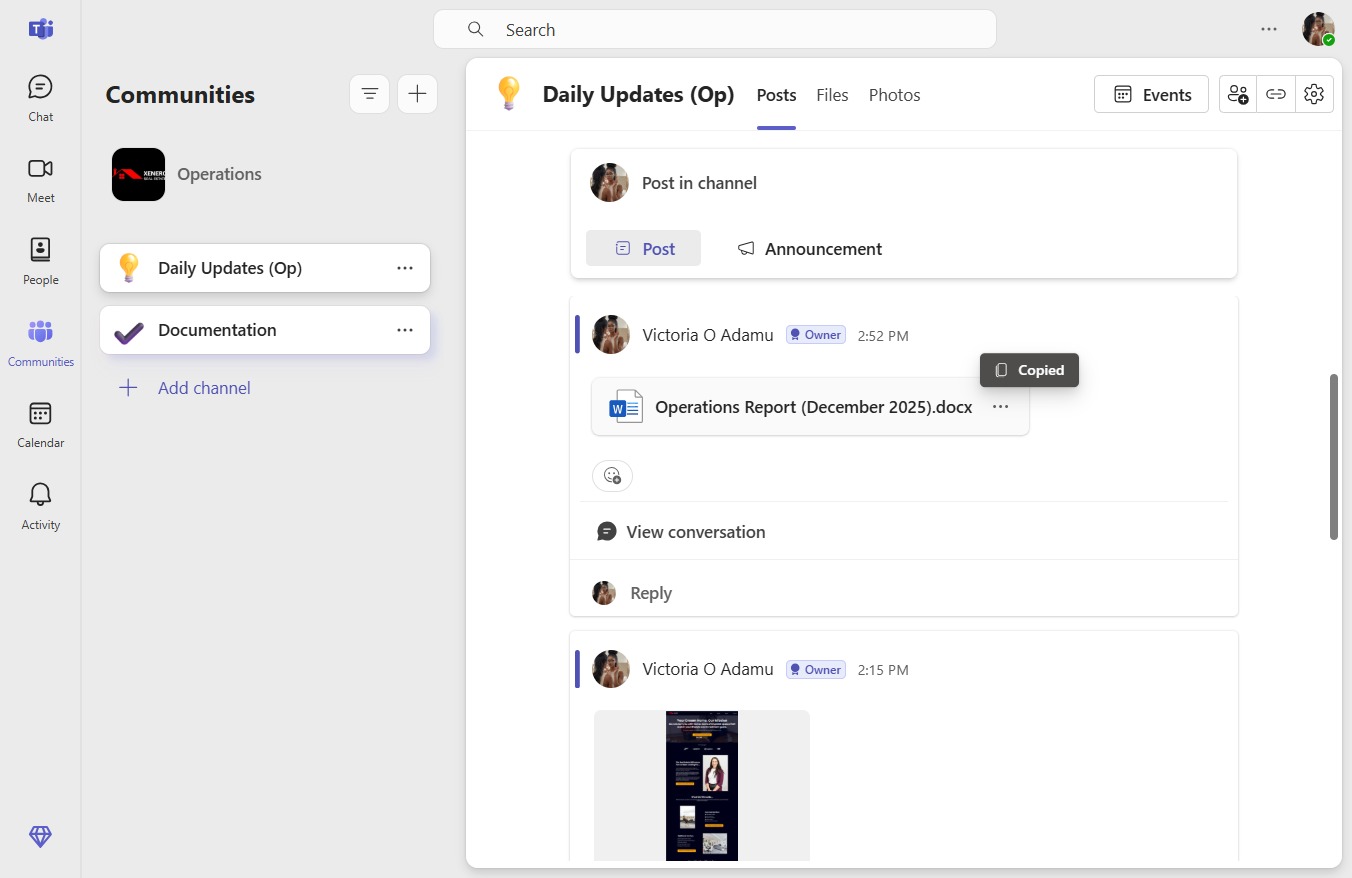
  3. Click Documentation

    Click Documentation
    Loading screenshot…
    100%
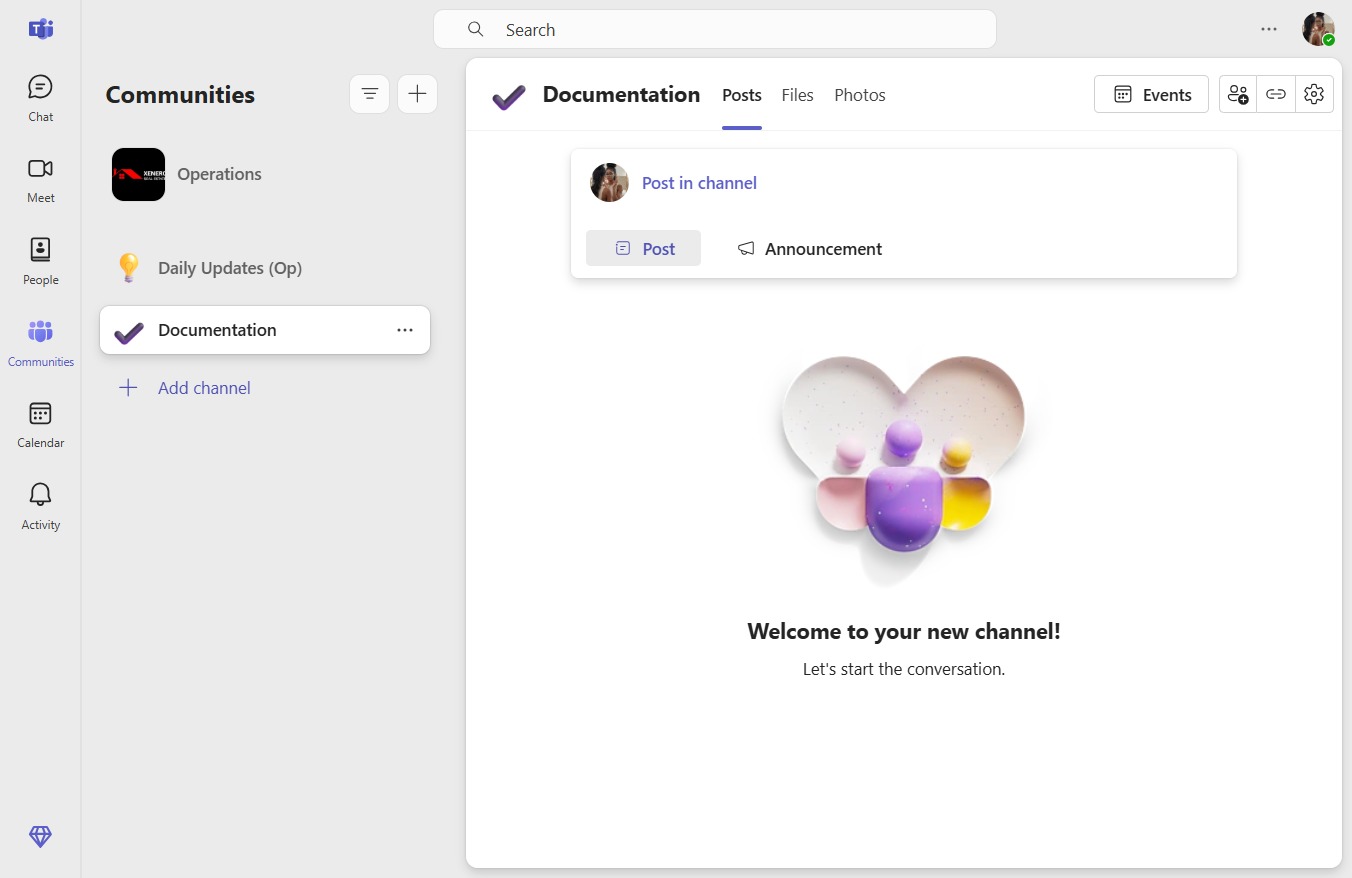
  4. Click Post in channel

    Click Post in channel
    Loading screenshot…
    100%
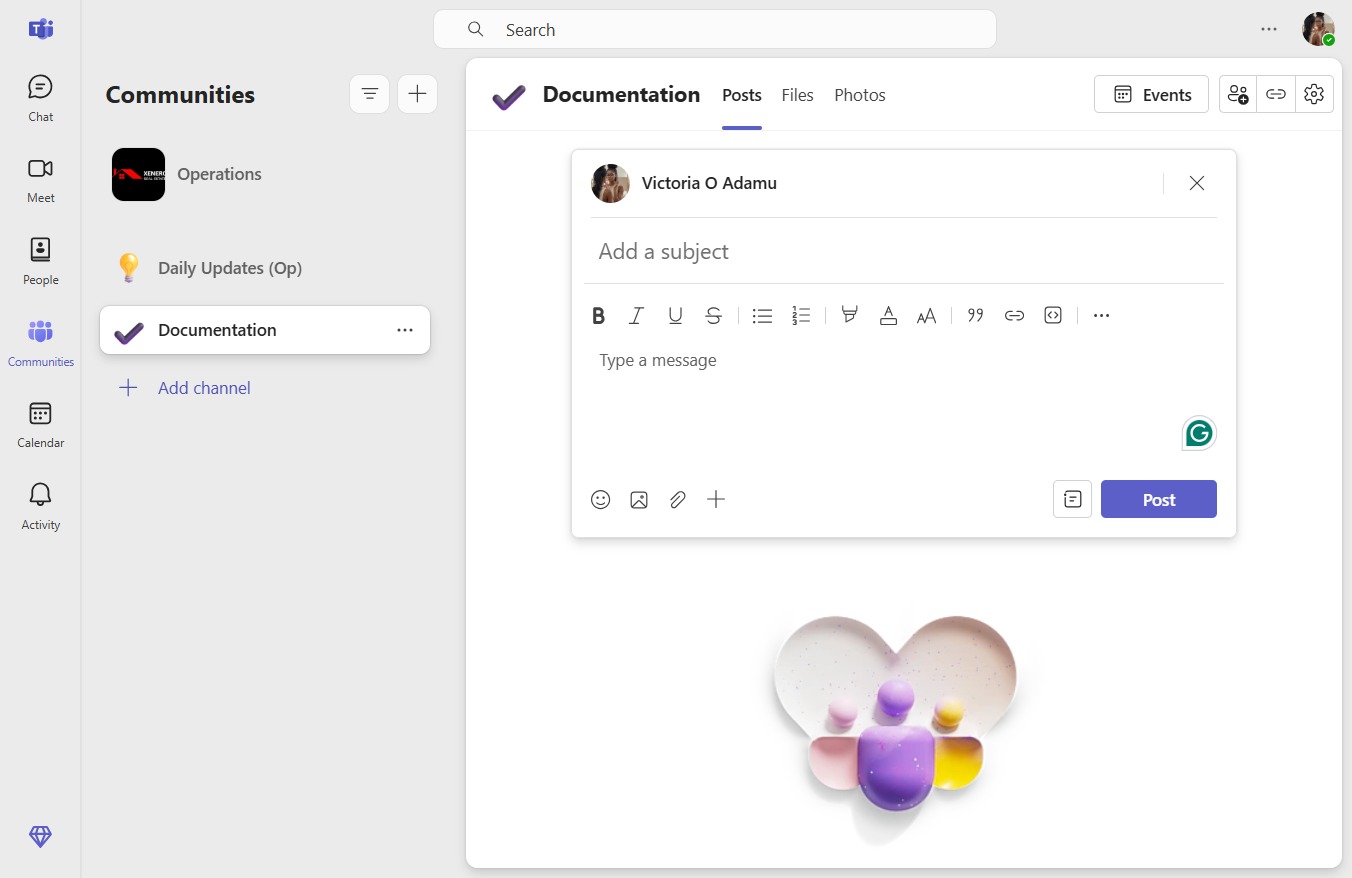
  5. Click Add a subject

    Click Add a subject
    Loading screenshot…
    100%
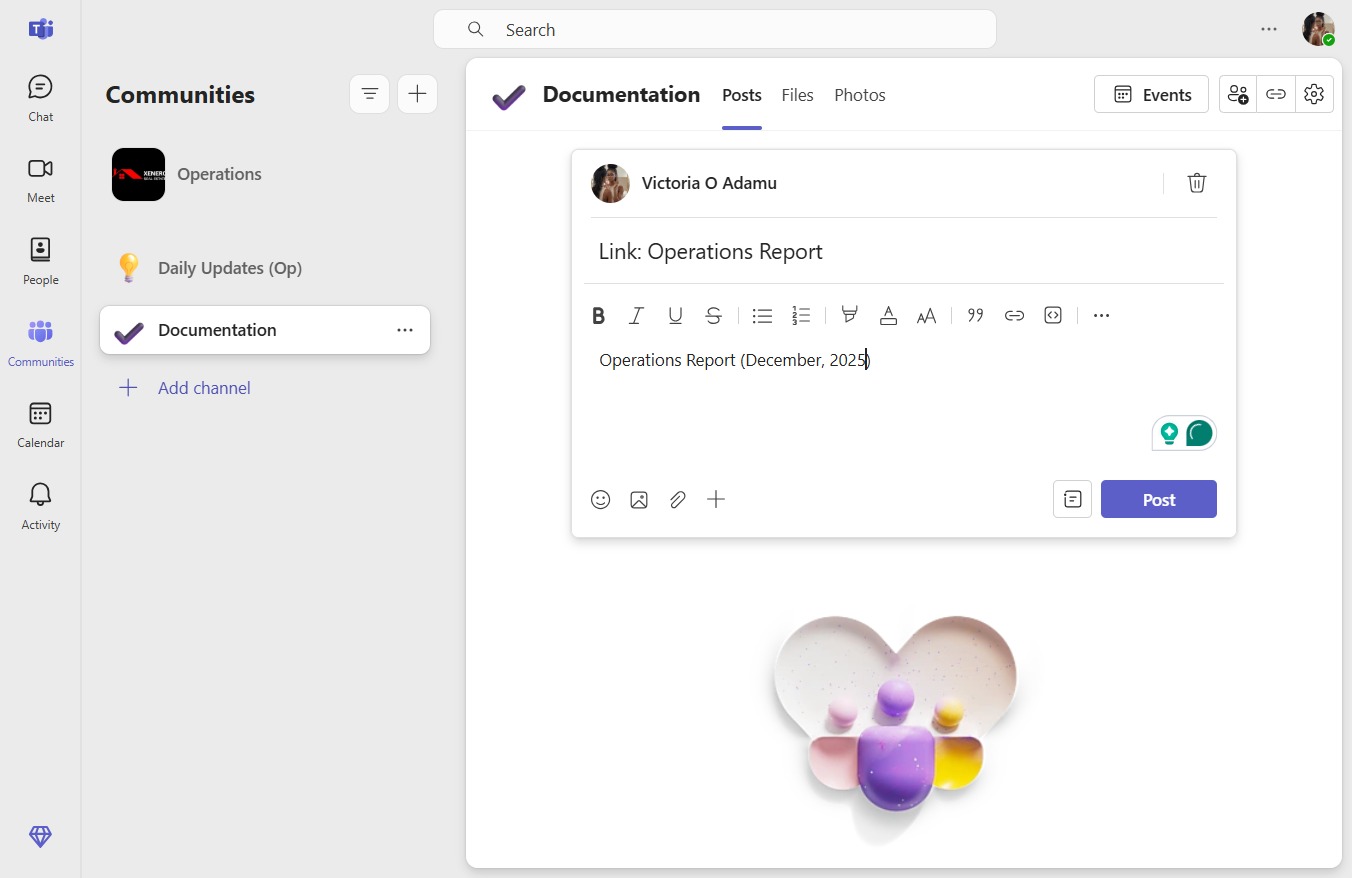
  6. Type "Link: Operations Report" in Add a subject

  7. Click Type a message

    Click Type a message
    Loading screenshot…
    100%
  8. Press v

  9. Press z

  10. Press z

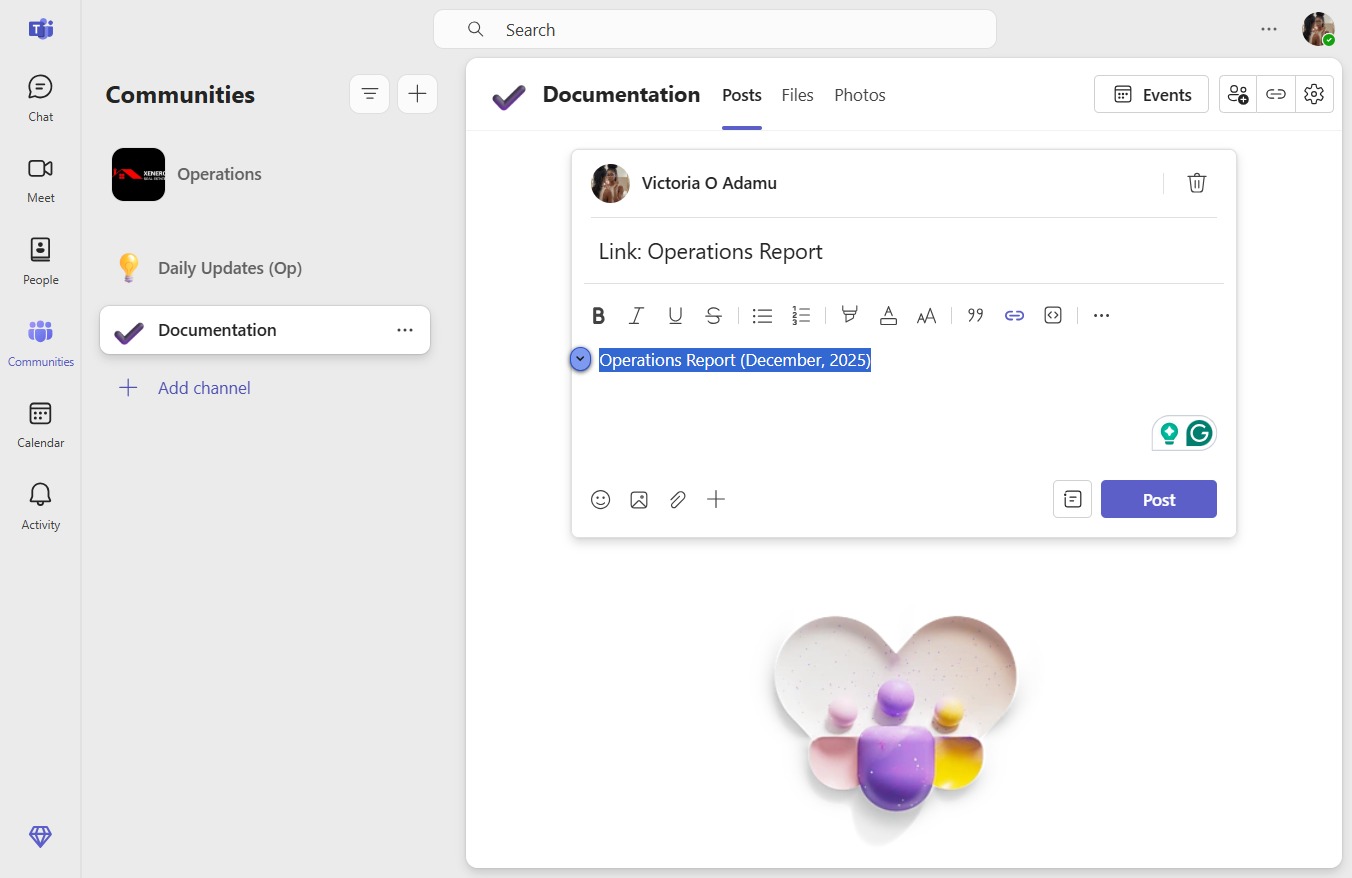
  11. Click Operations Report (December, 2025)

    Click Operations Report (December, 2025)
    Loading screenshot…
    100%
  12. Click on "Click here."

    Click on "Click here."
    Loading screenshot…
    100%
  13. Press v

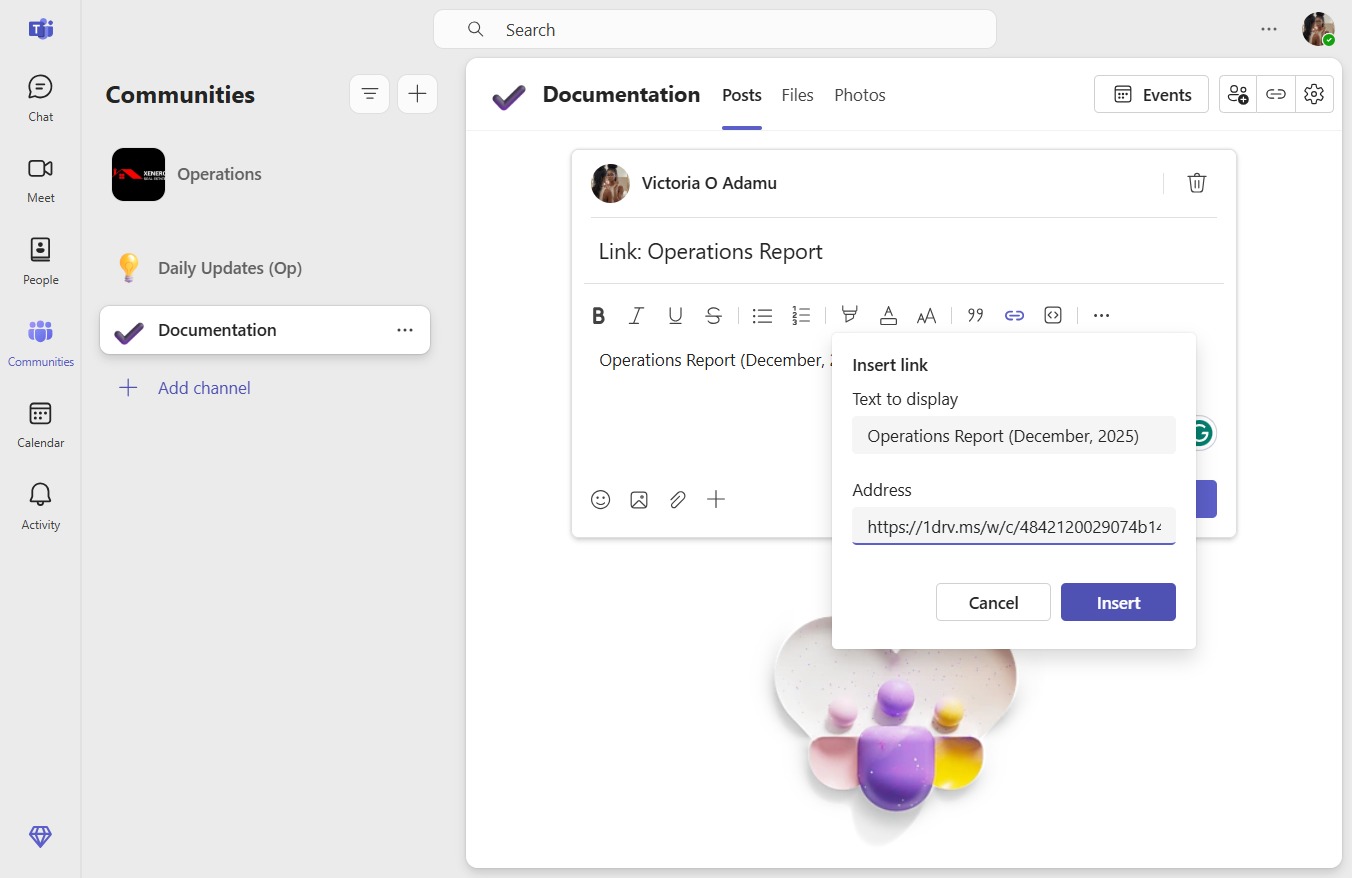
  14. Type "https://1drv.ms/w/c/4842120029..." in Link to an existing file or web page

  15. Click Insert

    Click Insert
    Loading screenshot…
    100%
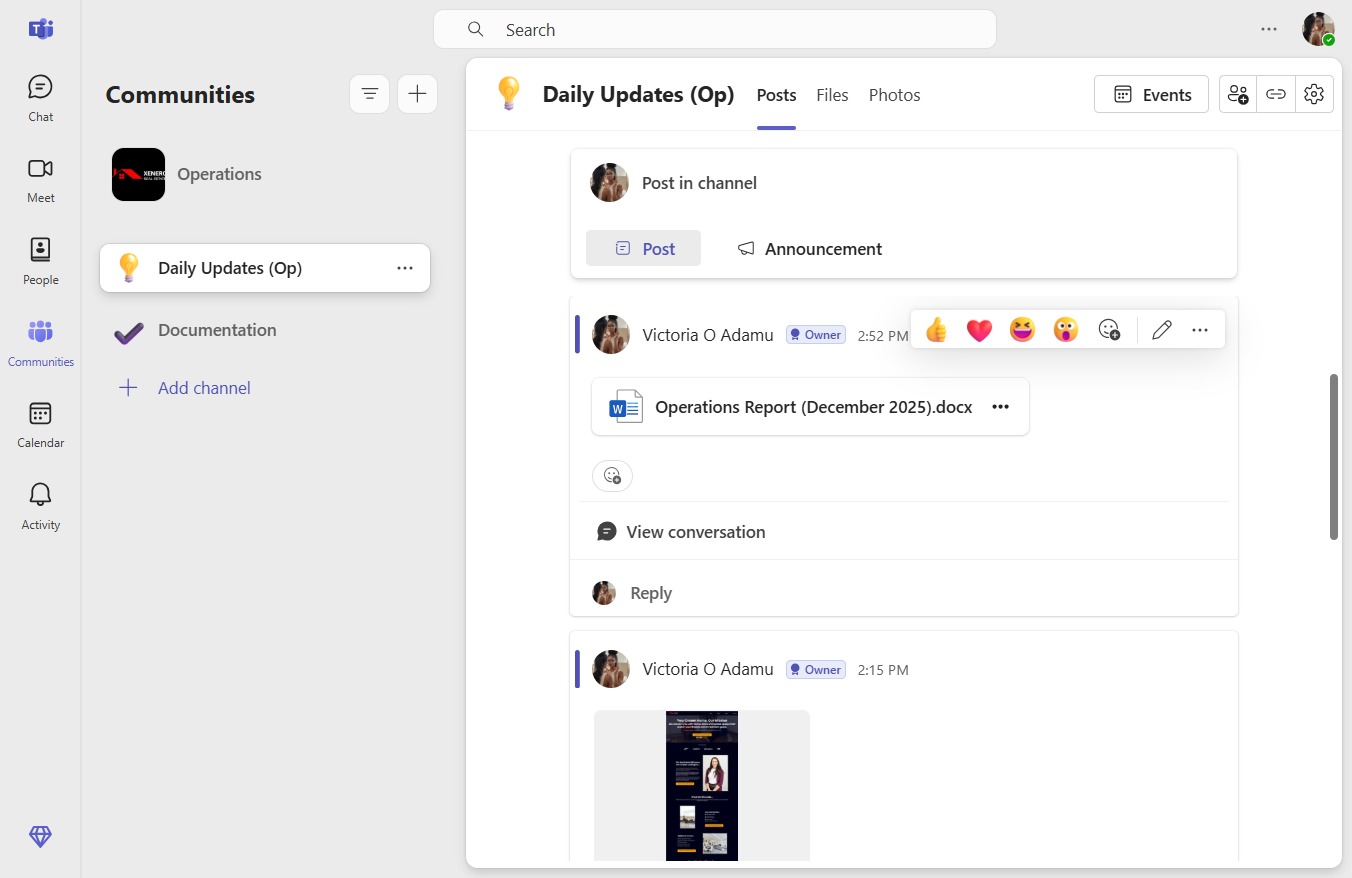
  16. Click Post

    Click Post
    Loading screenshot…
    100%