Shared guide

How to link deals to organizations and contacts

In this how-to guide, you'll learn the step-by-step process for linking deals to specific organizations and contacts using Project Libre.

victoriaworkflowsvictoriaworkflows
·15 steps·63 views·Published

In this how-to guide, you'll learn the step-by-step process for linking deals to specific organizations and contacts using Project Libre. Follow along to efficiently connect your deals to the right entities and streamline your project management workflow.

Step-by-step Guide15 steps
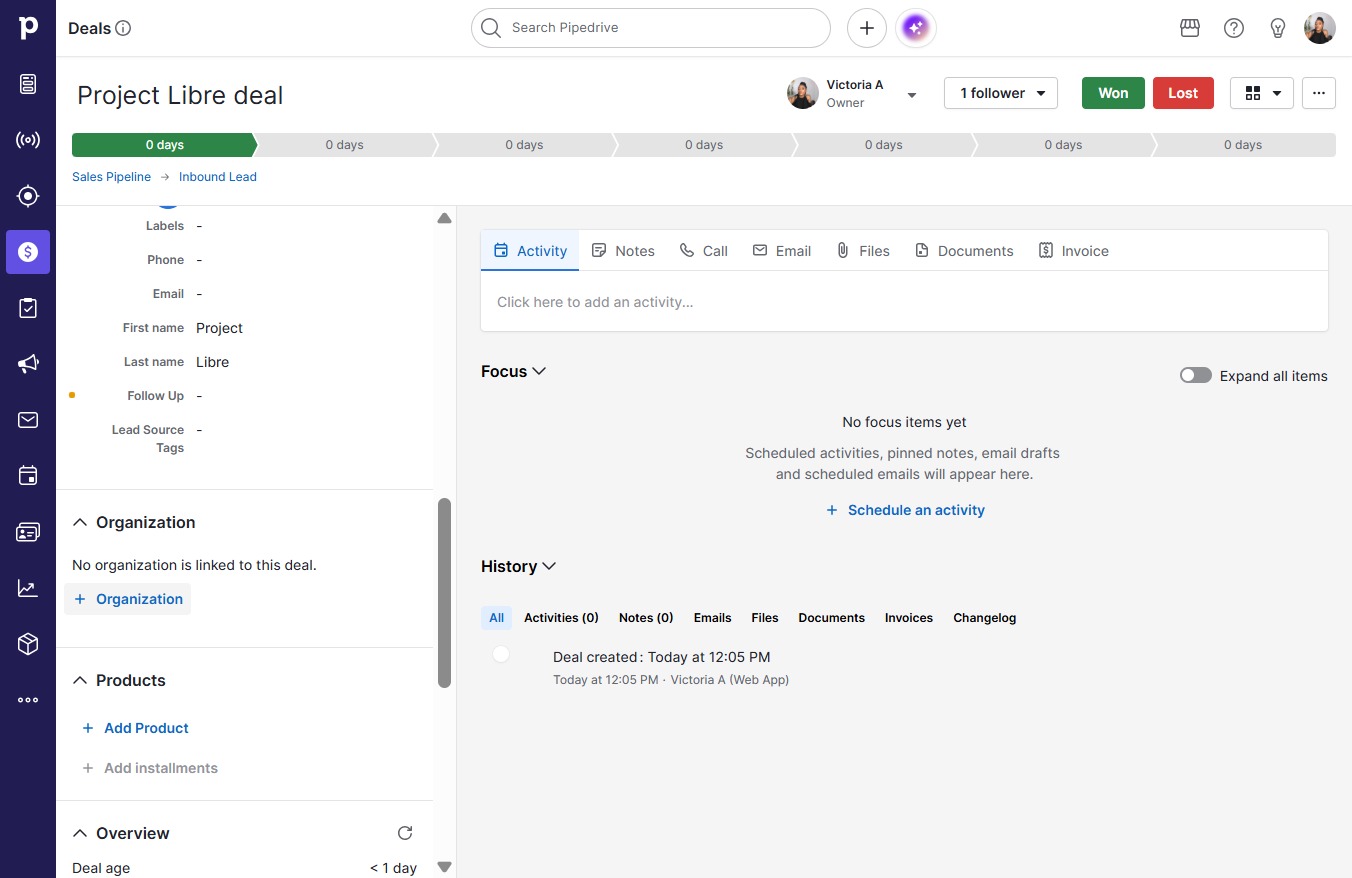
  1. Click Project Libre dealnew
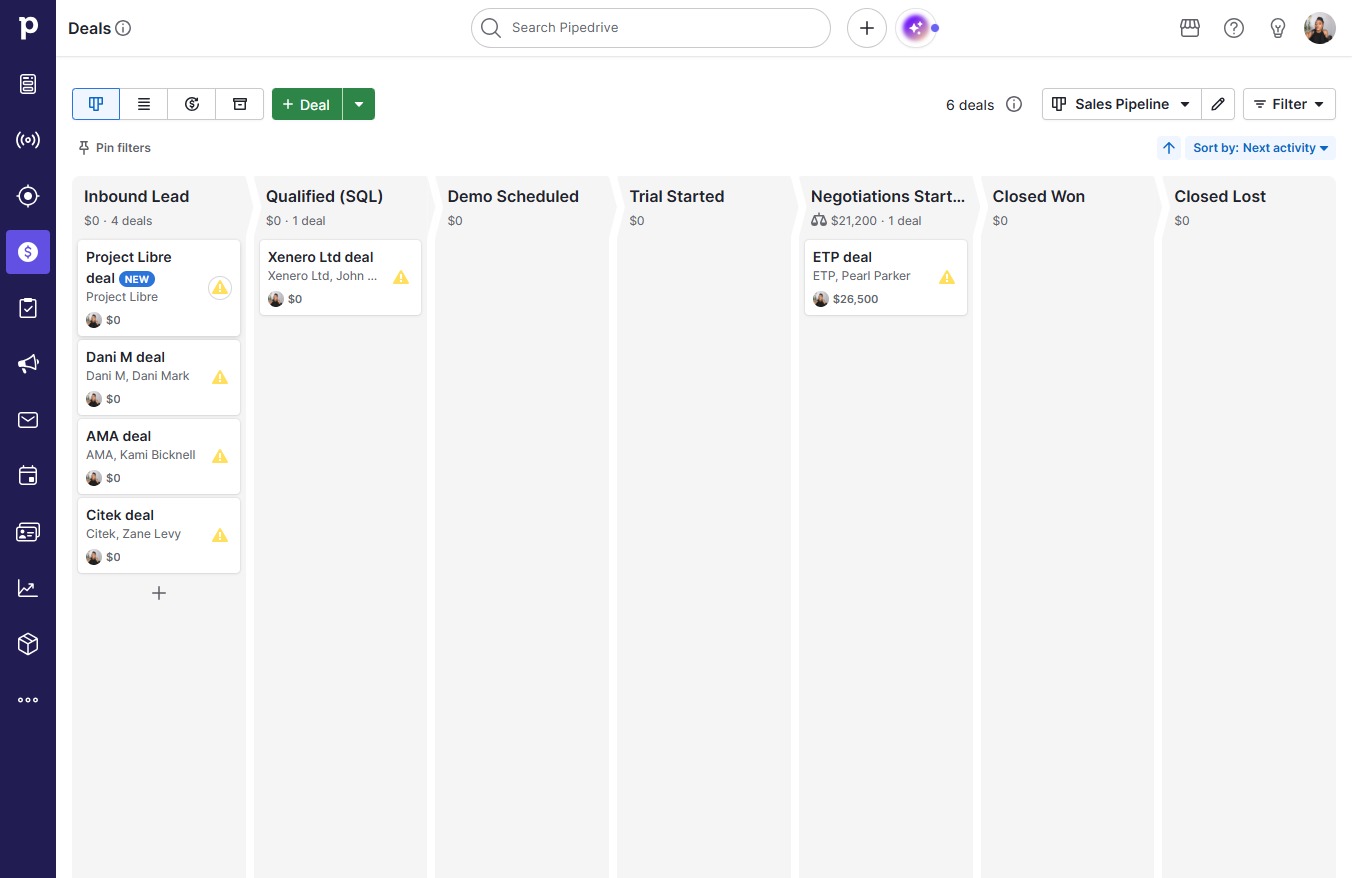
    Click Project Libre dealnew
    Loading screenshot…
    100%
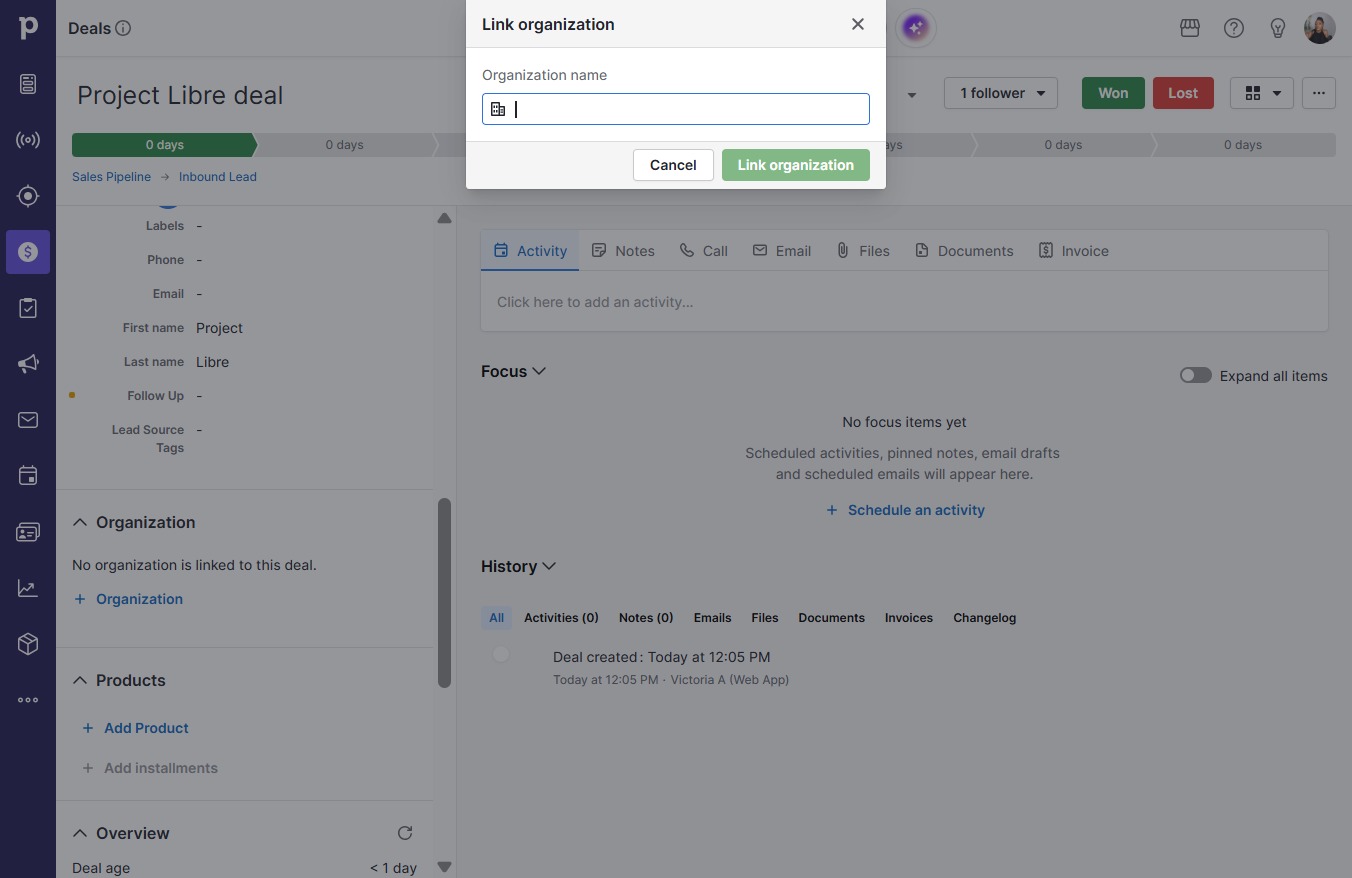
  2. Click Organization

    Click Organization
    Loading screenshot…
    100%
  3. Click on "Click here."

    Click on "Click here."
    Loading screenshot…
    100%
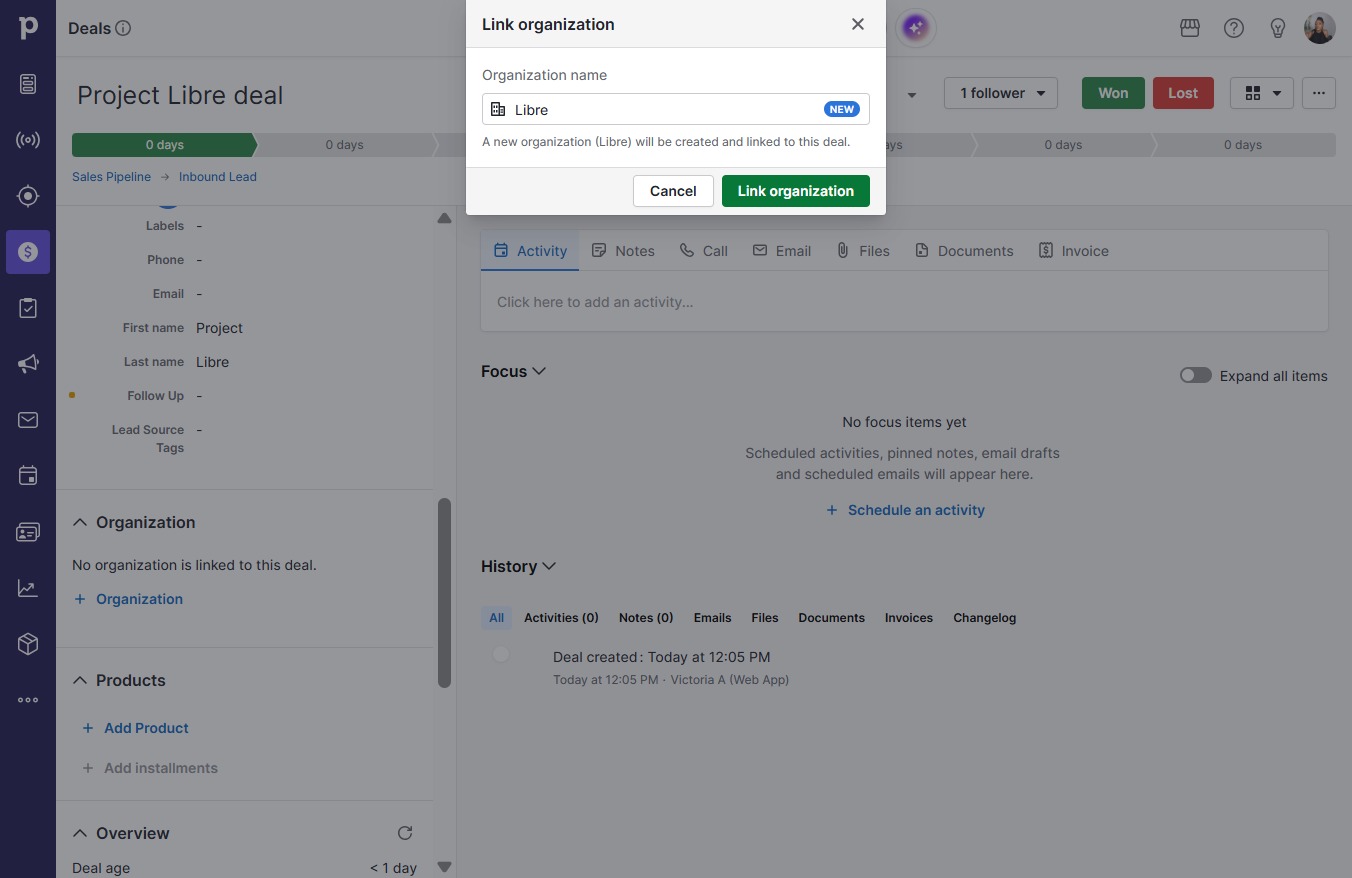
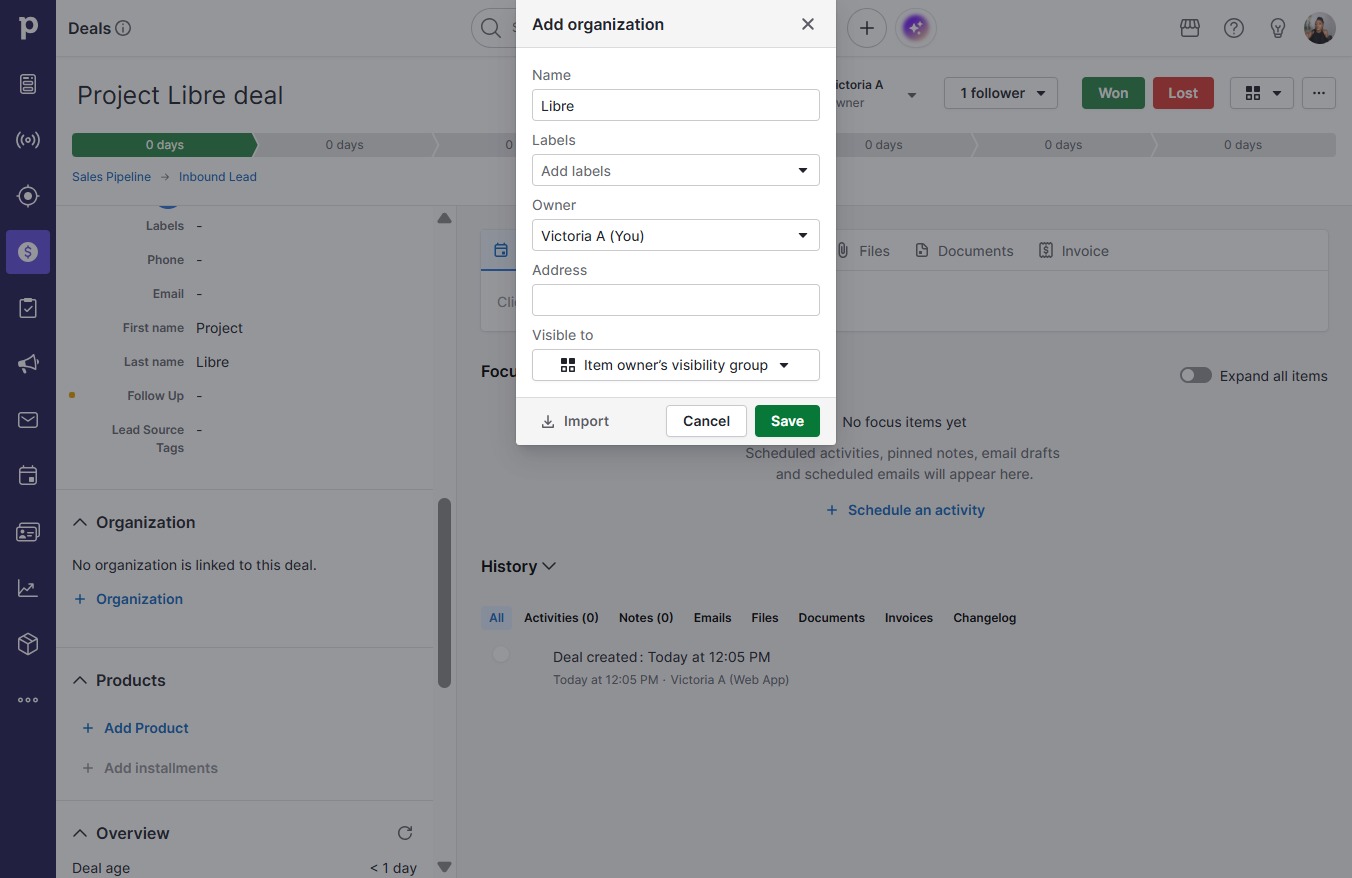
  4. Click Add 'Libre' as new organization

    Click Add 'Libre' as new organization
    Loading screenshot…
    100%
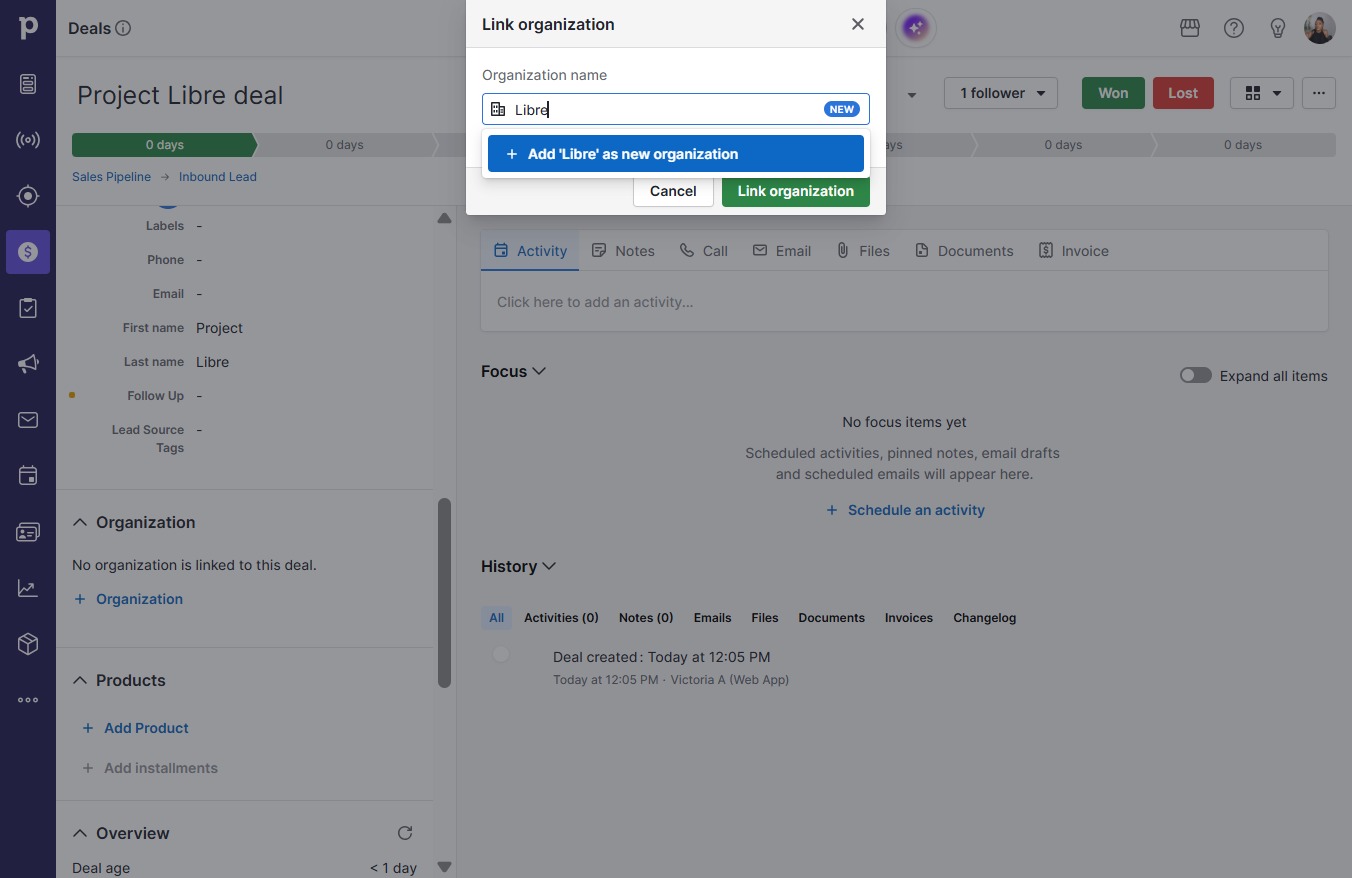
  5. Type "Libre" in Downshift 7 input

  6. Click Link organization

    Click Link organization
    Loading screenshot…
    100%
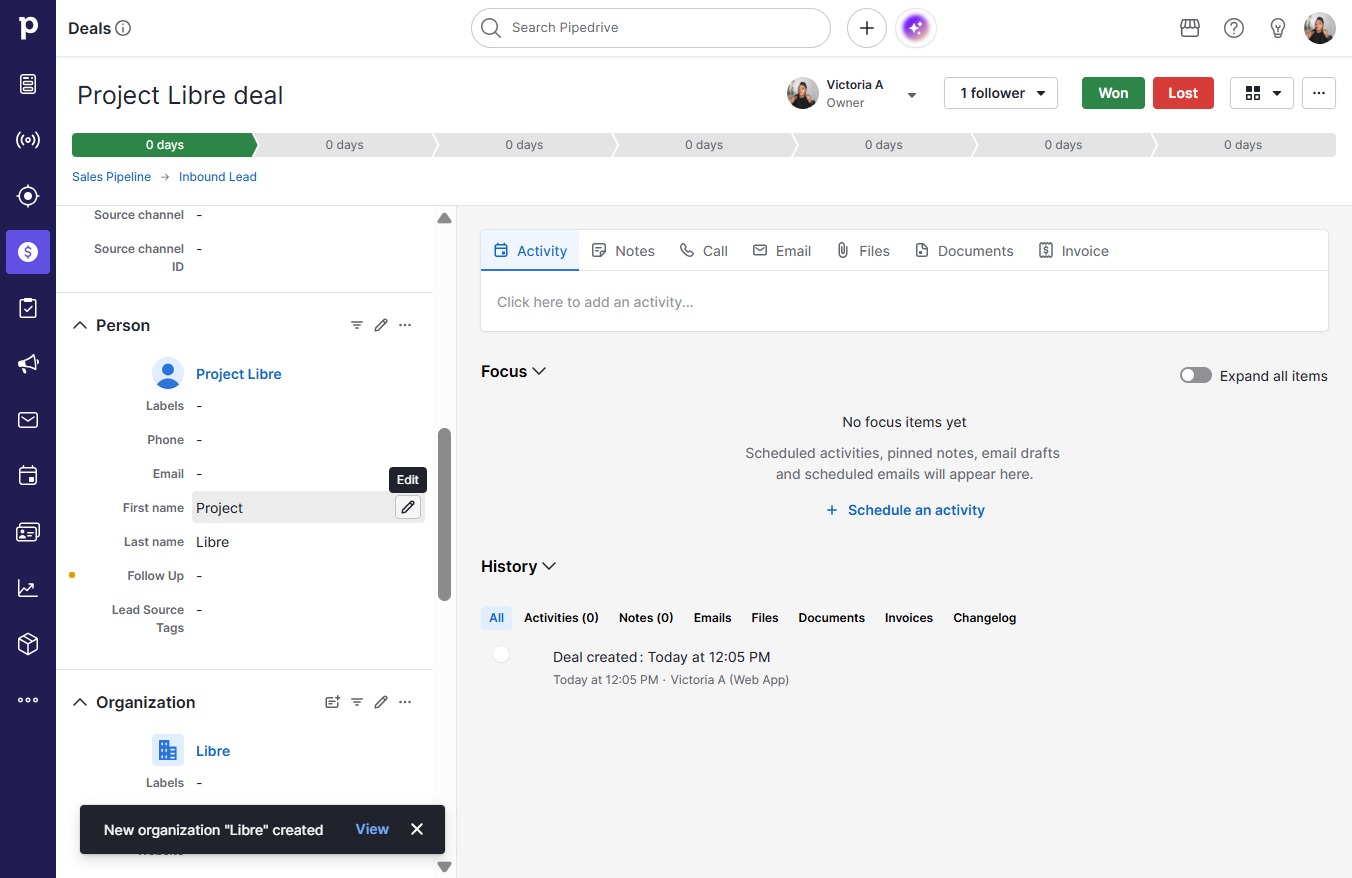
  7. Click Save

    Click Save
    Loading screenshot…
    100%
  8. Click on "Click here."

    Click on "Click here."
    Loading screenshot…
    100%
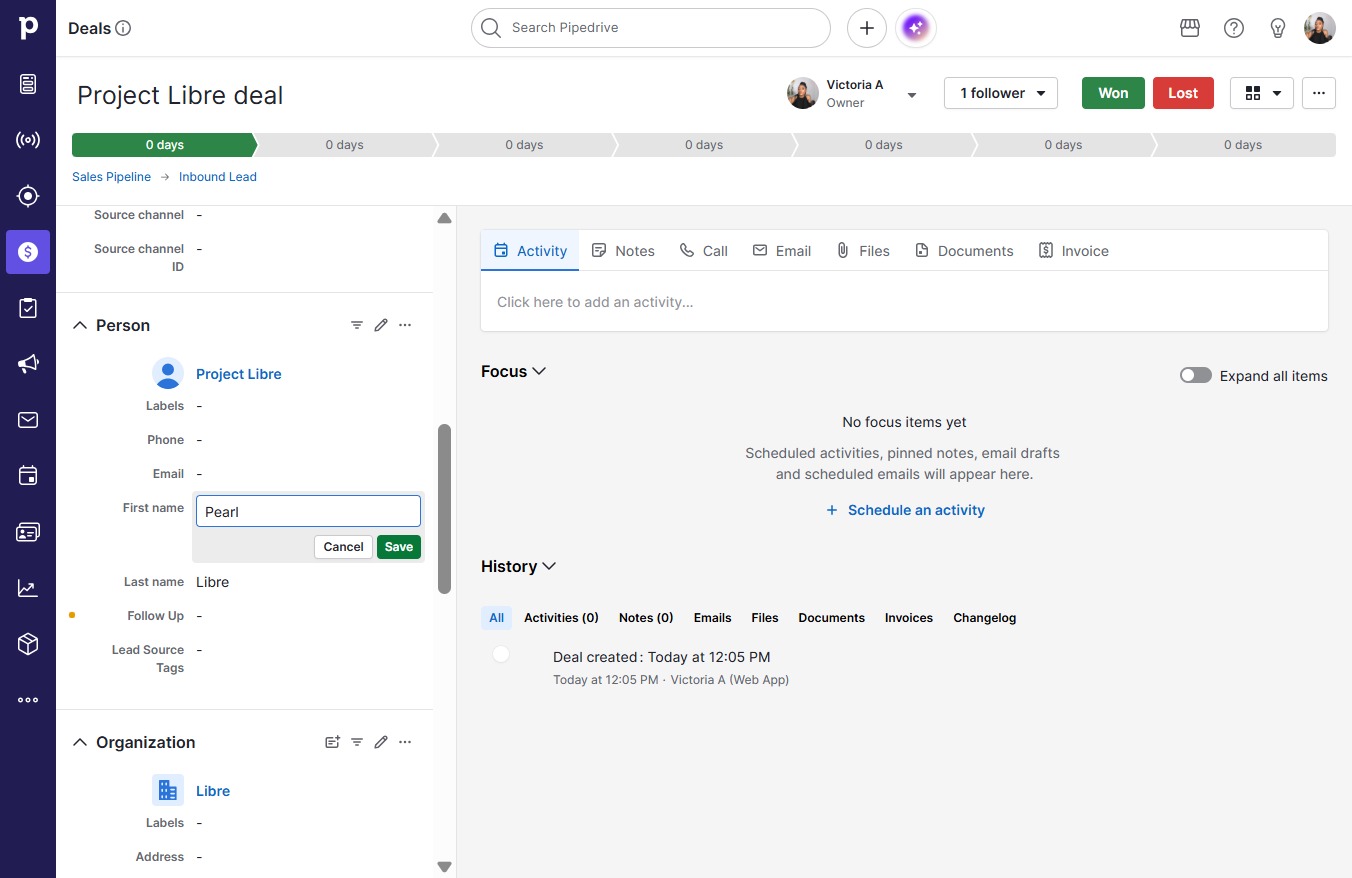
  9. Press a

  10. Type "Pearl"

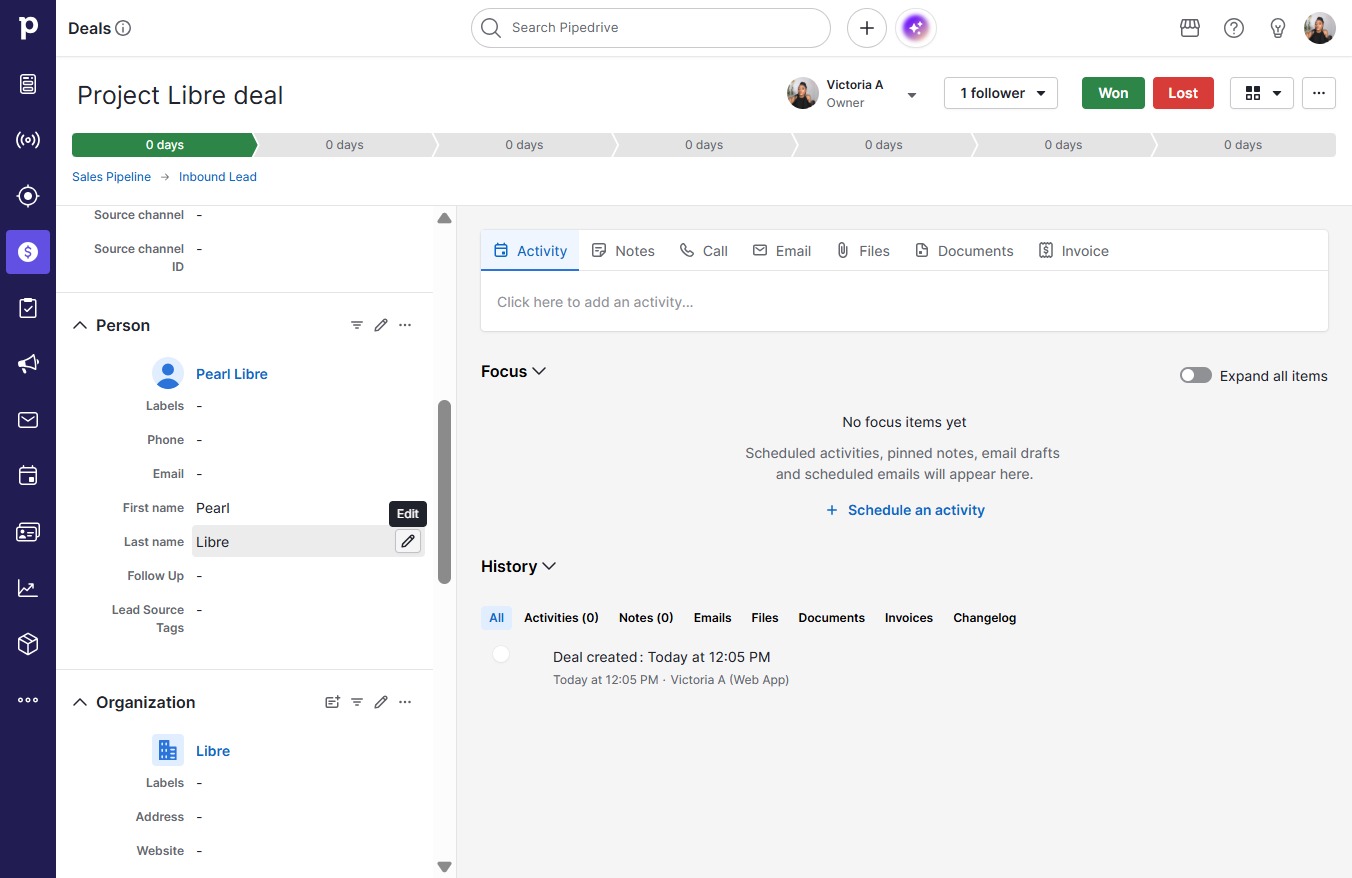
  11. Click Save

    Click Save
    Loading screenshot…
    100%
  12. Click on "Click here."

    Click on "Click here."
    Loading screenshot…
    100%
  13. Press a

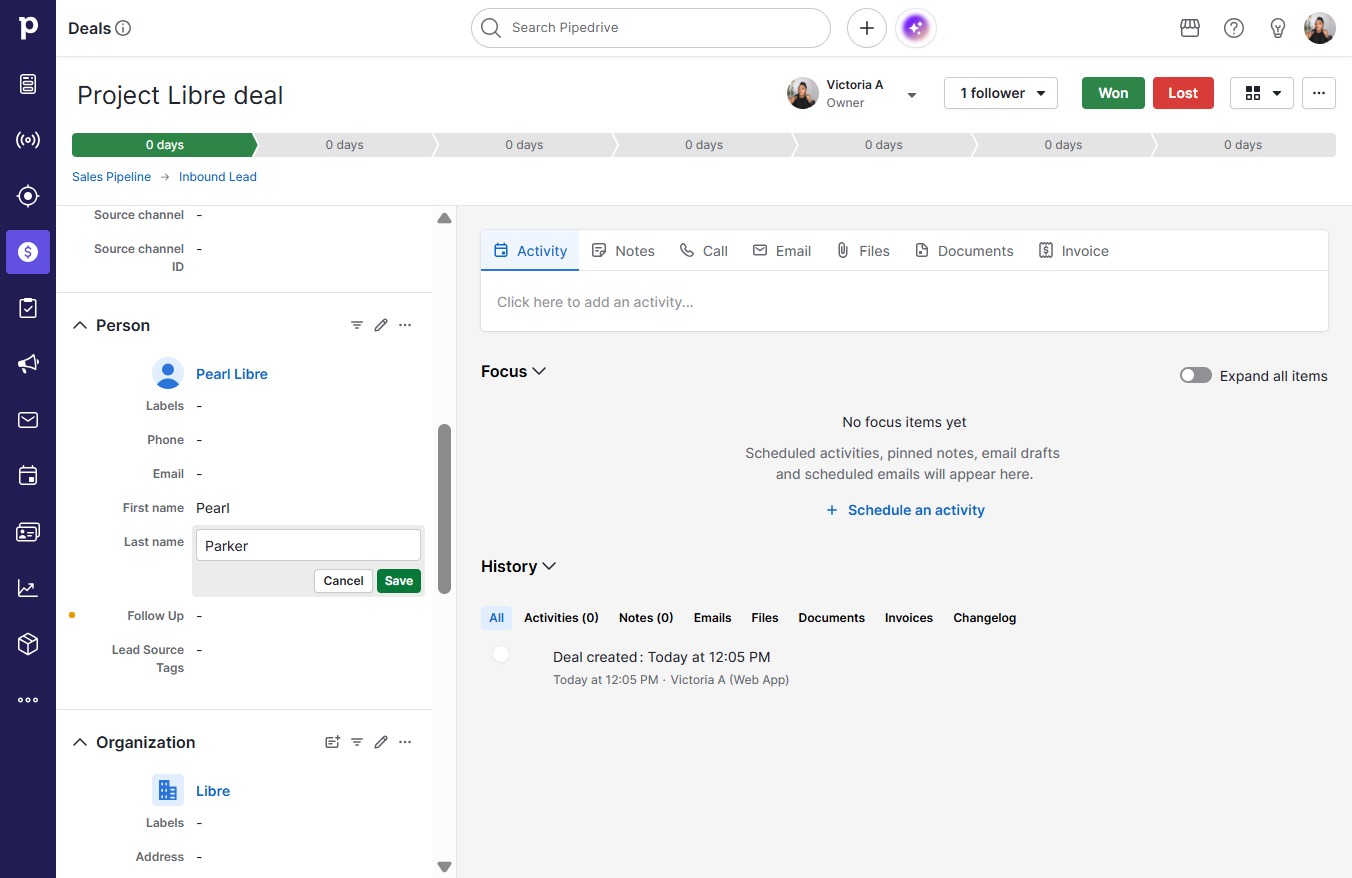
  14. Type "Parker"

  15. Click Save

    Click Save
    Loading screenshot…
    100%