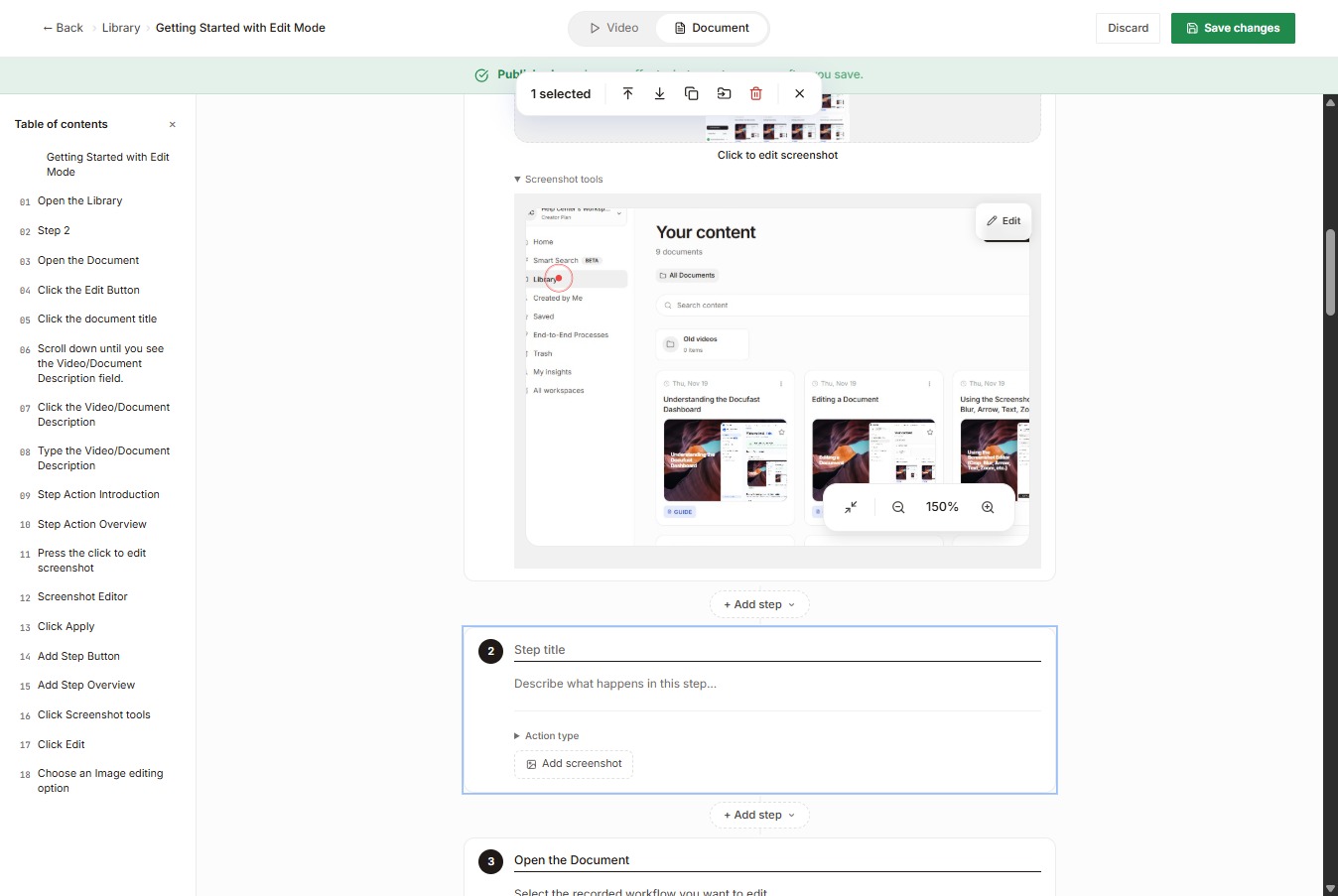
Identify What Has Changed
First of all, determine which part of the workflow no longer matches the current process. This could be a tool, a step, or an entire process.
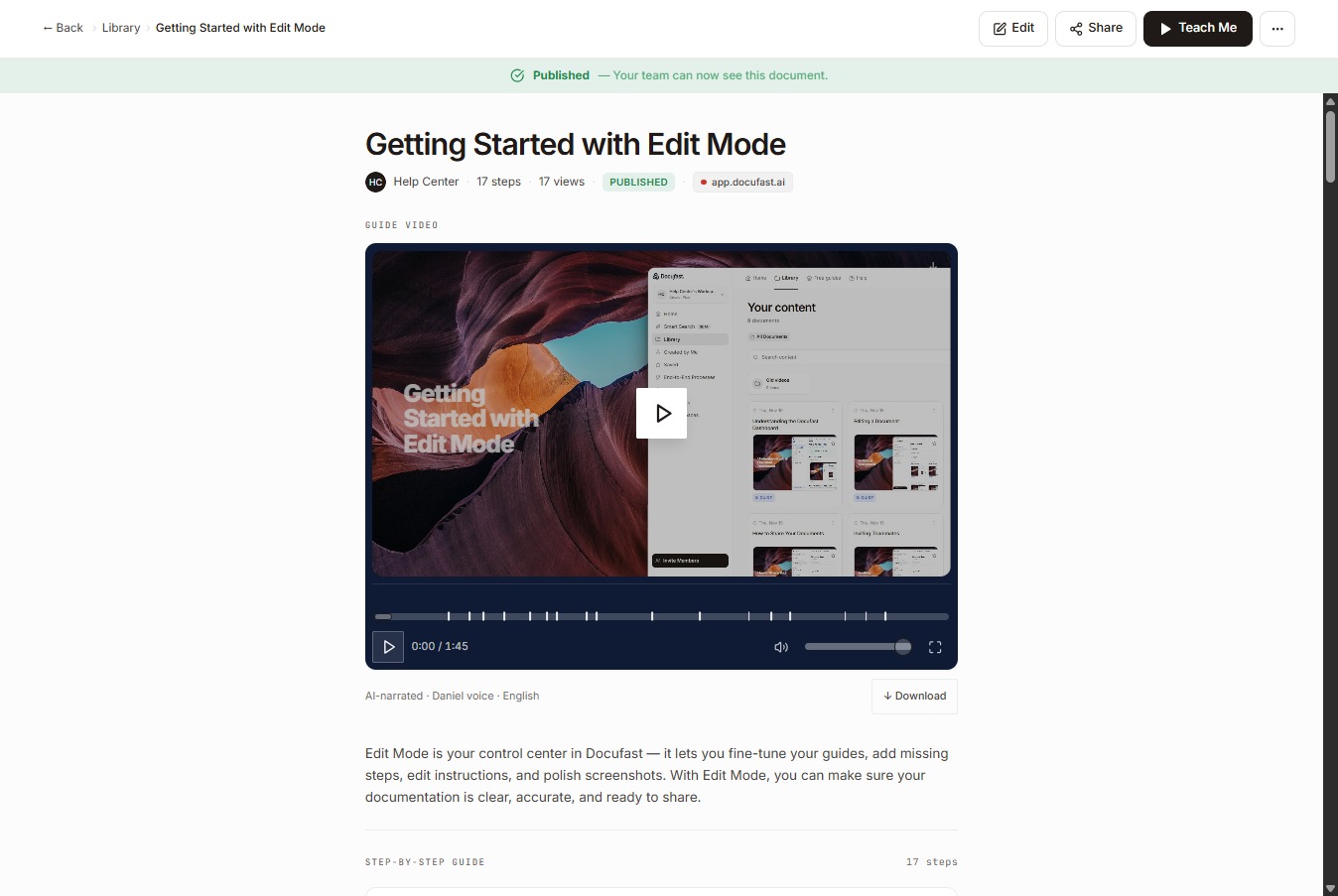
Loading screenshot…
100%
As software updates roll out, teams adopt new tools, or processes improve, your workflows can quickly become outdated.
As software updates roll out, teams adopt new tools, or processes improve, your workflows can quickly become outdated. When guides don’t match reality, teams lose trust in documentation. Docufast makes it easy to update existing guides instead of starting from scratch, so your documentation stays accurate, reliable, and aligned with how work is actually done.
First of all, determine which part of the workflow no longer matches the current process. This could be a tool, a step, or an entire process.
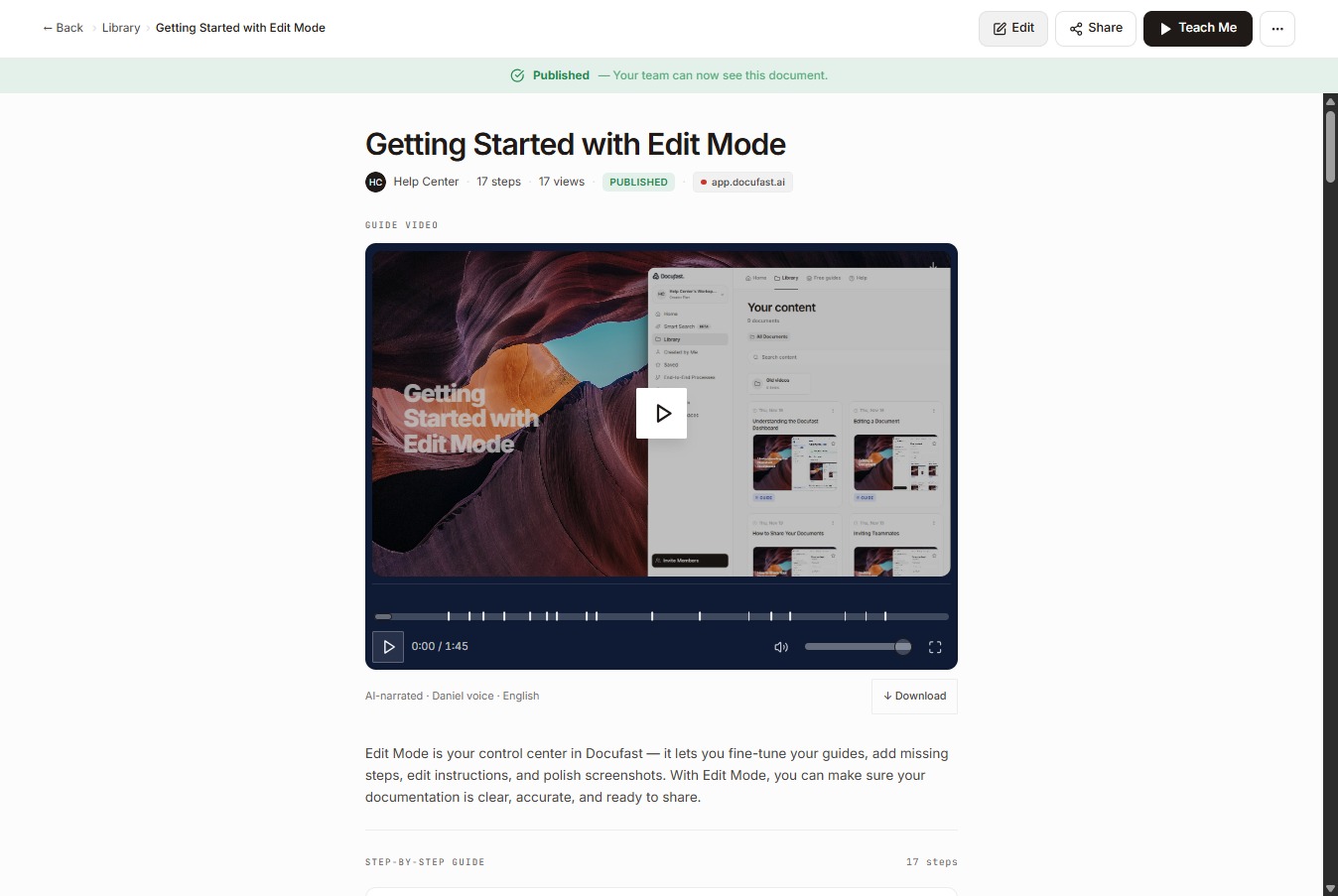
Now, at the top of the document, select Edit to enter editing mode.
Edit affected steps to reflect the new process. Replace outdated screenshots, update step actions, and revise instructions as needed.
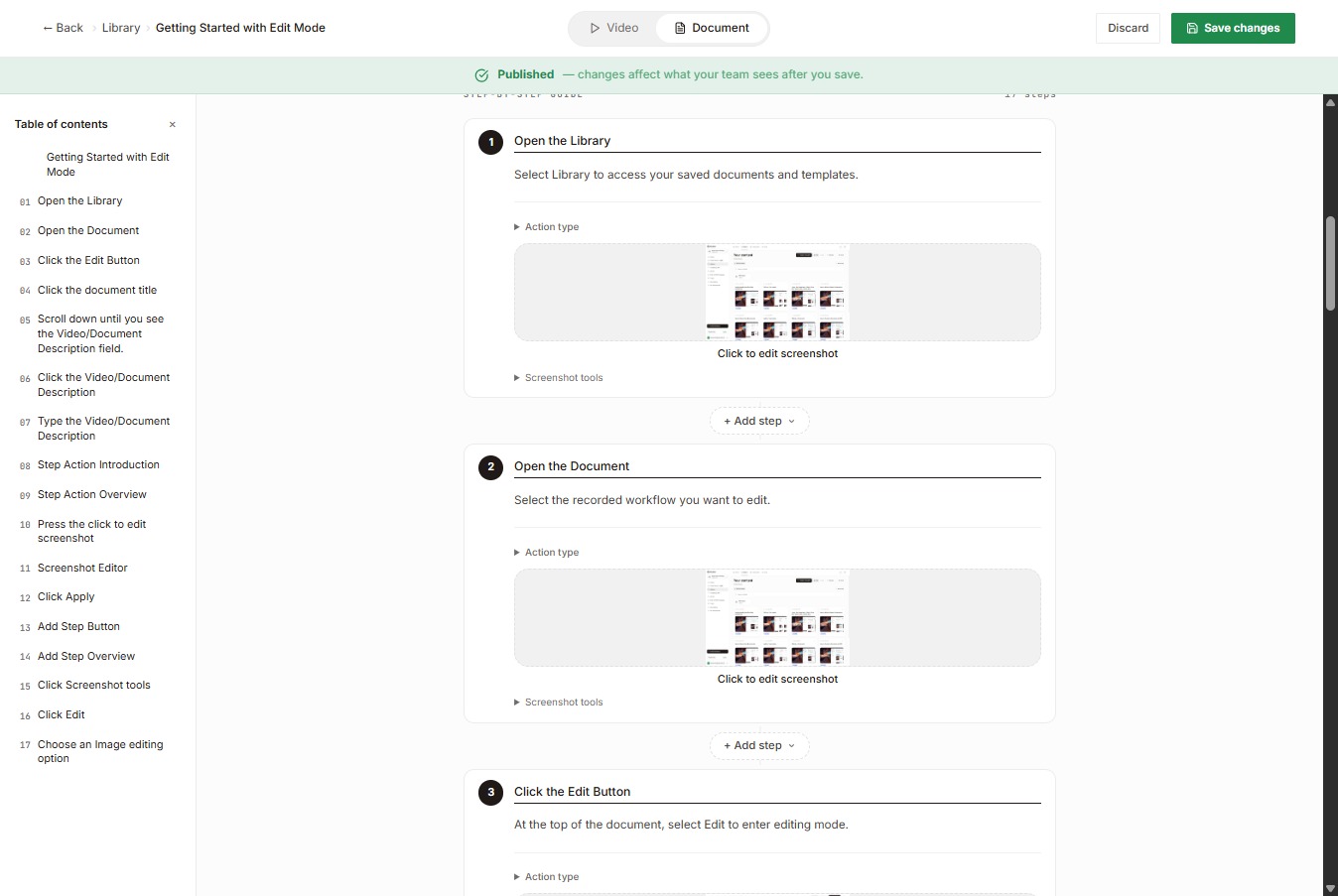
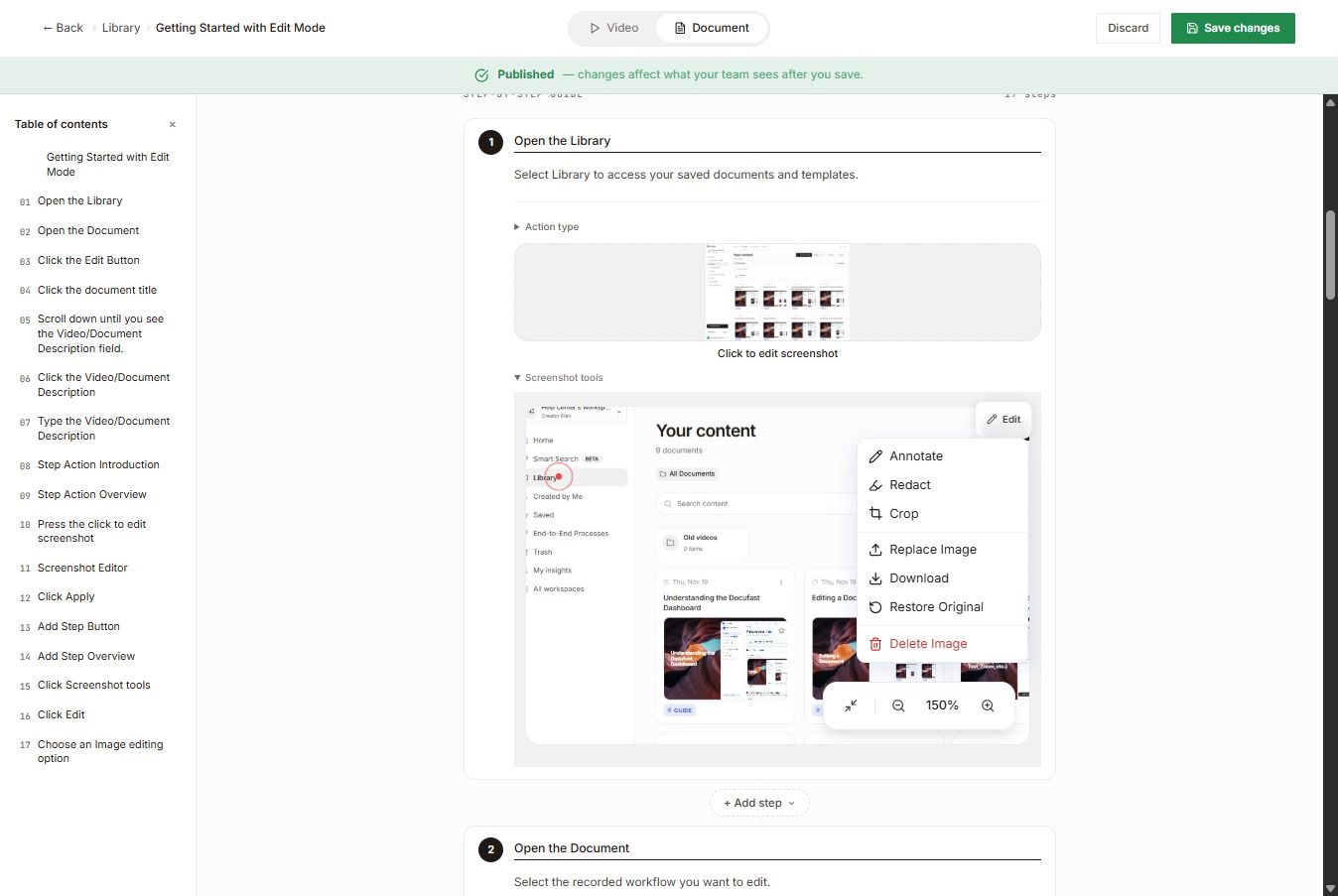
To replace or remove outdated screenshots, just click the screenshot tools.
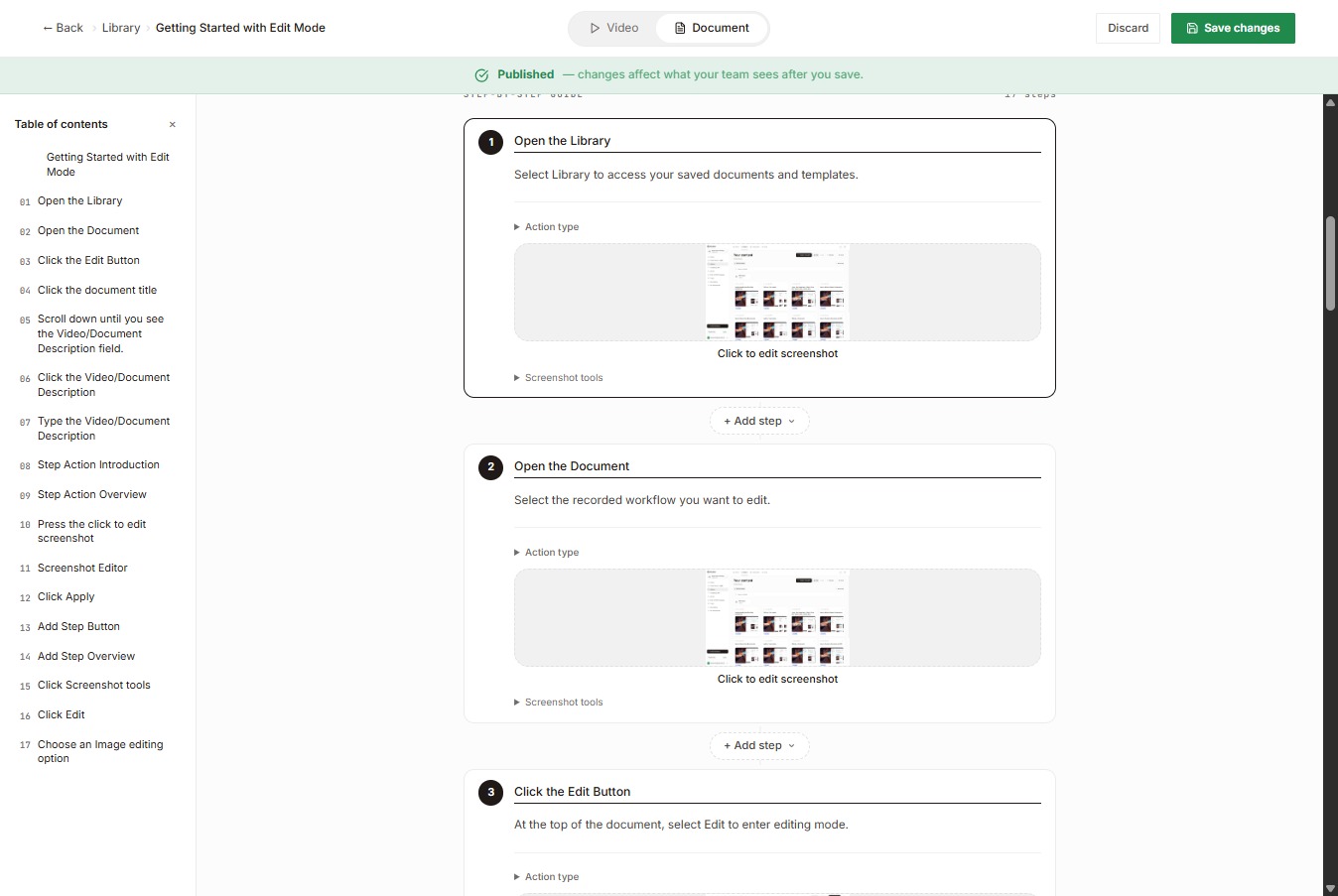
Select Edit to modify the selected content or step in your workflow.
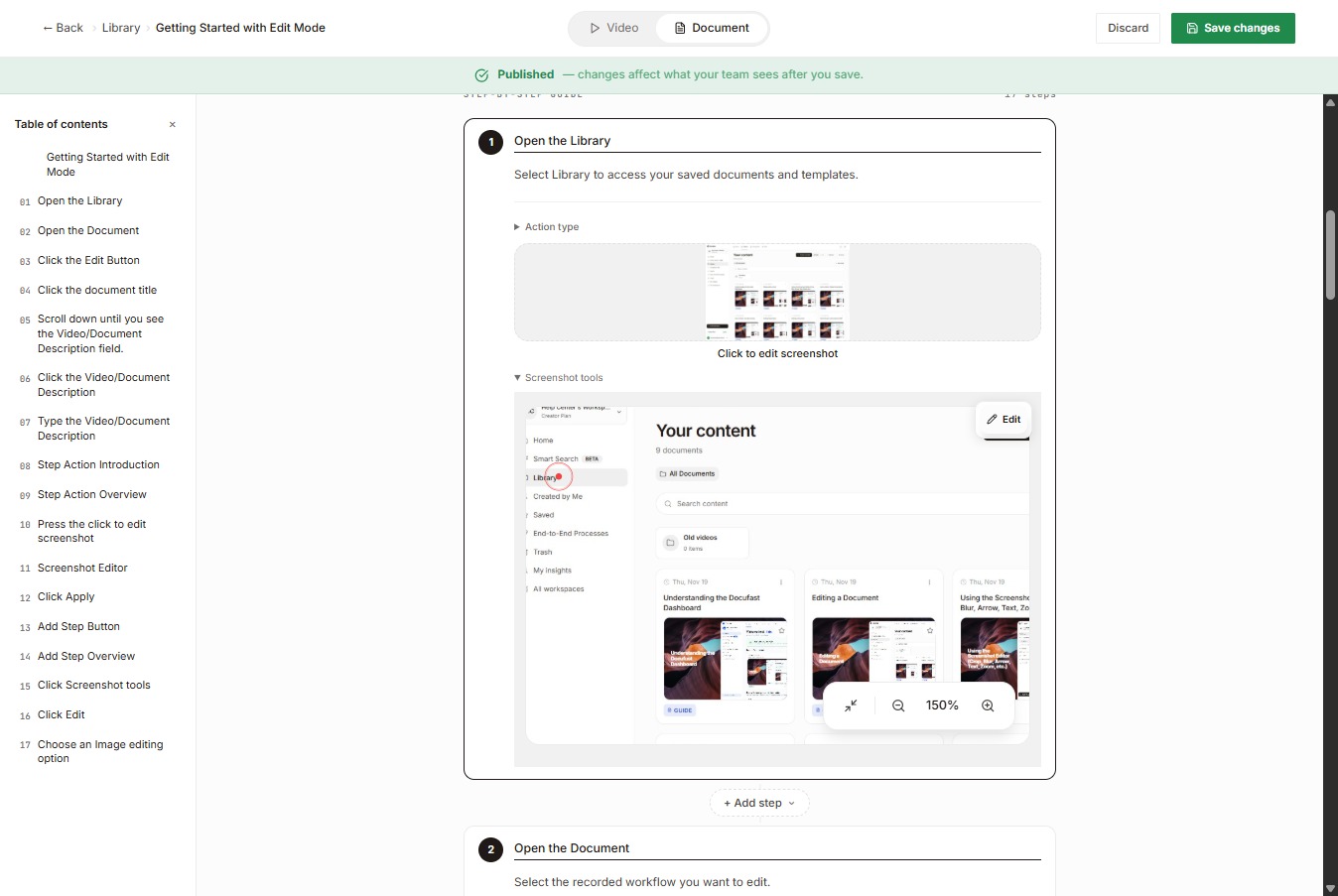
Now, click replace to replace the current screenshot, or delete image to remove it entirely.
To add or delete an action step, look for “Add step.”
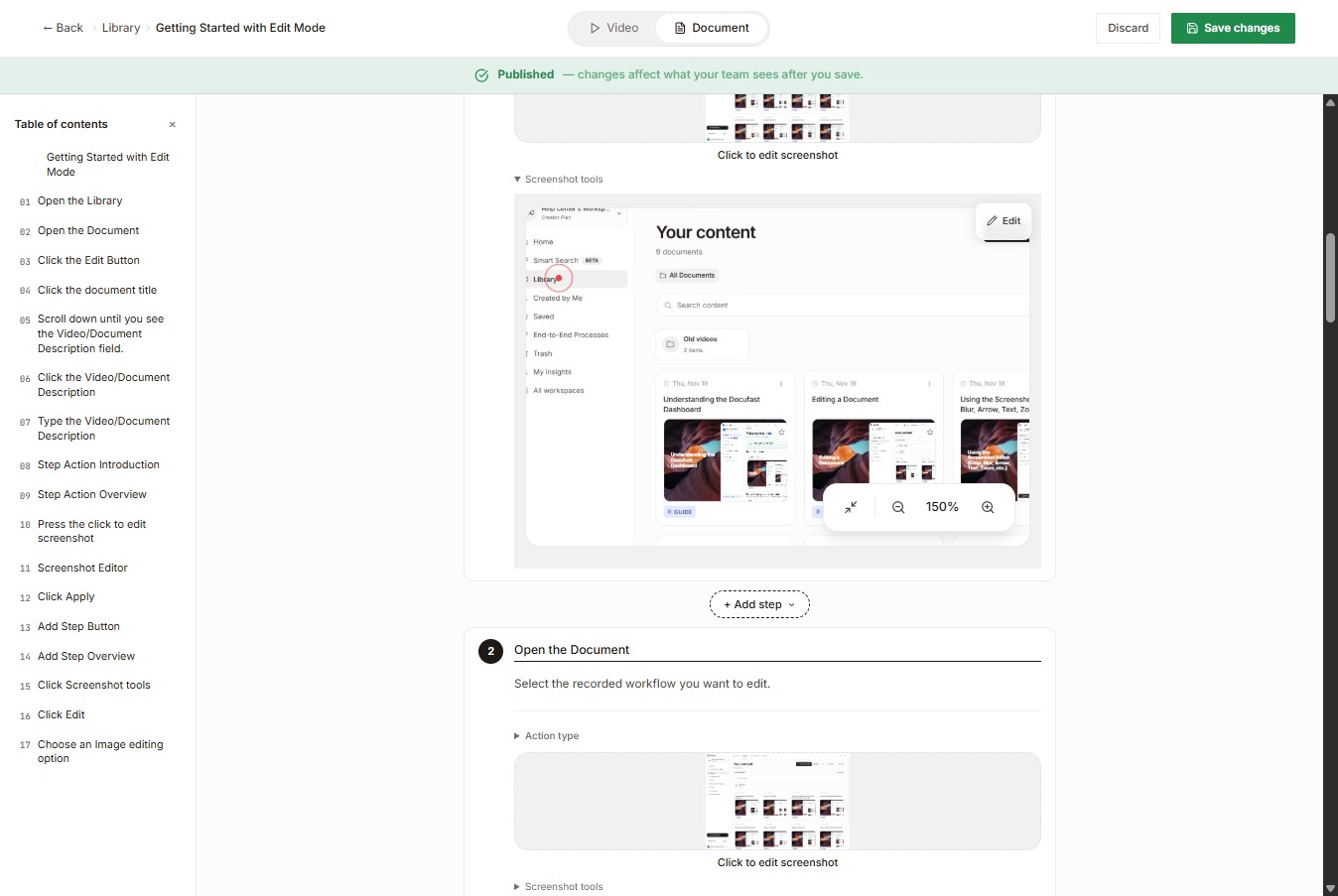
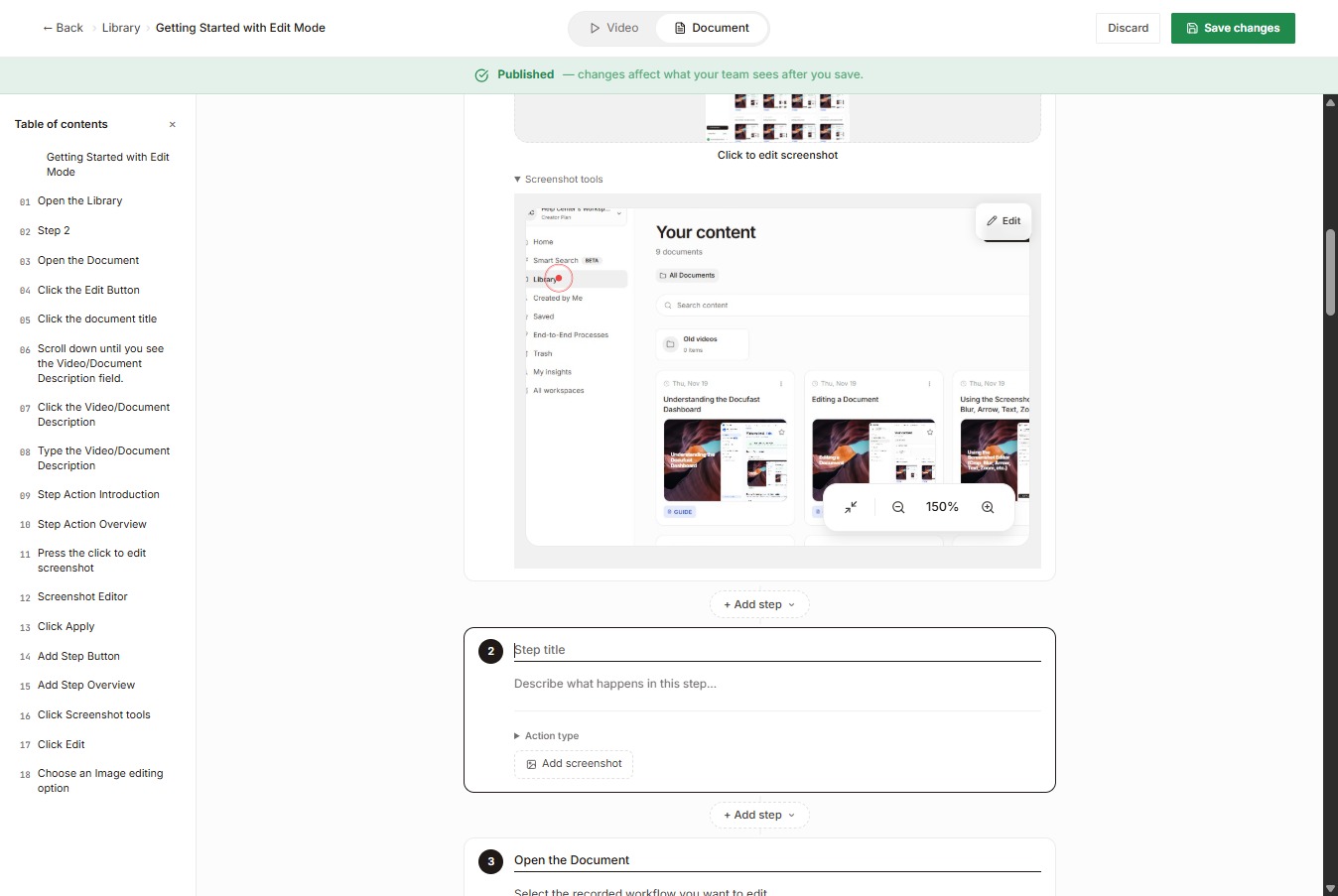
Select the Add Step button, then click Action Step.
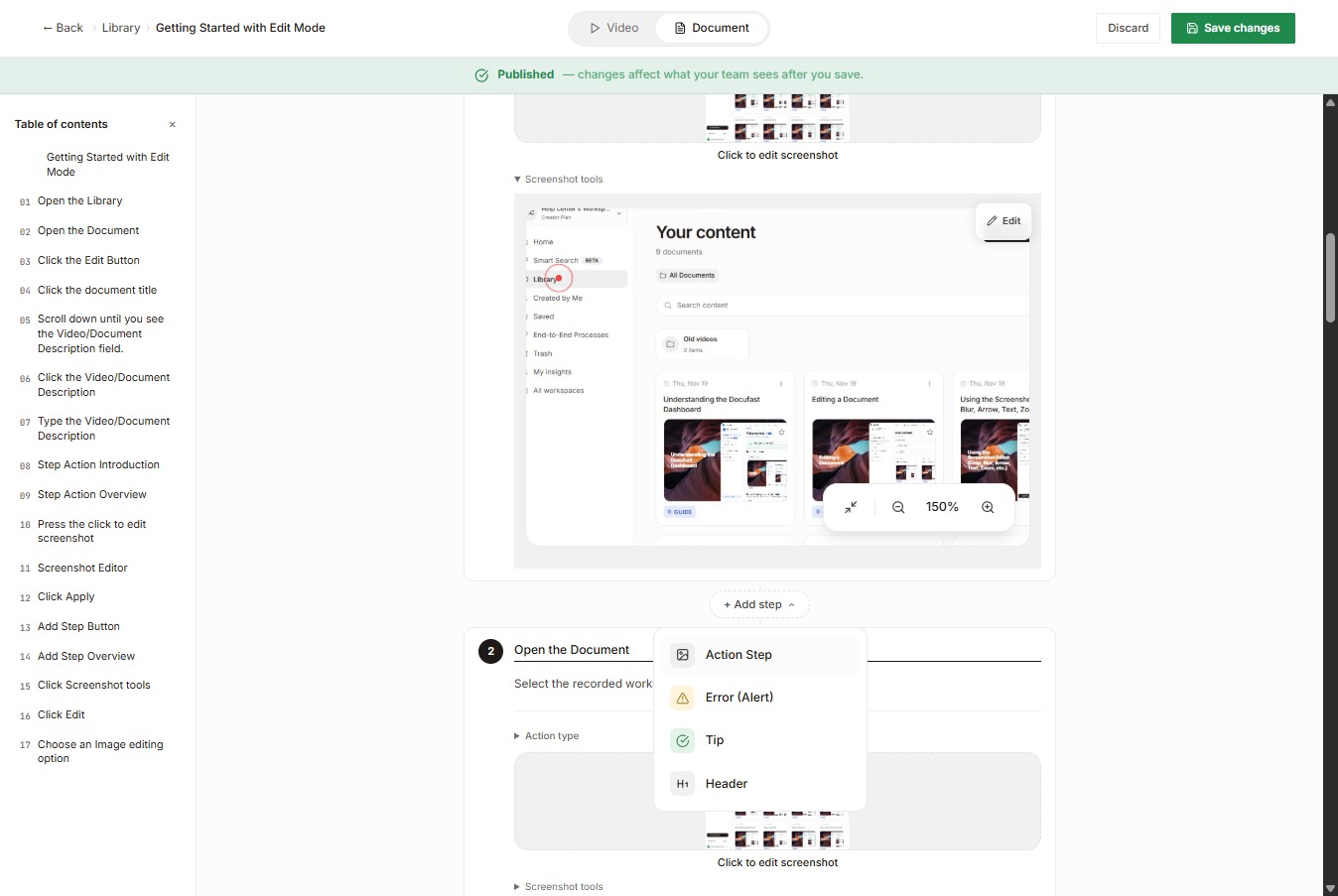
Enter the title and description, then add a screenshot for the newly added action step.
Quick Tip: Review the guide to ensure it reflects the current process, flows correctly, and all changes are saved. Also, If the workflow has significantly changed, such as switching to a new CRM or software tool, create a new guide from scratch using Docufast Capture instead of editing the old one. For minor changes, simply update the existing guide to save time and maintain continuity.