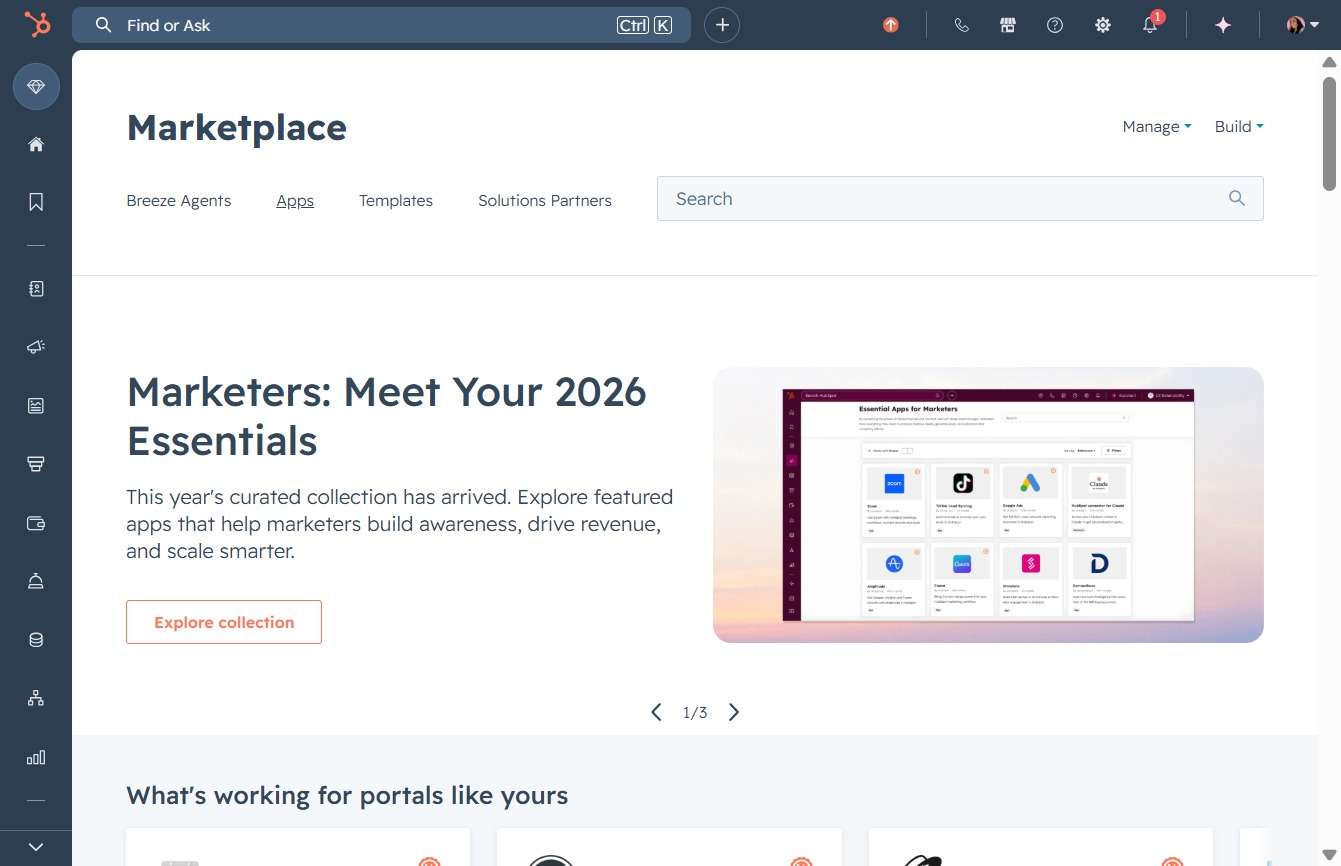
Click the Apps section
Selecting the Apps section allows you to explore and manage the various applications available for enhancing your workflow and functionalities within the marketplace.
Loading screenshot…
100%
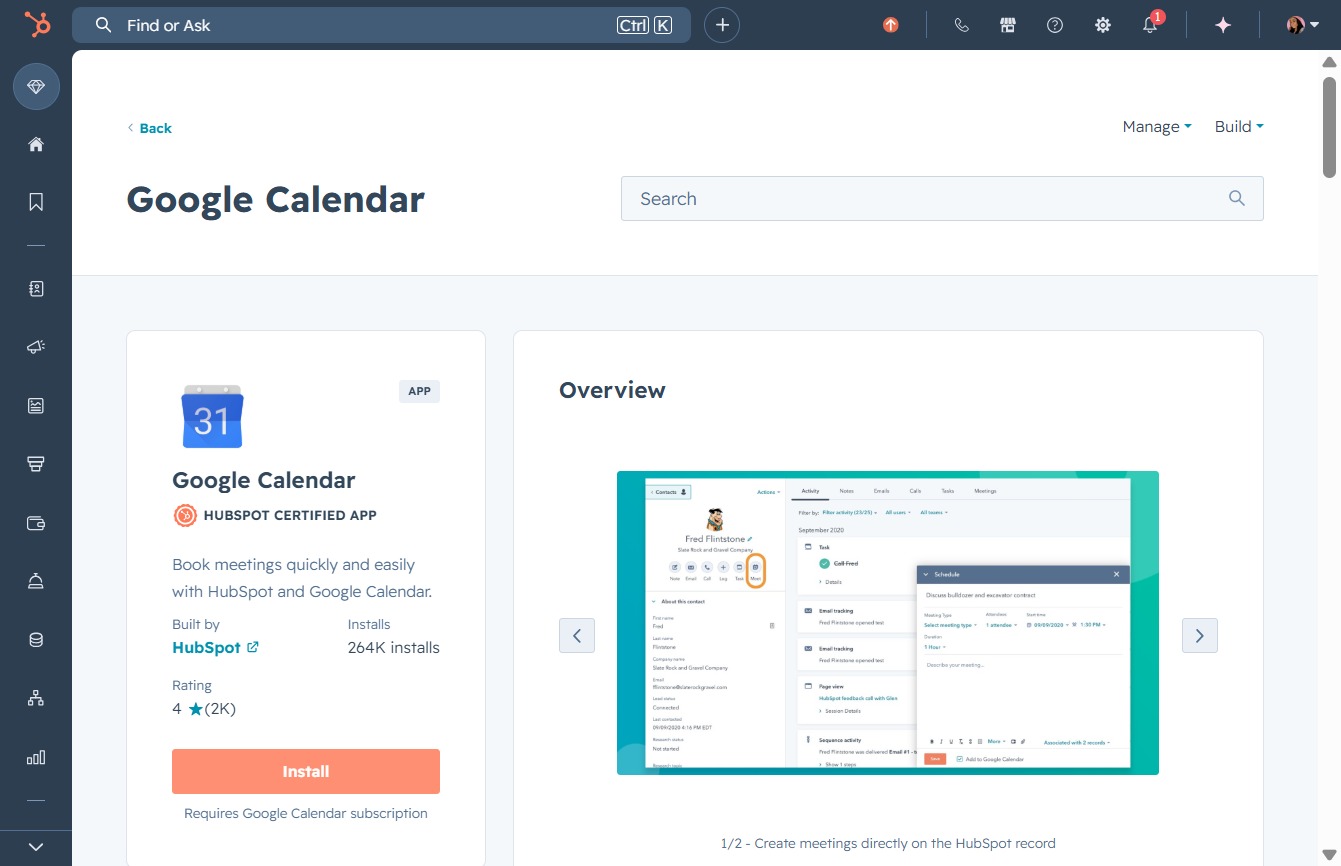
Connect your Google Calendar to HubSpot to enable seamless meeting scheduling and event management, ensuring effective integration between both platforms for improved productivity.
 viktoria
Connect your Google Calendar to HubSpot to enable seamless meeting scheduling and event management, ensuring effective integration between both platforms for improved productivity.
Selecting the Apps section allows you to explore and manage the various applications available for enhancing your workflow and functionalities within the marketplace.
This action will initiate the integration process between HubSpot and Google Calendar, allowing you to schedule meetings efficiently using both platforms.

Initiate the installation of the Google Calendar integration while using HubSpot. This will allow you to seamlessly book meetings through the connected platforms.
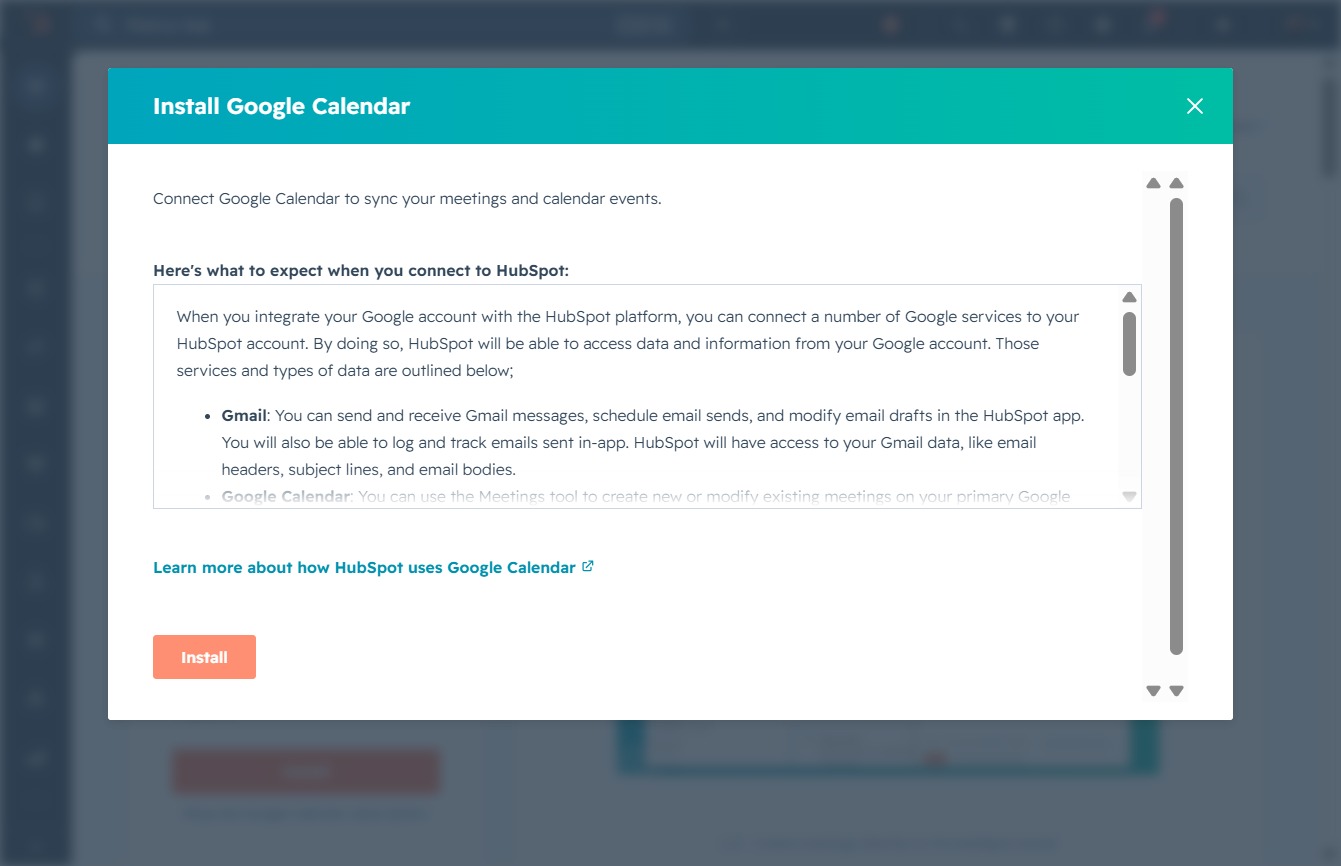
By clicking the Install button, you will connect your Google Calendar to HubSpot, allowing you to sync your meetings and events seamlessly.
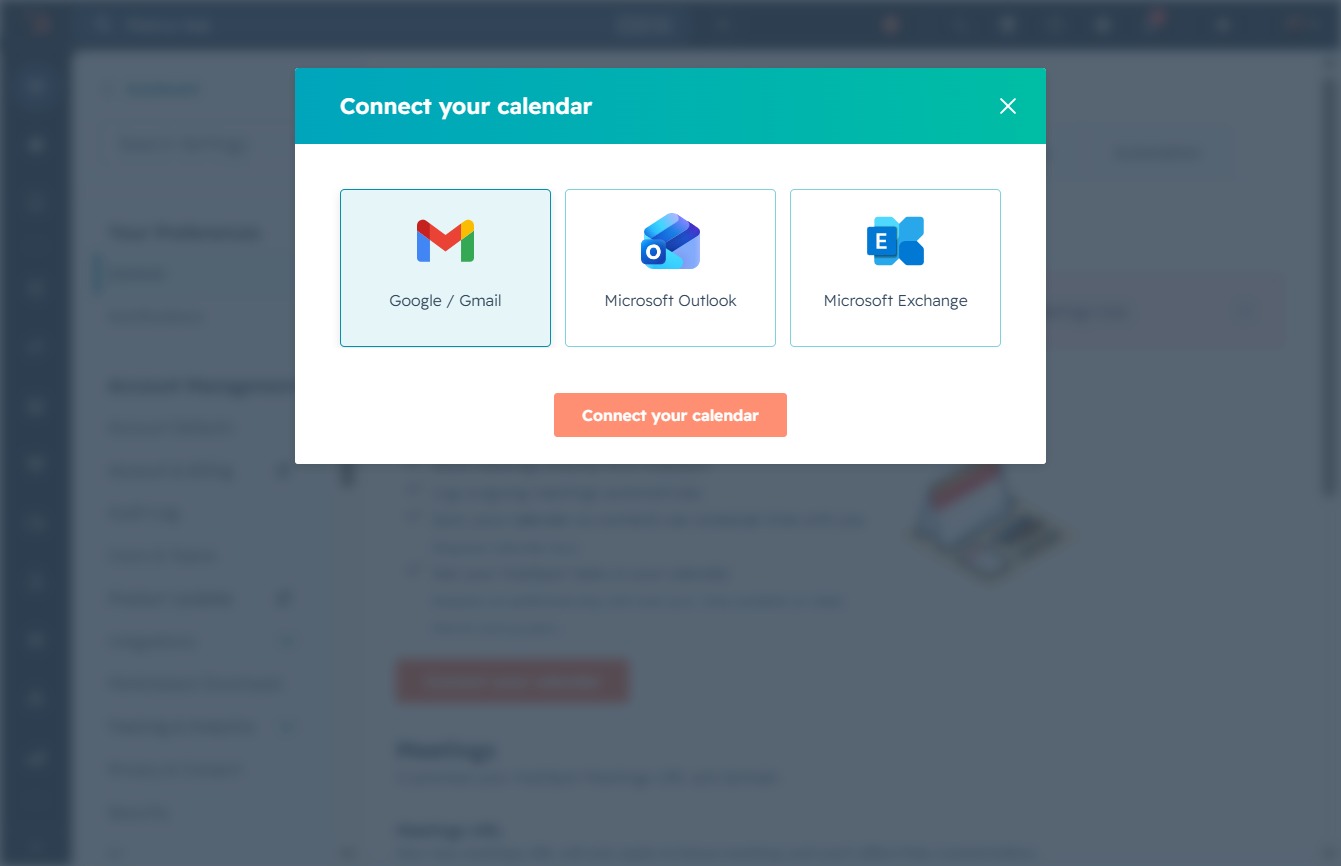
Selecting the Google / Gmail icon will initiate the process of connecting your Google calendar to the application, allowing for integrated scheduling and event management.
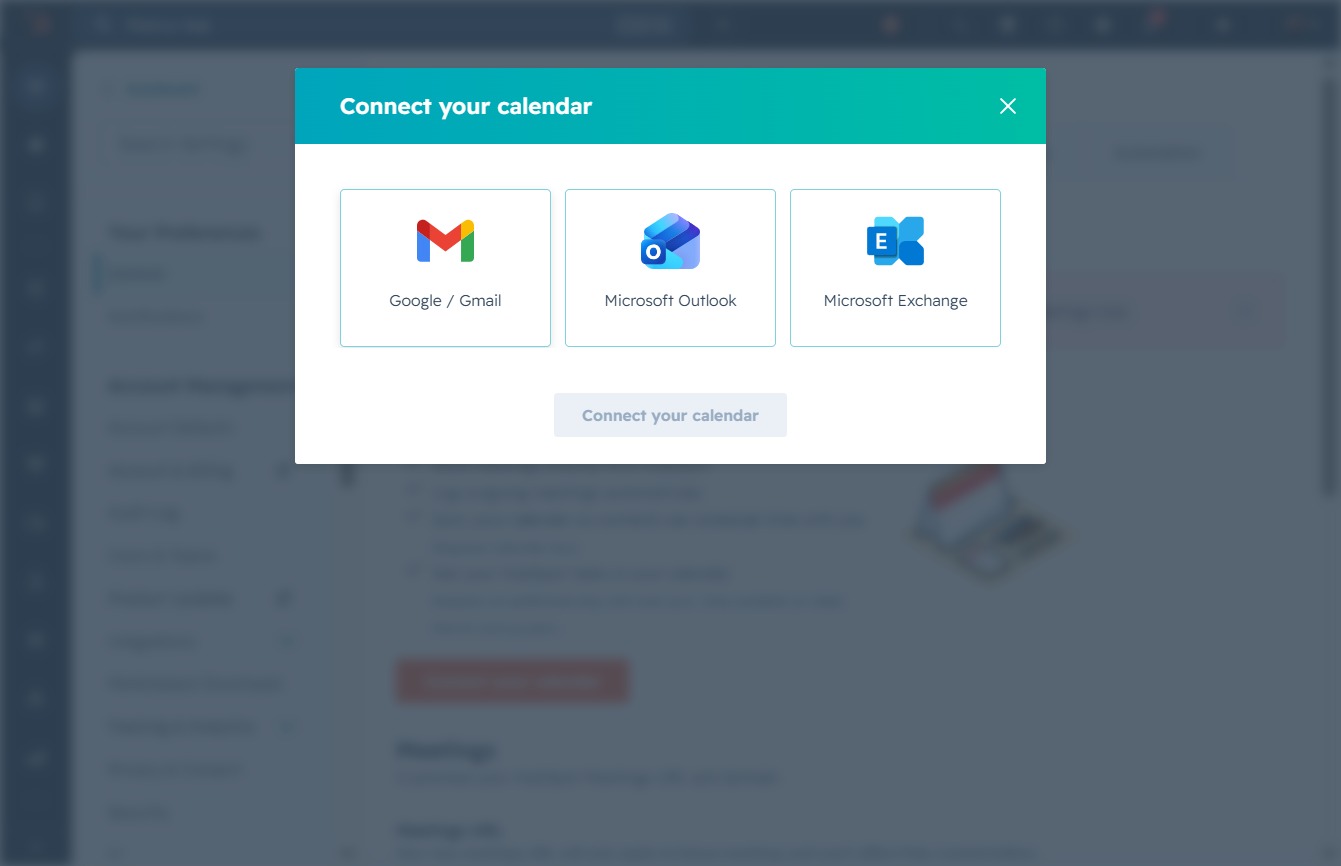
This action opens a menu allowing you to select a calendar service to integrate, such as Google, Microsoft Outlook, or Microsoft Exchange.
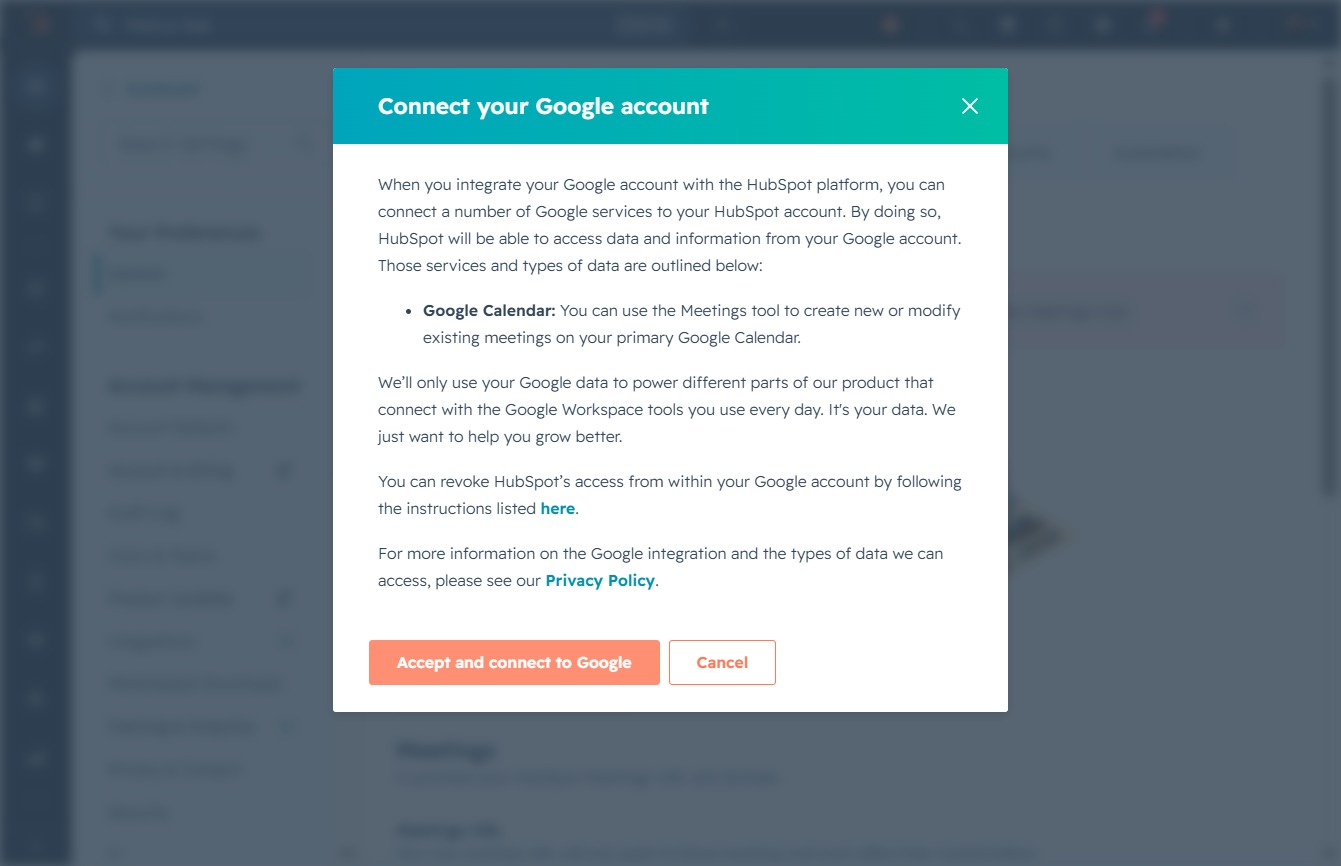
This action will initiate the integration process, allowing HubSpot to access your Google services, such as Google Calendar, to enhance your productivity and streamline event management.
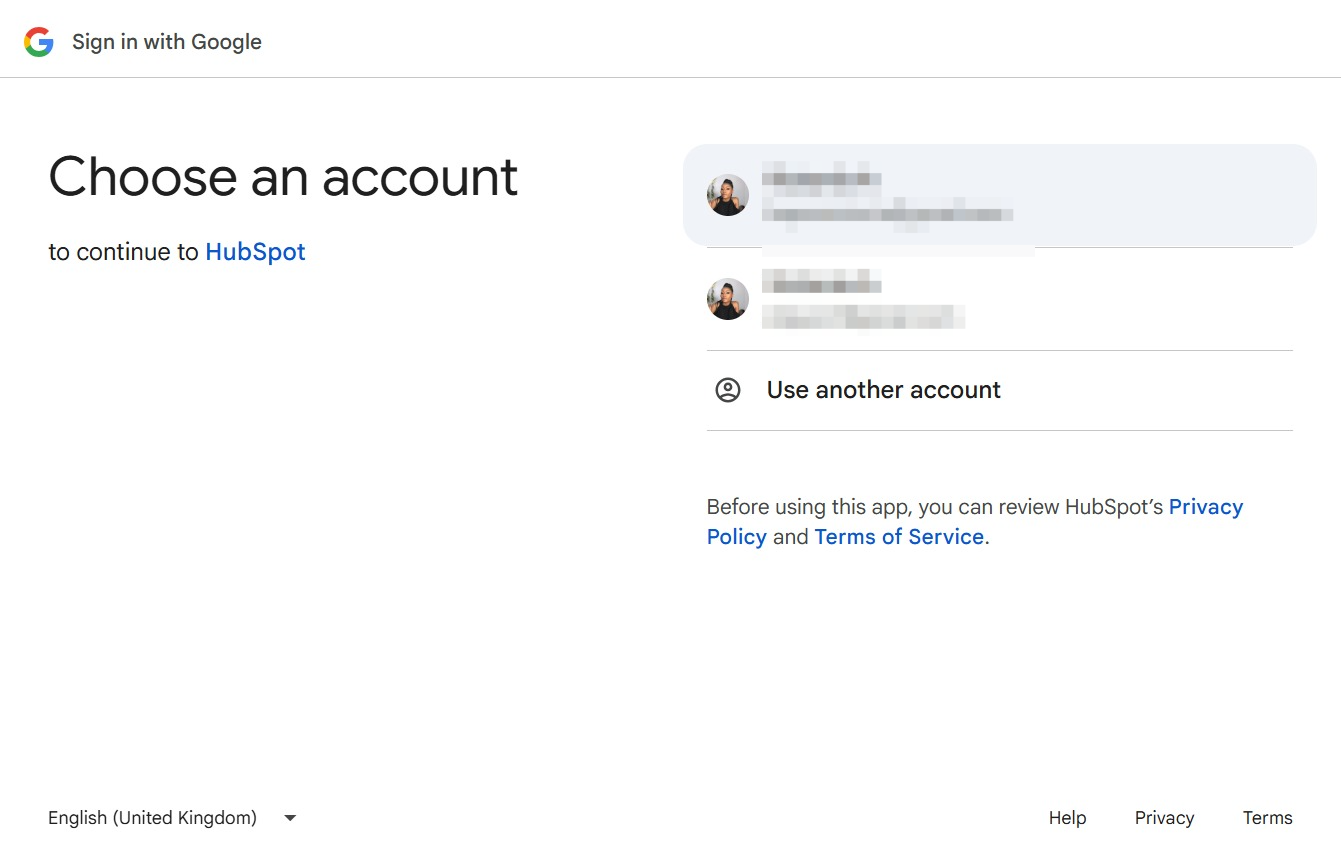
This action selects your Google account associated with 'Victoria Ahopm', allowing you to proceed with signing into HubSpot.
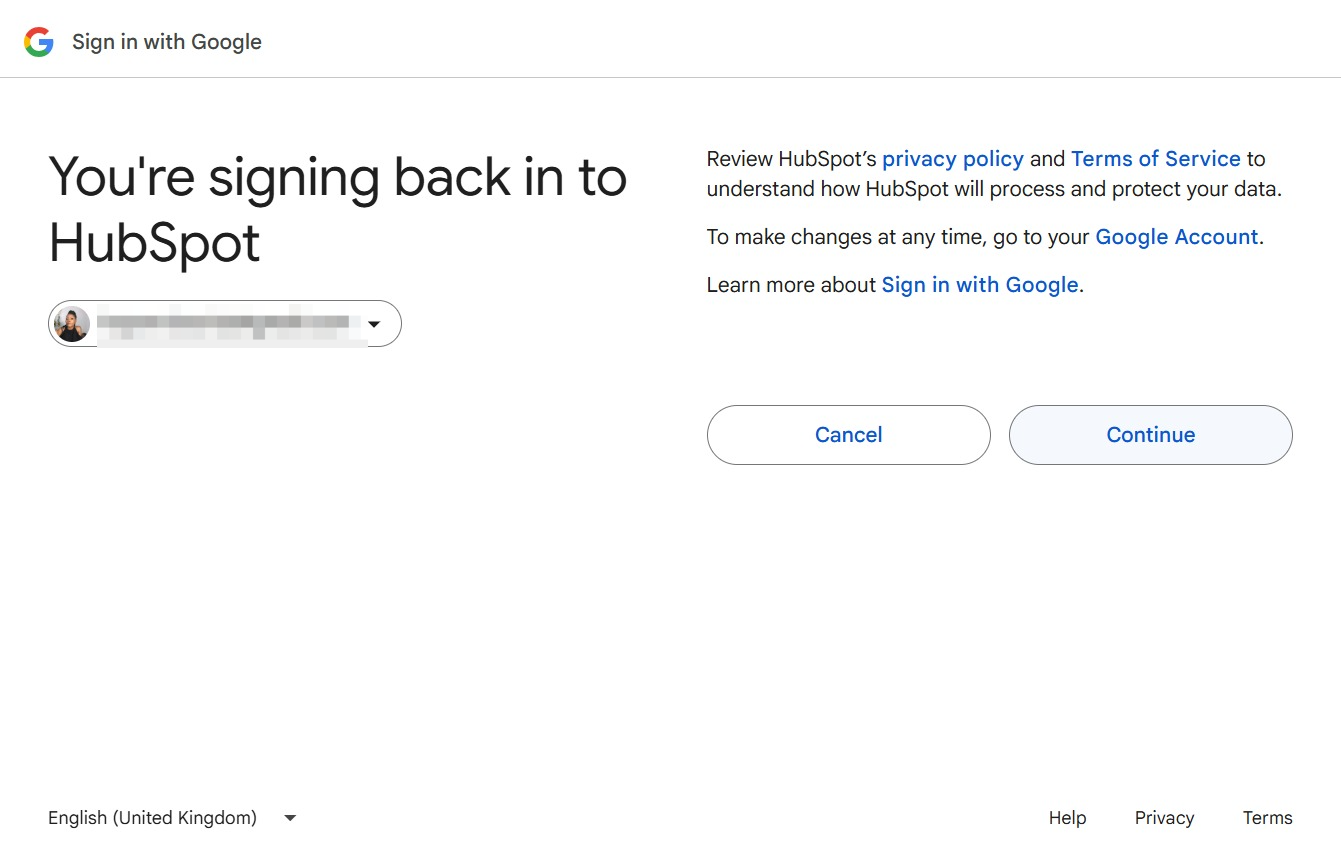
This action will proceed with signing back into HubSpot using your Google account. Ensure you have reviewed the privacy policy and terms of service before continuing.
By clicking the 'Select all' checkbox, you grant HubSpot access to view and edit events on all your Google calendars, ensuring they can effectively manage your scheduling needs.
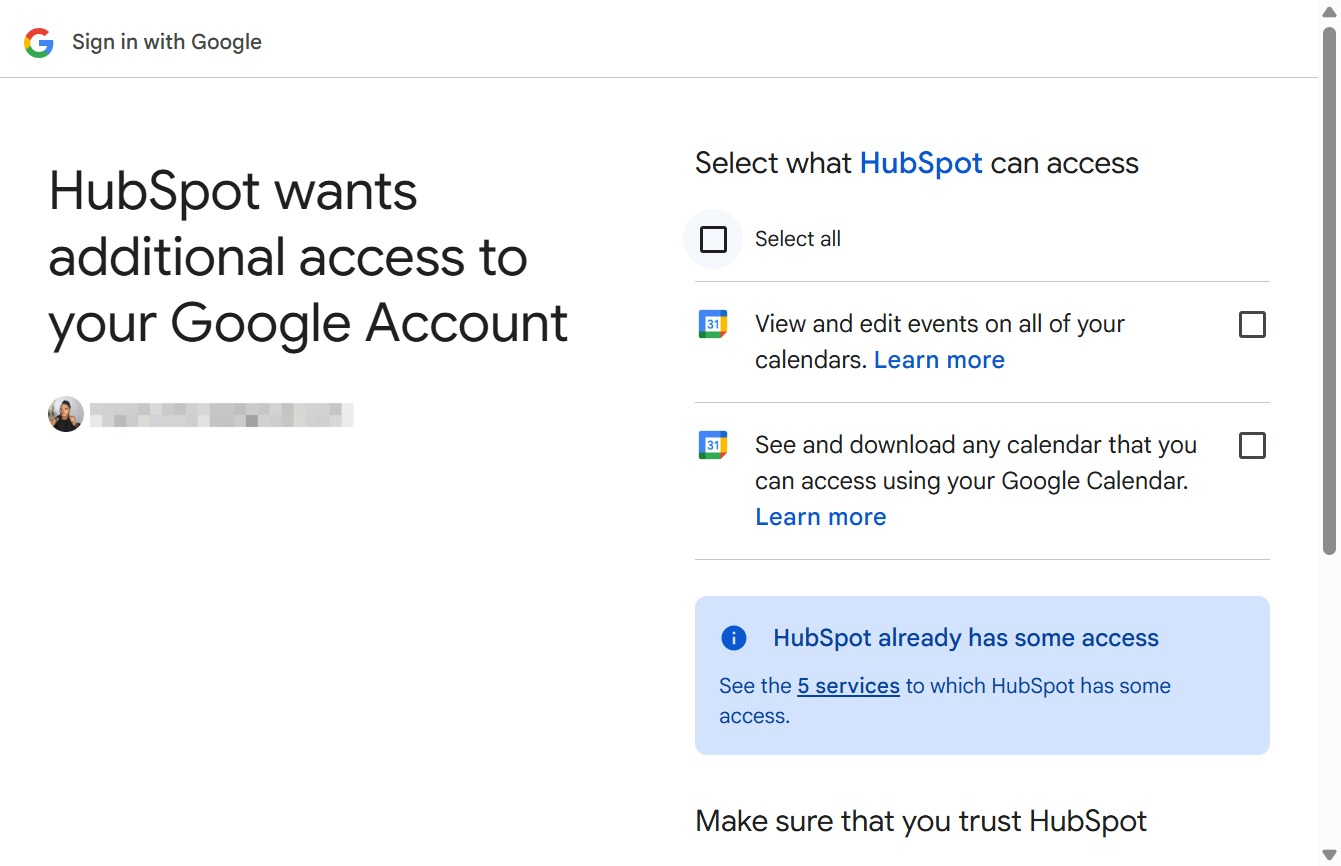
This action will proceed to grant HubSpot the necessary permissions to access your Google Calendar and related services.
