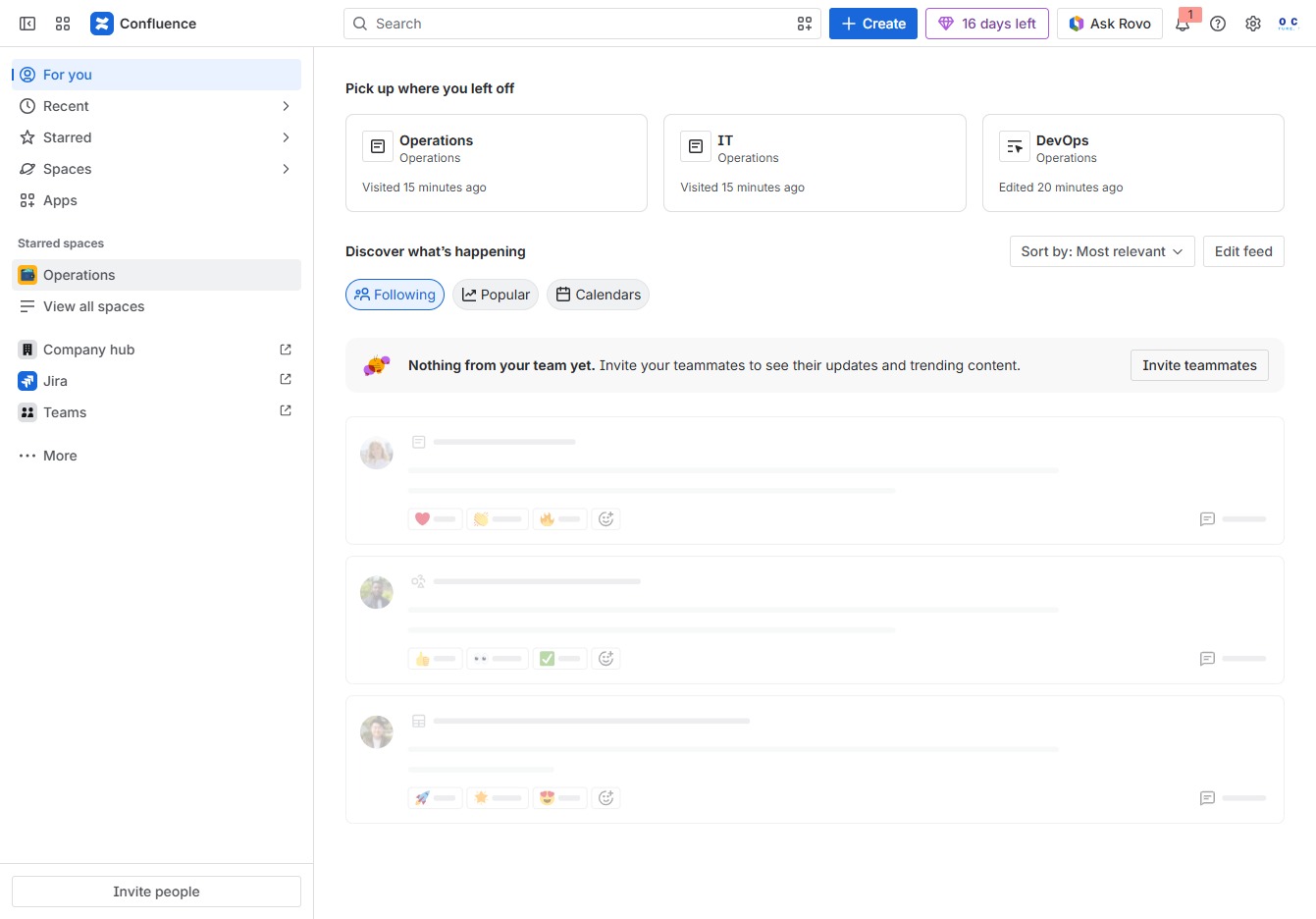
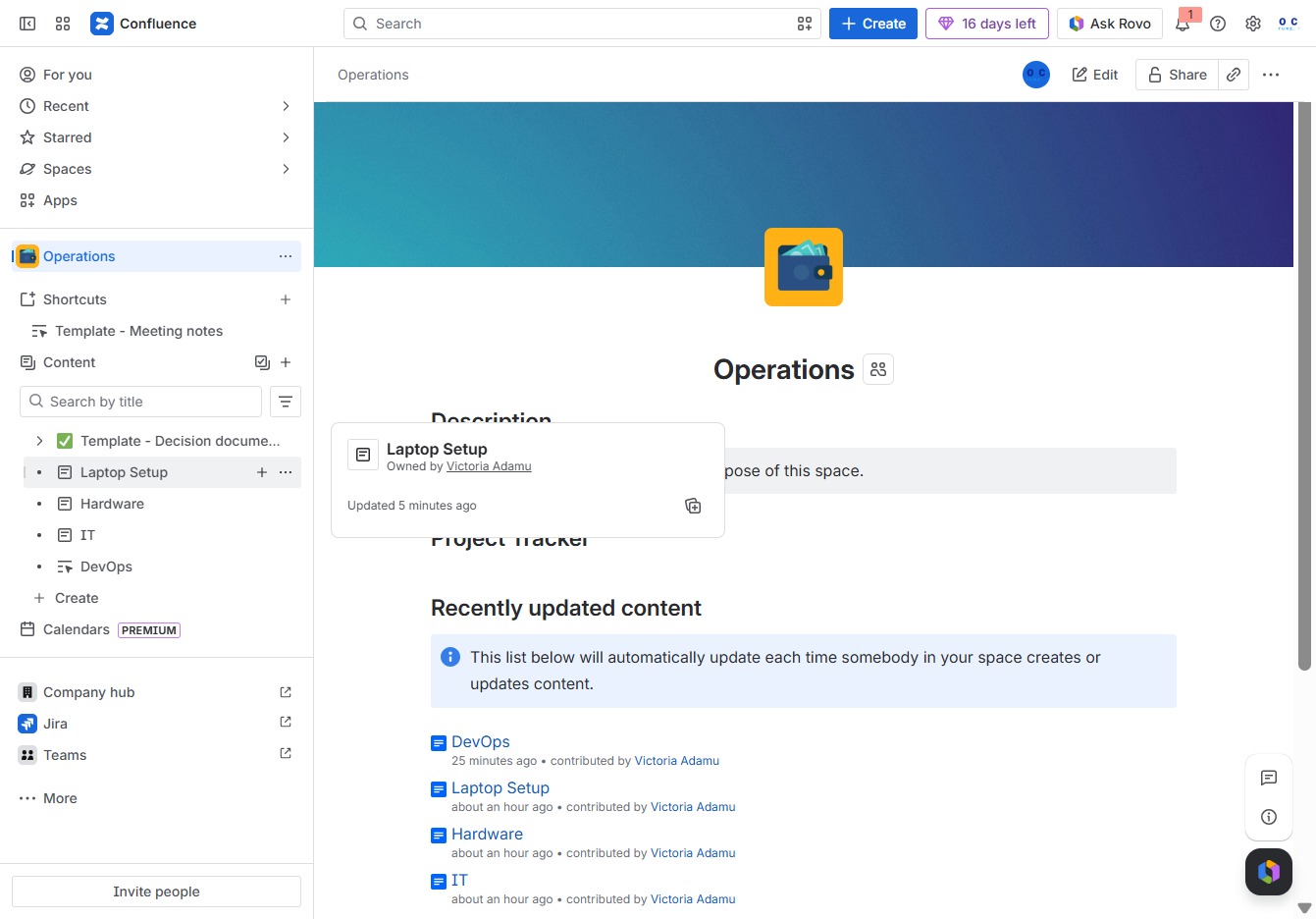
Click the Operations section
This action opens the Operations area where you can view updates and collaborate with your team on related tasks.
Loading screenshot…
100%
This how-to guide provides step-by-step instructions on inserting images into a Confluence page, specifically for enhancing the 'Laptop Setup' documentation.
 viktoria
This how-to guide provides step-by-step instructions on inserting images into a Confluence page, specifically for enhancing the 'Laptop Setup' documentation. By following these steps, you will learn how to navigate the Operations area, enter editing mode, and add multimedia elements that improve your page's content and organization.
This action opens the Operations area where you can view updates and collaborate with your team on related tasks.
Clicking the Laptop Setup control allows you to create child content related to the Laptop Setup page, organizing information and resources effectively.
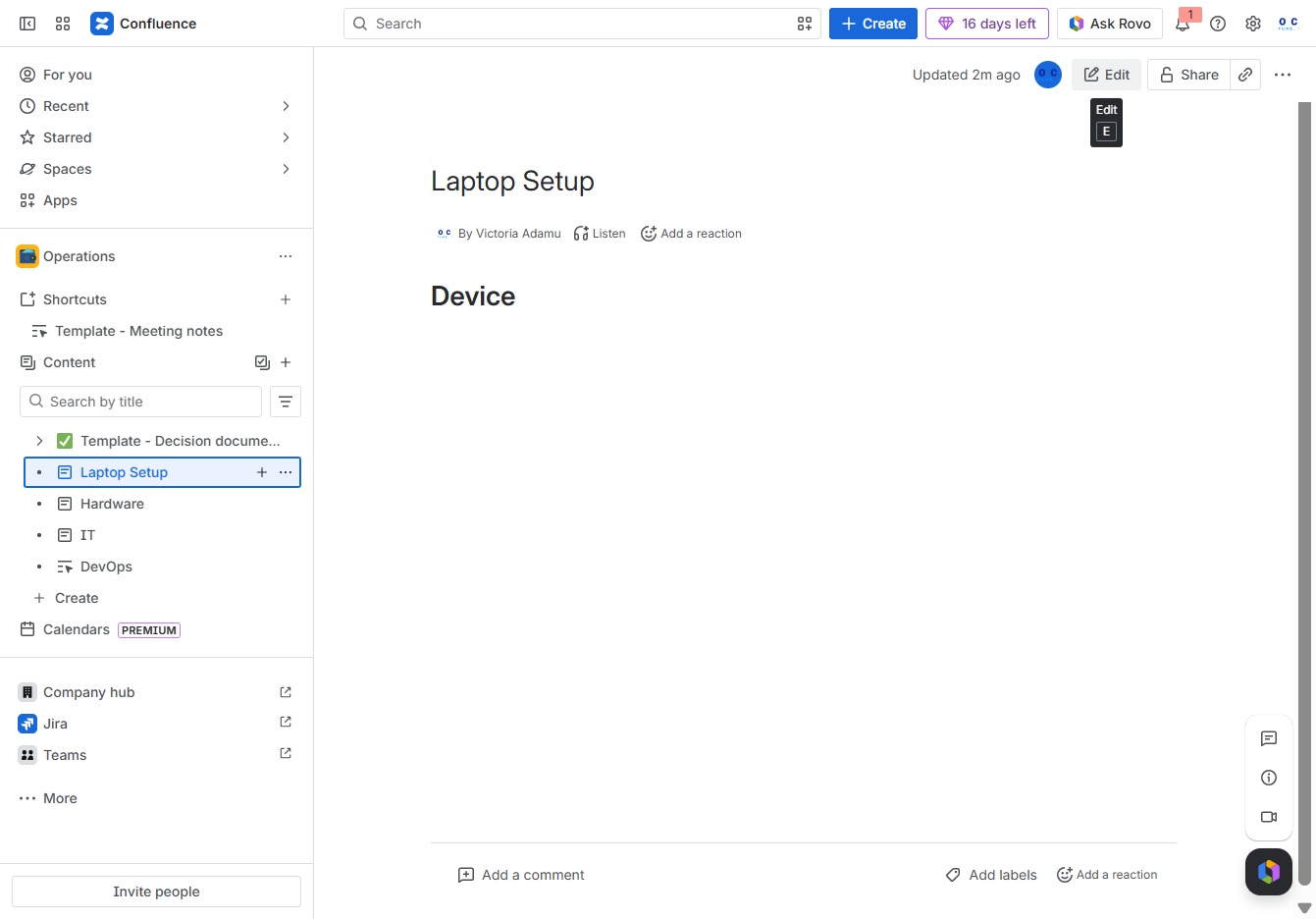
Clicking the 'Edit' button allows you to make changes to the current page content in Confluence. This will enable the editing mode where you can add or modify text, images, and other elements.
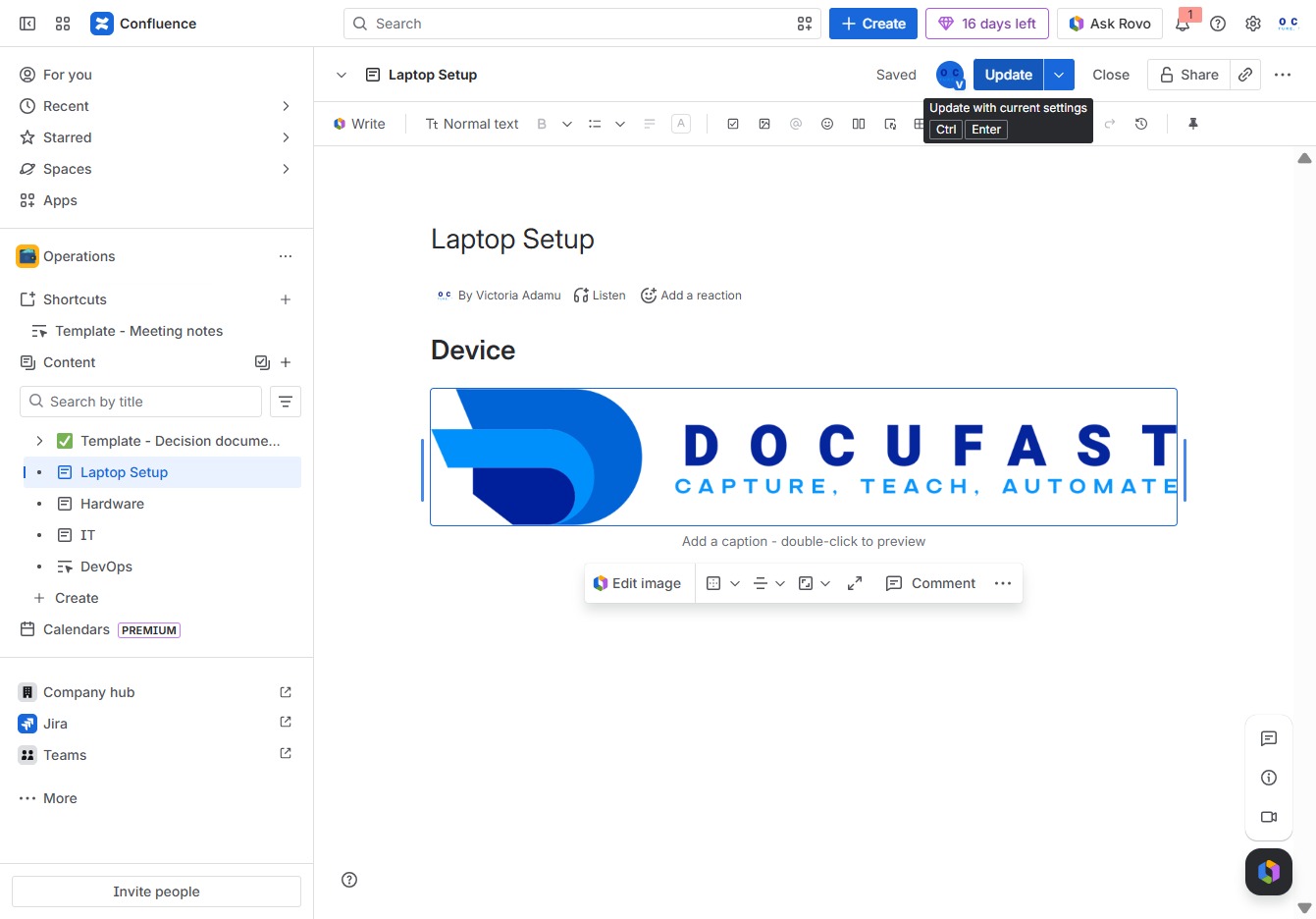
Clicking the 'Add' button allows you to insert new elements or content into the document, enhancing your 'Laptop Setup' page.
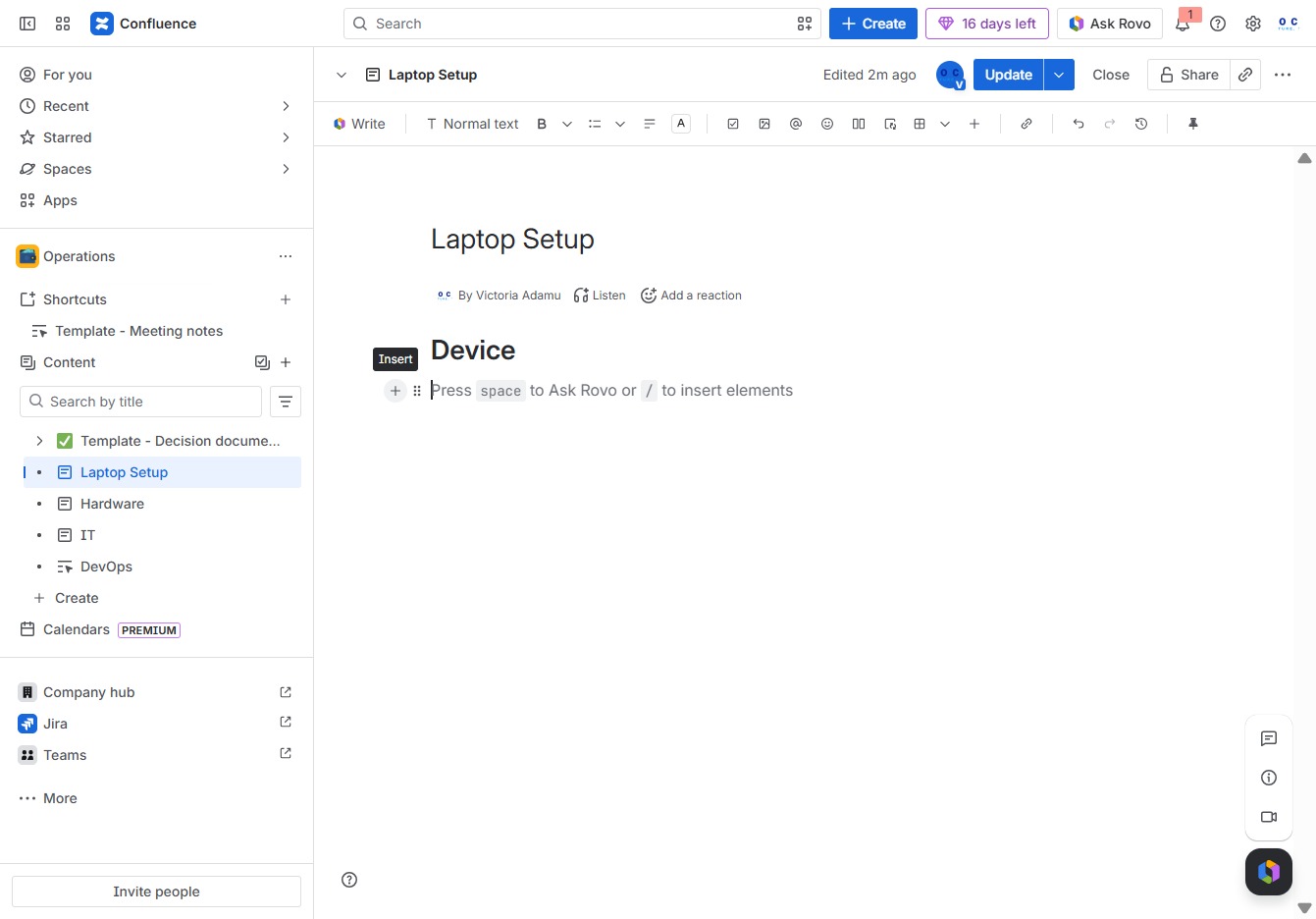
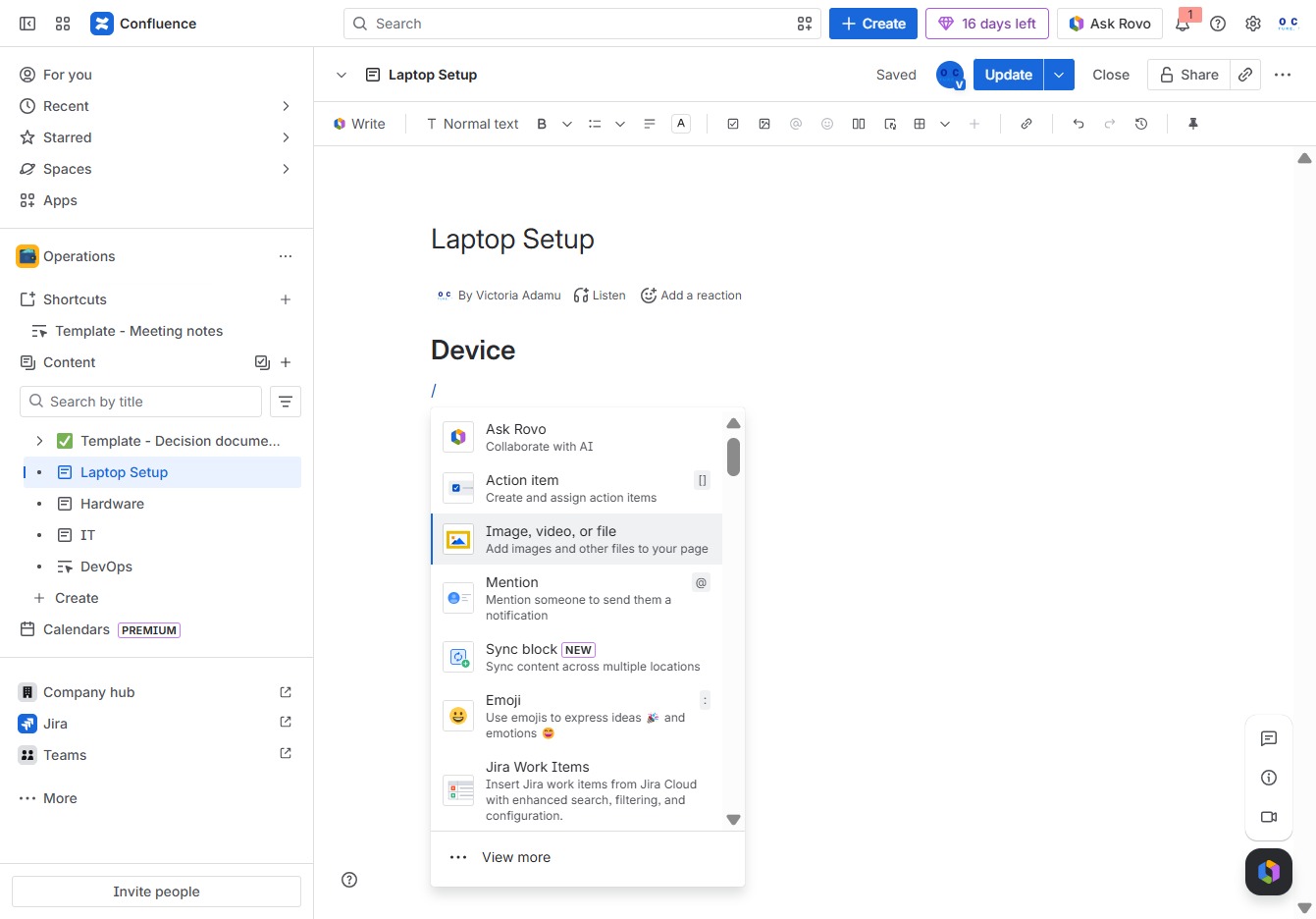
Clicking this option allows you to add images and other files directly to your page, enhancing the content with multimedia elements.
Clicking the EmojiStatusHeader image allows you to select or suggest a title for the current document. This may help others in identifying the content or context of the 'Laptop Setup' page.
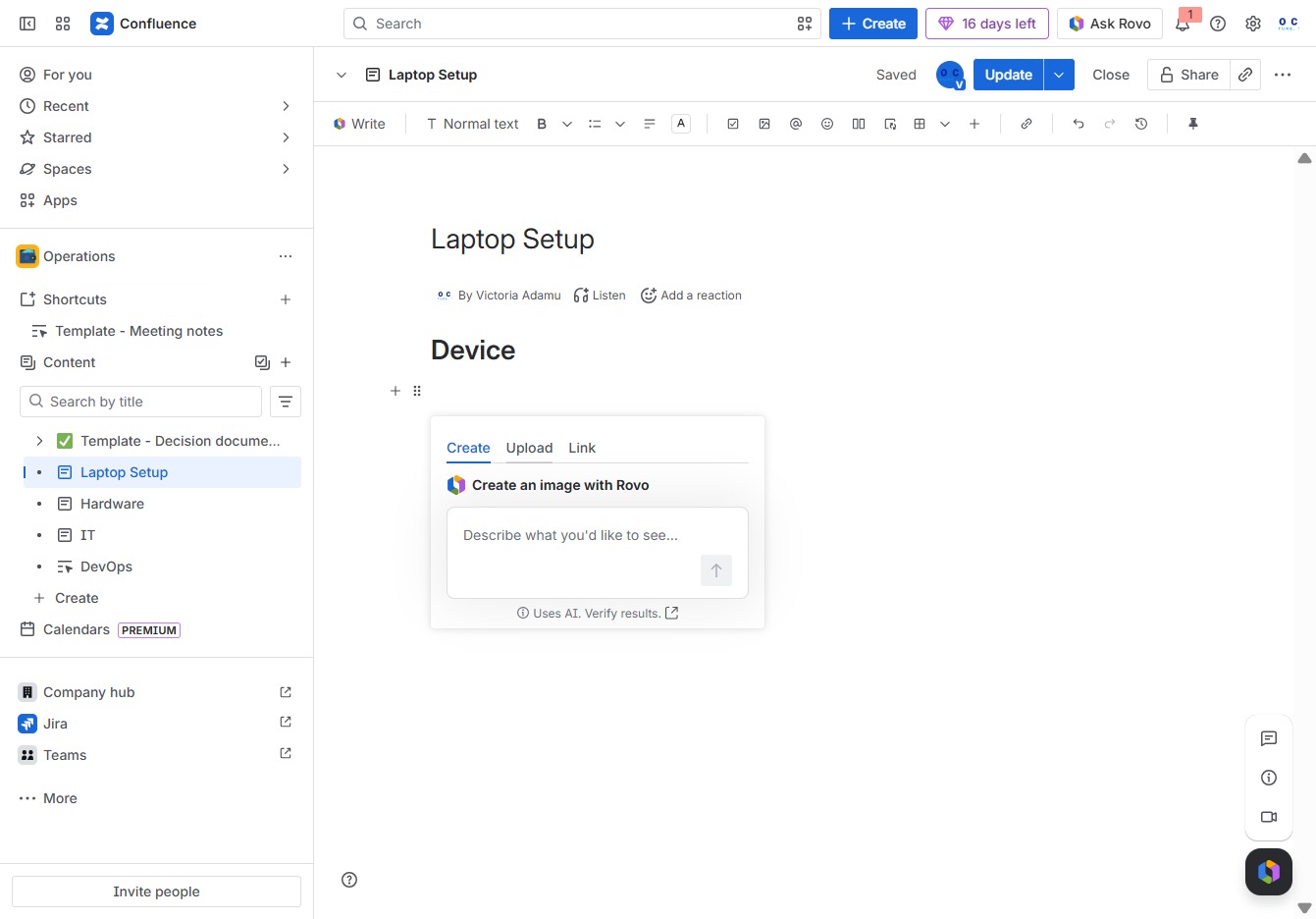
This action opens a file selector dialog, allowing you to navigate your computer and select a file to upload related to the device setup.

This action saves your current changes to the 'Laptop Setup' page, ensuring that any edits made are stored for later access.