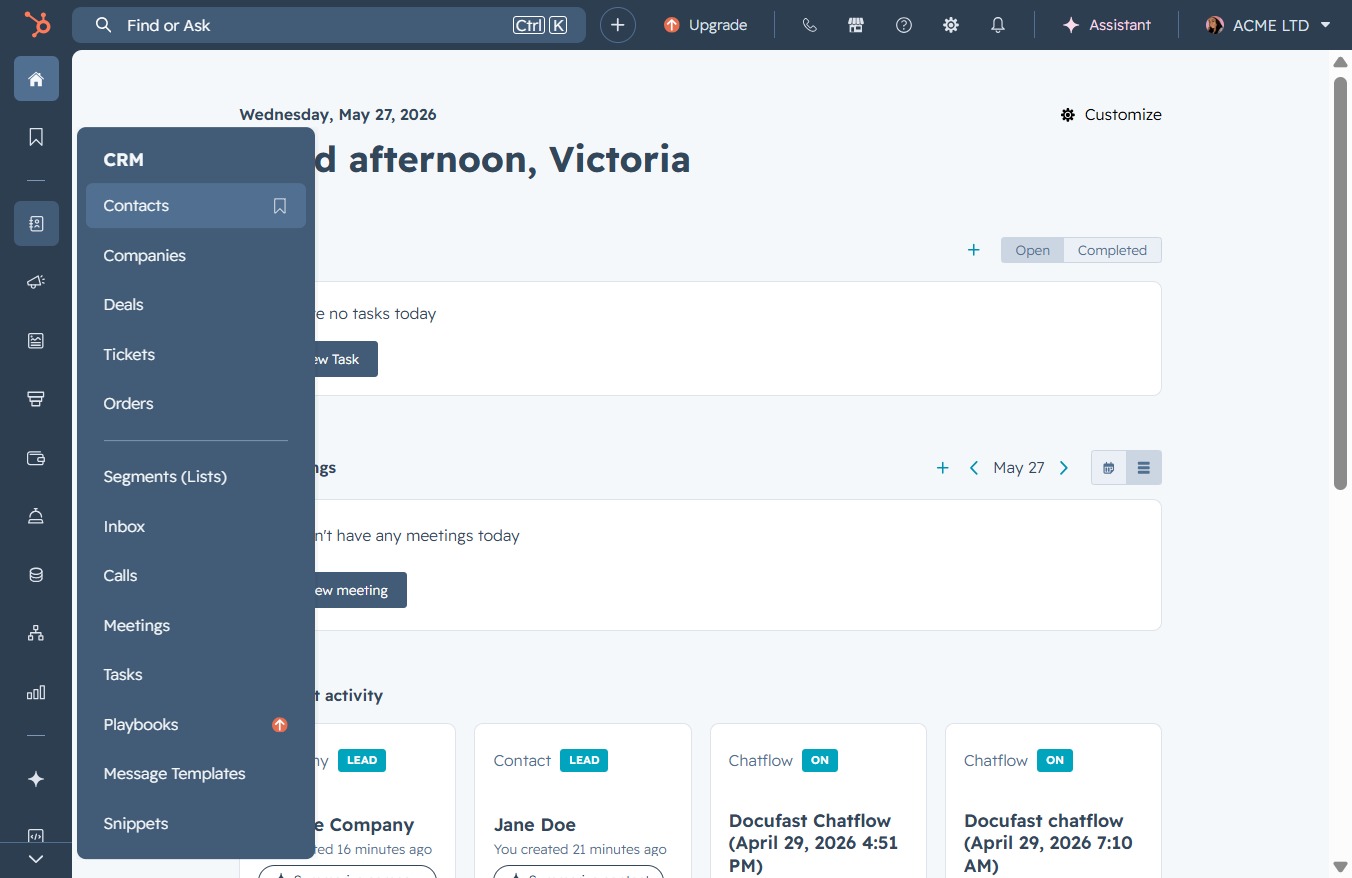
Click the Contacts option
This will take you to the Contacts section where you can view and manage your contacts.
Loading screenshot…
100%
Import contacts from a CSV file into HubSpot to seamlessly integrate data, create or update new contacts, and ensure compliance with your specified legal processing basis.
 viktoria
Import contacts from a CSV file into HubSpot to seamlessly integrate data, create or update new contacts, and ensure compliance with your specified legal processing basis.
This will take you to the Contacts section where you can view and manage your contacts.
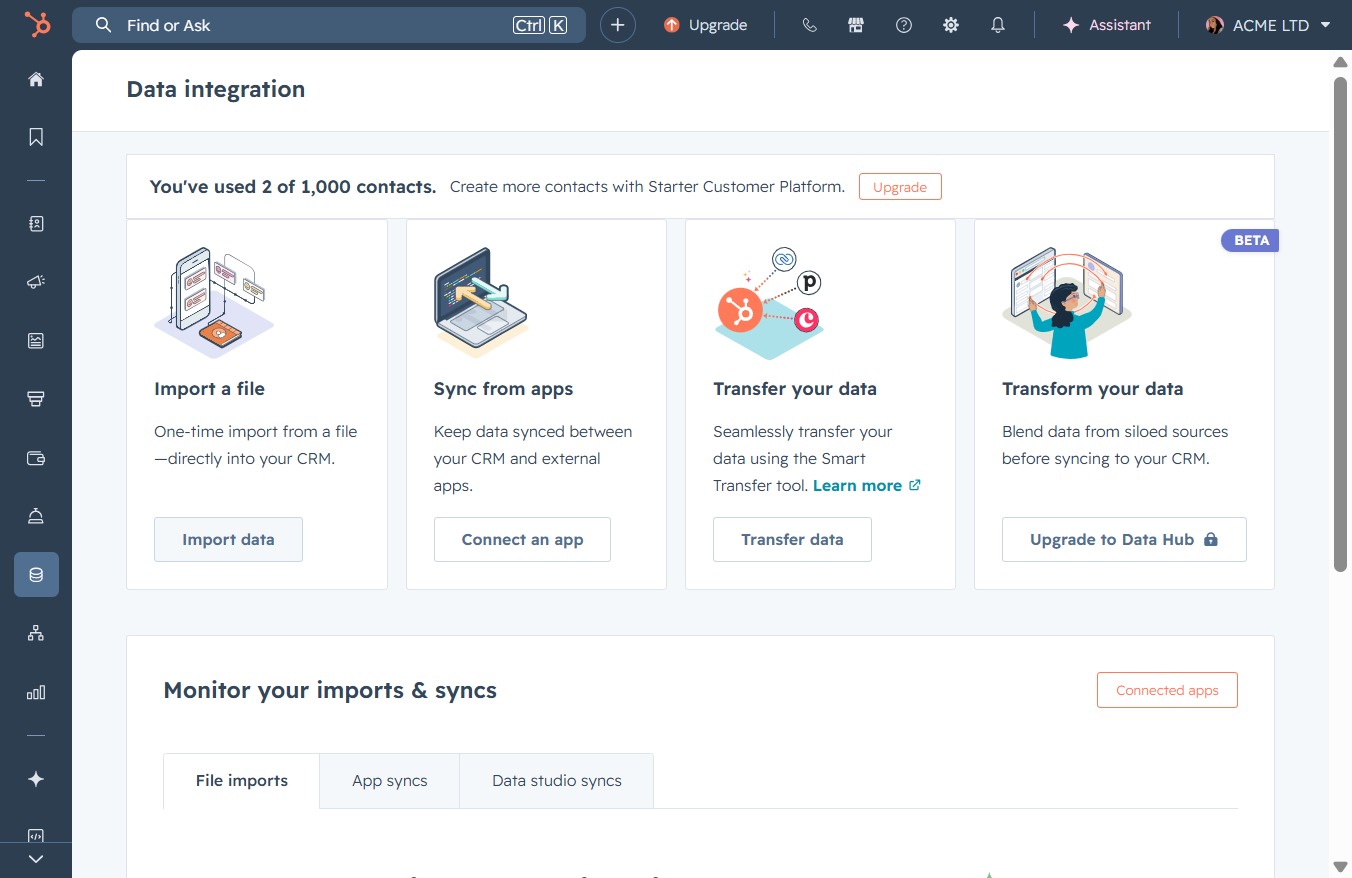
Clicking the Import button allows you to upload new contacts into the system. This action opens the import dialog where you can select your source file and configure import settings.

This action allows you to import a file directly into your CRM, facilitating the seamless integration of data from external sources.
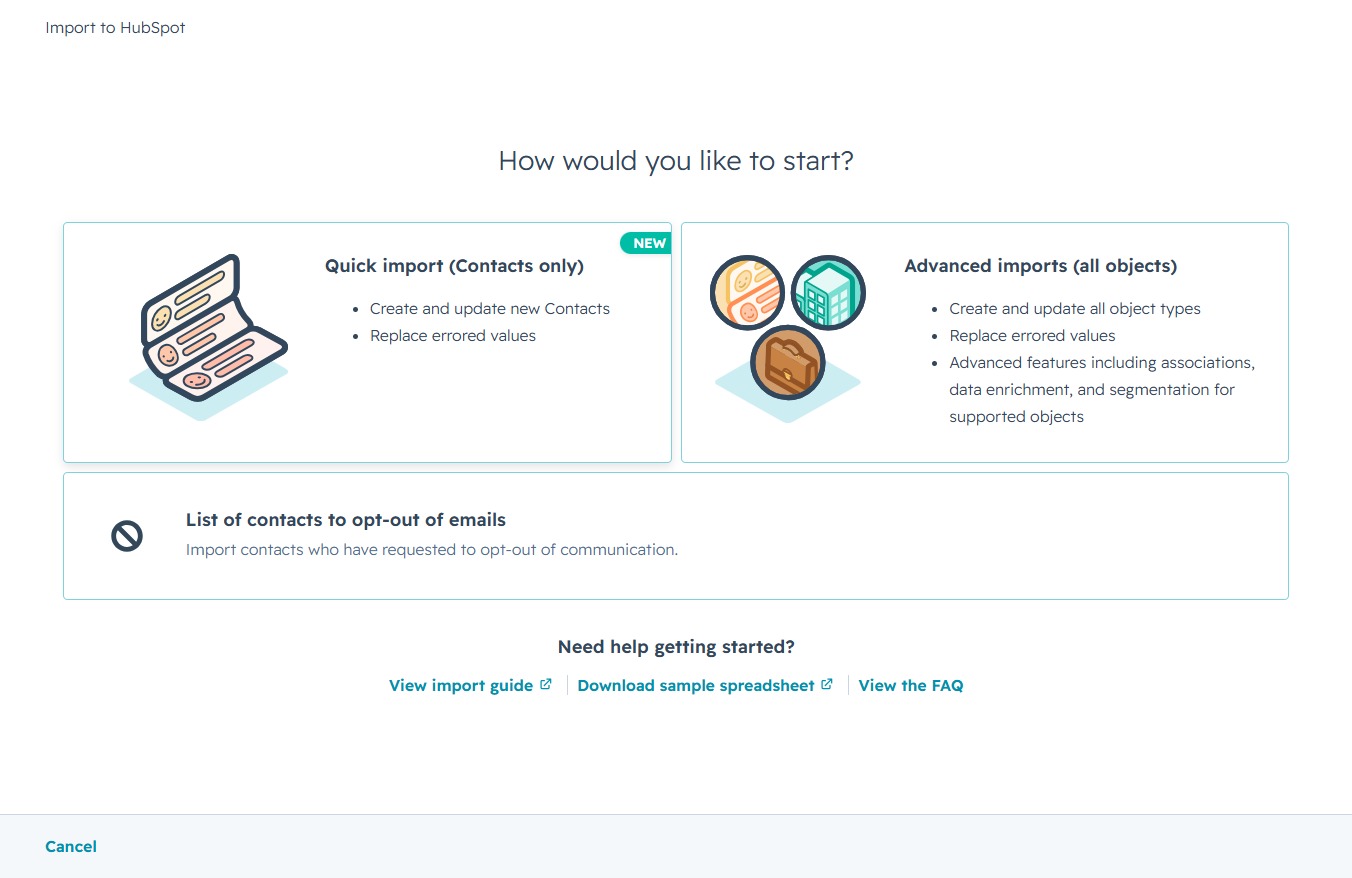
This option allows you to create and update new Contacts, as well as replace any errored values in your contact list.
This action allows you to select a file from your device to upload your contacts. Only files in CSV, XLS, and similar formats are supported for import.

Proceed to the next step of the file upload process for creating and updating contacts in HubSpot.

By clicking the Next button, you will proceed to the following step of the contact import process, which may include reviewing or confirming imported data.
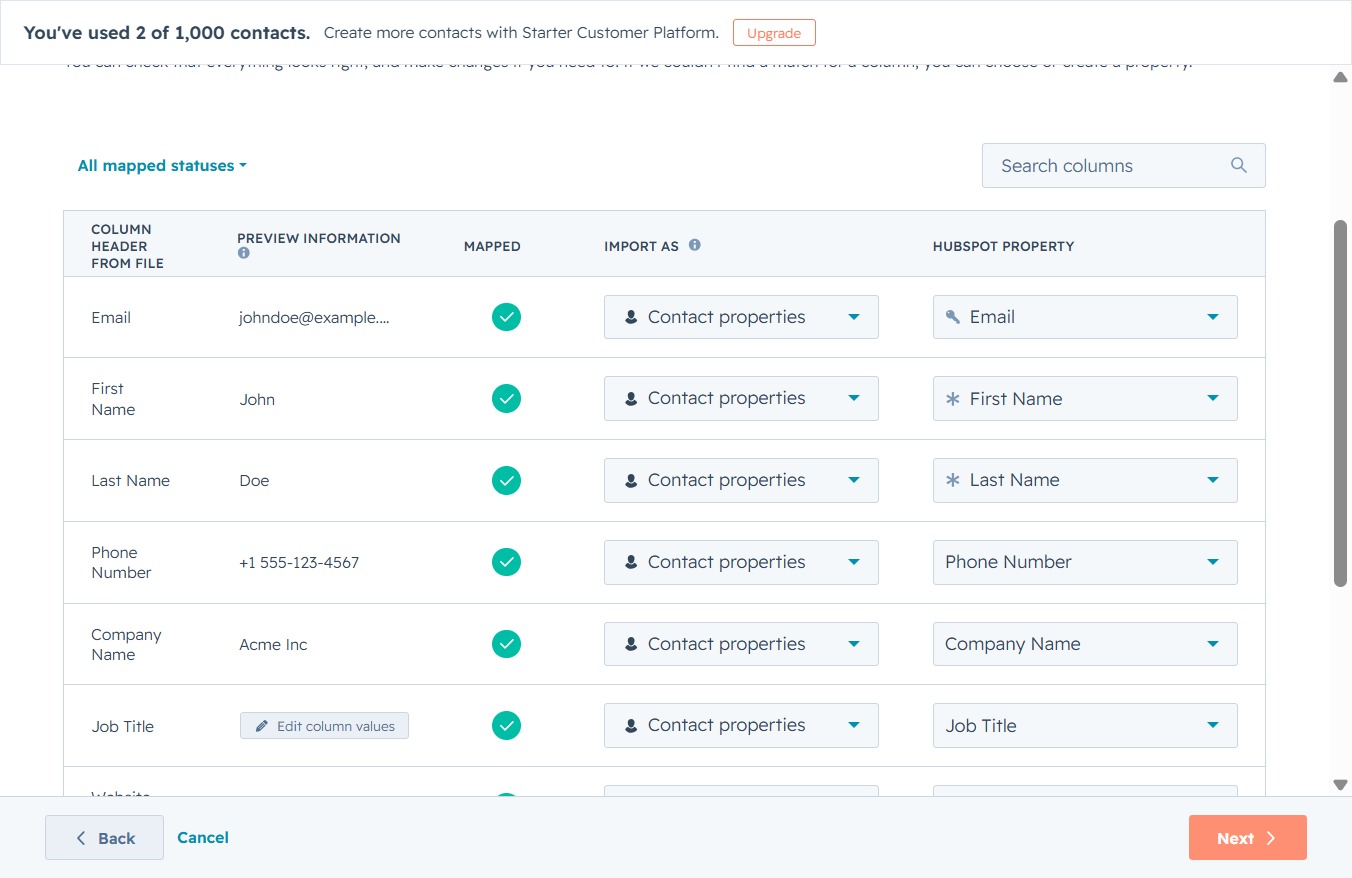
This will initiate a search function within the application, allowing you to find the necessary information or contacts quickly.
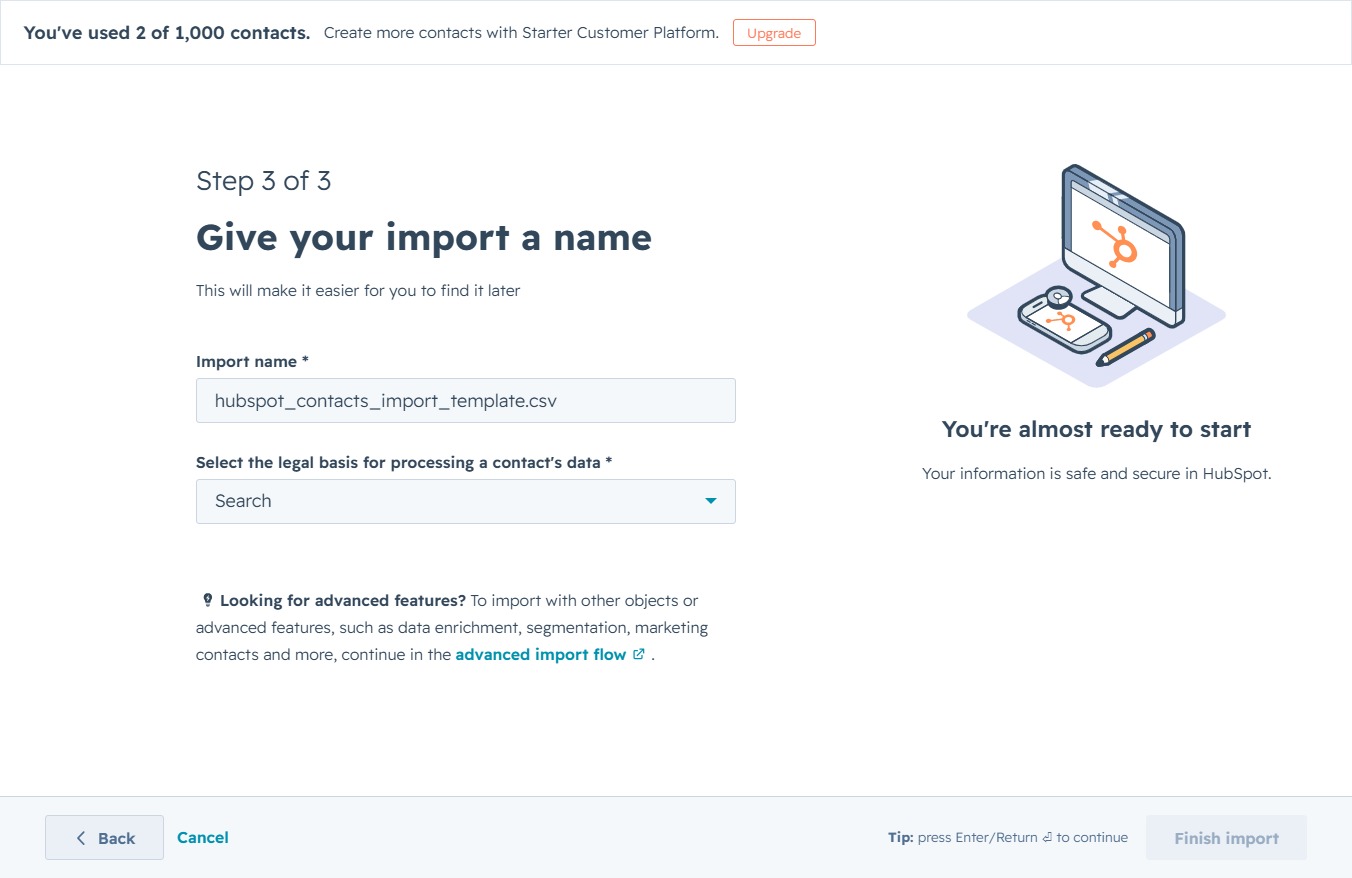
Selecting the 'Legitimate interest - Lead' option specifies the legal basis for processing the contact data you are importing into HubSpot.

This action completes the import process for your contacts. You will be taken to a confirmation screen, indicating that your information is secure in HubSpot.
