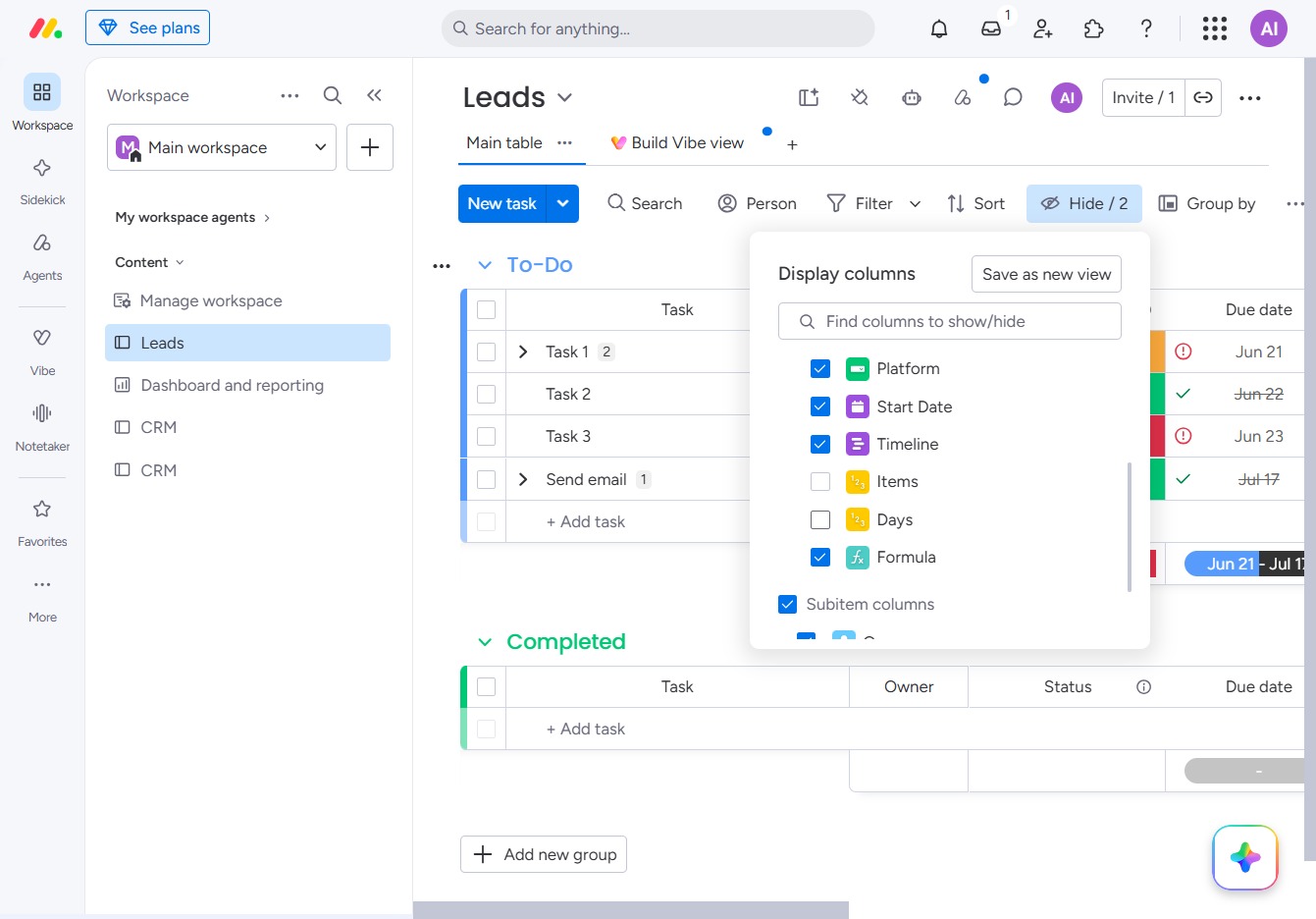
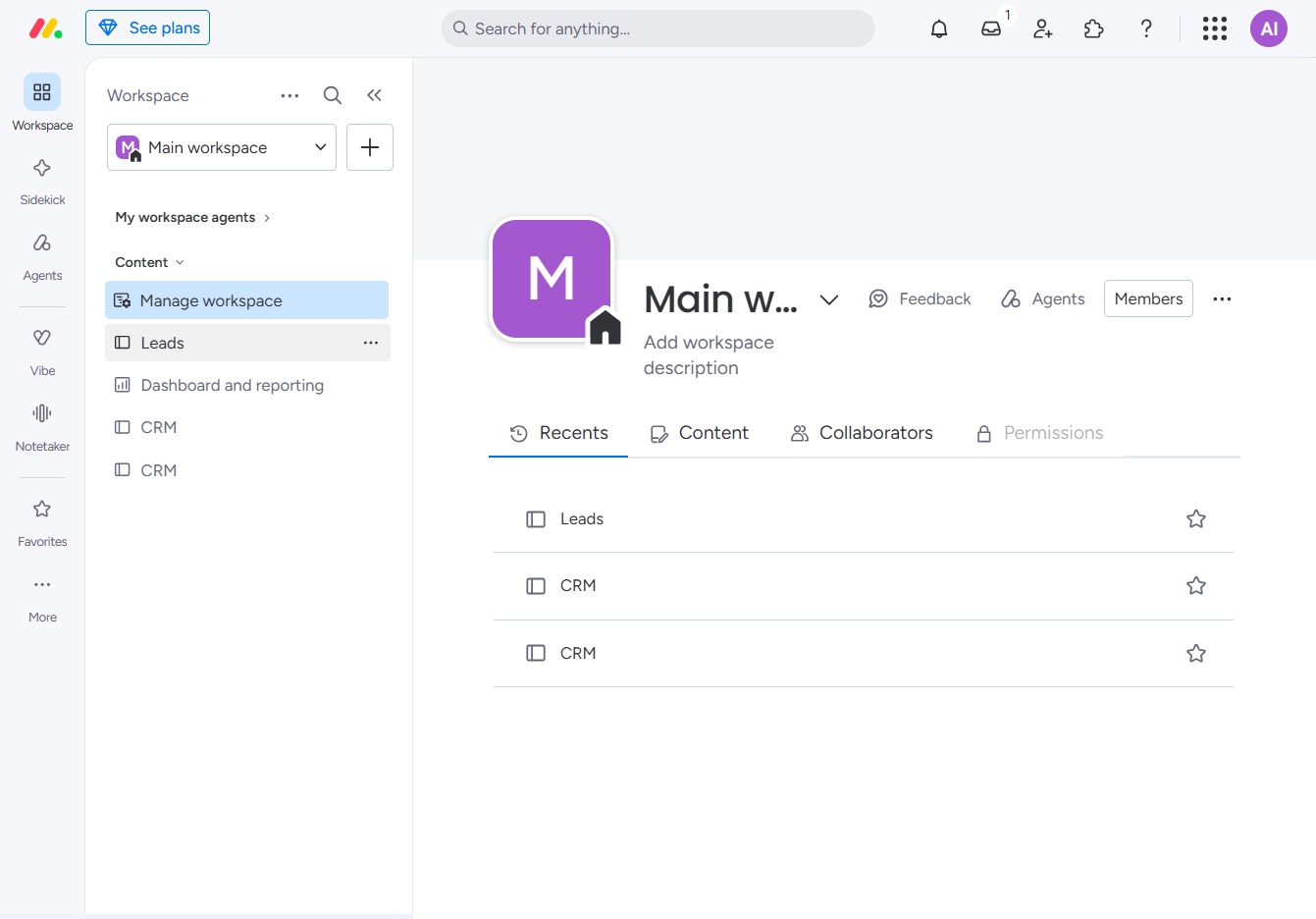
Click the BoardLeads section
This action will open the BoardLeads interface, where you can manage and view your leads' details and progress effectively.
Loading screenshot…
100%
This how-to guide teaches you how to hide columns in the BoardLeads interface, enabling a more streamlined view of your leads.
 viktoria
This how-to guide teaches you how to hide columns in the BoardLeads interface, enabling a more streamlined view of your leads. By following the outlined steps, you can easily customize your Leads table to focus on the most relevant information for your tasks.
This action will open the BoardLeads interface, where you can manage and view your leads' details and progress effectively.
Clicking the Hide button will conceal the selected section in your task view, allowing for a more streamlined interface. This action helps focus on active tasks without distractions from hidden areas.
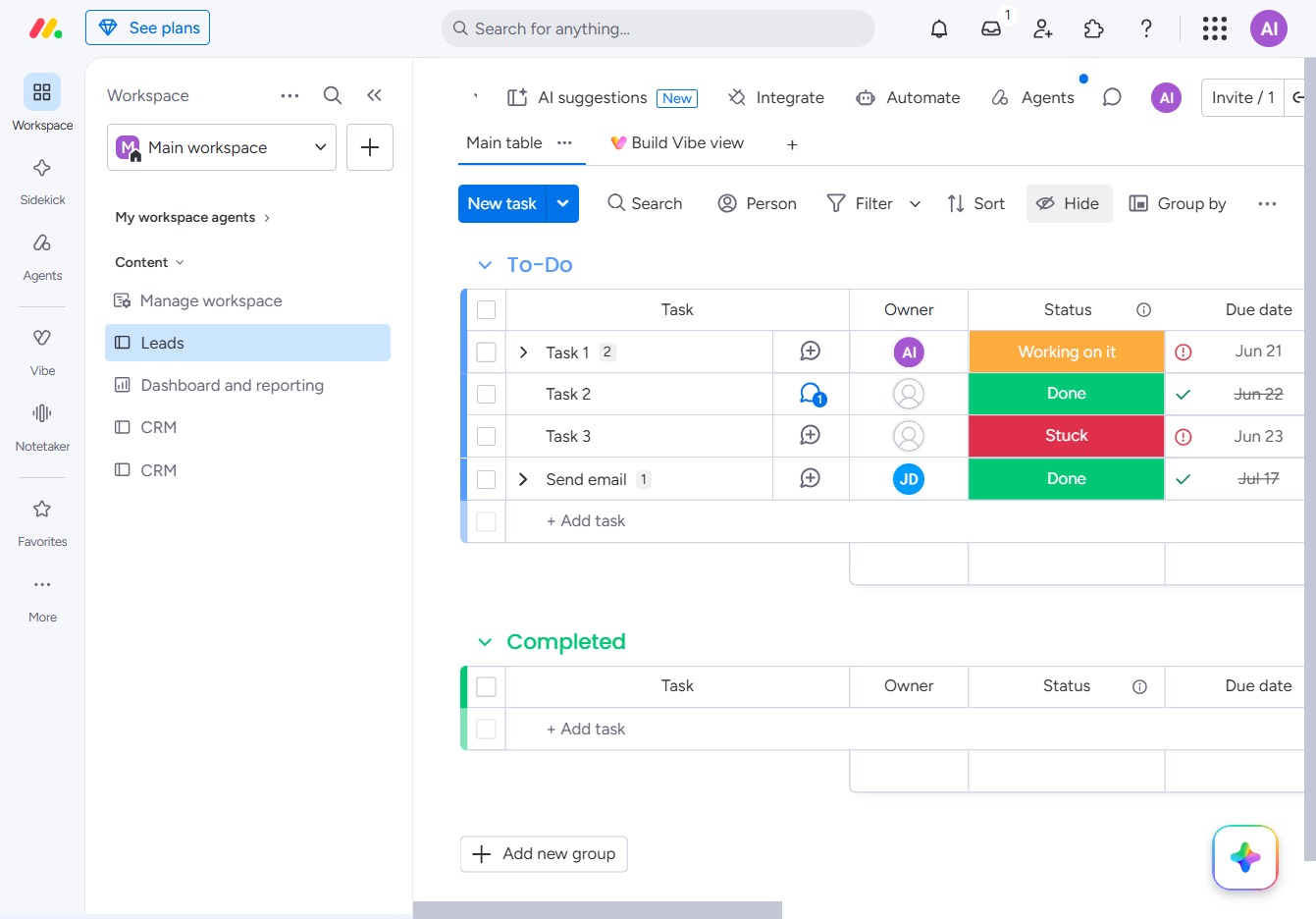
Clicking this will open a menu where you can choose which columns to show or hide in the Leads table view.
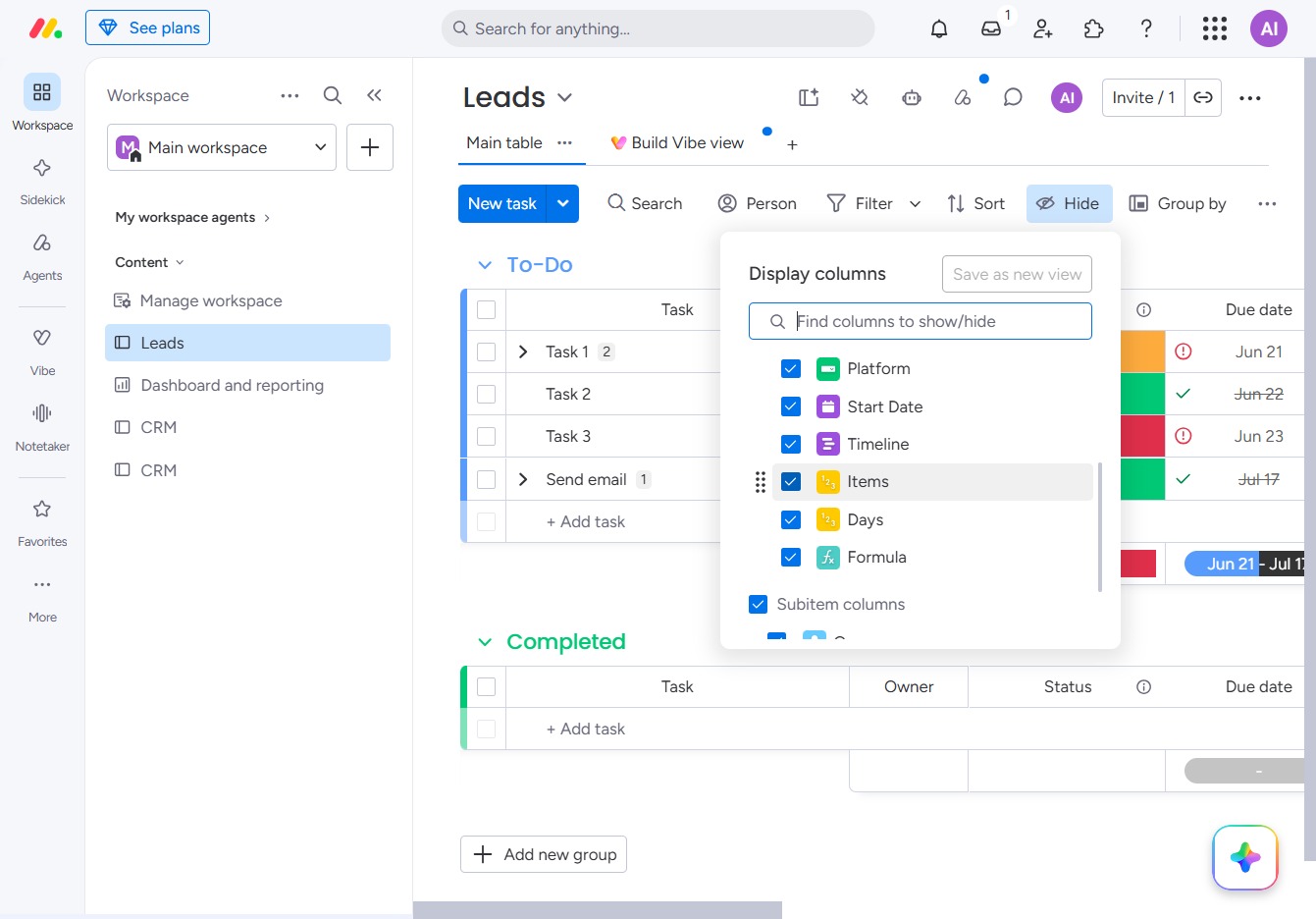
By clicking here, you can customize which columns appear in your Leads view, allowing you to show or hide specific details like Platform, Start Date, and Timeline.

Clicking this option allows you to choose which columns to display in your Leads view, customizing the information you want to see for your tasks.