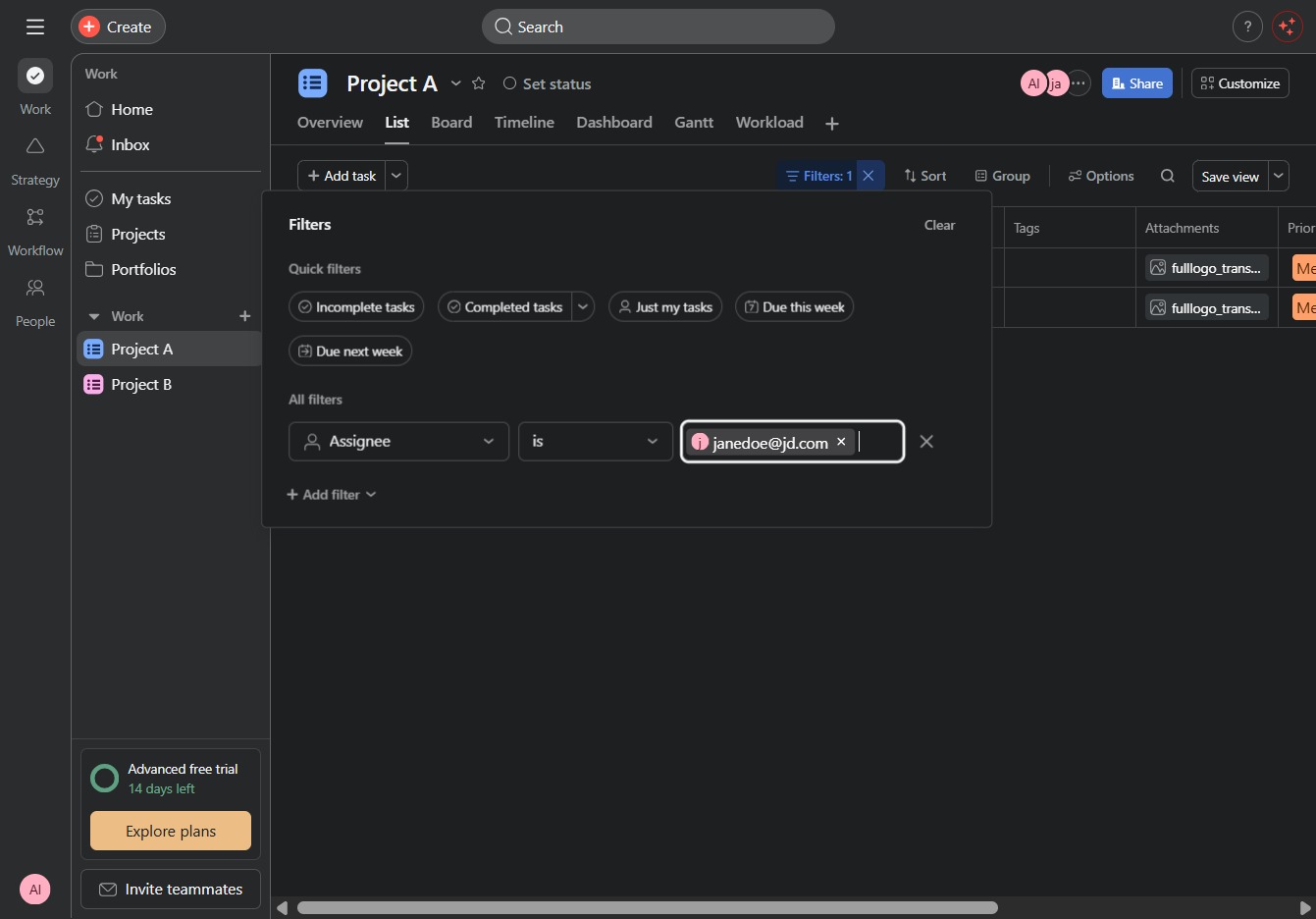
Click the Project A section
This action will display details specific to Project A, allowing you to view tasks, updates, and other relevant information related to this project.

Loading screenshot…
100%
This how-to guide teaches you how to filter tasks within Project A by navigating through specific links, applying various criteria, and saving your customized views.
 viktoria
This how-to guide teaches you how to filter tasks within Project A by navigating through specific links, applying various criteria, and saving your customized views. Follow the steps to efficiently manage and view tasks based on assignees and other relevant filters, making project oversight easier.
This action will display details specific to Project A, allowing you to view tasks, updates, and other relevant information related to this project.
Clicking the Filter option allows you to refine the displayed tasks based on specific criteria, helping you to easily manage and view relevant tasks within the project.
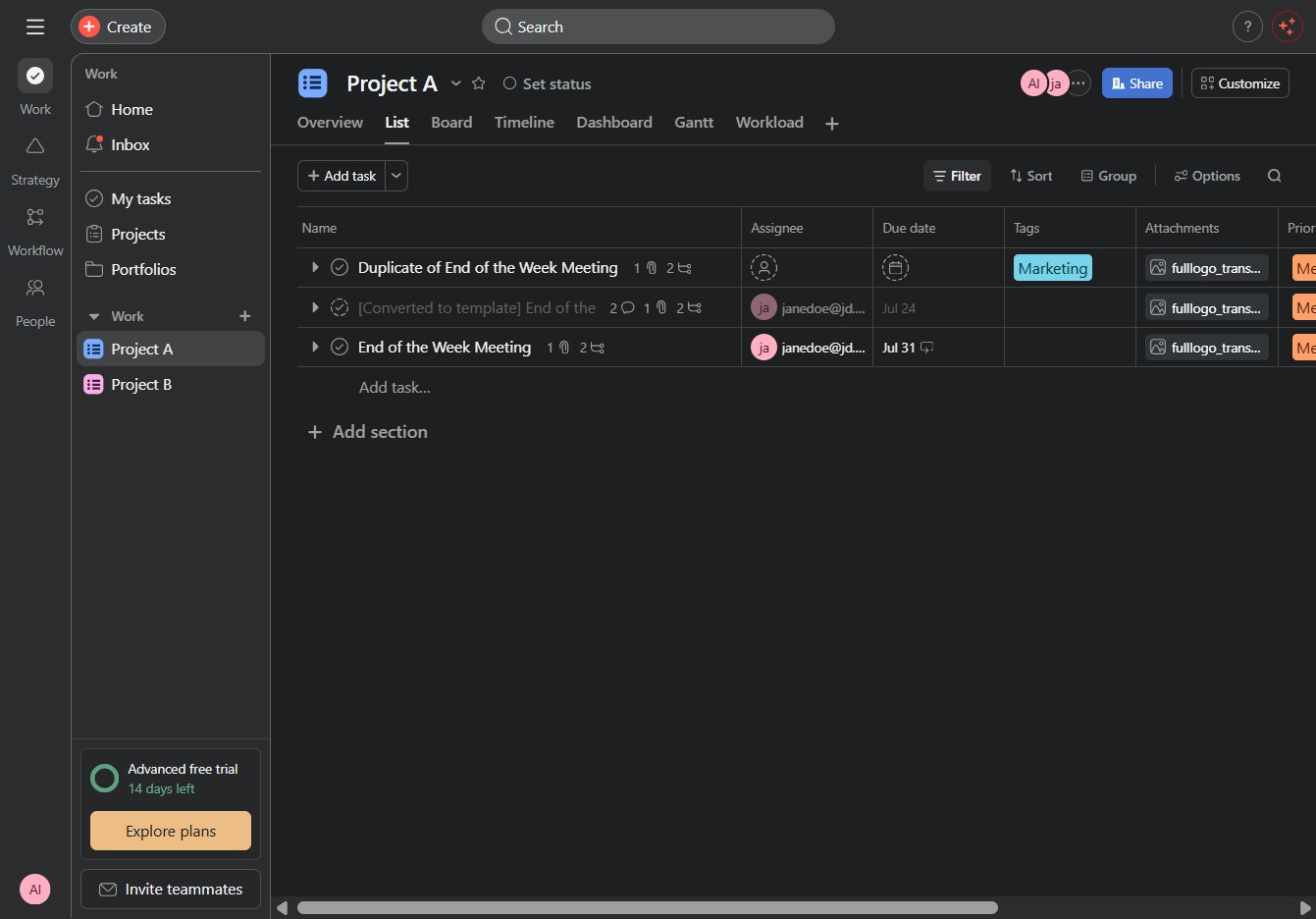
This action will open a menu allowing you to apply additional filters to your project tasks, helping you to customize your view based on specific criteria.
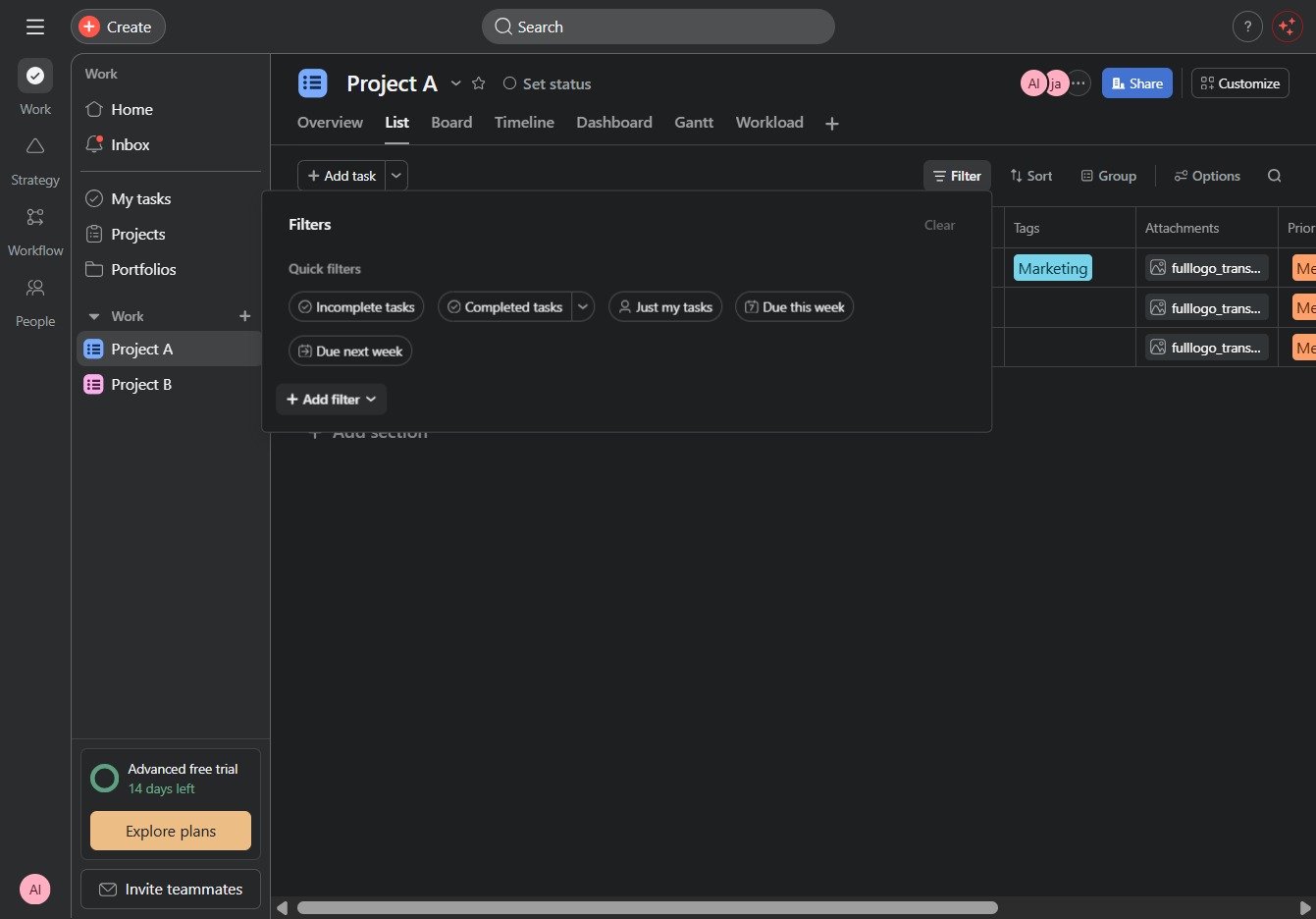
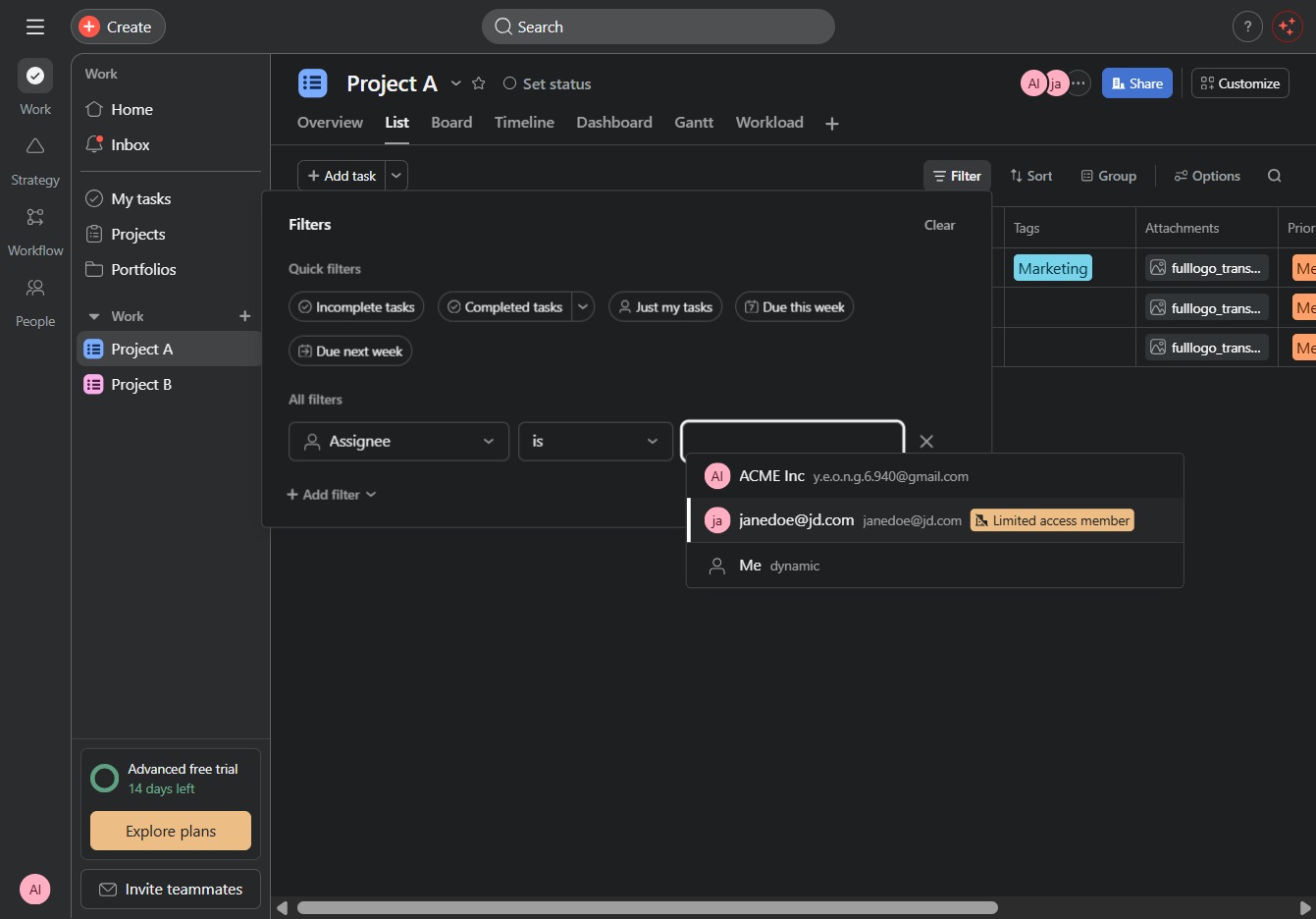
Selecting the Assignee field allows you to filter tasks by the individual responsible for each task in this project. This helps you narrow down the list to view only the tasks assigned to specific team members.
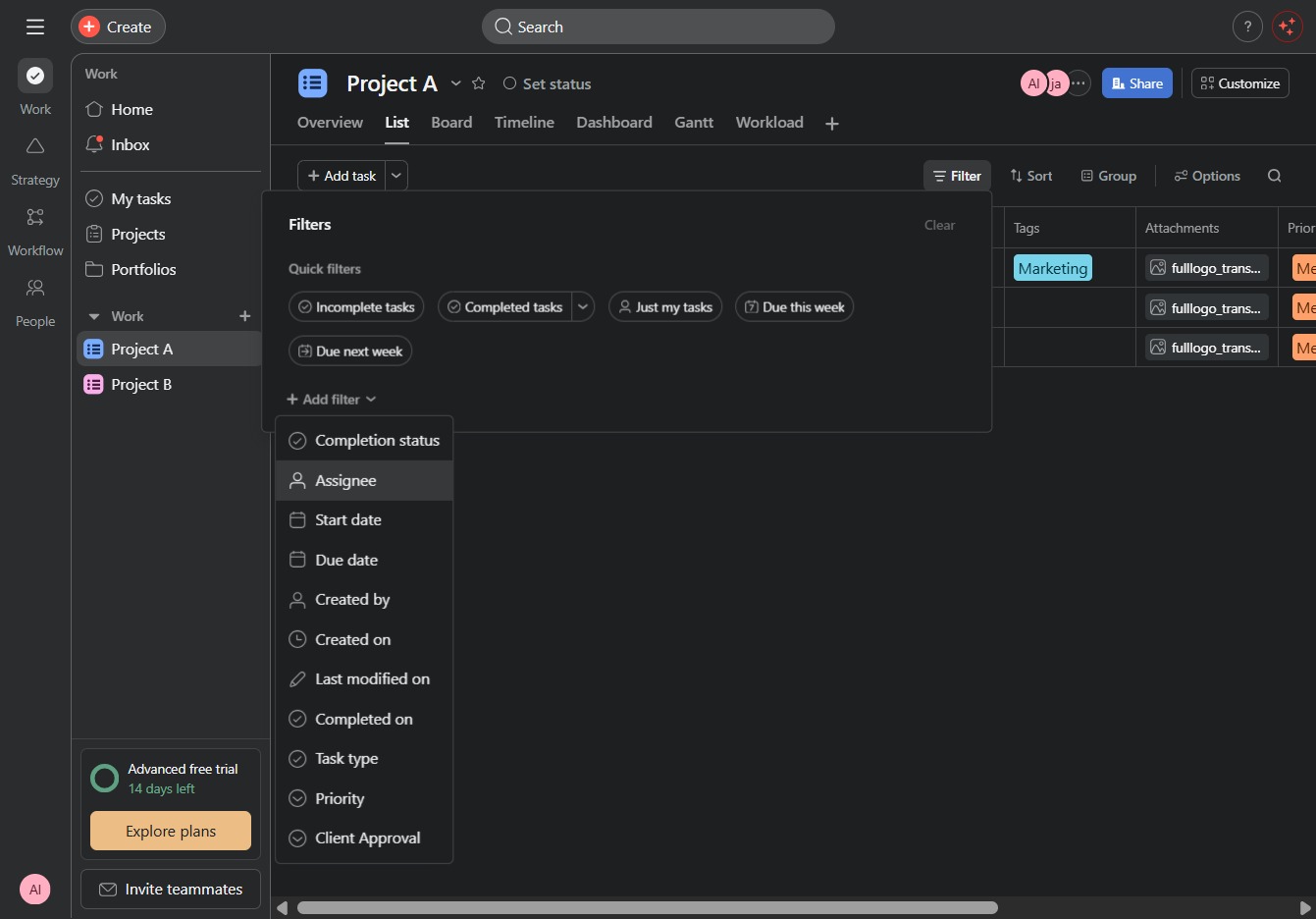
This action selects the user 'jajanedoe@jd.com' with limited access, allowing you to filter tasks assigned to this specific member within the project.
Clicking 'Save view' will store your current filter settings, allowing you to easily access this view in future sessions.