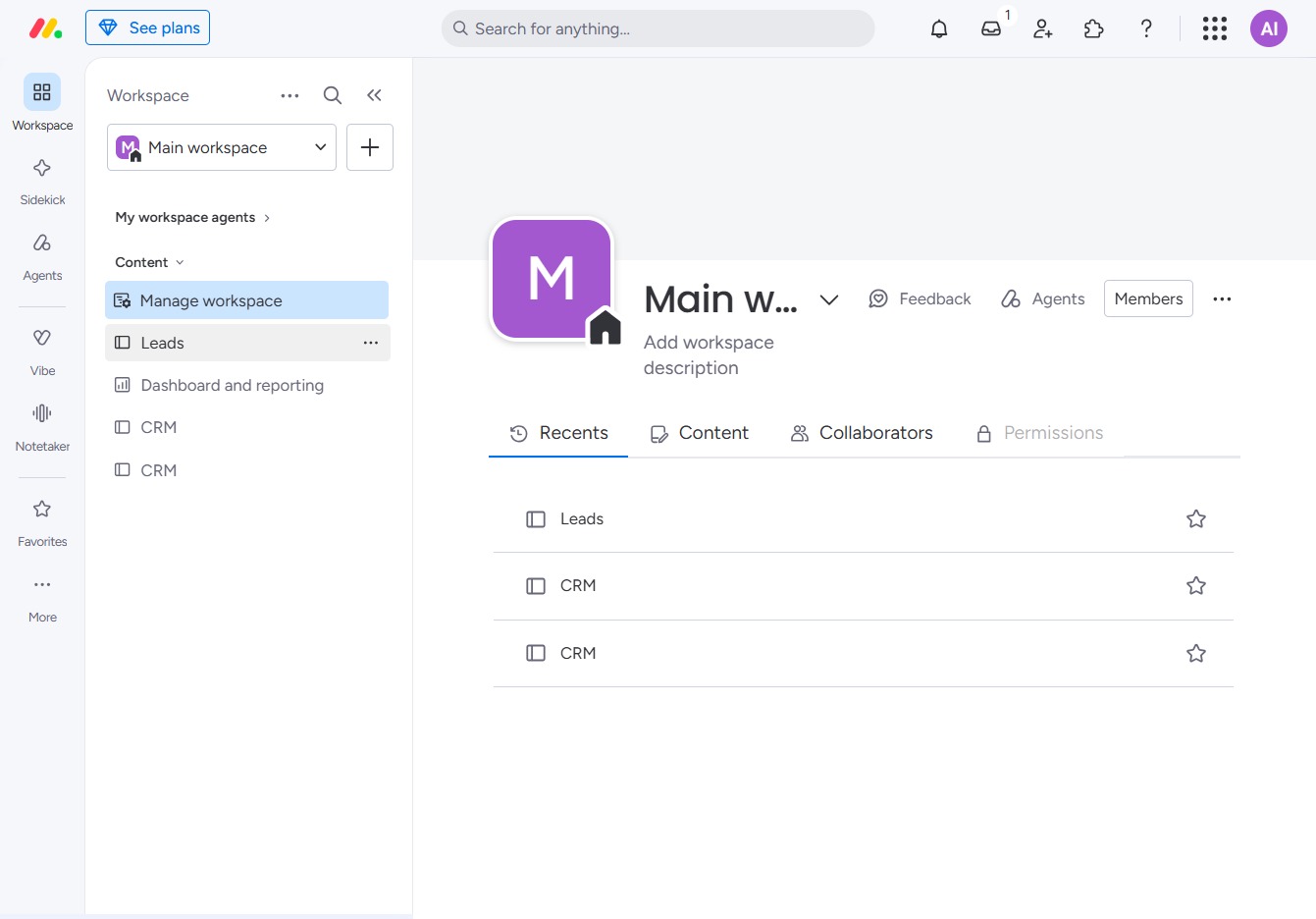
Click the BoardLeads section
This action opens the BoardLeads area where you can manage and view leads effectively. You will find tools to track and organize your leads within this section.
Loading screenshot…
100%
In this how-to guide, you'll learn how to efficiently filter items in the BoardLeads area, enabling you to manage and view leads or tasks by specific criteria.
 viktoria
In this how-to guide, you'll learn how to efficiently filter items in the BoardLeads area, enabling you to manage and view leads or tasks by specific criteria. By following simple steps, you can customize your workspace and streamline your workflow, ensuring you focus on what's most important.
This action opens the BoardLeads area where you can manage and view leads effectively. You will find tools to track and organize your leads within this section.
This action opens the filtering settings, allowing you to narrow down your leads based on specific criteria or attributes.
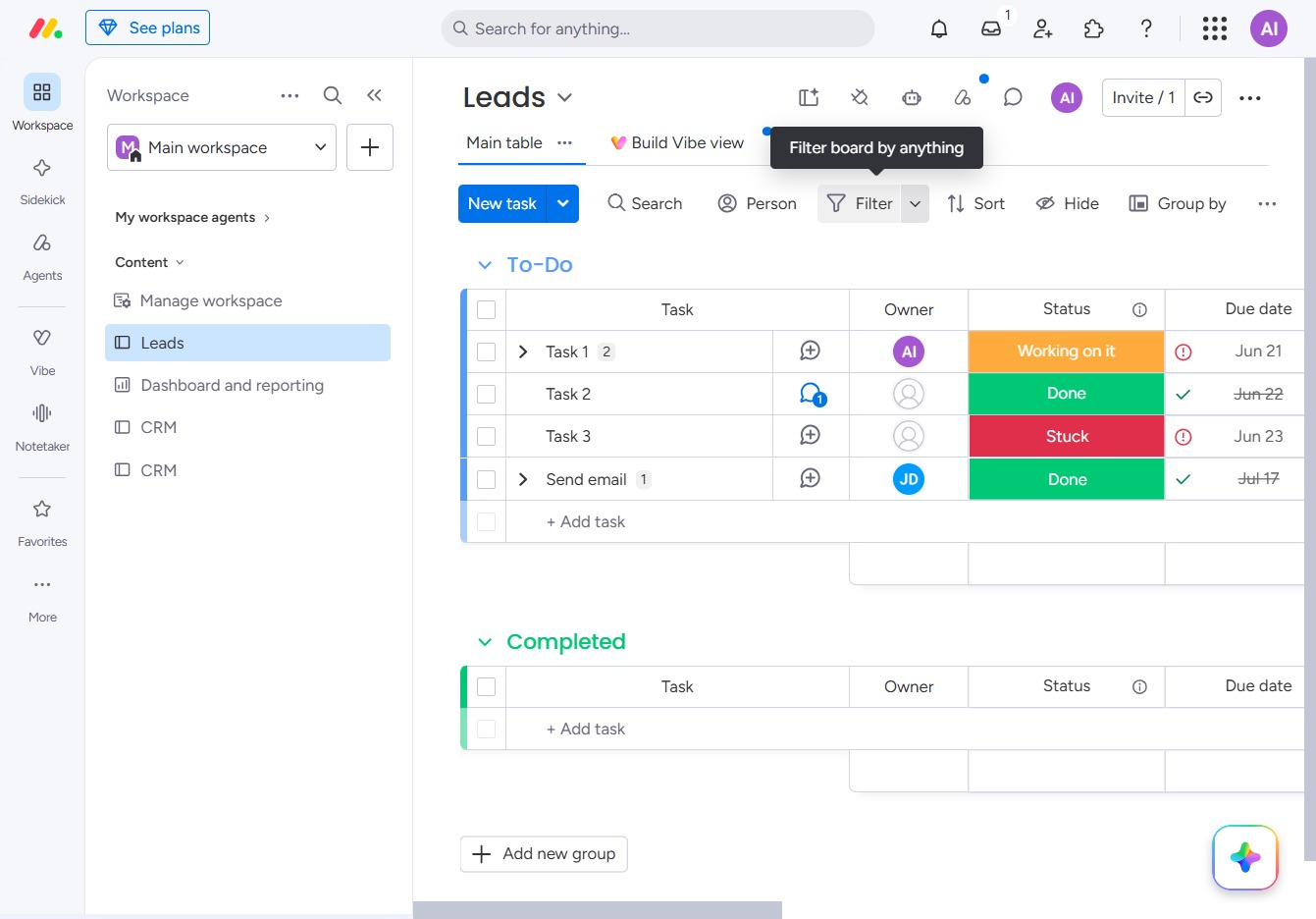
This action filters the displayed tasks to show only those assigned to Jane D, helping you manage and view tasks relevant to that specific owner.
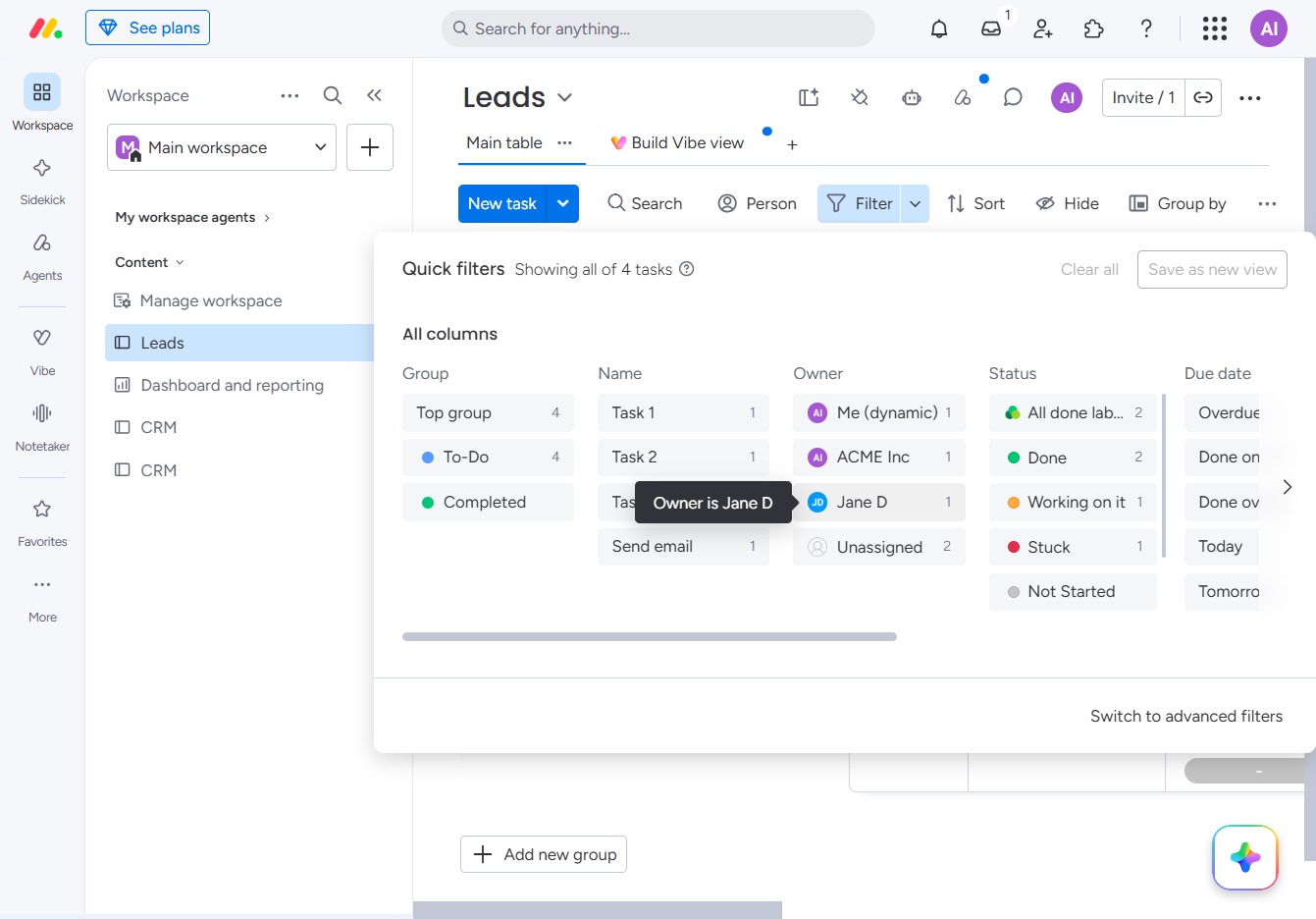
This action allows you to preserve the current filters and layout as a new custom view for future use in the Leads section.
