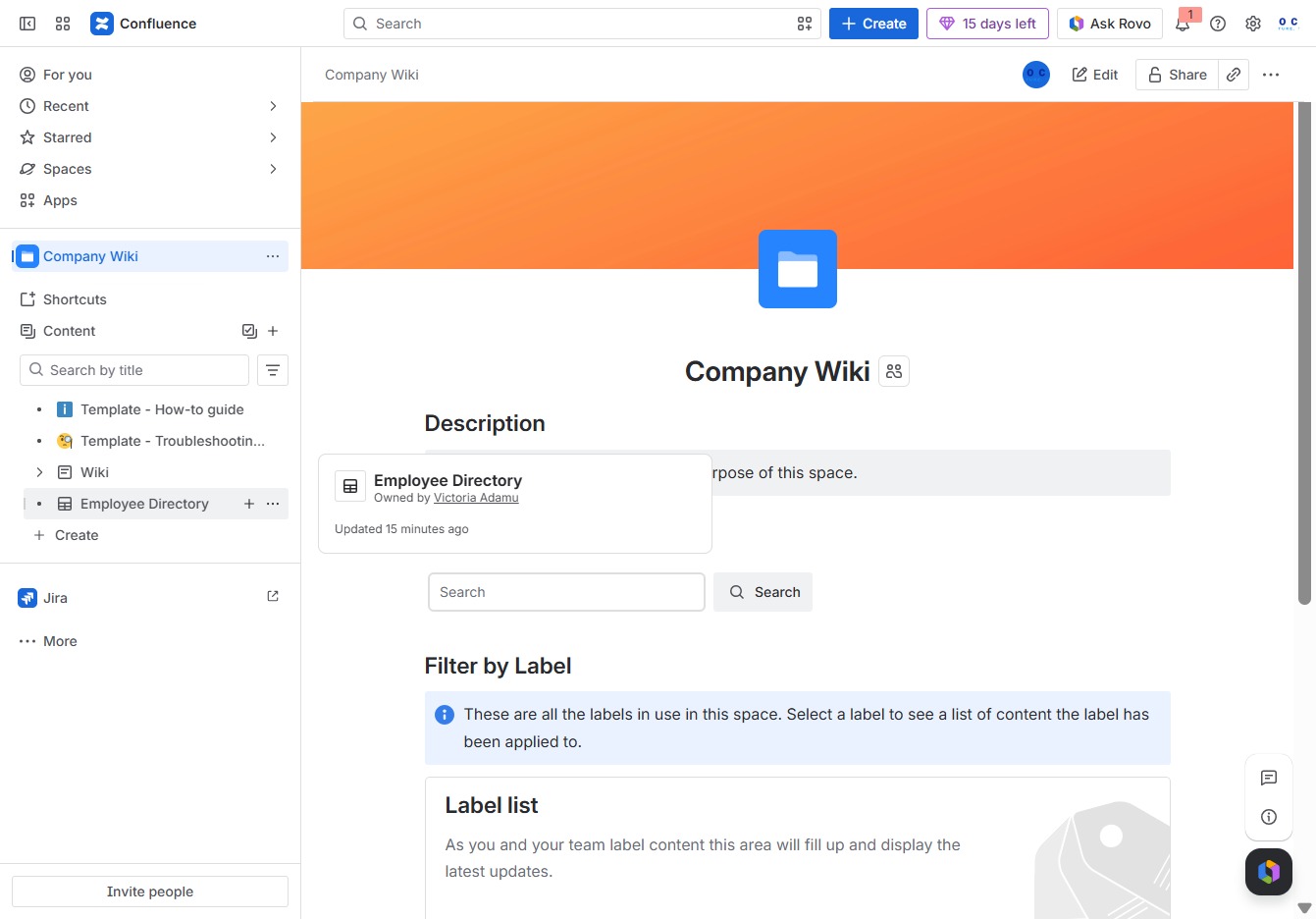
Click the Company Wiki section
You will be taken to the Company Wiki space, where you can access documents, team information, and other resources related to your organization.

Loading screenshot…
100%
This how-to guide provides step-by-step instructions on filtering database records within your organization's Employee Directory.
 viktoria
This how-to guide provides step-by-step instructions on filtering database records within your organization's Employee Directory. Learn how to navigate to specific sections, apply filters based on criteria like team affiliations, and manage entries efficiently to streamline your team's information access.
You will be taken to the Company Wiki space, where you can access documents, team information, and other resources related to your organization.
Selecting the Employee Directory will allow you to create child content specific to the directory, facilitating organization within your team's space.
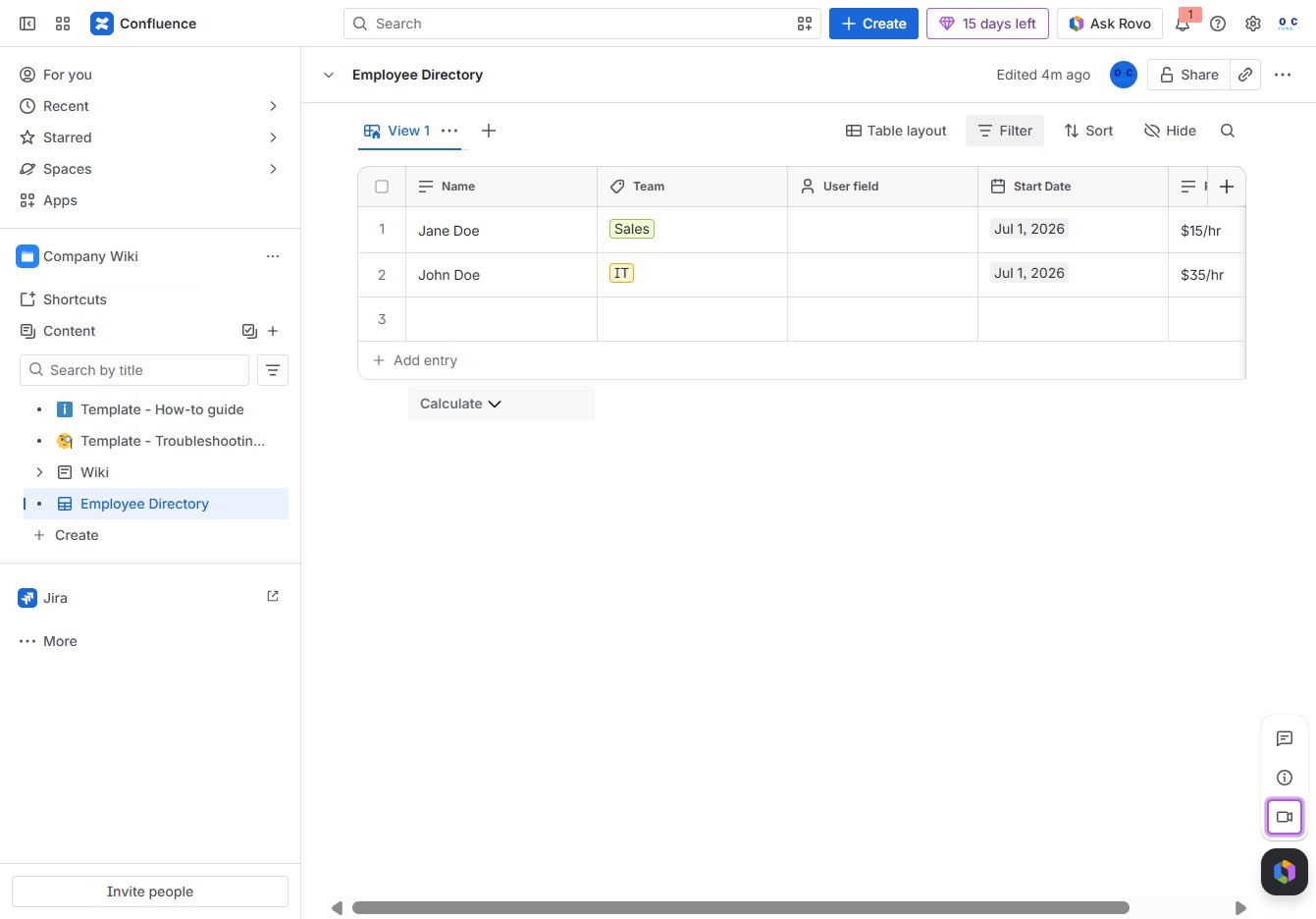
This action will open the filter options, allowing you to refine the displayed employee records based on specific criteria.
By clicking this link, you will activate the filter options for the Employee Directory, allowing you to narrow down the list based on specific criteria.
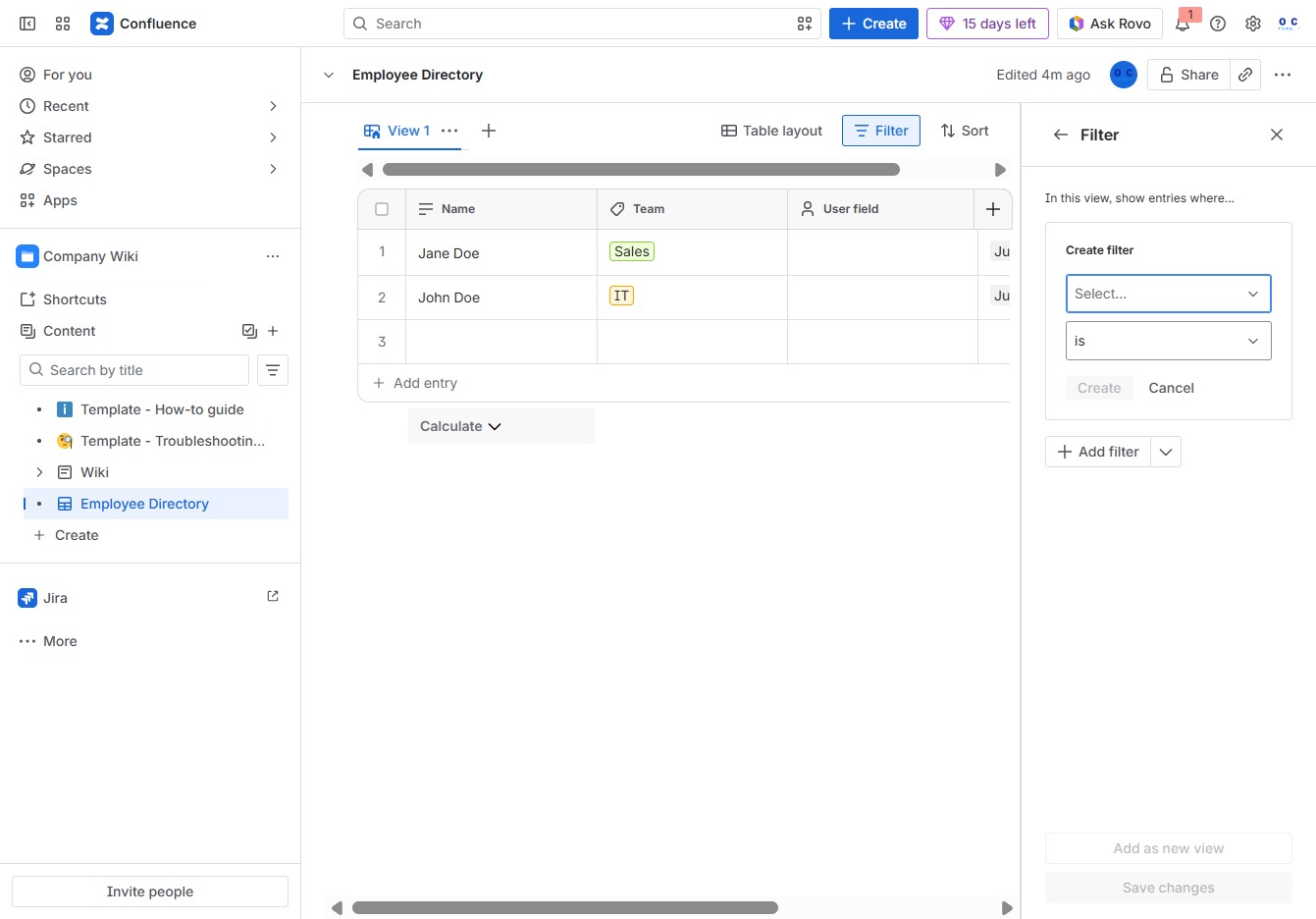
Clicking the Team option will filter the Employee Directory to display only the entries associated with the selected team. This allows you to manage and view employee details by specific team affiliation.

Clicking the Filter button allows you to refine the Employee Directory view based on specific criteria, such as filtering by Team or other attributes. This helps you find relevant entries more efficiently.
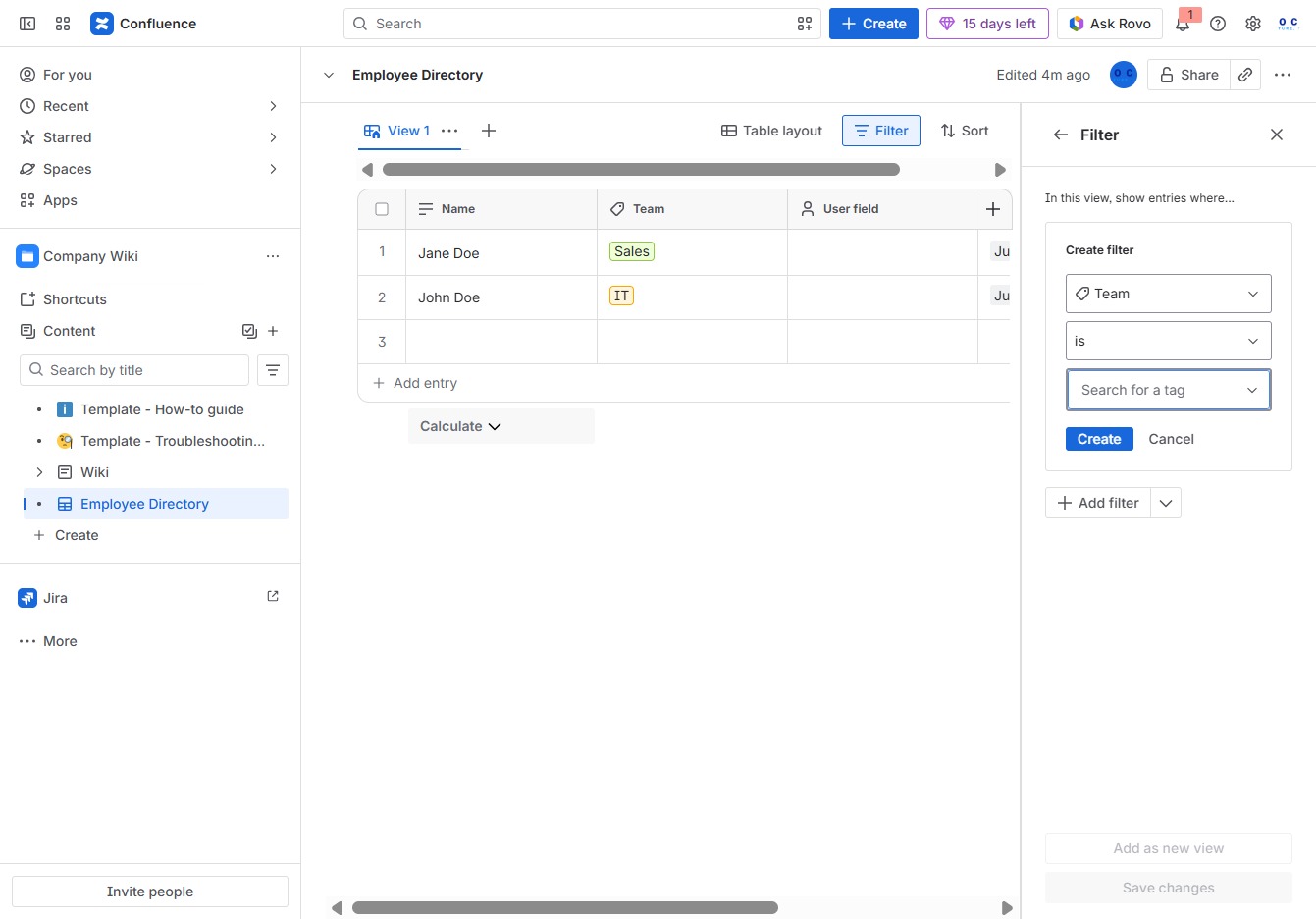
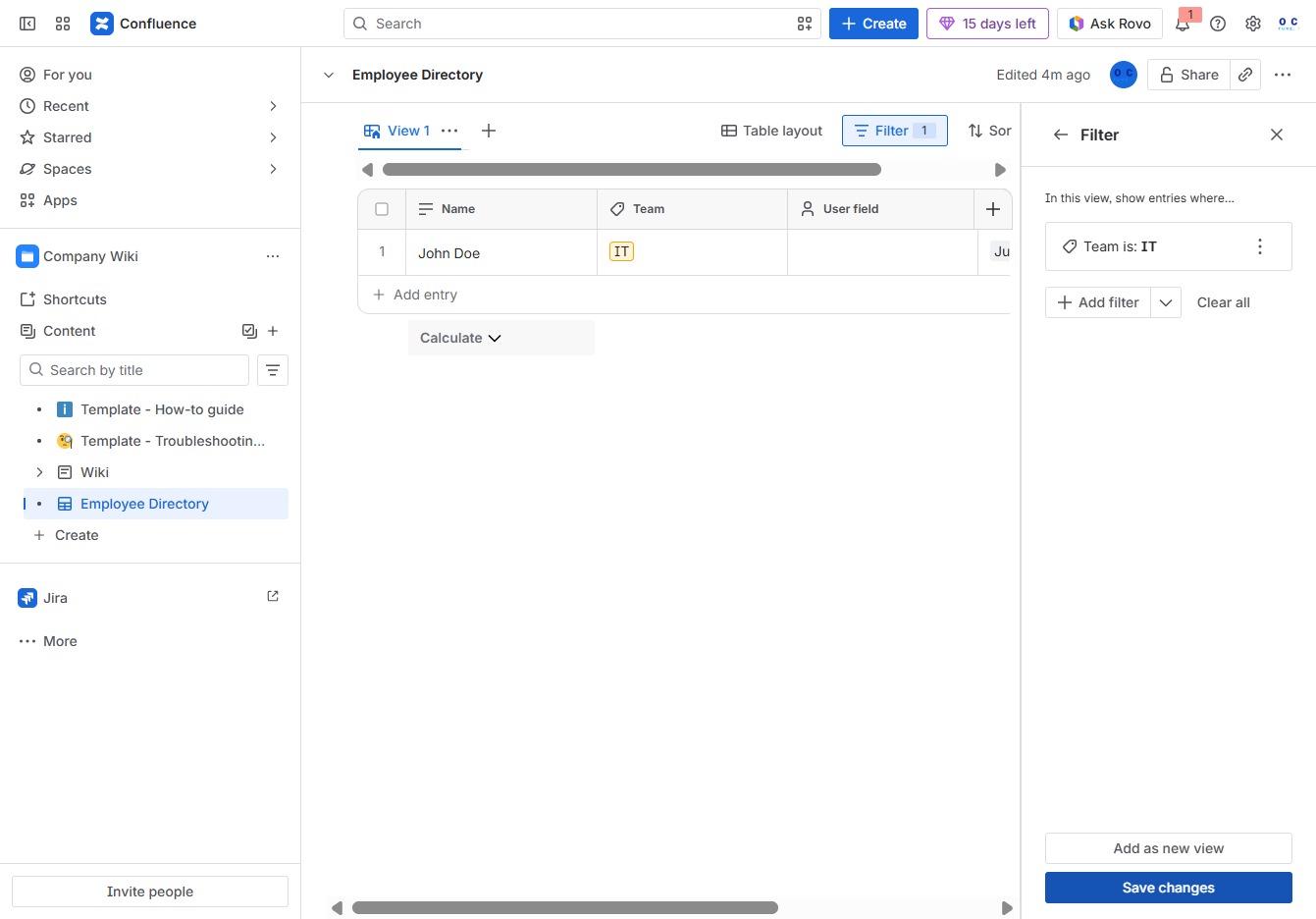
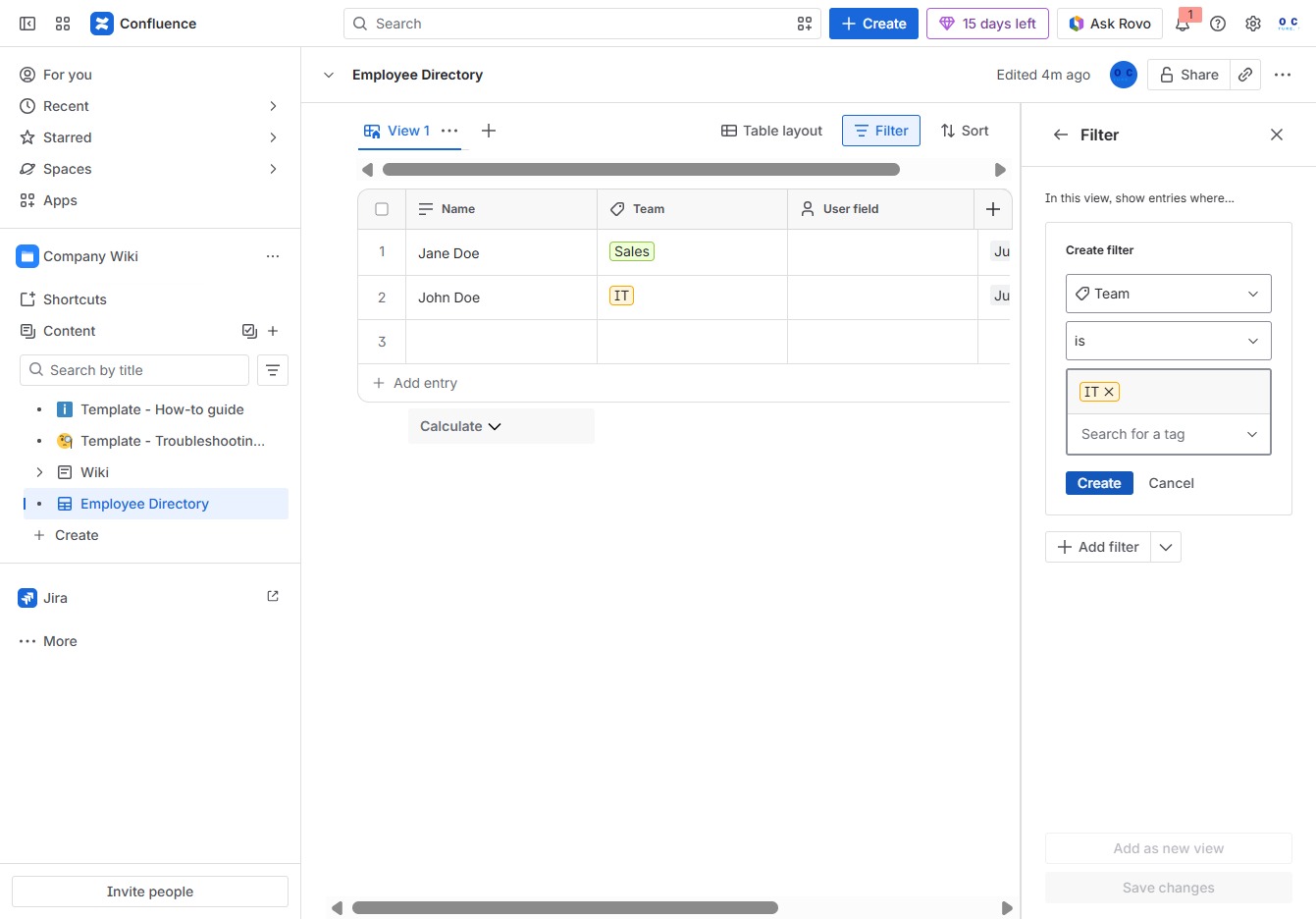
Selecting the 'IT' filter will display only the entries related to the IT team in the Employee Directory. This helps narrow down the list to relevant team members.

This will initiate the process of adding a new entry to the Employee Directory, allowing you to input details for a new employee.
Clicking this button will save any modifications made to the Employee Directory, ensuring that updates to entries or filters are preserved.