Click the CRM link
Clicking the CRM link will take you to the Customer Relationship Management section, where you can manage contacts, deals, and customer interactions.

Loading screenshot…
100%
Filter and sort tasks in the CRM to efficiently manage your task list by applying specific criteria like task status and assignees for improved organization and quicker access.
 viktoria
Filter and sort tasks in the CRM to efficiently manage your task list by applying specific criteria like task status and assignees for improved organization and quicker access.
Clicking the CRM link will take you to the Customer Relationship Management section, where you can manage contacts, deals, and customer interactions.
By clicking the 'Tasks' link, you will access your task management section, where you can view, create, or manage your ongoing tasks.

This opens a selection menu where you can assign tasks to specific users or teams. Choose the appropriate person to manage the task effectively.

This will allow you to enter keywords to filter your task list, helping you quickly find specific tasks based on your input.

This will open a menu allowing you to apply specific filtering criteria to your tasks, helping you to narrow down the displayed task list based on your preferences.
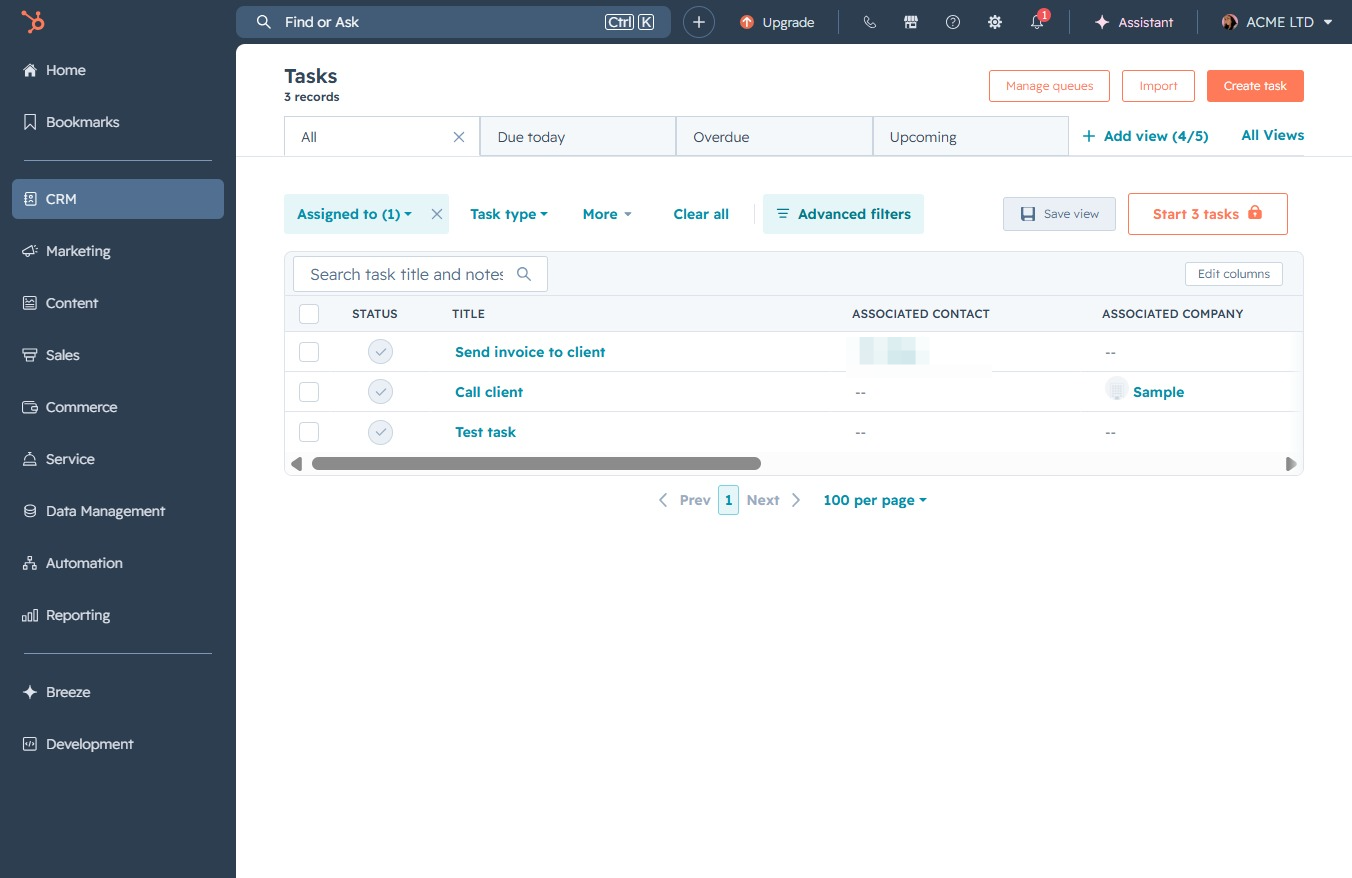
This will open the filter settings where you can modify the current criteria for viewing tasks, such as task status and assignees.
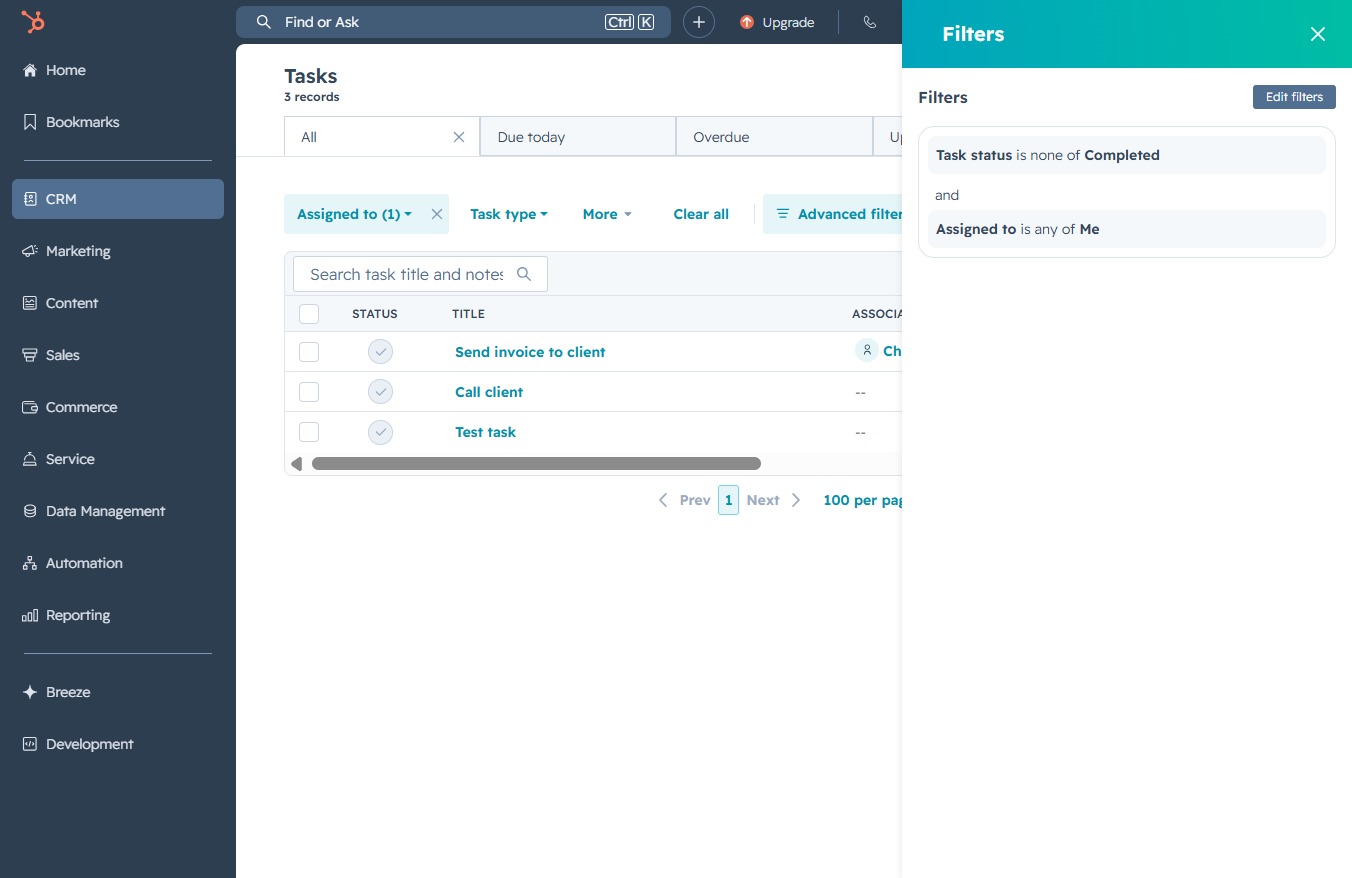
Clicking this button opens a menu allowing you to define and apply custom filters to your task list, helping you streamline task management.

Selecting the 'Task status' filter enables you to refine your task view based on their completion status, allowing for more precise management of ongoing tasks.
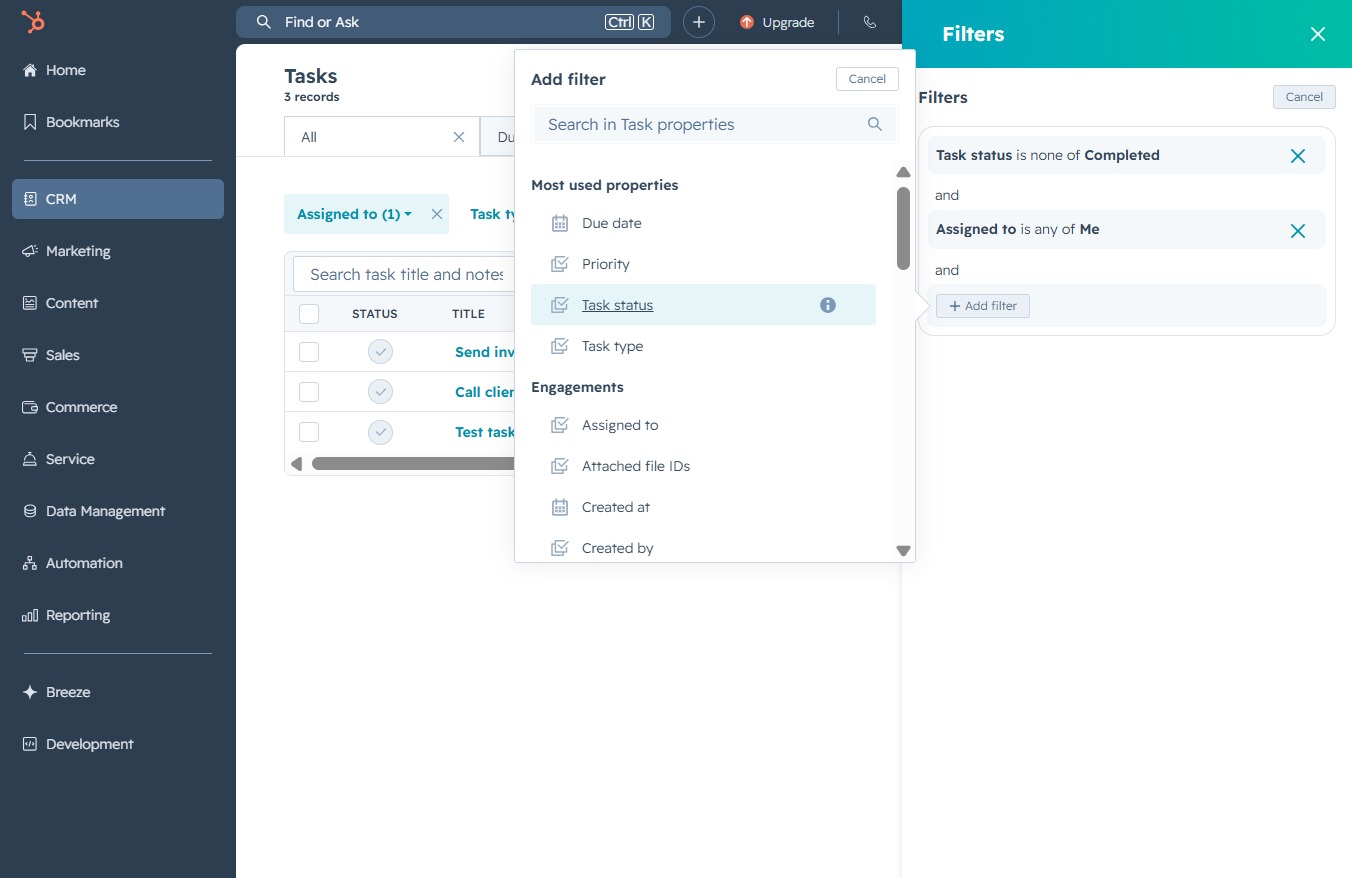
This will activate the search functionality, allowing you to filter tasks by title or keyword.

Selecting the Task Status filter allows you to define the criteria for tasks based on their completion status. You can choose from options like Completed, Deferred, In progress, Not started, or Waiting to refine your task search.

This action will close the Filters panel, returning you to the Tasks view where you can see your task list and manage tasks without the filter settings visible.
