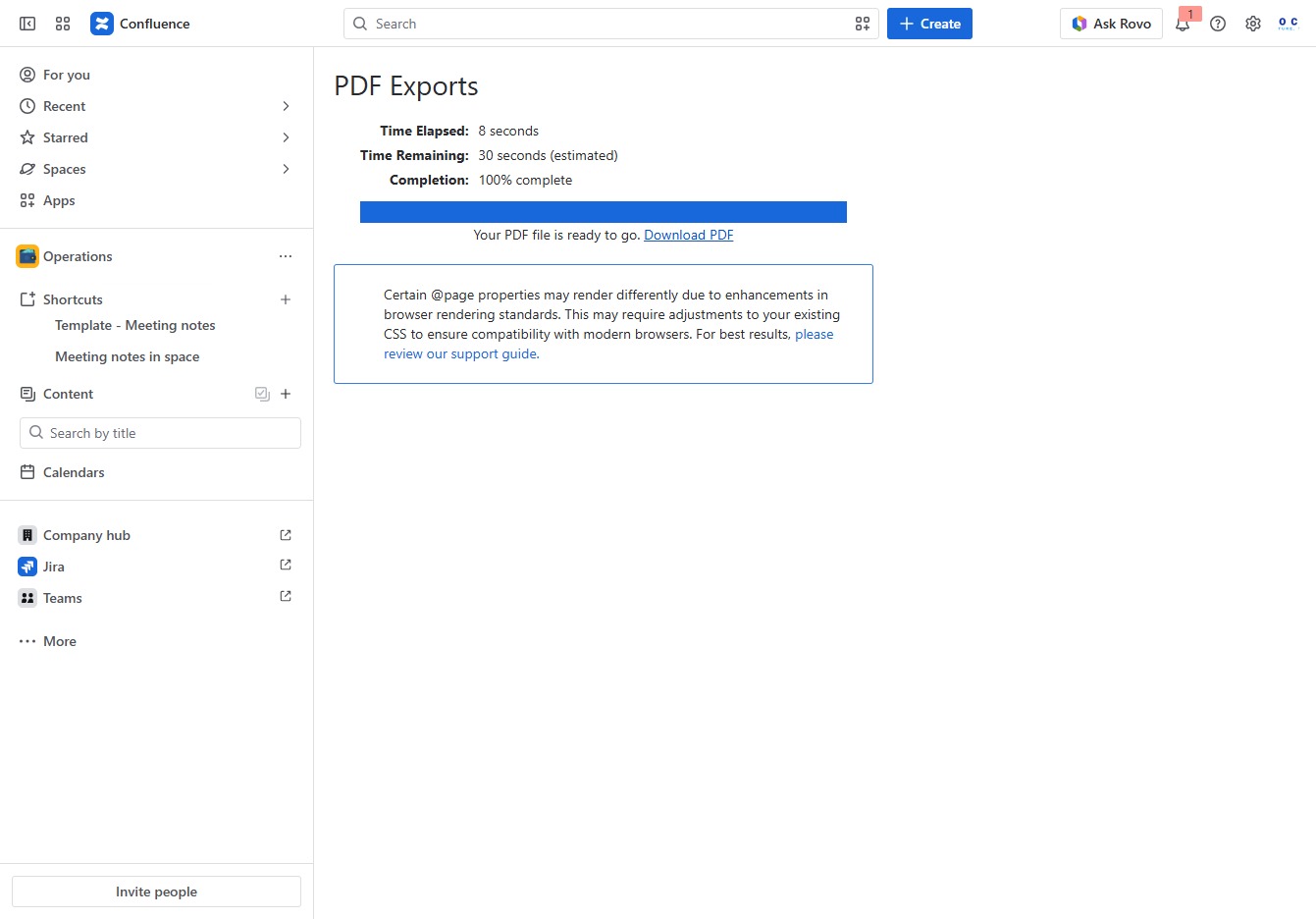
Click the Operations section
This action opens the Operations overview where you can manage and review various operational tasks and updates related to your projects.
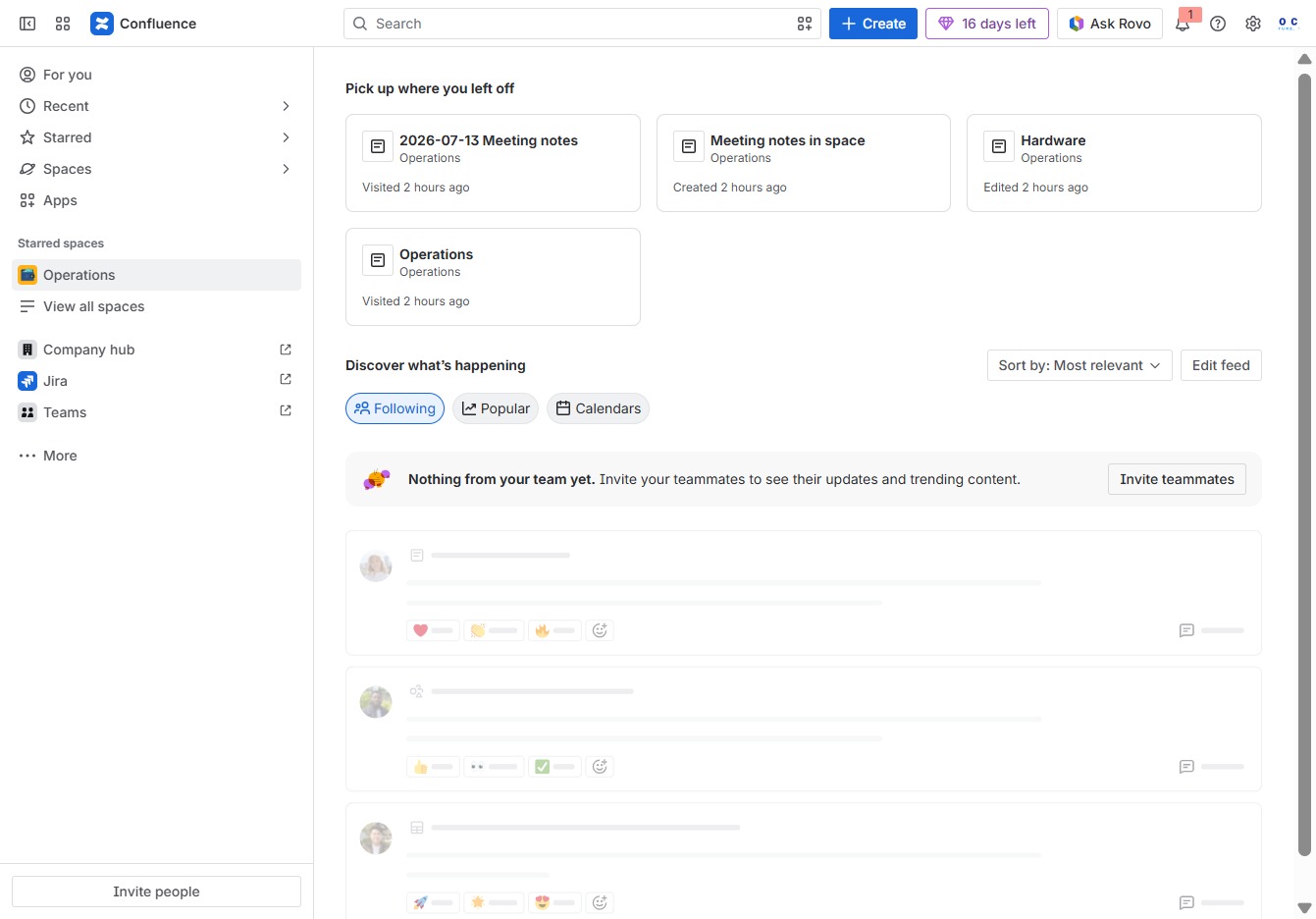
Loading screenshot…
100%
Learn how to efficiently export pages from your Confluence project documentation with this step-by-step guide.
 viktoria
Learn how to efficiently export pages from your Confluence project documentation with this step-by-step guide. Follow the outlined steps to create organized content, manage documentation, and download your files in PDF format for easy sharing and printing.
This action opens the Operations overview where you can manage and review various operational tasks and updates related to your projects.
This action allows you to create child content specific to the Laptop Setup section, enabling better organization of your project documentation.

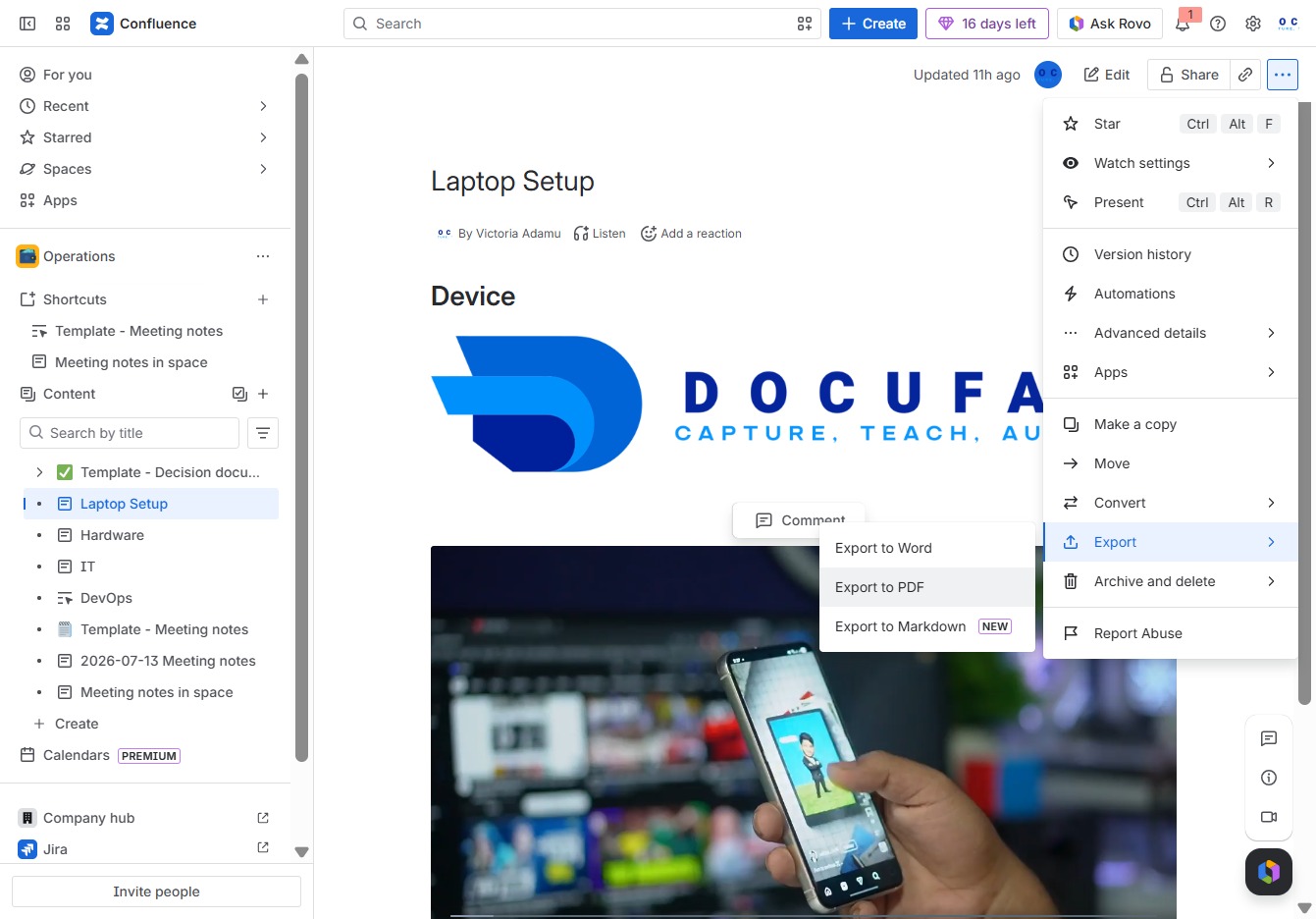
Clicking 'More actions' will present additional options related to the current document or page in Confluence, allowing you to perform tasks like sharing, managing permissions, or exporting content.
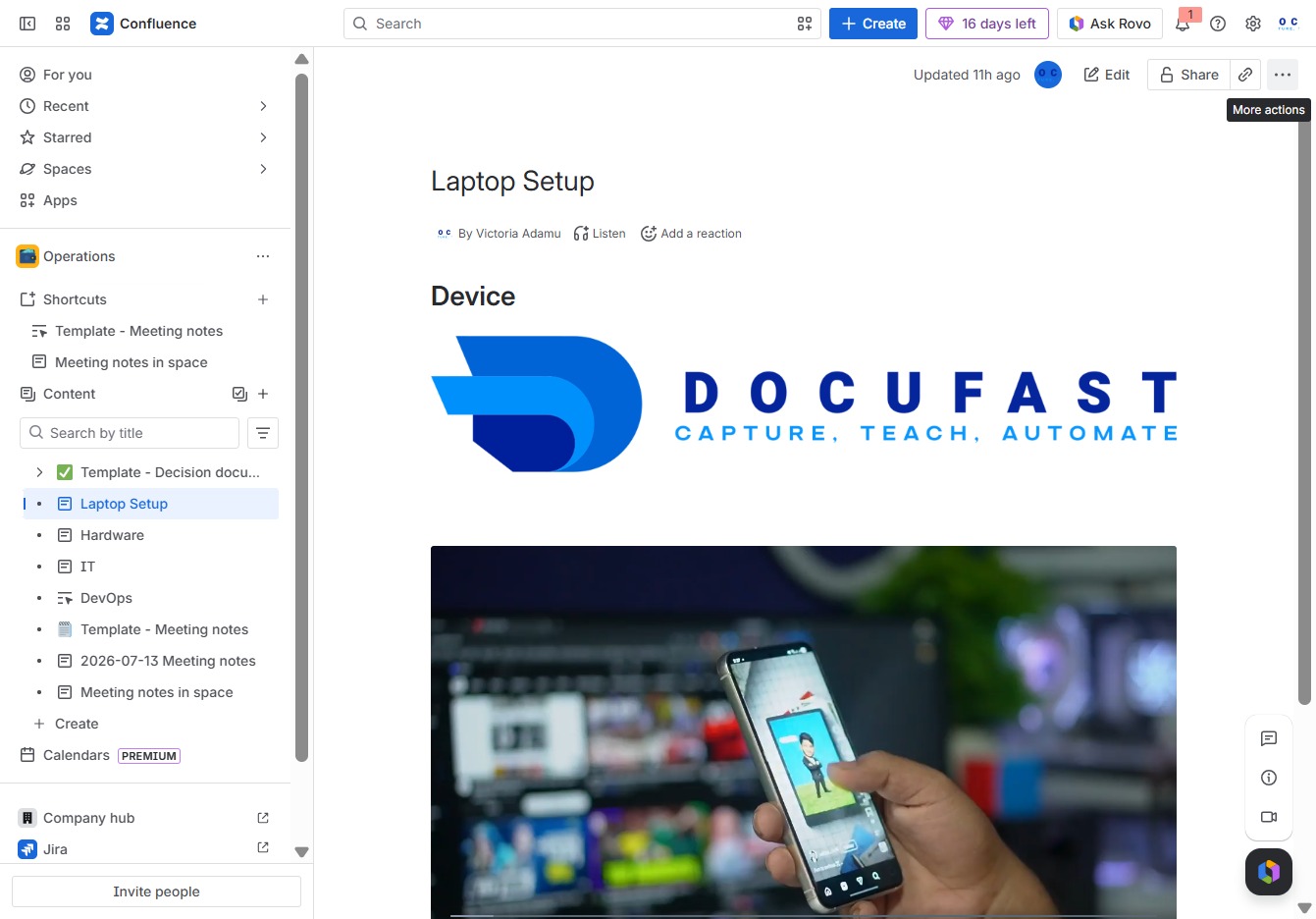
This action will initiate the export process for your document, allowing you to download or save it in a desired format.
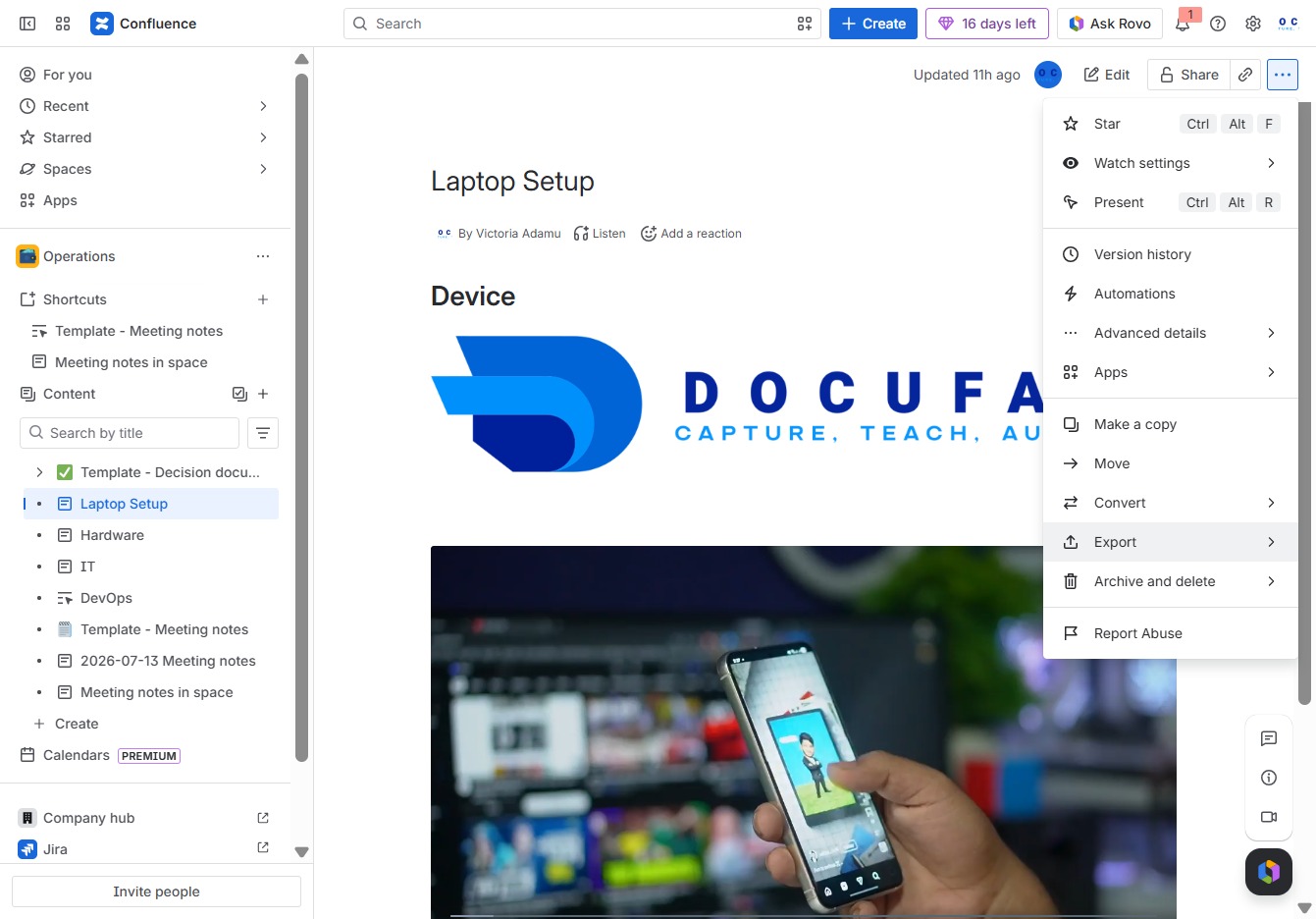
This action allows you to download the current document in PDF format, enabling easy sharing and printing.
This action will initiate the download of your completed PDF export. Make sure to check your default downloads folder to access the file.