Shared guide

How to export all data from Pipedrive

In this how-to guide, learn the step-by-step process to export all your data from Pipedrive.

victoriaworkflowsvictoriaworkflows
·19 steps·51 views·Published

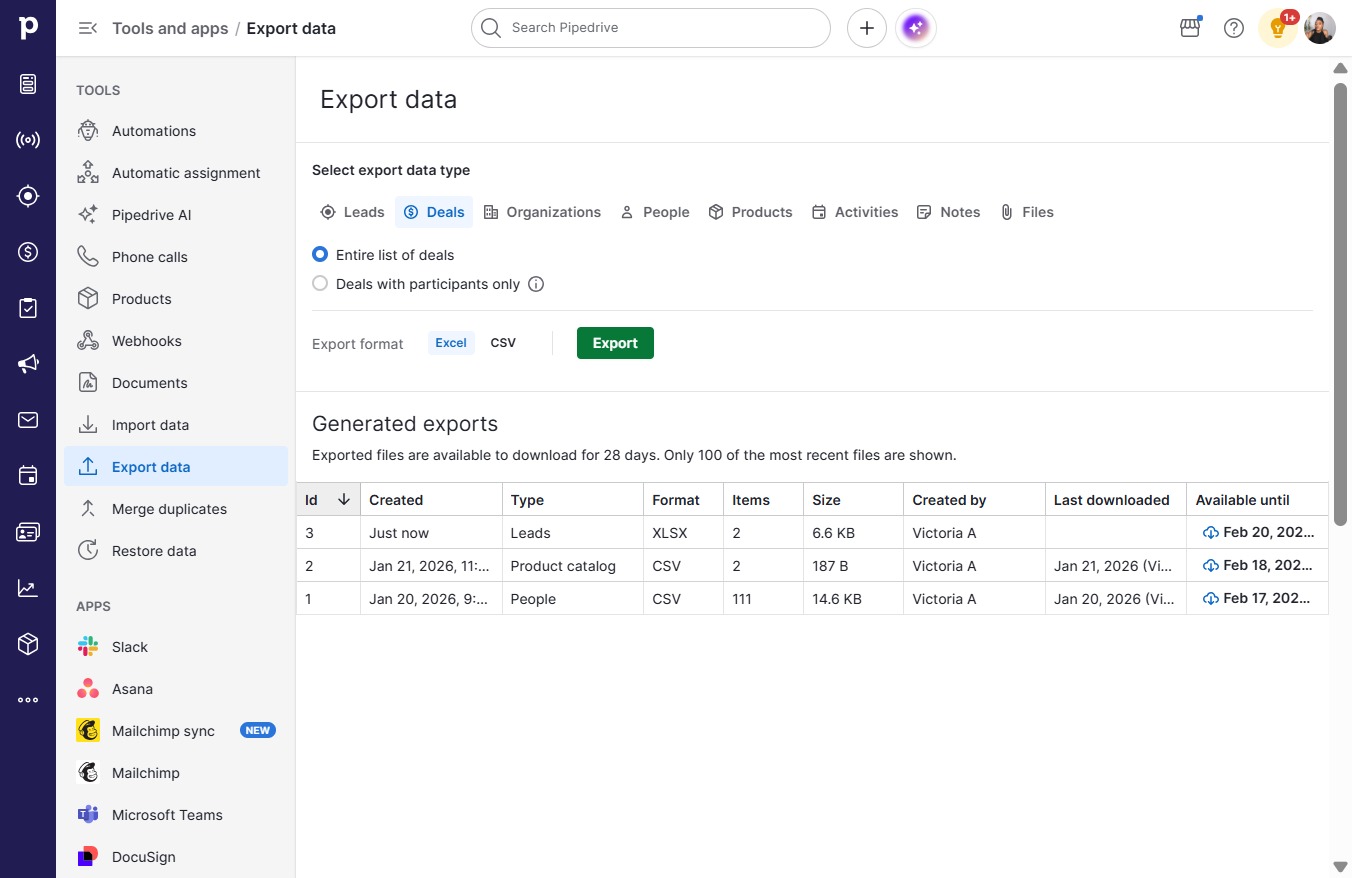
In this how-to guide, learn the step-by-step process to export all your data from Pipedrive. Follow along as we walk through accessing the export tool and select various data categories, including deals, organizations, people, products, activities, notes, and files.

Step-by-step Guide19 steps
  1. Click on "Click here."

    Click on "Click here."
    Loading screenshot…
    100%
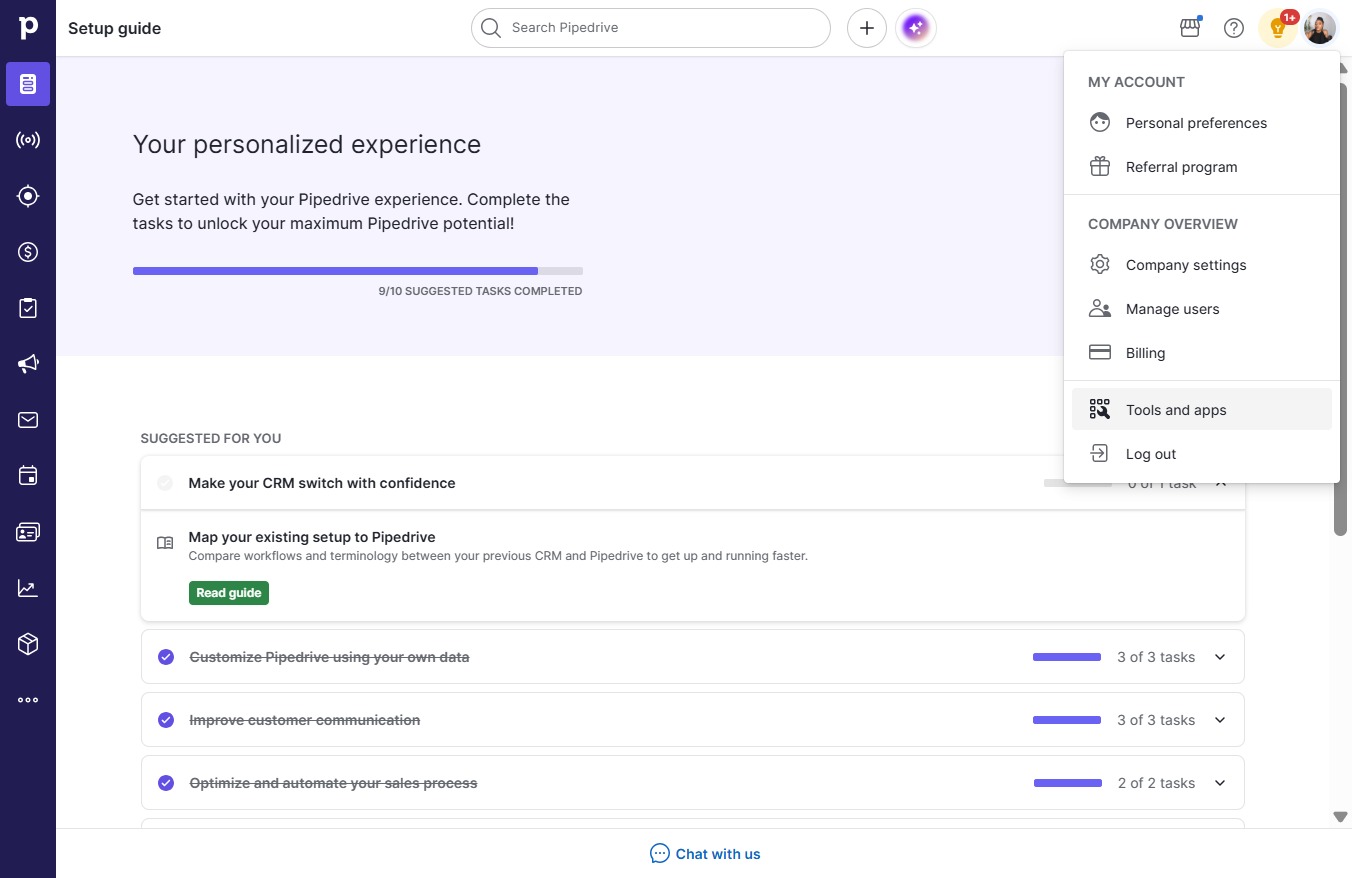
  2. Click Tools and apps

    Click Tools and apps
    Loading screenshot…
    100%
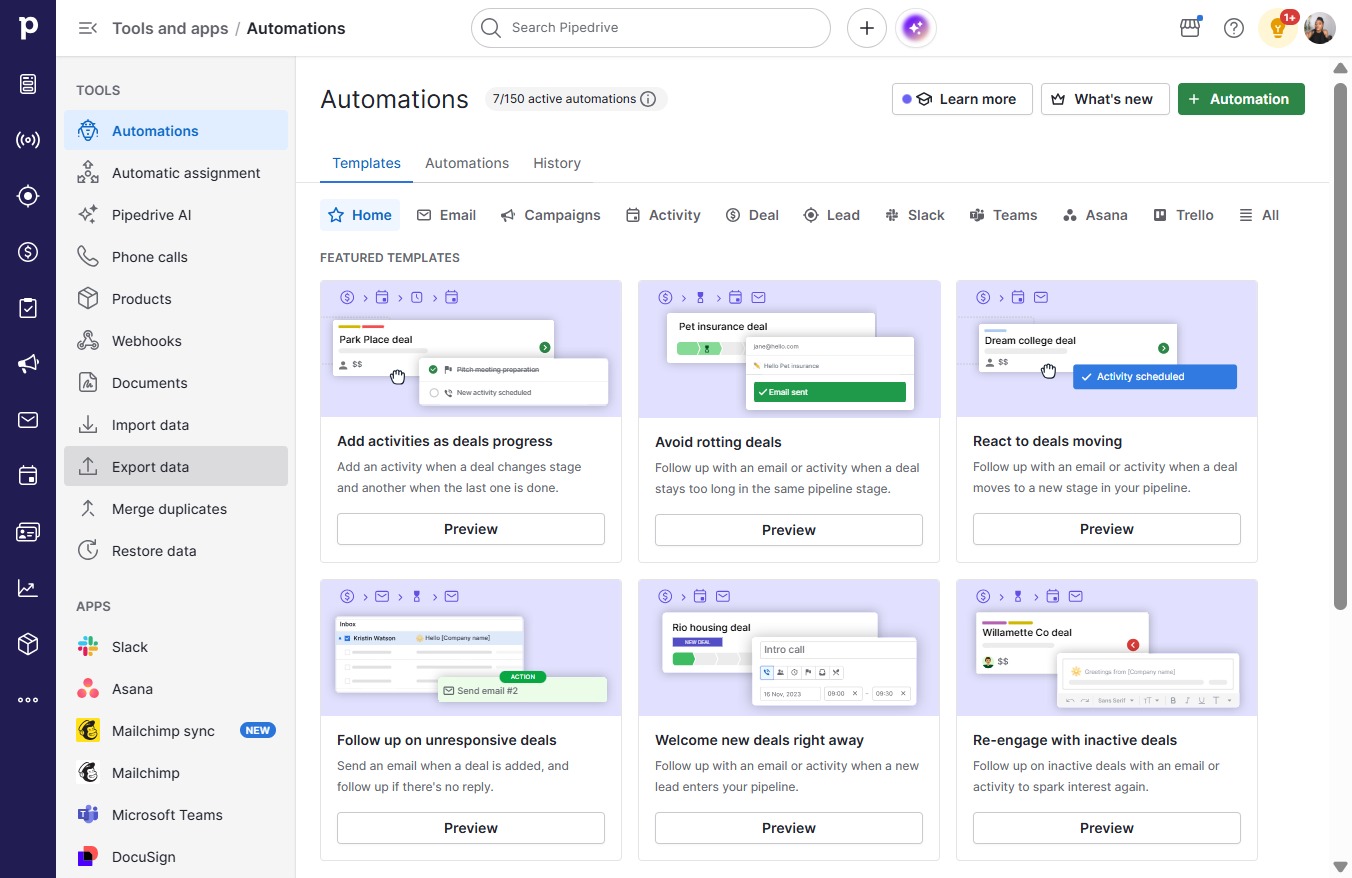
  3. Click Export data

    Click Export data
    Loading screenshot…
    100%
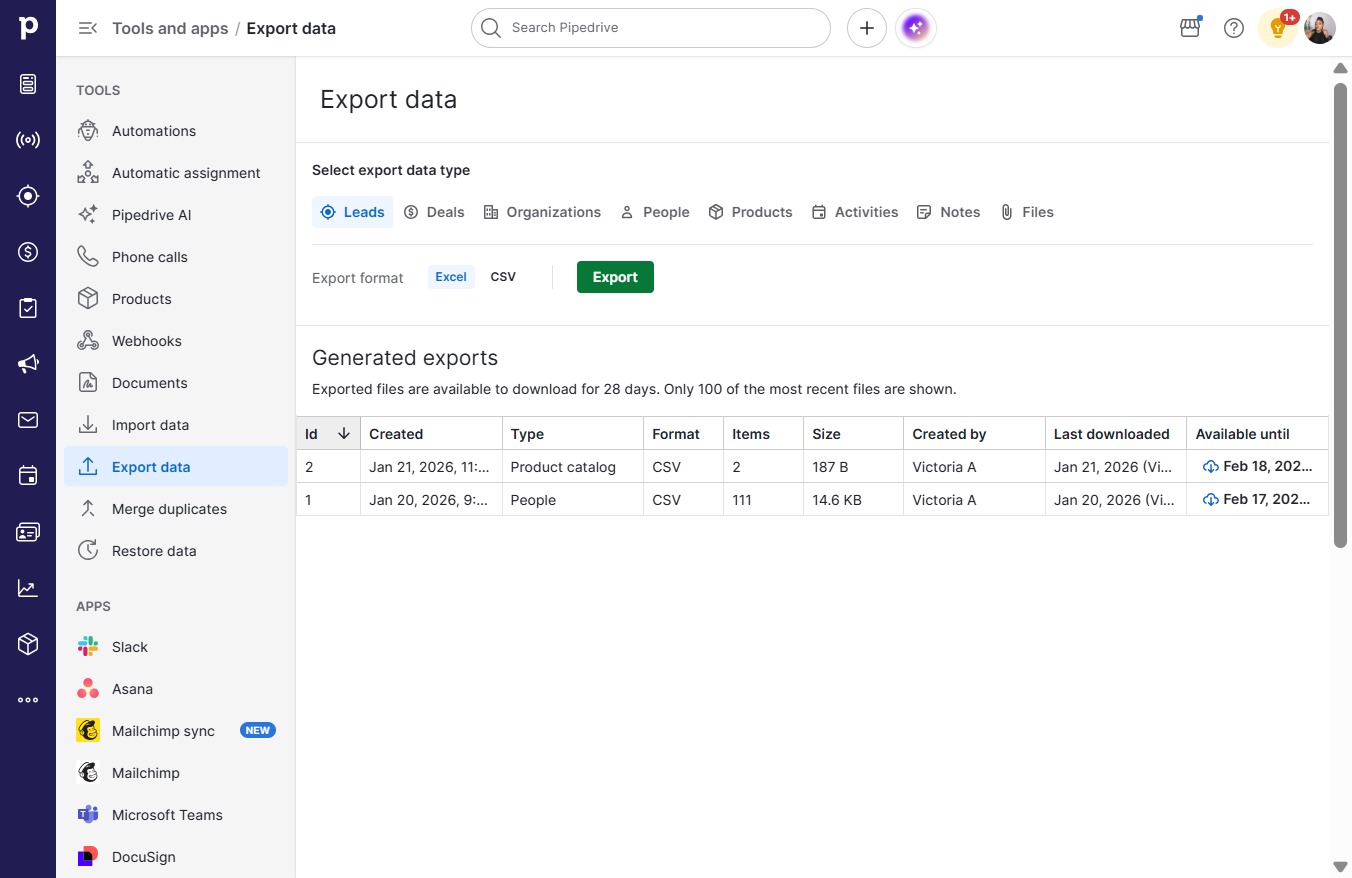
  4. Click Export

    Click Export
    Loading screenshot…
    100%
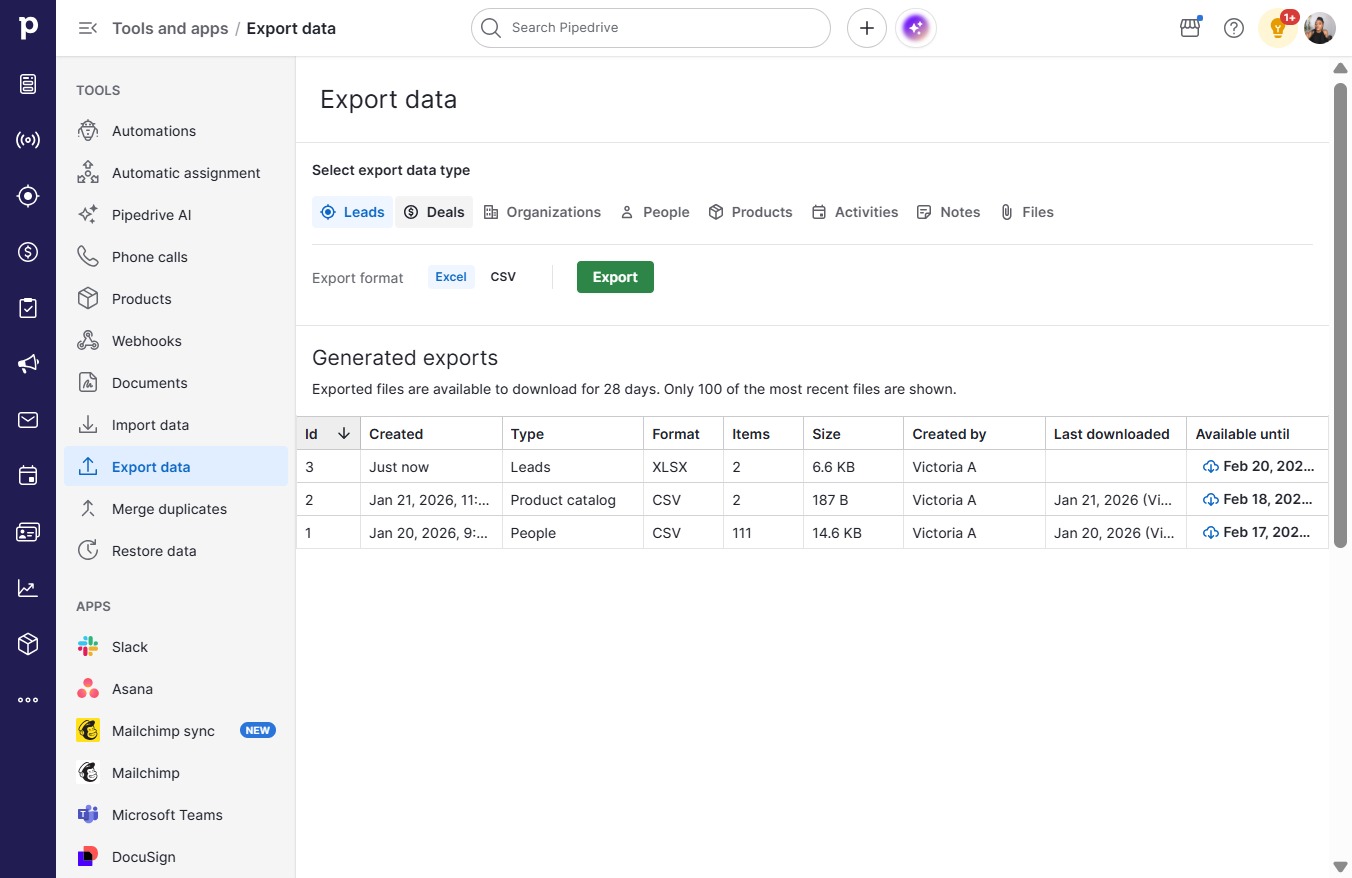
  5. Click Deals

    Click Deals
    Loading screenshot…
    100%
  6. Click Export

    Click Export
    Loading screenshot…
    100%
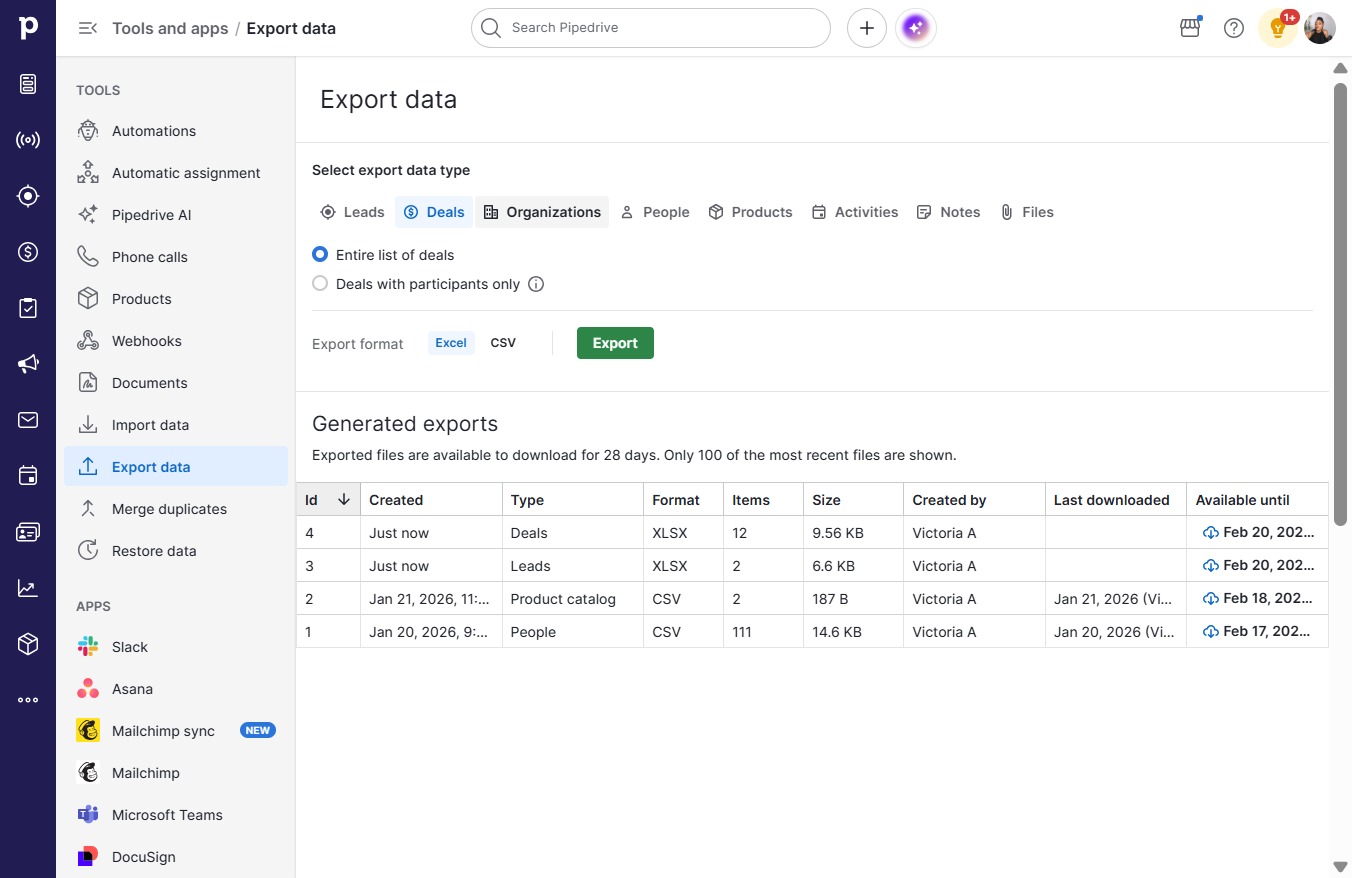
  7. Click Organizations

    Click Organizations
    Loading screenshot…
    100%
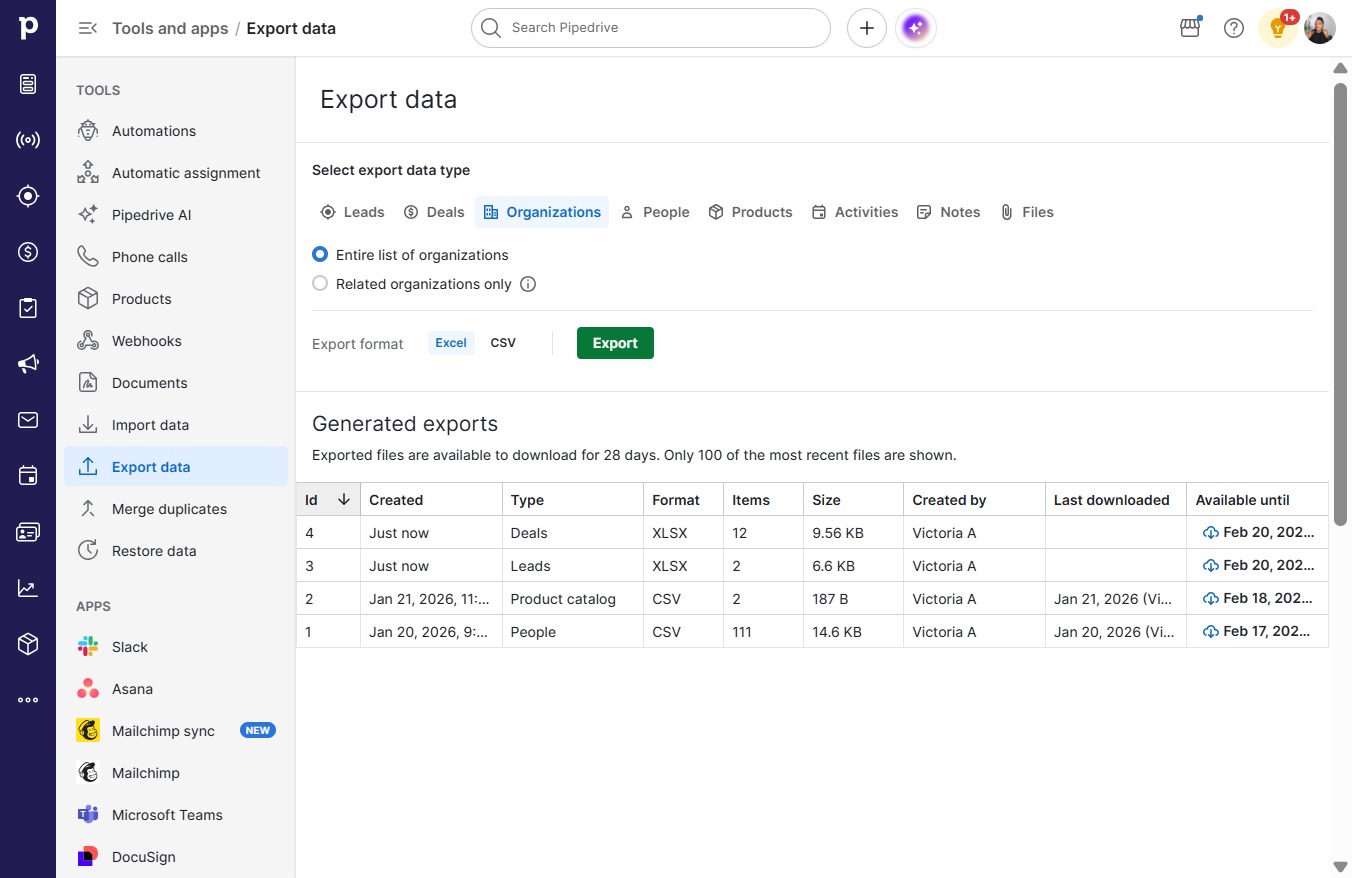
  8. Click Export

    Click Export
    Loading screenshot…
    100%
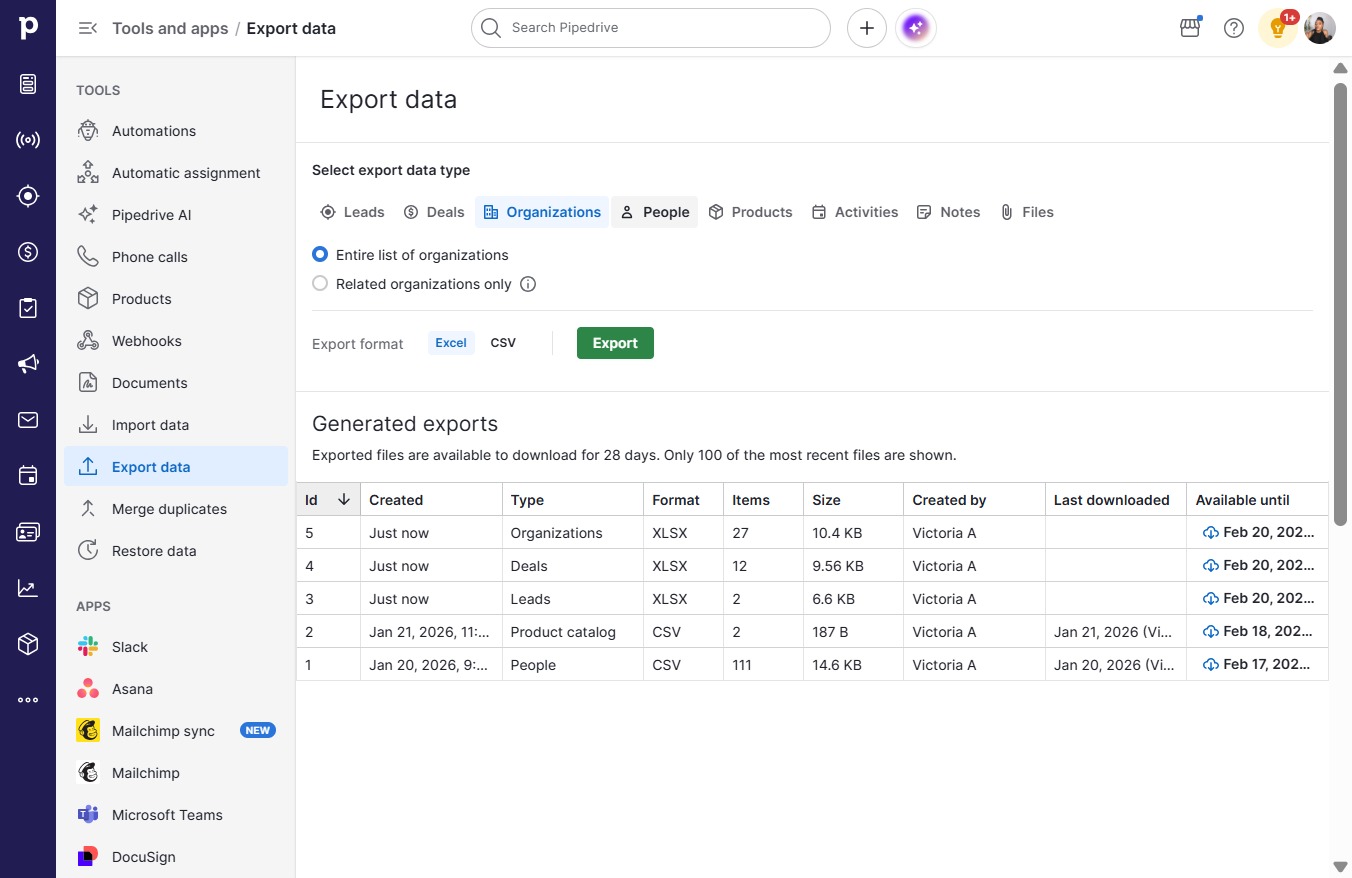
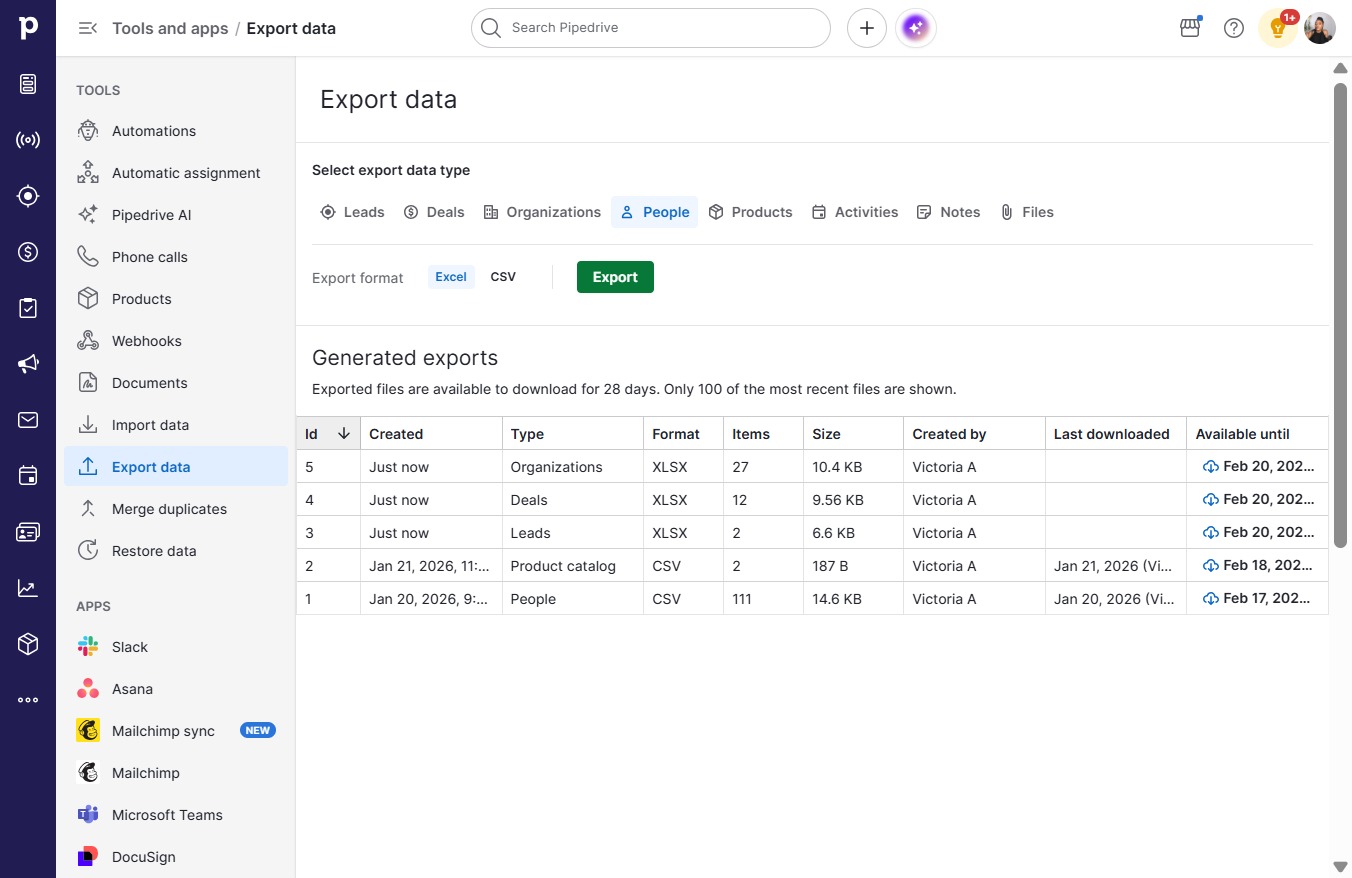
  9. Click People

    Click People
    Loading screenshot…
    100%
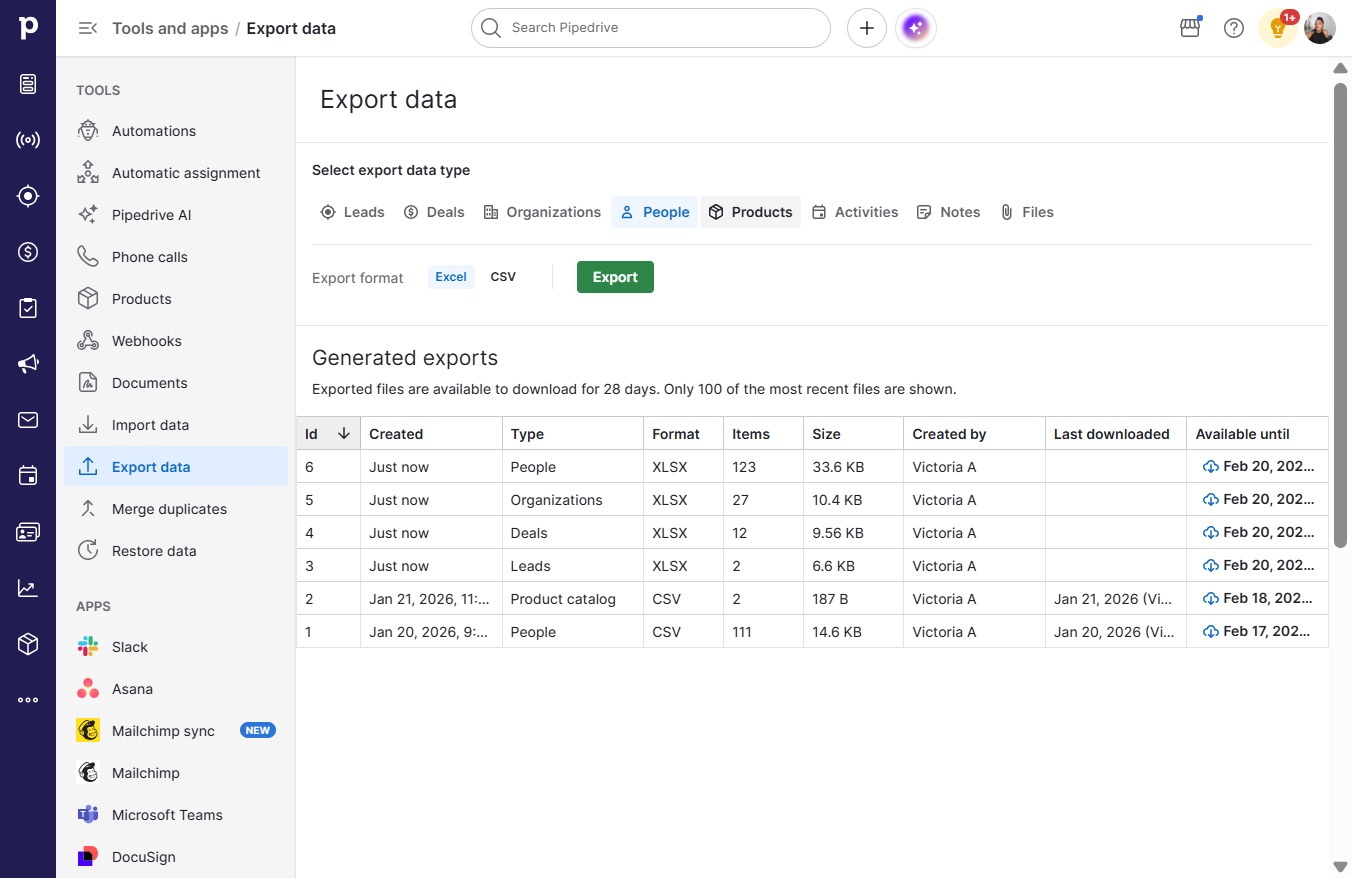
  10. Click Export

    Click Export
    Loading screenshot…
    100%
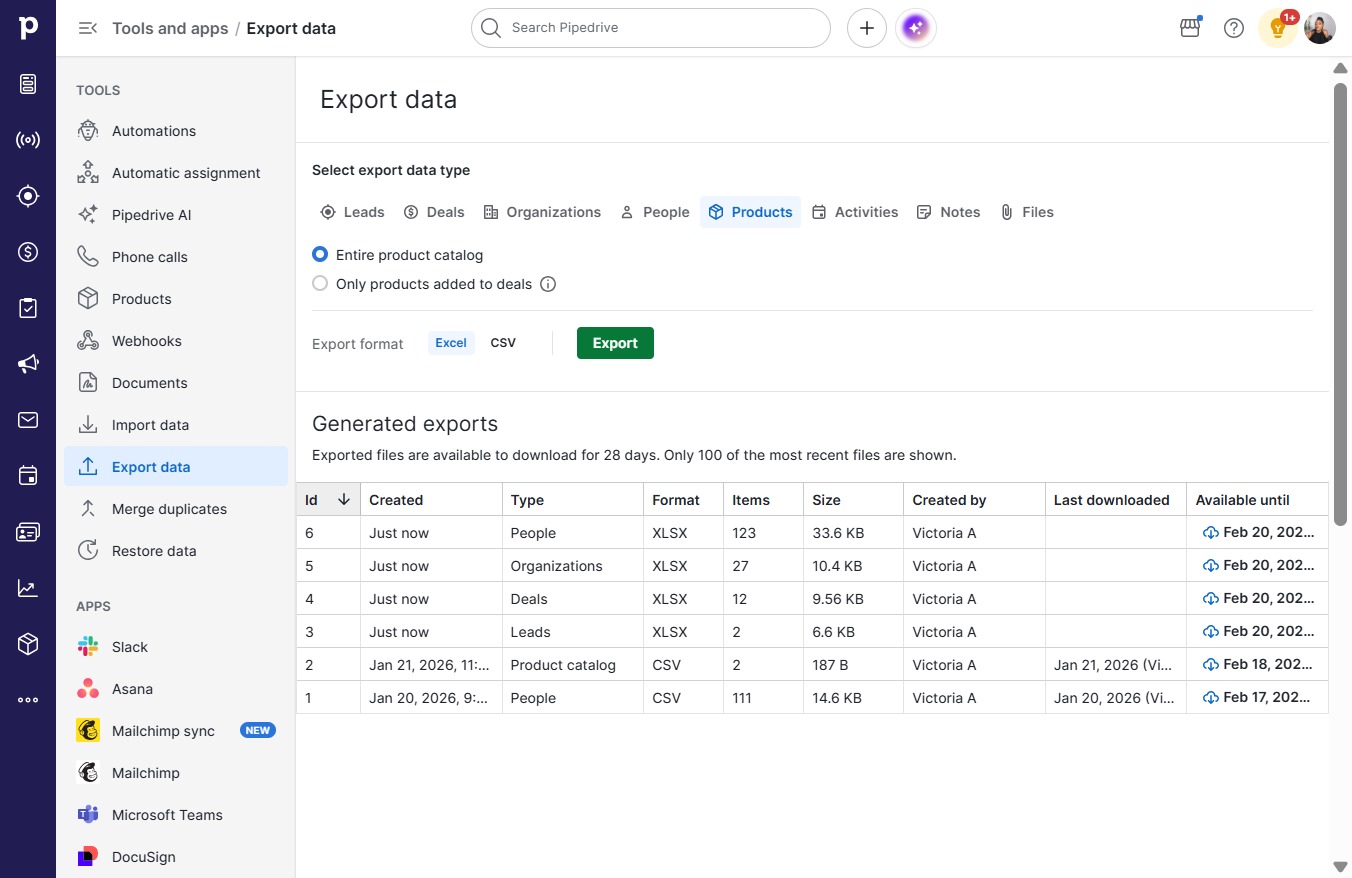
  11. Click Products

    Click Products
    Loading screenshot…
    100%
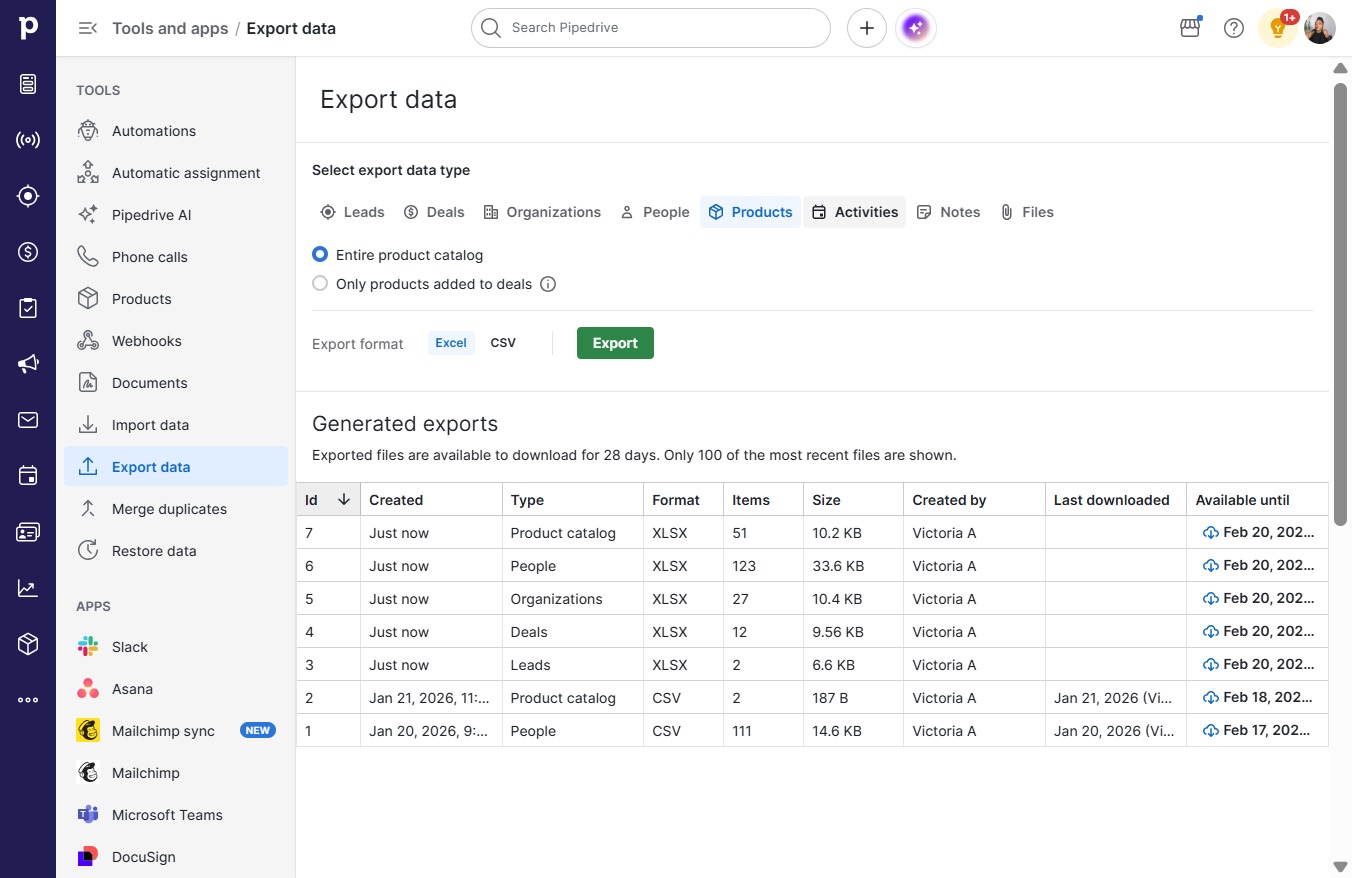
  12. Click Export

    Click Export
    Loading screenshot…
    100%
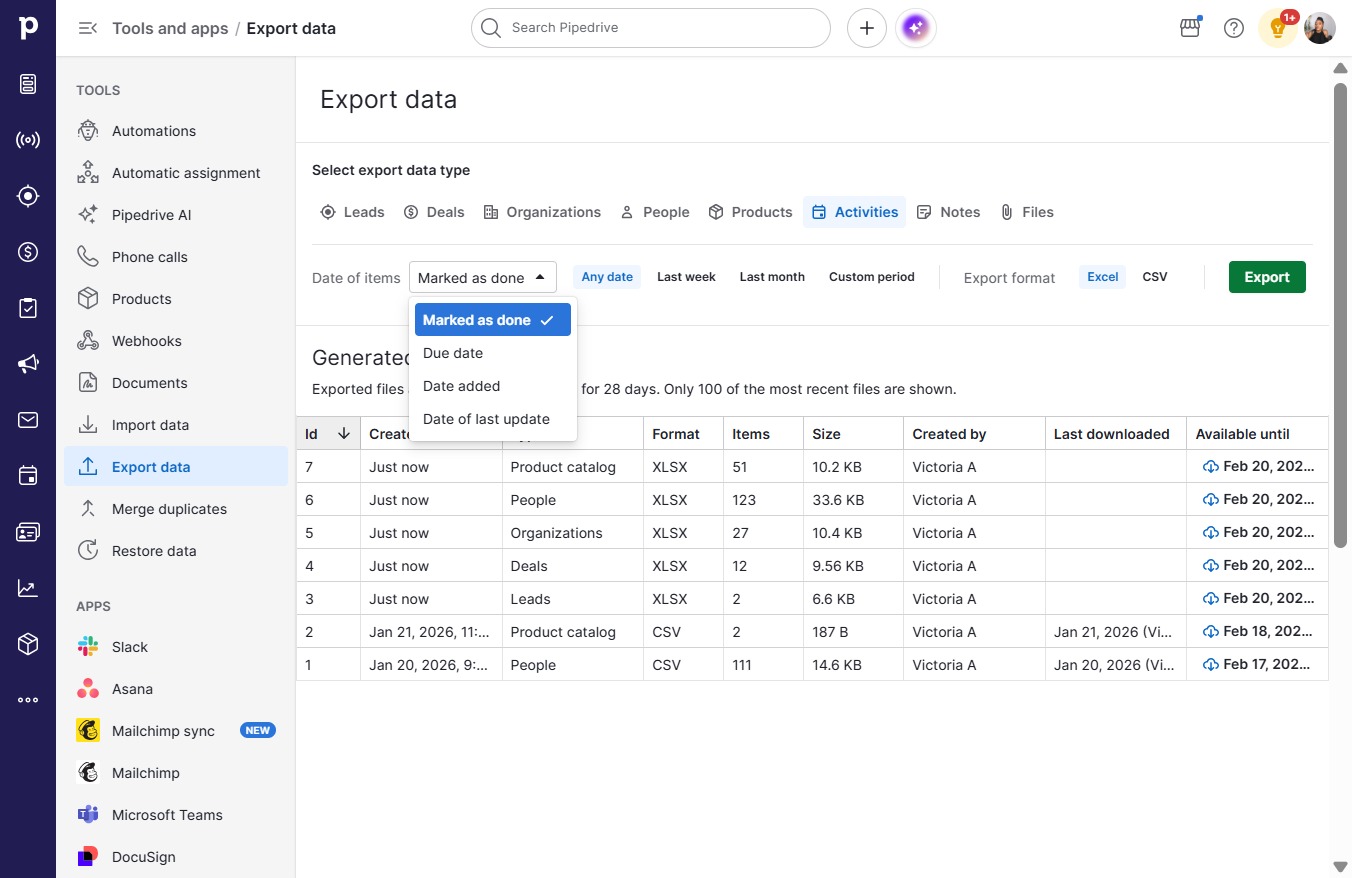
  13. Click Activities

    Click Activities
    Loading screenshot…
    100%
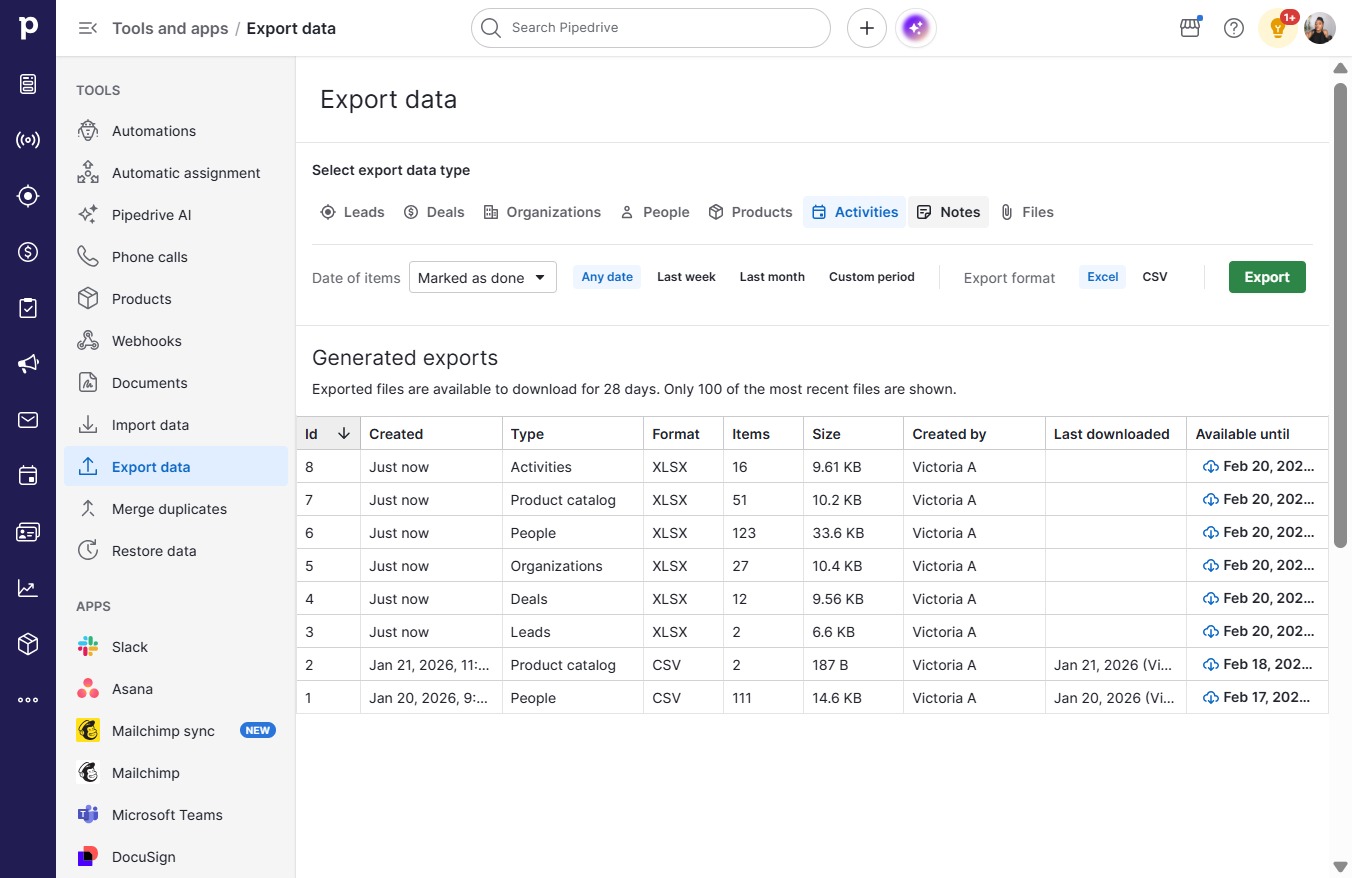
  14. Click Export

    Click Export
    Loading screenshot…
    100%
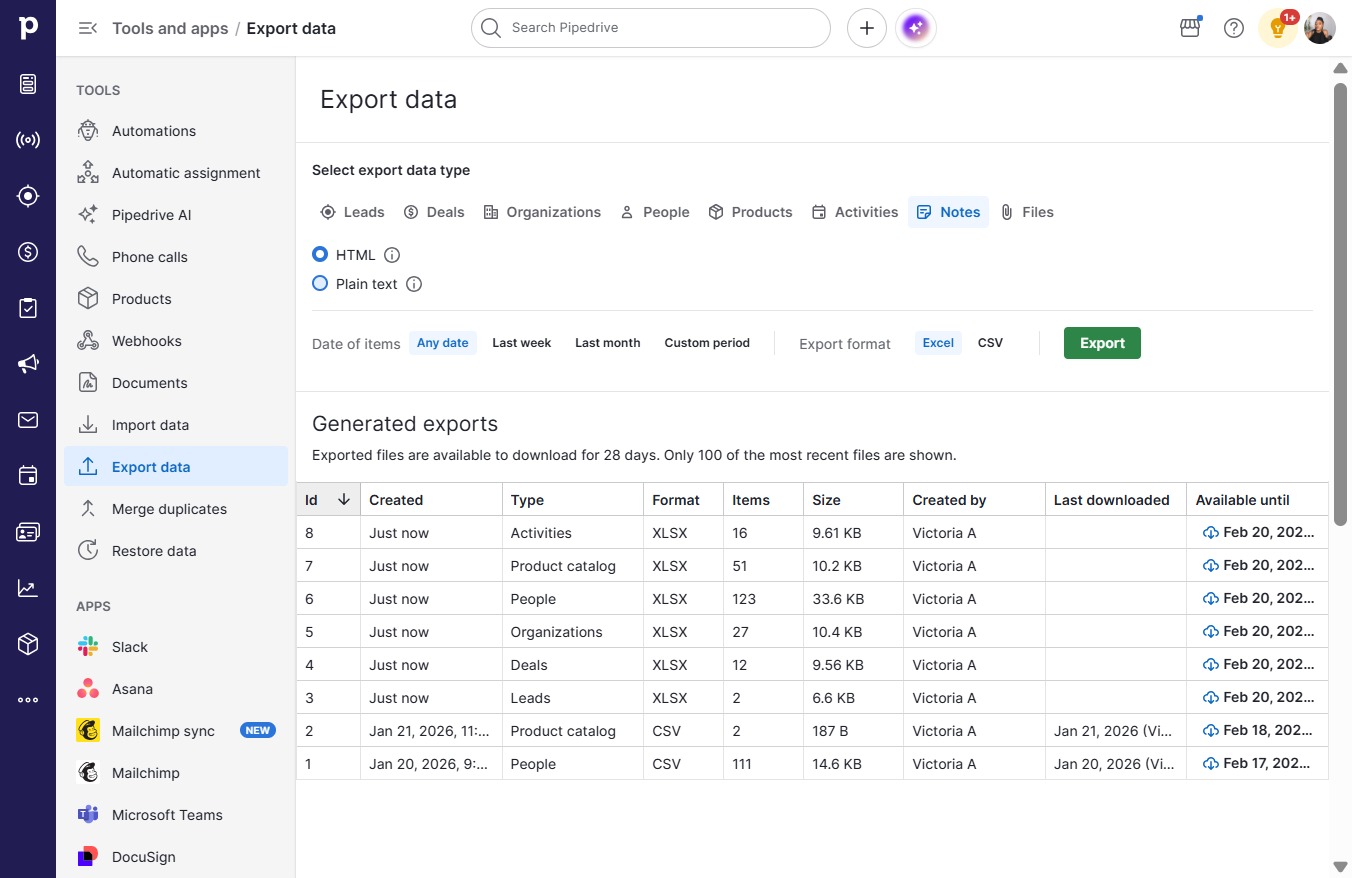
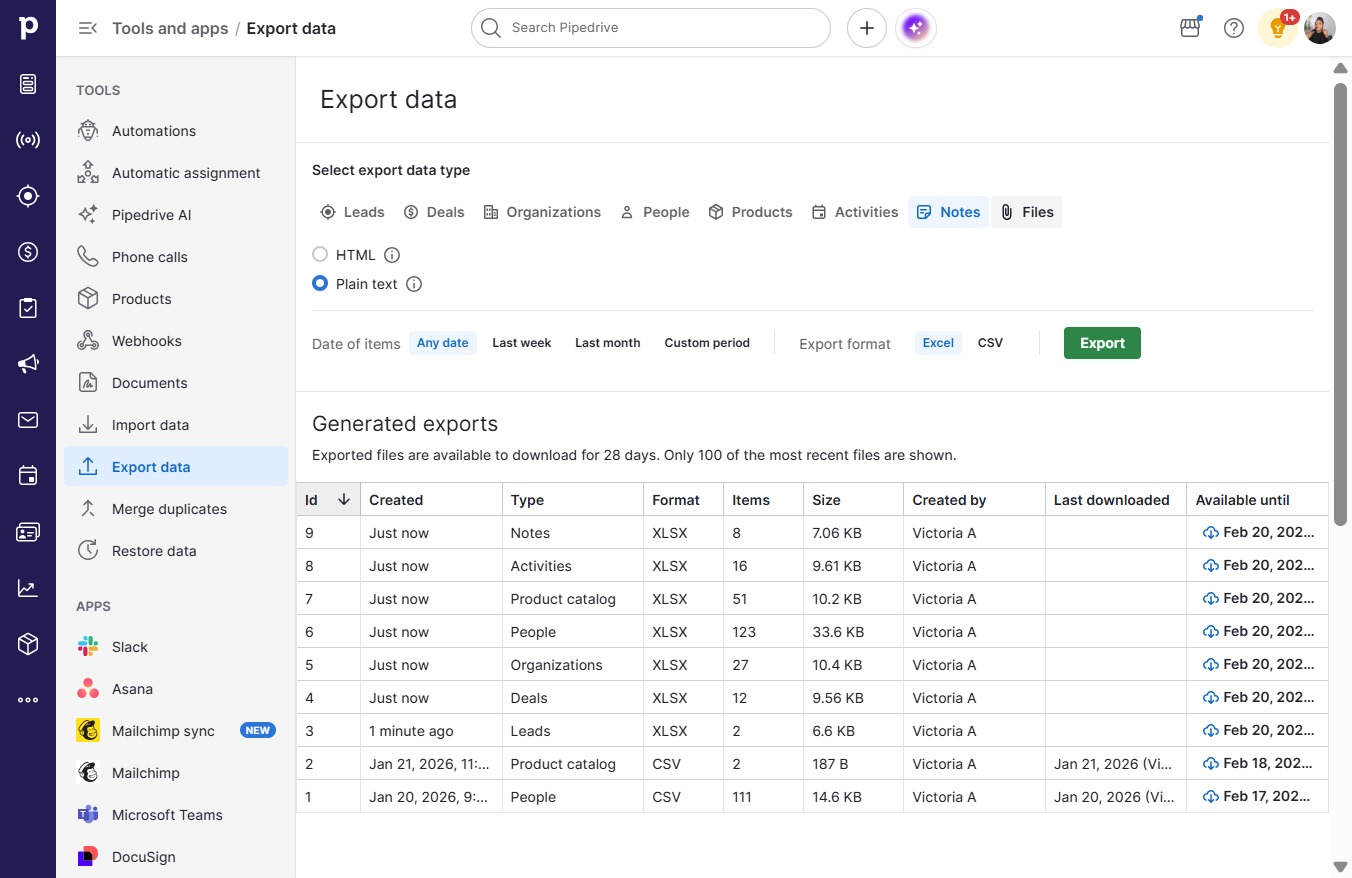
  15. Click Notes

    Click Notes
    Loading screenshot…
    100%
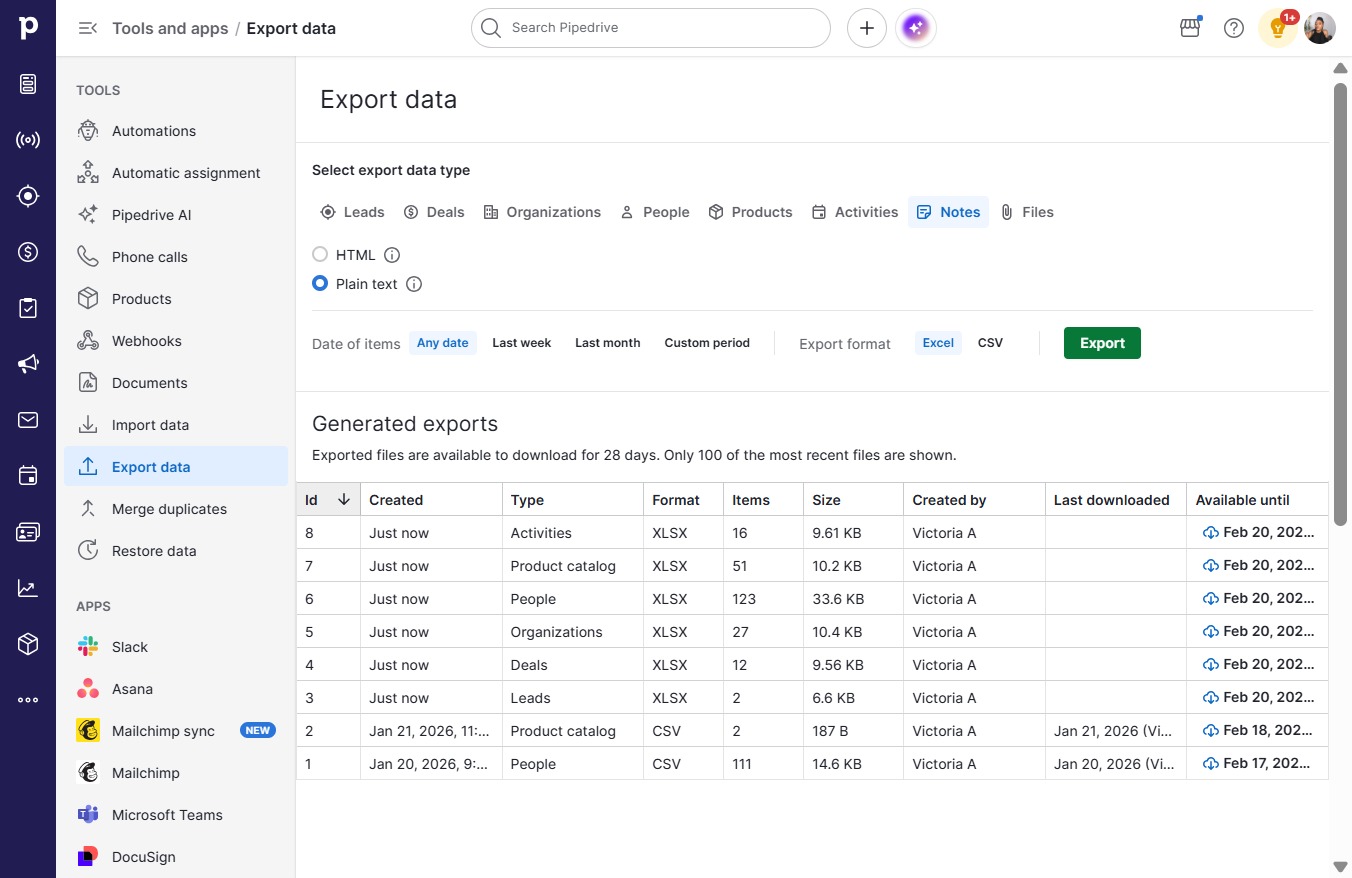
  16. Click on "Click here."

    Click on "Click here."
    Loading screenshot…
    100%
  17. Click Export

    Click Export
    Loading screenshot…
    100%
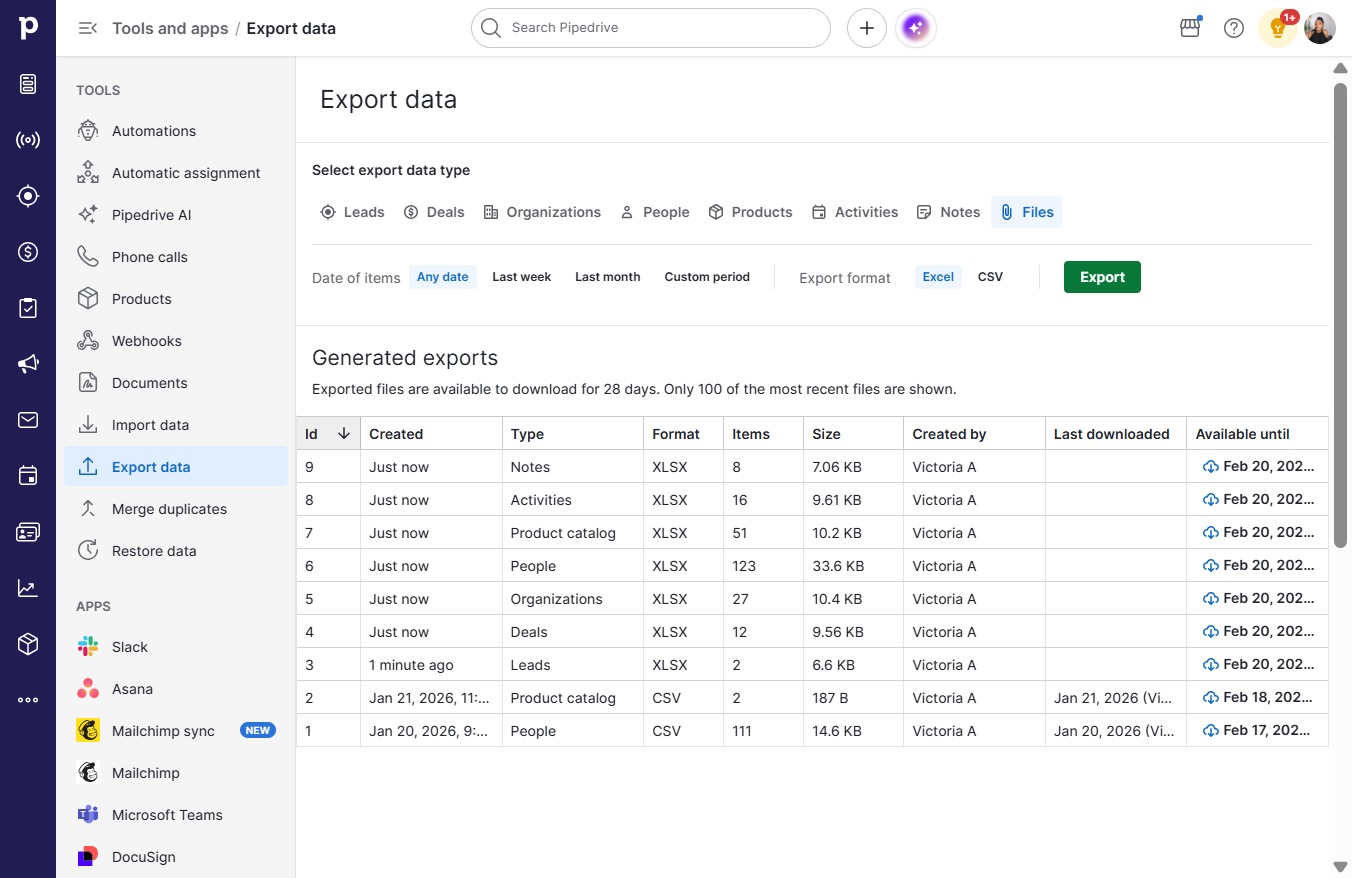
  18. Click Files

    Click Files
    Loading screenshot…
    100%
  19. Click Export

    Click Export
    Loading screenshot…
    100%