Customize your video by editing scenes, adjusting content, and making changes to create a polished final video.
viktoria
·19 steps·10 views·Published
Customize your video by editing scenes, adjusting content, and making changes to create a polished final video.
Step-by-step Guide19 steps
1
Click How to access company knowledge documents
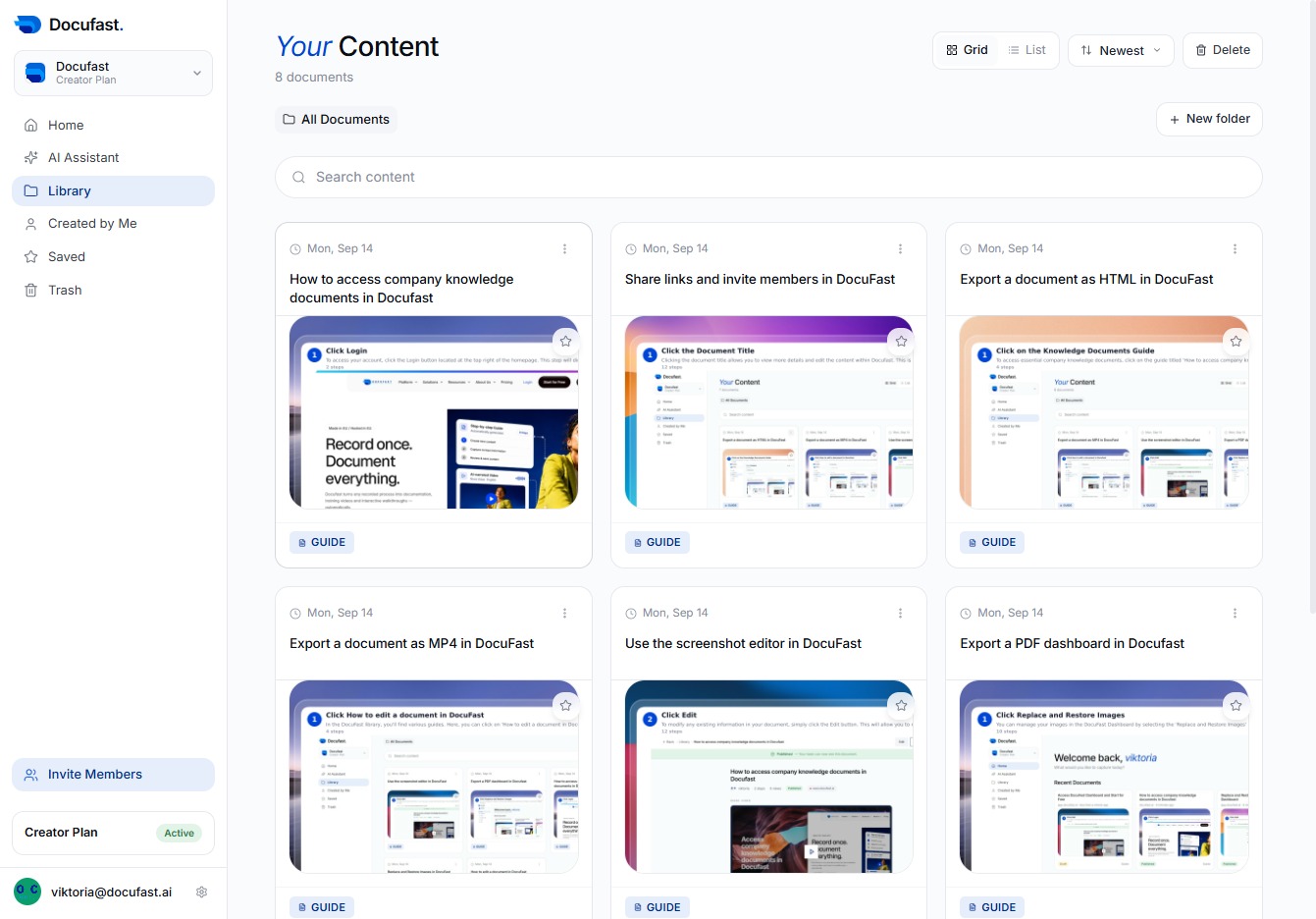
In the Docufast library, you can click on the 'How to access company knowledge documents' guide to learn how to easily find and utilize important documents crucial for your workflow.
Loading screenshot…
100%
2
Click Edit
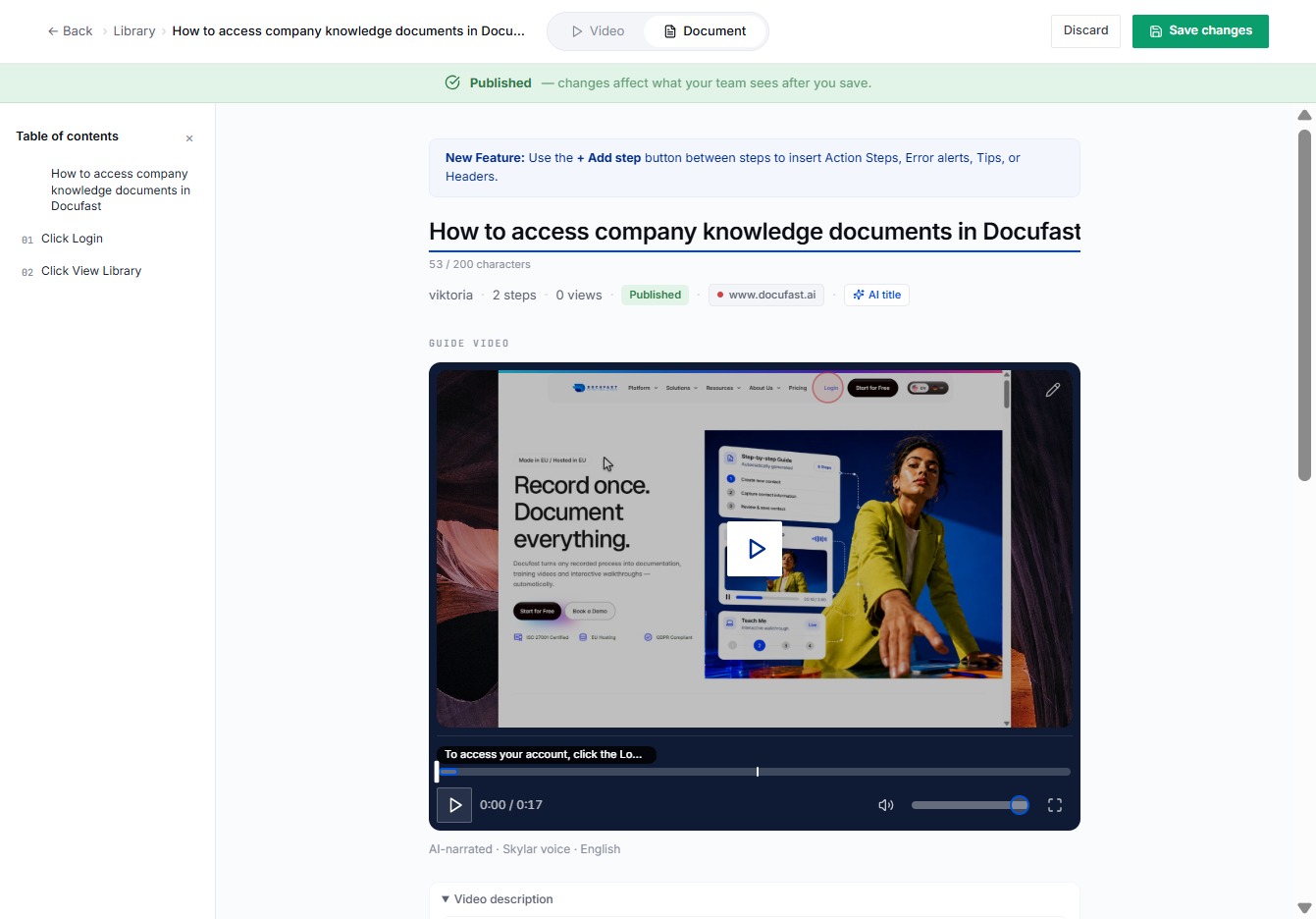
To modify your document, simply click the Edit button. This allows you to make necessary changes and updates in Docufast, ensuring your content stays current and accurate.
Loading screenshot…
100%
3
Click Video
To start playing a video in Docufast, simply click on the 'Video' button. This feature allows you to access important recorded content relevant to your company knowledge documents.
Loading screenshot…
100%
4
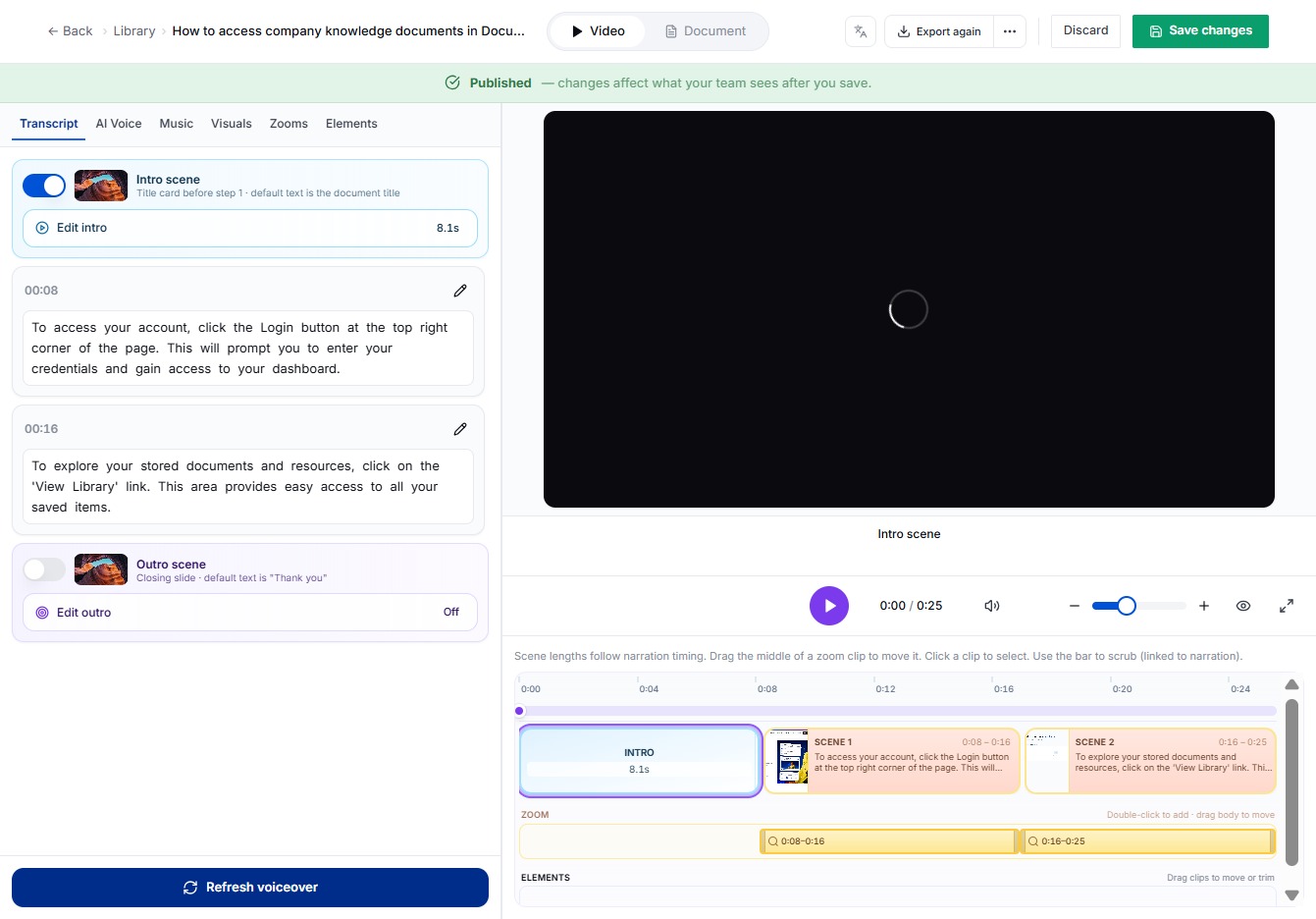
Click Enable Intro Scene
To start your video with an engaging introduction, simply enable the intro scene option. This will set the tone for what your audience will experience.
Loading screenshot…
100%
5
Click Edit Intro
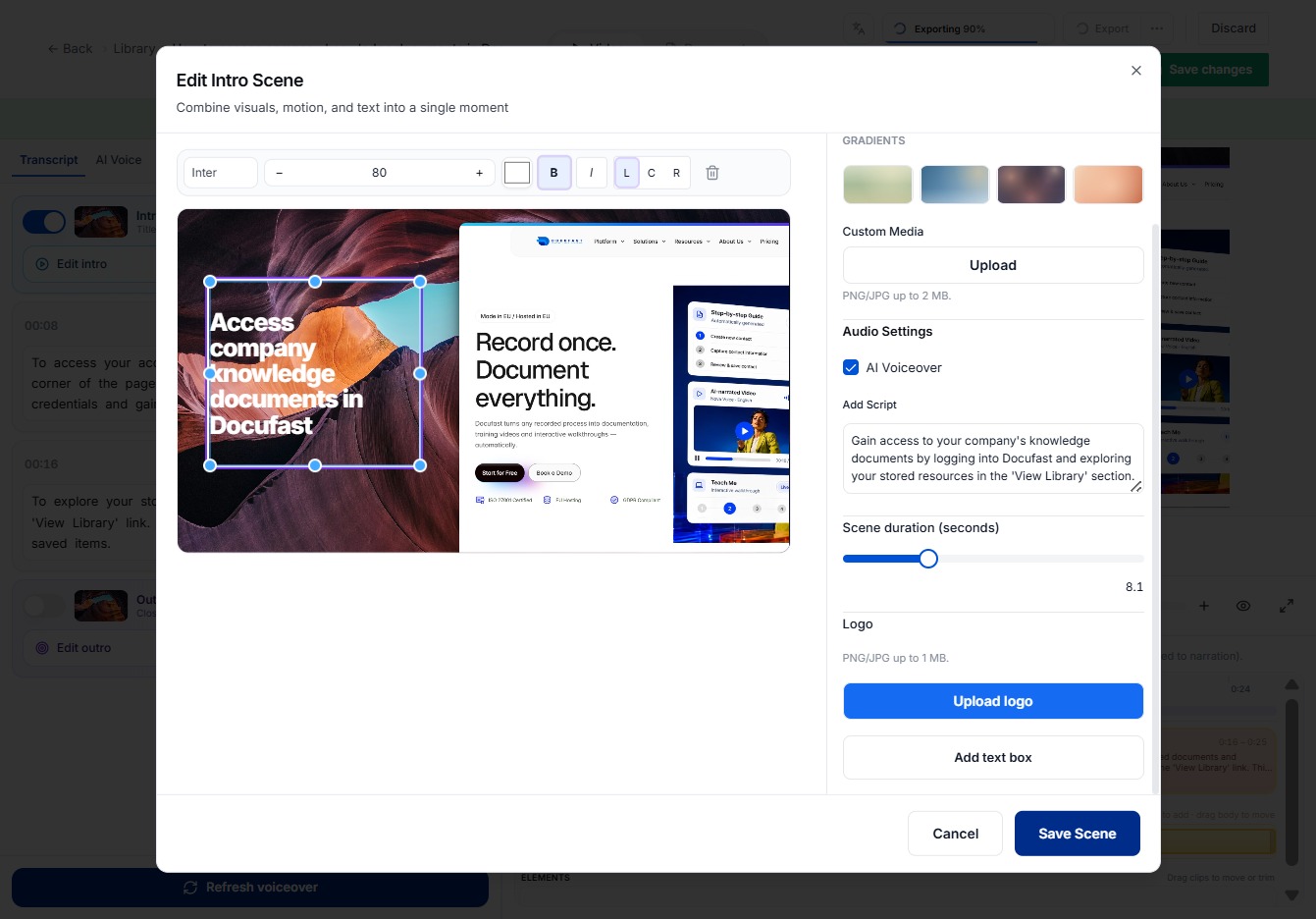
To modify the introduction section of your video, select the 'Edit intro' button. This allows you to make adjustments and tailor your content for your audience.
Loading screenshot…
100%
6
Click Upload Your Logo
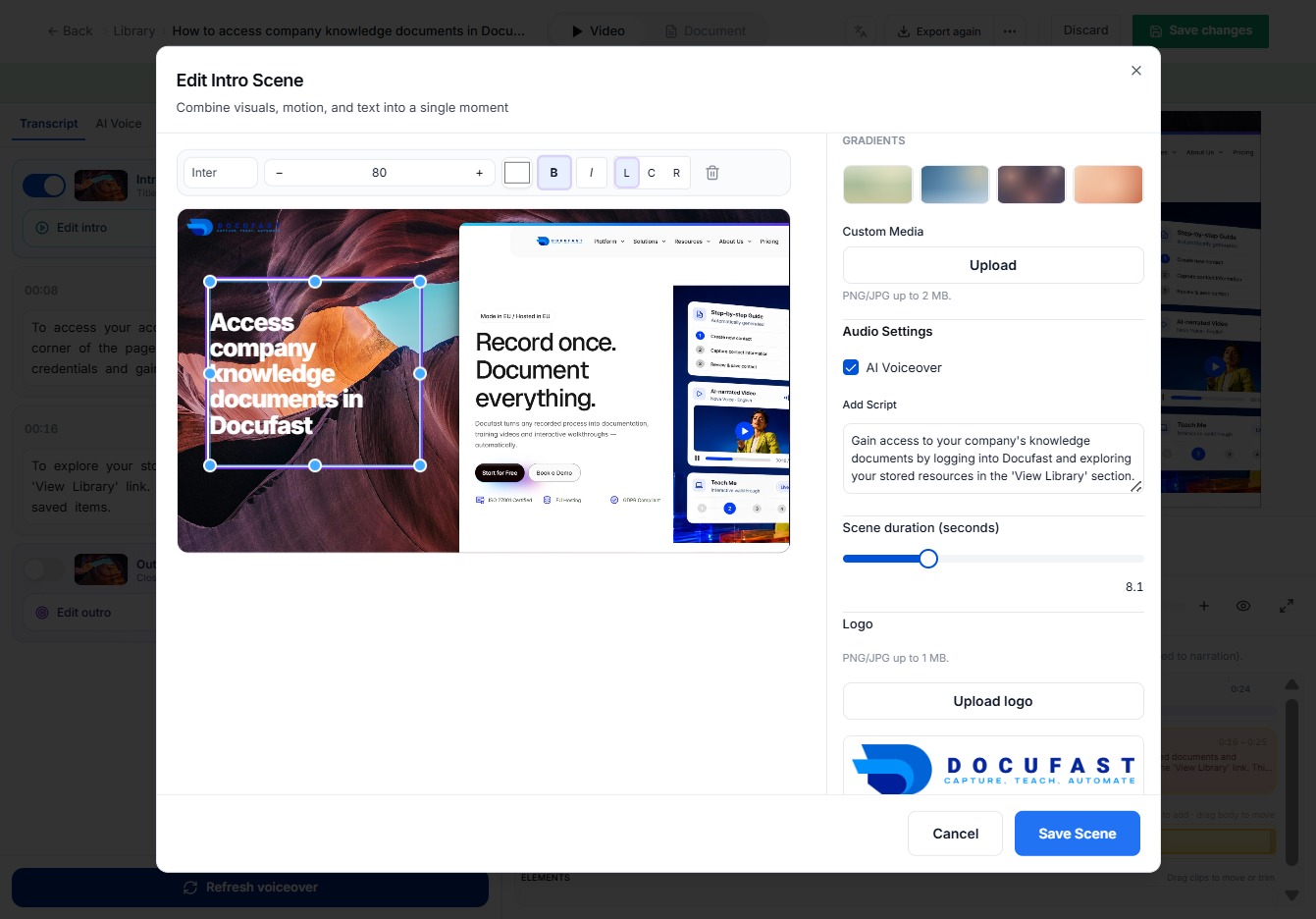
To personalize your scene, click the 'Upload logo' button. This allows you to add your company’s logo, enhancing brand identity in the presentation.
Loading screenshot…
100%
7
Click Save Scene
To finalize your edits, click the 'Save Scene' button. This ensures all your changes are stored, allowing you to seamlessly progress in your editing workflow.
Loading screenshot…
100%
8
Click Enable Outro Scene
You’re about to enhance your project by enabling the outro scene option. This feature allows you to add a concluding segment to your video, creating a more polished final product.
Loading screenshot…
100%
9
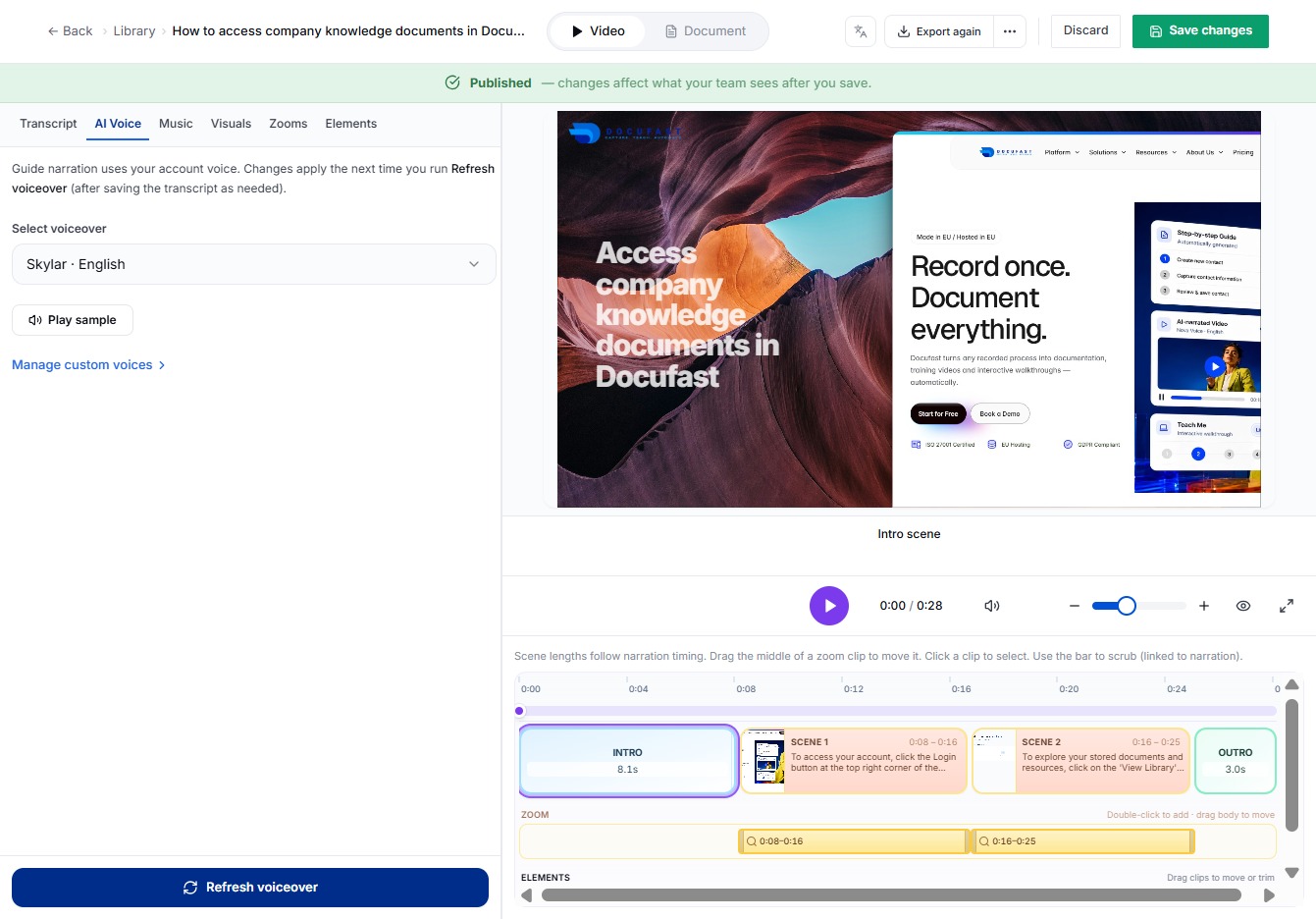
Click AI Voice
To enhance your video, click the AI Voice button, which allows you to utilize voice generation features for a more engaging viewer experience.
Loading screenshot…
100%
10
Select Voice for the Recording
In this step, you'll choose the voice for your recording from the available options. Select 'Skylar · English' to set the voice you want for your project.
Loading screenshot…
100%
11
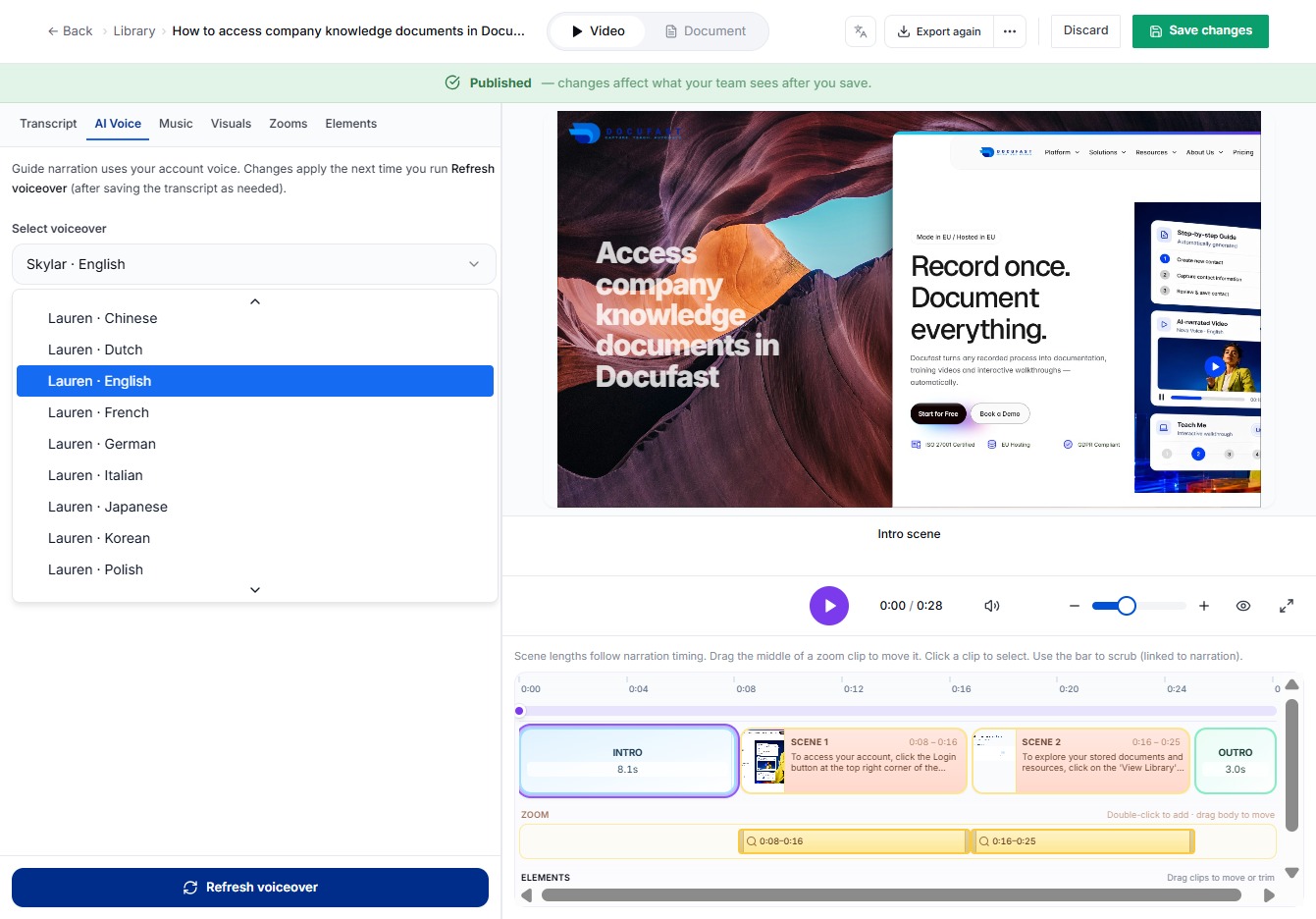
Select English Voice Option
Now you’ll choose the English voice for your recording. This allows you to customize the narration style to better suit your project's needs.
Loading screenshot…
100%
12
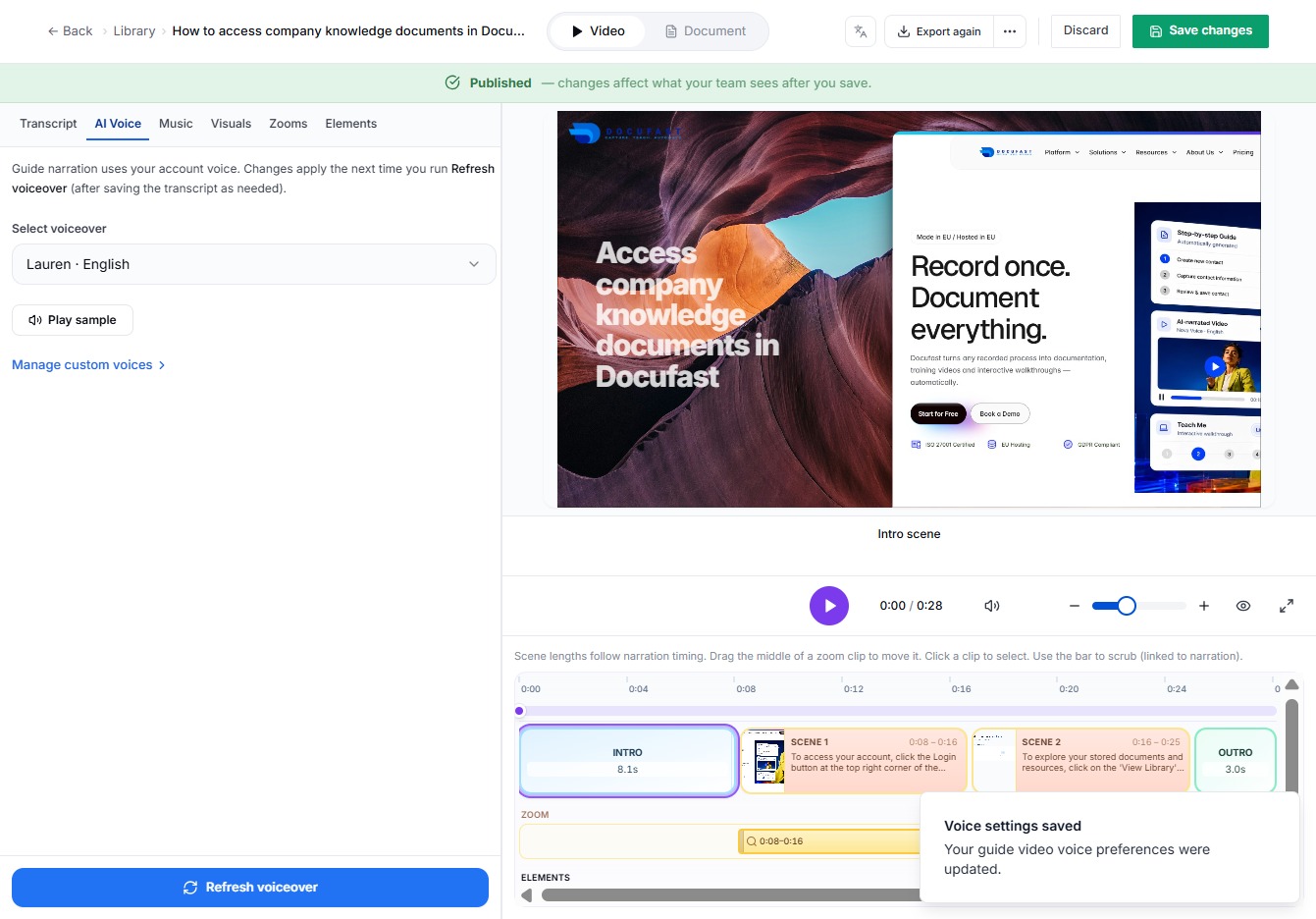
Click Refresh Voiceover
By clicking the Refresh Voiceover button, you can update the voice settings for your recording, ensuring your audio matches your selected options for a polished final product.
Loading screenshot…
100%
13
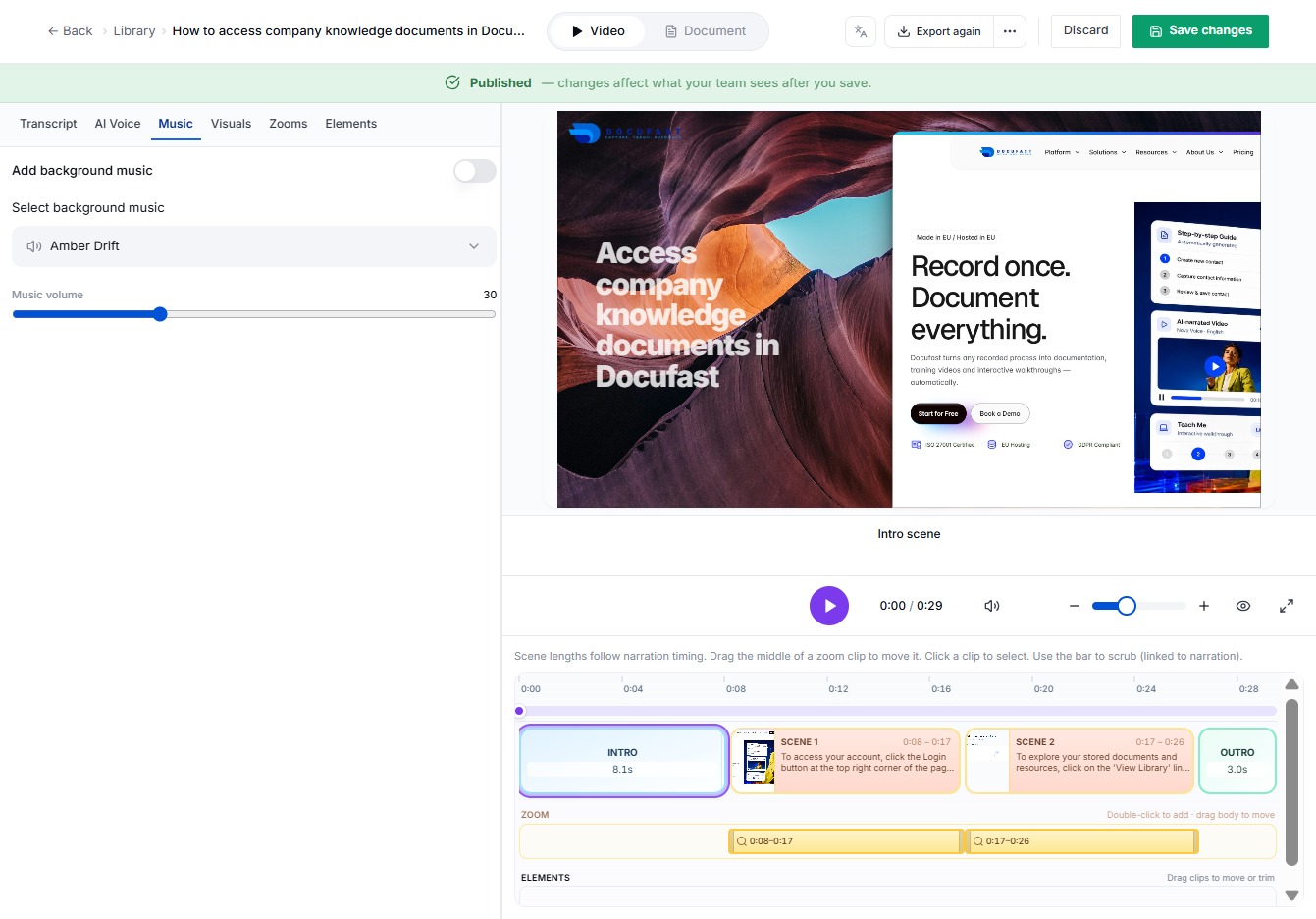
Click Music
In this step, you select the Music option to access audio features for your project, allowing you to enhance your recordings with various soundtracks.
Loading screenshot…
100%
14
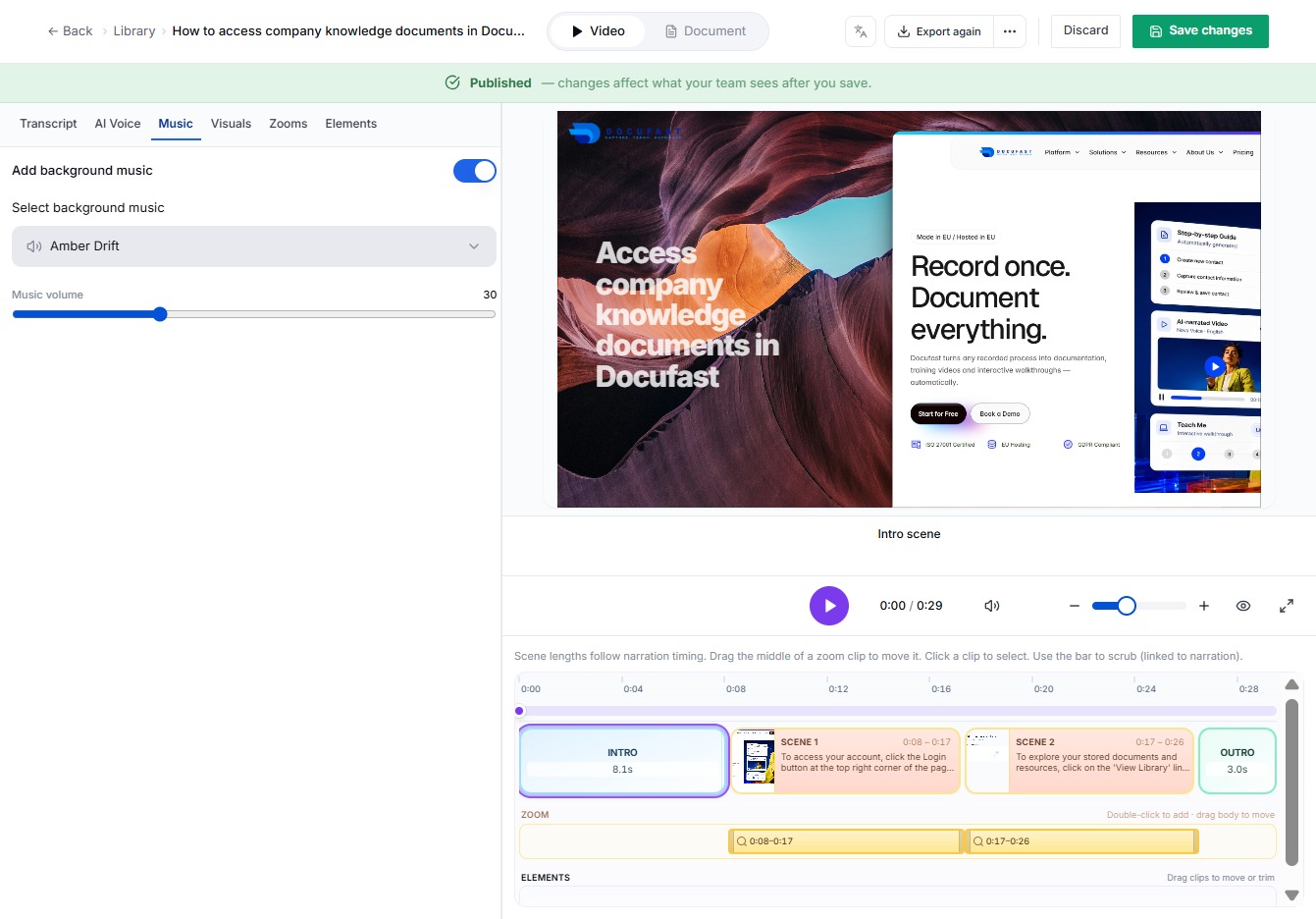
Click Add Background Music
To enhance your video, click on the 'Add background music' button. This opens up options to select different music tracks, allowing you to customize your audio experience.
Loading screenshot…
100%
15
Select Amber Drift Background Music
In this step, you'll choose the Amber Drift track to set as your background music. This enhances your video and adds a customized audio atmosphere, making it more engaging.
Loading screenshot…
100%
16
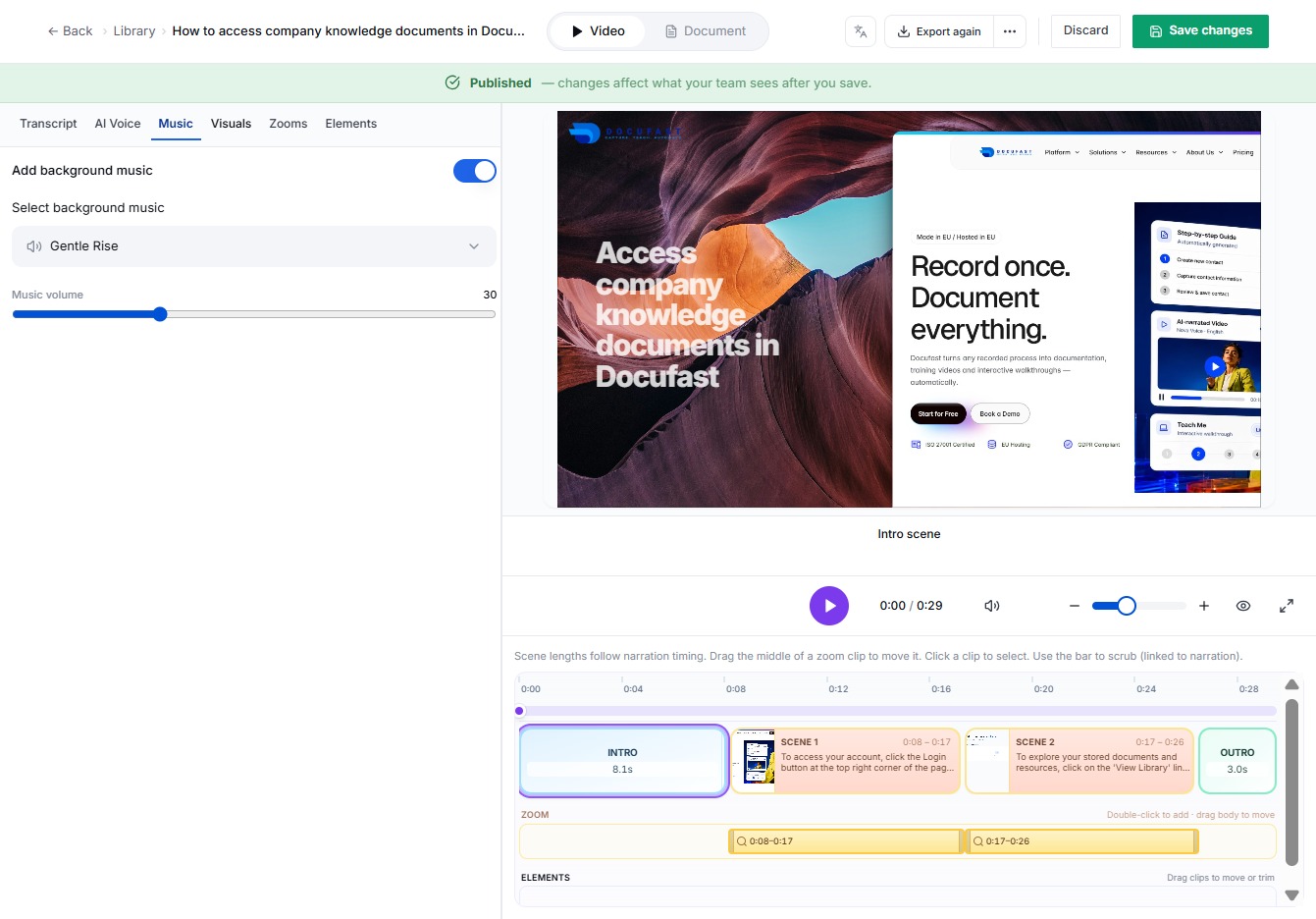
Select Gentle Rise Music
By selecting the Gentle Rise option, you choose a soft and uplifting background track that can enhance the emotional tone of your video. This is a great choice for creating a warm atmosphere.
Loading screenshot…
100%
17
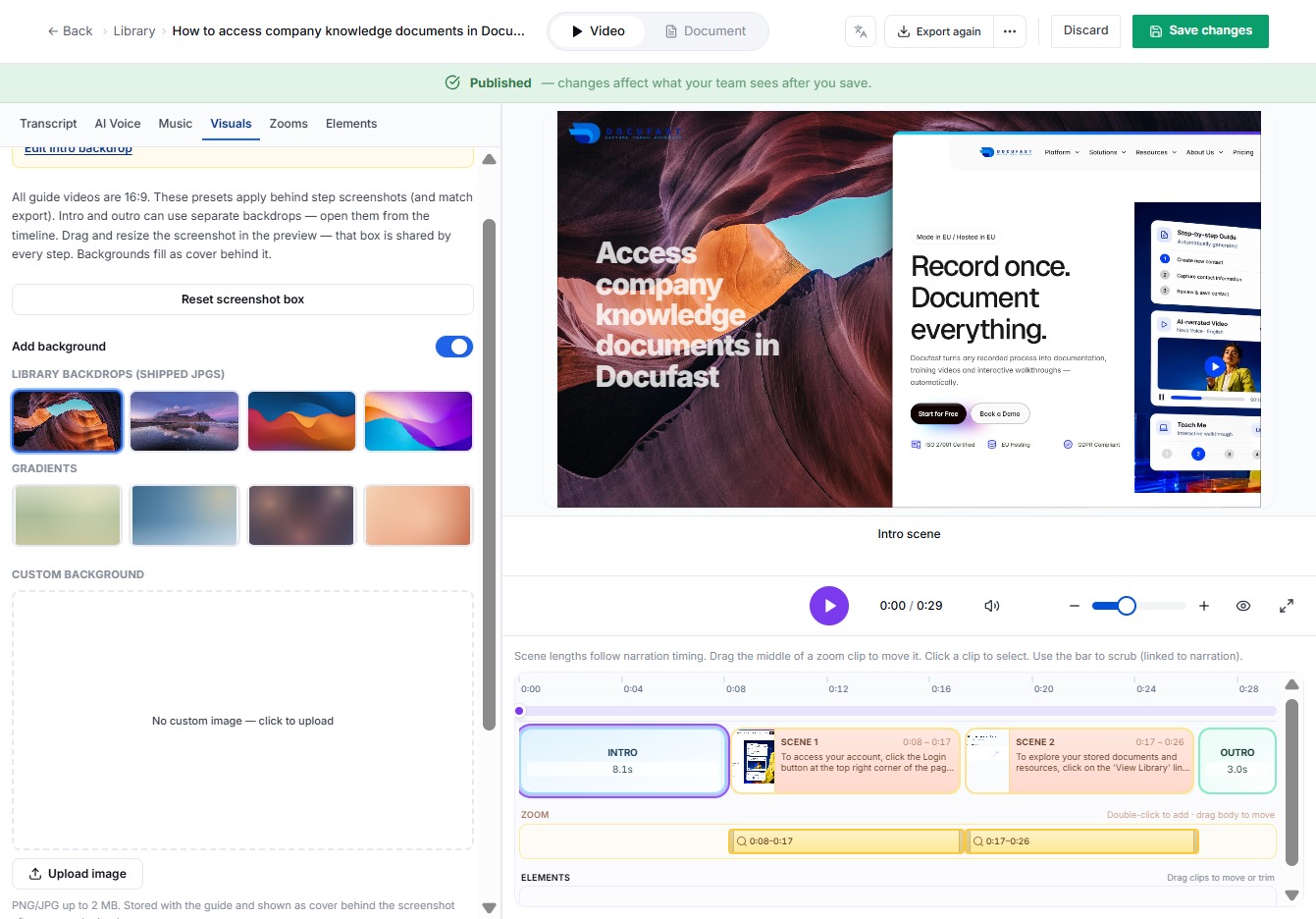
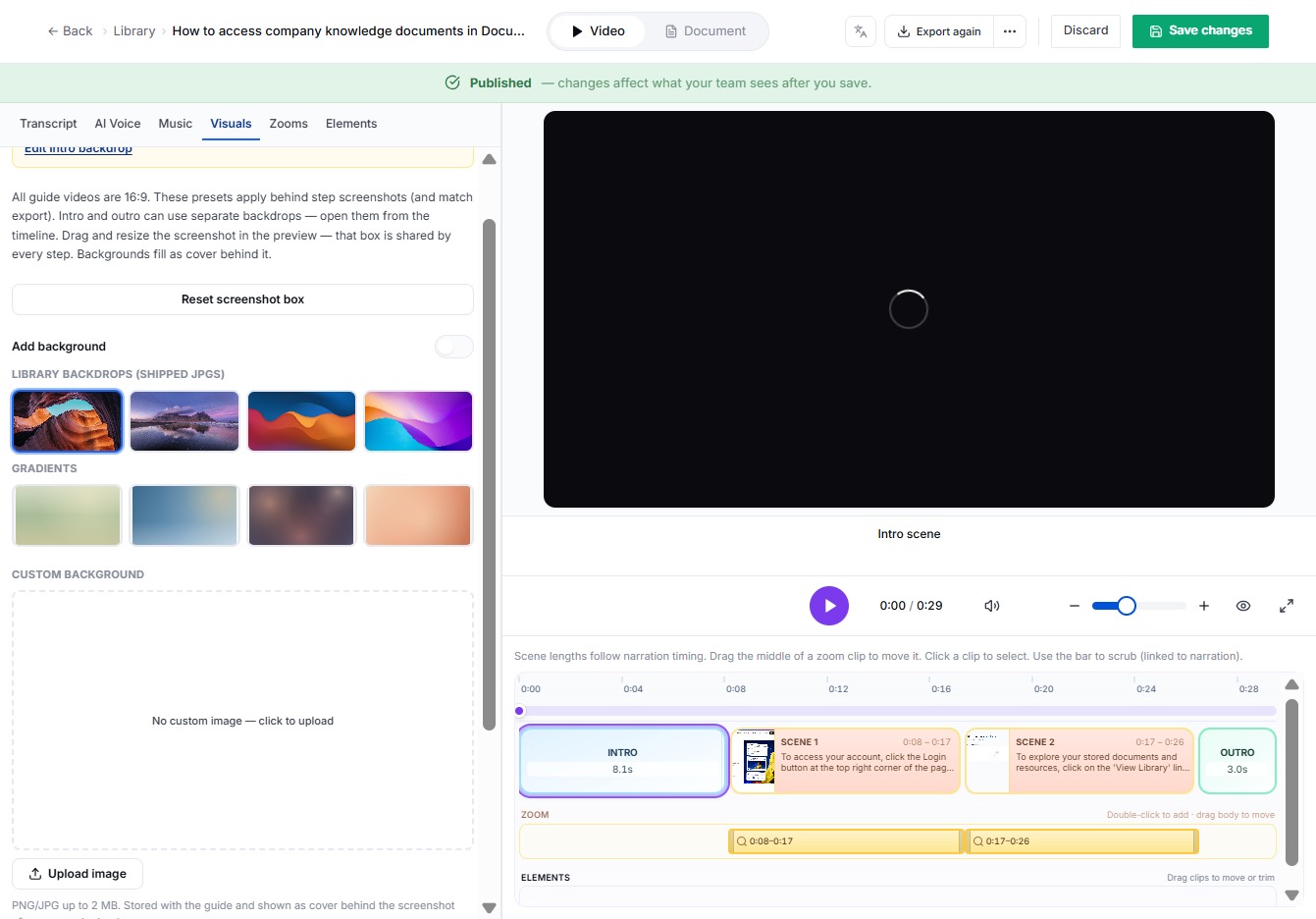
Select Visuals Option
In this section, you can choose the 'Visuals' option to enhance your video by configuring various visual elements that will complement your background music selections.
Loading screenshot…
100%
18
Click Here
You'll need to click the button labeled 'Click here' to proceed with your current workflow. This action allows you to move forward in your project setup.
Loading screenshot…
100%
19
Click Save Changes
To finalize your edits, click the ‘Save changes’ button. This ensures that all adjustments made to your project are preserved and ready for future access.