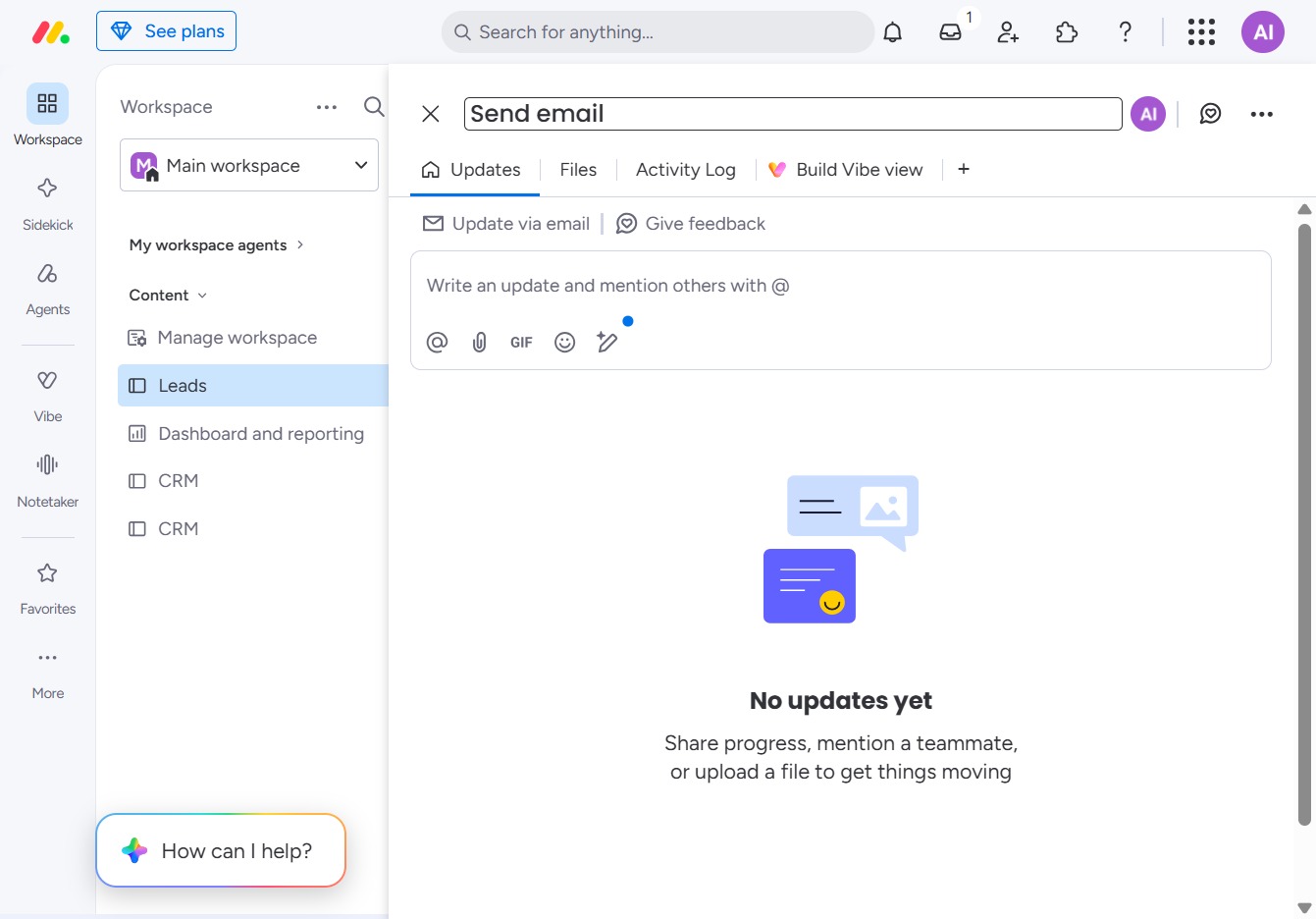
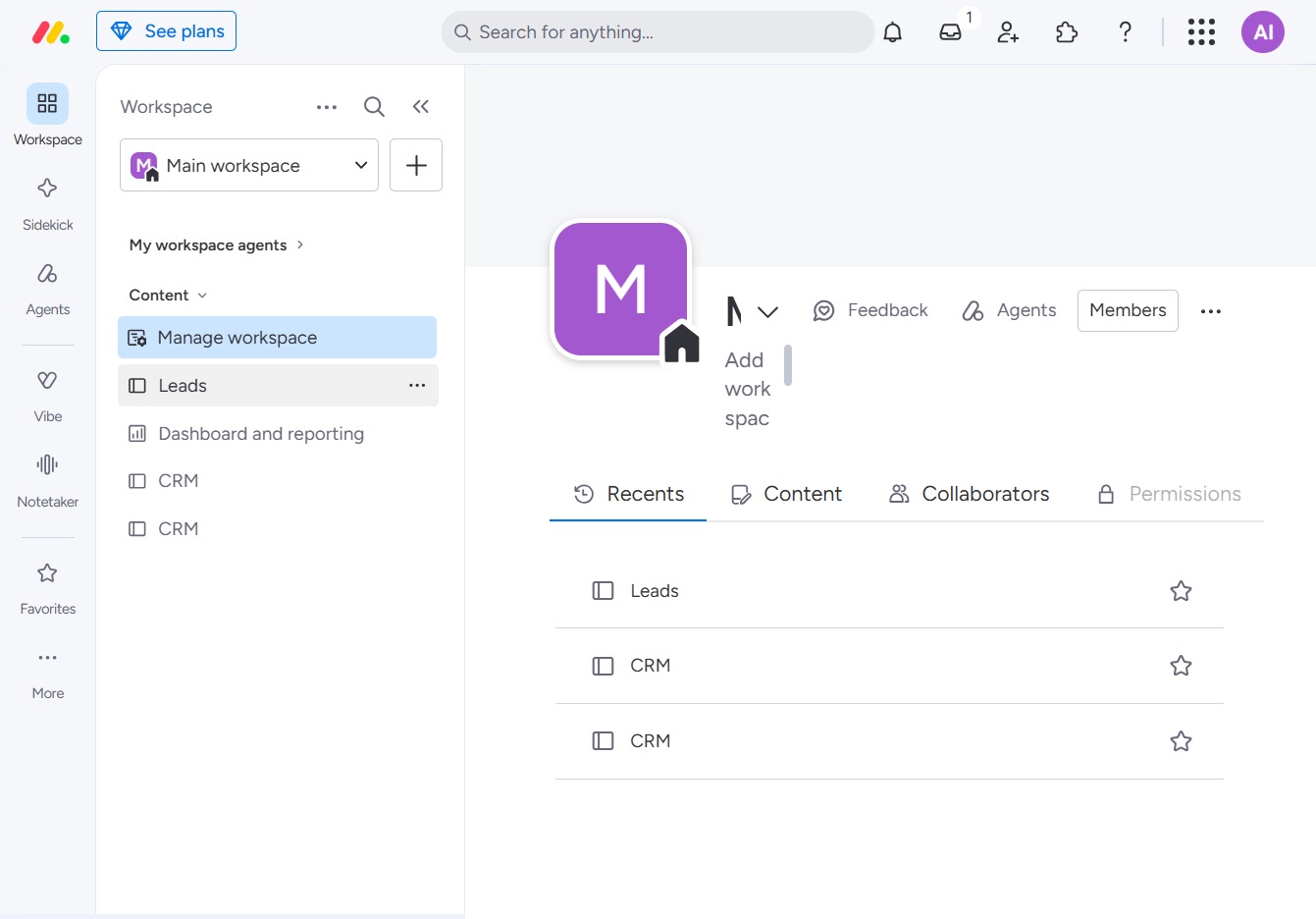
Click the BoardLeads section
This action will navigate you to the BoardLeads area, allowing you to manage your leads effectively in the workspace.
Loading screenshot…
100%
This how-to guide walks you through the steps of editing a task within the BoardLeads area, from accessing the specific task details page to updating information and…
 viktoria
This how-to guide walks you through the steps of editing a task within the BoardLeads area, from accessing the specific task details page to updating information and collaborating with teammates effectively through email. Follow these concise instructions to manage your leads smoothly and enhance your workflow.
This action will navigate you to the BoardLeads area, allowing you to manage your leads effectively in the workspace.
By clicking this link, you will navigate to the specific task details page, allowing you to view and edit the task information.
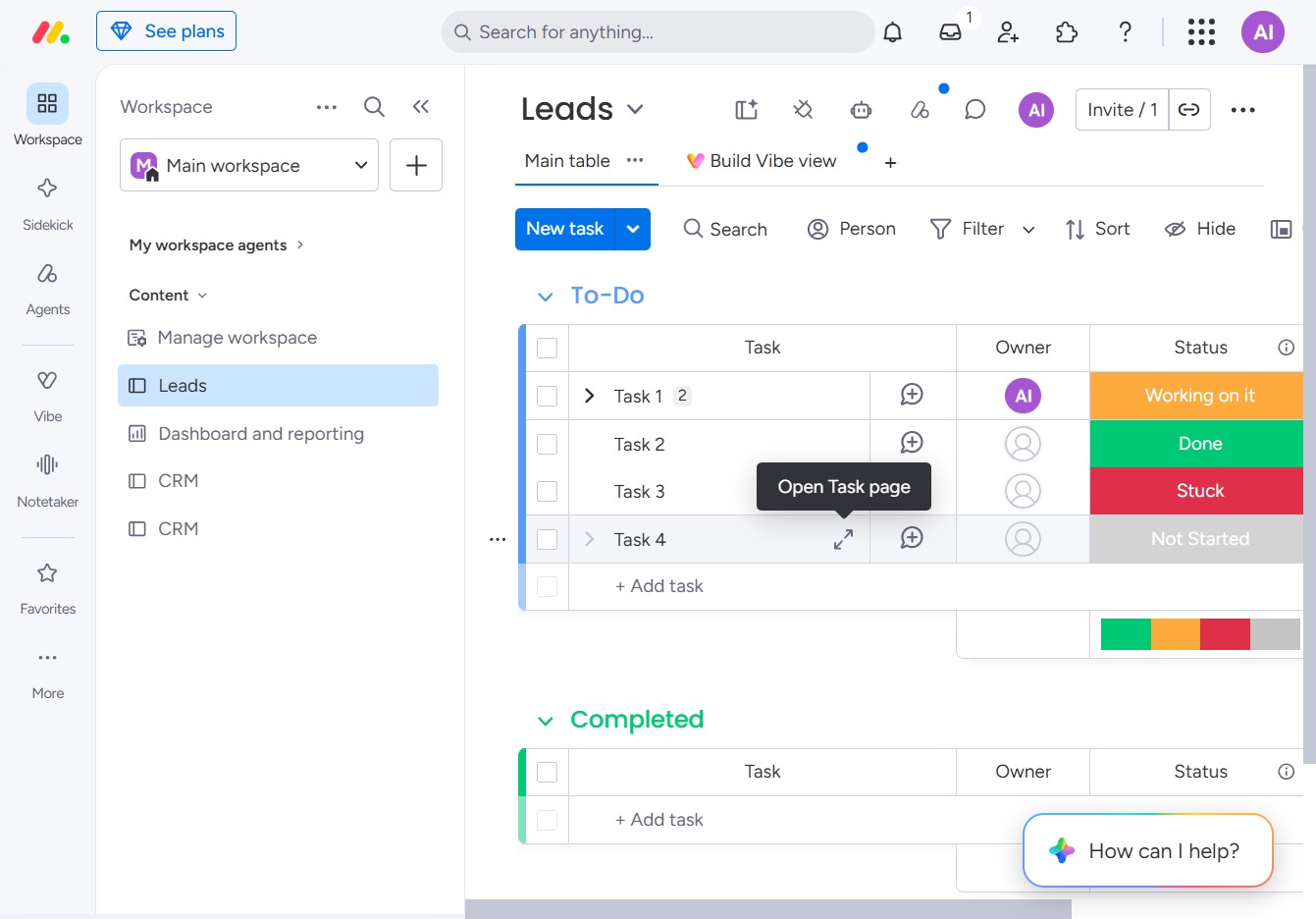
This action opens the Task 4 section where you can write updates and mention teammates to collaborate effectively.

Enter 'Send email' in the Textarea to initiate your communication. This will allow you to write an email update and mention other users as needed.