Click the Reporting option
This will navigate you to the Reporting section, where you can access analytics related to your tasks and meetings.

Loading screenshot…
100%
Customize your dashboard in Reporting by managing its settings, updating the name, owner, and description, and saving these changes to enhance team communication and context.
 viktoria
Customize your dashboard in Reporting by managing its settings, updating the name, owner, and description, and saving these changes to enhance team communication and context.
This will navigate you to the Reporting section, where you can access analytics related to your tasks and meetings.
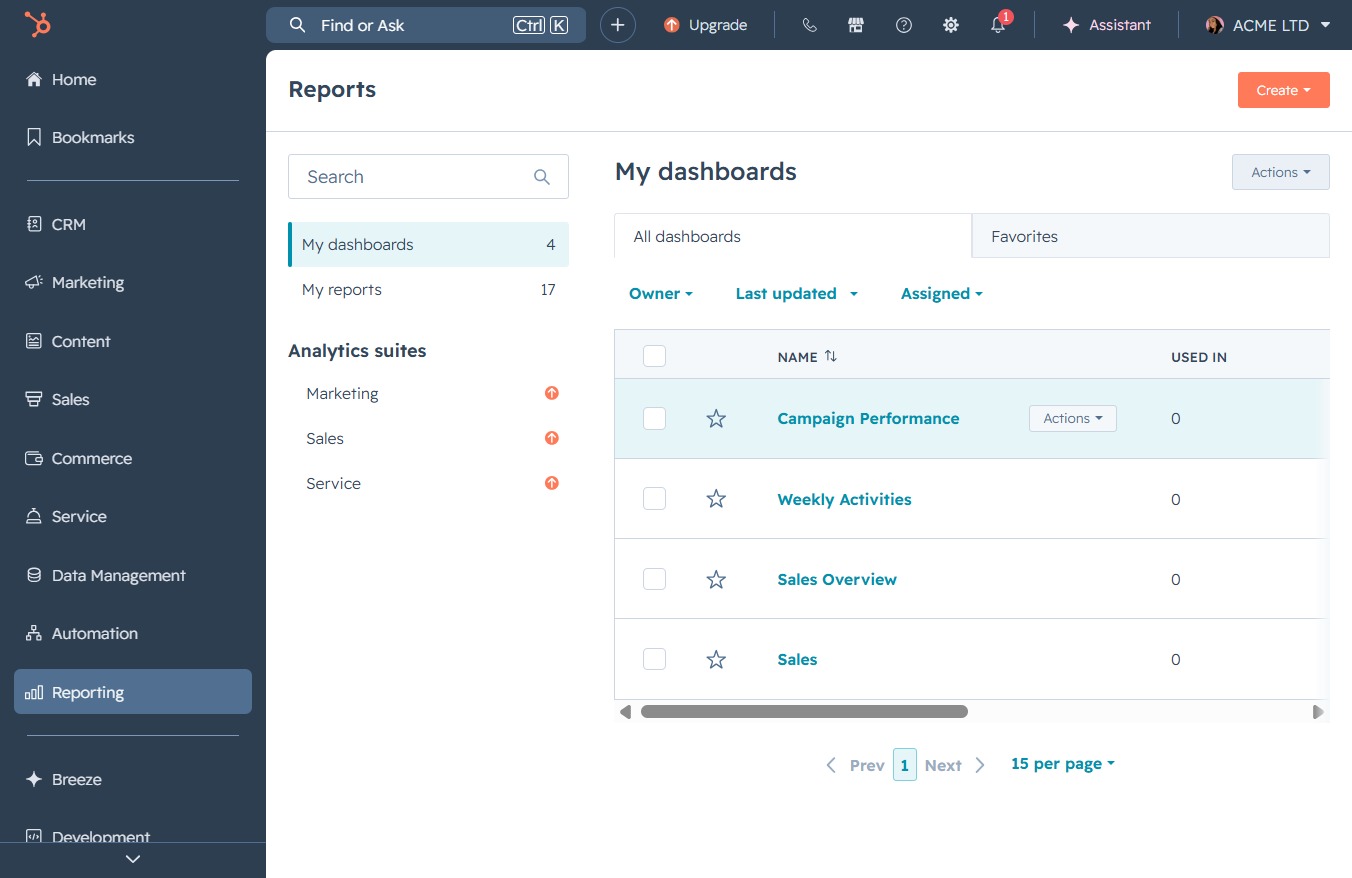
Selecting 'Dashboards' will display customized views of your key performance indicators and analytics, allowing you to monitor your business performance effectively.

Clicking 'Manage dashboards' will allow you to customize your dashboard settings, add new dashboards, or modify existing ones within the Campaign Performance section.
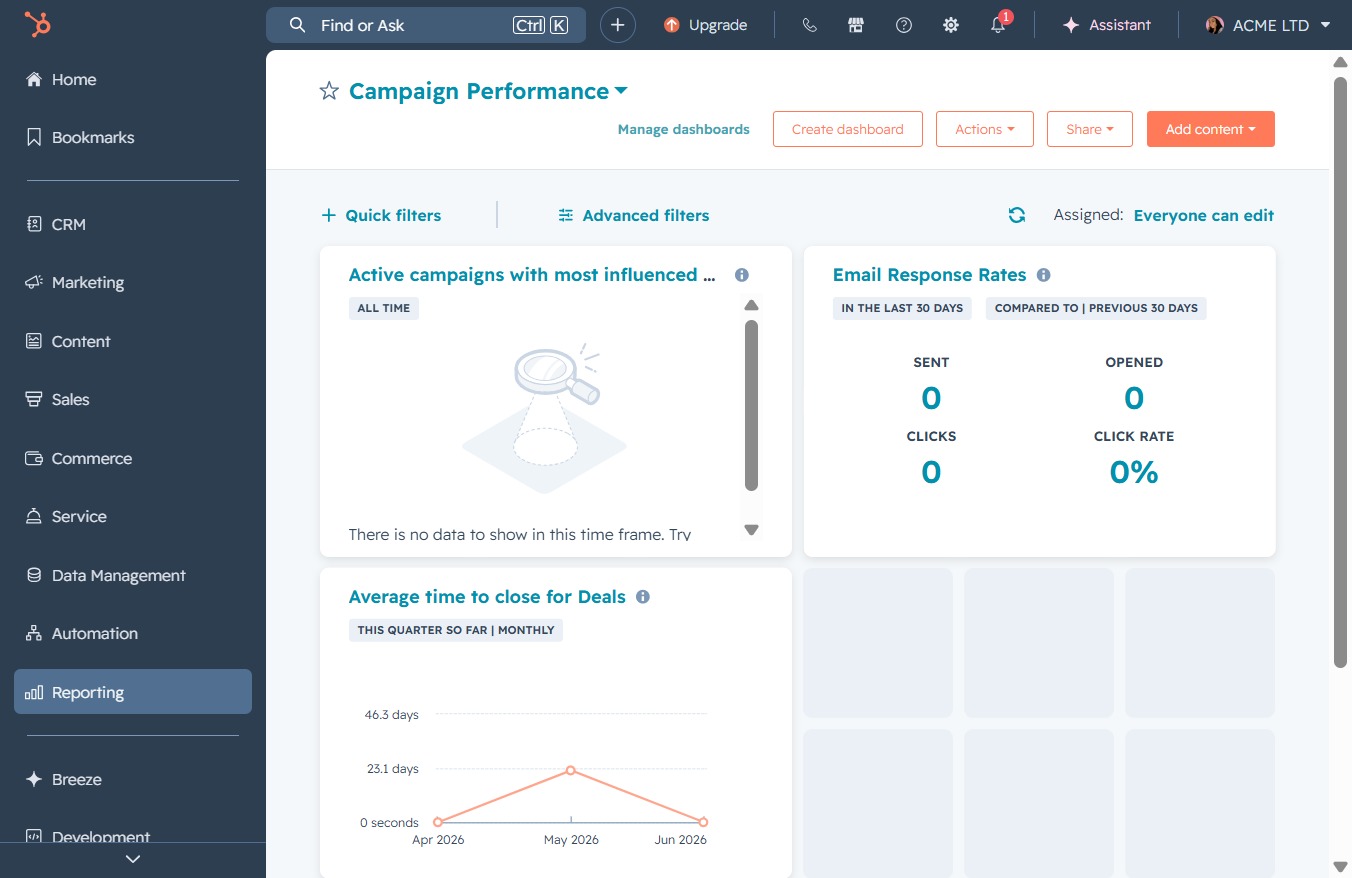
This will display a list of options related to the dashboards, allowing you to manage or organize them effectively.
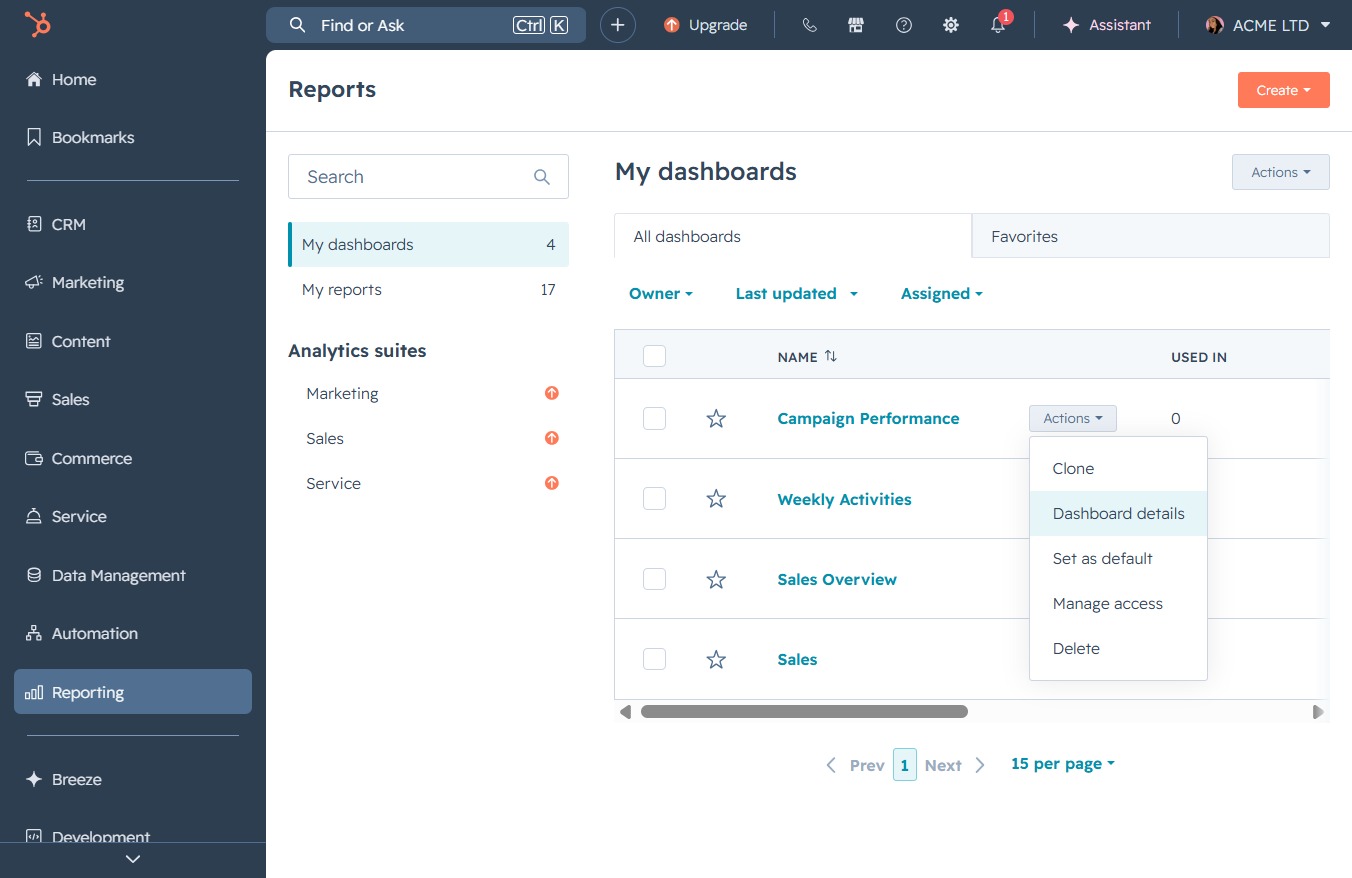
This action opens a detailed view of the selected dashboard, providing insights and configurations related to its performance and usage.
This option will save all the modifications made to the dashboard details, including the name, owner, and description.
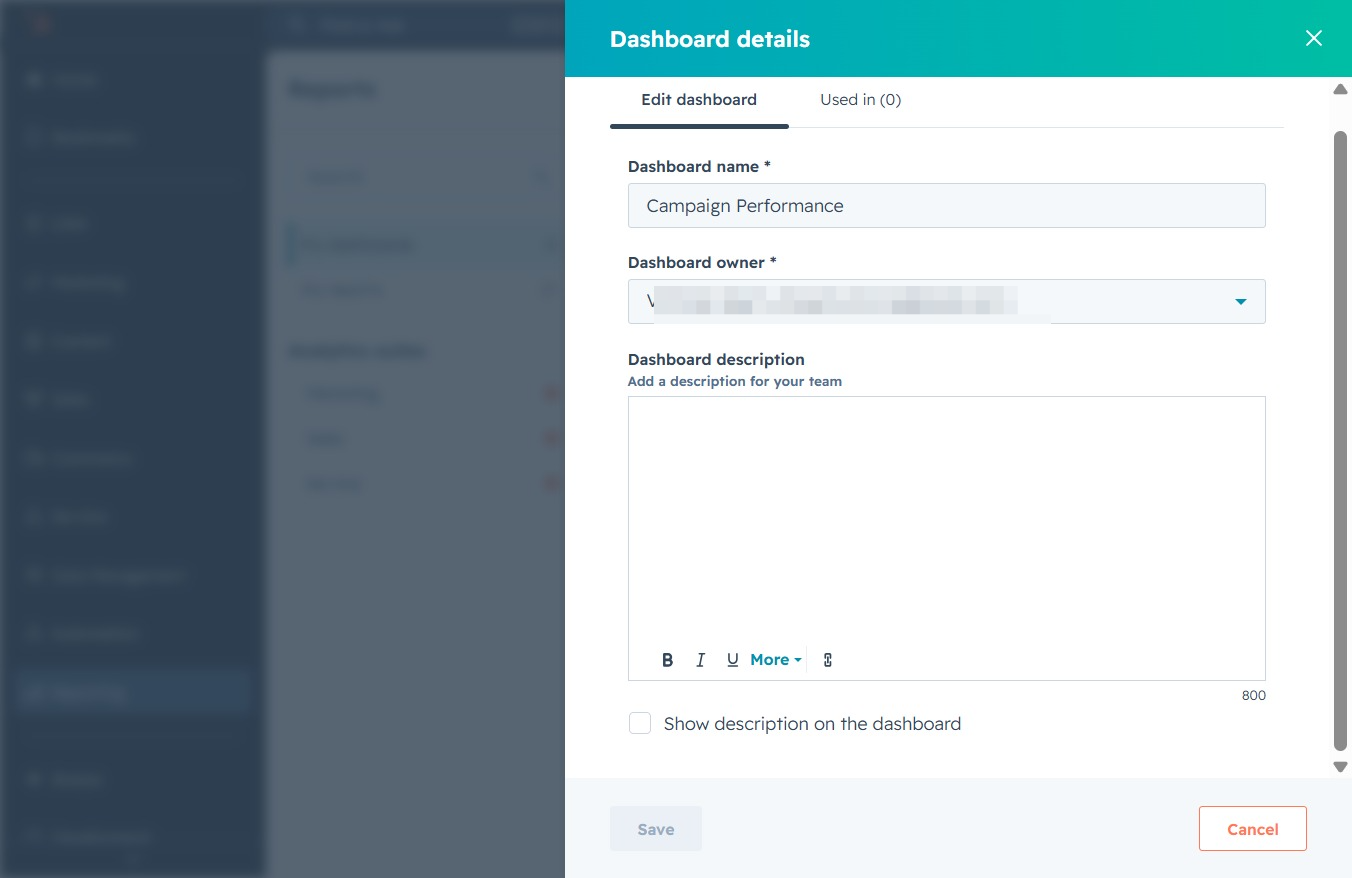
Enter a brief description for your dashboard to provide context for your team. This description will help users understand the purpose and focus of the dashboard.
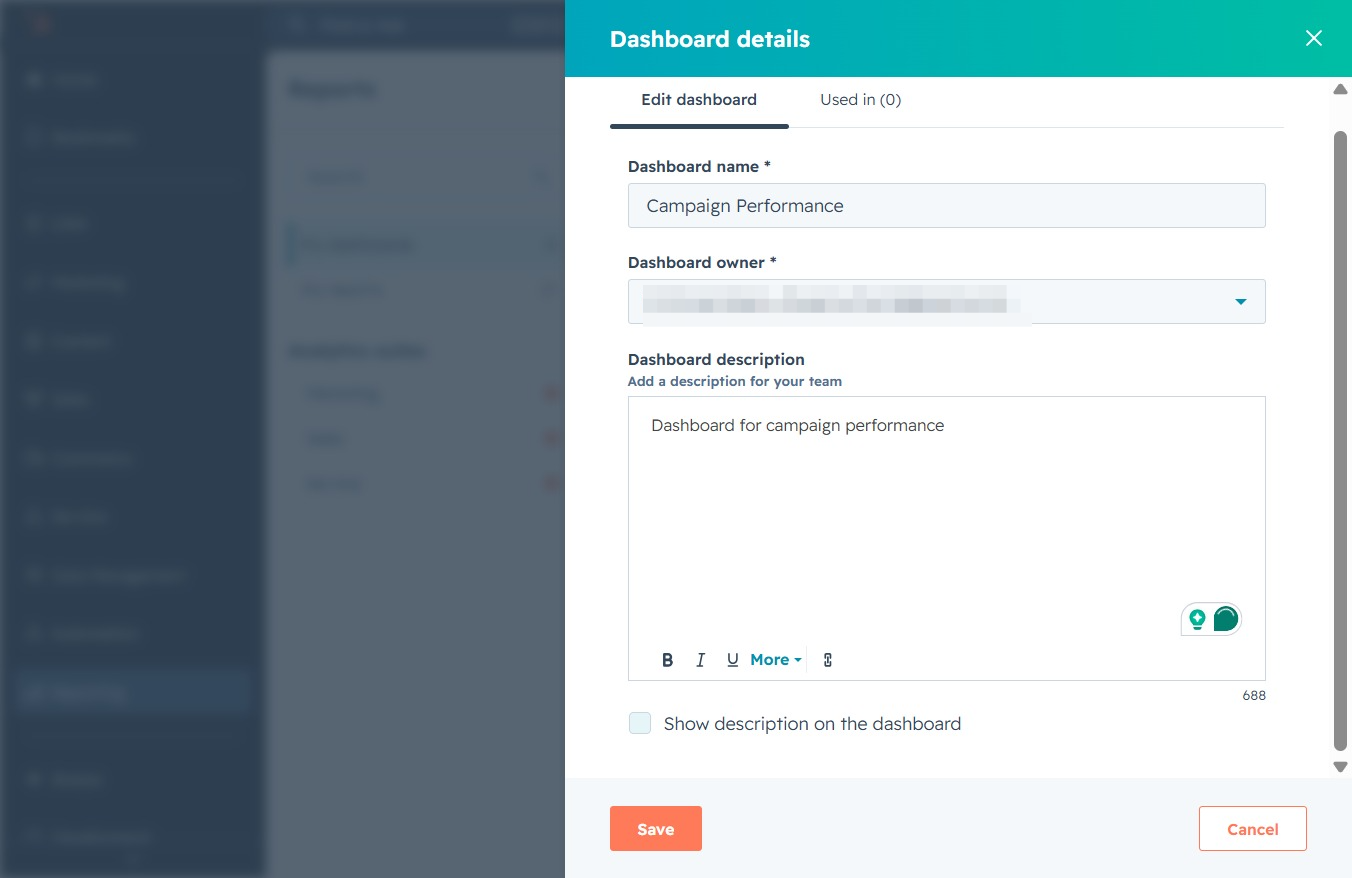
After clicking this option, your updates to the dashboard name, owner, and description will be saved. This ensures your dashboard reflects the latest details for your team.
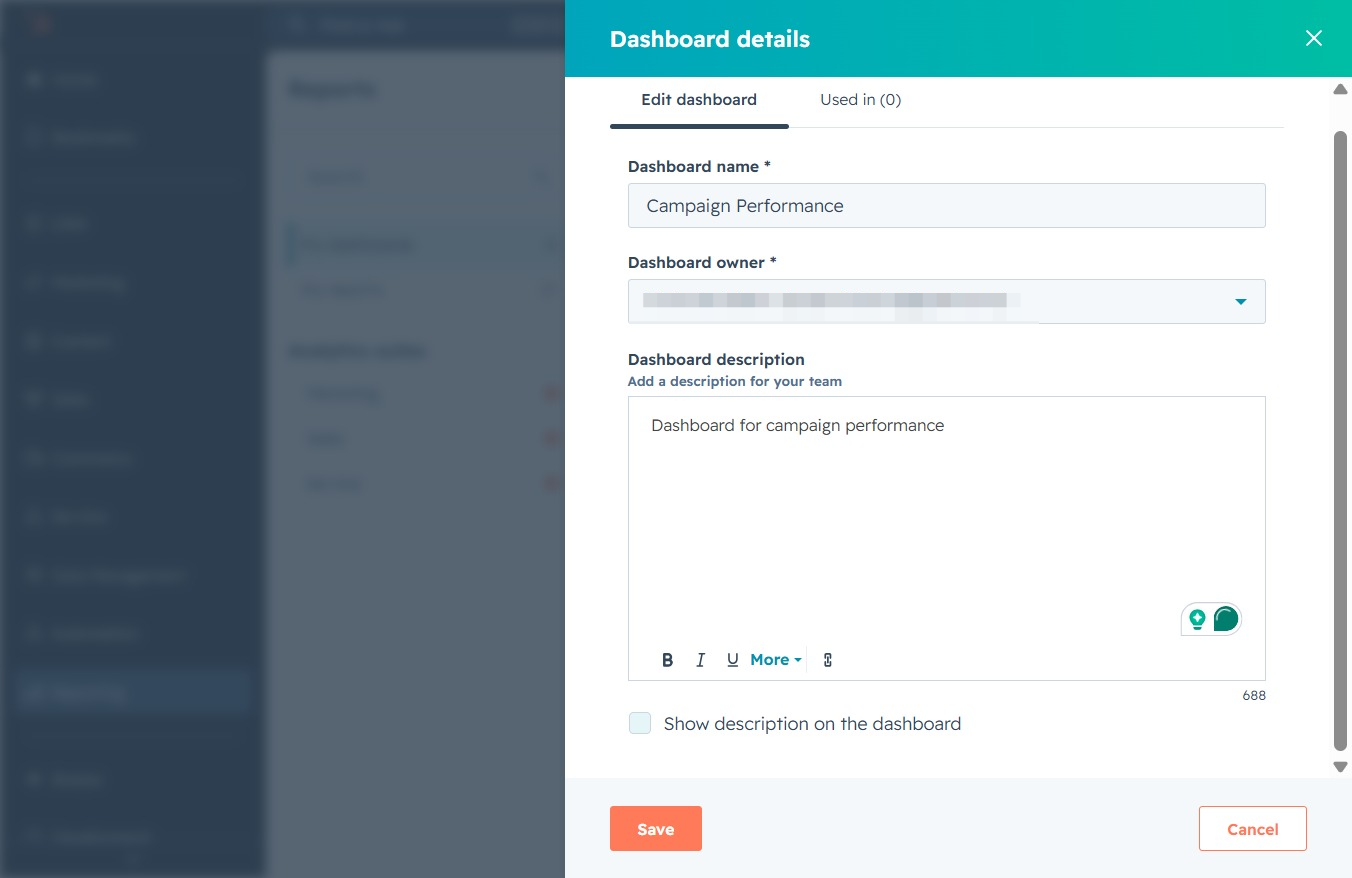
Clicking 'Save' will finalize your changes to the dashboard details, including the name, owner, and description.
