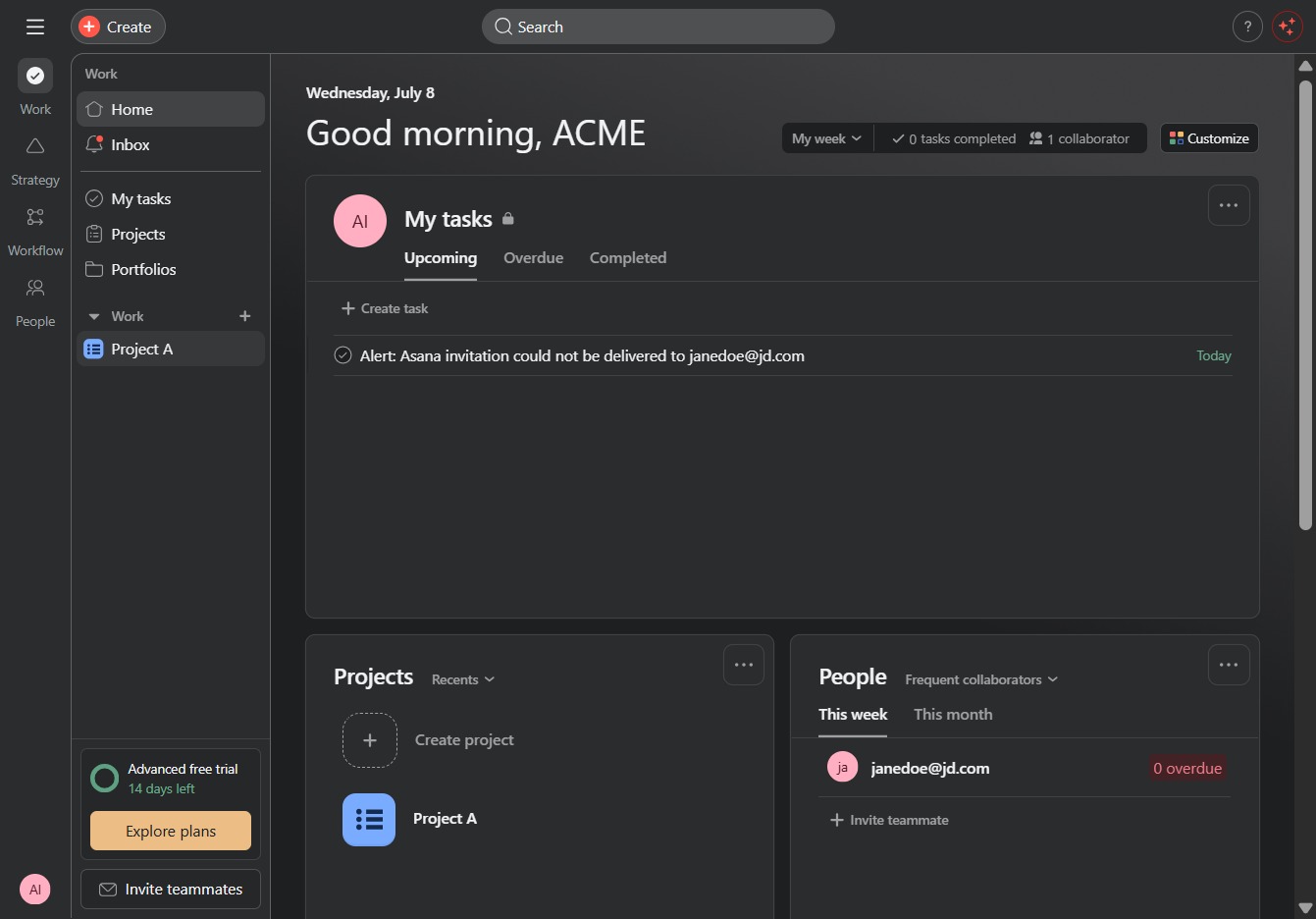
Click Project A
Clicking on 'Project A' will take you to the project's details, where you can view tasks, updates, and collaborate with team members.
Loading screenshot…
100%
Learn how to efficiently duplicate a task within your project management tool by following these simple steps.
 viktoria
Learn how to efficiently duplicate a task within your project management tool by following these simple steps. This guide will walk you through accessing project details, creating a new task, and replicating existing task information to save you time and effort.
Clicking on 'Project A' will take you to the project's details, where you can view tasks, updates, and collaborate with team members.
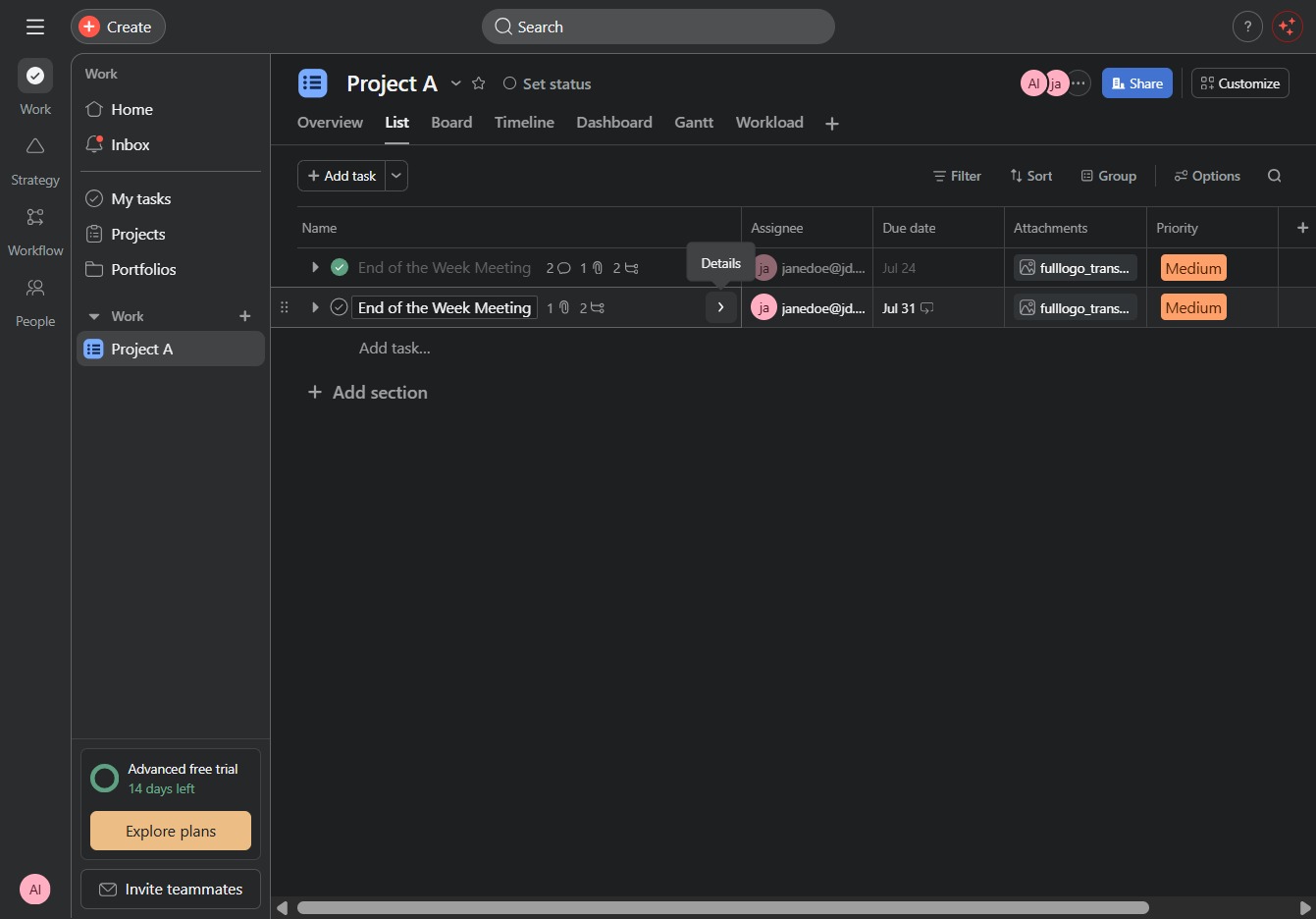
Clicking this button allows you to create a new task in the selected project. You can then assign details such as the task name, due date, and priority.
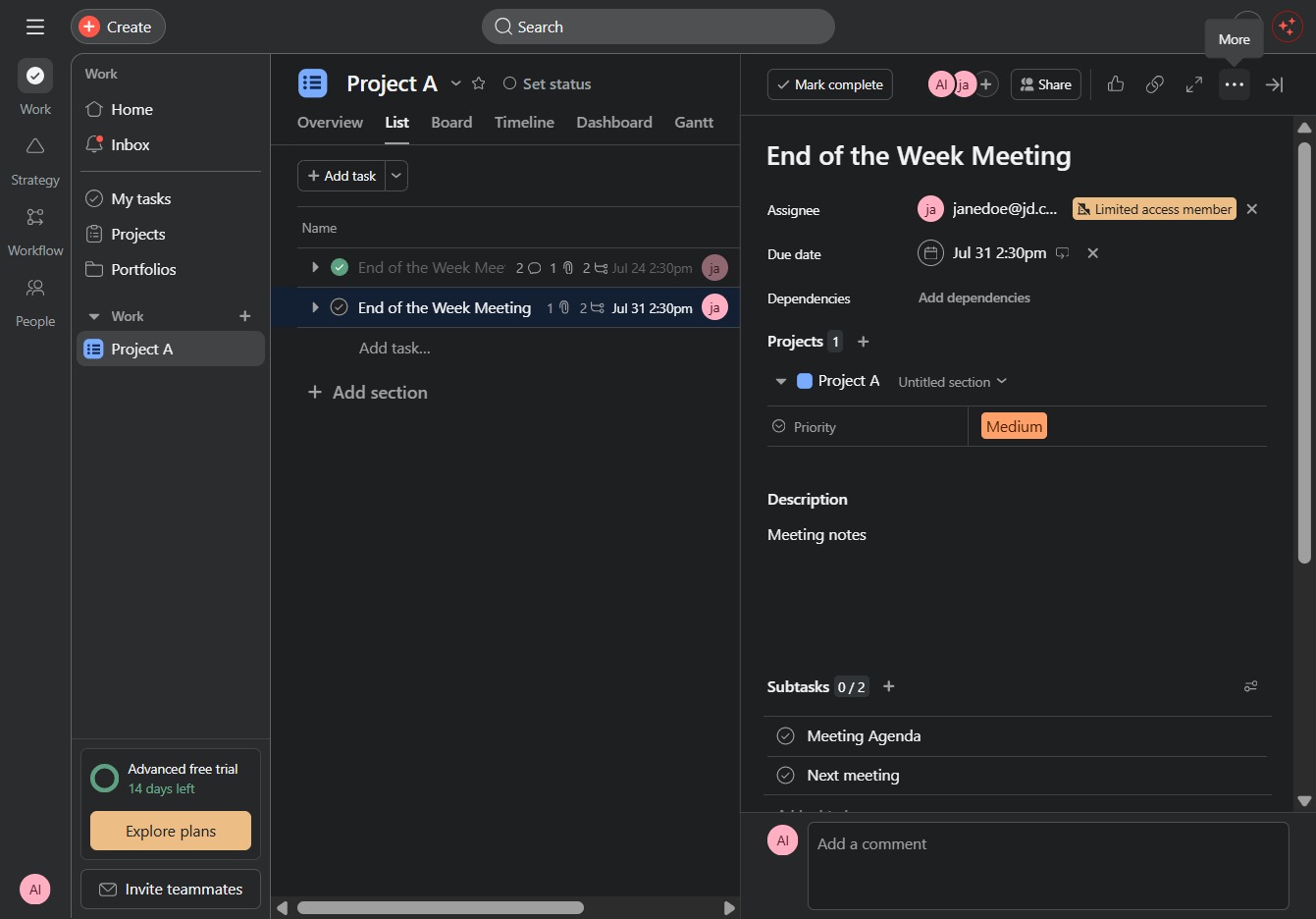
This action will direct you to additional options or information relevant to the current task or project.
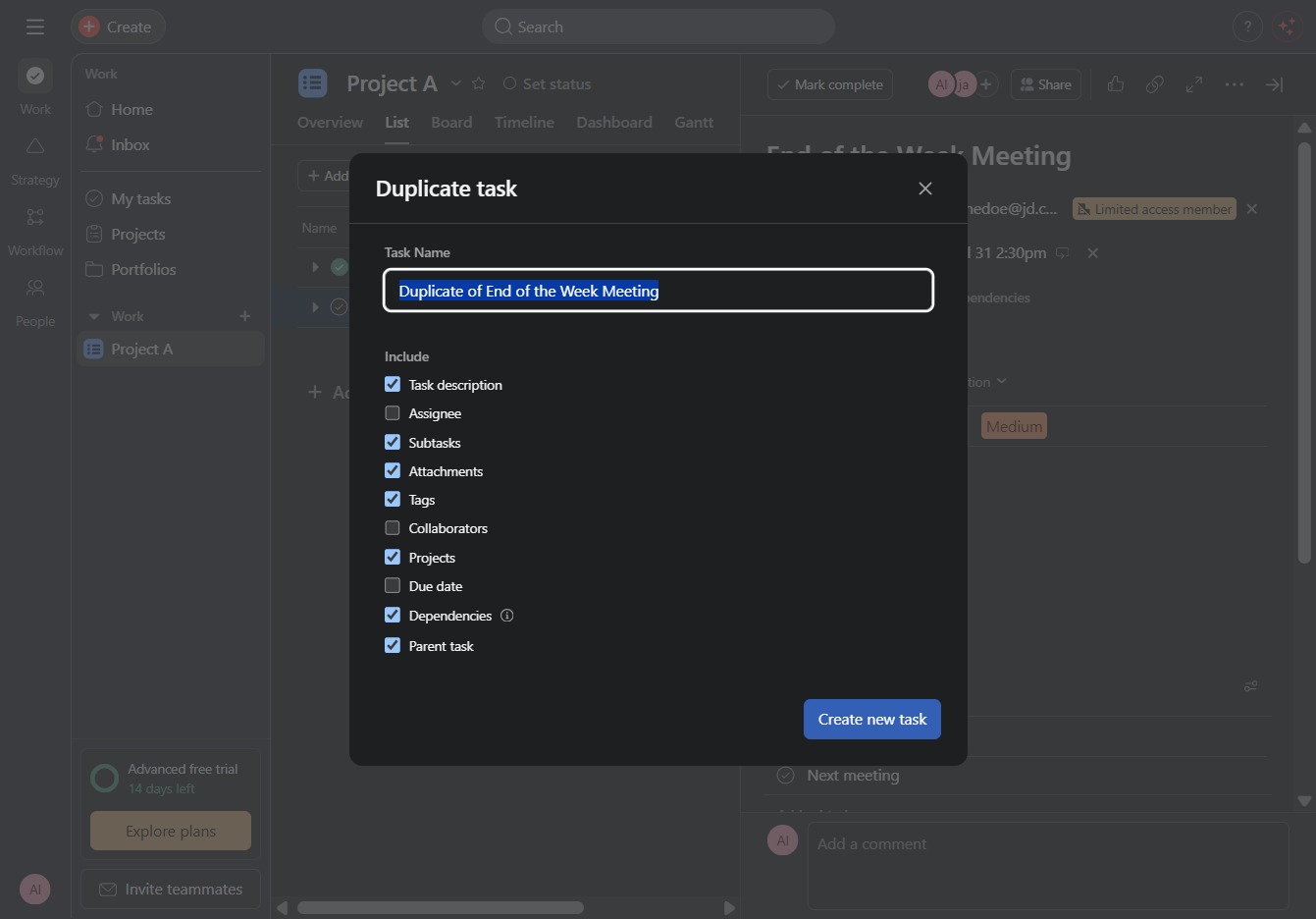
This action will create a copy of the selected task, allowing you to easily replicate its details without manually entering them again.
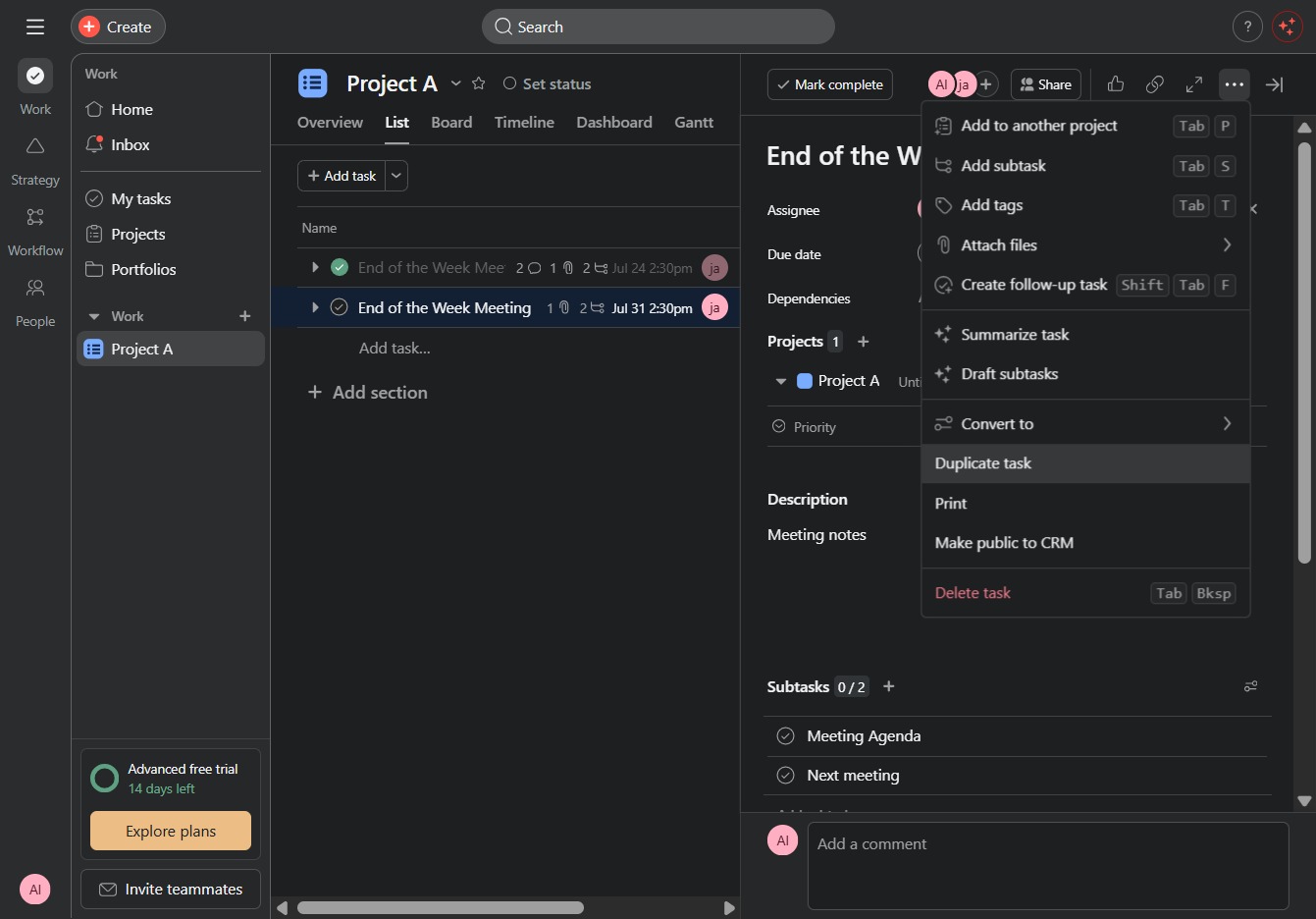
By clicking this button, you will finalize the creation of a new task with the specified details, including task name and any selected options from the duplicates.